1
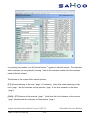
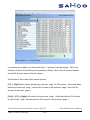
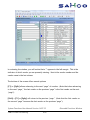
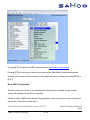
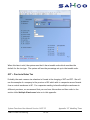
Pressing [F2] lets you see the 80 columns on the right, instead of the 80 in the left. Using
[F2] you can shift back and forth as many times as you like. Pressing [F1] again will cause
the report to continue displaying.
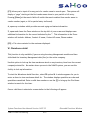
The [F3] key will allow you to go backwards through the report printed to screen. This is
especially useful if you are printing a report to screen and miss the information you were
looking for.
When you post transactions, you are not allowed to display the report. It must be printed,
in order to preserve the audit trail.
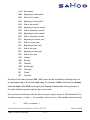
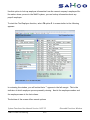
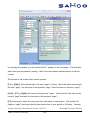
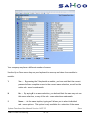
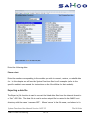
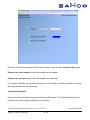
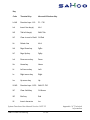
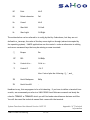
D. Print to disk: at the printer selection screen select D to store the report on disk.
F. Print to file: this will print the report to a text file, you will be asked to choose the path
and file name to which you wish to save the text file. If your workstation is configured to
use the correct program for this file type, the file will open automatically using that
application.
P. Print to PDF: Similar to “F. Print to file” prints to a text file this will print to a PDF file.
H. Print to HTML: Similar to “F. Print to file” prints to a text file this will print to an HTML
file.
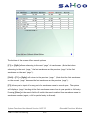
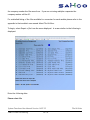
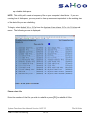
X. Export: Selecting the X. Export printer will prompt you for a directory path location and
file name to export the .tab file to. A suggested name is made based on the report and you
can choose to use this suggestion by pressing [F1].
Mirrored Reports
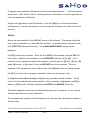
Report mirroring is a built in security system to prevent you from losing valuable audit
reports. Essentially, if turned on in the Company file, every time you “post” transactions, a
mirrored copy of the register is printed to disk. Should your printer jam or mangle the
report, you can quickly recover by printing the report from disk.
System Functions User Manual Version 14.07.35
SAMCO Power Accounting
2.27
General Rules