1
2-1 Screen Structure and Functions of D300win
Help
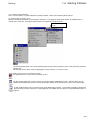
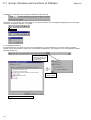
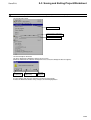
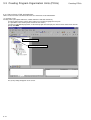
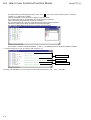
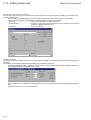
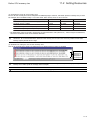
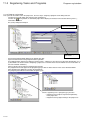
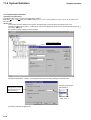
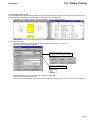
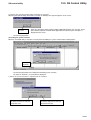
2-1-8 Status bar
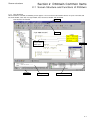
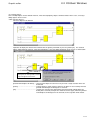
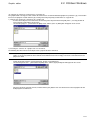
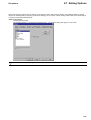
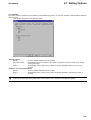
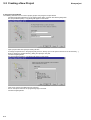
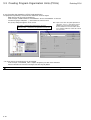
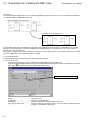
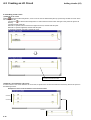
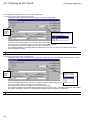
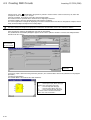
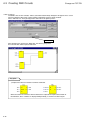
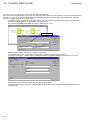
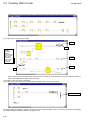
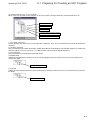
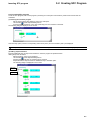
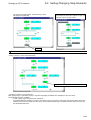
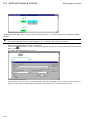
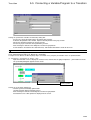
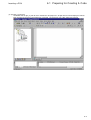
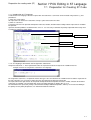
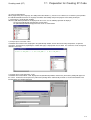
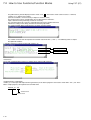
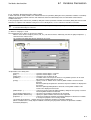
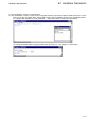
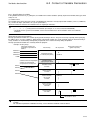
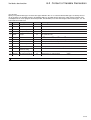
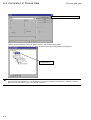
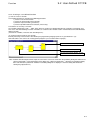
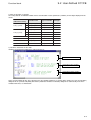
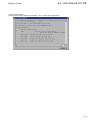
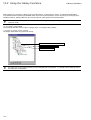
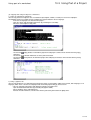
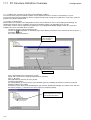
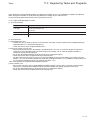
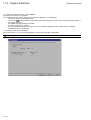
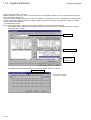
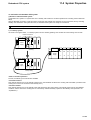
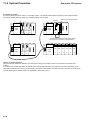
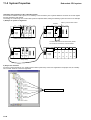
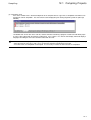
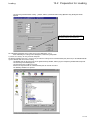
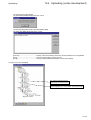
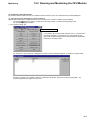
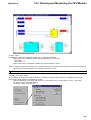
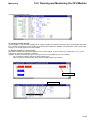
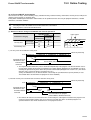
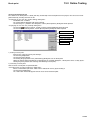
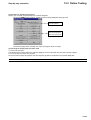
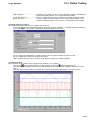
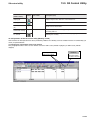
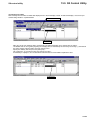
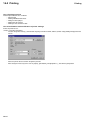
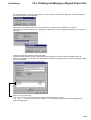
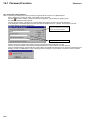
During D300win operation, various messages are displayed in the status bar.
In the lower left corner in the status bar, information on the executed operation or a D300win system message (the content of
mouse instruction) is displayed.
For example, when a certain menu item is selected, the information related to this menu item is displayed in the status bar.
On the right, the available RAM memory is displayed. The rightmost field is used to show the D300win starting process.
2-1-9 D300win help function
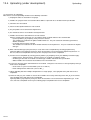
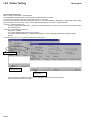
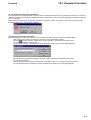
The D300win help function provides information related to general operations, descriptions of commands necessary to create
programs, and information related to IEC 61131-3.
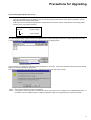
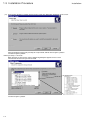
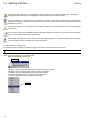
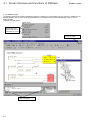
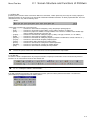
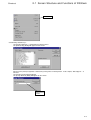
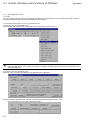
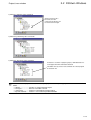
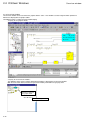
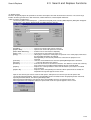
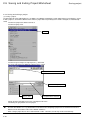
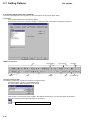
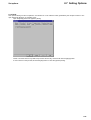
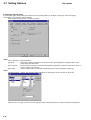
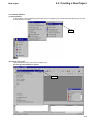
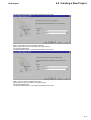
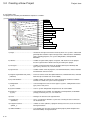
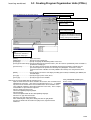
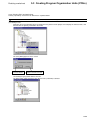
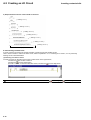
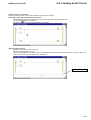
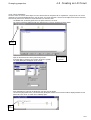
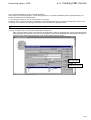
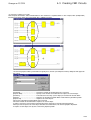
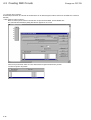
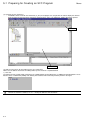
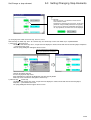
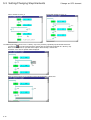
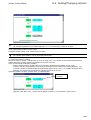
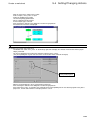
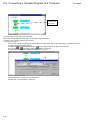
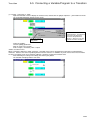
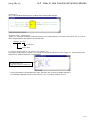
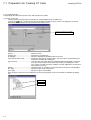
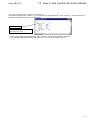
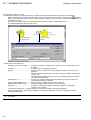
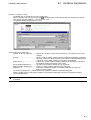
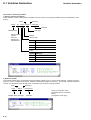
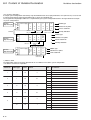
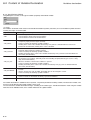
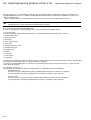
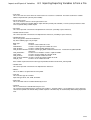
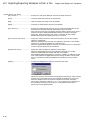
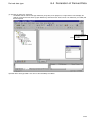
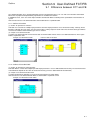
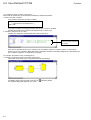
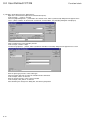
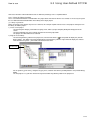
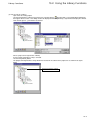
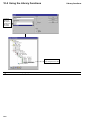
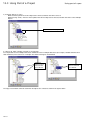
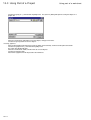
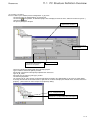
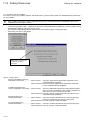
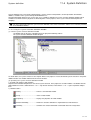
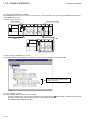
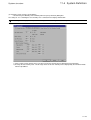
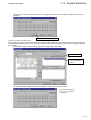
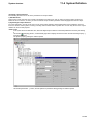
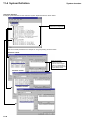
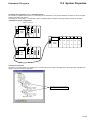
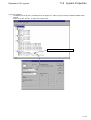
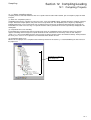
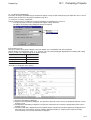
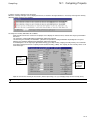
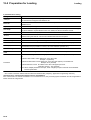
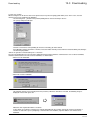
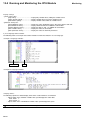
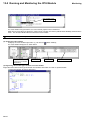
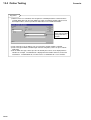
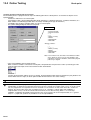
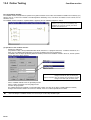
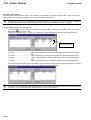
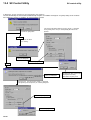
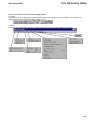
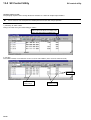
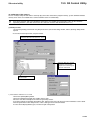
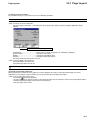
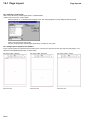
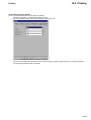
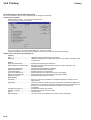
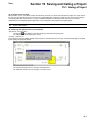
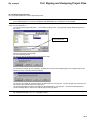
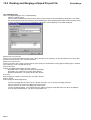
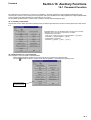
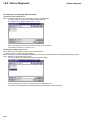
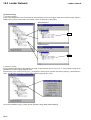
(1) How to display the Help window
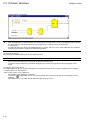
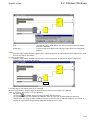
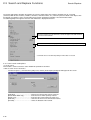
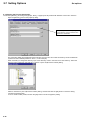
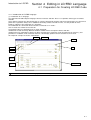
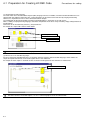
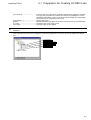
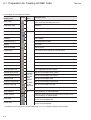
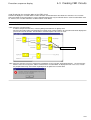
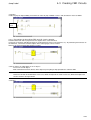
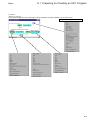
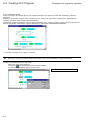
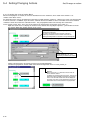
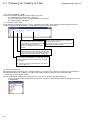
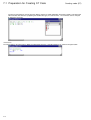
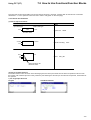
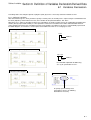
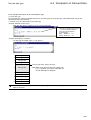
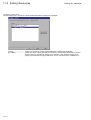
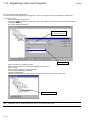
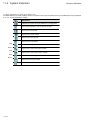
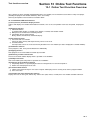
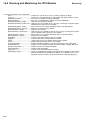
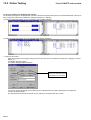
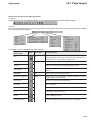
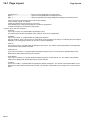
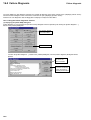
Left-click the [Help] menu.
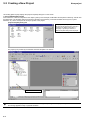
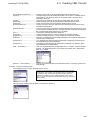
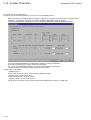
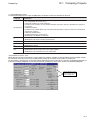
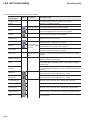
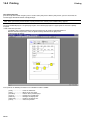
Used to display contents or search keyword.
Explains the concept and terminology of IEC 61131-3 standard.
Displays the content of the currently selected object.
Displays the content of the active window.
Explains individual function block or functions and how to use them.
Displays version data.
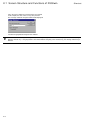
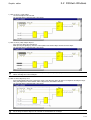
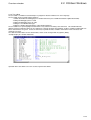
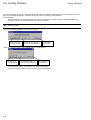
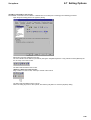
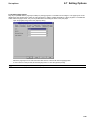
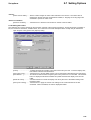
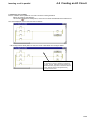
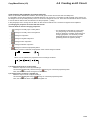
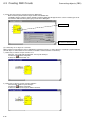
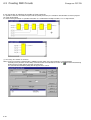
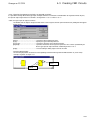
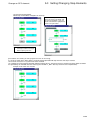
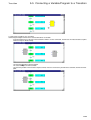
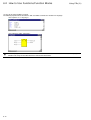
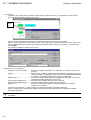
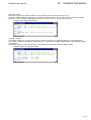
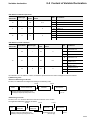
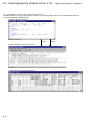
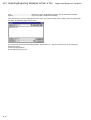
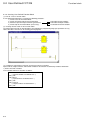
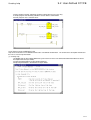
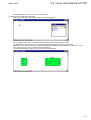
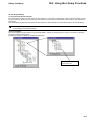
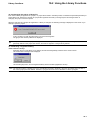
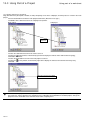
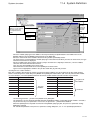
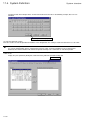
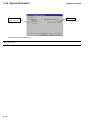
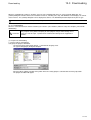
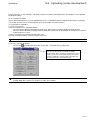
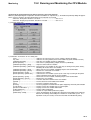
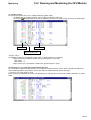
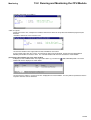
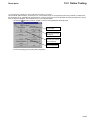
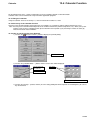
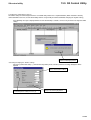
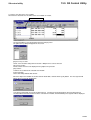
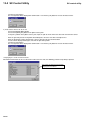
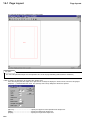
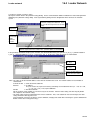
Key-point:
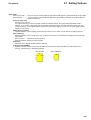
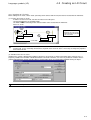
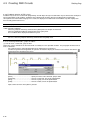
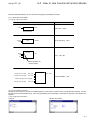
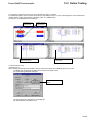
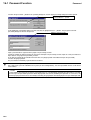
When an underlined word or phrase is displayed in green in the help window (which is
displayed with the help command), it means that there is additional related information for the
item. To reference the additional information, left-click the word or phrase.
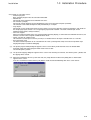
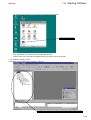
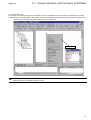
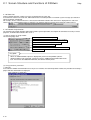
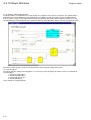
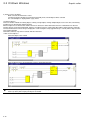
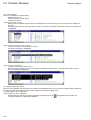
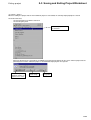
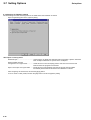
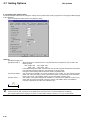
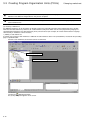
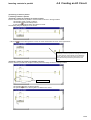
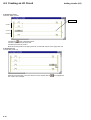
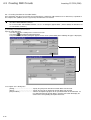
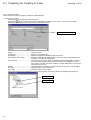
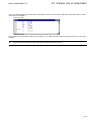
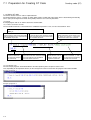
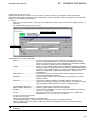
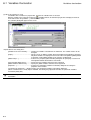
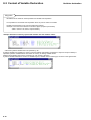
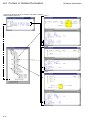
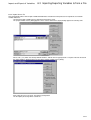
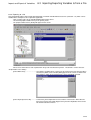
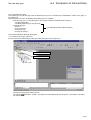
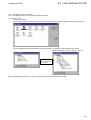
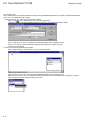
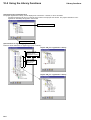
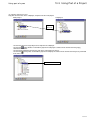
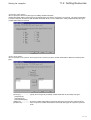
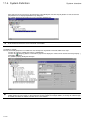
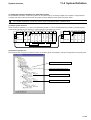
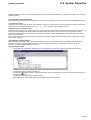
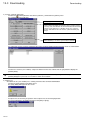
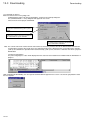
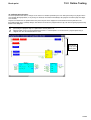
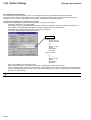
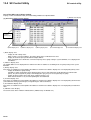
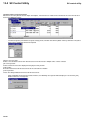
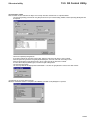
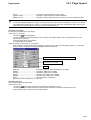
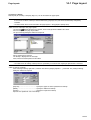
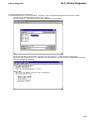
(2) Using [Contents] command
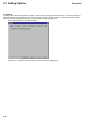
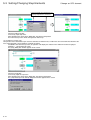
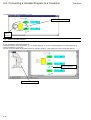
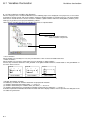
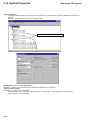
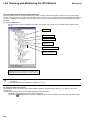
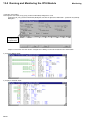
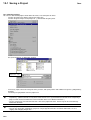
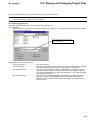
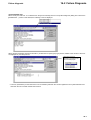
1) Contents
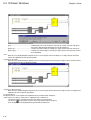
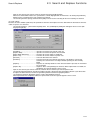
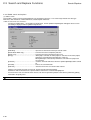
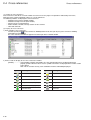
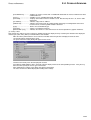
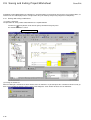
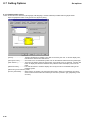
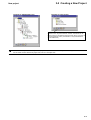
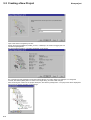
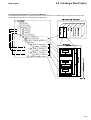
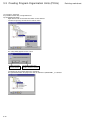
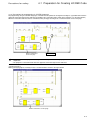
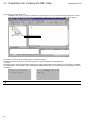
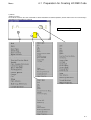
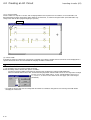
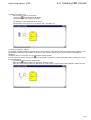
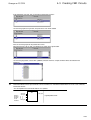
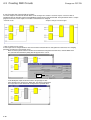
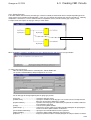
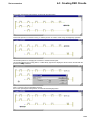
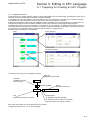
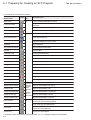
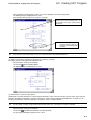
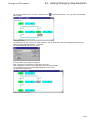
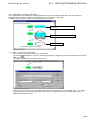
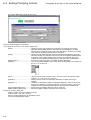
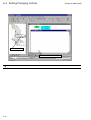
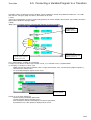
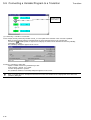
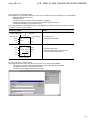
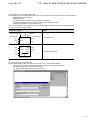
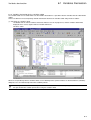
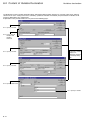
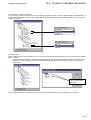
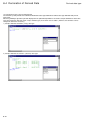
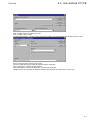
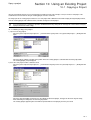
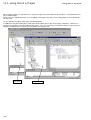
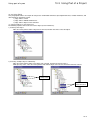
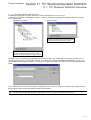
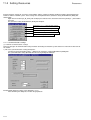
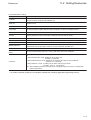
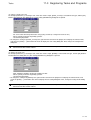
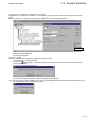
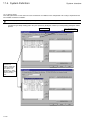
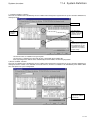
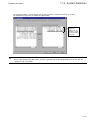
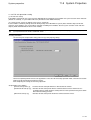
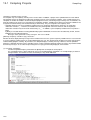
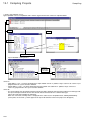
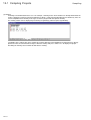
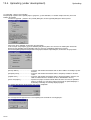
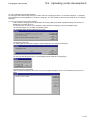
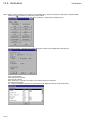
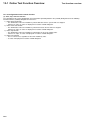
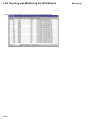
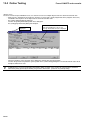
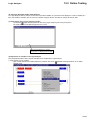
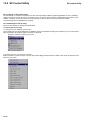
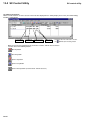
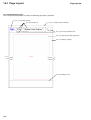
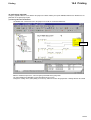
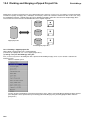
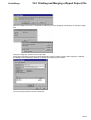
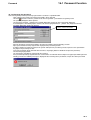
In the Contents window the information necessary to use D300win, the D300win operation method, the procedure for creating a
project and other information are displayed.
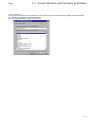
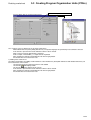
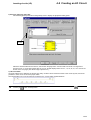
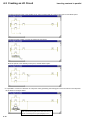
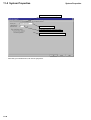
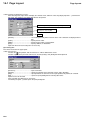
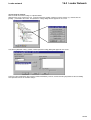
{Help (contents)} dialog box
2-10