1
Page 38 of 153
•
•
•
•
•
•
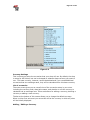
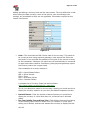
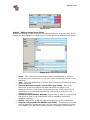
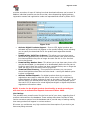
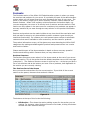
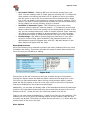
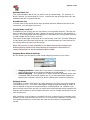
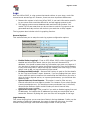
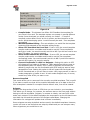
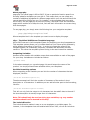
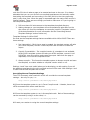
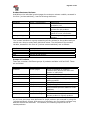
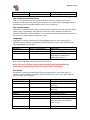
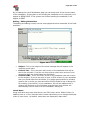
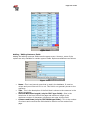
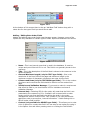
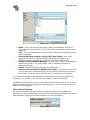
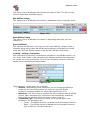
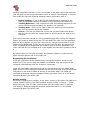
Thumbnail - A thumbnail image for this section. This would normally be
shown where the section appears as a sub-section (the default templates use
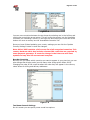
this). You have the option of clicking ‘Browse…’ to upload an image from your
local PC or clicking the ‘Pick Image…’ button to launch the in-built image
picker. The image picker will show the sections/thumbnail directory contents
and you can search for the correct image through that, if it has already been
uploaded. In addition you can enter a name directly into the Pick: field if you
know it already exists in the sections/thumbnails directory. The pick field will
also accept a URL to an image if you wish to directly link to images on
another site.
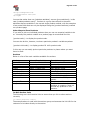
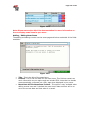
Image - A full sized image for this section. This would normally be shown on
the section page itself. You have the option of clicking ‘Browse…’ to upload an
image from your local PC or clicking the ‘Pick Image…’ button to launch the
in-built image picker. The image picker will show the sections/normal
directory contents and you can search for the correct image through that, if it
has already been uploaded. In addition you can enter a name directly into the
Pick: field if you know it already exists in the sections/normal directory. The
pick field will also accept a URL to an image if you wish to directly link to
images on another site.
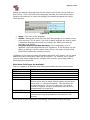
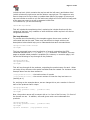
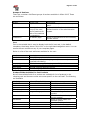
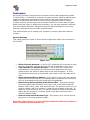
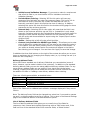
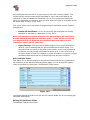
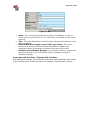
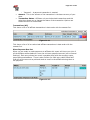
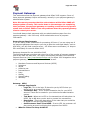
Is Section Visible? - Setting this to NO will automatically make the section
inaccessible from your store.
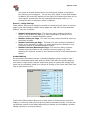
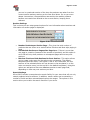
Available To Customer Types - This selection allows you to select which
customer account types can view this section – if a customer’s account type
doesn’t match this list then the section will not be displayed for them. In this
way you can create sections only visible to certain customer types. Selecting
‘All’ makes the section available to all account types. You may also select
multiple account types by using the Shift and CTRL keys on your keyboard.
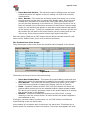
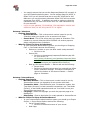
Parent Section - This allows you to quickly set where you would like this
section to appear. By changing this setting you can move sections (and any of
their sub-sections) to different parts of your shop.
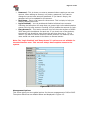
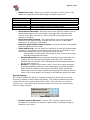
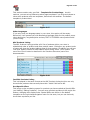
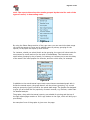
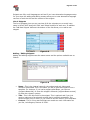
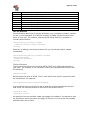
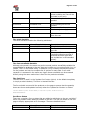
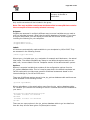
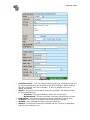
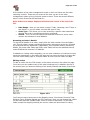
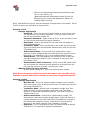
Template For Section Page - Sections are not limited to a single template
page. You can setup more than one template for sections and have different
sections use different templates. Here you can select the template that the
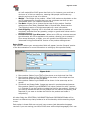
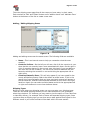
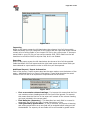
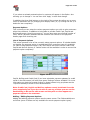
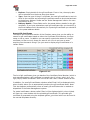
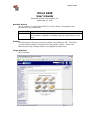
section should use – the default is section.html. Below is an example.
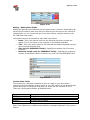
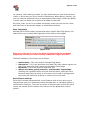
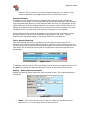
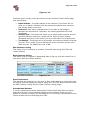
Figure 6-4
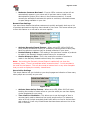
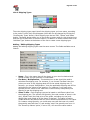
ABC Sections Listing
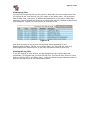
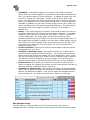
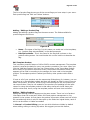
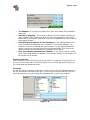
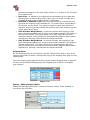
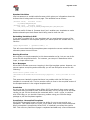
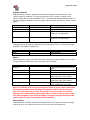
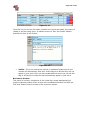
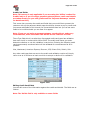
The ABC Sections Listing provides a full list of sections within your store in
alphabetical order. Clicking on any section title will show the Section Structure page