1
CHAPTER 3. USER INTERFACE
3.4.2
79
Toolbox
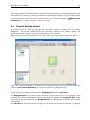
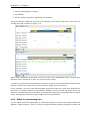
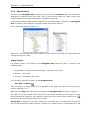
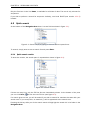
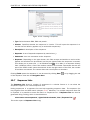
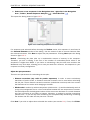
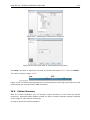
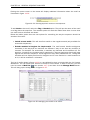
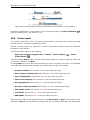
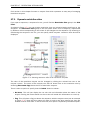
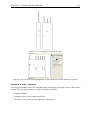
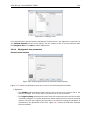
The content of the Toolbox tab in the Toolbox corresponds to Toolbox in the Menu Bar.
The Toolbox can be hidden, so that the Navigation Area is enlarged and thereby displays more
elements:
View | Show/Hide Toolbox
The tools in the toolbox can be accessed by double-clicking or by dragging elements from the
Navigation Area to an item in the Toolbox.
3.4.3
Status Bar
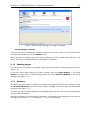
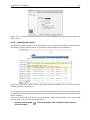
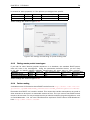
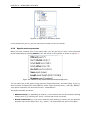
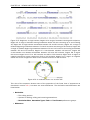
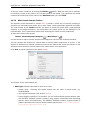
As can be seen from figure 3.1, the Status Bar is located at the bottom of the window. In the
left side of the bar is an indication of whether the computer is making calculations or whether it
is idle. The right side of the Status Bar indicates the range of the selection of a sequence. (See
chapter 3.3.6 for more about the Selection mode button.)
3.5
Workspace
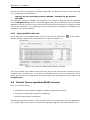
If you are working on a project and have arranged the views for this project, you can save this
arrangement using Workspaces. A Workspace remembers the way you have arranged the views,
and you can switch between different workspaces.
The Navigation Area always contains the same data across Workspaces. It is, however, possible
to open different folders in the different Workspaces. Consequently, the program allows you to
display different clusters of the data in separate Workspaces.
All Workspaces are automatically saved when closing down CLC Protein Workbench. The next
time you run the program, the Workspaces are reopened exactly as you left them.
Note! It is not possible to run more than one version of CLC Protein Workbench at a time. Use
two or more Workspaces instead.
3.5.1
Create Workspace
When working with large amounts of data, it might be a good idea to split the work into two
or more Workspaces. As default the CLC Protein Workbench opens one Workspace. Additional
Workspaces are created in the following way:
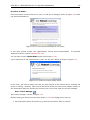
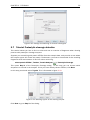
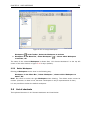
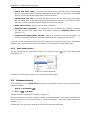
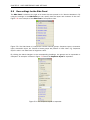
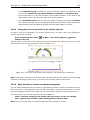
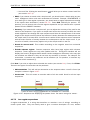
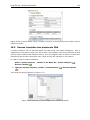
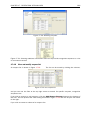
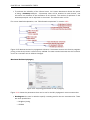
Workspace in the Menu Bar) | Create Workspace | enter name of Workspace | OK
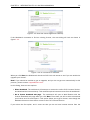
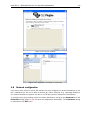
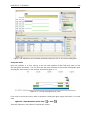
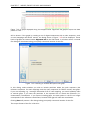
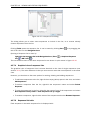
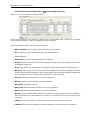
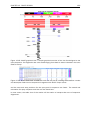
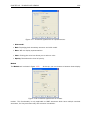
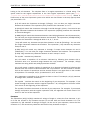
When the new Workspace is created, the heading of the program frame displays the name of
the new Workspace. Initially, the selected elements in the Navigation Area is collapsed and the
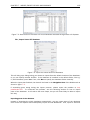
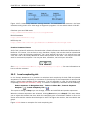
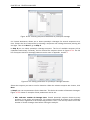
View Area is empty and ready to work with. (See figure 3.18).
3.5.2
Select Workspace
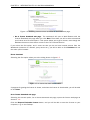
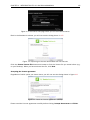
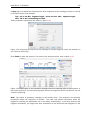
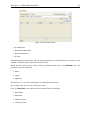
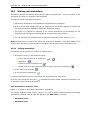
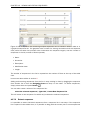
When there is more than one Workspace in the CLC Protein Workbench, there are two ways to
switch between them: