1
AutoNumber User Manual
to receive an AutoNumber value, then be sure to create it as an nvarchar attribute and allow sufficient
length to accommodate the largest AutoNumber value that will eventually be created.
A field that will receive an AutoNumber must be a published to the Form and it can be Read-only
(recommended). However, it is possible to remove the field from the Form, re-publish the Entity and the
AutoNumbering will still work. But to get it going initially, the field must be published to the Form otherwise it
won’t appear in the CRM Attribute Picklist on the AutoNumber custom entity record.
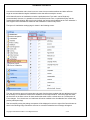
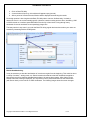
The layout of AutoNumber settings page is shown in the following screen.
The user will need to return to this page when the entity form has been updated with new attributes as it will
be necessary to re-Publish the revised Form attributes. So the steps would be: return this page and select
the check box in the Save column for those entities that need to have a refresh done as a consequence of
Form changes. If not, then those ‘new’ attributes will not be available in the AutoNumber form record entity
picklist (subsequent step)
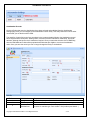
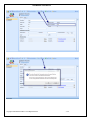
After successfully saving the settings a response will be displayed in red to the right of the Cancel button as
show in the following image. Should the save not be successful a detailed error message will appear.
Copyright © 2009 CRM Innovation LLC All Rights Reserved
3 of 9