1
Basics
Basics - Starting the Program
The program will be listed on the Start menu under mindwalker>mw3 Classic. The first time the
program is run, it will enter Demo mode. If you have mindwalker hardware plugged into a USB
port then select Connection>Connect from the menu bar. The program should find the
mindwalker device and will automatically locate it the next time the program is run.
Basics - View menu
There are 3 main elements to the screen display.
•
•
•
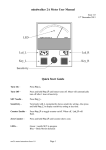
Meter Panel – with either traditional (rectangular) or circular style dial
Recording Panel (Optional)
Graph Panel (Optional)
These main elements of the display are controlled from the View menu.
Meter Panel Dial Type - Three types of dial and needle display are provided.
Traditional AutoSet - a traditional analog dial is presented, and the needle behaves the same way as
modern automatic analog meters - when the needle goes off the dial it is automatically SET. It can
also be manually SET by the keyboard space bar.
Traditional Continuous - when the needle nears the edge of the dial, a second shadow needle enters
from the other side and then becomes the main needle.
Circular - this display provides a theoretically better presentation of the needle since it is
permanently visible with no discontinuity. It may however take some time to become accustomed to
this less familiar format.
Recording - The Recording/Playback panel is made visible or hidden by selecting
View>Recording. It must be visible to play demo file.
Graph - The graph display is made visible or hidden by selecting View>Graph.
Using the View menu enables the user to tailor the screen to display only those elements required.
Remember that the window can be made full screen, which produces a particularly clean and clear
display on small screen laptop computers.
mw Classic User Guide
2