1
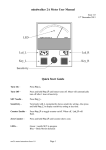
The recording function has several modes of operation which can be configured in the
Recording>Save Mode menu option.
•
•
•
•
Manual – recordings are saved by pressing the SAVE button, and the user is prompted for a
file name.
Auto Name - recordings are saved by pressing the SAVE button, and a filename is
automatically generated from the date and time at start of recording.
Auto Save – at the end of recording (STOP button) the recording is automatically saved
with the date & time generated file name.
Capture – this feature is not yet available.
The Auto Name and Auto Save modes require that a valid directory (folder) has been assigned for
saving recordings. This directory will be remembered from a previous session if settings were
saved.
If no valid directory is available then recording is inhibited until one is assigned. In this
circumstance, the REC button is disabled and the SAVE button becomes the DIR button. Use this
button to assign a recording directory. Files will then be saved in this directory with the date-time
filename.
To change the recording directory in Auto Name mode, reassert the Recording>Save Mode menu
option and the DIR button will appear.
Recording Panel Keyboard Shortcuts:
R – RECORD
P – PLAY, PAUSE
S – STOP
Body Motion Detect
It is possible to detect needle responses caused by hand or finger motion on the electrode.
When the Needle Freeze feature is enabled, such motion causes the needle to stop still and change
colour. Once body motion has ceased, there is a short delay before the needle returns to its normal
colour and unfreezes.
Note that even though the needle freezes, the scrolling graph does not, and will show the body
motion.
Also the Baseline Drop Counter ignores any detected body motion.
The sensitivity of the Body Motion Detect can be changed in Settings > Alerts > Body Motion
menu.
mw Classic User Guide
6