1
Entering Surgeon Names and Lenses 2-9
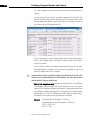
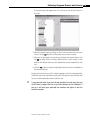
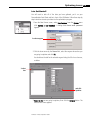
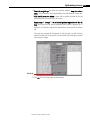
4. Select the desired lenses by clicking on them. To choose more than one lens at
a time, hold the Ctrl key while clicking every lens you want to import.
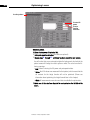
5. Select one or more doctors for whom you will import the selected lenses. Hold
the Ctrl key while clicking to select multiple doctors. If each surgeon in your
practice uses different lenses you will complete this process separately for each
one.
6. Click the >> button to import the highlighted lenses into the lens database for
the selected doctor(s).
2/9/09
DRAFT/PRE-RELEASE/CONFIDENTIAL
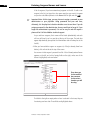
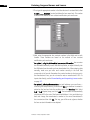
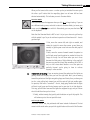
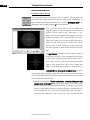
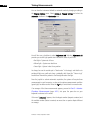
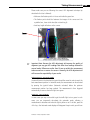
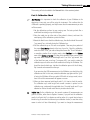
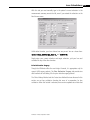
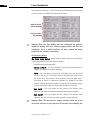
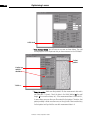
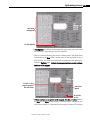
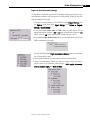
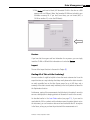
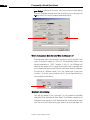
The import dialog that appears has a list of lenses on the left and doctors on
the right.
You may notice that not every IOL in existence appears on the list you downloaded.
Recall that only lenses used often enough by the ULIB group to have sufficient data
for lens constant optimization make it onto the site.
☞
A very important note: If you have already optimized a certain lens, then you
do NOT want to import that lens to your lens database on the IOLMaster. If
you do, it will erase your optimized lens numbers and replace it with the
website’s numbers.
IOLMaster: A Practical Operation Guide