1
DonorPerfect Online
•
Email Receipting
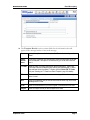
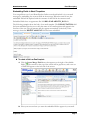
The text in the PDF Attachment tab of the Email Template will be turned
into a PDF and attached to the second email message.
7. To exit the screen, do one of the following:
•
To exit the screen without saving the new template, click the View
Templates button at the top of the screen.
•
To save the current template without exiting the editing screen, click the
Save button at the top of the screen.
•
To save the current template and return to the Email Templates screen, click
the Save and Close button at the top of the screen.
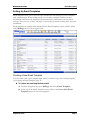
Selecting the TY Code for an Email Template
Each Thank You Letter code (TY code) in the system can be linked to one and only one
email template. This aids in processing email thank you letters, as the corresponding email
template can be automatically selected based on the TY Code entered for a gift.
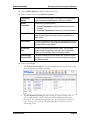
The Click to Edit TY Codes link next to the TY Letter field in the Email Template editing
screen allows you to select the TY Code that will be linked to the current email template.
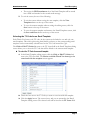
► To select the TY Code for an email template
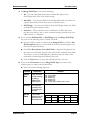
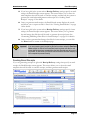
1. In the Email Template editing screen, click the Click to Edit TY Codes link
next to the TY Letter field. The Choose available Thank You letter(s) to be
associated with the template screen appears.
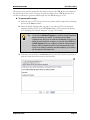
2. Check the box next to the TY Code you want to associate with this template.
3. Click the Apply button. The screen closes, and you are returned to the Email
Template editing screen. The selected code will be listed in the TY Letter field.
September 2010
Page 8