1
User’s Guide
interactive response system
Trademark Notice
SMART Board, the SMART logo, Senteo, Notebook and smarttech
are trademarks or registered trademarks of SMART Technologies ULC
in the U.S. and/or other countries. Microsoft, Windows and PowerPoint are either registered trademarks or trademarks of Microsoft
Corporation in the U.S. and/or other countries. Mac is a registered
trademark of Apple Computer, Inc., registered in the U.S. and other
countries. All other third-party product and company names may
be trademarks of their respective owners. Contents are subject to
change without notice.
Copyright Notice
© 2007–2008 SMART Technologies ULC. All rights reserved. The
use and copying of Senteo software is subject to a license agreement. Any other use is prohibited. No part of this publication may be
reproduced, transmitted, transcribed, stored in a retrieval system or
translated into any language in any form by any means without the
prior written consent of SMART Technologies ULC. Information in
this manual is subject to change without notice and does not represent a commitment on the part of the vendor. 03/2008
If you have any questions about what constitutes legal use of this
product please consult the license agreement that came with your
original software or contact SMART Technologies ULC.
Important Information
Before you use the SMART Senteo interactive response system, please read and understand the
safety warnings and precautions described in this guide. These safety warnings and precautions
instruct you in the safe and correct operation of the system and its accessories so you can prevent
injuries to yourself, others or damage to the equipment. You must always ensure that the Senteo
interactive response system is being used correctly.
NOTE: If you own a SMART product other than a SMART Senteo™ interactive response system,
refer to the user’s guide that came with your product for relevant warnings and maintenance
instructions.
Safety Warnings
WARNING
WARNING
WARNING
WARNING
CAUTION
Failure to follow the installation instructions that ship with the SMART product could
result in personal injury or damage to the product.
When using the Senteo interactive response system with a SMART Board™
interactive whiteboard and projector, do not stare into the beam of light created by
the projector. Instruct children not to look in the direction of, or stare at, this beam
of light.
Ensure that any cables extending across the floor to your SMART product are
properly bundled and marked to avoid a trip hazard.
To reduce the risk of fire or electric shock, do not expose the components to rain or
moisture.
Use only the batteries provided or equivalent replacements. Do not attempt to
recharge the batteries.
CAUTION
Do not install batteries with the polarity (+/–) reversed.
CAUTION
Do not dispose of batteries in a fire or incinerator.
Dispose of batteries according to the laws and regulations of your region. If you
don’t know the applicable rules for your region, consult the battery manufacturer.
Important Information
i
CAUTION
CAUTION
Never use abrasive erasers or harsh chemicals when cleaning Senteo interactive
response system hardware.
Do not open the receiver or clicker units to attempt repairs. Refer all service to
authorized SMART service personnel.
IMPORTANT You must connect the USB cable that came with your SMART product to a
computer that has a USB compliant interface and that bears the USB logo. In
addition, the USB source computer must be compliant with CSA/UL/EN 60950 and
bear the CE mark and CSA and/or UL Mark(s) for CAS/UL 60950. This is for
operating safety and to avoid damage to the SMART product.
IMPORTANT
If your SMART product requires replacement parts, make sure the service
technician uses replacement parts specified by SMART Technologies ULC or parts
with the same characteristics as the original.
Compliance
This device complies with Part 15 of the FCC rules. Operation is subject to the following two
conditions:
1. This device may not cause harmful interference, and
2. This device must accept any interference received, including interference that may cause
undesired operation.
Changes or modifications to this equipment not expressly approved by SMART Technologies ULC
may void the user’s authority to operate this equipment.
NOTE: This equipment has been tested and found to comply with the limits for a Class B digital
device, pursuant to Part 15 of the FCC Rules. These limits are designed to provide reasonable
protection against harmful interference in a residential installation.
This equipment generates, uses, and can radiate radio frequency energy and, if not installed and
used in accordance with the instructions, may cause harmful interference to radio
communications. However, there is no guarantee that interference will not occur in a particular
installation. If this equipment does cause harmful interference to radio or television reception,
which can be determined by turning the equipment off and on, the user is encouraged to try to
correct the interference by one or more of the following measures:
ii
•
Reorient or relocate the receiver or clicker units.
•
Increase the separation between the equipment and the product.
•
Connect the affected equipment into an outlet on a circuit different from that to which the
receiver’s computer is connected.
•
Consult your SMART service representative or an experienced radio/TV technician for help.
Important Information
Table of Contents
Important Information
i
Safety Warnings ................................................................................................................................i
Compliance ......................................................................................................................................ii
About the Senteo Interactive Response System
1
Overview ......................................................................................................................................... 1
Features .......................................................................................................................................... 1
Section 1: Installing the Senteo Interactive Response System
Environmental Requirements.......................................................................................................... 3
Temperature ............................................................................................................................. 3
Humidity.................................................................................................................................... 3
Water and Fluid Resistance...................................................................................................... 3
Dust and Scratching ................................................................................................................. 3
Electrostatic Discharge (ESD) .................................................................................................. 3
Conducted and Radiated Emissions ........................................................................................ 3
Installing Senteo Assessment Software
4
System Requirements..................................................................................................................... 4
Contacting SMART Technologies ................................................................................................... 4
Senteo Assessment Software Components.................................................................................... 5
Activating Senteo Assessment Software ........................................................................................ 6
Installing and Setting Up Senteo Interactive Response System Hardware
8
Connecting the Receiver to a Computer ......................................................................................... 8
Recommended Height for Mounting the Receiver.................................................................... 8
Extending the USB Cable ......................................................................................................... 9
Renaming the Classroom.............................................................................................................. 10
Section 2: Managing Senteo Interactive Response System Hardware
Checking the Receiver ...................................................................................................................11
Selecting Receiver Channels .........................................................................................................11
Selecting the Operating Mode....................................................................................................... 12
Starting in On (Anonymous) Mode ................................................................................................ 13
Starting in On (Sign In Required) Mode ........................................................................................ 13
Locking Sign In.............................................................................................................................. 14
Setting Advanced Options............................................................................................................. 14
Managing Class Lists
16
Creating Class Lists ...................................................................................................................... 16
Importing Class Lists..................................................................................................................... 17
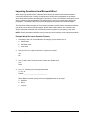
Importing Class Lists from Microsoft Excel® Software (Windows Operating Systems Only) . 17
Importing Class Lists From a CSV File................................................................................... 17
Modifying Class Lists .................................................................................................................... 18
Connecting and Disconnecting the Clickers
20
Connecting Clickers in On (Anonymous) Mode ............................................................................ 20
Connecting Clickers in On (Sign In Required) Mode .................................................................... 20
Disconnecting the Clickers............................................................................................................ 21
Table of Contents
iii
Section 3: Using Senteo Software with Notebook and PowerPoint Software
About SMART Notebook Software................................................................................................ 23
Notebook Software with Senteo Assessment Software ................................................................ 23
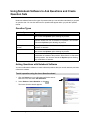
Using Notebook Software to Ask Questions and Create Question Sets
24
Question Types ............................................................................................................................. 24
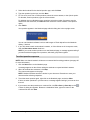
Asking Questions with Notebook Software ................................................................................... 24
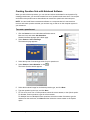
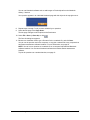
Creating Question Sets with Notebook Software .......................................................................... 26
Importing Questions from Microsoft Word..................................................................................... 28
Example Word Document Question Formats ......................................................................... 28
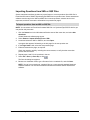
Importing Questions from XML or SQZ Files ................................................................................ 30
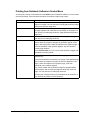
Printing from Notebook Software’s Senteo Menu ......................................................................... 31
Using Senteo Assessment Software in the Classroom
32
Before Class Begins...................................................................................................................... 32
Choosing a Startup Sequence ...................................................................................................... 32
Turning On the Receiver Before Starting Questions............................................................... 33
Turning On the Receiver After Starting a Question Set .......................................................... 33
Using the Clickers ......................................................................................................................... 34
Clicker Buttons and Features ................................................................................................. 34
Receiving Student Questions ................................................................................................. 35
Using the Menu Button ........................................................................................................... 35
Starting a Question Set ................................................................................................................. 36
Using Instant Questions ................................................................................................................ 37
Viewing, Printing and Exporting Results ....................................................................................... 38
Using Senteo Assessment Software with Microsoft PowerPoint Software
39
Section 4: Maintaining the Senteo Interactive Response System
Preventing Component Damage................................................................................................... 41
Cleaning the Receiver and Clickers ....................................................................................... 41
Changing Clicker Batteries............................................................................................................ 41
The Receiver Indicators ................................................................................................................ 42
Troubleshooting the Receiver ....................................................................................................... 42
Resetting the Receiver ........................................................................................................... 42
Troubleshooting Using the Receiver Lights ............................................................................ 43
Transporting the Senteo Interactive Response System ................................................................ 43
Waste Electrical and Electronic Equipment Regulations
44
Customer Support
45
Online Support .............................................................................................................................. 45
Training ......................................................................................................................................... 45
Contacting SMART Technical Support .......................................................................................... 45
General Inquiries........................................................................................................................... 45
Warranty........................................................................................................................................ 46
Registration ................................................................................................................................... 46
Sending Feedback ........................................................................................................................ 46
Obtaining More Information........................................................................................................... 46
iv
About the Senteo Interactive Response System
Overview
The Senteo interactive response system is an assessment tool designed to enhance learning. It
facilitates summative and formative assessment by allowing you to pose a question before, during
or after a lesson to find out if students are on track. You can use the feedback to help shape the
rest of your lesson.
Once you’ve finished the lesson, you can create a question set with Senteo assessment software
to evaluate learning more formally. You can feel confident that the students have answered the
way they intended because they can verify and change their self-paced responses directly on the
remote.
You can easily add creativity to questions by combining text with images to make questions more
dynamic. Senteo software comes with Notebook™ collaborative learning software and offers
6,000 learning objects that can be easily added to quizzes. You can write and edit notes in digital
ink, import or export Microsoft® PowerPoint® presentations, and incorporate multimedia content.
The Senteo interactive response system increases one-to-one interaction by allowing you to
survey and engage students and collect responses. You can use student feedback to plan lessons
and personalize the learning environment.
Features
• Flexible package
options
The Senteo interactive response system includes a receiver and
clickers, and is available in 24- or 32-unit packages. You can also
purchase receivers individually, and clickers in packs of one and five
units.
• Cross-platform support
You can use the Senteo interactive response system with Microsoft
Windows and Mac OS operating systems.
• Notebook software
resources
Use Notebook software objects to build dynamic questions with
images and other multimedia content.
• Flexible assessment
options
You can prepare quizzes in advance or ask instant questions.
• Question variety
Ask true or false, yes or no, multiple choice, numeric response and
more-than-one right answer questions. You can also incorporate
decimals, fractions and negative numbers into questions.
• Instant feedback
You can see how well students understand what you’ve taught them
immediately. You can get feedback in bar graphs or pie charts
summarizing the results from one question or all of them. You can
also see responses from individual students.
• Import questions from
other applications
You can import questions from Microsoft Word or questions in XML
format. Senteo software also integrates with PowerPoint
presentation software.
• Export results
You can export student answers from the Senteo interactive
response system to an Excel spreadsheet, a comma separated
value (CSV) file or an HTML Web page.
About the Senteo Interactive Response System
1
• Print question sets and
study guides
Senteo assessment software allows you to print question sets as
handouts so students can complete them at their own pace. You can
also print result summaries so each student knows which questions
they got right or wrong. You can also add teacher comments and
use the summaries as study guides.
• Radio frequency
technology
The Senteo interactive response system’s robust radio frequency
technology has a range of up to 100 ft. (30 m) and doesn’t need a
line-of-sight path.
Clicker Features
• Large LCD screen
The screen displays three lines of text.
• Descriptive icons
LCD screen icons show battery and connection status.
• Ergonomic design
The handheld clicker is designed to fit comfortably in young hands,
and the 21 input buttons are conveniently located and easy to use.
• Extended battery life
Each clicker uses two AA batteries, which are long-lasting and easy
to replace.
Receiver Features
2
• Convenient connection
The receiver connects easily using a standard USB connection and
doesn’t need an additional power adaptor.
• Flexible installation
The receiver can be either mounted on a wall or placed on a desk.
• Convenient
maintenance features
LED lights indicate power status and give visual indications of sent
and received information.
About the Senteo Interactive Response System
Section 1: Installing the Senteo
Interactive Response System
Environmental Requirements
Before installing or using your Senteo interactive response system, review the following
environmental requirements and compliance statements.
Temperature
Senteo interactive response system components can operate in the temperature range of
41°F to 95°F (5°C to 35°C). In addition, the product can withstand storage temperatures from
-40°F to 120°F (-40°C to 50°C).
Humidity
Senteo interactive response system components can operate in up to 80% relative humidity
non-condensing.
Water and Fluid Resistance
Senteo interactive response system components are for indoor use only and do not meet any saltspray or water ingress requirements. Do not pour or spray any liquids directly onto the Senteo
interactive response system components. These liquids might get into areas where they could
damage sensitive electronic components. Refer to page 41 for detailed instructions on cleaning
your Senteo interactive response system components.
Dust and Scratching
Senteo interactive response system components are for use in office and classroom environments
and are not for industrial use where heavy dust and pollutants can cause malfunctions or impaired
operation. They are designed for pollution degree 1 (P1) as per EN61558-1, which is defined as
“No pollution or only dry non-conductive pollution.”
Electrostatic Discharge (ESD)
Senteo interactive response system components meet the requirements of EN61000-4-2 severity
level 4 for direct and indirect ESD. No malfunction or damage up to 15kV (both polarities) with a
330 ohm, 150 pF probe (air discharge). Un-mated connectors meet 8kV for direct (contact)
discharge.
Conducted and Radiated Emissions
The narrowband radiated electric field from Senteo interactive response system components
meets the limits for Class B performance as defined in EN55022/CISPR 22.
Installing the Senteo Interactive Response System
3
Installing Senteo Assessment Software
System Requirements
Windows Computers
Pentium® II 450 MHz processor
128 MB of RAM (256 MB recommended)
136 MB of free hard disk space for minimum installation
(511 MB for full installation with Gallery collections)
Windows 2000 operating system or later
Microsoft Internet Explorer® 6.0 or later
Adobe® Flash® player version 9
Mac Computers
700 MHz processor (1 GHz or faster recommended)
128 MB of RAM (256 MB recommended)
Mac OS X versions 10.4.8 through 10.4.10
180 MB of free hard disk space for minimum installation
(511 MB for full installation with Gallery collections)
Adobe Flash player version 9
Contacting SMART Technologies
Visit SMART’s support site at www.smarttech.com/support to check for software upgrades,
including SMART Board software and Senteo assessment software. You’ll find installation and
user's guides, “how-to” and troubleshooting articles, solutions for your SMART product, and
answers to your questions. You can also use SMART’s support site to contact technical support.
4
Installing Senteo Assessment Software
Senteo Assessment Software Components
In the following procedures, you will install all of these software components:
•
Senteo Manager
•
Driver software for the receiver
•
Notebook software, including the Senteo assessment software menu
To install Senteo assessment software on Windows computers
1. Put the Senteo assessment software CD into your computer’s drive.
The installation wizard appears.
If it doesn’t start automatically, locate and double-click the SenteoSoftwareSetup.exe file on
the CD.
2. Click Install Senteo Software to start the wizard, and then click Next.
The Licence Agreement dialog box appears.
3. Select the I accept option, and then click Next.
4. Click Next to install the software to the default folder.
5. Click Install to start the installation.
6. Click Finish.
7. Select the options to check for program updates and install SMART Essential for Educators as
desired, click Next, and then click Finish to complete the installation.
If your computer is connected to the Internet, after a short delay, the SMART Product Update
dialog box appears.
8. If updates are available, click Update, and then click Close.
A balloon message appears in the notification area.
9. Click the balloon message to create a classroom.
A dialog box appears.
10. Type a unique classroom name into the box, and then click OK.
NOTE: The OK button is disabled until you type a valid classroom name.
11. Click Finish to complete the installation.
To install Senteo assessment software on Mac computers
1. Insert the Senteo interactive response system CD into your computer’s CD drive.
A Senteo CD icon appears on the desktop.
2. Double-click the Senteo CD icon.
The Senteo window appears.
3.
Double-click the Senteo box icon.
The Install Senteo dialog box appears.
4. Click Continue, and then click Continue again.
The Software License Agreement page appears.
5. Click Continue, and then click Agree, if you agree with the terms of the license agreement.
6. If there is more than one volume, select the volume that you want to install the Senteo
software on, and then click Continue.
Installing Senteo Assessment Software
5
7. Click Install to start the installation.
NOTE: If the installer asks you, type your password, and click OK.
8. Click Continue Installation to complete the installation.
If your computer is connected to the Internet, the SMART Essentials for Educators dialog box
appears. Select the categories you want to install, and then click Next.
The SMART Product Update dialog box appears. If your computer is connected to the
Internet, the dialog box displays the current versions of your SMART product software, and
displays the latest updates available for download from SMART’s website.
9. If software updates are available, click Update.
OR
If software updates aren’t available, or if you don’t want to update your software, click Close.
After a short delay, a message appears asking you to restart your computer.
10. Click Restart.
Activating Senteo Assessment Software
You must register your Senteo assessment software within 30 days of installation to keep it active.
You need a license code to activate your software. Using the following procedure, you can find
your license code.
You must connect your computer to the Internet and connect the Senteo receiver to your computer
before you can search for a license code. After you complete the following procedure to find your
license code, you can use the code to activate Senteo software on other computers, as outlined in
the License tab in the About Senteo Assessment Software dialog box.
NOTE: After you find your license code, you don’t need to connect the Senteo receiver to the other
computers you want to activate Senteo assessment software on.
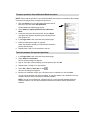
To find your license code and activate Senteo assessment software
1. Click the Senteo icon in the Windows notification area or
Mac menu bar, and then select Activate Senteo
Assessment Software.
The Software Evaluation dialog box appears displaying your
time remaining in the software evaluation period.
NOTES
–
If your 30-day evaluation expires, Open Notebook
Software, Activate Senteo Assessment Software
and Exit appear as the only available commands in the
Senteo menu.
–
If your Senteo assessment software is already
activated, the Activate Senteo Assessment Software
command is replaced by Check for Updates.
2. Click Activate License.
3. If a dialog box appears requesting a password, type an administrator’s password.
4. Click Find License Code.
NOTE: You must connect your computer to the Internet and connect the Senteo receiver to
your computer before you can search for a license code.
6
Installing Senteo Assessment Software
5. Click Find License Code.
The license code appears.
NOTE: If you didn’t connect the receiver, a warning dialog appears.
6. Record the license code in a safe place, and then click Close.
You’ll need your license code to activate Senteo assessment software on your other
computers.
The activation program automatically copies the license code into the License Code box.
7. Type your e-mail address, and then click Next.
8. Select Yes, I am connected, and then click Next.
9. Click Finish to activate your Senteo assessment software.
To activate Senteo assessment software on other computers
After you obtain your license code, follow these steps to activate Senteo assessment software on
other computers.
NOTE: If the computers don’t have an Internet connection, you must contact SMART Technical
Support by e-mail or telephone to get an activation key.
1. Click the Senteo icon in the Windows notification area or Mac menu bar, and then select
Activate Senteo Assessment Software.
The Software Evaluation dialog box appears displaying your time remaining in the software
evaluation period.
2. Click Activate License.
NOTE: You don’t need to connect a Senteo receiver to your computer to activate the license.
3. If a dialog box appears requesting a password, type an administrator’s password.
4. Paste or type your license code and e-mail address, and then click Next.
5. If you have an Internet connection, select Yes, I am connected, and then click Next.
OR
If you don’t have an Internet connection, click No, I am not connected, and then click Next.
Click either the activate by phone or activate by e-mail option to request an activation key
from SMART Technical Support. Type the activation key you obtain from Technical Support,
and then click Next.
6. Click Finish to activate your Senteo assessment software.
Installing Senteo Assessment Software
7
Installing and Setting Up Senteo Interactive Response
System Hardware
Connecting the Receiver to a Computer
IMPORTANT For operating safety and to avoid damage to the receiver, you must connect the
USB connector of the interactive whiteboard only to a computer that has a USB
compliant interface and that bears the USB logo. In addition, the USB source
computer must be compliant with CSA/UL/EN 60950 and bear the CE mark and
CSA and/or UL mark(s) for CSA/UL 60950.
The receiver has a USB 2.0 full-speed peripheral interface that runs at speeds of up to 12 Mbps.
The unit works with USB 2.0- and USB 1.1-compliant USB interfaces.
Recommended Height for Mounting the Receiver
Although receivers don’t require an unobstructed line-of-sight transmission path, such as that
required by infrared devices, you can operate the Senteo interactive response system over larger
distances if you minimize interference, signal reflections and the number and size of objects
between the receiver and the clickers.
Choose a location for the receiver that is as high as possible, and in plain view of the student’s
clickers. For permanent installations, you can use a USB extender so that you can mount the
receiver high on a wall. To minimize interference from other radio-frequency equipment, position
the receiver away from other wireless products, such as 2.4 GHz routers and cordless telephones.
WARNING
To prevent product damage or personal injury, route the USB cable where it won’t
be stepped on or tripped over.
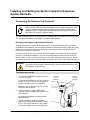
To connect the receiver
1. For temporary installations, place the receiver
on top of your desk.
For permanent installations, you can mount the
receiver on a wall or on the front of a piece of
furniture using two screws (not provided).
Permanent
Vertical
Installation
Orient the receiver with the long side or edge
facing the class as shown.
2. Insert the receiver’s captive USB cable’s
connector into an available USB receptacle on
your computer.
On Windows computers, the Add Hardware
Wizard appears.
On Mac computers, a balloon message
appears indicating that the hardware is ready
to use. The top LED indicator on the receiver
turns red to indicate that it is receiving power.
8
Installing and Setting Up Senteo Interactive Response System Hardware
Temporary
Desktop
Installation
3. On Windows computers, if the Found New Hardware wizard doesn’t start automatically, click
Start > Settings > Control Panel > Add Hardware.
4. Select the Yes, this time only check box and click Next.
5. Click Next to start the hardware installation.
6. Click Finish to complete the first installation cycle.
After a short delay, the Add Hardware Wizard appears again.
7. Repeat steps 4 through 6.
A balloon message appears indicating that the hardware is ready to use. The top LED
indicator on the receiver turns red to indicate that it is receiving power.
To name the classroom
NOTE: If you assigned a classroom name while performing the software installation procedure on
page 5, you don’t need to perform this procedure.
1. Click the Senteo icon in the Windows notification area or
Mac menu bar, and select Configure Hardware.
A Senteo Configuration Wizard appears.
NOTE: The wizard appears if you haven’t previously
assigned a classroom name. If you previously assigned a
classroom name, the Senteo Manager appears.
2. Click Next.
The Classroom Information dialog box appears.
3. Type a classroom name consisting of between one and
eight characters, and click OK.
NOTE: The OK button is enabled after you type a valid
classroom name.
A dialog box appears indicating that your installation is
complete.
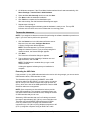
Extending the USB Cable
If the provided 6' (1.8 m) USB cable attached to the receiver isn’t long enough, you can use active
USB extender cables, USB extenders or hubs.
The illustration to the right shows the SMART active USB
extension cable (Part No. USB-XT). In some cases, you may be
able to use up to four cables to extend the length to about 80'
(25 m), which is the limit of the USB specification. Passive USB
extension cables are not supported.
NOTE: Some computers use internal active hubs to provide
more USB receptacles. The computer’s operating system may
see these internal hubs as external devices, limiting the number
of USB extenders that you can use.
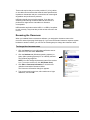
Alternately, USB extenders that use Cat 5 cabling can extend
the range to approximately 325' (100 m), at a much higher cost.
The more economical SMART USB extender pair (Part No.
CAT5-XT) shown on the next page can extend the USB
connection up to 120' (36.6 m) using Windows computers or 90’
(27.5 m) using Mac computers using an RJ45 Cat 5 cable.
Managing Senteo Interactive Response System Hardware
9
These units require that you use the provided 6' (1.8 m) cables
or use cables and connectors that meet the same specifications.
Impedance mismatches and poor connections can cause signal
degradation and performance problems.
USB hubs should also work with receivers. If you also use
streaming audio through a shared USB hub, the receiver’s
performance might become intermittent or otherwise
unacceptable.
USB extenders and hubs must be USB 1.1 or USB 2.0 compliant
to work correctly. They must also provide at least 100 mA to the
receiver.
Renaming the Classroom
When you installed Senteo assessment software, you assigned a classroom name to the
receiver’s network (see page 4 and page 9). If you move the Senteo interactive response system
hardware to another location, you can use the following steps to change the classroom name.
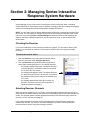
To change the classroom name
1. Click the Senteo icon in the Windows notification area or
Mac menu bar, and select View Class.
2. Click the Students tab (Windows operating systems) or
button (Mac operating systems) if it isn’t already selected.
The Students page appears.
NOTE: You can’t change the classroom name if the receiver
is on. To turn the receiver off, click Off (Power Save).
3. Click Edit > Classroom Information, or click the blue
underlined text beside Classroom Name.
The Classroom Information dialog box appears.
4. Type a new name into the box, with a maximum of eight
characters, and click OK.
10
Managing Senteo Interactive Response System Hardware
Section 2: Managing Senteo Interactive
Response System Hardware
Senteo Manager is your primary tool for checking the receiver and clicker status, evaluating
student performance, selecting the mode of operation, managing class lists, starting and stopping
sessions, and viewing historical information about students and clickers.
NOTE: You can safely close the Senteo Manager while clickers are connected and question sets
are running. You can restart the manager at any time from the Windows notification area or Mac
menu bar, or by clicking Senteo > Senteo Manager in Notebook software. After restarting the
software, the Senteo Manager displays the current connection mode, as well as student and
clicker status.
Checking the Receiver
If you have installed the receiver using the procedure on page 8, you are ready to start a class
session. You can check the receiver’s communication status at any time using the following
procedure.
To check the receiver status
1. Click the Senteo icon in the Windows notification area or
Mac menu bar, and select Configure Hardware.
2. Click the Receivers tab (Windows operating systems) or
button (Mac operating systems) if it isn’t already selected.
–
If a message appears that reads "The Senteo Receiver
is working properly", the Senteo receiver is connected
and in one of the "On" modes.
–
If a message that appears reads "The Senteo Receiver
is in Off (Power Save) mode", the receiver is connected
and working properly, and is ready to be switched to an
"On" mode.
–
If a message appears that reads "No receivers are
detected", check the receiver’s USB connection or
repeat the procedure on page 8.
Selecting Receiver Channels
When the receiver switches to an "On" mode, Senteo assessment software tells the receiver to
scan all sixteen available channels and select one automatically based on the signal strength and
quality. The selected channel number appears at the bottom of the Receivers page. When the
receiver is off, the channel is unassigned.
If you suspect that there is another device interfering with the channel Senteo assessment
software has selected, you can also use Senteo Manager to check the channel quality and
manually select a channel using the following procedure.
Managing Senteo Interactive Response System Hardware
11
To check channel quality or manually select a receiver channel
1. Click the Senteo icon in the Windows notification area or Mac menu bar, and select
Configure Hardware.
2. Click the Receivers tab (Windows operating systems) or button (Mac operating systems) if it
isn’t already selected.
3. Click the options arrow beside the Status button and select the Off (Power Save) command.
If the receiver is in this mode already, go to step 4.
A message appears on the clickers indicating that the class is over and the clickers are turning
off.
NOTE: The receiver must be in the Off (Power Save) mode before you proceed.
4. Click the Channel Options text in the lower-right of the page.
The Receiver Channel Options dialog box opens listing the signal quality and Network ID of
channels 11 through 26. To manually refresh the list, click Refresh.
5. To manually select a channel, click the desired channel, and then click Apply.
The Receivers page displays the selected channel.
If you want to return Senteo Manager to automatic selection later, click Auto Channel
Selection in the Receiver Channel Options dialog box.
6. Click OK to close the dialog box.
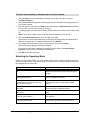
Selecting the Operating Mode
Before you start a class session, you must decide in which of two modes you want the system to
operate; On (Anonymous mode) and On (Sign In Required) mode. The following table summarizes
the characteristics of each mode.
Anonymous Mode
Sign In Required Mode
You can operate the system without a class You must operate the system with a class list that
list.
identifies each student by name and a unique ID
number.
Students can connect their clickers without Students can connect their clickers but must sign in
identifying themselves.
with their assigned ID number.
Under the teacher’s control, students may
see their own scores but can’t see any
other students’ scores.
Under the teacher’s control, students may see their
own scores but can’t see any other students’
scores.
Teachers can see how many clickers are
connected.
Teachers can identify individual students as they
connect and sign in with their clickers.
Teachers can see, export and print the total Teachers can see, export and print the total class
class score.
score.
12
Teachers can see, export and print total
scores for each question.
Teachers can see, export and print total scores for
each question.
Teachers cannot identify students’ names
or their individual scores.
Teachers can see, export and print each student’s
score for each question and their total score.
Managing Senteo Interactive Response System Hardware
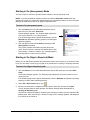
Starting in On (Anonymous) Mode
You don’t require a class list to operate Senteo software in On (Anonymous) mode.
NOTE: If you start a Notebook software question set with the Remember names check box
selected (see page 33), a dialog box appears asking you to disable the feature or return to Senteo
Manager to restart the session in On (Sign In Required) mode.
To start in On (Anonymous) mode
1. Click the Senteo icon in the Windows notification area or
Mac menu bar, and select View Class.
Senteo Manager appears. The Students page displays the
most recent class list, or an empty class list.
If the Students page doesn’t appear automatically, click the
Students tab (Windows operating systems) or button (Mac
operating systems).
2. Click the options arrow beside Status and select the On
(Anonymous) command.
The receiver’s power LED flashes and then turns solid
green, and the receiver’s transmit LED flashes green. After
a short delay, a “Senteo is ready to use” message appears,
indicating that you can turn on the clickers.
Starting in On (Sign In Required) Mode
Before you can start Senteo software and connect the clickers in this mode, you must open a class
list. If you don’t have a class list, go to page 16 for procedures for creating or importing class lists.
To start in On (Sign In Required) mode
1. Click the Senteo icon in the Windows notification area or Mac menu bar, and select View
Class.
The Senteo Manager appears. The Students page displays the most recent class list, or an
empty class list.
If the Students page doesn’t appear automatically, click the Students tab (Windows operating
systems) or button (Mac operating systems).
2. Select File > Open Class List, or click
.
3. Browse to and select the .classlist file that you want to work with, and then click Open.
A list of students and their status appears, and Senteo software starts automatically in
On (Sign In Required) mode.
The receiver’s power LED flashes, and then turns solid green, and the receiver’s transmit LED
flashes green. After a short delay, a “Senteo is ready to use” message appears, indicating that
the clickers can be turned on.
Managing Senteo Interactive Response System Hardware
13
Locking Sign In
At any time after you start Senteo software in On (Sign In Required) mode you can restrict
students from signing in. You can use the Lock Sign In command to restrict students from signing
in before you are ready, or to restrict late students from signing in. When you start Senteo software
in On (Sign In Required) mode, Sign In is unlocked by default. If you stop and restart Senteo
software, or open a new class list, Sign In is unlocked.
NOTE: You can’t lock sign in when Senteo software is in On (Anonymous) mode.
To restrict students from signing in
1. Start Senteo Manager in On (Sign In Required) mode, if it isn’t already started, by following
the procedure on page 13.
2. Select Manage > Lock Sign In.
The Lock Sign In command changes to Unlock Sign In, and Sign In Locked appears below
the toolbar.
NOTE: If a student disconnects their clicker when sign in is locked, they can’t sign in again until
you select Unlock Sign In.
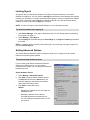
Setting Advanced Options
The Senteo Manager Advanced Options dialog box allows you to configure how the Senteo
interactive response system operates.
To start and stop Senteo services
If you’re working with Senteo assessment software
without a connected receiver, or if you want to
troubleshoot the system, you can stop the software and
hardware services.
Senteo Software Service
1. Select Manage > Advanced Options.
2. Click Stop to stop the Senteo software service.
The Stop button becomes a Start button, the
indicator changes to red and Senteo software
enters Off (Power Save) mode.
3. Click Start to restart the service.
NOTES
14
–
Stopping the software service also stops the
hardware service.
–
Starting the software service doesn’t
automatically start the hardware service.
–
You can’t change the software service’s TCP
port number.
Installing and Setting Up Senteo Interactive Response System Hardware
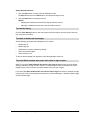
Senteo Hardware Service
1. Click the Stop button to stop the Senteo hardware service.
The Stop button becomes a Start button, the indicator changes to red.
2. Click the Start button to restart the service.
NOTES
–
Stopping the hardware service doesn’t stop the software service.
–
Starting the hardware service also starts the software service.
To clear the history
Click the Clear History button to clear the student and clicker history from the log file stored on
your computer’s hard drive.
To enable or disable alert messages
Senteo software generates alert messages for five events:
•
Student sign in
•
Student sign out
•
Student has a question (cleared by default)
•
Clicker has a weak signal
•
Clicker battery is low
To stop an alert message from appearing, clear the applicable check box.
To set the Allow students who aren’t in the class to sign in option
When you clear the Allow students who aren’t in the class to sign in check box (the default
setting), students must sign in with a valid ID. If a student signs in with an invalid ID, the clicker
display returns to the ID screen so that the student can try to sign in again.
If you select the Allow students who aren’t in the class to sign in check box, students can sign
in with any ID. Their clicker appears as Anonymous in Senteo Manager, in both the Students page
and the Clickers page.
Installing and Setting Up Senteo Interactive Response System Hardware
15
Managing Class Lists
You can use Senteo Manager to create, import or modify class lists.
NOTE: You can’t create, import or modify class lists while a question set is in progress.
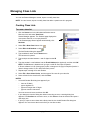
Creating Class Lists
To create a class list
1. Click the Senteo icon in the Windows notification area or
Mac menu bar, and select View Class.
Senteo Manager appears. The Students page displays the
most recent class list, or an empty class list.
If the Students page doesn’t appear automatically, click
Students.
2. Select File > New Class List or click
3. Select Edit > Add Student or click
.
.
The Add Student dialog box appears.
4. Type a student’s name into the Name boxes.
The last name is optional.
5. Type a unique number between 1 and 15 digits into the ID
box.
6. Type the student’s e-mail address into the E-mail Address box (optional), and then click OK.
NOTE: The OK button is disabled until you type a valid ID. See below for details.
If Senteo software is in On (Anonymous) mode, it changes to On (Sign In Required) mode. It
doesn’t change modes if it is in Off (Power Save) mode.
7. Repeat steps 3 through 6 for each student.
8. Select File > Save Class List As, and then type a file name for your class list.
9. Select a folder for the class list file, and click Save.
NOTES
•
An Invalid Student IDs dialog box appears if you:
–
leave an ID blank
–
type a duplicate ID
–
type an ID longer than 15 digits
–
type non-numeric characters
You must correct all errors, and then click OK.
16
•
If you attempt to close the dialog box without correcting an error, a warning dialog box
appears. Click Continue to correct the error, or click Close to close the class list and open a
new empty one.
•
If you try to open or start a class with a faulty class list, the Invalid Student IDs dialog box
appears. You must correct the errors before you can start a class.
Managing Class Lists
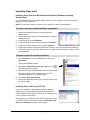
Importing Class Lists
Importing Class Lists from Microsoft Excel® Software (Windows Operating
Systems Only)
If you use Microsoft Excel to maintain student rosters, you can import an .xls file into the Senteo
Manager to create a class list.
NOTE: You may find it easier to copy the list of names into a new Excel spreadsheet.
To create a class list in a Microsoft Excel spreadsheet
1. Open the spreadsheet listing your student names in
Microsoft Excel.
2. Insert a blank row at the top of the spreadsheet, if it doesn’t
already have one.
3. In the first cell (A1) type ID Number.
4. In the first cell of the second column (B1) type First Name.
5. In the first cell of the third column (C1) type Last Name.
6. Arrange the student’s first and last names into columns 1 and 2, directly below the headings.
7. Type each student’s unique ID number from 1 to 15 digits into the first column, and then save
the spreadsheet.
To import a class list from Microsoft Excel
1. Click the Senteo icon in the notification area and select
View Class.
The Senteo Manager appears.
2. Select File > Import Class List From > Excel or click
.
The Open dialog box appears.
3. Browse to the Excel spreadsheet file, select it and click OK.
After a short delay, the list of names from your Excel
spreadsheet appears in the Students page.
4. Select File > Save Class List As.
5. Browse to a destination folder, type a file name for the class
list, and click OK.
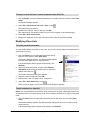
Importing Class Lists From a CSV File
If you use a database or spreadsheet program to maintain
student lists, you may be able to export the student list as a
comma separated value (CSV) file. Refer to your software Help
or user’s guide for procedures.
After exporting your student list as a CSV file, format your file in
a text editor so that the first three values are ID Number, First
Name and Last Name as shown in this example.
Managing Class Lists
17
To import a class list from a comma separated value (CSV) file
1. Click the Senteo icon in the Windows notification area or Mac menu bar, and then select View
Class.
The Senteo Manager appears.
2. Select File > Import Class List From > CSV, or click
.
The Open dialog box appears.
3. Browse to the CSV file, select it, and then click OK.
After a short delay, the names and IDs from your CSV file appear in the Students page.
4. Select File > Save Class List As.
5. Browse to a destination folder, type a file name for the class list, and then click OK.
Modifying Class Lists
To modify student information
You can modify student information in any mode, but you can’t modify student information while a
question set is running.
1. Click the Senteo icon in the Windows notification area or
Mac menu bar, and then select View Class.
The Senteo Manager appears. The Students page displays
the most recent class list or an empty class list.
If the Students page doesn’t appear automatically, click
Students.
2. Right-click the student name, and then select Student
information, double-click the student name or select the
student name and click
.
The Student Information dialog box appears.
3. Make the desired changes and click OK.
4. Repeat steps 2 and 3 for other names, as required.
5. Select File > Save Class List or click
.
See the notes on page 16 if the Invalid Student IDs dialog box appears.
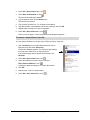
To add a student to a class list
NOTE: You can add students in Off (Power Save) mode and in On (Sign In Required) mode. If you
add students while in On (Anonymous) mode, Senteo software switches to On (Sign In Required)
mode.
1. Click the Senteo icon in the Windows notification area or Mac menu bar, and select View
Class.
The Senteo Manager appears. The Students page displays the most recent class list or an
empty class list.
If the Students page doesn’t appear automatically, click Students.
18
Managing Class Lists
2. Select File > Open Class List or click
3. Select Edit > Add Student or click
.
.
The Add Student dialog box appears.
4. Type a student’s name into the Name boxes.
The last name is optional.
5. Type a unique number from 1 to 15 digits into the ID box.
6. Type the student’s e-mail address into the box (optional), and click OK.
7. Repeat steps 3 through 6 for each new student.
8. Select File > Save Class List or click
.
See the notes on page 16 if the Invalid Student IDs dialog box appears.
To remove a student from a class list
You can remove students from a class list in Off (Power Save) mode only.
1. Click the Senteo icon in the Windows notification area or
Mac menu bar, and select View Class.
The Senteo Manager appears. The Students page displays
the most recent class list or an empty class list.
If the Students page doesn’t appear automatically, click
Students.
2. Select File > Open Class List or click
.
3. Select the student you want to remove and click
Edit > Remove Student or click
.
A dialog box appears asking you to confirm the deletion.
4. Click OK.
5. Repeat steps 3 and 4 for each student.
6. Select File > Save Class List or click
.
Managing Class Lists
19
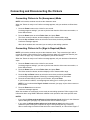
Connecting and Disconnecting the Clickers
Connecting Clickers in On (Anonymous) Mode
NOTE: In this mode, students must know the classroom name.
When the “Senteo is ready to use” balloon message appears, ask your students to follow these
steps:
1. Press the Power button on the clicker for one second.
A message appears asking if you want to join the last class the clicker was connected to, or
find a different class.
2. Press the Down button to select Find a class, and press Enter.
The clicker scans for classes, and then displays a list of classes within range.
3. Press the Up and Down buttons to select the correct class, and then press Enter.
A welcome message appears.
When all the students are connected you are ready to start asking questions.
Connecting Clickers in On (Sign In Required) Mode
NOTE: In this mode, students must know the classroom name. They must also sign in with a
unique ID number, either with the ID you assigned to them when you created the class list (see
steps 4 and 5 on page 16), or with an unassigned ID (see NOTES below).
When the “Senteo is ready to use” balloon message appears, tell your students to follow these
steps:
1. Press the Power button on the clicker for one second.
A message appears asking if you want to join the last class the clicker was connected to, or
find a different class.
2. Press the Down button to select Find a class, and press Enter.
The clicker scans for classes, and then displays a list of classes within range.
3. Press the Up and Down buttons to select the correct class, and then press Enter.
A connecting message appears, followed by a message asking for an ID number.
4. Press the number buttons to enter your ID number, and press Enter.
If you’ve entered a valid ID, a message appears asking you to confirm your name.
NOTE: If you’ve selected the Sign In Locked command, (see page 14) the clicker returns to
the ID screen.
5. Press the Enter button to connect.
A welcome message appears.
When the students are connected, you are ready to start asking questions. Refer to page 24 for
information about using SMART Notebook software to ask questions and create question sets.
NOTES
20
•
If you clear the Allow students who aren’t in the class to sign in check box in the Advanced
Options dialog box (see page 14), students must enter a valid ID to sign in.
•
If you select the Allow students who aren’t in the class to sign in check box in the
Advanced Options dialog box, students can sign in anonymously with any unused ID.
When a student signs in with an ID that isn’t in the current class list, an “ID not found: Sign in?”
Connecting and Disconnecting the Clickers
message appears on the clicker. The student can press Enter to sign in in Anonymous mode.
The anonymous student’s clicker appears in Senteo Manager’s Clickers page and in the
Students page. You can now add the student to the class list. See page 18 for more
information about editing class lists.
•
If a student attempts to sign in using an ID already in use by another student, after a few
seconds, the clicker returns to the ID screen.
Disconnecting the Clickers
You can disconnect and turn off all clickers simultaneously. However, you can’t use the Senteo
Manager to disconnect the clickers while a question set is running.
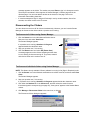
To disconnect all clickers using Senteo Manager
1. Click the Senteo icon in the Windows notification area or
Mac menu bar, and select View Class.
The Senteo Manager appears.
If a question set is running, Questions in Progress
appears beside the classroom name.
2. Stop your question set, if it is running.
3. Click the Status button and select Off (Power Save).
A message appears on the clickers indicating that the class
is over, and the clickers are turning off. The power, transmit
and receive LEDs on the receiver turn off.
To disconnect individual clickers using Senteo Manager
NOTE: This feature is only available if Senteo software is running in On (Sign In Required) mode.
1. Click the Senteo icon in the Windows notification area or Mac menu bar, and then select View
Class.
The Senteo Manager appears.
2. Stop your question set, if it is running.
If a question set is running, Questions in Progress appears beside the classroom name.
3. Click either the Student tab or the Clickers tab, and then select the student’s name.
If students signed in anonymously (see page 20), "Anonymous" appears in the Student Name
column.
4. Click Manage > Disconnect Clicker in the menu bar, or click
.
The Disconnect Clicker dialog box appears.
Using Senteo Software with Notebook and PowerPoint Software
21
If the selected student signed in with a valid ID, the student name appears in the dialog box.
If you select the Allow students who aren’t in the class to sign in check box in the
Advanced Options dialog box, (see page 14) and an anonymous student signs in, the ID used
by the student appears in the dialog box.
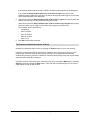
5. Select an item from the Allow <student name or ID> to sign in again list to specify when the
student can next sign in to the same class using any clicker,.
Select an item from the Allow <student name or ID>’s clicker to sign in again list to specify
when the student can next sign in to the same class using the selected clicker.
The available items in both lists are:
–
Immediately
–
After 5 minutes
–
After 15 minutes
–
After 30 minutes
–
After 1 hour
6. Click OK to disconnect the clicker.
To disconnect individual students’ clickers
Students can disconnect their clickers by pressing the Power button for one to two seconds.
If signed in students turn off their clickers when a question set is running, they can turn on the
clickers, sign in with the same ID and rejoin the question set in progress without losing the
answers they previously entered. If a student is connected anonymously, they lose any previously
entered answers when they reconnect
If students connect to the wrong class, ask them to log off by pressing the Menu button, selecting
Sign out, and then pressing the Enter button. They can then connect and sign in to the correct
class without turning off their clickers.
22
Connecting and Disconnecting the Clickers
Section 3: Using Senteo Software with
Notebook and PowerPoint
Software
About SMART Notebook Software
Use Notebook software to save notes written on a SMART Board interactive product or at your
computer as a series of pages. You can also use Notebook software to create a presentation that’s
full of colorful clip art, Macromedia Flash objects, graphics and text from a variety of sources. You
can then present that Notebook file, keeping your audience’s attention as you move and interact
with these objects. When your audience provides comments and suggestions, write their input on
a Notebook page using the pen tray tools or the pen buttons in Notebook software.
Because Notebook software works on many platforms, you can share files created on a Windows
computer with people who use a Mac computer. You can share your Notebook file as a crossplatform HTML, PDF or .notebook file, or as a series of image files.
Notebook Software with Senteo Assessment Software
SMART’s addition of Senteo assessment software to Notebook software means that you can
create question sets, import questions from Microsoft Word or XML files and start and stop
question sessions directly from Notebook software. You can export the class’ and individual
student’s results to a Microsoft Excel file or an HTML page. Using Senteo assessment software’s
printing feature, you can also create handout materials, copies of the questions and marked
results pages for each student and for the class.
This section introduces the Senteo assessment software features of Notebook software. For more
information about using other features of Notebook software, refer to Notebook software’s online
Help or the SMART Web site.
Connecting and Disconnecting the Clickers
23
Using Notebook Software to Ask Questions and Create
Question Sets
Notebook software features five types of questions that you can ask either individually or grouped
as question sets. You can also add notes to questions that appear when you print the question
results.
Question Types
Question Type
Description
Yes or no
Students must use the Y or N buttons to answer a question. You can
also choose the Opinion option allowing any answer.
Multiple choice
Students must use a single button, A through J, to answer the
question. Select from 2 to 10 answers for a question. You can also
choose the Opinion option allowing any answer.
Number, fraction or
decimal
Ask a question with a numeric answer using whole numbers,
fractions or decimals.
True or false
Students must use the T or F buttons to answer a question. You can
also choose the Opinion option allowing any answer.
Multiple answer
Students use the A through J buttons to select the correct
combination of answers to the question. Select from 2 to 10 answers
for the question. You can also choose the Opinion option allowing
any combination of answers.
Asking Questions with Notebook Software
You can use Notebook software to create individual questions that you can ask students, and then
collect their answers.
To add a question using the Insert Question wizard
1. Click the Senteo icon in the Windows notification area or
Mac menu bar, and select Ask Questions.
2. Select Senteo > Insert Question or click
.
The Insert Question wizard appears.
24
Using Notebook Software to Ask Questions and Create Question Sets
3. Select the thumbnail for the desired question type, and click Next.
4. Type the question into the box, and click Next.
5. For Yes or No, and True or False questions, select the correct answer, or the Opinion option.
For Number, fraction questions, type the correct answer.
For Multiple choice or Multiple answer questions, select the number of answers, type the
answers into the text boxes, click Next and then select the correct answers or the Opinion
option.
6. Click Finish.
Your question appears in the Notebook page with this dialog box in the top-right corner.
You can use Notebook software’s tools to add images or Flash objects from the Notebook
Gallery, if desired.
7. If you don’t want to track each student’s answers, or if the clickers are in Anonymous mode,
clear the Remember names check box.
NOTE: If you create another question on a new Notebook page, a message appears asking if
you want to add a title page to the questions, which will group them together.
To collect question responses
NOTE: Make sure that all student’s clickers are connected before asking questions (see page 20
for more information).
1. Click the Start button on the Notebook page.
A message appears on the clickers asking the students to respond with their answers.
2. When all students have answered, click Stop.
The class results appear on the page.
NOTE: Notebook software stores the results in your document. Remember to save your
document after collecting responses.
3. To ask the same question again, right-click on the Notebook page, and select Clear.
If there are other questions in your document, a message appears asking if you want to clear
them all.
4. If you want to save the question as a .notebook file, click File > Save (or Save As) or click
.
A Save As dialog box appears. Browse to a destination folder, type a file name for the
.notebook file and click Save.
Using Notebook Software to Ask Questions and Create Question Sets
25
Creating Question Sets with Notebook Software
When you ask individual questions, you can view and collect results data for each question. By
creating question sets, you can collect results for a set of questions at the same time. You can print
and hand out the question set so that students can answer the questions at their own pace.
NOTE: You can install Senteo assessment software on a computer that isn’t connected to a
receiver and create question sets that you can later copy to and run on the computer system in
your classroom.
To create a question set
1. Click the Senteo icon in the Windows notification area or
Mac menu bar, and select Ask Questions.
Notebook software appears with a blank page.
2. Select Senteo > Insert Title Page.
This Notebook page appears.
3. Select the top row of text and type a title for your question set.
4. Select Senteo > Insert Question or click
.
The Insert Question wizard appears.
5. Select the thumbnail image for the desired question type, and click Next.
6. Type the question into the box, and click Next.
7. For Yes or No, and True or False questions, select the correct answer, or the Opinion option.
For Number, fraction questions, type the correct answer.
For Multiple choice or Multiple answer questions, select the number of answers, type the
answers into the text boxes, click Next and then select the correct answer or the Opinion
option.
26
Using Notebook Software to Ask Questions and Create Question Sets
You can use Notebook software tools to add images or Flash objects from the Notebook
Gallery, if desired.
Your question appears in an individual Notebook page with this object in the top-right corner.
8. Repeat steps 4 through 7 until you have added all your questions.
9. Select the title page in the Page Sorter.
The title page changes to show options and a Start button.
10. Select File > Save (or Save As) or click
.
The Save As dialog box appears.
11. Browse to a destination folder, type a file name for the .notebook file, and click Save.
You can run the question set on this computer, or copy the .notebook file to any computer that
has Senteo assessment software installed. For more information, see page 23.
NOTE: You can’t run a question set .notebook file on a computer with standard Notebook
software installed. You must have Notebook software that includes Senteo assessment
software.
To print the questions as a student handout, see page 31.
Using Notebook Software to Ask Questions and Create Question Sets
27
Importing Questions from Microsoft Word
When importing questions from a Microsoft Word document, Senteo assessment software’s
conversion software uses a variety of techniques to identify which paragraphs are questions,
which are possible answers and what type of question to create. Its most basic technique is to look
at the numbering of the paragraphs. The software also looks for key words when parsing the
paragraphs. The software then converts the paragraphs into question set Notebook pages.
The text below shows examples of five questions formatted so that Senteo assessment software
can easily convert them to question pages. Notice that the last question isn’t numbered, but
Senteo assessment software can successfully create a question by recognizing a key word.
NOTE: Senteo assessment software can’t provide the correct answers to the imported questions.
Example Word Document Question Formats
1. According to the U.S. Census Bureau, the majority of poor children live in:
a. urban areas
b. suburban areas
c.
rural areas
2. Can you fill a 10 L aquarium with five 2 L pitchers of water?
Yes
No
3. True or false: Half of all even whole numbers are divisible by 4.
True
False
4. Let x = 3. Compute y from the equation below.
y = 20 - 4x
Answer: ____________________________
Which Native American group lived in the highlighted area on the map?
a. Kwakitul
b. Sioux
c.
28
Iroquois
Using Notebook Software to Ask Questions and Create Question Sets
To import questions from a Microsoft Word document
NOTE: Ensure that the questions in your Microsoft Word document are formatted like the example
on the previous page before you begin this procedure.
1. Click the Senteo icon in the Windows notification area or
Mac menu bar, and select Ask Questions.
A blank Notebook software page opens.
2. Select Senteo > Import Question From > Microsoft
Word.
3. Locate and select the Word document, and click Open.
A progress bar appears, followed by the title page for the
new question set.
4. In the Page Sorter view, select the first question page.
5. Edit and customize the page, as required.
Check the question carefully to verify that the conversion
process was accurate.
6. Repeat steps 4 and 5 for all questions in the set.
To set the answers for imported questions
1. In the Page Sorter view, select the first question page.
2. Select Senteo > Set Answer.
The Set Answer dialog box appears.
3. Type or select the correct answer(s) from the options, and click OK.
4. Repeat steps 1 through 3 for all questions.
5. Select File > Save (or Save As) or click
.
The Save As dialog box appears.
6. Browse to a destination folder, type a file name for the .notebook file, and click Save.
You can run the question set on this computer, or copy the question set .notebook file to any
computer that has Senteo assessment software installed.
NOTE: You can’t run question set .notebook files on a computer with standard Notebook
software installed. You must have Notebook software that includes Senteo assessment
software.
Using Notebook Software to Ask Questions and Create Question Sets
29
Importing Questions from XML or SQZ Files
Senteo assessment software includes an import feature to convert questions from XML files in
ExamView® format or SMART SynchronEyes® SQZ files into question sets. Senteo assessment
software uses the tags in the XML and SQZ files to extract questions, answers and correct
responses, and then converts the information into question set pages.
To import questions from an XML or SQZ file
NOTE: You must have an ExamView formatted XML file or a SynchronEyes SQZ file before you
can perform this procedure.
1. Click the Senteo icon in the Windows notification area or Mac menu bar, and select Ask
Questions.
A blank Notebook software page opens.
2. Select Senteo > Import Question From > XML.
3. Locate and select the XML or SQZ file, and click Open.
A progress bar appears, followed by a the title page for the new question set.
4. In the Page Sorter view, select the first question page.
5. Edit and customize the page, as required.
Check the question carefully, including the correct answer, to verify that the conversion
process was successful.
6. Repeat steps 4 and 5 for all questions in the set.
7. Select File > Save (or Save As) or click
.
The Save As dialog box appears.
8. Browse to a destination folder, type a file name for the .notebook file, and click Save.
NOTE: You can’t run question set .notebook files on a computer with standard Notebook
software installed. You must have Notebook software that includes Senteo assessment
software.
30
Using Notebook Software to Ask Questions and Create Question Sets
Printing from Notebook Software’s Senteo Menu
You can print a variety of information from the Senteo menu in Notebook software. You can create
and include header, footer and date information, and select a page range to print.
Print Option
Description
Thumbnails
Prints from one to six full-color reduced images of each question set
page on one page. You can choose to include page numbers, image
borders and question page titles.
Handouts
Prints from one to three full-color reduced images of each question
set page together with ruled lines for note taking on one page. You
can choose to include page numbers, image borders and question
page titles.
Full page
Prints one full-color image of each question set page on a page. You
can choose to include page numbers.
Questions
Prints several question set questions on a page. If the question page
doesn’t have any objects or images, the questions appear on the
page in text-only format. If there are objects on the question page, a
full-color thumbnail of the question appears. You can choose to
include page numbers.
In the Print Preview view, you can click the question to toggle from
thumbnail to text-only format.
Results
NOTE: This option is only available after stopping a question or
question set.
Prints several question set questions on a page. If the question page
doesn’t have any objects or images, the text only appears on the
page. If there are objects on the question page, a full-color
thumbnail of the question appears.
The correct answer and the student’s response appears beside
each question, and the total score appears at the top of the first
page. You can choose to include page numbers.
You can print a results summary for all students in the class list, or
you can print the results for select students.
Using Notebook Software to Ask Questions and Create Question Sets
31
Using Senteo Assessment Software in the Classroom
Before Class Begins
Safety Tips for Teachers
When using Senteo assessment software with a SMART Board interactive
whiteboard and a projector:
•
Tell students not to look directly at the light beam from the projector. Instead,
encourage them to keep their back to the projector when working at the
interactive whiteboard. Before they turn to face the class, they should take a
big step (or even two) sideways.
•
Make sure you don’t look directly into the light beam from the projector. Keep
your back to the class when you write over a projected image. Step to the
side of the interactive whiteboard before you turn and face the class.
•
Tell your students not to touch the projector, as it can become extremely hot
during normal operation.
•
Don’t use a chair to increase a student’s reach. If your students can’t reach
the top of the interactive whiteboard, lower it. You may need to remount a
wall-mounted unit to a lower position. If your interactive whiteboard is
mounted on a floor stand, lower it with the help of another adult.
•
Tell students not to run in the vicinity of the floor stand, as they may trip over
the floor stand’s feet.
When you use Notebook software to ask questions, Senteo assessment software uses the options
you set in Senteo Manager to control how students use their clickers. We recommend that you
follow the steps below before each class.
To start Senteo Manager
1. Click the Senteo icon in the Windows notification area or Mac menu bar, and select View
Class.
Senteo Manager appears. The Students page displays the most recent class list, or an empty
class list.
2. Open a class list, if required.
Refer to the following tables and information on page 12 to decide if you need to open a class
list.
3. Click the options arrow beside the Status button and select the desired command.
Choosing a Startup Sequence
You can turn on the receiver before or after you start your questions. Use the following tables to
help decide your preferred sequence.
NOTE: If Senteo software is in Off (Power Save) mode when you plug in a receiver, Senteo
Manager turns the receiver on automatically.
32
Using Senteo Assessment Software in the Classroom
Turning On the Receiver Before Starting Questions
The following table shows what to expect if you turn on the receiver (using Senteo Manger) before
starting a question set.
Option Selected
Description
No class list open in Senteo Manager.
Senteo software starts in On (Anonymous) mode.
Remember names option selected in
question set.
A message appears asking you to disable the
Remember names option, or go to Senteo Manager to
load a class list and turn on the receiver in On (Sign In
Required) mode.
Class list open in Senteo Manager.
Senteo software starts in On (Sign In Required) mode.
Remember names option selected in
question set.
Notebook software records individual student results.
No class list open in Senteo Manager.
Senteo software starts in On (Anonymous) mode.
Remember names option deselected in Notebook software doesn’t record individual student
results.
question set.
Class list open in Senteo Manager.
Senteo software starts in On (Sign In Required) mode.
Remember names option deselected in Notebook software doesn’t record individual student
question set.
results.
Turning On the Receiver After Starting a Question Set
When you click the Start button in a Notebook page and Senteo Manager is in Off (Power save)
mode, Notebook software signals Senteo Manager to turn on the receiver. The following table
shows what to expect if you start a question set before turning on the receiver.
Options Selected
Description
Remember names option selected in
question set.
A message appears asking you to disable the
Remember names option, or go to Senteo Manager to
load a class list and turn on the receiver in On (Sign In
Required) mode.
No class list open in Senteo Manager.
Remember names option selected in
question set.
Class list open in Senteo Manager.
Notebook software signals Senteo Manager to turn on
the receiver in On (Sign In Required) mode, using its
current class list.
Remember names option deselected in Notebook software signals Senteo Manager to turn on
question set.
the receiver in On (Anonymous) mode.
Class list not open in Senteo Manager.
Remember names option deselected in Notebook software signals Senteo Manager to turn on
the receiver in On (Sign In Required) mode, using its
question set.
current class list. Students must sign in, but Notebook
Class list open in Senteo Manager.
software doesn’t collect student results.
Using Senteo Assessment Software in the Classroom
33
Using the Clickers
Before asking questions, review the clicker’s operation with the students.
Clicker Buttons and Features
Power Button
LCD Display
Enter Button
Ask Question
Button
Selection
Buttons
Menu Button
True/False
Buttons
Delete Button
Alphanumeric
Keys
Fraction /
Decimal
Button
+ / – Button
Clicker Button
Description
Power
Press for one second to turn the clicker on.
Press for one to two seconds to turn the clicker off.
34
Selection
Scroll up and down option lists.
True/False
Answer true or false questions.
Alphanumeric
Answer multiple choice and numeric questions.
+/–
Make a numeric answer positive or negative.
Enter
Make or confirm a selection.
Ask Question
Alert teacher or to ask a question. See next page for details.
Menu
Open clicker menu. See the table on the next page for details.
Delete
Delete alphanumeric characters entered.
Fraction/Decimal
Create fractional or decimal numeric answers.
Using Senteo Assessment Software in the Classroom
Receiving Student Questions
A student can request the teacher’s attention at
any time by pressing the Ask Question button
on their clicker. Senteo Manager displays the
student’s name in the Questions list above the
Clickers list on the Clickers page. An
anonymous student’s clicker displays "Not
logged on" in the Questions list.
The total number of students with questions
appears in the Legend area of the Senteo
Manager window.
To clear the question from Senteo Manager,
select the clicker in the Questions list, and then
click Manage > Clear Question or right-click the student name and select Clear Question.
Using the Menu Button
Students can press the Menu button at any time to log off the session or to modify the clicker’s
settings. The following options are available in the menu:
Option
Description
Sign Out
Press to log off a class without turning off the clicker.
Language
Press to select the language displayed on the clicker’s LCD panel.
Contrast
Press to lighten or darken the clicker’s LCD panel. Use the Up and Down
arrows to increase or decrease the contrast.
Device info
Press to display the clicker’s MAC address and firmware version.
Advanced
You must have a valid security code to open this menu. Your customer
support representative may provide the code to help troubleshoot clicker
problems.
Using Senteo Assessment Software in the Classroom
35
Starting a Question Set
Before starting a question set, check that the receiver is connected and ready. Refer to page 11 for
more information.
To open and start a question set
1. Click the Senteo icon in the Windows notification area or Mac menu bar, and select Ask
Questions.
A blank Notebook software page appears.
2. Select File > Open.
3. Select the Notebook file with your questions, and click Open.
A question set title page similar to this example appears.
4. Choose the Privacy and Show grades on the clickers options.
The following table details each option.
Option
Description
Remember names
When Senteo Manager starts the receiver in On (Sign In
Required) mode, Notebook software collects results for
each student.
If you deselect this option, Notebook software doesn’t
collect student results.
Show grades on clickers after
all questions are answered
The clicker shows how the students answered and their
grade after they finish answering all questions.
Show grades on clickers after
each question is answered
The clicker shows how the students answered after each
question, and shows their grade after they finish answering
all questions.
Show grades after you stop
collecting responses
The clicker shows how the students answered after you
click the Stop button. The grade isn’t displayed.
Don’t show grades on clickers
The clickers don’t show results or grades.
5. If the students haven’t connected their clickers, have them do so now. See page page 20 for
instructions.
6. Click the Start button.
The title page changes to a progress page showing a graph of the percentage of total student
answers for each question.
36
Using Senteo Assessment Software in the Classroom
7. If you are projecting the questions on a wall screen, you can control the students’ progress by
selecting each question page in turn. If you provided printed student handouts (see page 31),
they can control their own pace.
8. Click the Stop button to end the session.
NOTE: Notebook software stores the results in your document. Remember to save your
document after collecting responses.
9. Select File > Save (or Save As) or click
.
Using Instant Questions
Use the Instant Question feature to introduce Senteo software to your students. When you use
Instant Questions, you are unable to type a question, and you can’t assign a correct answer. You
can ask questions verbally, by writing on a whiteboard or by typing the question and adding objects
directly into the Notebook page.
To ask individual questions using the Instant Question feature
NOTE: Make sure that all student’s clickers are connected before asking instant questions (see
page 20 for more information).
1. Click the Senteo icon in the Windows notification area or
Mac menu bar, and select Ask Questions.
A blank Notebook software page appears.
2. Click the option arrow to the right of
(Windows
operating systems) or click and hold the button (Mac
operating systems).
This option list appears.
3. Select the desired Instant question button.
A Notebook page appears showing the possible answers to
the question and the following dialog box in the top-right
corner. The question starts automatically, and appears on the clickers.
4. When all students have answered, click Stop.
A dialog box appears showing the class results.
5. To save the results, click File > Save (or Save As) or click
.
To ask the same type of question again, click Clear.
To add another question without clearing the results of the previous question, don’t click Clear
and repeat steps 2 through 4.
Using Senteo Assessment Software in the Classroom
37
Viewing, Printing and Exporting Results
If you save your Notebook file after asking questions, or after running a question set, you can
reopen the file at any time to view the results. You can print a variety of information, including
question results, using Notebook software’s Senteo Print menu, as shown on page 31.
You can also export the results to a Microsoft Excel spreadsheet (Windows operating systems
only), to an HTML page for viewing on a Web browser or to a Comma Separated Value (CSV) file
that you can import into many spreadsheet and database applications.
NOTE: You can only print or export results after stopping the question or question set. Clearing the
results after stopping the question permanently deletes the information, so you can’t print or export
the results. After saving and closing the .notebook file, you can reopen the file and print or export
the results.
To export results to a file
1. Stop the question or question set, if it is still running.
Don’t clear the results.
2. Select Senteo > Export results to > Microsoft Excel (Windows operating systems only).
OR
Select Senteo > Export results to > Web Page (HTML).
OR
Select Senteo > Export results to > Comma Separated Value (CSV)
The Save As dialog box appears.
3. Select a destination folder, type a file name and click Save.
Either Microsoft Excel or your default Web browser opens, displaying the exported file.
38
Using Senteo Assessment Software in the Classroom
Using Senteo Assessment Software with Microsoft
PowerPoint Software
If you install Senteo assessment software onto a computer that has Microsoft PowerPoint
presentation software installed, a Senteo Question command appears in the PowerPoint Insert
menu. You can use this command to create, and then run, questions from within PowerPoint. You
can also add Senteo assessment software question tools to existing PowerPoint presentations,
saving time if you already have your questions in a presentation.
The following procedures show how to use Senteo assessment software with PowerPoint software
to create and ask questions.
NOTE: You don’t require SMART Notebook software to use Senteo assessment software with
PowerPoint software.
To create questions in PowerPoint software
1. Start PowerPoint software and open a new PowerPoint presentation.
2. Select Insert > New Slide and select a suitable page layout for your question.
3. Select Insert > Senteo Question.
A Senteo Question object appears in the slide’s bottom-right corner.
4. Right-click the question object and select Senteo Question Object > Properties.
The Senteo Question Properties dialog box appears.
5. Select the question type. The five types are:
–
Multiple choice
–
Yes/no
–
Number/fraction/decimal
–
True/false
–
Multiple answer
6. Select the other options and type the answer in the Correct
answer box as required for the question type selected.
For multiple answer questions, put all answers in a line in the Correct answer box.
7. Select Remember names or Anonymous mode, and click OK.
8. Add text and objects to the slide, as required.
9. Repeat steps 2 through 8 for all questions.
10. Save the presentation and close PowerPoint software.
Maintaining the Senteo Interactive Response System
39
To run PowerPoint questions
1. Click the Senteo icon in the Windows notification area or
Mac menu bar, and select View Class.
The Senteo Manager appears. The Students page displays
the most recent class list, or an empty class list.
2. If you selected the Remember names option, open a class
list.
Refer to page 13 for more information.
3. Start PowerPoint software and click File > Open, select
your presentation and click Open.
4. Select Slide Show > View Show or press F5 to start the
PowerPoint presentation.
PowerPoint software signals Senteo software to turn on the
receiver, if it isn’t already on.
5. If the students aren’t yet connected, tell them to turn on their
clickers and sign in.
6. Click the Start button on the blue PowerPoint object.
The question’s answer options appear on the clickers and responses are counted in the blue
box as students submit answers.
7. Click Stop.
The results graph appears on the blue PowerPoint object.
8. Click Clear.
PowerPoint software inserts a new slide displaying the question results.
9. Press Page Down, to view the results slide.
10. Press Page Down, to advance to the next question.
11. Repeat steps 6 through 10 until you’ve asked all the questions.
12. Press ESC to stop the presentation, and then click File > Save to save the presentation with
the results slides.
40
Maintaining the Senteo Interactive Response System
Section 4: Maintaining the Senteo
Interactive Response System
Preventing Component Damage
•
Don’t use sharp or pointed objects, such as ballpoint pens or pointers, to press the clicker
buttons.
•
Never use abrasive erasers or harsh chemicals when cleaning.
•
Avoid setting up and using your system in an area with excessive levels of dust, humidity or
smoke.
Cleaning the Receiver and Clickers
With proper care, your Senteo interactive response system hardware will provide years of troublefree service. Follow these tips to keep them clean:
•
Remove dust with a damp cloth before using a cleaner.
•
Clean the unit’s surface with a household glass cleaner, such as Windex®, daily, weekly or as
required.
•
Do not spray cleaner directly onto the clicker. Instead, spray a light amount of cleaner on a
cloth and then wipe gently.
Changing Clicker Batteries
Under normal operation, the clicker batteries can operate for up to 200 days. When replacing
them, use fresh batteries of the same type and quality, and change both at the same time.
CAUTION
• Do not install batteries with the polarity (+/–) reversed.
• Do not attempt to recharge the batteries.
• Do not dispose of batteries in a fire or incinerator.
• Dispose of batteries according to the laws and regulations of your region. If you
don’t know the applicable rules for your region, consult the battery manufacturer.
To change the clicker batteries
1. Using the provided Phillips® screwdriver, remove the screw from
the back of the clicker, and then remove the cover.
2. Remove the exhausted batteries, and dispose of them according
to local regulations.
3. Insert new AA batteries as shown.
The clicker automatically turns on when you insert the batteries.
4. Replace the cover and screw.
5. Verify that the start-up menu appears.
6. Press the Power button for one to two seconds to turn the clicker
off.
Maintaining the Senteo Interactive Response System
41
The Receiver Indicators
The receivers have the following indicators:
•
the Ready light
•
the Transmit light
•
the Receive light
Ready
Light
Receive
Light
Transmit
Light
The Ready light LED is in the upper-right corner of the
receiver’s enclosure. The Ready light indicates the
operational states of the receiver module. You can see the
Transmit and Receive lights in the lower-right part of the
receiver’s enclosure. The lights flash green, indicating
transmit and receive activity between the receiver and the
clickers.
NOTE: The following table shows the Ready light’s normal states. If the light’s behavior doesn’t
match a state listed here, refer to the Troubleshooting the Receiver section below.
Ready Light State
Meaning
Off
The receiver is disconnected from the computer, or Senteo Manager
has placed the receiver into Off (Power Save) mode.
Solid red
The receiver has power, but it’s not communicating with the
computer.
Solid green
The receiver is receiving power and is communicating successfully
with Senteo assessment software.
Troubleshooting the Receiver
CAUTION
Do not open the receiver or the clicker units to attempt repairs. Refer all service to
authorized SMART service personnel.
Resetting the Receiver
If your Senteo software behaves erratically (possibly because of a static discharge or power fade)
you may be able to restore normal operation simply by resetting the receiver.
Reset the receiver completely by disconnecting and then reconnecting the USB cable.
42
Using Senteo Assessment Software with Microsoft PowerPoint Software
Troubleshooting Using the Receiver Lights
Should you experience a problem with your receiver, you can use the Ready light, together with
the Transmit and Receive lights to troubleshoot it. See page 42 to locate the lights and familiarize
yourself with their states during normal operation.
Ready Light
Transmit Light
Receive Light
Receiver State
Red, Green,
Yellow
Green
Green
Receiver is starting up. Lights flash in
sequence.
Flashing Green
Off
Off
Receiver is scanning radio channels.
Blinking Green
Any state
Any state
Receiver is accepting commands from
the computer.
Blinking Red
Any state
Any state
Receiver has rejected a command from
the computer.
Green
Constant flashing Blinks when it
(approximately
receives data
250 ms)
from a clicker
Receiver has power and is
communicating with the computer, but
isn’t receiving commands.
Yellow
Off
Off
Receiver has power, but communication
circuits have failed.
Flashing Red
Flashing
Flashing
Manufacturing tests running, receiver
isn’t operational. All lights flash together.
Flashing Yellow
Any state
Any state
Receiver software checksum failure.
Flashing Yellow
Flashing
Flashing
Receiver software failure (seen just
before receiver resets).
Transporting the Senteo Interactive Response System
If you need to ship your Senteo interactive response system, we urge you to repack it with as
much of the original packaging as possible. If you prefer to use your own packaging materials,
make sure you adequately protect the product.
Using Senteo Assessment Software with Microsoft PowerPoint Software
43
Waste Electrical and Electronic Equipment Regulations
Waste Electrical and Electronic Equipment regulations apply to all electrical and electronic
equipment sold within the European Union.
When you dispose of any electrical or electronic equipment, including SMART products, we
strongly encourage you to contact your local WEEE recycling agency for recycling and disposal
advice.
Your SMART product required the extraction and use of natural resources for its production. It may
contain hazardous substances. By disposing of electrical and electronic equipment appropriately,
you lower the impact of these substances upon health and the environment and reduce the
pressure on natural resources. Recycling agencies can reuse or recycle most of the materials from
your product.
Please think about how you intend to dispose of any product that has a WEEE symbol or
accompanying WEEE guidelines.
If you need more information on the collection, reuse and recycling of electrical and electronic
equipment, please contact your local WEEE recycling agency.
Alternatively, contact your local reseller or SMART Technologies for information on the
environmental performance of our products.
44
Waste Electrical and Electronic Equipment Regulations
Customer Support
Online Support
www.smarttech.com/support
Visit the SMART Technologies support site to view and download user’s guides, “how-to” and
troubleshooting articles, software and more.
Training
Do you need training on your SMART product? Visit http://www.smarttech.com/trainingcenter for
free training materials and information on our training services.
Contacting SMART Technical Support
SMART’s Technical Support team welcomes your call. However, if you experience difficulties with
your SMART product, you may want to contact your local reseller first. Your local reseller may be
able to solve the problem without delay.
All SMART products include free telephone, fax and e-mail support.
Telephone:
+1.403.228.5940 or Toll Free 1.866.518.6791 (Canada/U.S.)
(Monday to Friday, 7 a.m. – 6 p.m. Mountain time)
Fax:
+1.403.806.1256
E-Mail:
[email protected]
Website:
www.smarttech.com/support
When you phone Technical Support, it will be helpful if you can access your computer during the
call. The support representative may ask you for the following information:
•
the serial number of your interactive product
•
the version of the software that’s causing the problem and the version of your computer’s
operating system (if applicable)
General Inquiries
Address:
SMART Technologies ULC
1207 – 11 Avenue SW, Suite 300
Calgary, AB T3C 0M5
CANADA
Main
1.888.42.SMART (toll-free in Canada/U.S.) or
Switchboard: +1.403.228.0333 (all other countries)
Fax:
+1.403.228.2500
E-Mail:
[email protected]
Customer Support
45
Warranty
Product warranty is governed by the terms and conditions of SMART’s "Limited Equipment
Warranty" that shipped with the SMART product at the time of purchase.
Registration
A User Registration card was included with your SMART product. To help us serve you better, fill in
and mail this card to SMART Technologies ULC or register online at www.smarttech.com/
registration.
Sending Feedback
You can help us improve our documentation by e-mailing your comments to
[email protected].
Obtaining More Information
Visit www.smarttech.com/support to:
46
–
download PDF versions of our user guides, installation instructions and more
–
read technical bulletins, FAQs and tips
–
troubleshoot a problem
–
explore our resource centers to learn about conferencing and room control systems
Customer Support
Index
A
D
Asking Questions
Collect Responses, 25
Insert Question Wizard, 24
Instant Questions, 37
Damage Prevention, 41
Disconnect
Clickers, 21
Individual Students’ Clickers, 22
Using Senteo Manager, 21
Dust and Scratching, 3
B
Batteries
Changing, 41
Disposal, 41
E
Electrostatic Discharge, 3
Emissions, 3
Environmental Requirements, 3
ESD, 3
Excel Class List Import, 17
Extending USB Cables, 9
C
Changing Clicker Batteries, 41
Checking Channel Quality, 12
Checking the Receiver, 11
Class Lists
Add a Student, 18
Create in Microsoft Excel, 17
Importing from CSV Files, 17
Importing from Microsoft Excel, 17
Managing, 16
Modifying, 18
Remove a Student, 19
Cleaning the Receiver and Clickers, 41
Clickers
Buttons and Features, 34
Menu Button, 35
Receiving Student Questions, 35
Using, 34
Connecting Clickers
On (Anonymous) Mode, 20
On (Sign In Required) Mode, 20
Connector
Electrostatic Discharge, 3
USB Standard Compliant, 8
Contacting
General Inquiries, 45
Technical Support, 45
CSV Class List Import, 17
Customer Support
Online, 45
Training, 45
F
Features, 1
Floor Stand Safety, 32
H
Height, Wall-Mounting, 8
Humidity, 3
I
Importing Class Lists
CSV Files, 17
from Microsoft Excel, 17
Importing Questions
Example Word Question Formats, 28
From Microsoft Word, 28
Set Answers, 29
XML or SQZ Files, 30
Installation
Conducted and Radiated Emissions, 3
Dust and Scratching, 3
Electrostatic Discharge, 3
Environmental Requirements, 3
ESD, 3
Humidity Environments, 3
Temperature Environments, 3
Water and Fluid Resistance, 3
Index
47
R
Installing
Activate Senteo Assessment Software, 7
Connecting the Receiver, 8
Name the Classroom, 9
On Mac Computers, 5
On Windows Computers, 5
Recommended Height for the Receiver, 8
Senteo Assessment Software, 4
Senteo Interactive Response System
Hardware, 8
System Requirements, 4
Instant Questions, 37
Receiver
Indicators, 42
Resetting the Receiver, 42
Troubleshooting, 42
Registration, Warranty, 46
Renaming the Classroom, 10
Resetting the Receiver, 42
S
Safety
Floor Stand, 32
Tips for Teachers, 32
Safety Information, i
Selecting a Receiver Channel, 12
Selecting Operating Mode, 12
Selecting Receiver Channels, 11
Senteo Manager
Choosing a Startup Sequence, 32
Starting, 32
Using, 11
Servicing
Cleaning, 41
Preventing Damage, 41
Starting a Question Set, 36
Starting Senteo Assessment Software
On (Anonymous) Mode, 13
On (Sign In Required) Mode, 13
N
Notebook Software
Ask Questions, 24
Asking Questions, 24
Creating Question Sets, 26
Exporting Results, 38
Printing Results, 38
Question Types, 24
Senteo Assessment Software, 23
Starting a Question Set, 36
Using Instant Questions, 37
Viewing Results, 38
O
Overview, 1
P
T
PowerPoint
Create Senteo Questions, 39
Running Questions, 40
Using Senteo Assessment System with, 39
Preventing Damage, 41
Printing
Full page, 31
Handouts, 31
Notebook Software’s Senteo Menu, 31
Questions, 31
Results, 31
Thumbnails, 31
Teachers Safety Tips, 32
Technical Support, Contacting, 45
Temperature, 3
Transporting the Senteo Interactive Response
System, 43
Troubleshooting
Receiver, 42
Resetting the Receiver, 42
Using the Receiver Lights, 43
W
Q
Wall-Mounting Recommended Heights, 8
Warranty
Information, 46
Registration, 46
Question Sets
Creating, 26
Starting, 36
48
Index
Waste Electrical and Electronic Equipment
Regulations, WEEE, 44
Water and Fluid Resistance, 3
X
XML or SQZ File Importing, 30
Index
49
SMART Technologies
1207 – 11 Avenue SW, Suite 300
Calgary, AB T3C 0M5
CANADA
www.smarttech.com/support www.smarttech.com/contactsupport
Support +1.403.228.5940 or Toll Free 1.866.518.6791 (U.S./Canada)