1
Chapter 5
Quick Start
••••••
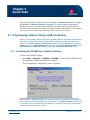
After performing the procedures outlined in Chapter 3 “Hardware Installation” on page 9
and Chapter 4 “Software Installation” on page 11, it is time to begin programming a
QuickLogic device. If you already know what type of socket board you will need for a
particular device you want to program, you may install the socket boards on the modules
now or you can do it later after you find out what socket board you need.
5.1 Programming a Device Using a USB Connection
NOTE: If using the USB interface to connect the QL9600 modules, use Windows 98 or Windows
2000 which supports USB interface. To verify that the USB driver is properly installed in the
computer select Start | Settings | Control Panel, double-click on the System icon, select the
Hardware tab, click the Device Manager tab or button, expand the Universal Serial Bus listing.
Host Controller and Root Hub should be listed under the Universal Serial Bus listing.
5.1.1 Launching the QL9600 User Interface Software
To launch the QL9600 software:
1. Select Start | Programs | QL9600 | QL9600, or double-click the QL9600 icon
on the desktop to launch the application program.
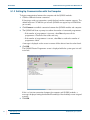
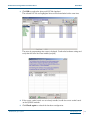
The Communication Configuration screen is dispalyed.
NOTE: Demo and Chip List Viewer buttons can be activated as standalone utilities on the
computer without QL9600 being physically connected. They are the perfect tools for practicing
with the software and understand how the software works. Use Chip List Viewer for finding out
if a particular device is supported on the QL9600 and, if supported, what type of socket board is
needed to program that particular device.
www.quicklogic.com
© 2004 QuickLogic Corporation
•
• 13
•
•
•
•