1
User Manual
DpuScan
The Universal Scan Software
for Color and Black/White
Copyrights
© 1997 to 2006 J&K Imaging, Marietta/USA and Janich & Klass, D-Wuppertal.
All rights reserved. Printed in Germany.
The information contained in this documentation is the property of J&K Imaging, Marietta and
Janich & Klass, Wuppertal. Neither receipt nor possession hereof confers or transfers any
right to reproduce or disclose any part of the contents hereof, without the prior written
consent of J&K Imaging, Marietta and Janich & Klass, Wuppertal.
Trademarks
DPU/DDU logos are registered trademarks of Janich & Klass, Wuppertal. DpuScan is a
trademark of J&K Imaging, Marietta/USA. All other product names and logos are trademarks
or registered trademarks of their representative companies.
Disclaimer
The instructions and descriptions in this manual were accurate at the time of this manual's
printing. However, we reserve the right to alter the description and/or the product at anytime
without prior notice.
J&K Imaging and Janich & Klass assume no liability for damages incurred directly or
indirectly from errors, omissions, or discrepancies between this manual and the product.
Actuality
It may happen that a more recent version of this manual for DpuScan is available for
download from the Internet. Therefore, it is recommended that you should compare the
version by means of the date printed on this page with the version on the Internet. You
should use the most up-to-date version of the manual.
The actual version of the DpuScan Manual is found on the Web at the following address:
http://www.jkimaging.com/pdf/DpuScan-User-Manual.pdf
© 2006 Janich & Klass Computertechnik GmbH, Wuppertal, Germany
September 13, 2006
User Manual
DpuScan
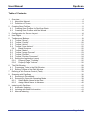
Table of Contents
1
Overview ........................................................................................................................... 4
1.1 About this Manual ....................................................................................................... 8
1.2 Definition of Terms...................................................................................................... 9
2
Creating Scan Profiles..................................................................................................... 11
2.1 Creating Scan Profiles for DpuScan Basic ............................................................... 11
2.2 Creating Scan Profiles with the Wizard..................................................................... 13
3
Configuration for Screen Layout...................................................................................... 14
4
User Rights ..................................................................................................................... 17
5
Toolbars and Buttons ...................................................................................................... 19
5.1 Toolbar "Setup"......................................................................................................... 19
5.2 Toolbar "Control" ...................................................................................................... 20
5.3 Toolbar "Action" ........................................................................................................ 21
5.4 Toolbar "User Actions".............................................................................................. 22
5.4.1 Batch Structure .................................................................................................. 22
5.5 Toolbar "Marks" ........................................................................................................ 22
5.6 Toolbar "Image Process" .......................................................................................... 23
5.7 Toolbar "Position" ..................................................................................................... 24
5.8 Toolbar "Position Document" .................................................................................... 24
5.9 Setting the Application Layout .................................................................................. 25
5.9.1 Property Page "Toolbars"................................................................................... 25
5.9.2 Property Page "Actions" ..................................................................................... 26
6
The Edit Window ............................................................................................................. 28
6.1 Processing Tools in the Edit Window........................................................................ 28
6.2 Editing Toolbar of the Edit Window........................................................................... 28
7
Defining a Job Process Control (Task)............................................................................ 33
8
Scanning with DpuScan .................................................................................................. 36
8.1 Scanning in DirectMode............................................................................................ 38
8.2 Scanning in OpenJob Operating Mode..................................................................... 39
8.2.1 Select Batch Name at the Start .......................................................................... 40
8.2.2 Assign Batch Name in Advance ......................................................................... 40
9
Indexing with DpuScan.................................................................................................... 41
9.1 Automatic Indexing ................................................................................................... 41
9.2 Indexing with Batch Information................................................................................ 41
9.3 Manual Indexing ....................................................................................................... 42
Page 3 of 44
DpuScan
1
User Manual
Overview
DpuScan is a powerful scanning program. Even its Basic version can comfortably deal with
complete batches at full scanner speed. DpuScan offers all required functions for scanner
settings, display settings, and saving of the scanned images.
Furthermore, barcodes can be recognized, individual images can be modified for
enhancement, data can be added manually, and with the integrated OCR module, scanned
texts can be recognized and saved.
It makes no difference whether the documents are color or black/white. By means of the filter
technology integrated into the Gold-Version, it is possible to generate additional black/white
images from the color image, and unwanted background colors can be suppressed.
The strongest points of DpuScan are as follows:
• Batch-Oriented Processes:
DpuScan has a powerful batch manager and is easily adjustable. For standard cases, there
is a Wizard that executes – via simple questions and replies – all necessary settings in order
to provide an easily understandable graphical user interface to ensure that all batches of a
document type are scanned or processed in the same manner.
Page 4 of 44
User Manual
DpuScan
• Powerful Scanning of Documents:
Document capture is more than just scanning paper; efficient scanning is the starting point for
every capture system. DpuScan supports simplex or duplex scanning in Color or black/white
with models from Agfa, Avision, BancTec, Bell & Howell, Canon, Fujitsu, InoTec, Kodak,
Microform, Panasonic, Photomatrix and Ricoh. Automatic document separation by
barcodes or patchcodes speeds the processing of scanned documents.
• Multiple Possibilities for Displaying Images on the Screen
There are different possibilities for displaying your scanned images on the screen – from fullpage representation of a single image to many small thumbnails: Furthermore you can
decide whether you want to additionally display tree views, indexing dialogs, or different
information that was gained from the images.
• AdvancedCOLORDocumentProcessing (ACDP)
DpuScan Gold unlimited and also DpuScan QSI are equipped with the ACDP module for
filtering of color images. With it, any colors from the whole color spectrum can be filtered out
to generate a gray image.
A simple tool allows you to identify the colors to be filtered out – just scan a sample image
and span a frame around each color to be filtered out. The ACDP module will then
automatically calculate the spectrum of colors to be filtered out. With DpuScan Gold
Limited Edition, you will require the additional ACDPdef module for defining such filters.
Once defined filters can, however, also be executed without having this extra module.
• Creating Bitonal Black/white Images from the Gray Image:
Bitonal black/white images can be generated from the gray image by means of an areadependent dynamic threshold adaptation. This way, for example, after color filtering, ball
point pen can be separated from a blue background, or you can separate the writing below
red text marker, or the faint matrix print on gray printed areas.
• Professional Image Processing on Bitonal Black/White Images:
DpuScan offers a lot of post processing functions for enhancing the image quality,
recognizing barcodes and automatic text recognition (optical character recognition: OCR).
Image enhancement offers functions like despeckle, deskew, deshade, line removal, edge
enhancement, and more. Post processing jobs can be arranged in a network environment on
unmanned stations which automatically post process every scanned job.
Page 5 of 44
DpuScan
User Manual
• Image Enhancement by ReScan on Demand (RSoD):
By utilizing the image enhancement toolbar during quality assurance, you can create a new
black/white image from the original color image - with just one click, by an electronic ReScan.
Several ReScan profiles can be represented by different buttons or Hotkeys, respectively.
• Universal User Dialogs for Data Entry
Besides capturing the document itself, additional data must often be entered for the scan job
or for the individual images. Universal user-dialogs for data entry can easily be defined and
called individually.
• User Privilege Administration via Operating System
The integrated user administration facility allows an administrator to assign rights to different
users for every single function in DpuScan. Here, all users or user groups who are installed in
the operating system are the base.
• Powerful Event Control
New directories can be generated automatically depending on the value of a barcode, OCR
results, counter readings, the value of certain variables, a file sizes and more. The value of
certain variables can be assigned, images can be marked or flagged for deletion, new multipage image files can be created and other actions performed.
• Universal Upload Functions and Accounting Data for Scan Service Renderers
Every scan program is only as good as its ability to connect to your archive, workflow, or
Document Management System. DpuScan 4.0 offers universal setting possibilities via
protocol files or modules that you can write yourself. Besides image files (TIFF, JPEG,
JP2DF), barcode files can also be written, and text files generated by the OCR, in different
formats.
Pre-defined export procedures exist for many standard DMS environments which can be
selected by the Wizard.
Additionally, DpuScan can capture processing times. The accounting data generated can
easily be evaluated with a table calculation program.
• Functional Expansion by Optional PlugIns
In addition to the many standard features of DpuScan, its functionality can be expanded by
PlugIns. At the time of writing, the following PlugIns are available:
Indexing with DpuScan (included in the delivery scope of DpuScan QSI)
ODBC database connectivity for DpuScan (included in DpuScan QSI)
Color noise reduction
Optical Mark Recognition (OMR)
Recognition of hand-writing (ICR) and additional second OCR engine
Gamma correction on color images and gray images (included in DpuScan QSI and Gold)
Edge Enhancement for color and grayscale images (included in DpuScan QSI and Gold)
Reading two-dimensional barcodes (Datamatrix or PDF417)
FaceSnap (Face recognition on color images)
Page 6 of 44
User Manual
DpuScan
Extraction and Scaling of Signatures
Digital Signature
Separate documentations are available for the above PlugIns. From time to time, further
PlugIns will become available. Also, the PlugIn interface is documented which means that
through the use of an optional Toolkit, you can create PlugIns of your own.
Different Option Profiles for Different Demands
DpuScan is available in two different Editions:
Unlimited Edition:
Limited Edition:
There are no speed limits and no monthly
scan quantity restrictions. The different
versions differ only in their functional range:
The scan speed is adapted to the scanner
being used. We offer different speed
versions, but again there are no monthly scan
quantity restrictions:
• DpuScan Basic
• DpuScan Standard
• DpuScan Professional
• DpuScan Color Gold unlimited
• DpuScan Color Gold Limited Edition
DpuScan Gold Limited Edition contains all
functions of DpuScan Gold unlimited except
the PlugIns and the module for defining ACDP
color filters; such filters can however be
executed.
With the Limited Edition of DpuScan, all operations in the Task process and during
interactive processing are throttled to the relative speed of the GL-Version. When
several operations are executed in sequence, each and every operation is throttled so
that the nominal speed cannot be reached!
A very specific item is the Version DpuScan QSI (Quality Assurance, SQL-Database
Connection and Indexing). Its functional scope matches DpuScan Color Gold unlimited, but
the scan speed is restricted to 32 images per minute. Furthermore, DpuScan QSI can not be
operated in DirectMode. Contrary to the Limited Edition however only the scanning
process has the speed limit while with the Limited Edition all functions are restricted in
speed.
For processing color images, a DPU-S Color Engine is required. With DpuScan Gold
(including the Limited Edition) and QSI, it is included. DpuScan Standard and DpuScan
Professional can optionally also be combined with the DPU-S Color Engine. The following
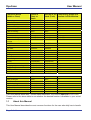
table cites, for every function, the version from which the relative function can be utilized.
Some functions can only be defined with the Professional or Gold version, but they can then
be used in the Standard version if they were priorly defined under Professional or Gold. So
it is often possible to use DpuScan Standard at the scan stations, if the administrator has at
least a Professional version to hand.
Page 7 of 44
DpuScan
User Manual
Functions Block
(within a Class)
Define in
Class or
Batch
Execute in the Temporarily define and
Batch (Task)
execute in Edit Window
Screen layout
Info window
Measuring units
Scanner setting
Printer setup
Path for storing
Filename
Barcodes
Scan color images
Deskew and crop color
images
Batchfile
Image counter
Job data
Patchcodes
PlugIns
Polling
Event rules
User dialog
Broker
Statistic data
Image post-processing
Stamp image
OCR
Color filter
Basic
Basic
Basic
Basic
Basic
Basic
Basic
Basic
Basic/Color
Basic/Color
Basic
Basic
Basic
Basic
Basic
Basic
Basic
Basic
Basic/Color
Basic/Color
Basic
Basic
--Basic
Basic
----Basic
Basic/Color
Basic/Color
Standard
Standard
Standard
Standard
Standard (opt.)
Professional
Professional
Professional
Professional
Professional
Professional
Professional
Professional
Gold unlimited
Standard
Standard
Standard
Standard
Standard (opt.)
Standard
Standard
Standard
Professional
Professional
Professional
Professional
Professional
Gold (all)
------Basic
------------Basic
--Basic
Gold unlimited
Furthermore:
User privileges
Wizard
Application Layout
Capture Workflow
Class database
Task database
Open Jobs
define
Basic
Standard
Standard
Standard
Standard
Standard
Standard
execute
Basic
Standard
Standard
Standard
Standard
Standard
Standard
---------------
This User Manual describes – unless stated otherwise– the version DpuScan Color Gold.
Please refer to the above table to see whether the desired function is available in your actual
version.
1.1
About this Manual
This User Manual describes the most common functions for the user who daily has to handle
Page 8 of 44
User Manual
DpuScan
this software. It cannot replace training and practice in the usage of the programs, but is
more a reference for later extension of the skills acquired during training.
It describes the software with its default factory settings. System administrators may assign
the buttons and functions described here with other functions, or buttons may have been
forbidden for individual users or user groups. A system administrator might also generate
additional buttons or shortcuts that are not described here.
For setup, i.e. for system administrators, a detailed Reference Manual is available which can
be found on the CD-ROM.
The Reference Manual only exists in German and English Language. You will find it on the
product-CD in the folder called
\DOCUMENTATION\
1.2
Definition of Terms
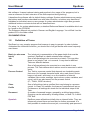
DpuScan is a very complex program that however is easy to operate. In order to better
understand the individual functions, you should first of all get familiar with some frequently
used terms:
Batch (or also scan
batch)
The (electronic) representation of the paper batch that must be
scanned. DpuScan is a batch-oriented scan software.
Job
Sum of all operations to be executed on a batch. This may take
place in one single Task or in several. It may also be different
Tasks on different stations.
Task
Sum of all operations to be executed on a scan batch in one
process. The Task defines which actions must be executed in which
order.
The Task is a process control that depends on checkable events
that occur (for example, barcode found, color mark found, file too
large or too small, and more) or on the condition of internal
variables (like counter readings, input values, system variables, and
more); and it can also branch out the process control
(IF-, THAN-, ELSE-structure).
Process Control
Class
Profile
Sum of all settings (setup, profiles) that may belong to a process
control. In Class, for example, the scanner is selected and set up.
Furthermore, all settings are made for the individual steps of the
Task.
Document
A number of scanned images, grouped by a defined prescription.
Grouping can be achieved by creating folders, or Multi-Tif, or MultiPDF files.
OpenJob
DpuScan scans all batches initially into an internal folder. They are
temporarily stored there and can later be further processed. It is
then possible to continue the scan job, or eventually post-process it
Page 9 of 44
DpuScan
User Manual
with another Task, or to do indexing. A batch can also be moved to
a different station to be further processed there. RSoD is possible,
and one can also insert or re-number images. Only after it is
finalized will the batch appear in its defined target folder with all
additional information.
DirectMode
Storage is directly done in the defined target folder. The images and
additional information are immediately available to a subsequent
system. Finalizing is applicable. Temporary storing and postprocessing are no longer possible.
ReScan on Demand
(RSoD)
This process allows you to create, from a color image (or from a
gray image) a new gray image or a black/white image by applying
color filters and/or threshold algorithms, without the need to
physically scan the paper again. Such a function can, for example,
be assigned to a button on the image processing toolbar, even
several times with different parameters, so that it needs just one
click to turn an unreadable black/white image into a readable one if
you scanned in color and saved the color image in an OpenJob
operation at least temporarily.
Page 10 of 44
User Manual
2
DpuScan
Creating Scan Profiles
Before you can start your first scan job with DpuScan, you must at least select the scanner
and make some basic settings for it. For such setup, DpuScan offers a simple Wizard in all
versions except DpuScan Basic.
2.1
Creating Scan Profiles for DpuScan Basic
In DpuScan Basic, only one Class exists called "Default". As the Wizard always creates a
new Class, it cannot be used for DpuScan Basic and is therefore unavailable.
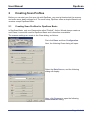
The scanner settings are made in the Class dialog, as follows:
First click Class and then Configuration.
Next, the following Class dialog will open:
Select the Data Source, and the following
dialog will display:
Here, click Scanner to open the following
Select scanner dialog:
Page 11 of 44
DpuScan
User Manual
Now select your actual scanner! Normally, your
scanner should already appear as available if it
is connected and switched on and was
switched on at the moment when you switched
on your PC.
If you cannot find your scanner here, switch
over to display the Driver selection, as per the
following dialog:
Select the Twain driver to match your scanner ,
or the driver JUKSCSI or JuK_Spti if you know
whether your scanner is supported by such a
driver.
If the driver is not displayed here, you must
install it. Twain drivers are available from the
relative scanner producer.
Once the scanner is selected, a setup dialog
will display for the chosen scanner.
The dialog depends on the actually scanner
selected and now allows you to do the setup of
the scanner. You may also click the Select
Scanner button to return to the previous page
and to select a different scanner.
Close the setup dialog with OK and you return
to the Class settings. Here you can make
further settings in due course, which however
will not be described here.
Finally, you complete the Class settings also
with OK and you can then start your first scan
job.
Page 12 of 44
User Manual
2.2
DpuScan
Creating Scan Profiles with the Wizard
Starting from DpuScan Standard, a simple Wizard is available for creating scan profiles and
indexing profiles. With this tool, almost every profile can automatically generated by simple
question and reply pages. For system administrators it is furthermore possible to manually
rework such automatically generated profiles, in due course.
The Wizard creates a Task and an appropriate Class configuration. If, in parallel, an Index
profile is defined, the Wizard will additionally create a second Task for indexing also with an
appropriate Class.
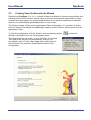
To start the configuration with the Wizard, click the following button:
Wizard configuration from the File dropdown menu:
or select the
The Wizard will then generate, in up to 22 Steps, the desired
Task and Class, as per your prescriptions, and you can
immediately start it. Every single page offers useful hints for
the functions to be selected, giving detailed help for their
configuration.
Page 13 of 44
DpuScan
3
User Manual
Configuration for Screen Layout
With DpuScan it is easy to set the screen layout individually for the relative profile. This way,
you can foresee different contents in the sub-windows, and those can also be set and sized
individually.
You can reach the corresponding dialog via Class | Configuration | General | Screen
Layout. There, you define the setup on four property pages.
In the Class configuration, you may choose different screen layouts for the scan process and
for interactive (post-) processing. So it is most probably not necessary to have the images
displayed as thumbnails while they are scanned. Similarly, a sub-window for indexing makes
sense only while you work interactively, in Pause mode.
The screen layout can freely be defined. This is done, separately for Process and
Interactive, on the relative property pages. The Process page offers a tick box to apply the
layout as set for Process to be the same as Interactive.
Only the General page can be reached in the Pause mode, using the button,
in order to temporarily change the number of scan windows for example,.
The Treeview page determines the look of the window, for example which images are to be
displayed. So you can either display or hide specially marked images directly when you
change to the Pause mode, or automatically hide all images with a red mark.
If you allow Drag&Drop, images may be moved within the batch.
Allow Multiselection enables you to select several images in the batch at one time and to
process them. Keep your Control key pressed down and click to the desired images in the
thumbnails window, or in the batch structure.
Page 14 of 44
User Manual
DpuScan
You can set the size of the icons in the treeview and the size of the thumbnails in their
window, and also the spacing between the thumbnails, you can define the visible area, and
show or hide filenames of the image. "Show index" allows you to show or hide the subnumbers of a Multi-TIF file.
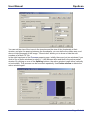
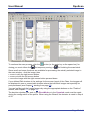
In the right-hand part of the Process property page, initially there are just two windows If you
click to one of these windows to select it – it will become blue and thus is the active partial
window. By clicking on one of the Splitting buttons, the active window is split either vertically
or horizontally. This process can be executed repeatedly. Use Delete window to delete the
active window again.
Page 15 of 44
DpuScan
User Manual
It is possible to assign exact dimensions to the windows. This makes sense for example if
you already know the maximum dimensions of the information to be displayed in this part of
the screen. In this case, however, the sub-window cannot be altered later by the user. If you
set the window size to Optimal size, the user can later modify it’s size in the usual Windows
manner by click and drag. In the Scan/Edit window any scanned images are displayed. The
number of images to be displayed at one time is set on the General page. You can assign
fixed positions to the Info window, the Warning window, the Batch window, and to the
Toolbox window, each in its own sub-window.
In the left-hand part of the property page, you can set the window type for every sub-window
in a dropdown list. Partitioning of the screen is flexible; you might also display the Tree
(showing the batch structure) in the top right corner.
The window types EmbUDD and JKODBC are offered only in connection with the two
PlugIns "Index" and "ODBC" in order to either show an "embedded user dialog" or to allow a
database query. Here, the name of the "normal" user dialog is shown as an annex to the
window type short name.
In the left-hand part of the property sheet, a certain window type is selected for every partial
window. The layout partition is no longer pre-fixed; you might display the tree even in the top
right corner.
You can also define empty windows. There, for example a separate program may be running
in parallel and independent of DpuScan.
As soon as you leave this dialog with OK, you are returned to the surface of DpuScan. There,
you can move the border lines, with your left mouse button held down, until they meet your
demands. These settings are automatically saved with the relative Layout-ID.
Page 16 of 44
User Manual
4
DpuScan
User Rights
In most cases, not all users should have access to all functions of DpuScan. For this reason,
it is possible with DpuScan to assign different rights to different users / user groups.
You reach the dialog for the User Rights from the main menu
bar. Here, you have to Click
File | Configuration: User Rights
– The following dialog will display:
In the default setup, only the user "Everyone" exists, for whom all rights are permitted.
We strongly recommend that you initially define a new user who has all rights, and
then either remove the user "Everyone" completely, or at least to restrict his rights as
far as possible.
Here, the user "Administrator" was defined, with all rights. All users who are registered in the
operating system may be assigned as a DpuScan user, be it on one single PC, or on a
network. Therefore, it should be possible to have users with limited rights.
In the above example, the user "hws" is only permitted to insert additional images from a
certain scanner, but not to generate new files from a filtering process.
A click on New opens another dialog where you can Select Users or Groups.
Page 17 of 44
DpuScan
User Manual
Click on Advanced brings you to the selection dialog:
Here you can select one of the user names in the list, add it to the list of admissible DpuScan
users and assign his rights.
Page 18 of 44
User Manual
5
DpuScan
Toolbars and Buttons
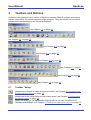
As default, the graphical user interface of DpuScan already offers all toolbars and buttons
that are required for the normal operation of the program. They are divided into functional
groups which are described in the following chapters:
see Chapter 5.1 on page 19
see Chapter 5.2 on page 20
see Chapter 5.3 on page 21
see Chapter 5.4 on page 22
see Chapter 5.5 on page 22
see Chapter 5.6, page 23
see Chapter 5.7 on page 24
see Chapter 5.8 on page 24
5.1
Toolbar "Setup"
Launches the Wizard to create a new scan profile, see Chapter 2.2 Creating Scan
Profiles with the Wizard on page 13.
Guides you to the setup dialog for the screen layout, see Chapter 3 Configuration
for Screen Layout on page 14.
Opens the dialog for the Application Layout with its two tabs for definition of
Toolbars and Actions, see Chapter 5.9 Setting the Application Layout on page 25.
Page 19 of 44
DpuScan
User Manual
Opens the dialog for the Class Configuration, where scan profiles are created and
administered, see Chapter 2.1 Creating Scan Profiles for DpuScan Basic on page
11.
Opens the dialog for the Task Configuration. (see Chapter 7 on page 33).
5.2
Toolbar "Control"
Import a batch: Batches can be forwarded from station to station; this offers a high
degree of flexibility as human and scanner resources can better be utilized,
independent of time and workstation. You must select the actually desired batch in
a dialog.
Opens a scan batch. In DirectMode this is always a new, empty batch. In the
OpenJob, you can either start a new batch, or you can continue with a batch that
was already temporarily saved.
The Job is paused so the modifications can be made in the data target structure
and on the images.
Starts, or re-starts the scan process; newly scanned image files will be added to the
already existing files.
Click here to execute the defined Event Rules once more for the entire batch; all
manually made modifications in the batch information or in the images will be
considered.
While processing and moving the image files, DpuScan creates new temporary
names for them inside the batch. With "Renumber filenames", all files and folders
are newly numbered.
Saves the Batch, in the DirectMode the Job is also finished.
In the OpenJob however, the settings and newly scanned images are saved where
they can later be further processed.
A click to "Finalize batch" completes the scan job once and for all. No further
images can be added. Therefore, a warning message is thrown.
Export a batch: As per the settings in the Class configuration at Data Target | Job
Export, the actual processing status of the batch is moved to another folder or to
another workstation.
Toggles the Info window. This Info Box displays data as defined in the Class
Configuration, such as pathname and filename of the latest saved image file.
Toggles the Toolbox. In the Toolbox, settings for the scan process can be modified
(e.g. Rotation / Paper / Resolution).
The Batch window displays the batchfile. It lists the data as defined in the Class
configuration (Data Target | Batchfile), such as the start of a scan process and the
path of the folder.
Page 20 of 44
User Manual
DpuScan
DpuScan may generate warning messages. They can be displayed (or suppressed)
by clicking this button.
User-defined commands (macros). Here, certain command sequences can be
combined. Please read details on page 26.
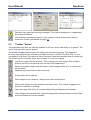
5.3
Toolbar "Action"
The scanned image files can later by modified or moved, either individually or in groups. The
entire filing structure may be altered.
The Action Toolbar offers buttons for editing the document structure. This document
structure may physically by realized as a folder structure, as Multi-Tiff, Multi-PDF, or as a
combination of all three. By means of these functions it becomes possible later to create new
documents, split or combine them, and to insert or to remove images.
Inserts an image from the scanner. This is always only one image. With a duplex
scanner first the front side then with the next click tieback side.
Removes marked images from the batch. As the images will be lost, a safety query
will be raised.
Neighboring documents can be connected.
A document can be split up.
Insert images from a scanner, always front side and back side.
Get several images from the scanner and insert them. The number of pages to be
scanned is entered in a dialog.
Insert an image from a file. A corresponding dialog will display automatically.
Insert images from several files. Again the appropriate dialog will open; several files
may be selected and will be inserted.
Page 21 of 44
DpuScan
5.4
User Manual
Toolbar "User Actions"
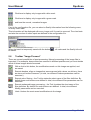
These buttons serve for post-processing of the scanned image files:
Rotate 90 degrees clockwise: With this button and the following ones, you can turn
wrongly scanned images to the desired direction. You may select one or several
images in the batch.
Rotate 90 degrees counter-clockwise.
Rotate 180 degrees.
Deskew will deskew one or several images, as selected in the batch, and
simultaneously remove black borders. This function works only for scanners with a
black background.
With Invert, one or several images as selected in the batch can be reversed in
color.
Expand/Collapse tree influences the tree view so that all elements - trunk, boughs,
branches, and leaves - become visible. Click the button again to collapse the tree
so that only the trunk and branches remain visible.
5.4.1
Batch Structure
The "Tree" shows the structure of the batch depending on the settings made at Data Target.
You can also move individual pages from one document into another one, and completely rewrite the structure of the entire batch when you again want to Process event rules.
Any modifications made to the batch structure will become effective only when the
Task is finished, or while finalizing the batch.
5.5
Toolbar "Marks"
The images can be flagged with different marks; the first three buttons will set or remove
these marks, the next four buttons allow filtering of the images to be displayed.
Images / documents with a red mark will not be saved when finalizing. Images /
documents with red marks are flagged for deletion. Clicking on the button will toggle
the marks, unmarked images will be marked, and the mark is removed from already
marked images.
It is also possible to use separate buttons for plus and minus; please read details in
Chapter 5.9.2 Property Page "Actions" on page 26.
Blue marks serve to mark images that still require post-processing (rotation,
moving, etc.). As long as a blue mark exists, the scan job cannot be finalized.
Green marks flag image files visually; they have no effect on finalization.
Click here to display only images that are flagged for deletion.
Page 22 of 44
User Manual
DpuScan
Click here to display only images with a blue mark.
Click here to display only images with a green mark
and here the normal, unmarked images.
If set in the configuration file, you can select a Quality Information from the following menu,
for every color mark.
This information will be displayed with every image until it’s mark is removed. The cited texts
and also the number of menu inputs are defined in the configuration file.
When the batch is temporarily saved with the button
be saved.
5.6
, all marks and the Quality Info will
Toolbar "Image Process"
There are several possibilities of post-processing. Manual processing of the image files is
important if, for example, documents were scanned in different qualities and you must decide
which of these images should be saved.
With a click to this button, the modifications made on this image are applied, and
are saved
Execute deskew, align an images that were scanned with a skew; on delivery, there
are two such buttons foreseen. (In total, ten different Deskew parameters can be
executed.)
Execute color filtering – the Tool tip states the short name of the filter definition. By
default three such buttons are defined In total, nine different filter parameters can be
executed.
Execute enhanced image processing – the Tool tip states the short name of the
filter definition. By default five such buttons are defined. In total, nine different
Modify parameters can be executed.
Undo: Undoes the most recent modifications to the image.
Page 23 of 44
DpuScan
5.7
User Manual
Toolbar "Position"
Here you find buttons for stepping through the scanned images. In detail, the buttons have
the following meaning:
Goes back to the start of the scan batch, goes back one page on the
screen, or just one image.
Jumps to the previous red, blue or green marked image.
Jumps to the next red, blue or green marked image.
Moves forward by one image, or one page on the screen, or goes to the
end of the scan batch.
5.8
Toolbar "Position Document"
In DpuScan, a "document" consists of several grouped images or files. The buttons in this
toolbar serve for easy navigation inside such documents:
This button will select the entire batch.
Goes to the previous folder and selects the first image in this folder.
With this button, you select the actual folder.
Goes to the previous file, to the previous image.
With this button, the actual file is selected.
Goes to the next file, or the next image.
Goes to the next folder and selects its first image.
Page 24 of 44
User Manual
5.9
DpuScan
Setting the Application Layout
The above explanations apply to the factory setting of the software. There are, however,
multiple possibilities to modify the graphical user interface, to reduce it or to widely expand it..
These settings are made in the Application Layout. You can reach it by clicking the
appropriate button:
5.9.1
Property Page "Toolbars"
You can define up to nine different User Profiles. Toolbars can either be shown with or
without texts, with normal, large or small symbols. Entire toolbars can be hidden in order to
prevent, for example, unauthorized changing of settings.
User Profiles that are defined here can be selected automatically in the process control
(Task).
Page 25 of 44
DpuScan
5.9.2
User Manual
Property Page "Actions"
Apart from the buttons of the standard setup, there many other buttons that can be added.
Sorted into logical groups, they are available here, in alphabetical order.
To add a Button click on the desired symbol and drag it to the corresponding Toolbar.
Special attention must be paid to the Macros where specified command sequences can be
combined. As soon as you select one of these buttons, the Macro button becomes available.
Clicking on the Macro button causes a dialog to open
Page 26 of 44
User Manual
DpuScan
So it is possible to combine several clicks in one single button. The desired commands are
executed sequentially as if the relative buttons were clicked one after the other, for example:
Execute event rules, renumber filenames, assign new filenames, etc.
Page 27 of 44
DpuScan
6
User Manual
The Edit Window
The scanned images can be displayed on the screen in one or several Edit windows.
The decision whether or not Edit windows are available is made with the help of the
button for defining the screen layout (see Chapter 3 Configuration for Screen Layout
on page 14).
The individual images can be post processed in the Edit window by means of the functions
available on the Edit toolbar and the processing tools described below.
6.1
Processing Tools in the Edit Window
Scroll and zoom functions are available for processing the image in the Edit window - click
the image, then
• zoom in with the right mouse button,
• zoom out with the left mouse button
• move the image with the right mouse button pressed down.
6.2
Editing Toolbar of the Edit Window
Scan windows may have an Edit bar. You can set whether 0, 1 or many windows have an
Edit bar by means of the screen layout setting dialog box.
The Edit bar of the scan window offers the following functions:
Page 28 of 44
User Manual
DpuScan
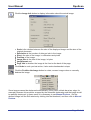
Click the Image Info button to display information about the actual image:
• Scale is the relation between the size of the displayed image and the size of the
original document,
• Resolution is the number of dots per inch in the image
• Size is the size of the image, in millimeters and pixels
• Position of the image,
• Image Size is the size of the image, in bytes
• Imageformat and
• Page Info is whether the image is the front or the back of the page.
Click Undo to undo you last action; it also works backwards in steps.
Click the Position the Image button to rotate, reverse image colors or manually
deskew the image.
Some images cannot be deskewed automatically (if they have a black bar at an edge, for
example) because this would be cropped by the automatic deskewing and the image would
be partially destroyed. In these cases it is necessary to use Manual Deskew . Get the
skewed image into the Edit window by clicking into the thumbnail, and then click to Manual
Deskew.
Page 29 of 44
DpuScan
User Manual
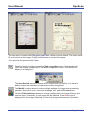
In the Edit window, the image is now displayed with a colored frame. You can fit it, with the
help of the Rectangle functions, step by step, to the real contents of the image. With
Rotate, you change the inclination of the rectangle, with Change size you can fit the frame
by dragging the four handles at the edges of the frame; with Move you position the frame on
the image.
Work step by step until the colored frame exactly matches the correct edges of the image.
A satisfactory image might look as in the right-hand illustration below:
Page 30 of 44
User Manual
DpuScan
The last step is to select the Filling Descew Color. White is set as default. This color would
fill a cut corner of the image. Finally click Process to correct the image.
You conclude the process with Close.
Click this button to either access the Text recognition menu (if parameters for
OCR are already configured) or the OCR configuration menu. The results will
display in a dialog box.
The Area Search means to search within a frame that you define. You have to
define a frame as otherwise no characters will be recognized.
The Modify function allows to make multiple settings for image post processing
(deskew, removal of lines, noise and shadings; etc), and to Process them,
Click the Filter functions button to change configurations for image filtering, and
execute them. Eventually, a new image will be inserted. If the RsoD logo is
displayed for the image, refiltering for loss-free image enhancement is possible.
Page 31 of 44
DpuScan
User Manual
Bates stamping is used to include virtual stamps in the image; click this button to
configure Bates stamping.
Click the Scanner setup button to change the configurations for scanner control
(paper formats, scan values, duplex scanning, etc.) and to start scanning for one
image. This scanned image will then replace the displayed image.
These Scanner settings are temporary and active only until the Task is altered or
the program is closed. The temporary alterations will then be lost.
The Print function will print the image displayed in the Edit window.
Click the Load button to load and Save the actual image.
When an image is loaded and resaved the original image will be deleted.
Click the Barcodes button to display barcodes. Click Configuration to set barcode
parameters.
The image is searched for Barcodes which will, if existing, be displayed. Types,
parameters and options for the barcodes can be set via Configuration.
Result shows the text of the latest found barcode.
The image is searched for Patchcodes which will, if existing, be displayed. Some
options for the patchcode search can be selected via the Configuration for
Patchcodes.
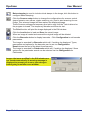
Images that were modified in the Edit window are
not saved automatically! A warning message is
displayed to prompt you to save your changes
before going to another scan window:
Page 32 of 44
User Manual
7
DpuScan
Defining a Job Process Control (Task)
The Wizard can, as already mentioned in Chapter 2.2 on page 13, be used for the simple
setting of the entire configuration. It is, however, only suited to relatively easy processes. For
more complex processes however, more detailed Tasks are required which consist of a
longer sequence of individual actions.
In order to open the Task configuration, click here, in the
DpuScan main menu:
or just use the button
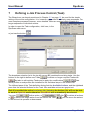
The dropdown selection list in the top left corner (ID) contains the existing tasks. Use the
buttons to the right to define new Tasks
, to delete no longer required Tasks with
, but also to edit existing Tasks and to apply the modifications
.
lists
which profiles or sub-profiles are installed for the individual steps in the Actions list.
The lefthand pane of the Task definition dialog lists the Available Actions, and the righthand
pane lists the selected Actions for the Task. Non-available actions are grayed out.
Only if you added the action Load open job / batch to the Actions list, will you be able
to work in OpenJob mode otherwise DirectMode will automatically be selected.
You may
further action, or
or
to delete one single action from the Actions list. With
in the Actions list upwards or downwards.
, click
to delete all actions,
you can move the actions
Page 33 of 44
DpuScan
User Manual
The actions that are indented and written in blue form an endless loop and will be repeated
until all originals are scanned or until all existing files are processed. Here, the individual
images may be processed in different manner, as shortly explained in the following example.
In this example, you want to generate, from the color image of the front side of a sheet, an
additional B&W image so that the OCR can read a text from a defined field. On the back side,
no OCR recognition is required, but you want to insert a virtual stamp there.
First, you must define the condition "on the front side only" – You must set or change the
parameter for the action in the Change parameter field.. This is done by means of percent
codes which are used to determine the DpuScan variables. Click next to the parameters field
on the double arrow; you will reach the following dialog:
A click on the % button opens the selection dialog for the percent codes where you have a
vast choice of possibilities:
Page 34 of 44
User Manual
DpuScan
Percent codes can be used with DpuScan in many other ways, for example to send the
filenames of images or metadata to subsequent systems (like an archive or DMS). Here we
have selected the variable %(S.IMAGE.SIDE) and evaluate it in the condition check. A front
side has the value "1" as default.
For most actions of the Task, parameters can be selected, clicking the double arrow will open
the relevant dialog box.
Under ID, you can select an existing profile for the selected Task step. Clicking the Config
button leads to the setting dialog in the Class and allows changes to the relative parameters
for the selected Task step.
Such changes become valid for all Tasks where this Class or ID is in use!
Page 35 of 44
DpuScan
8
User Manual
Scanning with DpuScan
DpuScan offers two different operating modes. In the DirectMode, the captured data are
saved immediately, there is no possibility for temporary storage or later post-processing. In
the OpenJob however, batches can be temporarily stored in order to continue later or
expand them, or even to process them further on different workstations in the network. Only
finalization leads to once and for all completion of the batch.
So you can start a new scan batch or continue a commenced one, but before any batch
processing can be started, general settings should be made in the configurations for Class,
Task, and Application Layout.
This is usually done with the help of the Wizard, however the settings
defined can be further expanded with this toolbar,
or via the appropriate menu items in Class, Task, and Window.
Details are described in the relative Chapters of the Reference Manual.
Exact descriptions for all buttons are also found in Chapter 5 Toolbars and Buttons starting
from page 19. Here, we again present the most important ones:
You must select the Task to be executed
from the dropdown list.
In the toolbar
you find buttons for controlling the scan job.
So, the scan process can be started, paused, continued, temporarily stored, and finalized.
button to start the scan process. All images scanned from now on will be
Click the Start
displayed. You can also start the job by pressing the return key, or the space bar.
In order to interrupt the scan process, click the Pause
button, or again press the return
key, or the space bar.
The loaded images will then be displayed in the relevant windows. The number and format of
the displayed windows will depend on the settings in the Screen Layout of the Class (see
Chapter 3 starting from page 14).
If an Edit window is displayed, the selected image will display there and can be further
processed.
Furthermore, the functions in the "Image Process " toolbar are available, see Chapter 5.6 on
page 23.
Page 36 of 44
User Manual
DpuScan
To continue the scan process, click the
closing you must either click
button (or the enter key or the space bar), for
for temporary saving, or
for finalizing the scan batch.
Some scroll and zoom functions are available for processing the actually selected image in
the scan window - click the image, then
• zoom in with the right mouse button,
• zoom out with the left mouse button
• move the image with the right mouse button pressed down.
If you defined Edit windows in the settings for the screen layout of the Class, the images will
be displayed in one or several edit windows where the individual images can specially be
post-processed (see Chapter 6 starting from page 28).
You can leaf through the loaded images by using the appropriate buttons on the "Position"
toolbar, see Chapter 5.7 on page 24.
The decision whether you work in the DirectMode or in the OpenJob mode must be made
during the configuration of the profile. When using the Wizard, the decision is made in Step 4
of 22.
Page 37 of 44
DpuScan
User Manual
The three selectable possibilities are shortly explained as follows:
8.1
Scanning in DirectMode
With DpuScan Basic this is the only available operating mode; with DpuScan QSI however
this operating mode is not available.
Click the Start
button in order to start the scan process. All documents are saved directly
after scanning and cannot be modified, or be moved to another path once the scan process
has ended. However the scan process can be interrupted by a click to Pause
and can
. Whilst paused, DpuScan allows quality control and postlater be continued with
processing of the images during and immediately after the scan process.
Then it is also possible to delete scanned images, but only "in backward direction", which
means the latest scanned images, but not from inside the middle of the batch.
You must use the
button and then confirm the subsequent security question.
It is not possible in DirectMode to process several batches in parallel; but the processed
batch must finally be closed and saved with
changed any more.
Page 38 of 44
. It is then irrevocably finalized and cannot be
User Manual
8.2
DpuScan
Scanning in OpenJob Operating Mode
This operating mode is not available for DpuScan Basic. For DpuScan QSI, this is the only
available operating mode.
Starting from DpuScan Standard, the OpenJob mode makes it possible to temporarily store
scan processes and to continue them later at the same spot. The scanned images can be
further processed whenever the scan process is interrupted.
It is also possible to change the batch structure or to modify single images, several, or all
images, or to further process the images with PlugIns. Windows with thumbnails, a tree
window and special toolbars assist in administering and editing the image files.
Several batches can be processed in parallel; but only one of them is active and appears on
the screen. All batches are available for selection from a list.
Click the Start
batch.
button to continue an already started scan process, or to start a new
The loaded images are then displayed in their relative windows. Number and format of the
displayed windows depend on the settings that you made for the screen layout of the Class
(see Chapter 3 starting from page 14).
You can interrupt the scan process or any post-processing by a click to Pause
continue it with
and later
.
If an edit window is defined, the selected image is displayed there and can be further
processed. You can also utilize the functions from the "Image Process" toolbar, see Chapter
5.6 on page 23.
Page 39 of 44
DpuScan
User Manual
Again, DpuScan allows you to check the quality and to post-process the images during the
scan process, or at any time later. This might also happen on another computer within a
network. The scan process can still be continued later, while the already available data are
processed, at another time, with quite a different Task configuration. Here, special marks
simplify the work; see Chapter 5.5 on page 22.
saves the processed data. Only when all data
After every processing cycle, a click on
has been collected and completely processed, you can finalize and save the entire job by
clicking
.
As already mentioned on page 37, the decision as to which operating mode should be used
must be taken during setup of the scan profile. When OpenJob is selected at step 4 of the
wizard there are two more options available.
8.2.1
Select Batch Name at the Start
In the
mode, the batch name is defined only when
the task is started. The "Jobs / Batches Selection" dialog will display at job start.
8.2.2
Assign Batch Name in Advance
With the
mode, the batch name is defined during the Wizard
configuration. Then, you can work exclusively with this one scan batch. If it already exists, it
will be opened to be further processed. If it does not yet exist, it will be defined and opened
as an empty batch.
Page 40 of 44
User Manual
9
DpuScan
Indexing with DpuScan
In order to be able to efficiently utilize the scanned data, they must be indexed for later
retrieval. This index information enters the batch file or the broker file.
9.1
Automatic Indexing
Relevant information about an entire scan batch and about its individual documents can be
captured "on the fly" during the scan process if variables are assigned with actual values.
These may be OCR reading results, for example, or the contents of a barcode, or information
about marks from an evaluation with the OMR PlugIn.
9.2
Indexing with Batch Information
You can display, at the start of a new scan batch, a user-defined dialog or UDD, where the
relevant information must be entered.
New dialogs are defined in the Class configuration. This operation should be left to the
system administrator. He will most likely take an existing "UDD", save it under a new name
and then modify it as required.
Page 41 of 44
DpuScan
9.3
User Manual
Manual Indexing
Manual indexing is a process where data from or about an image are entered manually via
the keyboard. Mostly, these are hand-written remarks or other image information that cannot
be captured in an electronic way.
By means of the DpuScan PlugIns JK_INDEX and JK_ODBC, the user-defined dialogs that
were generated in DpuScan can be used as input masks.
In DpuScan QSI, these two PlugIns belong to the scope of delivery and must therefore
not be licensed additionally.
At JK_INDEX and JK_ODBC, the topics to be indexed are set as user-defined variables, and
a user-defined dialog is created in the Class which later will serve as indexing mask.
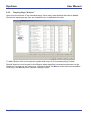
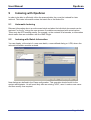
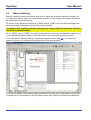
This "embedded" indexing dialog is constantly displayed (refer page 16), so it does not
appear only once, for example at the beginning of the scan process.
In the above display, the indexing mask is placed on the right side of the screen, so the UDD
is displayed in a sub-window of the DpuScan screen that is split into different sub-windows.
Page 42 of 44
User Manual
DpuScan
It is possible to use several indexing dialogs at one time, for example one to capture data for
the entire batch, another one to capture data from a document, and still another one where
details of the individual images are captured.
This User Manual is intended to give an overview of the many functions of the program.
For system administrators who will do the setup of the software, a detailed Reference Manual
is available that one can print from the CD-ROM.
The Reference Manual is published in English and German language.
You can find it on the product CD in the folder called
\DOCUMENTATION\
Page 43 of 44
DpuScan
Janich & Klass Computertechnik GmbH
Zum Alten Zollhaus 24
D-42281 Wuppertal
Germany
Phone: +49 (0)202 2708-0
Fax:
+49 (0)202 700 625
http://www.janichklass.com
User Manual
J&K Imaging, L.P.
1633 Sands Place
Marietta, GA 30067
USA
Phone: (770) 984-1212
Fax:
(770) 953-8399
http://www.JKimaging.com
408.881421.001 3
Page 44 of 44