1
Importing and Exporting
Tips for the Best Possible Translation
In general, it is recommended that you show all your layers before you export from
Graphite or any other CAD package so that you know what objects are exporting.
1.
Graphite was designed to export only the current model. If you have Detail
Views in your file, flatten them with the Flatten View command found in the
Views menu. If you have dimensions already in the detail view and the view
scale is set to 1, you can group the dimensions and geometry together before
you flatten the view. This will bring the dimensions across to the current model
for Export.
2.
Graphite supports 256 layers. If you have a DXF file that contains more than
256 layers, the geometry that is on the additional layers will automatically be
placed on the current work layer in Graphite. If you don’t want this to happen,
reduce the number of layers to a maximum of 256 in the application you will
be creating the DXF file in.
3.
Attributes in an AutoCAD file do not come into Graphite as text because Graphite does not support that entity type. If you want your attributes to come into
Graphite via DXF, you need to convert those attributes to Text before you
Export from AutoCAD.
4.
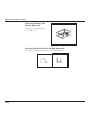
If, when translating to AutoCAD the line patterns do not seem to come across
or are distorted (too big or too small), change the AutoCAD variable LTSCALE
to a smaller number to display the line patterns at an appropriate scale.
5.
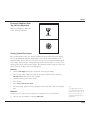
With some angular dimensions, the arrow may be displayed in AutoCAD in the
wrong direction (pointing towards the text rather than towards the extension
lines). If this happens, execute the DIM command in AutoCAD, select the
affected dimensions, and use the UPDATE command to display the arrow correctly.
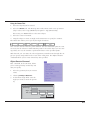
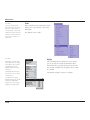
Convert Command
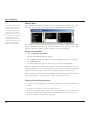
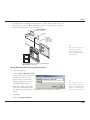
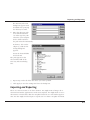
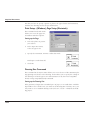
This command in the File menu starts the Convert batch translator which allows
you to import and export multiple files in an unattended mode. It imports all files of
the same type from one folder and saves these files in the selected format into a
destination folder.
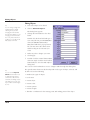
Converting Multiple Files
1.
Create two folders.
15-21