1
Graphite Documents
Tip:
Use AutoSave so that Graphite automatically saves your
work. Choose Layout>Preferences>AutoSave.
Save Command - CTRL+S (Windows); +S (Macintosh)
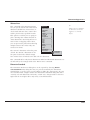
This command in the File menu saves the current Graphite document to its original
folder. If you want to save it to a different folder or with a different name, choose
Save As. If you choose Save and the document has not been saved previously, the
Save As tool dialog box appears automatically, allowing you to name the document
and specify the folder in which to save it.
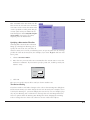
If you have named and saved the document before, a brief message appears when
you choose Save, and the program pauses while it updates the information.
You should save frequently. Even though your drawing appears on the screen, it is
not stored on the disk until you save it. Hours of work can be lost because of a
power failure. It is also important to save before performing any intricate, multistep
maneuver. In that way, if the result is not exactly what you had hoped, you can
abandon the file by closing it without saving.
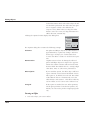
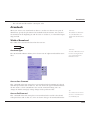
Save As Command
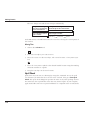
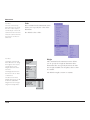
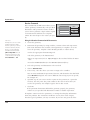
This command in the File menu saves the current document. A dialog box appears
so you can name the current document, give it a different name, or save it to a different directory.
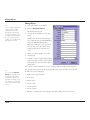
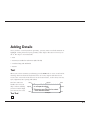
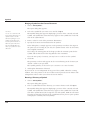
Saving in the Current Directory
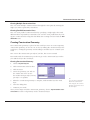
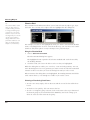
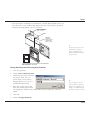
1.
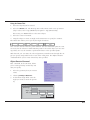
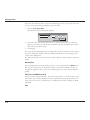
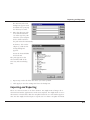
Choose File>Save As.
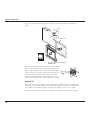
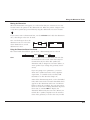
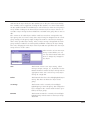
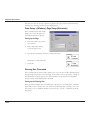
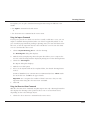
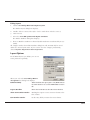
The Save Drawing as dialog
box appears.
2.
If necessary, display a different
folder.
3.
Type the name you want to
use in the File name data field.
4.
Either press ENTER (Windows), RETURN (Macintosh) or
click OK.
For Windows, the filename
extension .vc6 automatically appends to the filename.
You can use the Save As command to make a backup of a document.
15-4