1
Sensor Calibration
Basic Calibration
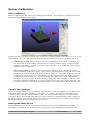
Run the 3 Space Suite, and select your COM port from the list. You should see a model of the sensor
that rotates along with the actual sensor.
At this point, the on-screen orientation may not line up very well with the actual sensor, as we have not
calibrated the sensor yet. The following steps should ensure that your sensor is properly calibrated.
•
Calibrate gyroscope: The gyroscope needs to be calibrated while the sensor is stationary so it
can get an idea of what readings correspond to no motion. Hold the sensor still and press the
Calibrate Gyros button. Continue to hold the sensor still for a second after that, and gyroscope
calibration will be complete.
•
Tare sensor: Following this, the sensor most likely needs to be tared. Taring sets a certain
sensor orientation as the “zero” point. This is always represented on screen by the sensor with
its top(button side) up and the cord facing directly towards you. Therefore, to put the sensor in
an appropriate taring position, you should make sure the physical sensor has its top up and its
cord facing directly towards you. You will probably also want to place it on a flat surface to
help line it up. Once you have it in the proper position, press the Tare button in the suite. The
command will finish immediately, so you may begin moving the sensor around after that. The
movement of the on-screen sensor should now much more closely match that of the real sensor.
Commit Your Settings
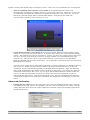
Once you have the sensor properly calibrated, you will want to save your changes so you don't have to
make them again every time you plug in your sensor. To commit your settings to the sensor's nonvolatile memory, press the Commit Settings button. Be sure to do this each time you make changes
you want to keep. If you decide later that you want to return to the original settings and try again, use
the Restore Factory Settings menu option. This will return all settings to their original states, though
this change will also not be saved unless you commit it.
Dealing with Small Errors
You may find that while the on-screen orientation may be close to the actual sensor's orientation, in
some places it will still have a small error(this is easiest to see when holding it so any edge is flat
©2007-2011 Yost Engineering, Inc.
Patent Pending
5/8