1
against a surface and another edge is facing the screen). There are several methods for correcting this:
•
Turn on continual auto-reference vector mode: In its default state, the sensor will
automatically calculate the compass reference vector when it starts up. However, it can be set
to continually recalculate this, allowing it to adjust the reference vector on the fly. To set up
this mode, click the Single Auto Continual radio button. Note that in this mode, the
accelerometer reference vector is always (0,-1,0).
•
Set up multi-reference vector mode: If the previous option didn't solve the problem, multireference vector mode may be the answer. It requires more setup, but can provide much better
results. This mode keeps a list of 24 reference vectors, one for every unique position the sensor
can arrive at using only 90 degree rotations, starting with the zero orientation(top up, plug
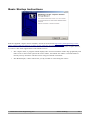
towards you). The easiest way to set up multi-reference vector mode is to use the MultiReference Wizard, which is part of the Suite. Go to the Other Commands menu and select Run
Multi Reference Wizard.
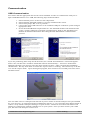
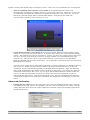
A green version of the sensor will appear, indicating a certain orientation you should be placing
your sensor in. When you press the Next button, the green board will move on to the next
orientation, and so on until it has guided you through all the orientations. After this has been
done, click the Multiple radio button, and see if the error still exists. If a certain one of the 24
orientations still seems to have error, you can press the Set Multi Reference button while the
sensor is in this orientation(the actual sensor, not the on-screen representation; be sure to
understand this distinction). This should lessen the error. Keep in mind that multi-reference
vector mode changes do not need to be committed; all changes are automatically saved to the
sensor.
Advanced Calibration
•
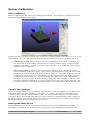
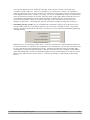
Change the rho values: If you are using the sensor in an environment that involves spurious
acceleration(a moving vehicle, for example), you may want to modify the rho values. The rho
values determine how much one of the component is trusted. Choose the Settings option from
the Advanced menu.
©2007-2011 Yost Engineering, Inc.
Patent Pending
6/8