1
190/392
MxCC User Manual: System Configuration
4.4.3 Configuring MxControlCenter Views
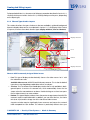
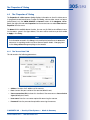
The MxControlCenter Views (called workspaces in some applications) provide a convenient
way to store different user interface configurations and to switch between them later on. Note
that you can store any combination of window, display and scaling options in such a view.
What’s in a View?
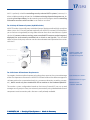
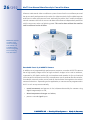
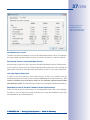
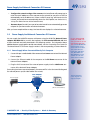
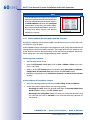
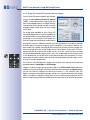
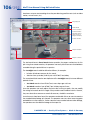
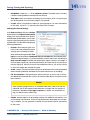
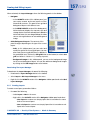
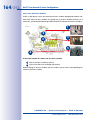
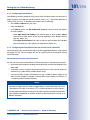
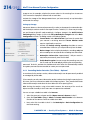
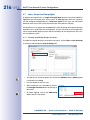
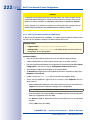
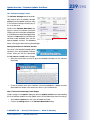
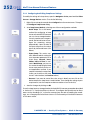
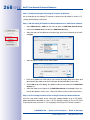
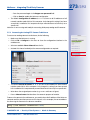
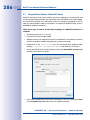
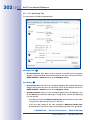
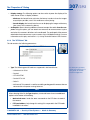
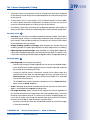
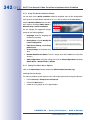
A view basically contains the current settings of the
commands accessible from MxControlCenter’s View
menu. When saving a view, you can select what
to include by activating/deactivating the following
options:
• Display options: Sequencer, scaling and grid
options
• Window areas: Show options (menu, title bar,
etc.), sidebar and toolbar options.
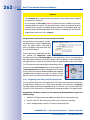
Example for Using Views
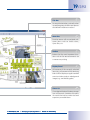
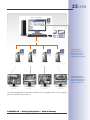
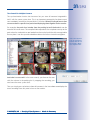
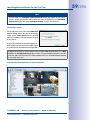
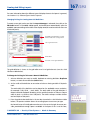
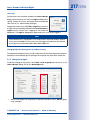
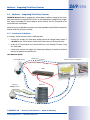
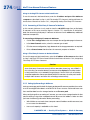
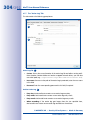
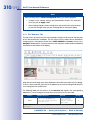
In this example, two views are used on one MxControlCenter installation - a simple view
for live monitoring only and the view of the store detective (see example in Section 3.2.10,
«Using The Live Recording Feature»):
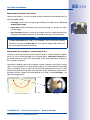
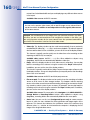
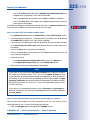
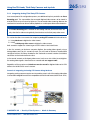
• Live monitoring only: Reduced (“bare-bones”) view with grid layouts that can be
selected using the layout buttons in the toolbar (as briefly described in «Creating A
Reduced (“Bare-Bones”) MxControlCenter View»).
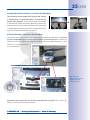
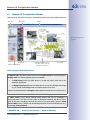
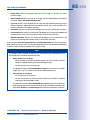
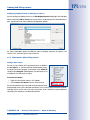
• Store detective’s view: View with all required sidebar elements (Navigator, Player,
PTZ Controls, etc.). The user can select this view after logging in.
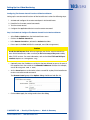
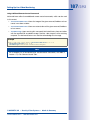
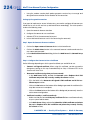
Creating A New Or Overwriting An Existing View
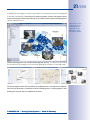
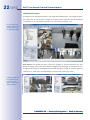
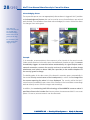
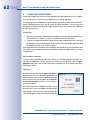
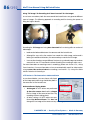
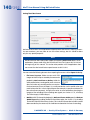
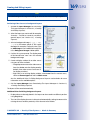
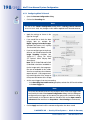
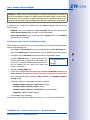
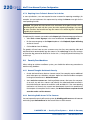
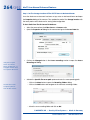
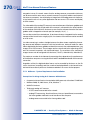
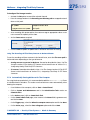
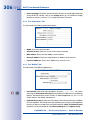
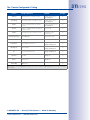
This procedure stores the current user interface configuration as a new view and also
allows overwriting existing views:
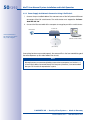
• Configure the user interface according to your requirements.
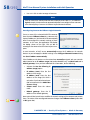
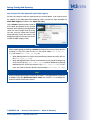
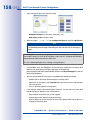
• Select View > Saved views > Save as from the menu.
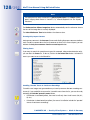
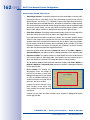
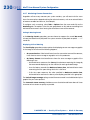
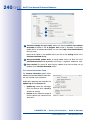
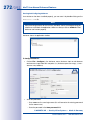
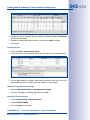
• In the Save View as dialog, enter a name for the new view or select an existing one
from the Name dropdown (in this case, the existing view will be overwritten by the
new configuration).
• Activate the Display Area Options and Application Window Areas checkboxes
as required.
• Click on Save to store the view and to close the dialog.
© MOBOTIX AG • Security-Vision-Systems • Made in Germany
www.mobotix.com • [email protected]