1
113/392
Playing Back And Evaluating Recordings
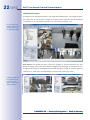
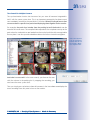
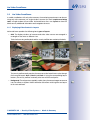
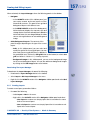
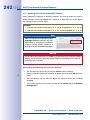
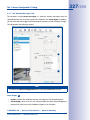
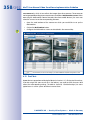
Example: Let’s expand on the detective scenario presented in the live recording example
of Section 3.2.10, «Using The Live Recording Feature». Using Live Recording, the store
detective has started the live recording at 3:30 pm.
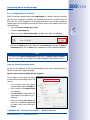
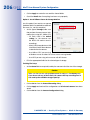
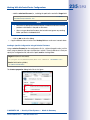
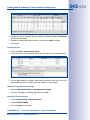
To find out what the suspicious person did before the detective activated live recording,
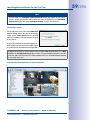
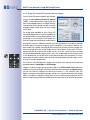
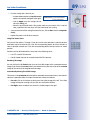
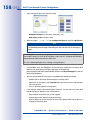
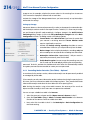
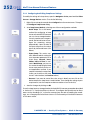
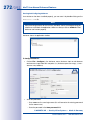
the detective activates the Sync checkbox, sets the search time in the Player sidebar
panel to 3:30 pm, clicks on the Go to Date/Time button and then clicks on the Fast
Backward button. MxControlCenter now plays back the cameras in synchronized fashion so the detective can check the individual cameras to find out which way the suspicious person took through the entire building.
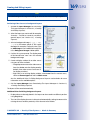
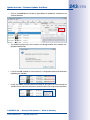
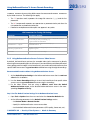
3.5.5 Playback In Layouts With Alarm Player Windows
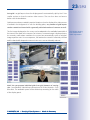
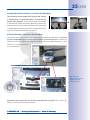
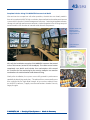
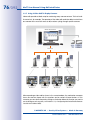
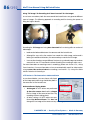
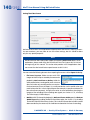
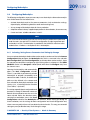
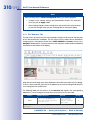
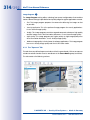
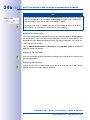
An Alarm Player window shows the last recording of the camera you clicked on in the
Alarm List. You can use one or more of these display elements to quickly access the
recordings of the last camera that triggered an alarm.
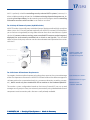
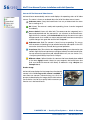
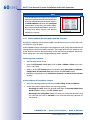
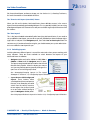
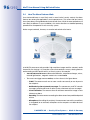
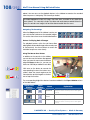
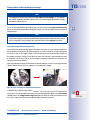
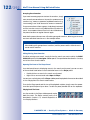
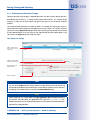
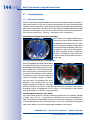
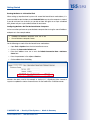
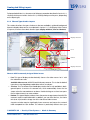
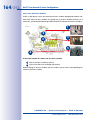
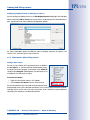
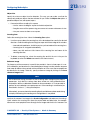
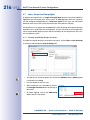
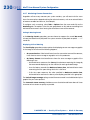
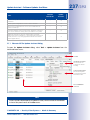
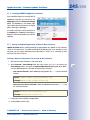
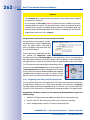
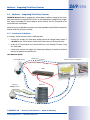
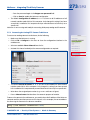
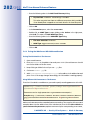
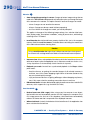
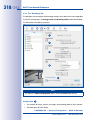
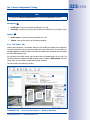
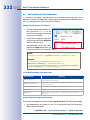
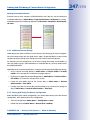
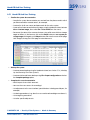
How Alarm Player Windows Work
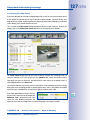
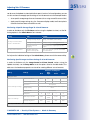
Alarm 4
(camera 2)
Alarm 3
(camera 2)
Alarm 2
(camera 1)
Alarm Player window always shows alarm of last camera clicked on in the Alarm List
Alarm 1
(camera 1)
Alarm List
Display area with layout
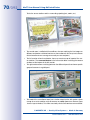
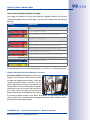
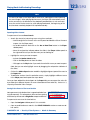
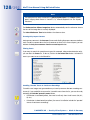
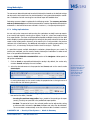
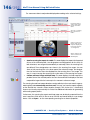
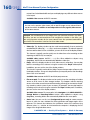
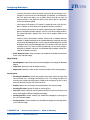
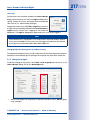
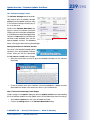
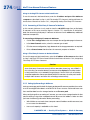
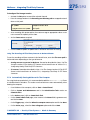
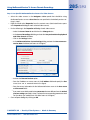
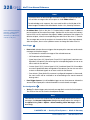
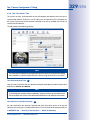
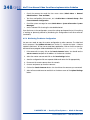
Click on a camera in the Alarm List dropdown to fill the Alarm Player window:
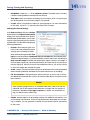
• MxControlCenter shows the selected alarm of the camera.
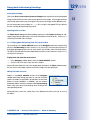
• If the Player sidebar panel is visible, MxControlCenter moves the current position
indicator to the last available alarm.
• Clicking on one of the playback buttons starts playing back the recorded alarm.
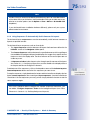
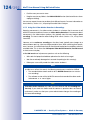
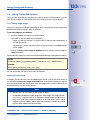
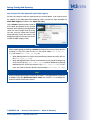
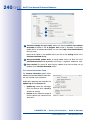
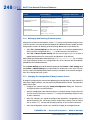
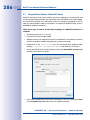
To export some or all of the video data, you can use the clip start/end markers (Section 3.6.3,
«Exporting Recorded Video Footage»).
© MOBOTIX AG • Security-Vision-Systems • Made in Germany
www.mobotix.com • [email protected]