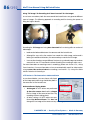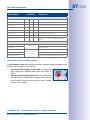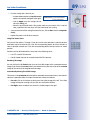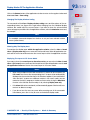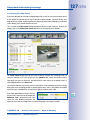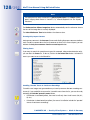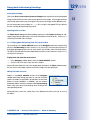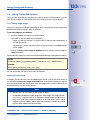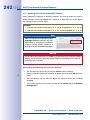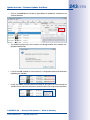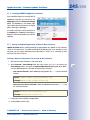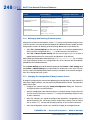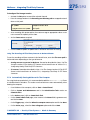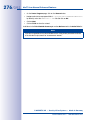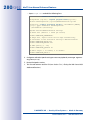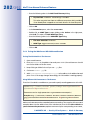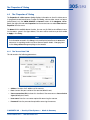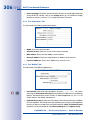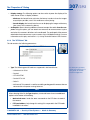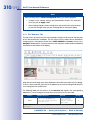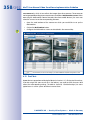
1
EN MxCC User Manual The HiRes Video Company decentralized MxControlCenter DE Professional Video Management Video Walls patented Thin Client Concept Dual Screen Free camera definition on 2nd screen more than 500 cameras Reliable Free Software Download w w w. m o b o t i x . c o m MxCC backs “Euro 2012” Donbass Arena Floor Plans Layout editor with indiv. floor plans Alarm time or image Alarm Event list sorted by camera or by time Search Search possible even while recording Event Search Synchronized search on several cameras Image improvement Post-Processing V 2.5.3, 03/2013 Zoom, contrast, distortion correction • Proven worldwide in the most demanding video applications • Unlimited number of users and cameras, no license fees • Individual user interface, adaptable to each individual user • Simplest installation and complete use on any standard PC • Convenient layout editor for integrating real building plans • Integration of conventional network and analog cameras • Exports recordings as AVI or Quicktime video with sound Audio Lip-synchronous audio bidirectional via IP Analog and digital PTZ Mouse or joystick control via network Remote Alerting Remote with automatic switching of floor plans Third-party cameras Hybrid www.mobotix.com Integration of analog & digital systems HiRes Video Innovations Synchronized The German company MOBOTIX AG is known as the leading pioneer in network camera technology and its realtime viewing of several cameras decentralized concept has made high-resolution video systems cost-efficient. MOBOTIX AG • D-67722 Langmeil • Tel: +49 6302 9816-103 • Fax: +49 6302 9816-190 • [email protected] MxCC/MxEasy Licence free Video-ManagementSoftware Floor Plan 3/392 Contents 1Introduction 13 MOBOTIX Video System Solution 13 The Decentralized MOBOTIX Concept 14 For A Wide Variety Of Applications 16 All Functions At A Glance 18 Practical Camera Layouts 20 Cost-Efficient Monitor Wall Solution 24 More Security In Case of An Alarm 26 Fast Availability Of Video Evidence 30 Get the Most Of What Is There 34 Secure Handling Of Sensitive Data 36 Simple MOBOTIX Installation 38 Total Costs Make The Difference 40 An Example: Donbass Arena, Ukraine 42 MxCC Performance Details 44 2 System Installation and Initial Operation 48 2.1 Setting Up MxControlCenter – Overview 48 2.2 Power Supply And Network Connection Of Cameras 49 2.2.1 Power Supply When Connected Directly To A Computer 2.2.2 Power Supply And Network Connection Using A PoE Switch 49 50 2.3 Installing MxControlCenter 51 2.3.1 System Requirements 2.3.2 Automatic Installation of MxControlCenter 51 53 2.4 Launching MxControlCenter For The First Time 54 2.4.1 Finding And Configuring Video Sources 2.4.2 Using The Video Sources In MxControlCenter 2.4.3 Initial Installation Of Hemispheric And 180° Cameras 2.4.4 Saving The Initial Configuration 54 57 60 61 3 Using MxControlCenter 62 3.1 Elements Of The Application Window 63 3.1.1 MxControlCenter User Interface Elements 3.1.2 MxControlCenter Toolbar Buttons 3.1.3 MxControlCenter Sidebar Panels © MOBOTIX AG • Security-Vision-Systems • Made in Germany www.mobotix.com • [email protected] 64 66 68 4/392 MxCC User Manual 3.2 Live Video Surveillance 69 3.2.1 Displaying Video Content In Layouts 3.2.2 Switching Layouts 3.2.3 Using Extra Windows To Display Video Sources 3.2.4 Using Sequencers To Automatically Switch Cameras Or Layouts 3.2.5 Using A Video Wall To Display Cameras 3.2.6 Using The Audio Features Of A Camera 3.2.7 Using The Camera To Switch Lights And Open Doors 3.2.8 Using Image Post-Processing On Live Images 3.2.9 Using The Virtual PTZ Functions On Live Images 3.2.10Using The Live Recording Feature 69 73 74 75 76 77 78 78 80 90 3.3 Display Modes Of The Application Window 92 3.3.1 Scaling And Display Commands 3.3.2 Using Saved Views 3.3.3 Functions When The Application Window Is Minimized 92 94 95 3.4 How The Alarm Features Work 96 3.4.1 Visual Alarm Features 3.4.2 Acoustic Alarm Features 3.4.3 Reacting To Alarms 97 100 101 3.5 Playing Back And Evaluating Recordings 104 3.5.1 Example Scenarios 3.5.2 Search/Playback In A Live Display Window 3.5.3 Search/Playback In Layouts With Display Windows In Player Mode 3.5.4 Synchronized Search/Playback Of Several Cameras 3.5.5 Playback In Layouts With Alarm Player Windows 3.5.6 Post-Processing Of Recorded Images 3.5.7 Using The Virtual PTZ Features When Playing Back Recordings 3.5.8 Using Event Searches 3.5.9 Using Post Video Motion Detection In Recordings 3.5.10Using The Video Search 3.5.11 Playing Back Recordings From The Local Archive 3.5.12Checking The Data Integrity Of Recordings 104 107 111 112 113 114 116 117 124 127 129 130 3.6 Saving, Printing And Exporting 133 3.6.1 Saving Single Images 3.6.2 Printing Single Images 3.6.3 Exporting Recorded Video Footage 133 134 135 3.7 144 Using MxAnalytics 3.7.1 MxAnalytics Overview 3.7.2 Calling Up Evaluations 144 145 3.8 Additional User Functions 147 3.8.1 Working With The Dead Man’s Switch 3.8.2 Using The Two-Man Rule 147 148 © MOBOTIX AG • Security-Vision-Systems • Made in Germany www.mobotix.com • [email protected] 5/392 4 System Configuration 150 4.1 Getting Started 150 4.1.1 4.1.2 4.1.3 4.1.4 4.1.5 4.1.6 Installing MxControlCenter Manually Updating an Older Version of MxControlCenter Installing MxControlCenter Language Packages Installing The MOBOTIX MxPEG DirectShow Codec Configuring A Common Time Server MxStatus: Status Monitoring For Multiple MxControlCenter Computers 150 151 151 152 152 153 4.2 Creating And Editing Layouts 156 4.2.1 Creating Layouts 4.2.2 Element Types Used In Layouts 4.2.3 Defining Grid Layouts 4.2.4 Defining Background Layouts 4.2.5 More Options When Editing Layouts 157 159 165 168 171 4.3 Setting Up Live Video Monitoring 175 4.3.1 Planning A Layout Structure 4.3.2 Configuring Layout Selection 4.3.3 Configuring Sequencers 4.3.4 Configuring Live Recording And The Local Archive 4.3.5 Configuring Extra Windows 4.3.6 Configuring MxControlCenter Remote-Control And A Video Wall 175 177 179 180 181 181 4.4 Configuring The Program Views And The User Interface 188 4.4.1 Configuring The Scaling And Display Functions 4.4.2 Configuring The Toolbar 4.4.3 Configuring MxControlCenter Views 4.4.4 Configuring Functions For A Minimized Or Hidden MxControlCenter 188 188 190 192 4.5 Configuring Alarms And Recordings 194 4.5.1 Configuring Alarms on the Cameras 4.5.2 Configuring What To Record 4.5.3 Configuring MxControlCenter Reactions 4.5.4 Configuring Where To Record 196 198 199 205 4.6 Configuring MxAnalytics 209 4.6.1 Activating, Setting Process Parameters And Setting Up Storage 4.6.2 Controlling Motion Detection (Time Tables) – Optional 4.6.3 Customizing The Report Profiles Used For Analysis – Optional 4.6.4 Generating Reports And Sending Automatically Via E-Mail 4.6.5 Creating And Storing Suitable Evaluations In MxControlCenter 209 214 215 215 215 4.7 Users, Groups And Group Rights 216 4.7.1 4.7.2 4.7.3 4.7.4 Creating And Editing Groups And Users Editing Group Rights Implementing A Two-Man Rule Requiring Users To Enter A Reason For An Action 216 217 218 220 © MOBOTIX AG • Security-Vision-Systems • Made in Germany www.mobotix.com • [email protected] 6/392 MxCC User Manual 4.8 Security Considerations 220 4.8.1 General Thoughts On Network Security 4.8.2 Restricting Public Access To The Cameras 4.8.3 Securing The MxControlCenter Workstation 4.8.4 Using Encrypted Connections To Access Cameras 4.8.5 Signing The Recorded Video Data 4.8.6 Configuring And Monitoring The Action Log 4.8.7 Monitoring Camera Connections 4.8.8 Configuring The Dead Man’s Switch 220 220 222 223 226 229 230 231 4.9 Working With MxControlCenter Configurations 232 4.9.1 Automatically Loading Program Settings 4.9.2 Saving Program Settings And Exporting Installations 4.9.3 Using Different MxControlCenter Configurations 232 232 234 5 Enhanced Features 5.1 Update Assistant - Software Updates And More 236 236 5.1.1 Elements Of The Update Assistant Dialog 5.1.2 Update Assistant Toolbar Buttons 5.1.3 Getting Started With Update Assistant 5.1.4 Checking The Camera Connection Status 5.1.5 Updating The Software Of MOBOTIX Cameras 5.1.6 Installing MOBOTIX Application Software 5.1.7 Saving And Uploading Settings Of One Or More Cameras 5.1.8 Backing Up And Restoring The Entire System 5.1.9 Changing The Configuration Of Many Cameras At Once 5.1.10 Using Update Assistant As A Stand-Alone Application 237 238 238 241 242 245 245 248 248 249 5.2 Using Snap Server NAS Systems 251 5.2.1 Adding Overland Storage Snap Servers 5.2.2 Configuring And Editing Snap Server Settings 251 252 5.3 Connecting Remote Cameras Using DynDNS 253 5.4 Using Pan/Tilt Heads, Third-Party Cameras and Joysticks 259 5.4.1 Using MOBOTIX Cameras With Pan/Tilt Heads 5.4.2 Integrating Third-Party IP PTZ Dome Cameras 5.4.3 Integrating Analog Third-Party PTZ Cameras 259 262 265 5.5 MxServer - Integrating Third-Party Cameras 269 5.5.1 Introduction To MxServer 5.5.2 MxServer - System Requirements And Installation 5.5.3 Connecting An Analog PTZ Camera To MxServer 5.5.4 Connecting A Third-Party IP Camera To MxServer 5.5.5 Setting Up Recording In MxServer 5.5.6 Automatically Starting MxServer On The Computer 269 270 273 274 274 275 © MOBOTIX AG • Security-Vision-Systems • Made in Germany www.mobotix.com • [email protected] 7/392 5.6 Using MxRemotePreview To Access Remote Recordings 277 5.6.1 MxRemotePreview - System Requirements And Installation 5.6.2 Installing MxRemotePreview On Windows With Apache Web Server 5.6.3 Installing MxRemotePreview On Microsoft Internet Information Server 7 5.6.4 Testing the Web Server With MxRemotePreview 5.6.5 Using MxRemotePreview Servers To Access Video Sources 278 279 281 282 283 5.7 286 Using MxControlCenter To Read SD Cards 6Reference 288 6.1 The “Options” Dialog 288 6.1.1 6.1.2 6.1.3 6.1.4 6.1.5 6.1.6 6.1.7 The “General” Tab The “Connection Defaults” Tab The “View” Tab The “Alarm Handling” Tab The “Remote Control” Tab The “Monitoring” Tab The “Action Log” Tab 289 292 294 296 299 302 304 6.2 The “Properties of” Dialog 305 6.2.1 The “Access Data” Tab 6.2.2 The “Information” Tab 6.2.3 The “Display” Tab 6.2.4 The “PTZ/Rotor” Tab 305 306 306 307 6.3 The “Camera Configuration” Dialog 309 6.3.1 The “Overview” Tab 6.3.2 The “Image Settings” Tab 6.3.3 The “Exposure” Tab 6.3.4 The “Recording” Tab 6.3.5 The “Audio” Tab 6.3.6 The “Events” Tab 6.3.7 The “Network Messages” Tab 6.3.8 The “Time Server” Tab 6.3.9 The “MxAnalytics” Tab 310 312 314 318 322 323 327 329 330 6.4 MxControlCenter Start Parameters 332 A Video Surveillance Implementation Guideline A.1 Collecting Information About The System 334 335 A.2 Lab Installation Of Components 335 A.2.1 Defining Hardware Groups A.2.2 Naming/Labeling Of All Components A.2.3 Connecting And Powering Up All Components A.2.4 Installing MxControlCenter On One Workstation 335 336 336 337 © MOBOTIX AG • Security-Vision-Systems • Made in Germany www.mobotix.com • [email protected] 8/392 MxCC User Manual A.3 Configuring The Storage Systems 337 A.3.1 Configuring The Server Settings Of The Storage System A.3.2 Configuring The Network Settings Of The Storage System A.3.3 Finishing The Configuration Of The Storage System 337 338 338 A.4 Configuring The Camera Network Settings 338 A.5 Creating And Distributing A Camera Master Configuration 340 A.5.1Overview A.5.2 Using The Quick Installation Wizard A.5.3 Setting The Admin Menu Options A.5.4 Additional Camera Settings A.5.5 Storing And Testing The Master Configuration A.5.6 Distributing The Master Configuration 340 342 342 347 347 348 A.6 Adjusting Sets Of Cameras 350 A.7 Finishing The Lab Configuration Of The Cameras 353 A.8 Configuring MxControlCenter 353 A.8.1 Configuring The Global Settings A.8.2 Adding Video Sources To The MxControlCenter Workstation A.8.3 Creating A Basic MxControlCenter Configuration A.8.4 Configuring The Alarm Handling A.8.5 Setting Additional Operating System Options 353 353 354 355 355 A.9 Final Lab Test Of All Components 356 A.9.1 Testing And Correcting A.9.2 Exporting And Distributing MxControlCenter 356 356 A.10 Mounting And Initial Operation 357 A.11 Adjusting Individual Cameras 357 A.12 Final Tests 358 A.13 Hand-Off And User Training 359 BTroubleshooting 362 B.1 Solutions To Common Issues 362 B.1.1 B.1.2 B.1.3 B.1.4 Power and Connectivity Issues File Server/NAS Issues Camera Issues MxControlCenter Issues 362 363 363 364 B.2 Using The MxControlCenter Error Log 365 C MOBOTIX Glossary 368 Index378 © MOBOTIX AG • Security-Vision-Systems • Made in Germany www.mobotix.com • [email protected] 9/392 About This Manual In order to indicate special elements, this manual uses the following formatting conventions: • User interface elements: Click on the Activate Player mode button. • Values in selection boxes: Select Unlimited in the selection box. • User input: Double-click the camera name and enter the desired name (Back Entrance, for example). • Keys on the computer keyboard: Press the Hash key (#) to reset the zoom settings. • File names: Double-click the MxControlCenter_Setup.exe file to install it. • Cross references: For more information on this topic, see Section 3.1, «Elements Of The Application Window». (Note that you can click on such a cross-reference in the PDF file to jump to the corresponding location in the text.) • Glossary entries: Monitor with a »Resolution of at least 1280x960 pixels. (Note that you can click on such a refererence in the PDF file to jump to the corresponding glossary entry.) • Web links: For additional information, see our website www.mobotix.com. • Examples: http://192.168.1.182:8001/?fullscreen=1 (minimizes MxControlCenter to the task bar) Explanation Of Boxes Safety Notices The safety notices in this manual are highlighted with the following boxes. Warning This box highlights the contents of such a Warning box. Make sure that you thoroughly read the information contained in this box and follow the instructions. Failing to do so will result in damages. Caution This box highlights the contents of such a Caution box. Make sure that you thoroughly read the information contained in this box and follow the instructions. Failing to do so may result in damages. Note This box highlights the contents of such a Note box. The text in this box is for your information. © MOBOTIX AG • Security-Vision-Systems • Made in Germany www.mobotix.com • [email protected] 10/392 MxCC User Manual Hints And Explanations Hint This box highlights the contents of such a Hint box. The text in this box is for your information. This box highlights information that improves your understanding of the current subject. Why MxControlCenter Does Not Support AVC/H.264 Although we have considered integrating AVC/H.264 video export in MxControlCenter, we have decided not to do so. The following reasons have moved us to make this decision: • Costs for licensing the AVC/H.264 codec: We would need to pay licensing fees for every application with AVC/H.264 support that we give away free-of-charge without knowing whether or not the codec would actually be used. We feel that - rather than paying licensing fees for something that is of little use to our customers - it is wiser to invest these funds in the research and development of exciting new products. • Legal aspects: Since MPEG LA has displayed inconsistent behavior in its application of licensing fees (as documented in Nero’s antitrust suit against MPEG LA in 2010), we feel that integrating AVC/H.264 into MxControlCenter is not an option. • Examples of other companies: In order to avoid the licensing fees associated with the AVC/H.264 codec, Google has introduced its own WebM standard for royalty-free, high-quality open-source audio/video compression of web content. We concur and we are also convinced that AVC/H.264 will not play a major role in the near future. • Easy playback of existing export formats: MxControlCenter has built-in support for creating AVI/MPEG4 and MOV/MPEG4 video files, which are among the most wide-spread codecs used nowadays. In addition, MOBOTIX has developed the freeof-charge MxPEG DirectShow codec, which allows playing back MOBOTIX recordings in MxPEG format in Windows Media Player, for example (see Section 4.1.4, «Installing The MOBOTIX MxPEG DirectShow Codec»). • Availability of conversion tools: If you need files in AVC/H.264 format, you can use third-party applications for converting AVI/MPEG4 and MOV/MPEG4 files (the video formats exported by MxControlCenter) into this format. The following table contains some examples of commercial as well as open-source and freeware applications that are suitable for this purpose. © MOBOTIX AG • Security-Vision-Systems • Made in Germany www.mobotix.com • [email protected] 11/392 Operating System Windows Mac OS X Linux Application Type Website Expression Encoder Commercial www.microsoft.com H.264 Encoder Freeware www.h264encoder.com Handbrake Open source www.handbrake.fr ffmpegX Freeware www.ffmpegx.com Handbrake Open source www.handbrake.fr Quicktime Pro Commercial www.apple.com Handbrake Open source www.handbrake.fr MEncoder Open source www.mplayerhq.hu VLC Open source www.videolan.org This table is by no means complete since there are many applications that can convert video files into AVC/H.264 format. When you search for “AVI to H.264 converter” or “MOV to H.264 converter” on the Web, you will find hundreds of applications for this purpose that are suitable for your computer’s operating system (see also Section 3.6.3, «Exporting Recorded Video Footage»). Manuals For MOBOTIX Products All MOBOTIX products have corresponding manuals that you can download as PDF files from www.mobotix.com in the Support > Manuals section. Disclaimer Neither MOBOTIX AG nor any subsidiary of MOBOTIX AG will assume any responsibility for damage resulting from improper use of its products or failure to comply with the manuals and the applicable rules and regulations. Our General Terms and Conditions apply. You can download the current version of the General Terms and Conditions from our website at www.mobotix.com by clicking on the COS link at the bottom of every page. Copyright Notice All rights reserved. MOBOTIX®, MxControlCenter™ and MxEasy™ are protected trademarks of MOBOTIX AG. Microsoft, Windows and Windows Server are registered trademarks of Microsoft Corporation. Apple, the Apple logo, Macintosh, OS X, Bonjour, the Bonjour logo and the Bonjour symbol are trademarks of Apple Computer, Inc. Linux is a trademark of Linus Torvalds. All other brand names mentioned herein may be trademarks or registered trademarks of the respective owners. Copyright © 1999-2013, MOBOTIX AG, Langmeil, Germany. Information subject to change without notice! © MOBOTIX AG • Security-Vision-Systems • Made in Germany www.mobotix.com • [email protected] 12/392 /394 MxCC User Manual: MxCC User Manual The MxControlCenter video management software can connect any number of cameras at any locations into a straightforward and powerful video security system with centralized or local, user-based operation and evaluation. The advanced program, specifically tailored to the high-resolution MOBOTIX network cameras, offers a user-friendly interface and camera display, convenient video search, practical alarm handling, automatic camera integration, video storage on file servers and a useful configuration and update assistant. © MOBOTIX AG • Security-Vision-Systems • Made in Germany www.mobotix.com • [email protected] MOBOTIX Video System Solution 13/392 /394 PERFECT INTERACTION The high-resolution video system solution from MOBOTIX The MxControlCenter (MxCC) is the video management software developed by MOBOTIX with all the functions necessary for a professional security control center. Above all, MxCC maximizes its fullest potential when combined with the decentralized, highresolution MOBOTIX cameras – a complete security system from one source and at an unbeatably low total cost. Proven Many Times Over Worldwide MxCC has been used in projects of all sizes for years – even with 1,000 cameras and more (e.g. Donbass Arena, University of Singapore). No Storage Limit, Unlimited Number Of Users MxCC runs without third-party software, needs no licenses, supports any number of users, cameras and recording devices; and is completely cost-neutral at the same time. MxCC supports affordable NAS mass storage Individual User Interface All functions can be managed centralized in the system by the administrator, a group or an individual user. Simple Installation And Configuration MxCC runs on any standard PC, finds cameras and storage in the network automatically and configures all cameras at the push of a button. Layout Editor For Real Building Plans All MxCC functions were developed from real practical requirements in the most varied projects possible. Integration Of Varied Camera Types In addition to MOBOTIX network cameras and door stations, analog and motor controlled cameras can be integrated in MxCC. Download MxControlCenter for free from www.mobotix.com © MOBOTIX AG • Security-Vision-Systems • Made in Germany www.mobotix.com • [email protected] 14/392 /394 MxCC User Manual: The Decentralized MOBOTIX Concept Innovator And Technology Leader 3 Mega The German company MOBOTIX AG is known as the leading pioneer in network camera technology since its founding in 1999, and its decentralized concept has made high-resolution video systems cost-efficient. MOBOTIX has been producing megapixel cameras exclusively for many years now and is regarded as the global market leader for high-resolution video systems. 1536 lines Mega 960 lines TV-Pal Why High-Resolution Systems? 576 lines The higher the resolution, the more accurate the detail of the image. With analog technology, a recorded 288 lines image generally has no more than 0.1 megapixels (CIF). Yet, one MOBOTIX camera with 3.1 megapixels records around 30 times more detail. This means that greater image areas, including 360° panoramas, are possible, while still reducing the number of cameras, and thereby enormously reducing the costs as well. For example, four lanes of a gas station may be recorded with a single MOBOTIX camera, instead of the four standard cameras normally necessary for such a task. CIF Original image MOBOTIX camera: Size comparison of standard CIF versus MOBOTIX HiRes Disadvantages Of The Old Centralized Solution Usually, cameras only supply images, while processing and recording take place later on with a central PC using (more expensive) video management software. This traditional centralized structure has many limitations, since it requires high network bandwidth and the PC processing power is insufficient when using several cameras. An HDTV MPEG4 film already places a heavy load on a single PC, so how can it be expected to keep up with a dozen high-resolution live cameras? Due to the high number of PCs required, classical centralized systems are therefore becoming less and less appropriate and cost-effective. A standard system requires an extra PC including software for evaluation and storage Standard System Recording Software Storage bottleneck is pre-programmed Recording Computer © MOBOTIX AG • Security-Vision-Systems • Made in Germany www.mobotix.com • [email protected] 15/392 /394 The Decentralized MOBOTIX Concept In the decentralized MOBOTIX concept, each camera includes a high-performance computer and, if necessary, a digital long-term flash memory (MicroSD card) for severaldays of recording. The PC or the video control center now serves purely for viewing and control of the cameras (PTZ), not for analysis or recording. This eliminates overloaded, expensive video management software, as the important functions are already contained in the MOBOTIX cameras. Recording Software MOBOTIX System Decentralized and secure MicroSD integrated MOBOTIX systems operate in a decentralized manner and securely even without a recording PC Recording Computer SD Card Memory Reduces Storage Costs Events of up to 64 gigabytes can be recorded both within the camera and externally with no limitations via the network on a PC, server or inexpensive NAS file system. The high storage capacity and the possibility of recording only sequences in which something is occurring make it necessary to use external storage such as disk drives only rarely. This reduces the need for recording devices, network infrastructure and the maintenance expense of mechanical components in hard drives and fans. The internal storage on the other hand is digital without mechanical components and is therefore maintenance-free. Failover Storage Backup Storage Standard IT-Storage (e.g. Hard Drives) 64 GB: Two weeks of 24/7 surveillance of four gas station lanes, four days of video in TV quality, 200,000 10-second clips in high resolution, or two million individual images If a connection is lost or the standard memory fails, data are stored automatically in the camera (feature soon available) Connection Loss Even when external recording is preferred for cameras in positions at risk, the internal storage ensures that the video will be buffered in the the event of bandwidth fluctuations or even network failures. In any case, the decentralized system ensures a lower recording load, so that ten times more cameras than usual can be stored simultaneously on a PC or server. The results are obviously neither postage stamp-size video, nor individual images, but high-resolution HDTV video with sound. © MOBOTIX AG • Security-Vision-Systems • Made in Germany www.mobotix.com • [email protected] Fewer storage devices, lower costs MxCC User Manual: For A Wide Variety Of Applications Infoscreen entry hall MOBOTIX – MxCC 180° full screen display 16/392 /394 For Every Size Of System MxCC is versatile and is suitable not only for security applications As professional video management software, MxCC is subject to no restrictions – either with regard to technology or system size. It makes no difference if you only want to use one camera like the shop owner on the corner – or several hundred simultaneously like an international football arena. For Every Situation The possibilities of MxCC – primarily in combination with the high-resolution network cameras from MOBOTIX – far exceed the standard of a traditional video management system. The program layout and functions can be tailored for nearly any application and any user type. MxCC in use (from left to right):Traffic monitoring in Ghent, Lohbrügge power plant and Commerzbank © MOBOTIX AG • Security-Vision-Systems • Made in Germany www.mobotix.com • [email protected] 17/392 /394 MxCC is perfectly suited for controlling security-oriented CCTV systems; however, it is also a suitable operating software for the video monitoring of production processes, for preparing time lapse videos, for documenting construction progress and for controlling information monitors with live video in car washes or events. For A Variety Of Camera Systems (Hybrid Solution) MOBOTIX makes it especially easy to decide in favor of the decentralized, high-resolution video system. MxCC not only operates optimally with MOBOTIX cameras, but also allows you to continue using already existing video cameras from other manufacturers (hybrid solution). IP cameras and even analog, motor-controlled PTZ cameras can be integrated, displayed live and remotely controlled via a virtual or real joystick. The recorded videos of these third-party cameras can also be evaluated and exported at the monitor with MxCC. PTZ (pan/tilt/zoom) MOBOTIX Cameras Analog Cameras Camera systems from other manufacturers can also be integrated PTZ Cameras For A Minimum Of Hardware Requirements Once again, the decentralized camera technology plays a part as the system advantage of decisive importance. Because the MOBOTIX cameras and not the video management software perform the computational work (e.g. movement detection, recording, storage, etc.), MxCC needs only one standard PC with a monitor as the hardware platform. The modern system configuration based on the Internet Protocol (IP) can set up and manage security projects of any size extremely economically using standardized network components and connection paths that are usually already available. © MOBOTIX AG • Security-Vision-Systems • Made in Germany www.mobotix.com • [email protected] Intel Pentium 4 or better Windows XP SP3 or higher Minimum screen resolution 1280x960 18/392 /394 MxCC User Manual: All Functions At A Glance Navigator 1 Layouts: A layout includes several camerasin video windows of any size or as clickable icons Video sources: All cameras integrated in the security system Event search: Individual search queries for specific cameras, events and time periods (e.g. all motion sensor alarms of the previous night at the parking lot) 1 Local Archive: Stores photos of all registered shoplifters or persons banned from the store, for example Video Player 2 Playback of recorded videos or single images; also simultaneously shows the videos of all cameras that have made recordings at a specific point in time or immediately before or after PTZ Controls 3 Control of the pan/tilt functions and image detail enlargement of one camera (PTZ = pan/tilt/zoom using a virtual joystick) Camera Soft Buttons 4 Contain all individually programmed functions of a selected camera (e.g. special image setting, start irrigation via camera, etc.) © MOBOTIX AG • Security-Vision-Systems • Made in Germany www.mobotix.com • [email protected] 19/392 /394 Title Bar 5 For a quick orientation, primarily when several program windows are open or distributed to different monitors Menu Bar 6 Function areas with associated submenu items such as Switch views, Open files, etc. Toolbar 7 Buttons for the most important functions such as live announcements via a camera or printing Display Panel 8 All cameras of the currently selected layout (e.g. all cameras of the Hamburg branch office) display as a grid or embed as an icon/video window in a background image (e.g. real building plan) Alarm List 9 Chronological display of the alarm images from all cameras; a double click opens the search that can be used to view and export any recorded alarm © MOBOTIX AG • Security-Vision-Systems • Made in Germany www.mobotix.com • [email protected] 20/392 /394 MxCC User Manual: Practical Camera Layouts The highest priority of the MOBOTIX software developer is to make the daily work of people in the security industry as simple and effective as possible with the video managementsystem and the cameras. This involves above all an immediate and reliable recognition of unwanted situations and rapid reaction to all necessary measures for counteracting the danger. MxCC therefore offers various possibilities for displaying the individual cameras and their images and videos in a particularly clear manner and adapted to the application. The display possibilities can be prepared rapidly and easily with MxCC using the Layout Manager. Background Layouts: Building Plans With Integrated Cameras Images from real building plans (individual floors in the building, underground garage plans, street maps or other maps with camera locations, sales premises, branch offices, etc.) can be inserted in the display panel of the MxCC Layout Manager. A site plan is linked directly to four live video windows here The corresponding cameras from the video sources list are then positioned in the buildingplan as a video window or camera symbol. This eliminates laborious and time-consuming searching for cameras in long lists. Using the building plan as the basis makes the work much easier and faster. © MOBOTIX AG • Security-Vision-Systems • Made in Germany www.mobotix.com • [email protected] 21/392 /394 In addition to live images, the most recent alarms or recordings can also be displayed in the plan immediately. Special MxCC camera symbols contain information about every camera type and lens positioning. Any number of these types of building plans can be created in MxCC. Each layout can also containbuttons for switching devices integrated in the network (e.g. light, door opener, blinds) Various building plans can also be linked together directly. This allows a fast search for the camera, for example, at the customer parking lot of branch XY via real maps: A German map contains links to all branch establishments > each branch establishment with all branches > each branch with its building plan > building plan XY with parking lot camera and five additional cameras. © MOBOTIX AG • Security-Vision-Systems • Made in Germany www.mobotix.com • [email protected] 22/392 /394 MxCC User Manual: Practical Camera Layouts Individual Grid Layouts In addition to the background layouts with map and building plans, the image windows (live video film or only preview image) of several dozen cameras can be displayed simultaneously in a grid defined by the user with varying window sizes. In a grid layout the image windows can be of varying size, e.g. for panorama images Grid layouts can display not only current live images of selected cameras but also preview images of the most recent alarms (triggered, for example, by movement in the image) automatically in the display panel of alternating live images of specific cameras (sequencers), video clips recorded before in loop mode, and many more. A specific layout can be assigned to the cameras, preferably in case of alarm (location layout) © MOBOTIX AG • Security-Vision-Systems • Made in Germany www.mobotix.com • [email protected] 23/392 /394 Auto grid is a grid layout where the display panel is automatically split by MxCC into smaller sections to show the various video sources. The user thus does not have to bother with the breakdown. Grid layouts are always needed in practical situations when the display of the video sources is located in the foreground. As with the building plans, any number of grid layouts can be created and stored with a generally unlimited number of cameras as well. The live image displayed on the screen can be adapted to the available bandwidth of the transmission path to the camera. For instance, a camera image is displayed every ten seconds; under alarm conditions the system can automatically switch to a higher image repetition rate. As a consequence, the load on the network is effectively relieved and the bandwidth-dependent transmission costs are considerably reduced. MxCC lets you prepare individual grids from grid elements of varying size – from 80x80 to 320x240 up to a maximum of 2560x960 pixels – with little effort. The available space will be divided up according to the width of the display panel. © MOBOTIX AG • Security-Vision-Systems • Made in Germany www.mobotix.com • [email protected] Cost savings resulting from reduced bandwidth requirements 24/392 /394 MxCC User Manual: Cost-Efficient Monitor Wall Solution Plan Monitor Walls Efficiently And Economically Monitor walls can be found in many professional control centers. They are generally made up of a large number of screens in which the live images from one or more cameras are displayed simultaneously on each monitor. The display and distribution of the cameras to the individual monitors is controlled by a central computer. However, depending on the size of the monitor wall and the number of integrated cameras, this usually requires very high computing power which can no longer be provided by standard hardware. With MxCC and the client patent-pending concept invented by MOBOTIX, MOBOTIX offers a monitor wall control which can be controlled remotely from a single workstation economically and efficiently. For this purpose, a standard PC with MxCC used as a main computer is connected to the cameras and any number of economical mini-PCs with an MxCC installed as clients via the video network. In turn, each client is connected to a monitor on which the images of one or a small number of cameras are displayed. The highest computing power to fetch and display camera images via network is thus transferred from the central main computer to each decentralized client. However, the image displayed by each client on the monitor can be converted as desired via the main computer by a mouse click and MxCC. The main computer activates a port of the client’s IP address in a purely technical manner and transfersthe preset monitor display as a network message (“now switch to MxCC display x using cameras y and z”). Decentralized Video Wall: Reduces Costs, Increases Reliability • Easy-to-implement decentralized concept for video walls of any size • No licensing fees and no additional software required except for MxCC • Cost-effective mini PCs as clients (no keyboard, no hard drive) • If a client malfunctions, its display can simply be switched to a different monitor • Layout of video walls can be modified with a network command; the command can also be automatically triggered by specific events or at specific times from a MOBOTIX camera • Scenarios can be defined (e.g. all parking spaces, all vehicle access points), and allows you to switch between individual monitors and the entire video wall at the push of a button © MOBOTIX AG • Security-Vision-Systems • Made in Germany www.mobotix.com • [email protected] 25/392 /394 Main computer Network The same MxCC softwareas on the main computer runs on each client, but in remote operating mode Client 1 Client 2 Client 3 Client 4 The layouts of the clients are switched in the main computer (e.g. display of parking lot 1 or 2 on monitor 4) Monitor 1 Monitor 2 Monitor 3 Monitor 4 The layout displayed on each client monitor can be changed via the main computer (remote control function of MxCC). © MOBOTIX AG • Security-Vision-Systems • Made in Germany www.mobotix.com • [email protected] 26/392 /394 MxCC User Manual: More Security In Case of An Alarm Whoever understands video surveillance systems knows that the surveillance personal has to constantly and permanently monitor the video terminals of all installed cameras at all times in order to discover an event, and notify the police. MxCC and the intelligent network cameras with built-in sensors can detect disturbances independently and react with the necessary actions at lightning speed. This can be done without the need for staff surveillance and at all times. Alarm Management MOBOTIX cameras can make eventdriven recordings even without a PC or DVR switched on and can digitally store videos long term with sound E-Mail 2-Way Audio Notification Microphone Recording Recordable Events By A MOBOTIX Camera In addition to an integrated high-performance computer, a modern MOBOTIX camera has a high-quality image sensor for high-resolution images to be used as evidence, supported by full duplex audio with a microphone and speaker for lip-synchronized sound, a passive infrared sensor (PIR), a temperature sensor, and can be connected to, for example, external smoke sensors and an electrical door closing device via various camera connections. Depending on the application, a camera can be programmed in MxCC in such a way to automatically: • record movements and persons in the (sub)area detected by the camera using digital image analysis or PIR, • detect temperature changes and noises, • process external signal inputs. © MOBOTIX AG • Security-Vision-Systems • Made in Germany www.mobotix.com • [email protected] 27/392 /394 What Happens Then: Recording, Alarm Message, etc. When a camera is programmed to record all movements/persons in the warehouse of a shoe store outside of opening hours, the MxCC user is offered a multitude of reactions that are automatically triggered by the camera and/or video management system - jointly or individually: • The incident is recorded as video with sound and displayed in the MxCC alarm list. • The camera emits an acoustical alarm or plays an audio file. • The camera sends Emails or SMS (via a provider) with an alarm image or calls previously defined telephone numbers. • Devices integrated in the system such as lights or door locks are switched on. • An alarm is sent to selected PC workstations with MxCC, displaying, for example the building plan including a live image of the camera reporting the alarm (location layout in case of alarm). • Display of instructions and important background information in the location layout e.g., telephone numbers, contact persons, etc.). • Remote alarm alerting to an alarm center or the police (e.g., by phone call or e-mail). MOBOTIX cameras use VoIP/SIP and H.264 – i.e. the most advanced international telephone standard based on ISDN and analog telephony New York Notification Dubai WWW Alarm Center Tokyo © MOBOTIX AG • Security-Vision-Systems • Made in Germany www.mobotix.com • [email protected] 28/392 /394 MxCC User Manual: More Security In Case of An Alarm Acknowledging Alarms The responsible person must act appropriately after an alarm is triggered. MxCC provides an Acknowledgment Feature that can be used to ensure that all alarms are noticed and checked. Once all alarms have been acknowledged, the status field of the alarm list changes from red to green. Only after all alarms from the list are clicked does the status display switch from red to green (at the top) For each alarm, the display shows how long ago it was Example: If, for example, a camera detects the movements of an intruder in the area it records (video motion detection) in the sales room of a retail branch location at night, the camera immediately triggers an acoustical alarm automatically via signal outputs and a network connection, contacts the security service via e-mail with an alarm image attachment, and sends an alarm SMS (via a provider) to the mobile telephone of the security guard in charge. The building plan of the sales room of the branch in question opens automatically in the central security control center of the headquarters, in which the live image from the camera reporting the alarm is in turn displayed. The security staff at the MxCC control center immediately have a view of the cameras in the immediate surroundings and can directly access their live images and recordings. In addition, the trendsetting VoIP/SIP technology of the MOBOTIX cameras makes it possible to listen to the intruder live from anywhere via camera and MxCC or a smart phone. Of course, announcements can also be made. © MOBOTIX AG • Security-Vision-Systems • Made in Germany www.mobotix.com • [email protected] 29/392 /394 Acoustic Alarm Email with Alarm Image Attachment The MOBOTIX camera detects the intruder and triggers an alarm Alarm SMS (via a Provider) Alarm within the Branch Offices The branch office plan including alarmtriggering and additional cameras appears automatically on the monitor The location layout can be determined individually per camera alarm Building Plan of the Branch Offices in Question including Camera Preview Images The security guard’s iPhone reports the alarm and displays the live images from the camera VoIP/SIP Technology © MOBOTIX AG • Security-Vision-Systems • Made in Germany www.mobotix.com • [email protected] 30/392 /394 MxCC User Manual: Fast Availability Of Video Evidence Important events are recorded every day not only in connection with criminal acts. Sometimes a receptionist would simply like to know if someone rang the doorbell duringhis/her brief absence, or if an agitated customer really left his bank card at cash register 3 an hour ago. In another case, it is important to filter out the decisive video evidence as quickly and simply as possible from the recorded data and export it as evidence for a court of law – possibly printing it out. MOBOTIX with MxCC has the right solutions available. Time-Controlled Event Search Searching for an event (e.g. shoplifting) that is supposed to have occurred at a known location is particularly easy using the chronological display of all event recordings of one camera. The search results are displayed in a time line – the selected event in a larger window. The image settings can be immediately optimized here and the event can be directly exported. A mouse click makes a simplechange to the recording of other cameras at the same point in time Preview of single events Video Player Image post processing © MOBOTIX AG • Security-Vision-Systems • Made in Germany www.mobotix.com • [email protected] 31/392 /394 Time Search For Multiple Cameras The synchronization function via timeserver lets you store all cameras integrated in MxCC with the same system time. This is an important prerequisite for data to meet court standards, but also for the special MxCC function of directly finding all events that were recorded in a specific time period and displaying them together on the monitor. For example, the path of an intruder from the parking lot until the break-in can be traced in the server room. The compiled video reproduces the complete event up to the point when the stolen devices are loaded into the trunk of a vehicle with a recognizable license plate. It can thus provide valuable evidence for further criminal investigation. 1 2 3 4 5 6 7 8 9 And what is most useful: In the event search, you discover the man with the suitcase in the parking lot. By stopping the recording, you now know the exact system time. Then you simply press a button to have all cameras in the immediate area display the event recordings from this point in time on the monitor. © MOBOTIX AG • Security-Vision-Systems • Made in Germany www.mobotix.com • [email protected] This event sequence (1 to 9) recorded by several cameras can be storend in MxCC as a complete video 32/392 /394 MxCC User Manual: Fast Availability Of Video Evidence High Speed Search At The Push Of A Button (Customer Specific) Variable search criteria can be easily stored with MxCC and brought up at the push of a button Using the integrated storage function of the MOBOTIX cameras reduces the permanent network load, which in turn speeds up the event search. And it is guaranteed that a search for specific cameras in a specified time period which is predefined and stored by the user in MxCC will deliver the results even faster. In this case, MxCC offers the great advantage while it does not require repetitive entry of search criteria for each individual search. For example, the recorded event videos of the last hour and only from the cameras at the entrances and exits are immediately displayed to a security service manager at the push of a button. This predefined search function (one hour ago, all cameras x to y) lets him know after each inspection round who drove onto and left the company premises based on the recorded license plates. Search Criteria Table of predefined Event Searchs Search Results Video Player Quickfinder Selected Video In order to directly obtain video clips with many events in succession, a quickfinder with an event histogram is displayed for immediate access using a mouse. The number and height of the vertical bars symbolizes the number and duration of the events (many bars = many events). © MOBOTIX AG • Security-Vision-Systems • Made in Germany www.mobotix.com • [email protected] 33/392 /394 Filtering Events The recordings can be filtered specifically for special event types (e.g. switch contacts, IR motion sensors, doorbell. One example that may be cited is filtering for only the images recorded at the video door stations after the doorbell is pressed. Convenient Playback Functions Clicking directly on the preview window of a stored event activates the video player integrated in MxCC. Selected video clips can be scrolled forwards and backwards quickly or simply image by image. Details in still images can be enlarged via the zoom function. The perspective of images distorted by very wide-angle lenses can be corrected digitally for easier evaluation. Printing Event Images MxCC printout with original image (above) and zoom image (below) If an image has been corrected or zoomed by post-processing, the original, non-processed image will be also be printed. A print file can also be output as a PDF for easy sending and archiving of printouts. Video Export Made Easy MxCC makes the processing and export of recorded video clips with sound particularly easy. Both individual and several clips can be selected and exported at once by a mouse click. They can be either unprocessed original clips or files to process later, e.g. only relevant time sequences or details changed using PTZ. MOBOTIX has developed its own compression method as MxPEG. It requires less network load and computing power and is accordingly extremely efficient. For third parties, these MxPEG videos can be exported together with a simple viewer version of MxCC that can only be used for pure playback and viewing. However, direct export into standard formats such as AVI and M-JPEG is also available in MxCC. Camera IP Address: 10.8.0.118 Recording time: 9/15/2010 3:52 PM • printing time: 9/15/2010 3:52 PM www.mobotix.com © MOBOTIX AG • Security-Vision-Systems • Made in Germany www.mobotix.com • [email protected] 34/392 /394 MxCC User Manual: Get the Most Of What Is There Later Video Movement Detection Each video recording of a MOBOTIX camera can also be searched later in MxCC for changes using the VM windows feature (VM = Video Motion). For example, a VM window is placed over a door using the mouse and the recording sequences are immediately displayed in which something occurred only at the door at a specified time frame. The high-performance computer in the camera allows this post-VM evaluation to be done extremelyrapidly. Fine Adjustment For More Meaningful Images Not only detail and enlargement but also contrast, saturation and brightness can be finely adjusted with MxCC in both live and recordedimages/videos for an optimal evaluation or data export. The unprocessed image data of the original camera recording are preserved and are always included in storage. Despite later fine adjustment or change of image size, the original image is always preserved as well © MOBOTIX AG • Security-Vision-Systems • Made in Germany www.mobotix.com • [email protected] 35/392 /394 Automatic Distortion Correction – Live And In The Recording The correction of wide-angle lenses at up to 180° fisheye is integrated as a standard feature, in both the live displayand playback. When a correction takes place in the camera, hardly any load is placed on neither the network nor the control center computer while the image is already transferred after correction. Uncorrected recordings can still be corrected later using MxCC. Fisheye (original image) Double panorama (corrected) PTZ (Pan/Tilt/Zoom) – Live And In The Recording The cameras can be moved by remote control and the images zoomed both via the virtual joystick integrated in the sof tware and via a real, connected joystick. In MOBOTIX cameras, this is always done using digital technology without moving components, which makes the system particularly low maintenance. High-resolution images can be zoomed digitally (entirely without a motor) Recorded video sequences can also be analyzed later using PTZ. MxCC offers an intuitive, virtual joystick for pan/tilt/zoom. © MOBOTIX AG • Security-Vision-Systems • Made in Germany www.mobotix.com • [email protected] 36/392 /394 MxCC User Manual: Secure Handling Of Sensitive Data When an advantageous modern video monitoring solution is used, which is to some extent even legally required, special care must be shown in the use of the recorded data. MOBOTIX has therefore integrated several important security functions in MxCC which ease the daily work of all users and prevent undesired data abuse already in advance. User-Dependent And Group-Dependent Access Rights It is neither desirable nor practical for every employee to be allowed and required to use the same, complete scope of functions of the video system and the management software. The tool “Users & Groups” in MxCC therefore provides the system administrator an extremely powerful and versatile tool for access rights. A reduced display of MxCC is sufficient for many users: large images and few control elements Depending on whether a user or a user group is a system administrator, data protection officer, security guard, a cashier, house detective, manager, works council member, policemanor private person, the program’s user interface can have a different appearance.The range extends from the live image recorded by a single camera to the professional desktop with all active MxCC functions and control elements. © MOBOTIX AG • Security-Vision-Systems • Made in Germany www.mobotix.com • [email protected] 37/392 /394 Access rights can be provided especially simply and rapidly with a few clicks of the mouse Scheduled Access Control The basic functions activated for a user can be individualized even further. For example, the event search can be limited to the last 30 minutes and only for specific cameras. Dual Control Prevents Uncontrolled Data Transfer By permitting a supervisor, MxCC prevents unexamined data disclosure to third parties. In this respect, a supervisor (e.g. company data protection officer) must first activate the data export function by password entry and directly on the PC of the house detective. User Logs Against Data Abuse In order to see which persons have used functions of MxCC at a specific time, an authorized person can bring up the complete action logs of all registered users. This makes it possible to see at a glance who has, for example, exported stored video data from the system. Possible attempts of abuse can already be detected in advance. Dead Man’s Switch (In the MxCC Toolbar) Provides Staff Protection To be sure that a security control center is occupied and that the staff is not in danger, an alarm is sent on request by email or phone call in case the deadman switch was not operatedfor an extended period. © MOBOTIX AG • Security-Vision-Systems • Made in Germany www.mobotix.com • [email protected] 38/392 /394 MxCC User Manual: Simple MOBOTIX Installation Automatic Installation You do not have to be a software specialist to set up MxCC. An installation assistant guides you step by step. All cameras installed in the network, newly added or removed are automatically found by MxCC, even in current operation, and can be configured and remotely operated as desired. Fast Configuration In MxCC With MxCC you can push a button to get an overview of all available cameras and their basic settings such as the status of the camera arming, type or recording or storage location. You can change the configuration settings for individual, several or all MOBOTIX cameras at once. Exposure control: To set the optimal exposure, you can use the camera’s predefined exposure window or set up your own exposure window for adjusting to local circumstances (large window areas). Event settings: In addition to other events, it is possible here to set up one or more camera image areas in which movements in the image trigger an automatic alarm. Recording parameters: Events detected by the camera activate a recording with a specificframe rate, resolution and pre-alarm and post-alarm recording. In addition to the internal SD card recording, the camera can also store on a PC or NAS (e.g., SnapServer). The intelligent, digital MOBOTIX video technology offers a multitude of useful functions that only recently seemed unimaginable © MOBOTIX AG • Security-Vision-Systems • Made in Germany www.mobotix.com • [email protected] 39/392 /394 Installing MOBOTIX Cameras With MOBOTIX, both software and hardware are equally easy to install. Unpack the camera, screw it to the ceiling, wall or pole. Connect the network cable and you are done. Probably no other camera can be connected more quickly or easily. Integration Of MOBOTIX Video Door Stations MxCC also integrates the new MOBOTIX T24 IP video door station – you can open the door, switch on the lights and speak over the intercom with a live image very comfortably from any MxCC workstation. The hemispheric door camera captures the entire entrance area without any blind spots, from wall to wall, floor to ceiling T24 Door Station MxCC Door Station Integration Functions Door, Light, Speak Free Of Charge: A Convenient Update Wizard A large share of the functions of the entire video security system is based on the software that is installed on every MOBOTIX camera – without additional costs and directly from the factory. You can get a free update conveniently via MxCC and synchronously for all the cameras in the network. Without changing to new hardware, you can use the newest camera functions developed by MOBOTIX. You can also obtain all MxCC updates free of charge at the push of a button. Example In a single step via the MxCC control center, the latest software is installed on all 270 MOBOTIX hemispheric cameras in the shops of a retail chain. Now this software also contains video analysis tools for customer behavior (feature soon available). © MOBOTIX AG • Security-Vision-Systems • Made in Germany www.mobotix.com • [email protected] The video analysis “pursues” each person and shows which areas are frequented particularly heavily 40/392 /394 MxCC User Manual: Total Costs Make The Difference MxCC For No Cost At All, But... ... isn’t the entire system with the necessary hardware and software very expensive all the same? Clear answer: No! The high-resolution MOBOTIX systems with fewer cameras, less installation and fewer recording devices (servers) offer unbeatable value for the money. While many people still believe that IP cameras do not become more cost efficient than an analog system until a relatively high number of cameras is purchased, MOBOTIX proves that even small installations can be implemented extremely cost efficiently with a high-resolution system. Fewer Cameras Thanks To Higher Resolution The more accurate detail of megapixel technology requires fewer cameras compared to conventional solutions. A MOBOTIX cameradelivers up to 30 times more details than analog systemsand replaces as many as six standard cameras Less Cabling Because MOBOTIX cameras are simply connected via the network cable and are simultaneouslysupplied with energy, their installation is significantly simpler, faster and more economical than in all other camera systems. Less Network And Storage Load MOBOTIX cameras can record on flash memory devices (such as MicroSD cards) to help reduce the load on the network. Through the camera’s efficient internal software, MOBOTIX allow a standard network storage medium to have enough capacity to record 10 times more cameras than is ordinarily the case. © MOBOTIX AG • Security-Vision-Systems • Made in Germany www.mobotix.com • [email protected] 41/392 /394 Conventional video system MOBOTIX complete HiRes solution Cameras 3x dome cameras 2,700 1x (store/cash register) 798 4x cameras with weather protection 4,000 1x D24M (4 gas pumps) 748 2x cameras with weather protection 2,000 2x D24M (car wash) 1x mechanical dome camera 2,300 1x M24M-Sec (repair shop) 2x day/night cameras 2,200 1x M12DNight (car dealership) Costs 13,200 1,496 798 1,398 5,238 500 m coaxial cabling 1,000 300 m CAT 5 cabling 600 500 m power supply cabling 1,000 1x 8-port switch 500 Costs 2,000 1,100 1,000 0 Camera software / licenses Costs Central recording DVR system + software Total costs Internal video recording 4,900 6x SD card 4 GB incl. 21,100 0 6,338 All figures in euros • Material costs without installation Network infrastructure This example is based on an average gas station with four lanes, store, car wash and repair shop. The left column shows the costs of a conventional Savings 70% centralized storage video systems while the right column shows the costs of MOBOTIX. According to the calculations in this example, the savings with MOBOTIX come to 70% - the reasons are simple: Fewer cameras thanks to more detail, no software costs, no additional data storage devices, no weatherproof housing with heating and less cabling. © MOBOTIX AG • Security-Vision-Systems • Made in Germany www.mobotix.com • [email protected] 42/392 /394 MxCC User Manual: An Example: Donbass Arena, Ukraine A Football Dome Of Superlatives The Donbass Arena built in the Ukrainian industrial city of Donezk for 400 million US dollars opened its doors on August 29, 2009. The highly modern football stadium with a seating capacity of 51.504 (93% under roof) is the home base of FK Schachtar Donezk (the Ukrainian champion many times over) and will be an important venue of the European Football Championship in 2012. The stadium has over 1,000 parking spaces, more than 60 restaurants, bars and cafés, numerous shops, VIP areas, a fitness center and even a football museum. In addition to sporting events, the stadium is also used for large company events, international concerts and shows. By giving the Donbass Arena its highest rating of 5 stars, UEFA categorized it as the first elite stadium in Eastern Europe. The Most Advanced Network Infrastructure A total of approximately 1,200 kilometers of electrical and data cable was installed in the Donbass Arena With 6,000 ports, the arena possesses one of the largest computer networks ever installed in the Ukraine. During construction, 60 kilometers of glass fiber cable and more than 400 kilometers of shielded Cat.6 copper cable were installed. This network simultaneously constitutes the perfect basis for an IP-based high-resolution video surveillance solution. To fulfill the expectations for elite status, UEFA requires a permanent video surveillance system both within and outside of the stadium. The cameras must have a still image function and be connected to color monitors housed in the control room. High Demands On The Video System MOBOTIX cameras and MxCC fulfill the highest UEFA requirements without problems The specifications for the Ukrainian MOBOTIX partner UNITOP responsible for the planning and installation of the video system contained the following minimum requirements: • The recorded video material must permit identification of each individual visitor • Recording of high-detail and thus high-resolution images evidence in case of adverse incidents in the surveillance areas • Camera coverage of all entrances/exits, spectator stands, access paths and waiting areas, elevators, restaurants, shops, parking areas, offices, the museum and the server and equipment rooms © MOBOTIX AG • Security-Vision-Systems • Made in Germany www.mobotix.com • [email protected] 43/392 /394 Complete Solution Using 528 MOBOTIX Cameras And MxCC After an intensive comparison with other providers, the decision was clearly made in favor of a complete MOBOTIX high-resolution, decentralized and weatherproof camera system with the free MxCC video management software, – featuring integrated software, storage unit and high-performance computer, simple integration in the existing computer network and the low number of cameras and network components. Control center with MxCC workstations and 42” live image monitors User interface in Russian All in all, the installation comprises 528 MOBOTIX cameras that record to four SAN servers (a total of 210 terabytes). The video control center completely uses MxCC and includes four workstations with several 42” monitors for live monitoring by the security staff plus two monitor workstations for administration and data archiving. Shortly after installation, the system successfully proved its performance capability by identifying rowdy fans. “The police officers were actually more than surprised by the high-detail images to be used as evidence from our MOBOTIX cameras,” happily commented Donbass Head of Security Sergey Burgela. © MOBOTIX AG • Security-Vision-Systems • Made in Germany www.mobotix.com • [email protected] 44/392 /394 MxCC User Manual: MxCC Performance Details MxControlCenter Functions General Number of manageable cameras Yes Practically unlimited number of cameras, license-free. Integration of analog/digital cameras from third-party manufacturers Yes, including PTZ control Decentralized system concept Yes Analog cameras can be integrated via MxServer; various IP cameras (from third-party manufacturers) can be integrated directly. Decentralized recording directly in the cameras with event detection and flexiblyconfigurable alarm actions. Cascadable installations Yes Central management and monitoring of several MxCC locations from a central MxCC location (“branch operation”). Joystick support Yes Complete support of current joysticks includingstorage/movement to positions (presets). Audio transmission Yes, bidirectional If supported by camera model. License fees No Localized program versions Yes No license fees, no hidden costs MxControlCenter is available free of charge at www.mobotix.com. German, English, French, Chinese (PRC), Italian, Japanese, Dutch, Russian, Spanish. Program views Standard program view Yes, individually configurable Complete program view with all functions. Reduced program view Yes, individually configurable Minimal view showing only the usable functions. Full Image Yes, individually configurable Complete utilization of the complete monitor area for display of building plans/grid layouts. Work areas Yes, individually configurable Storage/loading of the current program view as work area; can be linked to user groups. Monitor walls Yes Directly via an MxCC instance or by remote control of individual MxCC client computer. Structured layouts Yes, practically unlimited Rapid grouping by shifting the layouts (“Tree structure”). Linked layouts Yes, practically unlimited Simple navigation from overview plans to detail plans for branch operation. Search/filter functions Yes Rapid finding of layouts (e.g. locations) by entering the search/filter criteria in the text field. Process navigation of the layouts Yes Display of the most recently used layouts as in browser (“forward” and “back” buttons with selection lists). Building plans Yes, practically unlimited Symbol display with automatic alarm activation with live/player/alarm/focus windows. Grid layouts Yes, practically unlimited Automatic, predefined and individually configurable grids available. Layout sequencer Yes Shows all layouts for the set duration in succession. Layouts © MOBOTIX AG • Security-Vision-Systems • Made in Germany www.mobotix.com • [email protected] 45/392 /394 MxControlCenter Functions Display Live image window Alarm window Yes, practically unlimited Yes, practically unlimited Yes Sequencer window Yes Focus window Yes Preview window Yes, practically unlimited Video clips/images Yes, practically unlimited Player window Camera sequencer (for example, full Image) Symbol display Yes Yes, practically unlimited Scalable display of the live images of one camera. For fast access to the recordings of one camera. Automatic live display of the cameras reporting an alarm. No fixed camera assignment; shows all cameras in the layout for the set durationin succession. No fixed camera assignment; always shows the live stream of the camera most recently clicked. Displays the bandwidth-optimized video stream of one camera which is integratedvia narrow-band connection (GSM, UMTS, ...). MxPEG clips and JPEG can be inserted in own windows, e.g. for demonstrationpurposes or to display emergency numbers. Shows all cameras of a layout for the set duration in succession. Especially helpful on overview plans; clicking an icon displays the video stream in the focus window, automatic display of the most recent alarm in the alarm window. Automatic correction of image distortion (wide-angle lenses) Yes, in live image Storage of the original ensures that data and in recordings are suitable for admission to a court of law vPTZ control Yes, in live image Software PTZ enables digital zooming/ and in recordings panning/tilting in the live image and in recordings. Yes Supports various rotor heads including Pelco D protocol and cameras from third-party manufacturers (e.g. Bosch, Siemens) Yes, in live image Correction of brightness, saturation, and in recordings contrast and sharpness; always printed with the original image (usable in a court of law). PTZ control Image optimization Event detection Image analysis Movement analysis Use of internal camera sensors Logical combination of events Event Filter Activation of external systems/sensors Yes, decentralized Movement detection within definable areas directly in the cameras; exclusion areas can be defined for interfering influences. Yes Analysis of visitor flows including detectionof direction of movement, change of direction and departing from sketched out paths. Yes All camera sensors can trigger events (number/function dependent on camera model). Yes Event detection can be made dependent on preconditions. Yes Frequency of events per time period can lead to alarm or prevent alarm (alarm only when a specific number is exceeded). Yes Integration of e.g., alarm reporting systems, smoke detectors, light barriers possible via cameras © MOBOTIX AG • Security-Vision-Systems • Made in Germany www.mobotix.com • [email protected] © MOBOTIX AG • Technical information subject to change without notice. Image processing 46/392 /394 MxCC User Manual: MxCC Performance Details MxControlCenter Functions Alarming Visual alarm Yes Entry in alarm list, immediate access to recording; prioritizable alarms. Acoustic alarm Yes System sound or any sound files (WAV format) can be used including automaticrepetition until alarm is acknowledged. Remote activation Yes For example to alarm center/police with direct activation via network message, e-mail with alarm image, phone call. Alarm acknowledgment Yes Including display of the point in time and ongoing display of the time passed since the alarm was reported. Automatic activation of layouts Yes Activation by the camera reporting the alarm including selection of the specified layout. Immediate access to emergency plans, etc. Yes Alarm to external locations Yes Can be defined for each camera and brought up as an information file in the standard program (e.g. text, HTML, PDF, sound) can be retrieved. By e-mail, phone call, network message. Recording Decentralized recording with file server synchronization Yes, internal SD card or NAS Flash recording integrated in the camera ensures high reliability; synchronization with the file server or NAS systems for extra storage and use of backup functions. Event recording with audio channel Yes Event controlled recording is only started when the camera detects specificevents; powerful internal sensors,flexible implementationof the requirementsby connection of external sensors. Connection of external sensors is possible. Continuous recording optional with fixed or reduced frame rate (min. 0.2 fps) using automatic frame rate adjustment if events are detected; continuous recordingof the audio channel. Continuous recording with audio channel Yes Full image recording Yes. practically unlimited Recording of the complete camera sensor image, independent of the current livedisplay (e.g. PTZ). Local archive Yes Storage on local computer drive. Live recording Yes Direct storage of the live images in the local archive (recordings of suspicious events). Event search Yes Use of individually configurable search profiles (e.g. based on time, cameras, events). Later movement detection Yes Analysis of recorded video files for movements in the desired area. Parallel time-synchronized replay of several cameras Yes Replay of the recordings corresponding to the actual time sequence. Reference time-based evaluation Yes A mouse click makes a simple change to the recording of other cameras at the same point in time (reference time). Evaluation of recordings © MOBOTIX AG • Security-Vision-Systems • Made in Germany www.mobotix.com • [email protected] 47/392 /394 MxControlCenter Functions Export Export list Yes Merging of selected video clips from differentcameras for export purposes. Various export formats Yes AVI and Quicktime as video with sound. Export optional with/without image correction/optimization Yes Export of the original data for use permissible in a court of law, export of prepared files for optimal view. User management with group access rights Yes Group/user management including limitation of specific work areas and mandatory action commentaries. Failure detection of individual cameras/ storage systems Yes Including notification by phone call, e-mail, network message. Dead man’s switch Yes Including notification by e-mail. Falsification safety Yes By signature of the recorded files; data integrity can be checked at the time of export. Activity log Yes All activities of the users are recorded and can be traced; filter functions for fast access to desired information. Time synchronization Yes Uniform system time through support of internal/external time servers. Four-eyes principle Yes Clearance approval of function authenticatedby a third party (supervisor,data protection officer). “Private sphere” mode Yes To safeguard the private sphere includingswitching off image generation, microphone, etc. in the cameras and withdrawal of all previous user rights. Transmission of complete work environments Yes By simple export directly from MxCC (fast configuration of several workstations). Update assistant for program and cameras Yes. practically unlimited Convenient updating of MxCC and camera software including backup and restoration of all configuration data of the cameras. Global configuration for multi-user systems Yes By access of all systems to a writeprotecteddirectory containing all relevant configuration data (including building plans, information files, etc.). Centralized control of the program configurations Yes Import/export and modification of relevant configuration data of the branches by headquarters. Security Configuration Special functions Translation of the user interface into own Yes languages Translation package available for MOBOTIXpartners worldwide on www.mobotix.com. Integration in other programs Via HTTP-API for remote control of the most important functions (live image display, reproduction of recordings, activation of layouts, ...). Yes © MOBOTIX AG • Security-Vision-Systems • Made in Germany www.mobotix.com • [email protected] © MOBOTIX AG • Technical information subject to change without notice. Installation/updates 48/392 MxCC User Manual: System Installation and Initial Operation 2 System Installation and Initial Operation This chapter covers the system requirements for running MxControlCenter. You will also learn how to connect and power up the cameras and how to install MxControlCenter. For information on how to set up an entire video surveillance system based on MxControlCenter, see Appendix A, «Video Surveillance Implementation Guideline». 2.1 Setting Up MxControlCenter – Overview In this section, we will describe the most important steps for a basic installation. These steps are the same for all scenarios. For thorough instructions regarding camera mounting, see the Installation section in the corresponding «Camera Manual». For more detailed information on the power supply and connecting cameras to the network, see the «Network and Power Connection» section in the corresponding «Camera Manual». Mounting And Connecting The Cameras • Install the cameras: Determine where you want to install the cameras. Run the Ethernet cable to the mounting position of the camera. Install the cameras and connect the Ethernet cable to the corresponding camera. • Set up the power supply: Determine the method for supplying power to the camera. Use either MOBOTIX power supplies with Network Power Adapters or a commercial PoE switch (see Section 2.2, «Power Supply And Network Connection Of Cameras»). • Connect the cameras: Connect the Ethernet cable from the cameras to the PoE switch (or the Network Power Rack/Network Power Adapter). The PoE switch is usually connected to the local area network (LAN) via another Ethernet cable. • Check the cameras: Inspect the LEDs of the operating cameras to make sure that the cameras are operating normally. The MOBOTIX cameras are now ready to use and available on the local area network. They can now be integrated into MxControlCenter. Integrating The Cameras Into MxControlCenter • Install MxControlCenter: Insert the MOBOTIX Demo DVD (if available) or download the MxControlCenter software for your operating system. Install the application (see Section 2.3, «Installing MxControlCenter»). • Automatically search for cameras: Launch MxControlCenter. The application automatically finds all MOBOTIX cameras in the local network and shows a preview image for each camera that is directly accessible. You can add cameras, which are outside of the local network (e.g. in your summer cottage), later on. At this point, you can enter different access data (user and password; see Section 2.4.1, «Finding And Configuring Video Sources», and Section 5.3, «Connecting Remote Cameras Using DynDNS»). © MOBOTIX AG • Security-Vision-Systems • Made in Germany www.mobotix.com • [email protected] 49/392 Power Supply And Network Connection Of Cameras • Configure the network settings of the cameras: MxControlCenter will prompt you to enter the new IP addresses of the cameras on the network (or you can use DHCP to automatically set the IP addresses). If there is a DHCP server (e.g. a DSL router) on the network, MxControlCenter automatically selects the DHCP option (see Section 2.4.2, «Using The Video Sources In MxControlCenter»). • Generate layout: Decide if you want to have MxControlCenter automatically generate a layout for you that contains all selected cameras. After you have completed these steps, MxControlCenter displays the selected cameras. 2.2 Power Supply And Network Connection Of Cameras You can supply the MOBOTIX cameras with power using the MOBOTIX Network Power Adapter (MX-NPA-PoE) or a switch that supports the PoE standard IEEE 802.3af. Both of these methods are briefly described in the following sections. For information about additional power supply options and for more details, see the «Connecting The Camera To The Network And To The Power Supply» section in the corresponding «Camera Manual». 2.2.1 Power Supply When Connected Directly To A Computer 1. Connect the pre-installed cable of the camera to the Camera connector of the Network Power Adapter. For the Q24M, M24M, D24M, and T24M cameras, you need to use the new blue MX-NPA-PoESet. Previous MOBOTIX network power accessories such as the NPA Set, Power Box and Power Rack (MX-NPASet, MX-NPR-4 and MX-NPR8/20) are not suitable for use with these camera models. 2. Connect the Ethernet cable of the computer to the PC/Power connector of the Network Power Adapter. 3. Plug the RJ45 connector of the external power supply into the LAN/Power connector of the Network Power Adapter. If everything has been connected properly, the camera LEDs in the front start blinking and the camera powers up (this takes about one minute). PoE-Adapter The IP addresses in the diagram are only an example! PC/Power RJ45 LAN/Power Camera RJ45 RJ45 (MX-NPA-PoE) Power supply PC (10.8.0.11/255.0.0.0) Camera (10.8.0.99) © MOBOTIX AG • Security-Vision-Systems • Made in Germany www.mobotix.com • [email protected] 50/392 MxCC User Manual: System Installation and Initial Operation 2.2.2 Power Supply And Network Connection Using A PoE Switch 1. Connect the pre-installed cable of the camera to one of the PoE-powered Ethernet connectors of the PoE switch/router. The switch/router must support the PoE standard IEEE 802.3af. 2. Connect the Ethernet cable of the computer to a regular port of the switch/router. LAN/www PoE/PoE+ switch/router The IP addresses in the diagram are shown only as an example! PC (10.8.0.11/255.0.0.0) Camera (10.8.0.99) If everything has been connected properly, the camera LEDs in the front start blinking and the camera powers up (this takes about one minute). Note Although you can test a camera with a direct connection to a computer (see Section 2.2.1, «Power Supply When Connected Directly To A Computer»), however, it is recommended that you use a switch for a production system. © MOBOTIX AG • Security-Vision-Systems • Made in Germany www.mobotix.com • [email protected] 51/392 Installing MxControlCenter 2.3 Installing MxControlCenter The current version of MxControlCenter is available for download on the MOBOTIX website (www.mobotix.com, in the Support > Software Downloads > MxControlCenter section). Note Only registered users are permitted to download MOBOTIX software from the website. If you are not yet a registered MOBOTIX user, now is a good time to register. Registered users have the following benefits: • Access to the entire range of the freely accessible MOBOTIX software. • Automatic subscription to the newsletter (if desired) to inform you about the latest MOBOTIX products. If you are updating an MxControlCenter computer with an existing installation, please read the notes in Section 4.1.2, «Updating an Older Version of MxControlCenter». 2.3.1 System Requirements Depending on the intended use, the system requires different hardware to properly run MxControlCenter: Thin Client Mini PC Mid-Range PC High-End PC Description of Intended Use MxCC surveillance MxCC surveillance system, video wall system, video wall main computer main computer Intended Use Video wall (Client) Video wall (Client) Max. Number of Displays per Computer 1 1 2 4 Max. Display Resolution 1280x1024 1920x1200 2560x1600 2560x1600 Max. Number of Concurrent Live Camera Streams per Computer 41 121 401 601 Max. Resolution per Camera QXGA (2048x1536) QXGA (2048x1536) QXGA (2048x1536) QXGA (2048x1536) Frame Rate per Camera 30 fps MEGA1, 20 fps QXGA1 30 fps MEGA1, 20 fps QXGA1 30 fps MEGA1, 20 fps QXGA1 30 fps MEGA1, 20 fps QXGA1 Intel Atom Intel Core i3 Intel Core i5 Intel Xeon 1,6 GHz 2 GHz 3,2 GHz 3,2 GHz 1 GB 2 GB 4 GB 16 GB On-board On-board Video card with 1 GB RAM Video card with 2 GB RAM Hardware Requirements CPU Clock Rate RAM Video Card Reduced, if MxControlCenter computer runs additional tasks (e.g., image correction, display scaling, etc.)! 1 © MOBOTIX AG • Security-Vision-Systems • Made in Germany www.mobotix.com • [email protected] 52/392 MxCC User Manual: System Installation and Initial Operation Display Ports Thin Client Mini PC Mid-Range PC 1 x VGA/DVI 1 x DVI 2 x DVI 4 x DVI 100 Mbps 100 Mbps 1000 Mbps 1000 Mbps Windows 7 64 Bit or higher Windows 7 64 Bit or higher Windows 7 64 Bit or higher Ethernet Interface High-End PC Operating System Requirements Operating System Windows XP SP3 or higher Reduced, if MxControlCenter computer runs additional tasks (e.g., image correction, display scaling, etc.)! 1 Notes MxControlCenter also runs on operating systems with 32 Bit. However, when using large camera installations, we recommend using an operating system with 64 Bit. Especially so, when event searches are used. The maximum number of live camera streams that can be shown concurrently will decrease if the MxControlCenter computer needs to accomplish additional tasks (image correction, display scaling, etc.). In Appendix A, «Video Surveillance Implementation Guideline» you find further information and helpful hints for setting up a MxControlCenter-based video surveillance system. Netzwerk When setting up a system with many cameras, the network infrastructure needs provide sufficient bandwidth. Make sure that the switches support 100 Mbps and 1000 Mbps. User Accounts When testing MxControlCenter, you should have administrative rights on the computer you are using. When installing MxControlCenter in a multi-user environment for production purposes, however, it is highly recommended to create at least one dedicated user with limited rights. Time Synchronization Make sure that the MxControlCenter workstation is set up for automatic time synchronization. By default, Windows systems use time.windows.com and synchronize once a week. Go to Microsoft’s web site and search for Windows Time Service to find more information about using »NTP (Network Time Protocol) on Windows computers. To find a list of publicly accessible time servers, go to www.pool.ntp.org. © MOBOTIX AG • Security-Vision-Systems • Made in Germany www.mobotix.com • [email protected] 53/392 Installing MxControlCenter Note The entire system (i.e., the MxControlCenter computer and all cameras) should use a common time server. This ensures that all recordings are using the same time base (see Section 4.1.5, «Configuring A Common Time Server»). 2.3.2 Automatic Installation of MxControlCenter • Obtain the MxControlCenter_V2-5-1_Setup.exe installation file: – Download the installation file from the MOBOTIX website and save the file on your computer (for example, on the Desktop). – If you have received installation media (CD, DVD, USB stick), find the folder of the installation file. • Launch the MxControlCenter_V2-5-1_Setup.exe installation file. • Follow the instructions of the installation wizard. Notes Make sure that you install the Apple Bonjour Service if the installation wizard prompts you to do so or else the application may not be able to automatically locate MOBOTIX cameras. MxControlCenter can automatically check for new program versions on the MOBOTIX website. If new software is available, you can start the Update Assistant to download and install the software as described in Section 5.1, «Update Assistant - Software Updates And More». Caution Today’s anti-virus programs are typically checking all streams that are entering a computer, including the HTTP image streams from MOBOTIX cameras. It is therefore highly recommended to add MxCC.exe to the list of exceptions of your anti-virus program. Please consult the documentation of your anti-virus program or your system administrator if you do not know how to do this. © MOBOTIX AG • Security-Vision-Systems • Made in Germany www.mobotix.com • [email protected] 54/392 MxCC User Manual: System Installation and Initial Operation 2.4 Launching MxControlCenter For The First Time Once you have installed MxControlCenter (see Section 2.3, «Installing MxControlCenter»), you can start the application. Double-click on the shortcut on your desktop, in Start > Programs or on the MxCC.exe file in the program folder. Notes When launching MxControlCenter for the first time, the Windows Firewall shows a message asking you whether or not to block the application. Make sure that you click on Unblock so that MxControlCenter can function properly. By default, MxControlCenter is a single-user application where the user that started the application has full control of the entire system. By adding groups and users, however, you can configure the application as a multi-user system (see Section 4.7, «Users, Groups And Group Rights»). MxControlCenter supports different languages. To switch to a different language while the application is running, select Tools > Language in the menu, click on one of the available languages and restart MxControlCenter. To install additional languages, see Section 4.1.3, «Installing MxControlCenter Language Packages». 2.4.1 Finding And Configuring Video Sources When MxControlCenter is launched for the first time, the Add Video Sources dialog box opens: Video sources Automatic search Add manually Preview image Legend © MOBOTIX AG • Security-Vision-Systems • Made in Germany www.mobotix.com • [email protected] Launching MxControlCenter For The First Time A video source is any source offering video content that can be displayed in MxControlCenter. The term not only refers to MOBOTIX cameras, but also to thirdparty IP cameras, recordings stored on file servers (“file server paths”) and other devices (e.g. »Snap Server »NAS systems), MxPEG clips and analog cameras connected via MxServer (e.g. an analog »Dome Camera). The application automatically finds all MOBOTIX cameras and other devices (e.g. Snap Servers) on the same physical network (see below). A »Physical Network refers to a system of computers and networked devices that are connected by network cables, »Switch, wireless devices or other suitable hardware. Physical networks may include one or more »Logical Networks (also called subnets) or be part of a logical network. Example: If you connect a MOBOTIX camera with factory defaults to the same switch as your computer, both network devices are running on the same physical network. However, the two devices are most likely using different logical networks (or subnets). • Computer IP address: 192.168.1.31 • Camera IP address: 10.9.123.45 This means that they cannot talk directly to each other. MxControlCenter, however, can find the cameras, and can reconfigure them for the same logical network as your computer (see Section 2.4.2, «Using The Video Sources In MxControlCenter»). If the MOBOTIX cameras are properly connected (see Section 2.2, «Power Supply And Network Connection Of Cameras»), they should appear together with the existing video sources in the Add Video Sources dialog. Notes If MxControlCenter does not find any cameras (i.e., the list of video sources remains empty), you should check the settings of the Windows Firewall on your computer. If the firewall is blocking MxControlCenter, you need to allow connections to and from the application. In case you are not allowed to change these settings on your computer, please contact your system administrator. Make sure that the cameras have been set up according to the camera’s user manual and are running properly. MxControlCenter automatically finds MOBOTIX cameras and Snap Servers. Other video sources need to be added manually using the Add button. © MOBOTIX AG • Security-Vision-Systems • Made in Germany www.mobotix.com • [email protected] 55/392 56/392 MxCC User Manual: System Installation and Initial Operation Statuses Of The Discovered Video Sources MxControlCenter automatically monitors and displays the operating status of all video sources. The status is shown as a colored dot to the left of the video source’s name: – Unknown status: (Gray) MxControlCenter has not yet determined the status (but is working on it). – OK: (Green) The camera is ready and responding, hence it can be integrated immediately. – Access denied: (Green with blue lock) The camera can be integrated, but is password-protected and the password is yet unknown to MxControlCenter. Right-click on the camera, select Authenticate and enter the correct user name and password. Once a valid user name and password have been entered, the symbol changes to a green dot and the lock disappears. – Unknown error: (Red) The camera is found, but not responding. This occurs while a camera is rebooting, but can also be caused by a disruption in the HTTP connection (network error, firewall) during normal operation. – Snap Server: (Blue) These devices are »Snap Server »NASsystems detected on your network. Right-click on a Snap Server to configure it directly from MxControlCenter. You can rename the Snap Server, add, edit and delete users, etc. (see Section 5.2.2, «Configuring And Editing Snap Server Settings»). – Different subnet: (Yellow) Besides the cameras that have already been added in the same logical network (subnet) as your computer, MxControlCenter also finds new MOBOTIX cameras with factory IP addresses using »Bonjour (see Example above). Preview image MxControlCenter displays the live images from the selected camera in this field as long as this camera is available. If more than one camera is selected using [Ctrl]-click, the preview window displays the images from the last camera you clicked on. You can thus quickly find the cameras you want to use in MxControlCenter. © MOBOTIX AG • Security-Vision-Systems • Made in Germany www.mobotix.com • [email protected] Launching MxControlCenter For The First Time Manually Adding Video Sources To The List In addition to MOBOTIX cameras that are found automatically, you can also manually add video sources to the list of video sources in MxControlCenter. • Camera: Enter the IP address or the DNS name of a MOBOTIX camera or a third-party IP camera (see Section 5.4, “Using Rotor Heads, Third-Party Cameras and Joysticks” and Section 5.5, «MxServer - Integrating Third-Party Cameras»). This also applies to cameras that are to be integrated via DynDNS (see Section 5.3, «Connecting Remote Cameras Using DynDNS»). • MxPEG Clip: Adds an MxPEG video clip previously recorded by a MOBOTIX camera as a video source. • Recording Path: Adds the path of an external file server that is used by a MOBOTIX camera to store its recordings. The videos or snapshots recorded at that location can be played back using the Player, Video Search or Event Search features of MxControlCenter. Hint A recording path is helpful when examining the recordings stored on an external storage medium, for example. Editing The List Of Video Sources To edit items in the Add Video Sources dialog, right-click on an item in the list and select one of the following options: • Select all: Selects all video sources. • Deselect all: Deselects all video sources. • Remove: Removes the selected video sources from the list. • Remove all: Removes all video sources from the list. • Configure network: Opens the Configure Selected Cameras dialog, which allows configuring the camera’s network connection so it works properly on your computer’s network. • User & password: Allows you to define a different user and password in MxControlCenter for accessing the camera. This is typically required when the camera uses a different password other than the default (user admin, password meinsm). 2.4.2 Using The Video Sources In MxControlCenter You are now ready to add the MOBOTIX cameras to MxControlCenter. In the Add Video Sources dialog, select the cameras you would like to add: • Press Ctrl-A to select all cameras. • Use Ctrl-click to select/deselect single cameras. © MOBOTIX AG • Security-Vision-Systems • Made in Germany www.mobotix.com • [email protected] 57/392 58/392 MxCC User Manual: System Installation and Initial Operation • Use Shift-click to select a range of cameras. Note If one or more of the selected cameras are not directly accessible (i.e., on a different logical network), MxControlCenter automatically offers to reconfigure these cameras (see «Reconfiguring Cameras On Different Logical Networks» below) Reconfiguring Cameras On Different Logical Networks If one or more of the selected MOBOTIX cameras have the status Different subnet (e.g. cameras with factory IP addresses), MxControlCenter automatically offers to reconfigure the network settings of these cameras. In this case, the application will display the dialog shown at the right. Click on Yes to reconfigure the cameras for the subnet of your computer. In most networks, a DHCP server automatically assigns the IP addresses for network devices so you can apply the default settings in the Configure Selected Cameras dialog box (Get IP address automatically). If the IP addresses for devices on the network are manually assigned, ask your network administrator for an IP address range (start and end addresses), a subnet mask and a default gateway. Once you have obtained this information, do the following: • Activate the Use the following IP address (range) option. • IP address (start): Enter the first address of the range. • IP address (end): Enter the last address of the range (this field is only active if you had selected more than one camera in the Add Video Sources dialog). • Subnet mask: Enter the subnet mask. • Default gateway: Enter the IP address of the default gateway. Now wait until MxControlCenter modifies the network settings of the cameras and restarts them. The status of the reconfigured cameras changes from Different subnet (yellow dot) to OK (green dot). © MOBOTIX AG • Security-Vision-Systems • Made in Germany www.mobotix.com • [email protected] Launching MxControlCenter For The First Time Note You can open the Configure Selected Cameras dialog box again for any video source. Simply right-click the video source you want to configure in the Add Video Sources dialog box and select Configure network from the context menu. Generating A Layout MxControlCenter now shows the Create New Layout dialog, which lets you automatically create a new »Grid Layout with the selected cameras or add the cameras without creating a new layout. If you choose to create a new layout (highly recommended), you should enter a suitable name (e.g. Entrance East) before clicking on OK. A layout can display the video streams from multiple video sources either in a »Grid Layout or a »Background Layout layout. When using a background layout, you can show the video sources either as a video window or an icon. Grouped layouts provide a structured (tree) view. Automatically Generated Layout In MxControlCenter © MOBOTIX AG • Security-Vision-Systems • Made in Germany www.mobotix.com • [email protected] 59/392 60/392 MxCC User Manual: System Installation and Initial Operation Note If you do not create a new layout in this step and no layouts have been defined in MxControlCenter so far, the selected cameras will only be shown in the VIDEO SOURCES subsection of the Navigator sidebar panel. In this case, you need to manually create a layout as described in Section 4.2, «Creating And Editing Layouts» and add the cameras as required. 2.4.3 Initial Installation Of Hemispheric And 180° Cameras Hemispheric models or 180° dual lens models with panorama views (such as D14D-180°) should be set up at this point. Initial installation involves selecting the mounting position (wall, ceiling, floor) and preferred viewing direction for the hemispheric cameras. The images of the two 90° image sensors in 180° dual lens cameras are positioned in such a way that they fit together seamlessly. These settings are not usually changed following initial installation. Performing Initial Installation • Select a camera to be set up. • Open the PTZ Controls sidebar panel (click on View > Sidebar > Show in the menu if this is not visible). • Zoom in on the PTZ Controls panel until another area (Hemispheric Installation, Configuration of Panorama View) opens below the PTZ Views section. • Proceed as outlined below in the Hemispheric Cameras and 180° Dual Lens Cameras sections. Initial Installation Of Hemispheric Cameras • Select the mounting position of the camera (wall, ceiling or floor installation). • Set the other options depending on the mounting position: – Mounting to a wall: Select the desired mode from the Camera Default Start Mode dropdown menu in the PTZ Controls panel. – Mounting to the ceiling/floor: Rotate the camera in the desired direction using Alt+click and then click on Set North to set the preferred viewing direction of the camera. © MOBOTIX AG • Security-Vision-Systems • Made in Germany www.mobotix.com • [email protected] Launching MxControlCenter For The First Time Note The mounting position and other options can be set up separately per image sensor in S14D cameras. To do so, select the view of the corresponding image sensor with Alt+click and perform the installation. See the corresponding camera manual for more information on the mounting positions and the available display modes. Initial Installation Of 180° Dual Lens Cameras • To start the configuration process, click on the Activate button in the PTZ Controls panel in the Configuration of Panorama View section. • Adjust the dual image of the camera using the OnScreen Control, as outlined in the corresponding camera manual. • Click on the Deactivate button in the PTZ Controls panel in the Configuration of Panorama View section to end the configuration process and save the results. See the corresponding camera manual for more information on adjusting the image sensors and additional options. 2.4.4 Saving The Initial Configuration Make sure that you save the initial configuration by clicking on the Save configuration button. If you do not save the configuration manually, MxControlCenter asks you before quitting the application. Note MxControlCenter automatically saves the initial configuration file (MxCC.ini) in the hidden Windows user folder: • Windows Vista/7: C:\Users\<user_name>\AppData\Roaming\ MOBOTIX\MxControlCenter\ • Windows XP: C:\Documents and Settings\<user_name>\ Application Data\MOBOTIX\MxControlCenter\ MxControlCenter configuration files should not be edited manually! When starting the next time, MxControlCenter automatically uses the last configuration file. For more information on the configuration files of MxControlCenter, see Section 4.9, «Working With MxControlCenter Configurations». © MOBOTIX AG • Security-Vision-Systems • Made in Germany www.mobotix.com • [email protected] 61/392 62/392 MxCC User Manual: Using MxControlCenter 3 Using MxControlCenter The previous chapter has shown how to install and set up MxControlCenter. In this chapter, you will learn how to work with MxControlCenter on a day-to-day basis. You will get to know the application’s user interface, learn how to work with live cameras, how the alerting features work, how to search for events and alarms, how to store, print and export recorded videos and still images and how to use MxControlCenter in different network environments. Prerequisites • You or an administrator have properly installed the cameras and attached them to MxControlCenter (Chapter 2, «System Installation and Initial Operation»). • If you are using a professional MxControlCenter video surveillance system, you need to have access to the documentation of the system, which should have been provided by the administrator or the system installer. If you want to find out more about how to configure MxControlCenter, you should first read this chapter to get acquainted with MxControlCenter and then read Chapter 4, «System Configuration». Starting MxControlCenter Once you have installed MxControlCenter (Chapter 2.3, «Installing MxControlCenter»), you can start the application. Double-click on the shortcut on your desktop, click on Start > Programs and find the link to MxControlCenter or double-click on the MxCC.exe file in the program folder. Logging In By default, MxControlCenter is a single-user application where the user that started the application has full control of the entire system. By adding groups and users, however, you can configure the application as a multi-user system (Section 4.7, «Users, Groups And Group Rights»). If this MxControlCenter installation has been set up as a multi-user system, the dialog in the figure at the right appears. Select your user name and enter the corresponding password to start MxControlCenter. © MOBOTIX AG • Security-Vision-Systems • Made in Germany www.mobotix.com • [email protected] 63/392 Elements Of The Application Window 3.1 Elements Of The Application Window Upon launching, MxControlCenter opens its application window, showing the following elements: Title bar Menu bar Toolbar More Information on page 64 Alarm list Sidebar with panels Display area (shows layouts with video sources and event searches) Status bar What Are Layouts And Video Sources? A layout displays the video streams of one or more video sources in MxControlCenter’s display area. The following layout types are available: • A »Grid Layout shows the video sources in a grid with either fixed sizes or an automatic grid layout. • A »Background Layout shows the video sources in front of a background image (e.g. a map of the building) either as a video window or an icon. Layouts can be grouped in the Navigator sidebar panel to provide a structured (tree) view. A video source is any source offering video content that can be displayed in MxControlCenter. The term not only refers to MOBOTIX cameras, but also to thirdparty IP cameras, recordings stored on file servers (“file server paths”) and on »Snap Server »NAS systems, MxPEG clips and analog cameras connected via MxServer (e.g. an analog »Dome Camera). © MOBOTIX AG • Security-Vision-Systems • Made in Germany www.mobotix.com • [email protected] 64/392 MxCC User Manual: Using MxControlCenter 3.1.1 MxControlCenter User Interface Elements • The title bar shows the name of the current layout and the selected video source. • The menu bar allows switching between views, opening additional dialog boxes and executing all the features assigned to the various toolbar buttons described below. • The toolbar contains buttons for the most important features. To see what a particular button does, simply place your mouse pointer over it and read the tooltip that appears. The toolbar can also be shown at the bottom of the main window. For more information, see Section 3.1.2, «MxControlCenter Toolbar Buttons» and Section 4.4.2, «Configuring The Toolbar». • The status bar shows information for all video sources in the layout (nothing selected, e.g. combined frame rate and required bandwidth) or of the selected video source (e.g. individual frame rate and required bandwidth). • The display area of the application window displays the current layout or an event search (see below). The selected video source (e.g. a camera) in a grid layout has a yellow frame and is the “active video source”. Its time and date are indicated in the status bar at the bottom right-hand corner. Besides the standard display windows, which contain the live images of a specific camera, you can use other types of display elements in a layout (e.g. player windows for displaying the recorded images of one or more cameras). • The alarm list shows the alarm images of all MOBOTIX cameras that are sending alarms to MxControlCenter. You can also use this list to acknowledge new alarms. For more information, see Section 3.4.1, «Visual Alarm Features» and Section 4.5.3, «Configuring MxControlCenter Reactions». • The Navigator sidebar panel contains several sections, which can be shown and hidden again by clicking on the show/hide controls in the tree structure: – LAYOUTS: Contains a hierarchical list of all existing layouts of an MxControlCenter installation. Click on a layout to see its contents (i.e., video sources; see below) on the display area of MxControlCenter. The tree structure allows for grouping the layouts. For more information, see Section 3.2.2, «Switching Layouts» and Section 4.2, «Creating And Editing Layouts». – VIDEO SOURCES: Shows all video sources (cameras, clips and storage devices) that are known to this MxControlCenter installation. Double-click on a camera to open an extra (floating) window. When configuring layouts, you can pull the video sources directly onto the layouts. For more information, see Section 2.4.1, “Finding and Configuring Video Sources”, Section 3.2.3, «Using Extra Windows To Display Video Sources» and Section 4.3.5, «Configuring Extra Windows». – EVENT SEARCHES: Contains all predefined event searches (by default, this section only contains one Search). Click on one search, select video sources and set the © MOBOTIX AG • Security-Vision-Systems • Made in Germany www.mobotix.com • [email protected] Elements Of The Application Window time frame to find the events. Event searches also include Post VM searches, which allow searching movements in the recordings of one video source. For more information, see Section 3.5.8, «Using Event Searches» and Section 3.5.9, «Using Post Video Motion Detection In Recordings» . – LOCAL ARCHIVE: This section serves two purposes. First, you can drag&drop results from event searches (see above) into your own folder structure within the local archive. Second, the local archive stores the video stream from the current camera when you using the live recording feature. In both cases, MxControlCenter stores the recordings in a local folder (i.e., not in any storage location that is controlled by a camera) and thus prevents deletions by the camera. For more information, see «Storing Entire Events In The Local Archive» in Section 3.5.8, «Using Event Searches», Section 3.2.10, «Using The Live Recording Feature» and Section 4.3.4, «Configuring Live Recording And The Local Archive». • The Player sidebar panel controls the playback of stored recordings. If the layout contains more than one camera, you can show the recordings in synchronized mode (based on the time of the recording). Besides showing the playback commands, this sidebar panel also allows adding video clips to the Export List for exporting purposes. For more information, see Section 3.5, «Playing Back And Evaluating Recordings» and «Configuring How MxControlCenter Accesses The Recordings» in Section 4.5.4, «Configuring Where To Record». • The PTZ Controls sidebar panel is used to control the PTZ (Pan/Tilt/Zoom) functions of a camera. Depending on the type of camera, this may be the virtual PTZ or a camera on a pan/tilt head. This panel can also contain additional controls depending on the camera and lens you are using. If the current camera supports Hemispheric features (a MOBOTIX Q24M, for example), this panel will be expanded accordingly. For more information, see Section 3.2.9, «Using The Virtual PTZ Functions On Live Images» and Section 3.5.7, «Using The Virtual PTZ Features When Playing Back Recordings». • The Softbuttons sidebar panel contains the same buttons as the web interface of the selected MOBOTIX camera. These “softbuttons” are used to access special camera functions, making them available directly from MxControlCenter. Note MxControlCenter provides many ways to customize its user interface. If you cannot find some of the user interface elements described in the following, you should read Section 4.4, «Configuring The Program Views And The User Interface» or ask your system administrator. © MOBOTIX AG • Security-Vision-Systems • Made in Germany www.mobotix.com • [email protected] 65/392 66/392 MxCC User Manual: Using MxControlCenter 3.1.2 MxControlCenter Toolbar Buttons As shown in the overview of the MxControlCenter main window (Section 3.1, «Elements Of The Application Window»), the toolbar provides quick access to the most important functions of the application. Note that the following table shows all buttons. Depending on your user rights, however, you may not see all of these buttons (Section 4.7, «Users, Groups And Group Rights»). Toolbar Button Name Remark See Save MxCC configuration Only active if configuration has changed. ➔4.9.2 Activate Layout Manager Also switches the contents of the sidebar. ➔4.2 Activate Layout or Camera sequencer2 MxControlCenter stores the last selection of the dropdown. ➔3.2.4 ➔4.3.3 Activate Player mode1 Available if the video source of the selected display window has recorded at least one event. ➔3.5.2 Open Video Search Provides access to the recordings of all cameras for exporting via the export list. ➔3.5.10 Show Alarm List Available if the alarm list has been activated. ➔3.4.1 Show as grid layout (Auto Grid) Helpful for background layouts to see all video sources. ➔3.2.1 Open extra window1 Scalable to any size (automatically maintains aspect ratio). ➔3.2.3 Change scaling of display windows2 Applies to all display windows in a layout ➔3.3.1 Activate Full Image live view1 Shows the image as generated by the camera’s image sensor(s). Activate image postprocessing1 2 Use dropdown’s Settings command to configure this function. ➔3.2.8 Save current image to the desktop1 2 MxControlCenter stores the last selection of the dropdown. ➔3.6.1 Record to Local Archive1 Permanently stores live video stream on MxCC computer. ➔3.2.10 ➔4.3.4 Copy current image to Alarm List1 Allows to manually add interesting images of selected display window. Print current image1 Shows two images if using postprocessing or virtual PTZ. ➔3.6.2 Available only when camera is selected, 2 Drop-down button 1 © MOBOTIX AG • Security-Vision-Systems • Made in Germany www.mobotix.com • [email protected] 67/392 Elements Of The Application Window Toolbar Button Name Remark See Show camera’s alarm instructions1 Available if instruction file has been set in Properties. ➔3.4.3 Show camera’s preferred layout1 Available if preferred layout has been set in Properties. ➔3.4.3 Show camera’s reference image1 Available if reference image has been set in Properties. ➔3.4.3 Play camera audio1 Available if microphone has been enabled in Camera Configuration. ➔3.2.6 Activate announcement to camera1 Available if speaker has been enabled in Camera Configuration. ➔3.2.6 Switch on light via camera1 Switches on the light if the selected video source has an attached light source. ➔3.2.7 Open door via camera1 Opens the door if the selected video source has an attached door opener. ➔3.2.7 Activate camera connections2 Applies to all video sources in layout; use dropdown for selected video source only. Open camera configuration Allows changing the configuration of one or more cameras in Camera Configuration. Open camera in browser1 Shows the camera’s browserbased user interface. Show camera information in browser1 Shows comprehensive information about the camera status. Logout (requires restart) Use this button to log on as a different user (MxCC restart required). Available only when camera is selected, 2 Drop-down button 1 © MOBOTIX AG • Security-Vision-Systems • Made in Germany www.mobotix.com • [email protected] ➔4.5 ➔4.7 68/392 MxCC User Manual: Using MxControlCenter 3.1.3 MxControlCenter Sidebar Panels The MxControlCenter sidebar contains several panels that can be shown or hidden by clicking on the corresponding heading (Section 3.1, «Elements Of The Application Window»). Sidebar Panel Explanation Navigator Collection of sections listed in the following. See LAYOUTS Tree view, used for switching/configuring layouts. ➔3.2.2 ➔4.2 VIDEO SOURCES Grouped tree view for direct access to cameras, video clips and storage devices and for adding them to layouts. ➔2.4.1 ➔3.2.3 ➔4.2 EVENT SEARCHES Stores preset event/Post VM searches and allows creating new ones. ➔3.5.8 LOCAL ARCHIVE Used for creating ad-hoc recordings on local computer. ➔3.2.10 ➔3.5.11 ➔4.3.4 Player Contains the controls for playing back recordings in one or all player windows. ➔3.5.2 ff. ➔4.2.2 PTZ Controls Contains the vPTZ controls for live images and recordings. ➔3.2.9 ➔3.5.7 Softbuttons Shows the softbuttons from the selected camera. Grids Shows available grid layouts and allows creating new ones. ➔3.2.1 ff. ➔4.2.3 Background Images2 Shows available background images and allows adding new ones. ➔3.2.1 ff. ➔4.2.4 1 1 2 Only in Layout Manager, showing a grid layout Only in Layout Manager, showing a background layout © MOBOTIX AG • Security-Vision-Systems • Made in Germany www.mobotix.com • [email protected] Live Video Surveillance 3.2 Live Video Surveillance In smaller installations with only a few cameras, the monitoring requirements can be met using only a few cameras in a single window. However for more complex monitoring tasks, a single window will not suffice. MxControlCenter thus uses layouts to show the video sources, additional information and navigation elements. 3.2.1 Displaying Video Content In Layouts MxControlCenter provides the following basic types of layouts: • Grid: The display windows of cameras and other video sources are arranged in rectangles of the same or different sizes. Think of a three-story parking deck and the security staff that are monitoring the decks: The security staff constantly monitors the cameras as MxControlCenter cycles through the three grid layouts Deck 1, Deck 2 and Deck 3. Using the corresponding layout buttons, the security staff can manually select one of the three layouts. • Background: These layouts are typically used to show the camera images or camera icons on a floor or site plan. Buttons and other links allow switching from one layout to the next and back. © MOBOTIX AG • Security-Vision-Systems • Made in Germany www.mobotix.com • [email protected] 69/392 70/392 MxCC User Manual: Using MxControlCenter Think of a soccer stadium and its surroundings (parking lots, roads, etc.): • The control room is staffed with three officers who are watching the live images on different workstations with dual monitors as shown above (in this case, two instances of MxControlCenter are running concurrently on one computer). • The left monitor of each workstation shows an overview map of a part of the soccer stadium. The command buttons in the left monitor allow switching the camera windows at the bottom of the left monitor. • The right monitor allows switching between the different layouts that show a specific group of cameras in a grid layout. • The head of the surveillance team has a similar setup, but the left monitor shows a map of an entire stadium with all cameras as status icons (see «Element Types Used In Layouts» below). This officer constantly checks if all cameras are monitored. © MOBOTIX AG • Security-Vision-Systems • Made in Germany www.mobotix.com • [email protected] 71/392 Live Video Surveillance Element Types Used In Layouts Now that we know the basics of the different layout types, we need to take a look at the different element types that can be used in layouts: • Display windows are used to show live or recorded video streams of various sources. Display windows are used in grid layouts (see figure at the right), background layouts and in extra (floating) windows. • Icons are used to monitor the status of cameras (for overview and security purposes), to show the video streams on demand (double-clicking on an icon opens an extra window), or to automatically show the camera image in case of an alarm. Icons are only available in background layouts. • Buttons can execute specific commands (e.g. close all extra windows), switch to different layouts or send remote-control commands to other MxControlCenter computers. Buttons are only available in background layouts. The following table shows the individual layout elements grouped according to the type of video source they can display and their availability on grid/background layouts: Element Type Explanation Elements with Permanently Assigned Video Sources Live Live icon DW IC Availability Config. Grid BG Shows the live video stream of a MOBOTIX camera or a camera from a third-party manufacturer. X X This element is basically a live “video-ondemand” window that is normally hidden. When the camera detects an alarm, it automatically shows the live stream. O X X X Preview DW Shows the live video stream of a camera, but with reduced frame rate and optimized resolution to save bandwidth. These windows are typically used for video sources that are attached via low-bandwidth network connections. Video clip DW Shows a recorded MxPEG clip (*.mxg file). X X Player DW This element is used to play back recordings from one video source using the buttons of the Player sidebar panel. X X File server path DW This element plays back a specific file server structure as recorded by a MOBOTIX camera/ an MxServer or exported by MxControlCenter. X X Status icon IC Shows the location, viewing direction and whether or not the MOBOTIX camera is currently displayed on a monitor. When clicking on an icon, a different window can show the camera’s live video stream, for example. O X ➔4.2.2 DW = Display window, IC = Icon, BT = Button, BG = Background layout, X = Multiple elements per layout, 1 = One element per layout, O = Not available © MOBOTIX AG • Security-Vision-Systems • Made in Germany www.mobotix.com • [email protected] ➔4.2.3 ➔4.2.4 Status icon Live icon 72/392 MxCC User Manual: Using MxControlCenter Element Type Explanation Availability Config. Elements with Variable Video Sources Alarm Player window (Live) Alarm window Sequencer window Focus window Grid BG DW Shows the saved alarms from any camera that you click on in the alarm list. The saved alarms are not displayed in a list, but rather as a video from a video recorder. You can therefore fast forward or rewind through the alarms and the recorded image sequences of each alarm. 1 1 DW Automatically shows the live images of the camera or video source for which an alarm was triggered most recently. If there are several (live) alarm windows in a layout, the first alarm window always shows the live stream of the camera with the most recent alarm and the last alarm window shows the live stream of the camera with the nth alarm. Upon a new alarm, the live streams of all other cameras are pushed back by one window. X X DW This element is not assigned to one specific MOBOTIX camera, but rather switches between the selected cameras at preset intervals. The sequencer windows are very effective when used in conjunction with status icons, particularly in background layouts. X X DW This element is not tied to a specific camera and only displays the live video stream of the last camera or status icon you clicked on. When used on a computer system with two monitors, for example, a focus window can reside on the second monitor to provide a more detailed view of the selected live camera. X X Grid BG Other Elements ➔4.2.2 “Close Windows” button BT Closes all open extra (floating) windows. O 1 “Configure Sequencer” button BT Opens a dialog, which allows activating the cameras of this layout that are supposed to be controlled by the camera sequencer button. O 1 “Layout” button BT Switches to a different layout of this MxControlCenter installation. O X “Command” button BT Executes an http command, e.g. to remotecontrol a video wall. O X ➔3.2.4 DW = Display window, IC = Icon, BT = Button, BG = Background layout, X = Multiple elements per layout, 1 = One element per layout, O = Not available Display Windows On Background Layouts In contrast to the display windows in grid layouts, display windows in background layouts have a title bar. If the icons in the title bar are yellow, you can execute additional commands for this video source, such as opening an instruction © MOBOTIX AG • Security-Vision-Systems • Made in Germany www.mobotix.com • [email protected] Live Video Surveillance file, the preferred layout, a reference image, etc. See Section 3.4.3, «Reacting To Alarms», for more information on the available functions. The “Show As Grid Layout (Auto Grid)” Button When you click on this button, MxControlCenter shows all video sources in the current layout in an automatically generated grid layout. This is especially helpful if you are using a background layout with camera icons and you would like to get a quick overview of all live streams. The “Start Layout” This is the layout loaded automatically after launching MxControlCenter. If you need to set up a different start layout, you can do so yourself, provided you have the proper rights (right-click on a layout in the Navigator panel, then select Use as Start Layout from the context menu). If you do not have these rights, you should contact your system administrator to set a different start layout for you. 3.2.2 Switching Layouts Switching between different layouts is one of the main tasks when you are working with many cameras. There are three methods to switch between the layouts of your MxControlCenter installation: • Navigator: Make sure that the sidebar is visible (View > Sidebar > Show) and the Navigator panel is open. The layouts are grouped and have names that should describe their purpose. Select the layout you want to see (you may have to open a group by clicking on the open icon in front of the group name). See «Arranging/Grouping Layouts In The Layout Manager» in Section 4.3.2, «Configuring Layout Selection». • Layout buttons within background layouts: These buttons allow switching directly from one layout to the next. As an example, you could switch from the country overview to one region, then to one city and on to one store without having to open the Navigator sidebar panel. See «Using Layout Buttons In Layouts» in Section 4.3.2, «Configuring Layout Selection». © MOBOTIX AG • Security-Vision-Systems • Made in Germany www.mobotix.com • [email protected] 73/392 74/392 MxCC User Manual: Using MxControlCenter • Layout buttons in the toolbar: On some installations, these buttons (located either above or below the display area) provide a quick method for switching between a limited number of layouts. See «Using Layout Buttons In The Toolbar» in Section 4.3.2, «Configuring Layout Selection». Note When using the toolbar to show layout buttons, the toolbar does not show any other toolbar buttons. 3.2.3 Using Extra Windows To Display Video Sources Up to this point, we have only examined video sources in layouts. However, certain situations may require having an additional window of a video source. This is useful in instances where, for example, the active window is in Player mode, yet you want to see the camera simultaneously in real time. MxControlCenter opens such an extra (floating) window if you do one of the following: • Double-click on any display window or icon of a video source in a layout. • Double-click on any video source in the Navigator sidebar panel. • Click on the Open extra window button. This opens an additional live window of the active video source in a layout (as indicated by the yellow frame). Once MxControlCenter shows the window, you can move it to any location on your computer’s desktop (even to a second monitor). When resizing, the images of the displayed video source are scaled automatically, regardless of the actual image size. To return to the original size of the displayed video source, right-click into the extra window and select the Restore original image size command from the context menu. To close the extra window, simply click on the window’s Close button or press the Esc key when the window is active. © MOBOTIX AG • Security-Vision-Systems • Made in Germany www.mobotix.com • [email protected] 75/392 Live Video Surveillance Note Double-clicking on a camera window by default always opens an extra live window of the video source you clicked on. Note that double-clicking on a video source can also be set to other options (see the Options > View > Mouse > On double-click dropdown). If your MxControlCenter installation behaves differently, please ask your system administrator for assistance. 3.2.4 Using Sequencers To Automatically Switch Cameras Or Layouts The MxControlCenter sequencers are used to automatically switch between cameras or layouts at specified intervals. The MxControlCenter sequencers work on three levels: • The Layout Sequencer switches between all layouts that have been defined in the LAYOUTS section of the Navigator sidebar panel. • The Camera Sequencer switches between the specified cameras within a grid layout (not available for background layout) and displays the images they capture at their maximum size in the display area. The other cameras of the current layout are not visible any more. • A Sequencer window inside a layout cycles through specific cameras of the layout. See Section 4.3.3, «Configuring Sequencers», on how to add such a display element to a layout and how to configure the element. To activate one of the sequencers, click on the dropdown arrow of the Activate Layout or Camera Sequencers button and select the sequencer you want to use. To stop the sequencer, simply deactivate the button and MxControlCenter displays the last layout (camera sequencer) or the current layout (layout sequencer). Since MxControlCenter “remembers” the last sequencer you used, you can simply activate the button to start the same sequencer again. Hint If the users should be able to configure the camera sequencer themselves, you can add a “Configure Sequencer” button to the background layout (see «Other Elements» in Section 4.2.4, «Defining Background Layouts»). © MOBOTIX AG • Security-Vision-Systems • Made in Germany www.mobotix.com • [email protected] 76/392 MxCC User Manual: Using MxControlCenter 3.2.5 Using A Video Wall To Display Cameras Video walls provide an ideal setup for monitoring many cameras at once. Think of a traffic control unit, for example. The operators of the video wall need to be able to switch from one camera to the next with some (or all) monitors cycling through specific cameras. MxCC Workstation Network Client 1 192.168.1.201 Monitor 1 Client 2 192.168.1.202 Monitor 2 Client 3 192.168.1.203 Monitor 3 Client 4 192.168.1.204 Monitor 4 When operating a video wall as shown in the scenario above, the workstation computer shows an overview layout with the monitors and a number of layout buttons. In this scenario, you can select a layout by clicking on the button below the monitor you want to use (to configure such a system, see Section 4.3.6, «Configuring MxControlCenter RemoteControl And A Video Wall»). © MOBOTIX AG • Security-Vision-Systems • Made in Germany www.mobotix.com • [email protected] 77/392 Live Video Surveillance 3.2.6 Using The Audio Features Of A Camera Besides video streams, most MOBOTIX cameras (except Web and Basic models) can also transmit and record audio streams. In order to use these features, the MxControlCenter computer needs sound support (i.e., a microphone and speakers). • Play camera audio: If the video stream includes audio data, this button plays the audio channel from the active camera (yellow frame) on the computer. If the camera microphone is not available, this button does not work. • Activate announcement to camera: This button allows making announcements on the active camera. When doing so, the MxControlCenter computer sends the audio from the computer’s microphone to the speaker of the camera: – If a camera has been selected, MxControlCenter uses this camera to output the announcement. – If an audio path (see below) has been set for the selected camera, it will use that camera to output the announcement. By default, MxControlCenter sends sound (i.e., announcements) to the selected camera, which plays back the sound on its own speaker. Setting the audio path to a different camera uses the external speaker of that camera instead of the selected one (see «Setting An Audio Path» in Section 4.2.5, «More Options When Editing Layouts»). A typical application is a layout with several cameras and one audio path camera. This camera is attached to a MOBOTIX CamIO module, which relays the camera’s audio output to a PA system. Note If the audio path has been set to the audio path camera for all other cameras in the layout, this camera will always be used to make the announcement, regardless if a camera has been selected or not. If only some of the cameras in a layout are using the audio path property, you need to select at least one camera to make an announcement. If you have activated both buttons, you can talk back and forth between the computer and the camera (“Intercom” mode). Notes Audio features are only available for cameras that support audio and on which the microphone and speaker have been activated. If one or both of these buttons are gray, the corresponding commands have not been activated. If you need these commands, you should ask your system administrator for assistance. © MOBOTIX AG • Security-Vision-Systems • Made in Germany www.mobotix.com • [email protected] 78/392 MxCC User Manual: Using MxControlCenter Playing Back Sounds On The Camera In addition to hearing and playing live audio streams, the MOBOTIX cameras can play back sound files over the camera’s built-in speaker (or the audio path). To do so, simply press the Play Sound button in the Softbuttons panel of the sidebar. The camera plays back the preset sound file. 3.2.7 Using The Camera To Switch Lights And Open Doors If a camera has been set up to switch lights or open doors, you can use the buttons described in this section. • Switch lights via camera on/off: Click on this button to activate the lights that are operated by the selected camera. • Open door via camera: Click on this button to open the door that is controlled by the selected camera. Note If one or both of these buttons are gray, the corresponding commands have not been activated. If you need these commands, you should ask your system administrator for assistance. Caution If the Switch lights via camera on/off and Open door via camera buttons are active (i.e., not gray), they may execute other commands than switching the lights or opening doors, respectively. Make sure that you have access to the documentation of your system so you know the exact functions of these buttons. 3.2.8 Using Image Post-Processing On Live Images By default, MxControlCenter displays all live video images as they are transmitted by the video source. Post-processing allows adjusting the color saturation, brightness, contrast and sharpness settings of live video footage. Applying post-processing to a live video stream can help when trying to recognize persons, for example. Post-processing means that MxControlCenter can change both, live and recorded, images. Since this constitutes a manipulation of the original image, printing such an image will always print two images, the original and the adjusted image. © MOBOTIX AG • Security-Vision-Systems • Made in Germany www.mobotix.com • [email protected] 79/392 Live Video Surveillance Before you can activate image post-processing in MxControlCenter, you should change the settings until you get satisfactory results. Proceed as follows to activate and adjust image post-processing: • Make sure that you have selected a video source in the layout (yellow frame). • Click on the down arrow to the right of the Image postprocessing button. • Move the Image Post-Processing dialog to the right or left of the MxControlCenter application window. • Check the Activate checkbox. • Move the sliders up and down to see how the image of the selected video source changes. The Image Post-Processing dialog stays on your desktop until you close it, so you can try to change the settings for other video sources, too. Simply select a different video source and follow the steps above until you are satisfied with the results. If you want to undo your changes, click on the Default button to reset the values. Note The image post-processing settings are per-video source settings, i.e., the settings are stored separately for each video source. This allows applying different settings for different video sources. Once you have defined the desired settings, you can click on the Image post processing button to activate or deactivate post-processing for the selected video source in a layout (yellow frame). Note Post-processing does not change the actual video data delivered by the video source (live or recorded), it only changes the way MxControlCenter displays the video. From a technical point of view, the virtual PTZ features of MOBOTIX cameras (including distortion correction for wide-angle lenses) are also post-processing features. Since these features are quite complex, they are examined in detail in Section 3.2.9, «Using The Virtual PTZ Functions On Live Images». © MOBOTIX AG • Security-Vision-Systems • Made in Germany www.mobotix.com • [email protected] 80/392 MxCC User Manual: Using MxControlCenter 3.2.9 Using The Virtual PTZ Functions On Live Images Current MOBOTIX camera models and software versions include enhanced virtual PTZ features (“vPTZ”). These features allow using a joystick or the mouse to digitally zoom in on images from the selected video source and to “virtually” move the enlarged image section within the entire image sensor area. The image area available for these virtual PTZ commands depends on the options available on the camera model. Cameras featuring lenses with focal lengths >=32 mm (M12D, D12D, M24M, etc.) have an image area significantly smaller than in hemispheric cameras. Additional camera views are provided for hemispheric cameras to quickly adjust the camera image to current conditions. In hemispheric cameras, this also includes the suitable mounting position setting. Both of these functions (image view and mounting position) are set per image sensor in hemispheric S14D models. PTZ commands can also be executed per image sensor. To do this, select the desired image sensor in a displayed dual image using Alt+click. The symbol to open the OnScreen Control is then displayed in the top left corner of the camera image. You can perform PTZ commands either using the OnScreen Control, which can be opened and closed using Alt+click, or the PTZ Controls sidebar panel. The OnScreen Control displayed in the browser interface of the camera can be activated and deactivated in Setup Menu > vPTZ Settings. Changes of various image settings that are made in the PTZ Controls sidebar panel are saved only when you change the camera or the layout of the camera. In the Options dialog, you can set if and how changes are saved (see Section 6.1.1, «The “General” Tab»). This applies to changes of the following image settings: lens selection (dual cameras), display mode, hemispheric installation, setting of preset views, and locking/unlocking of the PTZ feature. Image settings that are changed by camera zoom are never saved in the camera. © MOBOTIX AG • Security-Vision-Systems • Made in Germany www.mobotix.com • [email protected] 81/392 Live Video Surveillance Introduction To Display Modes Regular PTZ cameras rely on electric actuators and motorized zoom lenses to execute pan, tilt and zoom actions. MOBOTIX cameras, on the other hand, use high-resolution image sensors to provide virtual PTZ functionality. Once you zoom into the image, you can use the mouse or the virtual joystick in the PTZ Controls sidebar panel to execute virtual PTZ actions: Full Image Zoomed Image Area 1 Titl down/up 2 3 Moved image area (virtual PTZ) Pan left/right • 1 When looking at the images from an M24M, for example, the default display mode Full Image always shows the entire image as it is delivered by the image sensor. • 2 Once you zoom into the image, the camera shows only a section of the image, the Image Area. • 3 If the image has been zoomed, you can virtually pan/tilt the zoomed image area within the borders of the full image. © MOBOTIX AG • Security-Vision-Systems • Made in Germany www.mobotix.com • [email protected] 82/392 MxCC User Manual: Using MxControlCenter Different Display Modes For Different Cameras MOBOTIX cameras nowadays comprise a whole range of cameras for various purposes. Depending on the underlying construction principles of the cameras, the cameras have different display modes. • “Regular” cameras: In general, these cameras have lenses with focal lengths >= 32 mm («Display Modes of “Regular” Cameras» below). • Cameras with L22 lens: These cameras only have L22 lenses installed («Display Modes of Cameras with L22 Lens» below). • “Hemispheric” cameras with L11 lens: These cameras have only L11 lenses installed («Display Modes Of “Hemispheric” Cameras With L11 Lens» below). Display Modes of “Regular” Cameras “Regular” cameras, such as the M12D, D12D, M24M, D24M, etc., basically offer the following display modes (see figure below): “Regular” cameras (lenses >= 32 mm) Full Image Zoom+ or select “Image Area” Image Area • Full Image: Delivers the full image as generated by the image sensor. This is the default display mode. • Image Area: Once you start zooming in, the camera shows the image area, which is only a section of the full image. © MOBOTIX AG • Security-Vision-Systems • Made in Germany www.mobotix.com • [email protected] 83/392 Live Video Surveillance Display Modes of Cameras with L22 Lens Cameras with L22 lens, such as the Q24M, M24M, D24M and T24M basically offer the following display modes: • Full Image: Delivers the full image as generated by the image sensor. This is the default display mode. • Image Area: Delivers a zoomed section of the full image (i.e., anytime you zoom into the image). • Area Corrected: Delivers a section of the image, where the slightly distorted lines have been corrected (the same as for Hemispheric cameras; see next section). Note The Area Corrected display mode is only available if this lens has been explicitly selected in the camera’s Admin Menu. If you need this image mode, please ask your system administrator for assistance. Display Modes Of “Hemispheric” Cameras With L11 Lens The area in which you can execute the virtual PTZ actions is rather limited for “regular” lenses (i.e., lenses with focal lengths of 32 mm and higher). Hemispheric cameras (e.g. the Q24M with 180° lens and 11 mm focal length), on the other hand, deliver images just like a regular PTZ camera. Setting up the display mode of a Hemispheric camera is a process that involves several steps. It is also possible to set up the display mode in an S14D camera for both image sensors separately. To do so, select the view of the corresponding sensor with Alt+click and enter the desired setting. When mounted to the ceiling, Hemispheric cameras actually deliver full 180° images of the area beneath (this mode is called Full Image - see right-hand image below): Ceiling 180° Floor Ceiling-mounted Q24M Full Image © MOBOTIX AG • Security-Vision-Systems • Made in Germany www.mobotix.com • [email protected] 84/392 MxCC User Manual: Using MxControlCenter Although the entire room is covered, the resulting full image from the camera is not really suited for live viewing. For this purpose, the camera takes a section of the full image and zooms in to show an Image Area (see right-hand image below). Camera or MxControlCenter Full Image Image Area (slightly distorted) As you can easily see from the right-hand image above, the blue line is bent, i.e., the displayed image is slightly distorted when looking at an Image Area. This is where automatic distortion correction takes over and produces a corrected image section (this mode is called Area Corrected - the blue line in the right-hand image below): Camera or MxControlCenter Image Area (slightly distorted) Area Corrected (distortion corrected) If you examine the blue line in the right-hand image above, you will notice that the line is straight. Note that the available views and features vary depending on where the Hemispheric camera is installed (on the wall, the ceiling or the floor). If you have selected a Hemispheric camera model in the layout, the PTZ Controls panel will be expanded so that you can execute the commands available for this camera model: • Full Image: Delivers the full image as generated by the image sensor. Although this mode is available, it is not suited for live viewing as the images are distorted by the wide-angle lens. Hint The Full Image display mode of the cameras is to be preferred if several workstations are accessing the same cameras. This way, MxControlCenter can handle image correction and the users can execute their own PTZ actions without disturbing the other ones. © MOBOTIX AG • Security-Vision-Systems • Made in Germany www.mobotix.com • [email protected] 85/392 Live Video Surveillance • Image Area: Delivers a zoomed section of the full image (i.e., anytime you zoom into the image). • Area Corrected: Delivers a section of the image, where the distorted lines have been corrected. This is the default display mode. • Surround: Delivers a virtual Quad view as if four cameras would be pointing into four different directions, perpendicular to one another (North, East, South and West). This display mode does not support zooming. • Panorama: Delivers one horizontal 180 degree view (mostly used for door cameras). • Panorama/Focus: Delivers one horizontal 180 degree view on top and two additional windows below with vPTZ functionality (mostly used for door cameras). • Double Panorama: Delivers one horizontal 180 degree view on top and one 180 degree view pointing downwards (mostly used for door cameras). If you select the Surround, Panorama Focus or Double Panorama view for a hemispheric dual model, such as the S14D, the corresponding partial views can be edited individually. To do this, select the desired partial view using Alt+click. Note The display modes provide an efficient way of distributing the load between the MxControlCenter computer and the cameras: • Many cameras in one layout: – Set the cameras to the desired display mode, e.g. Panorama (the cameras handle the load of creating the desired display mode). – Set MxControlCenter to Unchanged. This approach requires less bandwidth per camera since you can use smaller image sizes (e.g. CIF instead of VGA) for the individual cameras. • Few cameras in one layout: – Set the cameras to Full Image. – Set MxControlCenter to Panorama (MxControlCenter handles the load of creating the desired display mode). This approach requires more bandwidth per camera since MxControlCenter needs larger image sizes (e.g. MEGA or QXGA) for the individual cameras in order to generate distortion-corrected images that still have a satisfactory resolution. © MOBOTIX AG • Security-Vision-Systems • Made in Germany www.mobotix.com • [email protected] 86/392 MxCC User Manual: Using MxControlCenter Using “Full Image” For Recording And “Area Corrected” For Live Images As we have seen above, both the camera and MxControlCenter can generate different types of images. The following approach to recording and live viewing has proven to bring the highest benefit: Recording (Full Image) Live vPTZ (Area Corrected) Recording the Full Image and using Area Corrected for live viewing offers a number of advantages: • Load can be balanced between the cameras and MxControlCenter. • Although the user at the live monitor has moved the visible image section and is looking into a different direction, the camera always records the full image. • Users at other locations can get different live views (e.g. reduced image size) and can execute their own PTZ commands without disturbing the recording or other users. For more information on searching events in recordings, please see Section 3.5.8, «Using Event Searches». For more information on how to automatically search for video motion using custom video motion windows in recordings, see Section 3.5.9, «Using Post Video Motion Detection In Recordings». vPTZ Actions In The Camera Or In MxControlCenter As mentioned before, you can choose which part of the image post-processing should take place in the camera or in MxControlCenter. MxControlCenter Display Modes • Unchanged: All vPTZ actions are performed by the active camera. Note that this changes the live image of the camera (and thus any recordings that are taking place). • All other settings: All vPTZ actions are performed by MxControlCenter. This does not change the live image of the camera or any recordings). © MOBOTIX AG • Security-Vision-Systems • Made in Germany www.mobotix.com • [email protected] 87/392 Live Video Surveillance Display Modes Availability Explanation Camera Display Modes Mode / Lens L11 L22 Other Full Image X X X Image as generated by the camera Zoomed X X X Zoomed image without distortion correction Corrected X X – Image section with straight lines Surround X – – Fixed Quad view in four directions Panorama X – – Horizontal 180 degree view Panorama/Focus X – – As above, two additional windows below Double Panorama X – – As above, one additional Panorama window below MxControlCenter Display Modes Unchanged Zoomed Always Zoomed image Image section with straight lines Corrected Panorama Image as generated by the camera Only if camera is set to Full Image Panorama/Focus Horizontal 180 degree view As above, two additional windows below Using The PTZ Controls In MxControlCenter The PTZ Controls sidebar panel contains a number of controls that you can operate with a mouse and that work just like a joystick: • Turn the joystick left/right or use the slider +/-: Adjusts the zoom setting of the selected video source (blue arrows in figure). • Move the joystick left/right/up/down: Moves the visible image in the direction you choose until you let go of the joystick (red arrows in figure). Note that you may have to zoom in before you can use this feature. © MOBOTIX AG • Security-Vision-Systems • Made in Germany www.mobotix.com • [email protected] 88/392 MxCC User Manual: Using MxControlCenter Devices For Controlling The PTZ Features You can execute the following actions to control the PTZ (Pan/Tilt/Zoom) features: Mouse Sidebar Panel Joystick Zoom in Mouse wheel forward Turn right/ slider up Turn right Zoom out Mouse wheel backward Turn left/ slider down Turn left Alt-click in left half Move left1 Tilt left1 Pan right Alt-click in right half Move right1 Tilt right1 Tilt down Alt-click in bottom Move up1 Tilt forward1 Tilt up Alt-click in top half Move down1 Tilt backward1 – Click on preset views button2 Press the preset joystick button Actions Zoom Actions Pan/Tilt Actions Pan left of image of image half of image of image Position Actions Goto preset position Remarks: 1 Unless inverted (see «Adjusting The Joystick Control Settings»), 2 see «Using The Preset Views». Adjusting The Joystick Control Settings Depending on your needs, you can invert the direction of the joystick control: • Make sure that the PTZ Controls sidebar panel is visible or use the joystick attached to the computer. • Right-click on the camera in the layout. • Select Properties from the context menu. • Move the Properties dialog so you can see the dialog, the PTZ Controls sidebar panel and the camera image. • In the Properties dialog, click on the PTZ/Rotor tab. • Zoom into the image using the slider of the PTZ Controls. © MOBOTIX AG • Security-Vision-Systems • Made in Germany www.mobotix.com • [email protected] Live Video Surveillance • Find the setting that is best for you: – Activate/deactivate the two Joystick control options as required (see figure to the right). – Click on Apply to test the settings (do not close the dialog yet). – Move the joystick and check if the joystick works as you need it. If this is not the case, repeat the last two steps until you have found your setting. • Once you have found the setting that is best for you, click on OK to close the Properties dialog. • Repeat the process for all other cameras. Using The Preset Views Every one of the buttons 1 through 15 can be used to save and open a specific position and zoom level of a camera view. Click the corresponding button for three seconds to save a specified camera view. Click the corresponding button briefly to access a saved position. Positions can be defined and then accessed in the following cases: • Live PTZ in MOBOTIX cameras • Pan/tilt heads that can be controlled via MOBOTIX cameras Resetting The Image You can click on the 1x Zoom button to reset the visible image to the unzoomed camera image. If you click on the Center button, MxControlCenter moves the center of the zoomed image to the center of the original camera image. Automatically Moving The Visible Image The buttons in the Auto Move panel control the automatic camera movements. Hemispheric cameras in particular offer a number of automatic movement features: • Pan Left: Click on this button to slowly move the visible image to the left. The visible image will keep on moving until you click one of the other buttons. • Pan Right: Same as above, but moves the visible image to the right. © MOBOTIX AG • Security-Vision-Systems • Made in Germany www.mobotix.com • [email protected] 89/392 90/392 MxCC User Manual: Using MxControlCenter • Views 1-15: Click on this button to cycle through all stored views from 1 to 15. • Jump N-E-S-W: When watching a Hemispheric camera mounted North East to the ceiling, the camera can create images of four virtual cameras from one 180 degree image. In this Surround mode, each virtual camera’s viewing direction is perpendicular to the West South previous camera. Click on this button to cycle through the four views (North, East, South, West) and MxControlCenter displays one virtual camera at a time before showing the next one. This display mode does not support zooming. Note If you cannot use any of the features described above, one the following may apply: • The camera image is not zoomed (i.e., original image or after pressing the 1x Zoom button). In this case, you need to zoom in before you can pan or tilt the image. • The PTZ feature is locked and you cannot unlock it by clicking on the lock icon. In this case, you do not have the proper rights to use the PTZ controls. If you need these features, you should ask your system administrator for assistance. 3.2.10Using The Live Recording Feature The MOBOTIX cameras in the MxControlCenter installation can be set up to record the video stream after specific events have occurred (e.g. when someone walks into a room) or they can record continuously. These recordings are stored either in the cameras or on file servers. Since the storage capacity on these storage locations is limited, old recordings are usually overwritten after a certain period of time. The Live recording feature of MxControlCenter, on the other hand, creates recordings that are permanently stored locally on your computer as MxPEG video clips. In addition, you can start and stop the live recording manually, e.g. if you suspect that you could use the video later on without having to access the regular recordings. This is a simple method for permanently storing an interesting video clip without having to change the configuration of the system. Example: Think of a detective in a big department store. The detective uses a layout that shows several MOBOTIX cameras. Once the detective spots a suspicious person, he/she presses the Live recording button. Since the suspicious person leaves the area monitored by one camera, the detective simply clicks on the next camera to follow the person. © MOBOTIX AG • Security-Vision-Systems • Made in Germany www.mobotix.com • [email protected] 91/392 Live Video Surveillance Note If the next camera is on a different layout, you need to restart live recording after switching to the next layout. To stop the recording, simply deactivate the Live recording button in the current layout. How To Use Live Recording • Start live recording: Click on the Live recording button. • Switch cameras while recording: Click on the desired camera in the same layout (yellow frame highlights current camera). • Switch layouts while recording: Automatically stops recording (see Caution box below). • Stop live recording manually: Click again on the Live recording button. • Access live recordings: Live recordings are stored in the LOCAL ARCHIVE section of the Navigator sidebar panel. You can view and export these video clips later on by dragging the clip to your computer’s desktop or any other folder (see Section 3.5.11, «Playing Back Recordings From The Local Archive» and Section 3.6, «Saving, Printing And Exporting»). Caution Switching layouts while the Live recording button is activated will stop the recording. Make sure that you click again on the Live recording button to resume recording. © MOBOTIX AG • Security-Vision-Systems • Made in Germany www.mobotix.com • [email protected] 92/392 MxCC User Manual: Using MxControlCenter 3.3 Display Modes Of The Application Window The layouts of the display area (red frame in figure) show the video sources (usually cameras) that are displayed using the size defined by the display windows. When maximizing the application on the computer monitor, you can easily see that the size of the display windows is adjusted automatically by switching back and forth between the predefined display window sizes (Quarter PDA, PDA, CIF, VGA, Mega). Example: Consider the screenshot of a Quad layout with four VGA display windows (640x480 pixels) in the figure above. If you make the application window smaller and MxControlCenter cannot display the four VGA windows any more, it will automatically reduce the display windows to CIF size (320x240 pixels). 3.3.1 Scaling And Display Commands The commands and options presented in this section are controlling how MxControlCenter shows the video sources of a specific grid layout. While it is possible to remove the sidebar and other controls from view, the commands listed below provide access to specific display functions of MxControlCenter. Apply Free Scaling Of Display Windows If you activate View > Free scaling in the menu, MxControlCenter automatically adjusts the size of all display windows in a grid to the space that is available within the display area. To do so, MxControlCenter smoothly adjusts the size of the display windows while maintaining the aspect ratio. In contrast to “regular” scaling, the application does not switch back and forth between the predefined display window sizes (Quarter PDA, PDA, CIF, VGA, Mega). Activate View > Free scaling, then click on the Maximize button of the application window to see how MxControlCenter is automatically scaling the display windows. Note Free scaling substantially increases the CPU load on the computer that is running MxControlCenter. If you are using many cameras in one layout, you may have to change the interpolation method (see «Setting The Interpolation Method For Free Scaling» in Section 4.2.5, «More Options When Editing Layouts») or reduce the frame rates of the cameras you are displaying. © MOBOTIX AG • Security-Vision-Systems • Made in Germany www.mobotix.com • [email protected] Display Modes Of The Application Window Click on the Restore button of the application window to return to the regular window and deactivate View > Free scaling. Changing The Display Window Scaling The commands of the View > Display window scaling menu and the options of the corresponding button (see figure at the right) allow changing how the individual display windows are scaled within the current layout. If you want to show the selected video source as large as possible within the application window, select the Maximize command, for example. Note The available commands depend on whether or not you have selected a video source (yellow frame). Showing Only The Display Area To maximize the display area within the application window, select the View > Saved views > [Display area only] menu command. MxControlCenter hides all application controls and the menu bar and maximizes the current layout within the application window. Displaying The Layout In Full Screen Mode If you want to show the current layout on the entire monitor, you can select the View >Saved views > [Full screen] menu command. MxControlCenter hides all application controls and the application frame and shows the current layout in full screen mode. Notes • When using multiple monitors and several MxCC instances on one computer, the Full screen view causes the corresponding MxCC instance to be automatically displayed on the monitor that shows the Windows taskbar. If you would rather show the MxCC instance on a different monitor in full screen mode, you can maximize the MxCC programm window on that monitor (using the Maximize function in the title bar) and then adjust it by selecting Display area only. • If the Alarm List has been activated, it will automatically appear if MxControlCenter receives an alarm message. • If you do not see the menu any more after executing one of the commands listed above, press the Esc key to return to the default display mode. © MOBOTIX AG • Security-Vision-Systems • Made in Germany www.mobotix.com • [email protected] 93/392 94/392 MxCC User Manual: Using MxControlCenter 3.3.2 Using Saved Views A view basically contains the current settings of the commands accessible from MxControlCenter’s View menu. When saving a view, you can select what to include by activating/deactivating the following options: • Display Area Options: Sequencer, scaling and grid options • Application Window Areas: Show options (menu, title bar, etc.), sidebar and toolbar options. Example for Using Views In this example, two views are used on one MxControlCenter installation: a simple view for live monitoring only and the view of the store detective: • Live monitoring only: Reduced (“bare-bones”) view with grid layouts that can be selected using the layout buttons in the toolbar. • Store detective’s view: View with all required sidebar elements (Navigator, Player, PTZ Controls, etc.). You can select this view after logging in. Notes If you are working on a multi-user system (i.e., you have used a specific user name and password to login to MxControlCenter), you may not have the rights to save views (in this case, the View > Save views menu command is not active). For information on how to save different views, Section 4.4.3, «Configuring MxControlCenter Views». Besides the customized views, the following three preconfigured views are available in MxControlCenter: • Standard: All control elements (menu, title bar, etc.), the sidebar (with Navigator, Player control, PTZ control, Softbuttons) and the toolbar (at the top) are shown. • Display area only: Only the display area in the size of the MxControlCenter window is shown in this view. Press the ESC key to return to the previous view. • Full screen: The display area in the size of the entire screen is shown. Press the ESC key to return to the previous view. To activate one of these views, select View > Saved views from the menu or right-click in the display area and select View > Saved views from the context menu. Note MxControlCenter stores the view that was used last and will use this view after a restart. © MOBOTIX AG • Security-Vision-Systems • Made in Germany www.mobotix.com • [email protected] Display Modes Of The Application Window Using A View This procedure opens the selected view and applies its user interface configuration: • Select View > Saved Views from the menu. • Click on the view you would like to use. 3.3.3 Functions When The Application Window Is Minimized If you have reduced the application to the taskbar (by clicking on the Minimize button of the application window, for example), MxControlCenter will “wake up” if it receives an alarm. At the same time, the application requests an alarm image from the alerting camera that is added to the Alarm List. Note If you need this feature and it does not work, either MxControlCenter has not been set up to receive network messages or the cameras do not send network messages to the MxControlCenter computer (or both); see Section 4.5.3, «Configuring MxControlCenter Reactions». © MOBOTIX AG • Security-Vision-Systems • Made in Germany www.mobotix.com • [email protected] 95/392 96/392 MxCC User Manual: Using MxControlCenter 3.4 How The Alarm Features Work Since MxControlCenter is most likely used in some kind of security context, the alarm features are among the application’s most important ones. This means that you have to know how alarms are signaled and what to do with them. While the exact procedure will most likely be different in your installation, this section describes a standard operating procedure for the operator of such a security system. Before we go into detail, however, we need to take a look at the basics. Alarm management E-mail Speaker Microphone Notification Recording A MOBOTIX camera not only provides high-resolution images and the camera’s audio channel for live viewing. It is a complex system that combines sensors, alerting features and recording to fulfill specific tasks in a security system, for example: • Internal and external sensors: Video motion detectors, temperature changes, noises, external light barriers, magnetic contacts etc. create events. • The events can trigger camera actions, such as shown in the figure above: – E-Mail: The camera sends one or more e-mails concurrently or one-by-one to the recipients. – Notification by alarm (network) messages: The camera can send TCP network messages to MxControlCenter or other systems that react to these messages. – Visual notification: The camera shows a red frame around the image in case it detects an alarm. – Recording: The camera starts recording the video stream for a predefined period of time. – Microphone: After calling the recipient, the camera can transmit the sound from its integrated (or an external) microphone to the computer or mobile device of the recipient. © MOBOTIX AG • Security-Vision-Systems • Made in Germany www.mobotix.com • [email protected] 97/392 How The Alarm Features Work – Speaker: The camera plays back a specific sound on its integrated (or an external) speaker or plays the sound from the computer microphone on its speaker. – SIP video calls with bidirectional audio: The camera calls a SIP video phone and establishes two-way communication between itself and the MxControlCenter computer (intercom mode). – Other actions: Using its signal outputs or attached MOBOTIX modules, the camera can switch on lights, open or close doors, etc. • Once a notification reaches the assigned persons, we consider this the actual alarm. • The user can react by acknowledging or by escalating the alarm. • The user can also rely on the instructions and additional information (like a standard operating procedure) provided for the corresponding camera. You can use MxControlCenter to program the system so that the cameras fulfill these tasks and create a fully integrated security system. Thanks to today’s virtually limitless possibilities of wireless computing, this system works almost anywhere on the globe. New York Notification Dubai Alarm center www Tokyo 3.4.1 Visual Alarm Features When a MOBOTIX camera triggers an alarm, MxControlCenter uses several visual methods for alerting the operator of the security system. This section describes the options that are available. Highlighting Of Live Display Windows The red frame around a live display window in a layout is the most immediate signal that a camera has triggered an alarm. Since the cameras add the red frame to the images of the transmitted video stream, cameras in grid and background layouts show the same red frame as cameras in extra (floating) windows. © MOBOTIX AG • Security-Vision-Systems • Made in Germany www.mobotix.com • [email protected] 98/392 MxCC User Manual: Using MxControlCenter Showing Alarm Images In The Alarm List The Alarm List collects the alarm images from alerting cameras. Once a camera detects an alarm, MxControlCenter adds the new alarm image to the top of the list and the green bar (see figure) turns red: • The alarm image of any camera in the current layout that triggered an alarm is added to the top of the Alarm List. • Alarm images of cameras not in the current layout are added to the top of the list only if they are sending alarm messages (see Caution note below). • The title bar of the alarm image indicates which camera has sent the image and how long ago that happened. • The green status bar at the top of the Alarm List turns red. This indicates that the list still contains an alarm image that has not been acknowledged (you will learn how to do this in Section 3.4.3, «Reacting To Alarms»). If the alarm list is hidden when an alarm occurs, MxControlCenter will automatically show the list again. Caution MOBOTIX cameras that are not in the current layout can only add images to the alarm list if they are sending alarm messages to the MxControlCenter computer. For more information on how to do this, Section 4.5.1, «Configuring Alarms on the Cameras» and Section 4.5.3, «Configuring MxControlCenter Reactions». Showing Connection Alarms In The Alarm List In case MxControlCenter loses the connection to any camera in the system, MxControlCenter adds a Connection Lost alarm to the alarm list. If alarm acknowledgement has been set in MxControlCenter, you can acknowledge the alarm as any other alarm (Section 3.4.3, «Reacting To Alarms»). Note If the MxControlCenter Alarm List is not visible or does not open when an alarm comes in, you should ask your system administrator for assistance. © MOBOTIX AG • Security-Vision-Systems • Made in Germany www.mobotix.com • [email protected] How The Alarm Features Work Title Bar Colors And Types Of Alarm List Images Every image in the alarm list is shown with a title bar. It displays the alarm time, camera name and the elapsed time since the alarm. The colors of the title bar have the following meaning: Title Bar Explanation Event Alarms (E) MxControlCenter detects an alarm in this camera within current layout. Unacknowledged event alarm. Unacknowledged event alarm from selected camera. IP Notify Alarms (N) Alerting camera sends network message to MxControlCenter, which gets the alarm image. Unacknowledged IP Notify alarm. Unacknowledged IP Notify alarm from selected camera. Connection Alarms (C) MxControlCenter has lost the connection to this camera. Unacknowledged connection alarm. Unacknowledged connection alarm from selected camera. User Alarms (U) User has manually added an image to the alarm list. Manually added user image. Manually added user image from selected camera. For more information on how to acknowledge alarms, see Section 3.4.3, «Reacting To Alarms». Using One Or More (Live) Alarm Windows In A Layout (Live) Alarm windows automatically show the live images of the camera or video source for which an alarm was triggered most recently. If there are several (live) alarm windows in a layout, the first alarm window always shows the live stream of the camera with the most recent alarm and the last alarm window shows the live stream of the camera with the nth alarm. Upon a new alarm, the live streams of all other cameras are pushed back by one window. If you have five alarm windows in one layout, for example, you will always see the live streams of the last five cameras that have triggered an alarm. Alarm windows in background layouts have a gray title bar. © MOBOTIX AG • Security-Vision-Systems • Made in Germany www.mobotix.com • [email protected] 99/392 100/392 MxCC User Manual: Using MxControlCenter Using An Alarm Player Window In A Layout An Alarm Player window shows the saved alarms from any camera that you click on in the alarm list. The saved alarms are not displayed in a list, but rather as a video from a video recorder. You can therefore fast forward or rewind through the alarms and the recorded image sequences of each alarm. Alarm player windows in background layouts have a gray title bar. For more detailed information about how alarm player windows work, Section 3.5.5, «Playback In Layouts With Alarm Player Windows». Application-Related Options When an alarm arrives, MxControlCenter can also execute the following actions: • Add the camera alarm image to the Alarm List even though the camera is not part of the current layout. • Restore the application window if MxControlCenter is minimized. • Bring the application to the foreground if MxControlCenter is hidden behind other windows. 3.4.2 Acoustic Alarm Features In the event of an alarm, MxControlCenter can play back sounds over the audio system of the computer. This can be a standard sound (beep) or a custom sound file (*.wav). To set the sound file, open Options > Alarm Handling in the menu and search for a sound file. Likewise, you can set how often MxControlCenter will repeat the sound and when the sound will stop after acknowledging an alarm (see Section 3.4.3, «Reacting To Alarms»). Note Acoustic alerting is only available if either the Alarm List or the Alarm Messages have been activated in the Options > Alarm Handling dialog. © MOBOTIX AG • Security-Vision-Systems • Made in Germany www.mobotix.com • [email protected] 101/392 How The Alarm Features Work 3.4.3 Reacting To Alarms When MxControlCenter receives an alarm, the application can execute the defined automatic functions (e.g. switching to the preferred layout of the alerting camera). In addition, the operator can execute specific functions to react to such an alarm. Acknowledging Alarms If MxControlCenter has been set up so that the operator needs to acknowledge incoming alarms, MxControlCenter shows the alarms as described in Section 3.4.1, «Visual Alarm Features» in the alarm list. To acknowledge an alarm, you simply click on the title bar of the alarm image. Once all images in the alarm list have been acknowledged, the red status bar at the top of the alarm list turns green. Title Bar Colors Of Acknowledged Alarm List Images Once you have acknowledged an alarm, its title bar changes from the status shown in «Title Bar Colors And Types Of Alarm List Images» to the colors shown in the table below: Title Bar Explanation Event Alarms (E) Acknowledged event alarm. Acknowledged event alarm from selected camera. IP Notify Alarms (N) Acknowledged IP Notify alarm. Acknowledged IP Notify alarm from selected camera. Connection Alarms (C) Acknowledged connection alarm. Acknowledged connection alarm from selected camera. For more information on how to change the display and filtering options of alarms, see «Acknowledging Alarms» in this section. Note Manually added alarms («Adding Images To The Alarm List» below) are always acknowledged by default. © MOBOTIX AG • Security-Vision-Systems • Made in Germany www.mobotix.com • [email protected] 102/392 MxCC User Manual: Using MxControlCenter Display Options Of The Alarm List When the Alarm List contains many cameras and alarms, you may want to adjust how MxControlCenter displays the Alarm List contents. Use the buttons below to change the display options: • Hides the images in the alarm list and shows only the title bars of the alarms. • Enlarges the alarm list images (twice the regular size). • Enables alarm list filtering («Filtering The Alarm List» below). Filtering The Alarm List Since the Alarm List can contain many alarms at once, you want to filter the alarm list. Note that the alarm list filter button can have more than two states. To test the filter, keep on clicking on the filter button until it returns to the original state. Depending on whether or not you have selected a camera (yellow frame), MxControlCenter provides these options for filtering the alarm list: • No camera selected: Shows only “Lost Connection“ errors. Click on the button again to return to the unfiltered list. • Camera selected: – MxControlCenter stores new alarms from other cameras in the alarm list, but shows only the alarms of the selected camera. – MxControlCenter shows only the alarms of the selected camera, until a new alarm from a different camera arrives. – Shows only “Lost Connection“ errors of the selected camera. Click on the button again to return to the unfiltered list. Adding Images To The Alarm List MxControlCenter automatically adds the alarm images of the alerting cameras to the Alarm List. If you want to store additional images in the list, you can use this command. Click on the Copy current image to Alarm List toolbar button to execute this command or right-click on the window and select Image > Copy to Alarm List. Showing The Alarm Instructions Of A Video Source The Alarm Instructions are used to store important information for specific cameras. If an instruction file has been set for the active video source (yellow frame), this button is active in the toolbar. To open the alarm instructions file of a camera: • Grid layouts: The Show camera’s alarm instructions button in the toolbar indicates that an instruction file is available. Click on the button to see the file or right-click on the window and select Show Alarm Instructions. © MOBOTIX AG • Security-Vision-Systems • Made in Germany www.mobotix.com • [email protected] How The Alarm Features Work • Background layouts: The Show camera’s alarm instructions button in the toolbar and the yellow Alarm Instructions icon in the title bar of a display window indicate that an instruction file is available. Click on the button or the icon to see the file or right-click on the window and select Show Alarm Instructions. • Alarm List: Make sure that MxControlCenter shows the alarm list. Right-click on an image of the alarm list and select Show Alarm Instructions. The alarm instructions file can be an image, an HTML file or web page in your browser, a text file or any other file type that contains further instructions. Showing The Preferred Layout Of A Video Source When working with more cameras that fit comfortably into one layout, you may need to create several layouts. While you can easily switch to a different layout by clicking on a different one in the Navigator, MxControlCenter can automatically switch to the Preferred Layout of the video source that sends an alarm message (provided such a layout has been set). Using this approach, MxControlCenter can automatically show the alerts in layouts that have been optimized for this purpose. You can thus show exactly the information needed by the operator when a certain alarm comes in. If a preferred layout has been set for the video source (yellow frame), this button is active in the toolbar. Click on this button or right-click on the window and select Load preferred layout to manually switch to the preferred layout of the active camera (yellow frame). On background layouts, the yellow Preferred Layout icon in the title bar of a display window also indicates that such a layout is available for the selected video source. Click on this icon or right-click on the window and select Load preferred layout to manually switch to the preferred layout of the active camera (yellow frame). Showing The Reference Image Of A Video Source If a Reference Image has been set, you can compare it to the current image of a camera. The main purpose of such an image is to provide an unchanged, original view of the camera. You can thus see if the camera has been tilted sideways, for example. If a reference image has been set for the active camera (yellow frame), this button is active in the toolbar. Click on this button to show the reference image or right-click on the window and select Show reference image. On background layouts, the yellow Reference Image icon in the title bar of a display window also indicates that such a file is available for the selected video source. Click on this icon to show the reference image or right-click on the window and select Show reference image. © MOBOTIX AG • Security-Vision-Systems • Made in Germany www.mobotix.com • [email protected] 103/392 104/392 MxCC User Manual: Using MxControlCenter 3.5 Playing Back And Evaluating Recordings MxControlCenter offers numerous possibilities for playing back the recorded audio/video data. This section presents the different mechanisms you can use to find relevant video clips, to examine their contents and to check the data integrity. Before we start examining the different ways to play back recordings, however, let us take a brief look at the types of recording offered by the MOBOTIX cameras. Snapshot Recording, Event Recording, Continuous Recording MOBOTIX cameras basically provide three modes for recording video data: • Snapshot Recording: When the camera detects one of the activated events, it creates an alarm and records the alarm images as individual *.jpg images without audio. The images are stored as an image series based on pre-alarm images, the alarm image itself (showing the event that triggered the alarm) and post-alarm images. • Event Recording: This recording mode is also based on the camera’s event triggers to start recording, but records MxPEG clips (*.mxg files) that can include the audio channel of the camera microphone (provided the camera microphone has been activated). This is the default recording mode. • Continuous Recording: Stores continuous video and audio data as MxPEG clips. Recording usually uses reduced frame rates (e.g. 2 fps) and the camera can automatically increase the frame rate when the camera detects an event. Continuous recording is only available if you have sufficient storage capacity (on an SD/CF card or file server). For more information on how to set up the individual recording modes, Section 4.5.3, «Configuring MxControlCenter Reactions». 3.5.1 Example Scenarios One of the key features of a MOBOTIX video surveillance system is its high degree of flexibility. To illustrate some of the aspects of working with such a system, we will be using the scenarios described in this section. Live Monitoring With Simultaneous Recording In this scenario, MxControlCenter is used in a soccer stadium. The background layout shown below uses the plan of the stadium and its surroundings to show the location of four cameras (using icons) and four live display windows (cameras positioned near the entrances). On other layouts, numerous live cameras are monitoring the spectators while the match is going on. Before, during and after a match, the MOBOTIX cameras are providing live video streams and are also recording continuously. © MOBOTIX AG • Security-Vision-Systems • Made in Germany www.mobotix.com • [email protected] Playing Back And Evaluating Recordings 105/392 Live display windows Camera status icons Live display windows Two operators of the surveillance system are monitoring the entrances as people enter and leave the stadium. The first operator is only monitoring the live cameras while the second one is monitoring the live cameras and can switch to the recordings of specific cameras or of all cameras at once. In case of a critical situation, the second operator stores the images or live recordings to MxControlCenter’s Local Archive. The second operator then sends the recordings to the authorities and switches back to the live display. This allows following the offenders so that the authorities can pick them out of the crowd. Synchronized Playback Of Recordings In order to prepare video clips for a case against one of the offenders, the operator of the surveillance system at the soccer stadium is reviewing the recorded video footage. For this purpose, the operator uses the synchronized playback feature of MxControlCenter. In this mode, MxControlCenter plays back the recordings of all cameras in a layout in synchronized fashion, i.e., the recordings are shown as they happened at the time. Once an interesting part of the recording has been identified, the operator can set the start and end markers for the clip and can add it to the Export List. Finding All Recorded Events Every morning when starting their workday, the operators of the video surveillance system at a factory are required to check for new events that happened during the night. They need to check the cameras at the entrances of the factory and additional cameras that are securing specific points of interest (e.g. server room, parking deck, etc.). These cameras © MOBOTIX AG • Security-Vision-Systems • Made in Germany www.mobotix.com • [email protected] 106/392 MxCC User Manual: Using MxControlCenter have been set up to start recording when they are detecting specific events (such as video motion, sensor events, etc.). Property bar Predefined event searches Selected video (double-click to open event in Player window) Search results Player window Player controls The MxControlCenter’s Event Search feature provides the proper mechanisms for this job. Using three stored searches, the operators can easily check for events that had been recorded during the period of time in question. The Last Night search could be defined as follows, for example: • Includes all relevant cameras for the search. • Searches from yesterday 18:00 (6 pm) until 07:00 (7 am) today. The second and third searches are duplicates of the Last Night search, but cover different periods of time: • Last Week searches from 07:00 (7 am) seven days ago until now. • Last Month searches from 07:00 (7 am) 30 days ago until now. Since the operators can easily adjust the times after running a search, they can modify the settings of a search and run it again if they need to examine different times. Likewise, they can select other cameras or search all cameras, should the need arise. Once the events have been found, the operators can double-click on an event to examine the recorded video footage of a camera. The operators can now select interesting parts and add them to the export list. If other cameras have recorded relevant video footage, the operators can also add the footage to the export list. © MOBOTIX AG • Security-Vision-Systems • Made in Germany www.mobotix.com • [email protected] Playing Back And Evaluating Recordings After having collected the video clips they want to send to the police, the operators can export the clips in the export list as one MxPEG clip. The operators can then send the exported MxPEG clip together with a viewer version of MxControlCenter to the police. The recorded video is then played back simply by double-clicking the PlayVideo.cmd batch file without having to install any software. As an alternative, the police can install the MxPEG DirectShow codec and can play back an exported MxPEG file in Windows Media Player. Using Post VM On Continuous Recordings In addition to the event-controlled camera recordings of the cameras that are securing the factory’s perimeter, some cameras have been set up for continuous recording. They are recording video continuously at a set rate (e.g. 2 fps) 24 hours every day to make sure that specific areas of the factory are monitored around the clock. A missing computer at the entrance of the storage facility requires checking the recordings of such a camera. Since the Q24M Hemispheric is mounted to the ceiling and is monitoring the entire entrance area, the operators of the security system can run a Post Video Motion search on the camera. By placing a video motion window on the area where the computer used to be, they can quickly find the person that stole the computer. 3.5.2 Search/Playback In A Live Display Window When accessing a normal layout with live cameras, the display windows show the live video streams of the cameras. By switching a display window to Player mode, you can quickly search through the recorded video data. Switching A Live Display Window To Player Mode To switch a window to Player mode, first click on the live image of a specific camera to select it (yellow frame). Next, click on the Activate Player mode button or right-click on the camera’s display window and select Recording > Player mode from the context menu. If the selected camera has recorded events, the Player panel opens in the sidebar. Next, MxControlCenter activates the playback buttons (they are grayed out otherwise) and the display window shows the last recorded event (indicated by the recording icon in the top right corner - see red arrow in figure © MOBOTIX AG • Security-Vision-Systems • Made in Germany www.mobotix.com • [email protected] 107/392 108/392 MxCC User Manual: Using MxControlCenter above). You can now use the playback buttons in the sidebar to examine the recorded video sequences («Navigating The Recordings» below). An event sequence includes all images that have been recorded for one particular event (alarm). This normally includes the video and audio data recorded before the event, the actual event image itself and the data recorded after the event. Navigating The Recordings When the Player panel of the sidebar is active, you can use its buttons to browse the recorded images. This section shows how to use the individual buttons. Buttons For Playing Back All Images The playback buttons within the red frame allow playing back all recorded images either one-by-one or consecutively. Use these buttons to review the individual sequences more closely. Using The Mouse-Over Buttons In addition to the controls in the sidebar, you can also use the buttons that appear when you move the mouse over the bottom edge of a Player window (i.e., you can use them even if the Player sidebar is not visible). Click once on the button to execute the corresponding function (the button turns yellow). Move the mouse again over the same position and click again on the button to stop the function. The corresponding bright blue buttons have been added in the Player Window column of the table below: Player Panel (Sidebar) Player Window Name Explanation Fast Backward Starts fast reverse playback of the recorded images from the current position. Click again to stop. Previous Frame Goes back one image (frame). Play Starts normal playback of the recorded images from the current position. Click again to stop. © MOBOTIX AG • Security-Vision-Systems • Made in Germany www.mobotix.com • [email protected] 109/392 Playing Back And Evaluating Recordings Player Panel (Sidebar) Player Window Name Explanation Next Frame Goes forward one image (frame). Fast Forward Starts fast forward playback of the recorded images from the current position. Click again to stop. Jump to Beginning Displays the first saved image. Jump to End Displays the last saved image. Buttons For Playing Back Event Images Only The playback buttons within the red frame are marked by a red lightning bolt and are used to browse the event images only. Use these buttons to get an overview over the recorded events: Player Panel (Sidebar) Name Explanation Previous Event Displays the previous event image. Play Events Backward Starts reverse playback of the recorded event images from the current position. Click again to stop. Play Events Forward Starts forward playback of the recorded event images from the current position. Click again to stop. Next Event Displays the next event image. Note When using continuous recording, MxControlCenter creates a “pseudo” event every minute (also called “minute” event). When playing back events only (see buttons in table above), MxControlCenter shows both, the actual event images and the pseudo events. You can thus use the event playback buttons to play back continuous recordings in accelerated fashion. © MOBOTIX AG • Security-Vision-Systems • Made in Germany www.mobotix.com • [email protected] 110/392 MxCC User Manual: Using MxControlCenter Using The Slider For Navigating Recordings In addition to the playback buttons, the Player sidebar contains a slider control for quickly navigating the recordings. Drag the red position indicator to the right and left to set the date/time you are looking for. Let go of the position indicator to show the recording that is closest to the selected date/time. Current date/time Last recorded image First recorded image Position indicator The date/time fields at the top show the date and time of the first recorded image, the current image and the last recorded image, respectively. The clip start/end markers are only visible if you have activated the Marker Mode button. They are used to select time ranges for exporting later on (Section 3.6.3, «Exporting Recorded Video Footage»). Using The Date/Time Control For Searching Another method for finding events is to search for recordings that occurred near a specific date or time. Enter a search date in the left field and a search time in the right field. If you click on the down arrow of the left field, you can select a date from the calendar that pops up (see figure). Search date/ time Available recordings Today Clicking on Go to starts searching for the recording that is closest to the date/time you specified. Playing Back Events Now that you have found the events you have been looking for, you can use the playback buttons («Navigating The Recordings» in this section) to play back the recorded video of the selected video source. While playing back, the Current date/time field in the Player sidebar panel serves as “global playback time”. When you stop the recording at any given time to switch to the next camera, MxControlCenter automatically sets the current position of the next camera © MOBOTIX AG • Security-Vision-Systems • Made in Germany www.mobotix.com • [email protected] Playing Back And Evaluating Recordings to the playback position of the previous camera. If there is no recording available at exactly this date/time, MxControlCenter selects the event that is closest to the selected date/time. The Current date/time field then assumes the date/time of the current event. Switching All Windows To Player Mode The Player mode for all video sources button in the Player sidebar switches all live video sources of the current layout to Player mode (provided there is at least one recorded event per video source). If this button is pressed, the playback buttons execute the corresponding functions simultaneously for all (Player) windows. Click again on this button to return all windows to their original state (as defined in the layout). Note The Player mode for all video sources button will only stay pressed if MxControlCenter finds at least one recording for each of the live windows. Section 3.5.4, «Synchronized Search/Playback Of Several Cameras» provides more information on how to play back the recordings in time-synchronized fashion (i.e. like playing back all recordings according to a timeline). 3.5.3 Search/Playback In Layouts With Display Windows In Player Mode Since the layouts can be created very flexibly, you may have layouts that contain both player and live windows. While this may sound like a good idea in theory, layouts should contain either only live windows or only player windows to avoid confusing live and recorded images. One layout with live images could be called Overview (Live) while the same layout with player windows would be called Overview (Player). You can thus switch layouts to see either only Live or only Player windows. Note that the Player windows always show the last recorded event (provided that the corresponding video sources have recorded at least one event). To see the recorded video footage of one video source, click on the video source to select it (yellow frame). You can now use the playback buttons («Navigating The Recordings» in this section) to play back the recorded video of the selected video source. Note A display window in Player mode is always attached to one video source, i.e., this display element does not change its video source dynamically (in contrast to the Alarm Player windows described in Section 3.5.5, «Playback In Layouts With Alarm Player Windows»). © MOBOTIX AG • Security-Vision-Systems • Made in Germany www.mobotix.com • [email protected] 111/392 112/392 MxCC User Manual: Using MxControlCenter 3.5.4 Synchronized Search/Playback Of Several Cameras MxControlCenter can use time-synchronized playback mode to show the recordings of all cameras in one layout as they happened. You can use this mode for both event and continuous recordings. This playback mode works similar to a timeline in a video editor (event recording shown below): First image Current position Event 1 Timeline Time gap Event 2 Event 3 The only difference between the event recording shown above and continuous recording is that continuous recording does not have any time gaps. Click on the Player mode for all video sources button in the Player sidebar (the button turns yellow once all video sources are in Player mode). Then activate the Sync checkbox to enable synchronized playback. The entire playback now follows these rules: • The timeline starts at the first available recording and ends at the last available recording. • MxControlCenter shows the first available recording of any camera in the layout. • If the Player sidebar panel is visible, MxControlCenter moves the current position indicator to the first available recording. • Clicking on one of the playback buttons starts playing back the timeline, i.e., every Player window starts playing back its contents, when the current time matches the start of the recording. • Time gaps in the (virtual) timeline are skipped if they are longer than 10 seconds, with date/ time boxes indicating the start and the end of the gap (see figure to the right). Note The Player mode for all video sources button will only stay pressed if MxControlCenter finds at least one recording for each of the live windows. To export some or all of the video data, you can use the export functions (Section 3.6.3, «Exporting Recorded Video Footage»). © MOBOTIX AG • Security-Vision-Systems • Made in Germany www.mobotix.com • [email protected] 113/392 Playing Back And Evaluating Recordings Example: Let’s expand on the detective scenario presented in the live recording example of Section 3.2.10, «Using The Live Recording Feature». Using Live Recording, the store detective has started the live recording at 3:30 pm. To find out what the suspicious person did before the detective activated live recording, the detective activates the Sync checkbox, sets the search time in the Player sidebar panel to 3:30 pm, clicks on the Go to Date/Time button and then clicks on the Fast Backward button. MxControlCenter now plays back the cameras in synchronized fashion so the detective can check the individual cameras to find out which way the suspicious person took through the entire building. 3.5.5 Playback In Layouts With Alarm Player Windows An Alarm Player window shows the last recording of the camera you clicked on in the Alarm List. You can use one or more of these display elements to quickly access the recordings of the last camera that triggered an alarm. How Alarm Player Windows Work Alarm 4 (camera 2) Alarm 3 (camera 2) Alarm 2 (camera 1) Alarm Player window always shows alarm of last camera clicked on in the Alarm List Alarm 1 (camera 1) Alarm List Display area with layout Click on a camera in the Alarm List dropdown to fill the Alarm Player window: • MxControlCenter shows the selected alarm of the camera. • If the Player sidebar panel is visible, MxControlCenter moves the current position indicator to the last available alarm. • Clicking on one of the playback buttons starts playing back the recorded alarm. To export some or all of the video data, you can use the clip start/end markers (Section 3.6.3, «Exporting Recorded Video Footage»). © MOBOTIX AG • Security-Vision-Systems • Made in Germany www.mobotix.com • [email protected] 114/392 MxCC User Manual: Using MxControlCenter Notes • An Alarm Player window can change its video source dynamically (in contrast to the display windows in Player mode described in Section 3.5.3, «Search/ Playback In Layouts With Display Windows In Player Mode»). • One layout can have more than one Alarm Player window. If several of these display elements are present in a layout, MxControlCenter shows the last alarm camera in the first window, the second but last camera in the second window, etc. 3.5.6 Post-Processing Of Recorded Images Post-processing means that MxControlCenter can change both, live and recorded, images. Since this constitutes a manipulation of the original image, printing such an image will always print two images, the original and the adjusted image. Image Post-Processing By default, MxControlCenter displays all recorded video images as they had been stored by the video source. Post-processing, on the other hand, allows adjusting the color saturation, brightness, contrast and sharpness settings of recorded video footage. Applying post-processing can help when trying to recognize persons, for example. Before you can activate image post-processing in MxControlCenter, you should change the settings until you get satisfactory results. Proceed as follows to activate and adjust image post-processing: • Make sure that you have selected a video source in the layout (yellow frame). • Click on the down arrow to the right of the Image postprocessing button. • Move the Post-Processing dialog to the right or left of the MxControlCenter application window. • Check the Activate checkbox. • Move the sliders up and down to see how the image of the selected video source changes. The Post-Processing dialog stays on your desktop until you close it, so you can try to change the settings for other video sources, too. Simply select a different video source and follow the steps above until you are satisfied with the results. If you want to undo your changes, click on the Default button to reset the values. © MOBOTIX AG • Security-Vision-Systems • Made in Germany www.mobotix.com • [email protected] Playing Back And Evaluating Recordings Note The image post-processing settings are per-video source settings, i.e., the settings are stored separately for each video source. This allows applying different settings for different video sources. Once you have defined the desired settings, you can click on the Image post processing button to activate or deactivate post-processing for the selected video source in a layout (yellow frame). Note Post-processing does not change the actual video data delivered by the video source (live or recorded), it only changes the way MxControlCenter displays the video. Automatic Image Distortion Correction MxControlCenter automatically applies distortion correction in newer camera models to fix the distorted view caused by wide-angle lenses. Newer cameras include information on the lens type in the video stream so MxControlCenter can automatically determine the proper correction setting. If this does not work, the camera is too old and you need to manually set the lens type to ensure proper correction («Manual Lens Selection For Distortion Correction» below). A perfect example of where this distortion correction feature is used is in a ceiling-mounted Q24M camera whose 180° lens captures “hemispherical” images. Manual Lens Selection For Distortion Correction In addition to the options described in Section 3.2.9, «Using The Virtual PTZ Functions On Live Images» for correcting the distortion of currently displayed images in the PTZ Control sidebar panel, the Image Processing dialog box can also be used to manually set the lens type so MxControlCenter can properly apply distortion correction. © MOBOTIX AG • Security-Vision-Systems • Made in Germany www.mobotix.com • [email protected] 115/392 116/392 MxCC User Manual: Using MxControlCenter Note Manually setting the lens type for distortion correction is only necessary if you are working with older cameras that do not include information on the lens type in the video stream. To open the Post-Processing dialog, click on the down arrow to the right of the Image post-processing button. On older cameras, you can set the installed lens and the mounting position in the Image Processing dialog box. The results of distortion correction are immediately visible as it straightens any skewed (i.e., distorted) lines. 3.5.7 Using The Virtual PTZ Features When Playing Back Recordings As explained in Section 3.2.9, «Using The Virtual PTZ Functions On Live Images», MxControlCenter provides enhanced virtual PTZ features (or short vPTZ) features for zooming, panning and tilting the video data delivered by MOBOTIX cameras. One of the truly remarkable features of the MOBOTIX system is the fact that it can apply the same mechanisms no only to live, but also to recorded images. This offers an entirely new perspective on the way recordings are taken and processed later on. Consider the example below: Recorded full image Zoomed and corrected during playback The camera is recording full images (left), but when examining the recordings later on, you can use the MxControlCenter’s virtual PTZ features to zoom into the recorded image and to pan/tilt the image section (right). You can thus find a specific image area and play back the recorded video stream until you find the interesting footage of an incident, for example. © MOBOTIX AG • Security-Vision-Systems • Made in Germany www.mobotix.com • [email protected] Playing Back And Evaluating Recordings Note When playing back recordings, you can only apply distortion correction if the camera had been recording full image. If this had been the case, you can use the MxControlCenter Panorama and Panorama/Focus display modes, for example (see table in the «MxControlCenter Display Modes» section). Activating The Virtual PTZ In Recordings • Open a recording by doing one of the following: – On a live window, click on the Activate Player mode button. – Click on a player window. – Open any event search in the Navigator > EVENT SEARCHES section in the sidebar, then double-click on an event to open it in the player panel. • Open the PTZ Controls sidebar panel. • In the MxCC Display Mode group, set the lower dropdown to Image Area or Area Corrected (depending on the camera model). Once you have activated the virtual PTZ on a recording, you can use the PTZ controls as described in Section 3.2.9, «Using The Virtual PTZ Functions On Live Images». 3.5.8 Using Event Searches Predefined event searches provide an excellent method for quickly finding the events recorded by the MOBOTIX cameras. This type of search also allows fulfilling specific surveillance requirements similar to these examples: • A shop owner wants to see if a person who entered the shop in the last 30 minutes had been carrying any items when he/she entered. • The security staff of a hotel wants to check if a specific car entered or left the hotel parking lot in the last hour. • The manager of a gas station wants to know if the cameras detected any events that happened the last night. © MOBOTIX AG • Security-Vision-Systems • Made in Germany www.mobotix.com • [email protected] 117/392 118/392 MxCC User Manual: Using MxControlCenter Activating The Event Cache Note The following only applies to a new MxControlCenter installation. When clicking for the first time on Search in the EVENT SEARCHES section of the Navigator sidebar of a new MxControlCenter installation, the following dialog appears: By default, the event searches are disabled. Click on Enable in this dialog to activate the event searches. Note that these searches depend on the event cache (see below). The event cache stores information about the events of all cameras of an MxControlCenter installation on the computer’s local hard disk. MxControlCenter then searches the event cache rather than searching all cameras individually. This provides for much quicker searches. Hint If you do not need event searches, you should keep the event cache disabled to save computer resources. To manually control the event cache, select Tools > Options from the menu, then click on the Monitoring tab. In the Event Cache group box, you can activate/deactivate the Enable fast event search (requires event cache) checkbox. The Event Search User Interface Open the EVENT SEARCHES section of the Navigator sidebar panel and click on one of the predefined event searches or on Local Searches to see the interface below. (Note that the search results may still be empty on a fresh installation of MxControlCenter.) © MOBOTIX AG • Security-Vision-Systems • Made in Germany www.mobotix.com • [email protected] Playing Back And Evaluating Recordings 119/392 Property bar Predefined event searches Selected video (doble-click to open event in Player window) Search results Player window Player controls The figure above contains the event images of all selected cameras in the search results panel in the sort order set in the properties bar (e.g. by name, descending). Event Search User Interface Elements • Properties bar: It contains the controls to select cameras, filter the events, set the time range to search in, etc. The «Creating An Ad-Hoc Event Search» section below explains how to use the elements of the properties bar. • Predefined event searches: These searches have been stored in the MxControlCenter installation. Simply click on any search in the EVENT SEARCHES section of the Navigator sidebar panel to open the search. There are two types of searches: – Event searches: This is the default search type that finds the events recorded by the selected cameras in the specified time range. – Post Video Motion searches: This search type finds all events in which MxControlCenter detects movements in a custom “search window” of one camera (more on this in Section 3.5.9, «Using Post Video Motion Detection In Recordings»). • Search results: This panel shows the events found by MxControlCenter using the search criteria defined in the properties bar. Move your mouse over any event to get a tooltip help with information on the event (camera name, date/time and event type). • Selected event: Click on any event in the search results panel to select it (MxControlCenter highlights the event with a dotted frame). • Player panel: This panel shows the recorded video stream of the event and allows setting export ranges. © MOBOTIX AG • Security-Vision-Systems • Made in Germany www.mobotix.com • [email protected] 120/392 MxCC User Manual: Using MxControlCenter • Player controls: Click on any event to select it, then click on any of the buttons in the Player sidebar panel to start playing back the contents of the clip. Using Predefined Event Searches Simply click on one of the searches in the EVENT SEARCHES section of the Navigator sidebar panel to open it. MxControlCenter automatically searches all events recorded by the selected cameras during the specified period of time. For example, your installation could have the following predefined event searches: • Last 30 minutes • Last night • Last week Notes If you have installed MxControlCenter for the first time, you will not see any predefined event searches. To find out how to create new event searches and how to customize them, see «Creating New Event Searches» further down). Since MxControlCenter event searches can be defined very flexibly, the searches of your system are most likely different from the examples above. Make sure that you have access to the documentation of your system so you know how to use the predefined searches. Creating An Ad-Hoc Event Search Apart from the predefined event searches mentioned in the last section, there is one additional event search named Search. This is an “empty” search without any criteria, so when you click on this search for the first time, you will only see a blank search results panel. If the properties bar (see figure below) is not visible, click on the separator at the top of the search results area and drag it downward. Selecting The Video Sources • Click on the Sources button. • Select one or more cameras. Setting The Time Range For Searching • Click on the From dropdown and set the start time of the search. • Click on the Until dropdown and set the end time of the search. © MOBOTIX AG • Security-Vision-Systems • Made in Germany www.mobotix.com • [email protected] Playing Back And Evaluating Recordings Filtering The Event Search Results When MxControlCenter finds many events, you may be interested in only specific types of events. For instance, you could limit your search to video motion (VM) events only: • Click on the Search mode button. • Deselect all event types except the Video Motion items. MxControlCenter only shows the events triggered by Video Motion 1 and Video Motion 2 (move your mouse over the events displayed in the search results to see the event type in the tooltips). Sorting Events The Sort by and Order dropdowns allow setting the sorting criteria (date/time, video source, etc.) and specifying the sorting order of the displayed events (ascending/descending). Setting The Display Options If you want to see new events automatically as they have been recorded, set the Reload dropdown to Automatically. To force a manual reload, click on the Reload now button. To adjust the size of the search result images, move the slider in the properties bar to the right and left. The changes are applied immediately and MxControlCenter shows the results. If MxControlCenter searches many cameras, it will show an indicator (see adjacent figure) in the Player panel. Creating New Event Searches To create new event searches, you can use one of the following methods in the Navigator sidebar panel: • Create an empty search: – Right-click anywhere in the EVENT SEARCHES section. – Select New search from the context menu. – Enter a name that describes the search. • Duplicate an existing search: – Right-click on an existing search in the EVENT SEARCHES section. – Select Duplicate search from the context menu. – Enter a name that describes the search. Note that you can also keep the Ctrl key pressed, then drag&drop an existing search to duplicate it. • Proceed by editing the search as outlined in the «Creating An Ad-Hoc Event Search» section above. © MOBOTIX AG • Security-Vision-Systems • Made in Germany www.mobotix.com • [email protected] 121/392 122/392 MxCC User Manual: Using MxControlCenter Grouping Event Searches If you want to create groups to structure the searches, simply move a search onto another one. You can thus create overview searches (e.g. “Indoor cameras“) and detail searches (e.g. “Yesterday“) as a “child” element of “Indoor cameras“. To remove an element from a group, simply drag it outwards until the insertion cursor is only a bar between two other elements. Once a parent element has lost its last child element, the parent becomes a regular element again. Note that the parent elements are still working as regular searches, allowing you to create overview and detail searches as in the example above. Note When dealing with grouped event searches, both the parent and the child elements remain active searches. Editing Existing Event Searches To edit an existing event search, simply click on the search you want to edit in the EVENT SEARCHES section of the Navigator sidebar panel. Then proceed as described in «Creating An Ad-Hoc Event Search» above. Opening The Event In The Player Panel Once MxControlCenter is displaying events in the search results panel, you can use one of the methods listed below to show individual events in the Player panel: • Double-click on an event in the search results panel. • Right-click on an event and select Open in Player. You can now use the buttons of the Player sidebar panel to play back the event as described in the «Playing Back The Event» section below. To resize the Player panel and the size of the playback window, simply move the separator at the top of the panel up or down. To close the panel, double-click on the separator. Playing Back The Event Use the controls in the Player sidebar panel to play back the events. The Player controls work just as described in Section 3.5.2, «Search/Playback In A Live Display Window». © MOBOTIX AG • Security-Vision-Systems • Made in Germany www.mobotix.com • [email protected] Playing Back And Evaluating Recordings Note The event you open in the Player panel serves as a starting point when browsing the event images. When playing back an event, the Player will automatically move to the next event in the direction of the playback (provided there is such an event). Once the end of the last event (or, when playing backwards, the beginning of the first) has been reached, playback will stop automatically. Exporting Video Content To export events from an Event Search: • Search the start of an interesting scene using these methods: – Scroll through the list of events in the results panel and double-click on the event to open it in the Player panel. – Set a date and time and click on the Go to Date/Time button in the Player sidebar panel. – Move the red position indicator above the slider in the Player sidebar panel to the right and left until you find the event you are looking for. • Highlight the scene you want to export: – Activate the Marker Mode button. – Click on the Play button to show the video. – Click again on the Play button if you reach the end of the scene you want to export. (Note that you can also highlight scenes by dragging the red position indicator of the slider.) • Click on the Add to Export button to add the highlighted (green) part of the event to the Export List. • To add other sections from this and other events, simply highlight a different scene in the Player panel and repeat the steps above. Once you have added the desired parts to the Export List, you can export the entire list as a video clip in different formats. For more information on how to do this, Section 3.6.3, «Exporting Recorded Video Footage». Storing Entire Events In The Local Archive Storing an event in the local archive is a good method of saving it permanently. This also protects the event from getting overwritten by the camera’s »Ring Buffer storage mechanism. To export entire events to the local archive: • Open the Navigator sidebar panel if it is not visible. • Open a predefined event search in the EVENT SEARCHES section or create an adhoc search. © MOBOTIX AG • Security-Vision-Systems • Made in Germany www.mobotix.com • [email protected] 123/392 124/392 MxCC User Manual: Using MxControlCenter • Find the event you want to store. • Drag the event to any folder in the LOCAL ARCHIVE section (MxControlCenter shows a progress dialog). You can now export the event as a video clip in different formats. For more information on how to do this, Section 3.6.3, «Exporting Recorded Video Footage». 3.5.9 Using Post Video Motion Detection In Recordings Detecting movements in live video motion windows is a feature that is common to all MOBOTIX cameras and that is known as »Video Motion Detection. If the cameras detect movements in the video motion windows, they typically store the event images (event recording). The event searches allow finding these events (Section 3.5.8, «Using Event Searches»). Cameras set to continuous recording, on the other hand, typically store images at a reduced frame rate (e.g. 2 fps) over longer periods of time. When searching for a specific event, however, this could mean that you would need to play back several days worth of recorded video. This is where the Subsequent Video Motion Detection (Post VM search in short) comes into play. A Post VM search can help answer questions such as the following: • Who stole the laptop that had been placed on the desk an hour ago? • Was the car already damaged as it entered the parking lot this morning? • Did anyone successfully evade the video motion windows? Note In order to run a Post VM search, the following requirements need to be fulfilled: • The recorded video stream needs to be in MxPEG format (event or continuous recording). • The software version of the MOBOTIX camera that recorded the video needs to be MX-V4.0.4.18 or higher. Hint Post video motion searches only make sense on cameras that are recording continuously. If you need this feature and the camera in question does not record continuously, make sure that your system administrator changes the recording of this camera accordingly. © MOBOTIX AG • Security-Vision-Systems • Made in Germany www.mobotix.com • [email protected] Playing Back And Evaluating Recordings Creating A Post Video Motion Search A Post VM search is a special type of event search on one camera. Creating a Post VM search is thus similar to creating a “regular” event search (see «Creating New Event Searches» in Section 3.5.8, «Using Event Searches») except that it uses a different search mode. • Create a new search: – Open the Navigator sidebar panel if it is not visible. – Right-click anywhere in the EVENT SEARCHES section. – Select New search from the context menu. – Enter a name that describes the search (you may want to add “Post VM“ or something similar at the end of the search). • Click on the Search mode button in the properties bar. • Select the Offline search for motion (Post VM) option. The properties bar now looks like this: • • Select one video source: – Click on the Sources button and select one camera. – Click on OK to close the dialog. • Set the time range for searching: – Click on the From dropdown and set the start time of the search. – Click on the Until dropdown and set the end time of the search. • Set the sort order in which the recordings are to be displayed in the Order dropdown. Depending on the sort order, MxControlCenter sets the current position of the player as follows: – Ascending: Sets the current position to the first available recording. – Descending: Sets the current position to the last available recording. • Create a video motion window in the Player panel: – Click with the mouse, keep the mouse key pressed and pull in any direction to draw a frame (see adjacent figure). – Repeat to draw as many frames as required that exactly cover the area(s) you are interested in (e.g. a door and a window). Note that you can move an entire frame by dragging its interior. To create other shapes than rectangles, simply drag the corners until the window matches the area of interest (see figure to the right). If you want to delete a window, click on the close icon in the top right corner. © MOBOTIX AG • Security-Vision-Systems • Made in Germany www.mobotix.com • [email protected] 125/392 126/392 MxCC User Manual: Using MxControlCenter • Execute the search by clicking on the Search button. MxControlCenter starts searching the event images in the defined time range and starts filling the search results panel above. While the search is running, the progress bar is filling. If MxControlCenter detects movements within the boundaries of a video window, it turns red and the clip is added to the search results panel. Once the search has finished, you can double-click on a clip in the search results panel to play it back in the Player panel. Note that the red video motion window indicates the area in which MxControlCenter detected video motion (if several windows had been defined, the others may stay yellow). Triggering Post VM window Post VM window Playing back the events works exactly as explained in Section 3.5.8, «Using Event Searches». Modifying An Existing Post VM Search If you want to change an existing Post VM search, simply click on the search in the EVENT SEARCHES section of the Navigator sidebar panel. You can now edit the window as outlined in «Creating A Post Video Motion Search» above or create new windows, move and delete them, etc. Once you are done, click on the Search button to restart the search. © MOBOTIX AG • Security-Vision-Systems • Made in Germany www.mobotix.com • [email protected] Playing Back And Evaluating Recordings 3.5.10Using The Video Search If you have defined an external recording target (file server) for the relevant video source or the MOBOTIX camera has an SD/CF card for internal storage, the camera can store large amounts of data. Searching all of this data may prove to be challenging, especially when dealing with several cameras at once. This is where the Video Search dialog provides extensive search features. To open the dialog, click on the Open Event Search button in the MxControlCenter toolbar. The Video Search dialog box can be used to browse through the recordings from all cameras defined in the current layout. In the Cameras tab, select the camera whose recordings you want to examine. MxControlCenter now shows all recorded events in chronological order in the Events tab. The vertical slider bar next to the event list provides a visual indication of the time range during the entire recording period. By selecting an event in the list, the image associated with that event is displayed in the area of the player window at the right. If you have identified an event as relevant, the time of the event can be defined as the Reference time. MxControlCenter now shows the time difference between the reference time and the image that is currently displayed in the player window. © MOBOTIX AG • Security-Vision-Systems • Made in Germany www.mobotix.com • [email protected] 127/392 128/392 MxCC User Manual: Using MxControlCenter Note The reference time works similar to the “global playback time” in the Player sidebar panel («Playing Back Events» in Section 3.5.2, «Search/Playback In A Live Display Window»). The Reference time follows image time button automatically sets the reference time to the time of the image that is currently displayed. The Unlock Reference Time button deletes the reference time. Showing Only Layout Cameras Having many cameras in the Cameras list can make finding the proper cameras a tedious task. In order to narrow down the list of cameras to those in the current layout, you can activate the Only show cameras from the current layout button. Filtering Events If you want to search for special event types (for example, video motion detection only), you can filter the Events list. To do so, click on the Set event filter button. Activate the events you want to see in the filtered list: Handling “Pseudo” Events In Continuous Recordings “Pseudo” event images are generated every minute by cameras that are recording continuously. If you would like to remove the “pseudo” events from the list, you can do so by activating the Exclude “pseudo” events button: • If the button is activated (yellow), the event list will only show “real” events (VM, UC, IR, etc.). • If the button is deactivated (not yellow), the events list will also include the “pseudo” events of continuous recordings. © MOBOTIX AG • Security-Vision-Systems • Made in Germany www.mobotix.com • [email protected] Playing Back And Evaluating Recordings Printing Event Images Click on the Print current and post-processed image button to print the currently displayed image. MxControlCenter now shows a print preview of the image. If this image has been corrected by post-processing, the original, non-processed image will be added as well. You can also export event images as *.pdf files using the integrated PDF print feature for easy sending and archiving of printouts. Exporting Events As Video The Video Search dialog also allows adding sequences to the Export List dialog for subsequent exporting of video content. For more information on how to do this, Section 3.6.3, «Exporting Recorded Video Footage». 3.5.11 Playing Back Recordings From The Local Archive The recordings in the LOCAL ARCHIVE section of the Navigator panel are created using either the Live Recording function (Section 3.2.10, «Using The Live Recording Feature») or by dragging&dropping clips from an event search into a folder within the local archive. The clips in the local archive can be played back just like the event searches (Section 3.5.8, «Using Event Searches»). To play back clips from the Local Archive: • In the Navigator sidebar panel, open the LOCAL ARCHIVE section. • Click on one of the clips in any one of the folders. MxControlCenter loads the clip in the display area and opens the Player sidebar panel. You can now use the player controls to find the images you are looking for. Editing The Folder Structure Folders in the LOCAL ARCHIVE section of the Navigator sidebar panel help finding clips later on. You can therefore create new folders, move folders up and down or onto other folders to create subfolders. In addition, you can rename and delete folders (with the exception of the Live Recordings folder, which only stores the recordings when clicking on the corresponding button). MxControlCenter shows the stored clips in the display area when you click on one of the folders. © MOBOTIX AG • Security-Vision-Systems • Made in Germany www.mobotix.com • [email protected] 129/392 130/392 MxCC User Manual: Using MxControlCenter 3.5.12Checking The Data Integrity Of Recordings If you intend to use recorded video content in a court of law, you need to make sure that the recordings of the cameras have not been manipulated. MOBOTIX cameras can digitally sign the video sequences at the time of recording using public-key cryptography (see en.wikipedia.org). The digital signature allows verifying the publisher of the files (i.e., a MOBOTIX camera) and that the recorded content has not been manipulated later on. In order to sign the recordings, the camera uses a private/public key pair (also called a digital certificate) that is either self-signed (generated) or has been issued by a certificate authority (CA in short). MxControlCenter can later check the signatures of the recordings against the public key of the certificate. MOBOTIX camera MxControlCenter Audio/video recording Signs Verifies Private Public Caution You cannot check the integrity of unsigned recordings. If you intend to use this feature, make sure that all cameras are signing their recordings. For more information on how to do this, Section 4.8.5, «Signing The Recorded Video Data». How MxControlCenter Gets the Public Key for Checking the Data Integrity: • MxControlCenter automatically loads the public key from the cameras that are present in the VIDEO SOURCES section of the Navigator sidebar panel. • If only the recordings have been added as file server paths, MxControlCenter checks the root of the recording folder to find the cert.pem file that contains the public key. Cameras with software versions MX-V4.0.6.x and higher can automatically store the cert.pem file that contains the public key in the root of the recording folder (Section 4.8.5, «Signing The Recorded Video Data»). © MOBOTIX AG • Security-Vision-Systems • Made in Germany www.mobotix.com • [email protected] Playing Back And Evaluating Recordings Note You can also manually download the cert.pem file from any camera and store the file at the root of the recording folder (provided you have the proper rights). Please proceed as outlined in Section 4.8.5, «Signing The Recorded Video Data», or ask your system administrator for assistance. Prerequisites For Running The Data Integrity Check In order to check the data integrity of recordings, the following prerequisites need to be fulfilled: • The recording camera needs a certificate (either self-signed or issued by a certification authority). • The recording camera needs to sign the recordings (Section 4.8.5, «Signing The Recorded Video Data»). Running The Data Integrity Check The data integrity check can be executed for the entire recordings of a camera or only the video sequences that have been collected for exporting: • Open the Check Data Integrity dialog using one of the following methods: – Right-click on a MOBOTIX camera in the VIDEO SOURCES > Cameras section of the Navigator panel and select Check Data Integrity (this will search the entire video storage of that camera). Note Depending on the size of the storage, checking the integrity of the entire recordings of a camera can take quite a long time. It is therefore recommended to use this feature only if you suspect that the data integrity of this camera’s recordings is corrupted. – In the Export List dialog (Section 3.6.3, «Exporting Recorded Video Footage»), click on the Check button (this will manually check the video clips in the export list). – In the Export List dialog, activate Check data integrity and export the video clips (this will check the clips while exporting). © MOBOTIX AG • Security-Vision-Systems • Made in Germany www.mobotix.com • [email protected] 131/392 132/392 MxCC User Manual: Using MxControlCenter The dialog opens and starts checking immediately. While the check is running, you will see the rolling ring and the sequence number MxControlCenter is currently checking (red frame in figure below): • Click on the Certificates button to get more information on the camera certificate. MxControlCenter will also open this dialog automatically if it detects problems with the certificate (e.g. if it has expired). Once MxControlCenter has finished checking the video sequences, the rolling ring disappears and the results are listed in the Check Data Integrity dialog. © MOBOTIX AG • Security-Vision-Systems • Made in Germany www.mobotix.com • [email protected] 133/392 Saving, Printing And Exporting 3.6 Saving, Printing And Exporting Once you have identified the recordings you want to present to the authorities, you can save specific images or create videos from the recordings of one or more cameras. 3.6.1 Saving Single Images This process comprises finding a good image to save, storing the file as an image on the desktop and sending it off via e-mail, for example. To store an image on your desktop: • Select the camera you want to use (yellow frame). • If you want to save an image from a recording: – Make sure that the camera is in Player mode (it shows a red recording icon in the top right corner). – Navigate to the image you want to store using the controls in the Player section of the sidebar. • Click on the Save current image to desktop button to store the current image as »JPEG file (default). MxControlCenter saves the current file to the desktop and assigns a file name as follows: Syntax: <camera name>_<yyyymmdd_hhmm>_<sequence no>.<extension> Example: east gate_20101123_1453_374.jpg You can now attach the file(s) to an e-mail, for example. Selecting The File Format By default, MxControlCenter uses the »JPEG image format. Click on the down arrow to the right of the Save current image to desktop button and select the format you want to use (see Notes below). MxControlCenter saves an image with the selected format to the desktop and uses this format from now on. Notes • You can also use this feature on Live image windows. • Bitmap (BMP) images are usually larger than JPEG images (the image information in JPEGs is compressed). As an example, a QXGA image with 2048x1536 pixels uses 12 MB when saved as a BMP (at 32 bit color depth), but the same image as JPEG uses approx. 240 kB without any visible loss in detail. You should thus use JPEG images whenever possible. © MOBOTIX AG • Security-Vision-Systems • Made in Germany www.mobotix.com • [email protected] 134/392 MxCC User Manual: Using MxControlCenter 3.6.2 Printing Single Images Just like saving single images of recorded video footage as bitmap (BMP) or JPEG (JPG) file (Section 3.6.1, «Saving Single Images»), you can also print images directly from MxControlCenter. Note If you have zoomed into an image to examine a particular section of the image more closely or you have used other post-processing functions of MxControlCenter, printing a single image will always print two images - the modified image and the original image as stored by the MOBOTIX camera. To print an image: • Select the camera you want to use (yellow frame). • If you want to print an image from a recording: – Make sure that the camera is in Player mode (it shows a red recording icon in the top right corner). – Navigate to the image you want to export using the controls in the Player section of the sidebar. • Click on the Print current image button. MxControlCenter now shows the image(s) in the Print Preview dialog: This dialog provides mechanisms for changing the Layout, the Page Setup, etc. Click on the Print button, select a printer and click on Print again to send the file to the printer. The Print to PDF button is a useful tool when it comes to sending the image via e-mail. Simply click on this button, save the file on your desktop and attach it to an e-mail, for example. Notes • You can also use this feature on Live image windows. • When printing post-processed images (Section 3.5.6, «Post-Processing Of Recorded Images»), MxControlCenter will show two images in the preview, the modified (post-processed) image on top and the original image below. © MOBOTIX AG • Security-Vision-Systems • Made in Germany www.mobotix.com • [email protected] 135/392 Saving, Printing And Exporting 3.6.3 Exporting Recorded Video Footage Saving or printing single images is a good idea when you are trying to identify persons, for example (see Section 3.6.1, «Saving Single Images» and Section 3.6.2, «Printing Single Images»). A video, on the other hand, may give more clues on how a specific situation evolved. The recommended procedure to create a video is to compile the interesting scenes in MxControlCenter and to export the compiled scenes as one video. This section will show you how to use the Export List dialog to collect the interesting scenes and to set the format of the exported video. Once you have set the video format and the export options, you can click on the Export button to create the video. The “Export List” Dialog Video sequences from one or more cameras Slider control with start/stop markers Export format of target video Export options Note You can fill the Export List with video sequences from different cameras and using all methods provided by MxControlCenter, such as Player windows, event searches, recordings in the local archive as well as the Video Search dialog. Hint When exporting, you should keep the Copy application files checkbox activated. This exports the video data, the application files, and the PlayVideo.cmd file. Double-clicking on this file automatically launches MxControlCenter and starts playing back the exported video. © MOBOTIX AG • Security-Vision-Systems • Made in Germany www.mobotix.com • [email protected] 136/392 MxCC User Manual: Using MxControlCenter Deciding On A Target Video Format Before we actually start compiling a list of interesting scenes for exporting, we need to take a moment to decide upon the format of the exported video. Since this depends on the operating system of the target computer and the intended use of the video, you should select the format according to the table below: Operating System Use Format Video playback with integrity check Windows Few video files for playback Video playback† Mac OS X Few video files for playback Video playback † Linux Few video files for playback Applications File Server Structure MxControlCenter, MxEasy MxPEG (*.mxg) MxControlCenter, MxEasy, Windows Media Player1 AVI/MPEG4 (*.avi) Windows Media Player, VLC, others File Server Structure MxEasy MxPEG (*.mxg) MxEasy MOV/MPEG4 (*.mov) Quicktime, VLC, others File Server Structure MxEasy MxPEG (*.mxg) MxEasy AVI/MPEG4 (*.avi) MPlayer, xine, VLC, others Remarks: 1 Codec to be installed separately (see Section 4.1.4, «Installing The MOBOTIX MxPEG DirectShow Codec»), † Integrity check not available. Note MxControlCenter does not include support for exporting AVC/H.264 videos. For an explanation, please read «Why MxControlCenter Does Not Support AVC/H.264» at the beginning of this manual. This section also provides a list of applications that can convert the MxControlCenter export formats to AVC/H.264. Proposed Video Formats Among the supported formats, two formats merit special attention. The File Server Structure allows verifying the integrity of the exported video on Windows machines, whereas MxPEG can be played back in Windows Media Player. As opposed to the other formats, both of these formats do not involve any recoding, i.e., the original image format is preserved. Proposed Format For Legal Purposes When exporting video for legal purposes, it is recommended to export as a File Server Structure or as MxPEG and to include the MxControlCenter application files. You can burn the exported folder structure to a CD/DVD to hand over to the authorities. All that is required to play back the video is a Windows computer with a CD/DVD drive. Playing back the structure does not involve any installation, simply double-clicking on the PlayVideo. cmd file in the export folder starts the playback in MxControlCenter. © MOBOTIX AG • Security-Vision-Systems • Made in Germany www.mobotix.com • [email protected] 137/392 Saving, Printing And Exporting This format also allows checking the data integrity to prove that the video has not been manipulated afterwards. The camera’s public key file cert.pem that is required for checking the integrity of the exported data is automatically included in the export. Note that MxControlCenter can also create a compressed ZIP archive of the entire folder structure, which can be password-protected. This file format is ideally suited when transferring the video by e-mail or FTP. See «Step 3: Set The Video Format And The Export Options» below for information on how to set the corresponding options for this export format. Format For Windows Media Player Users If you want to create a video that requires very little adjustment on the target computer, you can create an MxPEG video. To view the MxPEG (MXG) file in Windows Media Player, you only need to install the codec on the target computer (Section 4.1.4, «Installing The MOBOTIX MxPEG DirectShow Codec»). Note When using MxPEG in Windows Media Player, you cannot check the data integrity. How To Export A Video From Camera Recordings The entire process of creating a video from camera recordings involves the following steps: 1. Find the events that contain the video sequences you want to export. 2. Add entire events or parts thereof to the Export List dialog. Note that you can add the video sequences of different cameras and export the entire contents of the export list as one video later on. 3. Set the format for exporting (depends on the operating system of the target computer and the intended use of the video). 4. Export the contents of the Export List dialog (optionally checks the data integrity). Step 1: Find The Events For Exporting If you want to find video sequences you want to include in the exported video, you can use one of the following methods: • Use the Player controls in the sidebar to find and add video sequences to the export list. To open the Player controls, do one of the following: – Switch a live camera window in a layout to Player mode. – Click on a Player window in a layout. – Click on a predefined event search in the EVENT SEARCHES section of the Navigator sidebar panel. – Open a recording in the LOCAL ARCHIVE section of the Navigator sidebar panel. • Open the Video Search dialog. © MOBOTIX AG • Security-Vision-Systems • Made in Germany www.mobotix.com • [email protected] 138/392 MxCC User Manual: Using MxControlCenter You can now use the Player controls in the sidebar or in the Video Search dialog to find the video sequences you want to export. Step 2: Add Events To The Export List Once you have identified the event sequence you want to export, you are ready to add these sequences to the export list. Adding The Entire Recording To The Export List • Using the Player sidebar panel: – Make sure the Player sidebar panel is open. – Click on the Add to Export List button (the Export List dialog opens). • Using the Video Search dialog: – Make sure the Video Search dialog is open. – Select a camera in the Cameras tab. – Click on the Export button (the Export List dialog opens). Note Although it is technically possible to export the entire recordings of one camera, we recommend to use this feature with caution. The data generated this way is most likely too much to process in a practical manner. Adding Selected Video Sequences To The Export List • Using the functions of the Player sidebar panel: – Find the start of the interesting scene using the playback buttons, the slider or set a date and time and click on the Go to Date/ Time button. – Activate the Marker Mode button to set the start of the clip. – Use the playback buttons or the slider to position the current image on the end of the sequence you want to add to the export list. – Click on the Add to Export List button (the Export List dialog opens). – Repeat for all other sequences you want to add to the export list. • Using the Video Search dialog: – Select an event in the Events list, find the start of the interesting scene using the playback buttons, the slider or set a search time and click on the Search button. – Right-click on the slider and select Set begin marker. – Use the playback buttons or the slider to position the current image on the end of the sequence you want to add to the export list. © MOBOTIX AG • Security-Vision-Systems • Made in Germany www.mobotix.com • [email protected] Saving, Printing And Exporting – Right-click on the slider and select Set end marker. MxControlCenter highlights the selected part of the recording. – Click on the Add to Export List button (the Export List dialog opens). – Repeat for all other sequences you want to add to the export list. Modifying The Start And Stop Positions Of A Sequence In The Export List To adjust the beginning or end of a sequence that has already been added to the Export List, proceed as follows: • Select an item in the Export List dialog (MxControlCenter highlights the item). • Do one of the following: – Click in the date/time fields in the Start/Stop columns and change the figures. – Move the start/stop indicators of the slider to the desired positions. Changing The Order Of The Video Sequences In The Export List The video sequences are always added at the end of the Export List dialog. If you want to change the order of the sequences, simply drag one or more sequences to a new position (use Ctrl-click or Shift-click to select more than one item). Drop the selected sequences at the position indicated by a thin horizontal line. To sort according to one of the columns, simply click on the column header. Click again on the header to reverse the sort order. Step 3: Set The Video Format And The Export Options You now are ready for setting the format of the video and some other export options (provided the Export List dialog contains at least one scene). The format of the exported video depends on the operating system of the target computer and the intended use of the video (table in the «Deciding On A Target Video Format» section above). © MOBOTIX AG • Security-Vision-Systems • Made in Germany www.mobotix.com • [email protected] 139/392 140/392 MxCC User Manual: Using MxControlCenter Setting The Video Format MxControlCenter offers several predefined export profiles that cover the majority of cases. On rare occasions, you may have to use the custom settings, but this should be done only for very special purposes. Note MxControlCenter does not include support for exporting AVC/H.264 videos. For an explanation, please read «Why MxControlCenter Does Not Support AVC/H.264» at the beginning of this manual. This section also provides a list of applications that can convert the MxControlCenter export formats to AVC/H.264. You can create the following formats when exporting the contents of the Export List dialog: • File Server Structure: Folder structure with JPEG images or MxPEG clips as stored by the camera for playback in MxControlCenter or MxEasy. Unlike the other profiles below, creating a file server structure does not involve any recoding and hence requires the least amount of time to export. It is recommended to use this profile when you need to keep the files in their original format (for example, to preserve evidence for law enforcement purposes). Using the file server structure also allows checking the integrity of the recording (if the recordings are signed; see Section 3.5.12, «Checking The Data Integrity Of Recordings»). • MxPEG: MOBOTIX format for playback in MxControlCenter, MxEasy and in Windows Media Player (after installing the MxPEG DirectShow codec; see Section 4.1.4, «Installing The MOBOTIX MxPEG DirectShow Codec»). Files in MxPEG format also include the audio data recorded by the camera (if this had been activated at the time of recording). © MOBOTIX AG • Security-Vision-Systems • Made in Germany www.mobotix.com • [email protected] 141/392 Saving, Printing And Exporting • AVI/MPEG4: Creates an AVI file for Windows systems. The audio track is included, if audio recording had been activated for the camera. • Time lapse: Allows the export of recordings as a time lapse, which is interesting for the documentation of construction progress, for example. • Custom: Allows using different codecs for special purposes. For more information on this topic, Section 3.6.3, «Exporting Recorded Video Footage». Selecting The Format Settings In the Export List dialog, click on the Settings button to open the Export Format Settings dialog. If you have selected one of the predefined export profiles above, your choices may be limited according to the specifics of that profile. The tabs allow changing the following parameters: • Encoder: Allows adjusting the resolution, frame rate and performance settings when encoding the video. When selecting the export profile Time lapse, the two control boxes Fixed frame rate and Time lapse are automatically aktive. To better recognize objects, it is recommended to set a low frame rate. Activating the Only use event images checkbox will speed up the export. However, the images in the time lapse export may not correspond exactly to the previously set interval, but may be slightly off. With the minimum interval between frames, you set the interval in which the images are selected for export. • Audio: Controls if the finished video contains an audio track of the camera (provided audio recording had been activated for the camera at the time of recording). • File Size Limitation: If MxControlCenter reaches the limit set on this tab, it will create additional (numbered) files until the end of the video data in the export list has been reached. Caution When exporting large amounts of recorded video data, make sure that the individual clips of the exported video data are not larger than the amount of RAM that is available on the target computer. If in doubt, use the default setting (128 MB) to create smaller clips. • Subtitle: Provides options for generating overlays with additional information, such as timestamp, camera name, custom text and information about gaps in the recording. In addition, you can generate a subtitle file that contains precise information on the events. © MOBOTIX AG • Security-Vision-Systems • Made in Germany www.mobotix.com • [email protected] 142/392 MxCC User Manual: Using MxControlCenter Note The Export List dialog “remembers” the format settings you specified for each of the export formats listed in the Export as dropdown. Setting The Export Options (Optional) These options are used in different scenarios to create packages, check the data integrity or to apply the virtual PTZ settings. Note that the availability of the individual options depends on the selected export format («Setting The Video Format» above). • Apply image post-processing incl. PTZ: This option will export the video while using the same settings as in MxControlCenter: – You have applied post-processing options (e.g. adjusted the image contrast settings, Section 3.5.6, «Post-Processing Of Recorded Images»). – The camera has recorded full images while MxControlCenter is showing only an image section (Section 3.5.7, «Using The Virtual PTZ Features When Playing Back Recordings»). Note This option is only available for the AVI/MPEG4 export profile. • Copy application files: Use this option if you intend to burn the exported video (File Server Structure or MxPEG) on a CD/DVD. This will also copy the application files and create the PlayVideo.cmd file for playing back the exported video in MxControlCenter. – Create compressed Zip folder: This option creates a compressed ZIP folder of the exported video that can be sent by e-mail (if it is small enough) or transferred using »FTP or any other means. • Check digital signature: Checks the digital signature of the video data while exporting to make sure that the video images have not been manipulated (“Step 4: Export the Video (Optionally Check Data Integrity)” below). © MOBOTIX AG • Security-Vision-Systems • Made in Germany www.mobotix.com • [email protected] 143/392 Saving, Printing And Exporting Step 4: Export The Video (Optionally Check Data Integrity) You are now ready to create the video format you selected above. If you want to check the integrity of the video data while exporting, make sure that you have activated the Check data integrity checkbox in the Export List dialog. Click on Export to start the process and set a file name and location for the finished video file. While exporting, the application shows the event images and the progress bar. Once the export has finished, MxControlCenter shows the results in the dialog in the figure (in this case, the results include the data integrity check). Note When exporting large recordings to MxPEG, MxControlCenter may need to split the resulting MXG file. In this case, the first MXG file will be called <file name>_01. mxg, the second <file name>_02.mxg, etc. • When playing back such a clip in MxControlCenter, please only select the first file (<file name>_01.mxg). • When playing backward, however, MxControlCenter will stop at the beginning of the current clip (e.g. <file name>_03.mxg) and will not continue playing backward at the end of the previous clip (<file name>_02.mxg). In this case, you need to select the previous clip manually (<file name>_02.mxg). Hint When handing exported MxPEG video clips to others, it is a good idea to include the installation file of the MxPEG DirectShow Codec (see Section 4.1.4, «Installing The MOBOTIX MxPEG DirectShow Codec»). © MOBOTIX AG • Security-Vision-Systems • Made in Germany www.mobotix.com • [email protected] 144/392 MxCC User Manual: Using MxControlCenter 3.7 Using MxAnalytics 3.7.1 MxAnalytics Overview MOBOTIX cameras automatically detect movement within a monitored area. “MxAnalytics” video motion analysis is built into the camera and delivered with every Q24M camera as standard. It makes it possible to track people and objects and collect statistical behavior data. Various specifications should be set in order to collect the appropriate behavior data that deliver useful analysis results. You can find an overview of these technical specifications at www.mobotix.com > Products > Hemispheric Q24 > MxAnalytics. Tracking And Evaluating Movements (Heat Maps) Which shelves in the shop attracted the most customers this month? Which waiting areas in the departure hall are preferred in the afternoon? All movements of objects of a particular size are recorded and evaluated, either in the live image or in a previously defined detection area, to provide answers to questions like these. The frequency of the movements is shown visually through different colors in a heat map. Counting People And Objects (Counting Lines) How many people go in and out of an entrance to a shop during the day? Counting lines can be defined at the desired positions in the camera’s live image. The system records how often each counting line is crossed within a specified period. The evaluation of the individual counting lines can be viewed as weekly and monthly counting lines reports in a table in the event search. The reliability of the count depends on the similarity of the sizes and shapes of the persons or objects in the image and how effectively they can be visually distinguished from one another and from the underlying surface or background. For this reason, it is not possible to count groups forming at entrances or cashiers using MxAnalytics. Controlling Motion Detection (Time Tables) If the video motion analysis is only be used during specific times (for example, Monday to Friday, 4 p.m. to 7 p.m.), it is possible to set the camera to use a corresponding time table. This provides an advantage by freeing up the full processing power of the camera in the remaining time for other (security) functions such as event-controlled recording and makes more efficient use of the storage space available on the SD card. © MOBOTIX AG • Security-Vision-Systems • Made in Germany www.mobotix.com • [email protected] Using MxAnalytics 145/392 The movement data collected and saved with MxAnalytics based on the defined settings can be used in MxControlCenter for statistical analysis using special MxAnalytics evaluations. Evaluations for both counting lines and heat maps are available here. Evaluating movement data is explained in the following section. The necessary activation and set up of MxAnalytics on a Q24M camera and the creation of predefined MxAnalytics evaluations in MxControlCenter are outlined in Section 4.6, «Configuring MxAnalytics» 3.7.2 Calling Up Evaluations You can call up the movement and counting line evaluations as daily heat map reports or as weekly and monthly counting lines reports. To do this, select heat map/counting lines report profiles. There are several predefined profiles available. Analysis of the data and its display is performed according to the settings for the profile selected. You can also create custom report profiles. However, at the moment, this is only possible in the camera software with a web browser. For additional information on creating report profiles, see Section 4.6.3, «Customizing The Report Profiles Used For Analysis – Optional». It is possible to create multiple MxAnalytics evaluations, depending on your needs. To reduce your workload, you can save the various MxAnalytics evaluations in order to call them us as predefined evaluations with one click. Open the EVENT SEARCHES & MxANALYTICS section of the Navigator sidebar panel to call up the evaluations. 1. Click on Search or a predefined MxAnalytics analysis (by default, the section only contains Search) to display the user interface. 2. Select the desired camera in the properties bar (Source) and set the search mode (MxAnalytics). By setting MxAnalytics as the search mode, the properties bar in the right corner of the window has the following elements: 3. Select the desired profile in the Counting line profile and Heat map profile selection box and set the date, if needed. – Counting line and heat map profiles: Days, periods of time and type of export (weekly, monthly) are specified in the predefined report profiles. – Set date: The period of time in the selected profile can be adjusted by setting a reference date. Activate the Set date checkbox and select the desired date. The current date is automatically set as the reference date if no date is entered. © MOBOTIX AG • Security-Vision-Systems • Made in Germany www.mobotix.com • [email protected] It is not necessary to perform steps two and three for predefined MxAnalytics evaluations. Adjusting the date in step three is an exception. 146/392 MxCC User Manual: Using MxControlCenter The movement data is analyzed and displayed according to the selected settings: Properties bar to select and setup profile and time data Area for counting line reports in a table Camera reference image with heat map to display the heat map and/or counting lines Open analysis via event searches & MxAnalytics • Area for counting line reports in a table: This area displays the reports for the period of time of the selected profile. Line designations and designations for line limits (in both directions) are assigned (automatically or manually) when the counting lines are defined. These designations are shown in the counting lines report. You can show or hide counting lines in the lower part of the reference image. The designations for line limits are then also displayed on the counting lines in the image. This way, it is easy to assign the counting lines to the values in the counting lines report. • Camera reference image with heat map: This area displays the heat map for the period of time of the selected profile. You can show and hide the display of the heat map and the legend for the heat map in the camera’s reference image. The counting line and heat map evaluations can be called up in the event search or generated regularly and automatically sent via e-mail. This way, you have the reports regularly at the desired time intervals without another thought. See Section 4.6.4, «Generating Reports And Sending Automatically Via E-Mail» for additional information on generating and sending report profiles. Furthermore, the counting line reports and heat maps can be directly exported from the event search as HTML and CSV files or as a JPEG file and stored locally or to a storage device. Click on Export... on the corresponding counting line or heat map profiles. © MOBOTIX AG • Security-Vision-Systems • Made in Germany www.mobotix.com • [email protected] 147/392 Additional User Functions 3.8 Additional User Functions 3.8.1 Working With The Dead Man’s Switch The dead man’s switch is an operating mode of MxControlCenter that has been added for security applications. This feature is used to make sure that the following requirements are met: • The personal safety of the operators is monitored. • The video surveillance staff are fulfilling their monitoring tasks as assigned. In order to achieve this, MxControlCenter can do the following: • Play a sound after x minutes of inactivity (minimum interval is two minutes). • Optionally send an e-mail if MxControlCenter did not detect any interaction after the specified interval. Note If the dead man’s switch has been activated, the MxControlCenter toolbar shows the blue dead man’s switch icon (see adjacent figure). Make sure that you have access to the documentation of your system, so you know how long the dead man’s switch interval actually is. For information on how to activate the dead man’s switch and the configuration options, Section 4.8.8, «Configuring The Dead Man’s Switch». How The Dead Man’s Switch Works • If the application cannot detect any user interaction (mouse clicks or keyboard entries), the blue button starts blinking red 30 seconds before the dead man’s switch interval expires. • If still no user interaction is detected within the next 10 seconds, MxControlCenter shows an additional countdown dialog during the last 20 seconds of the interval. • If the interval has expired without detecting any user interaction, MxControlCenter plays a warning sound. If this has been configured, MxControlCenter also sends an e-mail to one or more e-mail addresses. How To Reset The Dead Man’s Switch You can reset the dead man’s switch using one of these methods: • Click on the red or blue button in the toolbar. • Click anywhere within the application window of MxControlCenter. • Press any key on your keyboard while MxControlCenter is the active application. © MOBOTIX AG • Security-Vision-Systems • Made in Germany www.mobotix.com • [email protected] 148/392 MxCC User Manual: Using MxControlCenter 3.8.2 Using The Two-Man Rule A two-man rule mandates that two persons need to be present to execute certain (critical) system functions. A common task where the two-man rule is required is the playback of recordings in which the employees of a company are visible. This usually necessitates the presence of an employees’ representative when playing back the recordings. Example: In order to access the recordings of the camera that monitors the inside of the cash teller booths in a bank, the representative of the bank worker’s union needs to be present. For this purpose, a special MxControlCenter workstation has been set up, which can only access the recordings of the cameras inside the cash teller booths. To implement this scenario, the administrator has set up two groups and at least one user per group: • Playback: Users of this group can access recordings, but only if a member of the Union Representatives group has given his/her authorization. • User Representatives: Users of this group can authorize users of the Playback group to access recordings. Using the two-man rule requires that such a setup has been implemented and documented properly (Section 4.7.3, «Implementing A Two-Man Rule»): • Start MxControlCenter. • In the Login as dialog, select the user that can access the recordings after authorization (gary (Playback) in the example) and enter the corresponding password. • Switch to a layout that shows the camera with the recordings you would like to see. • Click on the Player button. • MxControlCenter shows the Two-Man Rule dialog. The user that can authorize this action selects his user name (mike (Union Representatives) in the example) and enters the corresponding password. User gary can now search the video for interesting scenes and export them if a case of fraud has been discovered, for example. © MOBOTIX AG • Security-Vision-Systems • Made in Germany www.mobotix.com • [email protected] Additional User Functions Notes © MOBOTIX AG • Security-Vision-Systems • Made in Germany www.mobotix.com • [email protected] 149/392 150/392 MxCC User Manual: System Configuration 4 System Configuration The previous chapter has shown how to use MxControlCenter in a video surveillance installation. In this chapter, you will learn how to configure MxControlCenter and MOBOTIX cameras so that you can get a video surveillance system up and running. You will learn how to set up layouts, how to configure live video surveillance, how to adjust the user interface, how to modify camera settings, how to set up the alerting and recording functions, how to configure playback and evaluation of recordings and how to adjust the options for storing, printing and exporting videos. In addition, you will also find out how to manage user groups and users, how to make the system more secure and how to work with MxControlCenter configurations. It is assumed that you have properly installed and connected the cameras to MxControlCenter (see Chapter 2, “System Installation and Initial Operation”) and that you are familiar with the basic operation of the application (see Chapter 3, “Using MxControlCenter”). Note After installing for the first time, MxControlCenter does not have any users. This automatically means that you have all rights on the system and that you can change the configuration as you like. If, however, you cannot change the configuration of the MxControlCenter system, you are probably not logged in as a user that belongs to the admins group (see Section 4.7, «Users, Groups And Group Rights»). Note that creating user accounts in a multi-user installation is a “must” if you are setting up a professional video surveillance system. For more information on this topic, see Section 4.7, «Users, Groups And Group Rights». For additional information on how to make the MOBOTIX video surveillance system more secure, see Section 4.8, «Security Considerations». 4.1 Getting Started Before you start configuring your video surveillance system, you may need to perform some additional steps to prepare your cameras and the MxControlCenter workstation for the task. 4.1.1 Installing MxControlCenter Manually • Obtain the MxControlCenter_V2-5-1.zip file for manual installation: – Download the zip file from the MOBOTIX website and save the file on your computer (for example, on the Desktop). – If you have received installation media (CD, DVD, USB stick), find the folder of the zip file. © MOBOTIX AG • Security-Vision-Systems • Made in Germany www.mobotix.com • [email protected] Getting Started • Unpack the MxControlCenter_V2-5-1.zip file into a suitable folder (e.g. C:\ Program Files\MOBOTIX\MxCC 2-5-1\). • Create a shortcut (right-click on MxCC.exe and select Create shortcut from the context menu). • Copy the shortcut to the desktop or another suitable folder. 4.1.2 Updating an Older Version of MxControlCenter If an older version of MxControlCenter is installed on the computer, do not overwrite the existing installation. Rather, proceed as follows: • Install MxControlCenter (see Section 2.3.2, «Automatic Installation of MxControlCenter» and Section 4.1.1, «Installing MxControlCenter Manually» into a different folder than the existing installation. • Copy the configuration files and all other necessary files (background images, print templates, etc.) from the existing installation to the new program folder. Make sure to retain the existing folder structure. • Test the new installation by double-clicking on the MxCC.exe file. • Make sure that all user shortcuts use the new installation by adjusting the path to the correct program folder and the configuration file. 4.1.3 Installing MxControlCenter Language Packages MOBOTIX offers additional language packages (short “LangPacks”) for MxControlCenter version 2.3 and higher. You can download the language packages for the corresponding version from the MOBOTIX website (Support > Software Downloads > MxControlCenter). The files are called LangPack_MxCC_V2-5-1_<language[_country]>.exe, where “<language[_country]>” is replaced by the corresponding language and country codes as in these examples: • For Italian, download the file MxCCLanguagePack_V2-5-1_it.exe. • For Chinese (China), download the file LangPack_MxCC_V2-5-1_zh_CN.exe. To Install An MxControlCenter Language Package Make sure that you are only downloading language packages for the installed version of MxControlCenter (e.g. “LangPack_MxCC_V2-5-1_zh_CN.exe” for MxCC Version 2.5.1). • Obtain the LangPack_MxCC_V2-5-1_*.exe installation file (where “*” is the language and country code): – Download the installation file from the MOBOTIX website and save the file on your computer (for example, on the Desktop). – If you have received installation media (CD, DVD, USB stick), find the folder of the installation file. • Quit MxControlCenter if the application is running. © MOBOTIX AG • Security-Vision-Systems • Made in Germany www.mobotix.com • [email protected] 151/392 152/392 MxCC User Manual: System Configuration • Launch the LangPack_MxCC_V2-5-1_<language[_country]>.exe installation file. • Follow the instructions of the installation wizard. Make sure that you are installing the language package into the same program folder as MxControlCenter (if you changed the target folder, you may have to delete the extra “MxCC” appended by the installation wizard). • The installation wizard copies the language files to the Languages subfolder and the print template file (PrintTemplates_<language[_country]>.ts) to the Templates subfolder of the MxControlCenter program folder. When starting MxControlCenter, the application shows the user interface of the language you installed. To switch to a different language while the application is running, open Tools > Language in the menu and click on the desired language and restart MxControlCenter. 4.1.4 Installing The MOBOTIX MxPEG DirectShow Codec In order to play back native MxPEG recordings (*.mxg files) in Windows Media Player, for example, MOBOTIX is providing the MxPEG DirectShow codec. You can download the installation file for this codec from the MOBOTIX website (Support > Software Downloads > MxPEG DirectShow). The installation file is called MxPEG_DirectShow_Codec_*-Setup.exe (where “*” is the codec version). • Obtain the MxPEG_DirectShow_Codec_*-Setup.exe installation file: – Download the installation file from the MOBOTIX website and save the file on your computer (for example, on the Desktop). – If you have received installation media (CD, DVD, USB stick), find the folder of the installation file. • Quit Windows Media Player if the application is running. • Launch the MxPEG_DirectShow_Codec_*-Setup.exe installation file. • Follow the instructions of the installation wizard. Make sure that you are keeping the defaults as proposed by the wizard. Once the codec is installed, you can double-click on any *.mxg file to play it back in Windows Media Player. 4.1.5 Configuring A Common Time Server Setting a common time base and the corresponding synchronization mechanisms is one of the most critical tasks that you need to accomplish when setting up your video surveillance system. Since no computer can measure time with absolute perfection, you should make sure that the following prerequisites are fulfilled: • All components of the MxControlCenter video management system (cameras, workstations, file servers and »NAS systems) are using the same time server. © MOBOTIX AG • Security-Vision-Systems • Made in Germany www.mobotix.com • [email protected] 153/392 Getting Started • The time server should be an »NTP (Network Time Protocol) time server (and not the older Time Protocol). This ensures that the time is synchronized in a continuous manner (rather than once a week, which is the default setting) on Windows computers. It is possible to differentiate between three important situations regarding the network: 1. Local camera network – without an Internet connection or an existing time server and without a MOBOTIX-GPS-Box: In this case, set up ONE camera as the master camera to become the time server for all other cameras and devices. This at least ensures time synchronicity within the system, even if this time deviates from the global time. 2. Local camera network – without an Internet connection or an existing time server, but a MOBOTIX-GPS-Box is connected: Here, the GPS-Box is automatically used as a time source for the MOBOTIX camera connected to it. In turn, this camera is used as a time source for all other cameras and devices. 3. Camera network with an Internet connection or an existing time server: In this constellation, one or multiple cameras can be linked with an external time server and these cameras can then be used as a time server for other cameras. To find more information about using NTP on Windows computers, go to Microsoft’s web site and search for Windows Time Service. MxCC allows you to quickly and easily set a common time reference for all the cameras according to the three scenarios outlined above. You can do this in the Time server tab of the Camera Configuration dialog box. See Section 6.3.8, «The “Time Server” Tab» for additional information and troubleshooting on configuring a time server. 4.1.6 MxStatus: Status Monitoring For Multiple MxControlCenter Computers MxStatus is a stand-alone program that collects and distributes information about the monitoring status of MOBOTIX cameras. Using MxStatus, you can implement the Background layout example of a soccer stadium scenario described in Section 3.2.1, «Displaying Video Content In Layouts». If required (see Note box below), you can execute this program on one computer in the network. Note that the program is installed in the same folder as MxControlCenter. Note Running MxStatus is only required if you want to see whether specific (or all) MOBOTIX cameras are actually monitored on more than one MxControlCenter workstation. MxStatus is not required if you are using only one MxControlCenter workstation. © MOBOTIX AG • Security-Vision-Systems • Made in Germany www.mobotix.com • [email protected] 154/392 MxCC User Manual: System Configuration Starting MxStatus Since MxStatus is part of the MxControlCenter installation, no additional setup is required. Do the following to manually start MxStatus: • Open a command prompt: – On the Windows desktop, click on Start > Run. – Enter cmd and click on OK. • Navigate to the MxControlCenter program folder (usually C:\Program Files\MOBOTIX\MxCC\). • Enter MxStatus in the command prompt and press Return. The command prompt should now look like this: By default, MxStatus uses any network card (i.e., IP address) of the computer and port 8080 (see blue frame in figure). MxStatus accepts two parameters (shown as <ip> and <port> in the figure): • <ip>: Use a specific IP address if you have more than one network card on your computer and you would like to use only one of these cards. mxstatus 172.16.0.20 • <port>: Use this parameter if you need a different port than the default port 8080. Note that you need to enter both parameters even though you only want to set a specific port (enter 0.0.0.0 as first parameter to use this port on all network cards). mxstatus 172.16.0.20 9000 When running the application for the first time, Windows will ask if it should continue) to block the program. Make sure that you click on Unblock in the Windows Security Alert dialog shown on the left (may look different depending on your Windows version. © MOBOTIX AG • Security-Vision-Systems • Made in Germany www.mobotix.com • [email protected] Getting Started Running MxStatus As A Scheduled Task When setting up a professional system with several MxControlCenter workstations, it is recommended to start MxStatus as a Scheduled Task every time the computer is started. If you do not know how to do this, or you do not have the rights to set up a scheduled task, please ask your system administrator for assistance. Configuring MxStatus On The MxControlCenter Computers Let’s assume that you have set up an MxStatus computer that is using the same IP address and port as in the example above: • IP address of MxStatus computer: 172.16.0.20 • Port of MxStatus computer: 8080 Do the following on each of the MxControlCenter workstations: • Open Tools > Options from the MxControlCenter menu. • Click on the Connection Defaults tab. • Enter the IP address 172.16.0.20 in the Default Connection Data > MxStatus Server box. • Enter the port 8080 in the adjacent Port box. • Click on OK to close the dialog. MxStatus has been used in the example in Section 3.2.1, «Displaying Video Content In Layouts» to update the status of camera icons for the head of the surveillance team. © MOBOTIX AG • Security-Vision-Systems • Made in Germany www.mobotix.com • [email protected] 155/392 156/392 MxCC User Manual: System Configuration 4.2 Creating And Editing Layouts Layouts play a key role in MxControlCenter since they are used to show cameras and other video sources (if you are unsure about video sources, layouts and how they are used in MxControlCenter, please see Section 3.1, «Elements Of The Application Window»). This section focuses on how to create and edit layouts and also on the different layout types. For more general instructions about planning a layout structure and when to use which layout type, please see Section 4.3.1, «Planning A Layout Structure». To automatically create layouts for different video sources (MOBOTIX cameras, file server paths, MxPEG clips and third-party network cameras), you can proceed as described in Section 2.4.1, «Finding And Configuring Video Sources». If you want to customize layouts or create new layouts from scratch, you will need to activate the Layout Manager. In this application mode, you can create new layouts and modify or delete existing ones. Activating The Layout Manager To activate the Layout Manager, do one of the following: • Click on the Layout Manager button in the toolbar. • Select Layout > New in the menu to create a new (empty) layout. • Select Layout > Edit in the menu to edit the current layout. • Right-click in the LAYOUTS section of the Navigator sidebar panel and select: – New layout to create a new (empty) layout that is inserted on the same level as the current layout. – New sub layout to create a new (empty) layout that is inserted as a sub layout to the current layout. • Right-click on a layout in the LAYOUTS section of the Navigator sidebar panel and select Edit to modify this layout. Note MxControlCenter changes as follows to indicate that the application is in Layout Manager mode: • The title bar reads MxControlCenter - Layout Manager - ... • The background color of the sidebar’s panel headings changes from gray to light yellow. Grid • The sidebar only shows the Navigator on top and an additional panel below (depending on the selected layout, this is either the Grids or the Backgrounds panel). Background © MOBOTIX AG • Security-Vision-Systems • Made in Germany www.mobotix.com • [email protected] Creating And Editing Layouts When activated, the Layout Manager shows the following panels in the sidebar: • Navigator – In the LAYOUTS section of this sidebar panel, you can create, rename and move layouts to form hierarchical structures. This panel shows grid and background layouts with different icons. – In the VIDEO SOURCES section of this sidebar panel, MxControlCenter displays the cameras, clips and storage devices that have already been added to MxControlCenter. You can drag and drop the video sources into a grid element or onto a background image. • Grids/Background Layouts: The contents of this panel changes depending on the type of the current layout: – Grids: In this sidebar panel, you can select and modify the grid of the current grid layout. You can also create your own grid definitions in addition to the predefined ones (click on the Edit grid button at the bottom) or select Auto grid (see below in Section 4.2.1, «Creating Layouts»). – Background Images: In this sidebar panel, you can set the background image for the current background layout. You can also add more background images by clicking on the Add Image button at the bottom. Deactivating The Layout Manager To deactivate the Layout Manager, do one of the following: • Deactivate the Layout Manager button in the toolbar. • Select Layout > Quit Layout Manager in the menu. • Right-click in the LAYOUTS section of the Navigator sidebar panel and select Quit Layout Manager. 4.2.1 Creating Layouts To create a new layout, proceed as follows: • Do one of the following: – Select Layout > New in the menu. – Right-click in the LAYOUTS section of the Navigator sidebar panel and select: - New layout to create a new (empty) layout that is inserted on the same level as the current layout. - New sub layout to create a new (empty) layout that is inserted as a sub layout to the current layout. © MOBOTIX AG • Security-Vision-Systems • Made in Germany www.mobotix.com • [email protected] 157/392 158/392 MxCC User Manual: System Configuration • Select the type of layout you want to create: – Background Layout (for site plans, floor plans, etc.). – Grid Layout (display windows only). • Select an image (*.jpg or *.bmp) for a background layout or a grid for a grid layout. Hint An ideal background image of a building can often be found in the emergency plans. The Auto grid is a special type of grid layout that automatically splits the display area into smaller sections to show all of the layout’s video sources. Auto grids are basically square and can have more columns than rows. This is the default grid type when creating a new grid layout. • Click on OK to close the dialog box. MxControlCenter creates the new layout and adds an icon according to the layout type (grid or background). Note that MxControlCenter automatically activates the Layout Manager if it had not been activated before. • You can now rename the new layout using one of the following methods: – Double-click on the layout and overtype the existing name. – Right-click on the layout, select Rename from the context menu and overtype the existing name. – Press F2 and overtype the existing name. • If you want to create a hierarchical layout structure, use the mouse to move and reorder the layouts based on your requirements: – Drop a layout on another one to start a group. – Move a layout up or down to change the order. – Move a layout to the left and out of the current group (either up or down) to change the hierarchy level. © MOBOTIX AG • Security-Vision-Systems • Made in Germany www.mobotix.com • [email protected] Creating And Editing Layouts 159/392 To change the definition (i.e., the contents) of the layout, proceed as described in Section 4.2.3, «Defining Grid Layouts» and in Section 4.2.4, «Defining Background Layouts», (depending on the layout type). 4.2.2 Element Types Used In Layouts This section describes the types of elements that are available in grid and background layouts to display video sources. As explained in Section 3.2.1, «Displaying Video Content In Layouts», there are three basic element types (display windows, icons and buttons): Display windows Icons Buttons Display windows Elements With Permanently Assigned Video Sources • Live: This type of display window basically shows a live video source “as is” with the selected frame rate. Available video sources: MOBOTIX and third-party cameras. This is also the default type when using drag&drop to add video sources to a layout. • Live icon: This is a variant of the Live display window that is only available in background layouts. It consists of a camera icon, which automatically shows the live stream when the camera detects an alarm. Double-clicking on such an icon opens the live video stream in an extra window. • Preview: This type of display window shows the preview image stream of a MOBOTIX camera in order to save bandwidth. In addition, you can select the lens, the frame rate (max. 4 fps) and the image size of the transferred video stream. A preview window requires significantly fewer resources and causes less network traffic compared to a live window. This element is particularly efficient when your © MOBOTIX AG • Security-Vision-Systems • Made in Germany www.mobotix.com • [email protected] Q24M live icon 160/392 MxCC User Manual: System Configuration network has limited bandwidth and you are displaying many different video sources in the layout. Available video sources: MOBOTIX cameras. Note You can use the preview video stream with a specific image sensor, reduced frame rate and resolution in addition to and independent of a live (regular) video stream of the same camera. Example: You would also like to see images from your cameras at home in the office. At home, you can run MxControlCenter with a regular live window. In the office, you are using a preview window for the same camera since the upstream bandwidth of your home DSL connection is too low for a live video stream. • Video clip: This display window can be used to automatically show a previously recorded MxPEG video clip (*.mxg file) in continuous playback. This element type can also be used for alarm list files. In addition, you can set the size of the display window. This element is typically used to quickly see the video from a live recording or after exporting an MxPEG file, for example. Available video sources: MxPEG (*.mxg) files. When added to a layout using drag&drop, MxPEG files are automatically added as video clips. • Player: Select this display window to show video source’s recordings. You can play back the recordings of this element using the controls of the Player sidebar panel. In addition, you can set the size of the display window. This element is typically used to define “player” layouts that are copies of layouts with live display windows. Using such a layout allows you to quickly access the recordings of an entire set of cameras. Available video sources: MOBOTIX and third-party cameras. • File server path: This display window can be used to show the recordings of a video source on a file server or other storage medium. This happens without requiring access to the video source that stored the recording, allowing you to examine recordings stored on a NAS system of your customer, for example. You can play back the recordings of this element using the controls of the Player sidebar panel. In addition, you can set the size of the display window. Available video sources: File server paths (In the Navigator in the VIDEO SOURCES > Storage Devices > Recording Folders section). When added to a layout using drag&drop, recording folders are automatically added as file server paths. • Status icon: You can use this icon (background layouts only) to create overview layouts in which the icons indicate the viewing direction and image angles of the cameras. This element also indicates the surveillance status of the camera using different colors, i.e., whether an MxControlCenter computer is displaying the live image of the assigned video source. © MOBOTIX AG • Security-Vision-Systems • Made in Germany www.mobotix.com • [email protected] 161/392 Creating And Editing Layouts Camera OK, monitored Camera OK, not monitored No connection to camera When you click on a status icon in the layout, the live image of a camera or video source will automatically be displayed in the focus window (see the Focus window element above). Note When setting up an installation with several MxControlCenter computers, you can use MxStatus to remotely monitor the status of all cameras connected to MxControlCenter computers. For more information about installing and configuring MxStatus, see Section 4.1.6, «MxStatus: Status Monitoring For Multiple MxControlCenter Computers». © MOBOTIX AG • Security-Vision-Systems • Made in Germany www.mobotix.com • [email protected] 162/392 MxCC User Manual: System Configuration Elements With Variable Video Sources • Alarm Player window: This display window shows the saved alarms from any camera that you click on in the alarm list (for more information on how to work with this display element, see Section 3.5.5, «Playback In Layouts With Alarm Player Windows»). The saved alarms are not displayed in a list, but rather as a video from a video recorder. You can therefore fast forward or rewind through the alarms and the recorded image sequences of each alarm. You can only define one alarm player window in each layout. Alarm player windows in background layouts have a gray title bar. • (Live) Alarm window: This display window automatically shows the live image of the camera or video source for which an alarm was triggered most recently. If you add several (live) alarm windows to a layout, the first alarm window always shows the live stream of the camera with the most recent alarm and the last alarm window shows the live stream of the camera with the nth alarm. Upon a new alarm, the live streams of all other cameras are pushed back by one window. If you have five alarm windows in one layout, for example, you will always see the live streams of the last five cameras that have triggered an alarm. Note that you also need to activate the Alarm List feature on the Tools > Options > Alarm Handling tab. (Live) alarm windows in background layouts have a gray title bar. • Sequencer window: This display window is used to display the content of all elements in the current layout in alternating order. For example, you can create a layout in which the display of a camera’s live image alternates in a large window. You can define a global time interval for the sequencer window under Tools > Options > General > Behavior > Sequencer time. Sequencer windows in background layouts have a gray title bar. • Focus window: This display window always shows the images of the last live window or status icon (background layouts only) you clicked on. Click on a different camera’s live window to show the live stream of that camera in the focus window. Live windows Focus window A typical use of this element is one focus window in the center with many smaller live windows around (see figure). A layout can only have one focus window. Focus windows in background layouts have a gray title bar. © MOBOTIX AG • Security-Vision-Systems • Made in Germany www.mobotix.com • [email protected] Creating And Editing Layouts Other Elements Besides the layout elements already described in «To Install An MxControlCenter Language Package» and «Elements With Variable Video Sources» above, the following additional elements are available for background layouts only: • Close Windows: This button closes all extra (floating) live image windows. Extra live image windows are automatically opened when you double-click any display window or icon that has an assigned video source. Right-click on the button to delete it or to set its background color. • Configure Sequencer: This button opens the Sequencer Configuration dialog, which provides a convenient way to configure the order of display and the sequencer times for all video sources contained in the layout. Right-click on the button to delete it or to set its background color. • Layout: This button opens the corresponding layout when clicked. Right-click on the button to delete it or to set its background color. • Command: This button executes the assigned HTTP command when clicked. Command buttons are mainly used to control video wall layouts, where the “main” MxControlCenter computer controls other MxControlCenter computers connected to the monitors of the video wall. See Section 4.3.6, «Configuring MxControlCenter RemoteControl And A Video Wall» for more information on how to use a command button. Right-click on the button to edit or delete it or to set its background color. © MOBOTIX AG • Security-Vision-Systems • Made in Germany www.mobotix.com • [email protected] 163/392 164/392 MxCC User Manual: System Configuration Status Icons And Focus Windows Unlike in grid layouts, which only accept one focus window, background windows can have more than one focus window. By clicking first on a focus window and then on a status icon, you can dynamically assign different MOBOTIX cameras to the focus windows: 1 2 3 4 5 6 To show the camera of a status icon in a focus window: 1 Click on the focus window to select it. 2 Click on the status icon to display the camera. Repeat clicking on a focus window, then on a status icon to see the corresponding live stream in the focus window. © MOBOTIX AG • Security-Vision-Systems • Made in Germany www.mobotix.com • [email protected] Creating And Editing Layouts 4.2.3 Defining Grid Layouts By definition, grid layouts only have display windows (in contrast to background layouts, which have a background - see Section 4.2.4). Grid layouts are specifically suited to implement systems in which showing the video sources is most important. Assigning Video Sources To Grid Layouts 1. Activate the Layout Manager (see «Activating The Layout Manager» in Section 4.2, «Creating And Editing Layouts»). 2. Select the layout you want to edit (for example, Main Entrance) or create a new grid layout (see Section 4.2.1, «Creating Layouts»). 3. Select a grid type in the Grids panel (for example, VGA/ VGA/VGA/VGA as highlighted by the red frame in the figure). 4. Confirm the system prompt. The display area of MxControlCenter now uses the new grid. 5. Assign a video source to a display window using one of these methods: – Drag&drop a camera or other video source from the sidebar to a grid display window in the display area. – Right-click on a display window, select Edit from the context menu, select an Element type and select a Video source. (See the «Additional Rules for Assigning Video Sources to Grid Layouts» section below for more information on the available options.) 6. Quit the Layout Manager (see «Deactivating The Layout Manager» in Section 4.2, «Creating And Editing Layouts») The layout definition is saved automatically. Additional Rules for Assigning Video Sources to Grid Layouts • Video sources already placed in the layout can be moved to another display window using drag&drop. • When moving a video source to a display window that is already used, the two video sources swap positions as soon as you release the mouse button (as indicated by the “swap” mouse cursor and the green frame of the target window). • Dragging a video source from the Navigator sidebar panel to a display window that is already used replaces the original source with the dragged one. • You can drag&drop multiple video sources to an empty layout (keep the Ctrl or Shift key pressed and click with the mouse to select multiple video sources). © MOBOTIX AG • Security-Vision-Systems • Made in Germany www.mobotix.com • [email protected] 165/392 166/392 MxCC User Manual: System Configuration Note When dragging more video sources onto a (fixed) grid layout than the grid can actually hold, MxControlCenter ignores the superfluous video sources. This does not apply to auto grids, since they automatically adjust to the number of dragged or appended video sources. • By default, the video sources in a grid layout are displayed with an aspect ratio of 4:3. The video sources can also be displayed with an aspect ratio of 16:9. However, this is only recommended for single width grid elements (u, s, m, l, h). Otherwise, parts of the image at the left and right of the image are grayed out. To change the aspect ratio to 16:9, right-cklick the desired layout in the Navigator panel and select 16:9. The change applies and is saved when closing the Layout Manager. • To change the type or the video source of a display window, right-click on a window and select Edit. • To remove the contents of a display window, right-click on a window, select Empty and confirm the prompt. The display window itself will remain in the layout and will not be deleted. You can later assign a different video source to this display window. This option is also useful if a display window is to remain in the layout even though the video source is temporarily unavailable. • To delete a display window, right-click on a window, select Delete and confirm the prompt. The remaining display windows will move up by one position. Configuring Display Windows In Grid Layouts You can configure a display window in the Edit Display Element dialog (right-click a display window and select Edit in the context menu). Depending on the selected element type, MxControlCenter shows different configuration options. The maximum size of a display window is 2560x960 pixels (see the «Changing Existing Or Creating New Grid Definitions» section below). © MOBOTIX AG • Security-Vision-Systems • Made in Germany www.mobotix.com • [email protected] 167/392 Creating And Editing Layouts For more information about the different types of display elements for layouts in general, see Section 4.2.2, «Element Types Used In Layouts». Changing Existing Or Creating New Grid Definitions To create a new grid, make sure that the Layout Manager is activated, then click on the Edit Grids buttons in the Grids sidebar panel. MxControlCenter automatically splits the available space according to the width of the display area (the maximum dimensions are 2560x960 pixels). Available grid definitions in this MxControlCenter configuration List of grid elements Grid editor Preview of new grid definition The grid definition is shown in the grid editor as a list of grid elements (see the «Grid Windows» table below). To Change An Existing Or To Create A New Grid Definition: 1. Select a definition you want to modify, duplicate an existing definition (Duplicate button), or create a new definition (New button). 2. Set the width of the definition as a number of columns having a width of 160 pixels each. The total width of the definition can be based on the available screen resolution, for example (1920, 2560, ... pixel width). The total width of the grid definition is determined and displayed according to the specified number of columns (layout width in pixels = x columns times 160 pixels). The width is always a whole number and a multiple of 160 pixels. 3. Enter the grid window definition in the text box (see also the «Grid Windows» table below). The preview window shows the resulting layout structure as you type. MxControlCenter will initially place an element in the row to the right whenever possible, provided that enough space is available in the layout. If this is not the case, © MOBOTIX AG • Security-Vision-Systems • Made in Germany www.mobotix.com • [email protected] 168/392 MxCC User Manual: System Configuration the element will be placed in the next row with sufficient space. This means that large elements may be placed in a new row at times, while small elements are added to any unused areas at the top of the layout. Note The grid definition strings can be separated by spaces, commas or line breaks. 4. Make sure the resulting layout meets your specifications and save it by clicking on the Save button. The new layout is now available in the Grids sidebar panel. Grid Windows Single Width Size Size (Pixels) u tiny 80x60 Format — s small 160x120 PDA 320x240 CIF m medium l large 640x480 VGA h huge 1280x960 MEGA Double Width Size Size (Pixels) Format du double tiny 160x60 — Double PDA ds double small 320x120 dm double medium 640x240 Double CIF dl double large 1280x480 Double VGA dh double huge 2560x960 Double MEGA Note The double width grid elements (du, ds, dm, dl, dh) are ideal for the Panorama display mode of Hemispheric cameras, since they also have an aspect ratio of 8:3. However, double width grid elements are not suitable for layouts in the format of 16:9. Because of the aspect ratio of 8:3, the image height gets adjusted, makes the image thus narrower and the areas on the left and right of the image are greyed out. 4.2.4 Defining Background Layouts Unlike grid layouts (see Section 4.2.3), background layouts allow you to freely arrange the video sources on top of a background image. You also have the option of displaying individual MOBOTIX cameras as icons on top of the background image. These icons display the viewing direction and lenses of the cameras as well as the camera’s status (Monitored, Not monitored, and Connection error). Double-click the icon to display the live image of the camera in a separate window. © MOBOTIX AG • Security-Vision-Systems • Made in Germany www.mobotix.com • [email protected] 169/392 Creating And Editing Layouts Hint An ideal background image of a building can often be found in the emergency plans. Positioning Video Sources In Background Layouts 1. Activate the Layout Manager (see «Activating The Layout Manager» in Section 4.2, «Creating And Editing Layouts»). 2. Select the layout you want to edit (for example, Overview - Outside) or create a new background layout (see Section 4.2.1, «Creating Layouts»). 3. Select a background image (*.jpg, *.bmp, *.gif) in the bottom panel of the Layout Manager (for example, Parking lot view). Click on Add Image to insert additional image files in the Background Images sidebar panel. 4. Confirm the system prompt. The display area of MxControlCenter now uses the selected background image. 5. Create a display window for a video source using one of these methods: – Drag&drop a camera or other video source from the sidebar onto the display area (by default, these video sources are shown in live display windows). – Right-click on an existing display window, select Insert from the context menu, select an Element type and select a Video source. See the «Additional Rules For Editing Background Layouts» section below for more information on the available options. 6. Quit the Layout Manager (see «Deactivating The Layout Manager» in Section 4.2, «Creating And Editing Layouts») The layout will be saved automatically. Additional Rules For Editing Background Layouts • Display elements already placed in the layout can be moved to a different position using drag&drop. • The size of the display elements is determined automatically, taking into account the existing elements and the proximity of the element to the border. © MOBOTIX AG • Security-Vision-Systems • Made in Germany www.mobotix.com • [email protected] 170/392 MxCC User Manual: System Configuration • When moving a video source to a display window that is already used, the two video sources swap positions as soon as you release the mouse button (as indicated by the “swap” mouse cursor and the green frame of the target window). • Dragging a video source from the Navigator sidebar panel to a display window that is already used replaces the original source with the dragged one. • You can drag&drop multiple video sources to any empty layout (keep the Ctrl or Shift key pressed and click with the mouse to select multiple video sources). When you let go of the mouse, MxControlCenter will ask you to select an element type. • To change the type of an existing display element or to assign a different video source, right-click on an element, select Edit from the context menu and then set the new Element type. • To delete a display element, right-click on an element, select Delete from the context menu and confirm the prompt. Drag&drop video sources © MOBOTIX AG • Security-Vision-Systems • Made in Germany www.mobotix.com • [email protected] Creating And Editing Layouts Configuring Display Elements In Background Layouts You can configure a display element in the Edit Display Element dialog (right-click a display element and select Edit or Insert in the context menu). Depending on the selected element type, MxControlCenter shows different configuration options. For more information about the different types of display elements for layouts, see Section 4.2.2, «Element Types Used In Layouts». 4.2.5 More Options When Editing Layouts Setting A Start Layout You can use one layout of the MxControlCenter installation as start layout, i.e., MxControlCenter automatically shows this layout when the program is launched. In the LAYOUTS section of the Navigator sidebar panel, the start layout is set in bold print (see red frame in figure). To set the start layout: • Right-click on a layout name in the sidebar. • Select Use as start layout from the context menu. You can also define a time interval at which MxControlCenter automatically returns to the defined start layout. This ensures that MxControlCenter automatically returns to the scene you want to monitor, even if a different layout had been selected in the meantime (see Notes box below). © MOBOTIX AG • Security-Vision-Systems • Made in Germany www.mobotix.com • [email protected] 171/392 172/392 MxCC User Manual: System Configuration Notes If you want to use a start layout, make sure that Load / start has been set to Start layout (Tools > Options menu, General tab, On Startup group box). To automatically return to the start layout, enter the number of seconds to wait before returning to the start layout in the Return to Start Layout after box. To deactivate this feature, delete the contents of this box. Setting The Interpolation Method For Free Scaling When displaying grid layouts, you can use the View > Free Scaling menu command to expand the display windows to the entire display area. In conjunction with the free scaling of the entire MxControlCenter application window, you can adjust the display of the layout to best fit your monitor. Free scaling of a grid layout to any size of the display area also means that the individual display windows within the layout will be scaled freely – as opposed to the fixed grid sizes (Quarter PDA, PDA, CIF, VGA, Mega) used otherwise. This re-scaling can be achieved using different interpolation methods. To set these methods, activate the Layout Manager and select the desired method from the context menu for each display window. Beginning with the first method, each subsequent method listed below delivers higher quality while also requiring more computing power (i.e., creates higher CPU load) on the computer running MxControlCenter: • Default: Delivers the lowest quality and creates the lowest CPU load. Since the quality is rather low, this setting will not be offered when using free scaling. • Linear: This setting is a good compromise between the achieved image quality and the required computing time. This is usually sufficient for most of the application scenarios. If no other interpolation method than Default has been set for individual display windows, activating free scaling will automatically switch to this method. This is the default setting. • Lanczos: This method delivers images with higher sharpness than Linear, but does not perform any anti-aliasing. • Super-Sampling: This method delivers the best results when scaling down images, but it also creates the highest CPU loads. This method should only be used for special, single display windows. When scaling up, this setting will automatically apply the Lanczos method. Note The interpolation method setting is a per-display window setting. © MOBOTIX AG • Security-Vision-Systems • Made in Germany www.mobotix.com • [email protected] Creating And Editing Layouts 173/392 Special Features Of Display Elements The display elements of both grid and background layouts have a number of special features that are described in the following. Note that activated features are indicated by the following buttons/icons: • Background layouts: The corresponding toolbar and title bar buttons of the display windows will be active (title bar icons are yellow). • Grid Layouts: The corresponding toolbar buttons of MxControlCenter will be active. Preferred/Alarm Layout MxControlCenter can automatically open a camera’s preferred/alarm layout when it receives a network message from the corresponding camera even if it is not in the current layout. In addition, the user can select a camera and click on the Show camera’s preferred layout button on the toolbar or on the corresponding icon in the title bar (display window in background layouts only). Another method to show the preferred layout is to right-click on a camera and to select Load Preferred Layout from the context menu. To set the preferred/alarm layout: • Open the camera’s Properties of dialog doing one of the following: – Right-click on a camera in the VIDEO SOURCES > Cameras section of the Navigator sidebar panel and select Properties from the context menu. – Right-click on a camera in any layout and select Properties from the context menu. • Open the Display tab. • Select the desired Preferred/Alarm Layout from the list of available layouts. • Click on OK to close the Properties of dialog. Instruction File An instruction file contains specific instructions for this camera (e.g. emergency phone numbers, standard operating procedures, etc.). You can use all files that are recognized on the computer running MxControlCenter, such as HTML or TXT files. Note that you can also open web sites in a web browser by entering an entire URL, such as: http://www.mycompany.com/emergency/ To set the instruction file, please see «Setting The Instruction File For The Camera» in Section 4.5.3, «Configuring MxControlCenter Reactions». © MOBOTIX AG • Security-Vision-Systems • Made in Germany www.mobotix.com • [email protected] + 174/392 MxCC User Manual: System Configuration Reference Image The reference image allows comparing the current camera image to an image stored earlier. This image thus provides an easy way to determine changes in the positions of the camera itself or of other objects, vehicles, containers, etc. Click on the Show camera’s reference image button in the toolbar or on the icon in the title bar of a display window to show the reference image in a separate window. To set the reference image: • Make sure that the Layout Manager is active. • Right-click on a live display window. • Select Define reference image for camera from the context menu. Note The settings for Instruction File, Preferred Layout and Reference Image are percamera settings. Setting An Audio Path By default, MxControlCenter sends sound (i.e., announcements) to the selected camera, which plays back the sound on its own speaker. Setting the audio path to a different camera uses the (external) speaker of that camera instead of the selected one. When setting the audio path to a different camera, MxControlCenter always uses this audio path camera to output the audio sent by the MxControlCenter computer. As a consequence, the users of the system do not need to know which camera to select in order to make an announcement. The following scenarios are possible: • Groups of cameras in a layout have the same audio path camera: Clicking on any camera in a group (yellow frame) will use the assigned audio path camera for the announcement. • All cameras in the layout have the same audio path camera (including the audio path camera itself): Regardless of whether or not you have selected a camera in the layout, any audio announcement will be output using the assigned audio path camera. To set an audio path for a camera, do the following: • Right-click on the camera and select Properties from the context menu. • Click on the Display tab. • Select the camera to use as audio path camera in the Audio path dropdown. MxControlCenter will now use the audio path camera to play back the sound sent from the MxControlCenter computer. © MOBOTIX AG • Security-Vision-Systems • Made in Germany www.mobotix.com • [email protected] 175/392 Setting Up Live Video Monitoring Note Setting the audio path of all other cameras in the layout to the audio path camera will always use that camera to make the announcement, regardless if a camera has been selected or not. If only some of the cameras in a layout are using the audio path property, you need to select at least one camera to make an announcement. 4.3 Setting Up Live Video Monitoring This section contains information on how to set up a live video surveillance system including some hints for planning a layout structure for the users, for configuring the user interface and for powering video walls using the remote-control functions of MxControlCenter. Note For the purpose of this section, we are assuming the following: • You have activated the Layout Manager. • You know how to deactivate the Layout Manager (see Section 4.2, «Creating And Editing Layouts»). • You know how to store the configuration (see Section 4.9.2, «Saving Program Settings And Exporting Installations»). • You have set up a computer to run MxStatus (Section 4.1.6, «MxStatus: Status Monitoring For Multiple MxControlCenter Computers»). 4.3.1 Planning A Layout Structure If you only have a few cameras (twelve or less), you can use a simple approach: • Create one layout for every four cameras with live camera windows (with each layout name having a “- Live” postfix). • Create the same layouts with player windows (with each layout name having a “- Player” postfix). Grouping Cameras In Layouts If the system uses more cameras, you should first try to create groups of cameras that are at the same location or that are fulfilling the same tasks. Note that the following list contains only examples that are supposed to pique your imagination. • Grouping by location: – All cameras at the West gate of the factory go in one group, all cameras at the East gate go in another group. – All cameras overlooking the parking lot go in one group. © MOBOTIX AG • Security-Vision-Systems • Made in Germany www.mobotix.com • [email protected] 176/392 MxCC User Manual: System Configuration – All cameras that are monitoring the foyer and the elevators go in one group. – All cameras in the West wing of the building go in one group. – … • Grouping by task: – All cameras that are controlling doors from the outside go in one group. – All indoor cameras go in one group. – All cameras that have specials tasks (e.g. server room access, machine monitoring) go in one group. Again, these are only examples and you may have to combine the ways of grouping the cameras - or you need to find a totally different way of grouping the cameras. Once you have identified the groups, you can start creating the layouts by putting one group of cameras into one layout. Using Overview Layouts With Live Cameras Using background layouts as overview layouts to present a few important live cameras is one approach that is used quite often in existing systems. From these layouts, the operators can branch out to the other layouts using either the LAYOUTS section of the Navigator sidebar panel or layout buttons as described 4.3.2, «Configuring Layout in Section Selection». Using Overview Layouts With Status Icons Status icons, on the other hand, provide a different type of overview. These icons allow monitoring the status of the cameras and whether or not somebody is currently watching a camera or not (for an explanation of this feature, see «Other Elements» in Section 4.2.4, «Defining Background Layouts»). Note that double-clicking on an icon can open an extra (floating) window with the video stream of that camera (see Section 4.3.5, «Configuring Extra Windows»). In addition, you can also use focus windows to show the live video streams of the status icons you just clicked on (see «Status Icons And Focus Windows» in Section 4.2.4, «Defining Background Layouts»). © MOBOTIX AG • Security-Vision-Systems • Made in Germany www.mobotix.com • [email protected] 177/392 Setting Up Live Video Monitoring Live Layouts And Player Layouts When planing your layout structure, one approach would be to create a complete layout structure with all live cameras, then copy the structure and switch all cameras in the layouts to player mode. The “live” layouts would use display windows showing the live video streams of the cameras, while the “player” layouts would use player windows to show the camera’s recordings (see Section 4.2.2, «Element Types Used In Layouts»). This way, the operators can easily switch back and forth between the live and player modes of the entire layout. General Remarks On The Layout Structure You should keep an eye on the number of cameras in one layout. Putting too many cameras (six or more) in one layout will only reduce the chances that the operators will see everything they need to see. Instead, use more layouts with a few cameras each and use MxControlCenter’s mechanisms for switching layouts automatically. This will support the operators rather than confuse them. Hint When using third-party cameras, you should not put too many cameras in one layout. As a rule-of-thumb, third-party cameras create four to five times more CPU load than MOBOTIX cameras running on MxPEG. Open the Windows Task Manager and monitor it closely when loading a layout with third-party cameras. Note Make sure that you document the following items: • Which layouts are used for which purpose? • Label the layouts properly: – Make sure that the operators can tell live layouts from player layouts (e.g. by adding “- Live” and “- Player” postfixes to the layout names. – Make sure that you document the naming conventions you used. 4.3.2 Configuring Layout Selection Selecting different layouts is one key feature that controls how the operators of a security system work with the system. When setting up the system, you need to decide how the operators should switch layouts: • Operators are using the LAYOUTS section of the Navigator sidebar panel: Continue with «Arranging/Grouping Layouts In The Layout Manager». • Operators are using buttons within background layouts: Continue with «Using Layout Buttons In Layouts». © MOBOTIX AG • Security-Vision-Systems • Made in Germany www.mobotix.com • [email protected] 178/392 MxCC User Manual: System Configuration • Operators are using toolbar buttons at the top or at the bottom of MxControlCenter’s main window: Continue with «Using Layout Buttons In The Toolbar». Arranging/Grouping Layouts In The Layout Manager To group or rearrange the layouts in the LAYOUTS section of the Navigator sidebar panel, proceed as follows: • Drop a layout on another one to start a group. • Move a layout up or down to change the order. • Move a layout to the left and out of the current group (either up or down) to change the hierarchy level. Using Layout Buttons In Layouts These buttons represent a convenient way for the operators to switch from one background layout to a different background or grid layout. To define the buttons, proceed as described in «Other Elements» in Section 4.2.4, «Defining Background Layouts». Using Layout Buttons In The Toolbar Layout buttons in the toolbar allow switching between layouts, but are part of the application window rather than a layout (such as layout buttons). The layout buttons can be shown either at the top of the application (as in the figure below) or at the bottom. You can use these buttons to access the layouts without having to permanently show the sidebar. Notes This toolbar replaces the existing toolbar. The layout buttons follow the order of the LAYOUTS section of the Navigator sidebar panel from top to bottom. To Activate The Layout Buttons: • Select Tools > Options from the menu. • Open the View tab. • In the Layouts section, activate the Layout buttons in toolbar checkbox. • Enter the number of layouts to show in the toolbar (counted from the top of the layout list as shown in the LAYOUTS section of the Navigator sidebar panel). • If you want to show the toolbar with the layout buttons at the bottom of the application, activate the Show toolbar at bottom checkbox. © MOBOTIX AG • Security-Vision-Systems • Made in Germany www.mobotix.com • [email protected] 179/392 Setting Up Live Video Monitoring • Click on OK to close the dialog. Hint How can I maximize the number of layout buttons in the toolbar? • Choose a wide computer monitor. • Maximize the MxControlCenter application. • Use short layout names. Setting The Start Layout MxControlCenter automatically shows the start layout if Tools > General > On Startup > Load / start has been set to Start layout. To define a start layout, proceed as described in «Setting A Start Layout» in Section 4.2.5, «More Options When Editing Layouts». 4.3.3 Configuring Sequencers The MxControlCenter sequencers provide different mechanisms for automatically switching the displayed video streams. If you want to prevent an operator from using the layout and camera sequencers, you need to deactivate the Live > Sequencer right (see Section 4.7.2, «Editing Group Rights»). Note that the sequencer window is not assigned to any specific right - it is part of a layout definition. Configuring The Camera And Layout Sequencers The camera sequencer shows only one camera at a time on the entire display area and automatically cycles through all cameras in the current layout. Note that you can set the number of seconds to show each camera (see below). The layout sequencer automatically cycles through all defined layouts of an MxControlCenter installation. To set the number of seconds to show each camera or layout: • Select Tools > Options from the menu. • Open the General tab. • In the Behavior section, enter the number of seconds to show each camera or layout in the Sequencer time box. Configuring Sequencer Windows In Layouts A sequencer window is a display element used in layouts to cycle through different live video streams. © MOBOTIX AG • Security-Vision-Systems • Made in Germany www.mobotix.com • [email protected] 180/392 MxCC User Manual: System Configuration To define a sequencer window, proceed as described in Section 4.2.2, «Element Types Used In Layouts». Note Make sure that you document the following items: • How do the operators switch layouts? • Which one of the layouts is the Start Layout? • Which sequencers have been configured and what do they do? 4.3.4 Configuring Live Recording And The Local Archive MxControlCenter uses the local archive to permanently store video sequences from various sources. This prevents video sequences from getting lost when the MOBOTIX cameras overwrite older video sequences when the cameras are storing new sequences. The operators can fill this folder using one of these methods: • Click on the Live recording button (see Section 3.2.10, «Using The Live Recording Feature»). • Drag&drop a video sequence from an event search (see Section 3.5.8, «Using Event Searches»). • Drag&drop a video sequence from a Post VM search (see Section 3.5.9, «Using Post Video Motion Detection In Recordings»). By default, the local archive is a folder in the user’s folder as shown in the Options dialog. If you need to move this folder to a different location (e.g. a share on a server), proceed as follows: • Select Tools > Options from the menu. • Open the General tab. • In the LOCAL ARCHIVE section, activate the Custom folder option (the current folder is shown behind the User folder option). • Select a different folder for the local archive (using the browse button). © MOBOTIX AG • Security-Vision-Systems • Made in Germany www.mobotix.com • [email protected] 181/392 Setting Up Live Video Monitoring 4.3.5 Configuring Extra Windows Extra (floating) windows provide a quick way to show the video stream of a camera in a larger window or on a different monitor (see also Section 3.2.3, «Using Extra Windows To Display Video Sources»). To activate extra windows, do the following: • Select Tools > Options from the menu. • Open the View tab. • In the Mouse section, the On double-click dropdown contains these two options for extra windows: – Select Open extra Live window if you want to open an extra window always shows the live video stream of this camera, regardless of the display element type (live, player, etc.). – Select Open extra window if you want to show an extra window of the display element that has the same type as the original (live, player, etc.). 4.3.6 Configuring MxControlCenter Remote-Control And A Video Wall MxControlCenter offers remote control features for other applications/devices using network messages (TCP/IP). These messages are sent to a specific port on a computer running MxControlCenter. MxControlCenter Remote-Control Scenarios You can use the remote-control features of MxControlCenter in the following scenarios: • MxControlCenter computer remotely controls other MxControlCenter computers (e.g. video wall). • Third-party systems remotely control MxControlCenter to show specific layouts or cameras (e.g. a video wall in a traffic control center). • Camera remotely controls MxControlCenter (e.g. to add an alarm image to the alarm list even though the camera is not part of the current layout; see Section 4.5, «Configuring Alarms And Recordings»). Notes Network messages are also used to trigger alarms in MxControlCenter. For more information on this topic, see Section 4.5.1, «Configuring Alarms on the Cameras». You only need to activate remote-control, if you want to remote-control MxControlCenter from a different application or another instance of MxControlCenter running on a different computer. © MOBOTIX AG • Security-Vision-Systems • Made in Germany www.mobotix.com • [email protected] 182/392 MxCC User Manual: System Configuration Example Application: Remote-Controlled Video Wall In this example, we will use an MxControlCenter workstation to remotely control other MxControlCenter instances running on client computers with one monitor each. The workstation uses command buttons on a background layout to switch the layouts that have been defined on the client computers (see figure below). MxCC workstation ht p: Network t //1 Client 1 192.168.1.201 Monitor 1 92 .1 6 8 .1. 2 0 Client 2 192.168.1.202 Monitor 2 4 / ? la yo ut=Parkin g1&be ep Client 3 192.168.1.203 Monitor 3 Client 4 192.168.1.204 Monitor 4 © MOBOTIX AG • Security-Vision-Systems • Made in Germany www.mobotix.com • [email protected] Setting Up Live Video Monitoring Configuring The Remote-Control Functions Of MxControlCenter Setting up the remote-control functions of MxControlCenter involves the following steps: 1. Activate and configure the remote control port in MxControlCenter. 2. Read the list of remote-control commands. 3. Test the remote control. 4. Configure the application/device to send a remote command. Step 1: Activate And Configure The Remote-Control Port In MxControlCenter • Select Tools > Options from the MxControlCenter menu. • Click on the Remote Control tab. • In the Remote Control box, activate the Activate checkbox. • Enter a port in the Port field (for this example, we will be using 31667). Caution Avoid the Well-Known Ports: When assigning a port for the remote-control functions of MxControlCenter, make sure that you do not use any of the ports used by other TCP/IP services. For more information, refer to the List of TCP and UDP port numbers topic on en.wikipedia.org. • Optionally enter the IP addresses of devices that are allowed to access this port of the computer from the outside in the Allowed IP addresses field (for this example, we will be using 192.168.1.234). • Set the Sound options as desired or select a sound file to play if MxControlCenter receives a remote-control command. The Remote Control group of the Options dialog should now look like this: • Click on OK to apply the settings and to close the dialog. © MOBOTIX AG • Security-Vision-Systems • Made in Germany www.mobotix.com • [email protected] 183/392 184/392 MxCC User Manual: System Configuration Caution 1. Filter Allowed IP Addresses: As a security measure, make sure that you allow only the IP addresses of devices that actually use the remote-control functions. 2. Configure Windows Firewall: After setting up the ports, the Windows Firewall normally asks whether it should continue to block the MxControlCenter application. Click on Do not block so that the required remote control ports can be opened from external computers. This usually requires that you have administrator privileges on the computer. If you are using a different firewall application, you may have to manually configure the firewall to allow accessing these ports from other computers. Step 2: Get A List Of Remote-Control Commands To get such a list, do the following: • Open a web browser on the same computer that is running MxControlCenter. • Enter the IP address, the port and the command in the browser address bar as in the example below (see also «Step 1: Activate And Configure The Remote-Control Port In MxControlCenter»): http://127.0.0.1:31667/ • Press the Return key. The browser window should now show a list of the available commands (see «List of Remote-Control Commands» in Section 6.1.5, «The “Remote Control” Tab»). Step 3: Test The Remote Control To test the remote control function using the beep command, do the following: • Open a web browser on the same computer that is running MxControlCenter. • Enter the IP address, the port and the command in the browser address bar as in the example below: http://127.0.0.1:31667/?beep • Press the Return key. If the test is successful, these things will happen: • The computer plays the system sound or the sound you specified when configuring the remote-control functions. • The browser window shows the text OK on an otherwise blank window. • MxControlCenter’s network message log is listing the received command. To see the log’s contents, do the following: © MOBOTIX AG • Security-Vision-Systems • Made in Germany www.mobotix.com • [email protected] 185/392 Setting Up Live Video Monitoring – Select Tools > Options from the MxControlCenter menu. – Click on the Remote Control tab. MxControlCenter lists the received commands in the Network Message Log box. Notes The Network Message Log box shows the commands received since the last launch of MxControlCenter (the last remote-control command is on top). If you close the application and launch it again, the log is empty. The Network Message Log box does not update automatically. To see commands that have been entered while the log is visible, close and reopen the Options dialog. Step 4: Configure The Application/Device To Send A Remote Command The application or device that is trying to remote-control MxControlCenter needs to able to send an HTTP GET request (this is basically what the browser does when you press the Return button in «Step 3: Test The Remote Control»). In this example, we will implement a video wall by using MxControlCenter on the main computer to remotely control anther MxControlCenter instance running on the “client” computer. The remote control command switches to a different layout that is part of the client computer’s MxControlCenter configuration. The operator clicks on a layout button on the main computer. MxControlCenter on the main computer then sends the following command to MxControlCenter on the client computer: http://192.168.1.204:31667/?layout=Parking1&beep Explanation: • layout=Parking1: Show the “Parking1” layout. • beep: Play the sound specified on the target computer in the Options > Remote Control dialog of MxControlCenter. • ?, &: “?” introduces the first command, “&” separates the commands. Note Certain characters in the URL need to be percent-encoded (also called “URL-encoded“; e.g. a space character would be “%20“). For more information on percent-encoded characters, see the Percent-encoding topic on en.wikipedia.org. © MOBOTIX AG • Security-Vision-Systems • Made in Germany www.mobotix.com • [email protected] 186/392 MxCC User Manual: System Configuration Prerequisites • Remote control has been activated on the client computer (192.168.1.204), listening to port 31667. • Layout named “Parking1” has been defined on the client computer. • Command button has been defined in a layout. If you want to send such a command from MxControlCenter to another computer running MxControlCenter (e.g. to show a different layout on a client), you should proceed as follows: • Edit an existing or create a new background layout (see Section 4.2.4, «Defining Background Layouts»). • Add a command button: – Right-click anywhere on the layout and select Insert from the context menu. – From the Element type dropdown, select “Command” button. – Click on the Add button. – Enter the command in the Add Command URL dialog: – Click on OK to close the Add Command URL dialog. – Highlight the command you just entered in the Command URL list. – Enter a Button name that is shown on the button later on (Parking1- see red frame). The Edit Display Element dialog now looks like this: – Click on OK to close the Edit Display Element dialog. Clicking on the Parking1 button in a layout on the main computer will now show the “Parking1” layout on Client 4. © MOBOTIX AG • Security-Vision-Systems • Made in Germany www.mobotix.com • [email protected] 187/392 Setting Up Live Video Monitoring Using Additional Remote-Control Commands MxControlCenter offers three additional remote-control commands, which can be used in this context: • showInAlarmWindow: Shows the image of the given camera (IP address or host name) in an alarm window. • showInExtraWindow: Shows an extra window of the given camera (IP address or host name). • showMessage: Upon receiving this command, MxControlCenter shows a window with the specified URL-encoded message (“Caution ‑ door is open!”) at the receiving computer. The MxControlCenter users need to acknowledge this message. Example http://192.168.1.204:31667/?showInAlarmWindow=10.3.0.31 &showInExtraWindow=10.3.0.31 &showMessage=Caution%20-%20door%20is%20open! Note For a complete list of MxControlCenter remote-control commands, see table in Section 6.1.5, «The “Remote Control” Tab». © MOBOTIX AG • Security-Vision-Systems • Made in Germany www.mobotix.com • [email protected] 188/392 MxCC User Manual: System Configuration 4.4 Configuring The Program Views And The User Interface This section examines how you can adapt the MxControlCenter user interface to the requirements of the security system. Many of these settings are attached to group rights as set in the Users & Groups dialog (Tools > Users & groups in the menu; see Section 4.7, «Users, Groups And Group Rights»). 4.4.1 Configuring The Scaling And Display Functions The scaling and display functions of MxControlCenter are controlling how the application shows video sources when scaling the entire application or individual display windows (see Section 3.3.1, «Scaling And Display Commands»). Note Make sure that you are using the interpolation method that is best suited to the number of cameras to be displayed and to the computer hardware (see «Setting The Interpolation Method For Free Scaling» in Section 4.2.5, «More Options When Editing Layouts»). Preventing Users From Changing The Scaling And Display Settings If you want to prevent the users of a group from changing the scaling and display settings, proceed as follows: • Open the Users & Groups dialog (Tools > Users & groups in the menu). • Click on the Group Rights tab. • Deactivate the Allow checkbox of the Application > Camera display scaling right in the column of the user group that is not supposed to use this function. • Click on OK to close the dialog. For more information on users and rights, see Section 4.7, «Users, Groups And Group Rights». 4.4.2 Configuring The Toolbar The toolbar provides a quick way to access often-used functions of MxControlCenter. You can configure the toolbar using one of these methods: • Remove group rights. • Activate the layout buttons in the toolbar. • Hide the entire toolbar. © MOBOTIX AG • Security-Vision-Systems • Made in Germany www.mobotix.com • [email protected] Configuring The Program Views And The User Interface Removing Group Rights This method removes the buttons that are attached to the corresponding group privileges. If you want to prevent the users of a group from activating the audio from a camera, for example, proceed as follows: • Open the Users & Groups dialog (Tools > Users & groups in the menu). • Click on the Group Rights tab. • Set Live > Audio right in the column of the user group that is not supposed to use this function to Never. • Click on OK to close the dialog. For more information on users and rights, see Section 4.7, «Users, Groups And Group Rights». Activating The Layout Buttons In The Toolbar This method replaces the existing toolbar buttons by the layout buttons (see «Using Layout Buttons In The Toolbar» 4.3.2, «Configuring Layout in Section Selection»). Note The functions executed by the buttons on the replaced toolbar remain accessible via the menu and the context menus. If you want to disallow users from using any of these functions, make sure that you configure the group privileges accordingly (see Section 4.7, «Users, Groups And Group Rights»). Hiding The Entire Toolbar This procedure removes the entire toolbar from the application window: • Deactivate View > Show > Toolbar in the menu. • Right-click anywhere on the toolbar or on the display area and deactivate View > Show > Toolbar in the context menu. Note Similar to activating the layout buttons in the toolbar (see above), hiding the entire toolbar will not remove any privileges from user groups. If you want to disallow users from using any of these functions, you need to configure the group privileges accordingly (see Section 4.7, «Users, Groups And Group Rights»). © MOBOTIX AG • Security-Vision-Systems • Made in Germany www.mobotix.com • [email protected] 189/392 190/392 MxCC User Manual: System Configuration 4.4.3 Configuring MxControlCenter Views The MxControlCenter Views (called workspaces in some applications) provide a convenient way to store different user interface configurations and to switch between them later on. Note that you can store any combination of window, display and scaling options in such a view. What’s in a View? A view basically contains the current settings of the commands accessible from MxControlCenter’s View menu. When saving a view, you can select what to include by activating/deactivating the following options: • Display options: Sequencer, scaling and grid options • Window areas: Show options (menu, title bar, etc.), sidebar and toolbar options. Example for Using Views In this example, two views are used on one MxControlCenter installation - a simple view for live monitoring only and the view of the store detective (see example in Section 3.2.10, «Using The Live Recording Feature»): • Live monitoring only: Reduced (“bare-bones”) view with grid layouts that can be selected using the layout buttons in the toolbar (as briefly described in «Creating A Reduced (“Bare-Bones”) MxControlCenter View»). • Store detective’s view: View with all required sidebar elements (Navigator, Player, PTZ Controls, etc.). The user can select this view after logging in. Creating A New Or Overwriting An Existing View This procedure stores the current user interface configuration as a new view and also allows overwriting existing views: • Configure the user interface according to your requirements. • Select View > Saved views > Save as from the menu. • In the Save View as dialog, enter a name for the new view or select an existing one from the Name dropdown (in this case, the existing view will be overwritten by the new configuration). • Activate the Display Area Options and Application Window Areas checkboxes as required. • Click on Save to store the view and to close the dialog. © MOBOTIX AG • Security-Vision-Systems • Made in Germany www.mobotix.com • [email protected] Configuring The Program Views And The User Interface Note You cannot overwrite the saved MxControlCenter views that are written in square brackets (e.g. [All]). Using A View This procedure opens the selected view and applies its user interface configuration: • Select View > Saved views from the menu. • Click on the view you would like to use. Notes • If you want to keep the changes to the current view, make sure that you save it as described in «Creating A New Or Overwriting An Existing View» above. • MxControlCenter stores the last view you used for the next launch. Deleting A View • Select View > Saved views > Delete view from the menu. • In the Delete View dialog, select an existing view from the Name dropdown. • Click on Delete to remove the view and to close the dialog. Note You cannot delete the saved MxControlCenter views that are written in square brackets (e.g. [All]). Creating A Reduced (“Bare-Bones”) MxControlCenter View Creating such a minimum view of MxControlCenter is commonly required when setting up a system with minimum user interaction. This can be the case at a factory gate, for example, where the gate guard is restricted to viewing the video streams and maybe switching between several layouts. Such a bare-bones user interface most probably needs some protection to avoid user manipulation. You should hence create a dedicated user group on the workstation for all users that will be using this MxControlCenter installation and assign the proper privileges. © MOBOTIX AG • Security-Vision-Systems • Made in Germany www.mobotix.com • [email protected] 191/392 192/392 MxCC User Manual: System Configuration To Set Up A Reduced View: 1. Create an MxControlCenter user group and user and set the privileges (see Section 4.7, «Users, Groups And Group Rights»). 2. Set up the layouts and make one the start layout (see Section 4.2, «Creating And Editing Layouts»). 3. Configure the MxControlCenter user interface to show only the required elements (see Section 4.4, «Configuring The Program Views And The User Interface»). 4. Copy the MxControlCenter configuration and program files to the workstations (see Section 4.9, «Working With MxControlCenter Configurations»). 5. Login as user and test the configuration on the MxControlCenter workstation. Notes • Make sure that you have administration privileges on the MxControlCenter workstation. • Make sure that you document the following items: – Which layouts are to be used for which situation? – How can the operators switch layouts? 4.4.4 Configuring Functions For A Minimized Or Hidden MxControlCenter If the MxControlCenter computer is also used for other tasks and it is not necessary that the application is visible in the foreground at all times, you can minimize MxControlCenter to the taskbar or hide it behind other windows. Bringing MxControlCenter Back To The Top The following methods will bring the application back to the foreground of the desktop: • Counting seconds. Enter the number of seconds to wait until MxControlCenter brings itself back to the foreground of your desktop in the On top after field on the Tools > Options > View tab. • When receiving alarm messages. Restores a minimized MxControlCenter, if a camera sends an alarm message via the network: – Select Tools > Options from the menu. – Click on the Alarm Handling tab. – In the Alarm Messages group, activate the Activate alarm message server checkbox and configure alarm messages accordingly (see «Setting up Alarm Messages from the Camera to MxControlCenter» in Section 4.5.1, «Configuring Alarms on the Cameras»). – Activate the Restore MxCC (when minimized) checkbox. – Click on OK to close the dialog. © MOBOTIX AG • Security-Vision-Systems • Made in Germany www.mobotix.com • [email protected] Configuring The Program Views And The User Interface Note To prevent MxControlCenter from being hidden behind other applications in the first place, you can activate the Always on top checkbox in the Tools > Options > View tab. Saving Bandwidth When MxControlCenter Is Minimized Finally, you can also save bandwidth when MxControlCenter is minimized by setting the When minimized dropdown on the Tools > Options > General tab to either Pause or Stop all: • Pause: Suspends all video streams, but keeps the layout and the connections to the cameras. Upon restoring the application window, MxControlCenter quickly resumes video streaming. This option corresponds to deactivating the Activate camera connections button in the toolbar. • Stop all: Disconnects all video streams and unloads the current layout. Upon restoring the application window, MxControlCenter again establishes the connections to the cameras and resumes video streaming. This option requires a bit more time than Pause before video streaming resumes. • Continue decoding: Only minimizes the application window, but continues to decode the video streams (i.e., MxControlCenter can detect alarms in the current layout). Caution When using the Pause and Stop all options, MxControlCenter cannot detect alarms in the live video streams. If this a requirement, make sure that you do the following: • Set When minimized to Continue decoding. • Configure the cameras so they send network messages to the MxControlCenter computer (see Section 4.5.3, «Configuring MxControlCenter Reactions»). © MOBOTIX AG • Security-Vision-Systems • Made in Germany www.mobotix.com • [email protected] 193/392 194/392 MxCC User Manual: System Configuration 4.5 Configuring Alarms And Recordings When configuring this part of the MxControlCenter installation, you are setting up the autonomous system functions of the cameras and MxControlCenter and how the users will interact with the system. You will need to decide on the following questions: • Which cameras should trigger which alarms using which sensors? See Section 4.5.1, «Configuring Alarms on the Cameras». • What should the cameras record? See Section 4.5.2, «Configuring What To Record». • How should MxControlCenter react when it receives the alarms and how can I test the reactions? See Section 4.5.3, «Configuring MxControlCenter Reactions». • Where should the cameras store the recordings? See Section 4.5.4, “Configuring Where To Record”. • How should MxControlCenter access the camera’s recordings? See «Configuring How MxControlCenter Accesses The Recordings» in Section 4.5.4, «Configuring Where To Record». Notes • Make sure that you have administration privileges on the MOBOTIX cameras you need for the installation. • Make sure that you document the procedures you have set up for the user. Configuration Example The following example shows you how to set up MxControlCenter and a camera so that the camera sends a network message to the MxControlCenter computer when a particular event (i.e., alarm) occurs. When the computer receives this network message, it automatically loads the preferred layout assigned to that camera. © MOBOTIX AG • Security-Vision-Systems • Made in Germany www.mobotix.com • [email protected] 195/392 Configuring Alarms And Recordings Example • MOBOTIX camera: – IP address: 172.16.0.100 – Video motion detection enabled – Recordings are stored on the built-in SD Flash card • MxControlCenter computer: – IP address: 172.16.0.23 – Alarm list enabled – Alarm messages port: 31754 – Preferred layout for this camera: West gate (Player) • MxControlCenter opens the preferred layout for this camera and plays back a sound file. • User needs to acknowledge the alarm (or else the sound file will be repeated every five seconds) and can access the EmergencyProcedures.txt instruction file to get important phone numbers etc. Note The IP addresses, ports and layout names used here are only examples. Make sure that you are using the proper IP addresses, ports and layout names of your installation. System Structure MOBOTIX camera 172.16.0.100 MxControlCenter workstation 172.16.0.23 Switch Ala rm Me ssag e: 17 2.16.0.23:31754 © MOBOTIX AG • Security-Vision-Systems • Made in Germany www.mobotix.com • [email protected] 196/392 MxCC User Manual: System Configuration 4.5.1 Configuring Alarms on the Cameras In this step, you will use the Camera Configuration dialog to configure a video motion alarm on the camera (it detects movement when someone tries to enter a door, for example). Configuring the Video Motion Event • Right-click on the camera you would like to configure (either in a layout or in the Navigator sidebar panel and the VIDEO SOURCES > Cameras section). • Select Configure from the context menu. The Camera Configuration dialog opens. • Click on the Events tab. • Click on the Video Motion 1 tab. • Make sure that the Enable VM Event 1 checkbox is activated. The Video Motion 1 tab should now look like in the figure. • Move the white frame of the Video Motion 1 VM set to a suitable position (e.g. a door) or draw a new frame using your mouse: – The new/changed video motion window has a solid white border while any existing window on the camera has a dotted line. – Add more windows as required by drawing them with your mouse. • Click on Apply and wait until the camera configuration has been saved. The new video motion windows appear as dotted frames in the camera’s live image. Setting up Alarm Messages from the Camera to MxControlCenter • Open the Camera Configuration dialog. • Click in the Network Messages tab. Note This tab of the Camera Configuration dialog allows selecting several cameras (use Ctrl/Shift-click). Any changes to this tab are applied to all selected cameras. • In the Alarm Targets group box, activate the Enable checkbox. • Set the Acknowledge dropdown to On. • Add a new IP address in the list box: © MOBOTIX AG • Security-Vision-Systems • Made in Germany www.mobotix.com • [email protected] 197/392 Configuring Alarms And Recordings – Click on the “+” button. – Double-click on the IP Address column in the new line and enter the IP address of the MxControlCenter computer (172.16.0.23). – Double-click on the Port column in the new line and enter the port of the MxControlCenter computer you would like to use for receiving network (alarm) messages (31754 in this example). – Deactivate or delete (“-” button) any other lines in this list. • Set the event trigger: – In the Event Trigger group box, set the Event switch dropdown to On. – Activate the All Events checkbox. The Event Trigger group box should now look like this: Note As of now, MxControlCenter can only configure some of the event triggers that are listed on this tab of the Camera Configuration dialog. Until this dialog can configure all event triggers of the camera, the gray entries need to be configured manually in the camera’s browser interface (click on the Open camera in browser button and then on Setup Menu > Event Settings in the browser). • Click on Apply and wait until the camera configuration has been saved. © MOBOTIX AG • Security-Vision-Systems • Made in Germany www.mobotix.com • [email protected] 198/392 MxCC User Manual: System Configuration 4.5.2 Configuring What To Record • Open the Camera Configuration dialog. • Click on the Recording tab. Note This tab of the Camera Configuration dialog allows selecting several cameras (use Ctrl/Shift-click). Any changes to this tab are applied to all selected cameras. • Apply the settings as shown in the figure to the right. • If you would like to check the data integrity later on, activate the Digital signing of recorded images checkbox (see Section 4.8.5, «Signing The Recorded Video Data»). • If you are configuring a Hemispheric camera, you should activate the Full image recording checkbox (see Section 3.5.7, «Using The Virtual PTZ Features When Playing Back Recordings»). Note: The HD (1280x720) and Full HD (1920x1080) resolutions available in the live image and in the image profiles are not available for this mode. Since these resolutions do not have an aspect ratio of 4:3, full image recording would clip parts of the image at the top and the bottom of the image. • Set the event triggers that start a recording: – In the Recording Start and Duration group box, activate the All Events checkbox in the Start Trigger list. Note As of now, MxControlCenter can only configure some of the event triggers that are listed on this tab of the Camera Configuration dialog. Until this dialog can configure all event triggers of the camera, the gray entries need to be configured manually in the camera’s browser interface (click on the Open camera in browser button and then on Setup Menu > Event Settings in the browser). • Click on Apply and wait until the camera configuration has been saved. © MOBOTIX AG • Security-Vision-Systems • Made in Germany www.mobotix.com • [email protected] Configuring Alarms And Recordings Hint Click on the Image Settings tab to change the image resolution (size) of the camera. Caution If you are setting up a professional video surveillance system, you need to make sure that all recordings are signed (see Section 4.8.5, «Signing The Recorded Video Data»). This ensures that the owners/operators of the system can use the recordings in a court of law. 4.5.3 Configuring MxControlCenter Reactions In this section, you will activate the alarm list, the reception of alarm messages, the alarm sound to play on the MxControlCenter computer and the instruction file for this camera. You will also configure the firewall on the MxControlCenter computer so that it does not block the port used to receive the alarm messages. Note Make sure that the following prerequisites are fulfilled: • The cameras have been added to MxControlCenter’s list of video sources (see Section 2.4.2, «Using The Video Sources In MxControlCenter»). • The cameras have been configured to send network messages (see «Setting up Alarm Messages from the Camera to MxControlCenter» in Section 4.5.1, «Configuring Alarms on the Cameras»). Activating The Alarm List • Select Tools > Options from the MxControlCenter menu. • Click on the Alarm Handling tab. • Configure the Alarm List group box as shown below: Explanation Of Options • Add live stream events: Detects alarms in the live video streams of the cameras that belong to the current layout and automatically adds these alarms to the alarm list. © MOBOTIX AG • Security-Vision-Systems • Made in Germany www.mobotix.com • [email protected] 199/392 200/392 MxCC User Manual: System Configuration • Alarm List file: Stores the alarms in a separate file rather than in the computer’s memory. When restarting, MxControlCenter opens the alarm list file and automatically appends new alarms. • Auto acknowledge alarms after: Automatically acknowledges new alarm list entries after the time span set for this option. Configuring The Reception Of Alarm Messages Alarm messages instruct MxControlCenter to add alarms to the alarm list even if the alerting camera does not belong to the current layout. • Select Tools > Options from the MxControlCenter menu. • Click on the Alarm Handling tab. • Configure the Alarm Messages group box as shown below: Explanation Of Options • Port: This is the port on the computer on which MxControlCenter listens for alarm messages from cameras. • Allowed IP addresses: By default, MxControlCenter accepts network messages from all other network devices (“*“). When you enter a filter string (e.g. 10.*), MxControlCenter filters network messages and only allows messages from network devices that match the filter. • Accept only ‘camnotify’ and ‘MxCC Alarm’ message types: This filter checks the contents of the alarm messages and rejects messages that do not correspond to the allowed types. • Add image to Alarm List: When receiving an accepted message, MxControlCenter adds the alarm image to the alarm list. • Restore MxCC (when minimized): If this option is unchecked, MxControlCenter will stay minimized even if an alarm message arrives. Checking this option restores MxControlCenter’s application window and brings to the foreground. • Switch to Preferred Layout: Automatically loads the preferred layout of the alerting camera, if such a layout has been set (see «Setting The Preferred Layout For The Camera» below). © MOBOTIX AG • Security-Vision-Systems • Made in Germany www.mobotix.com • [email protected] Configuring Alarms And Recordings Configuring The Alarm Sound On The MxControlCenter Computer • Select Tools > Options from the MxControlCenter menu. • Click on the Alarm Handling tab. • Configure the Alarm Sound group box as shown below: Explanation Of Options • File: Allows setting a specific sound file to play back when MxControlCenter detects an alarm (in a live video stream or when receiving an alarm message). • Deadtime: Prevents alarms from occurring “back-to-back” and waits for the specified time after one alarm before processing the next. • Repeat every: Repeats the alarm after the specified time until the option set in Until acknowledging has been fulfilled. • Until acknowledging: Works together with the Repeat every option and repeats the alarm until the user has clicked on any alarm, the most recent alarm or every alarm (the latter setting is the most demanding one as the user needs to click on every alarm to stop the alarm from repeating). • Repeat for at most: Use this option to stop the alarm repetition after the specified number of seconds (provided new alarm occurred in the meantime). Setting The Preferred Layout For The Camera Set the preferred layout of a camera to West gate (Player): • Open the camera’s Properties of dialog doing one of the following: – Right-click on a camera in the VIDEO SOURCES > Cameras section of the Navigator sidebar panel and select Properties from the context menu. – Right-click on a camera in any layout and select Properties from the context menu. • Open the Display tab. • From the Preferred/Alarm Layout list, select the West gate (Player) layout. • Click on OK to close the Properties of dialog. © MOBOTIX AG • Security-Vision-Systems • Made in Germany www.mobotix.com • [email protected] 201/392 202/392 MxCC User Manual: System Configuration Setting The Instruction File For The Camera To set the instruction file: • Open the camera’s Properties of dialog doing one of the following: – Right-click on a camera in the VIDEO SOURCES > Cameras section of the Navigator sidebar panel and select Properties from the context menu. – Right-click on a camera in any layout and select Properties from the context menu. • Open the Display tab. • Select the desired Instruction file (e.g., D:\Instructions\EmergencyProcedures. txt) or enter a URL (e.g. http://webserver/Instructions/) as required. Note Certain characters in the URL need to be percent-encoded (also called “URL-encoded“; e.g. a space character would be “%20“). For more information on percent-encoded characters, see the Percent-encoding topic on en.wikipedia.org. Configuring The Windows Firewall On The MxControlCenter Computer The remote control and alarm handling features of MxControlCenter rely on network messages (IP packets) that are sent from the cameras to the MxControlCenter computer. A built-in or third-party firewall product can block incoming IP packets on the MxControlCenter computer and thus prevent the proper functioning of these features. Proceed as follows to instruct the Windows firewall to allow inbound IP network packets through port 31754 (according to the example in Section 4.5, «Configuring Alarms And Recordings»). Note that you need administration rights in order to accomplish this task. Windows XP: • Open the Windows Control Panel (Start > Settings > Control Panel). • Double-click on the Windows Firewall icon. • In the Windows Firewall dialog, click on the Exceptions tab and then on the Port button. • In the Add a Port dialog, enter a descriptive name (e.g. MxCC Alarm Handling Port) and the port number 31754 (as in the example). • Make sure that the TCP option is activated and click on OK. • Close all open Firewall-related dialogs and the Control Panel. © MOBOTIX AG • Security-Vision-Systems • Made in Germany www.mobotix.com • [email protected] Configuring Alarms And Recordings Windows Vista: • Open the Windows Control Panel (Start > Settings > Control Panel). • In the Security section, click on Allow a program through Windows Firewall. • Click on Continue, if the system asks for your permission. • In the Windows Firewall Settings dialog, click on the Exceptions tab and then on the Add port button. • In the Add a Port dialog, enter a descriptive name (e.g. MxCC Alarm Handling Port) and the port number 31754. • Make sure that the TCP option is activated and click on OK. • Close all open Firewall-related dialogs and the Control Panel. Windows 7: • Open the Windows Control Panel (Start > Settings > Control Panel). • Click on System and Security and then on Windows Firewall. • In the left panel, click on Advanced settings. Enter an administration password or allow this action if the system prompts you to do so. • In the Windows Firewall with Advanced Security dialog, click on Inbound Rules in the left panel, then click on New Rule in the right panel. • In the New Inbound Rule Wizard, select the Rule type and click on Next. • Select the TCP option, enter 31754 (as in the example) in the Specific local ports field and click on Next. • Select the Allow the connection option and click on Next. • If this is not a mobile computer, you should deactivate the Public checkbox for security reasons. Click on Next. • Enter a descriptive name for the rule (e.g. MxCC Alarm Handling Port) and click on Finish. • Close all open Firewall-related dialogs and the Control Panel. © MOBOTIX AG • Security-Vision-Systems • Made in Germany www.mobotix.com • [email protected] 203/392 204/392 MxCC User Manual: System Configuration Testing The IP Address And Port • Open the Camera Configuration dialog. • Click in the Network Messages tab. • In the Test Configuration group box, click on the Test button. • Check if the test is successful: – If it is successful, the box shows the status OK. – If it is not successful, the box shows the status Timeout. This usually points to some kind of connection error (wrong IP address, port or firewall issue). Fix the problem, click again on Apply, wait until the camera configuration has been saved, then test the setup again. Testing The Remote Control Before testing the remote control features, make sure that you have properly set up the network message as outlined in «Setting up Alarm Messages from the Camera to MxControlCenter» in Section 4.5.1, «Configuring Alarms on the Cameras». • Minimize MxControlCenter to the Windows taskbar. • Open the live view of the MOBOTIX camera in a browser window. • Click on the UC Event button on the browser interface of the camera. The network message will now be sent to the MxControlCenter computer, the application window should appear on the screen on top and display the camera that triggered the alarm in its preferred/alarm layout. © MOBOTIX AG • Security-Vision-Systems • Made in Germany www.mobotix.com • [email protected] Configuring Alarms And Recordings 4.5.4 Configuring Where To Record MOBOTIX cameras support a variety of storage targets (i.e., locations where the cameras can store their recordings). By default, the MOBOTIX cameras are using the built-in SD Flash card. This section expands on the example and shows how to configure different storage targets for the MOBOTIX cameras and how to access these targets directly from MxControlCenter. • Open the Camera Configuration dialog. • Click on the Recording tab. • Make sure that the External Recording checkbox at the bottom is activated: • Click on the Setup button at the bottom of the Recording tab to open the External Recording dialog. Click on Allow when prompted to run an unidentified program. Hint This tab of the Camera Configuration dialog allows selecting several cameras (use Ctrl/Shift-click). Any changes to this tab are applied to all selected cameras. Using The “External Recording” Dialog You can use this dialog to set up external recording for the camera depending on the options selected at the top of the dialog. Option 1: Create A Shared Folder On This Computer Use this option if you would like to set up a share and a corresponding user for the camera. • If this computer has two network interface cards, select an IP Address. • Enter a name for the Shared Folder (e.g. mxdata). • Set a Local path by selecting an existing/creating a new folder (e.g. C:\ mxdata). • Select an existing User name and enter the corresponding Password or create a new user by clicking on Create. © MOBOTIX AG • Security-Vision-Systems • Made in Germany www.mobotix.com • [email protected] 205/392 206/392 MxCC User Manual: System Configuration • Click on Apply to create the user and the shared folder. • Check the Details box if everything has been set up properly. Option 2: Use A Different Server Or Storage Medium Use this option if you want to use camera hardware (built-in or attached) or a different file server (i.e., not this computer). • Set the type of Storage (make sure that you have the correct access information when using NFS, SMB or CIFS): – SD Flash Card is the default setting (i.e., the camera uses the built-in SD card to store its recordings). – Select USB Storage device or USB Hard Drive if one of these devices is attached to the camera. – Use SMB or CIFS if you are using a Windows server or a Mac OS X/Linux server running Samba. – Use NFS if you are using a Linux server with NFS shares. • Fill in the appropriate fields for the selected type of storage. Finishing The Setup • Set the Quota fields as required (used by the camera to limit the size of the storage). Caution Make sure that you are setting at least one of the options in the Quota group. If you do not use any of these limits, the camera will stop recording once it has used up the available storage capacity! • Click on OK to close the External Recording dialog. • Click on Apply and wait until the configurations of all selected cameras have been saved. • Click on OK to close the Camera Configuration dialog. © MOBOTIX AG • Security-Vision-Systems • Made in Germany www.mobotix.com • [email protected] Configuring Alarms And Recordings Configuring How MxControlCenter Accesses The Recordings Since MxControlCenter by default accesses the recordings of the attached cameras via the camera itself, MxControlCenter does not need know where the camera is storing its recordings. The cameras can record on the built-in SD card (default) or on different file servers and storage media. This approach does have its drawbacks, however, since the cameras have to carry the load of sending the recorded video images to MxControlCenter. In case the cameras are using a file server or NAS system to store their recordings, MxControlCenter can directly access the recordings, thus relieving the cameras from handling the recordings. This requires that you reconfigure MxControlCenter to directly access the recordings on the corresponding file server/NAS system. Setting A Default File Server In MxControlCenter By setting a default file server, you can easily instruct MxControlCenter to use this file server for accessing the recordings of many cameras at once. Proceed as follows to do this: • Select Tools > Options from the menu and click on the Connection Defaults tab. • In the Access Recordings section, enter a file server or select it on the network using the [...] button. • Enter the User name and Password required to access the default file server. Changing MxControlCenter’s Access To The Recordings Of Individual Cameras If you need to reconfigure MxControlCenter’s access to the recordings for only a few cameras, you can use the Properties of dialog. To do so, right-click on a camera in the VIDEO SOURCES > Cameras section of the Navigator sidebar panel and select Properties from the context menu. In the Properties of dialog, click on the Change button (see figure). Set the options in the Access Recordings of dialog as required (if a default file server has been set in Options > Connection Defaults, you can use it here). © MOBOTIX AG • Security-Vision-Systems • Made in Germany www.mobotix.com • [email protected] 207/392 208/392 MxCC User Manual: System Configuration Changing MxControlCenter’s Access To The Recordings Of Many Cameras If you want to reconfigure MxControlCenter’s access to the recordings for many cameras at once, you can use the Access Recordings dialog. To do so, select one or more cameras (using Ctrl/Shift-click) in the VIDEO SOURCES > Cameras section of the Navigator sidebar panel. Then right-click on one of the highlighted cameras and select Access recordings from the context menu. Set the options in the Access Recordings dialog as required (if a default file server has been set in Options > Connection Defaults, you can use it here). © MOBOTIX AG • Security-Vision-Systems • Made in Germany www.mobotix.com • [email protected] 209/392 Configuring MxAnalytics 4.6 Configuring MxAnalytics The following configuration steps are necessary to use MxAnalytics video motion analysis on a Q24M camera in MxControlCenter: • Activate MxAnalytics and set the process parameters (such as detection settings, object display, and defining detection areas and counting lines) • Set up storage of MxAnalytics data for future evaluation • Adapt the camera’s factory-supplied report profiles for the evaluation, where necessary • Create and store suitable evaluations in MxCC Note We recommend familiarizing yourself with the MxAnalytics product description and read the notes, tips and tricks it includes for configuration in order to generate optimal analysis results. The description is provided on the MOBOTIX website at www. mobotix.com > Products > Hemispheric Q24 > MxAnalytics. 4.6.1 Activating, Setting Process Parameters And Setting Up Storage You must activate MxAnalytics before video motion analysis can be used. Go to the Camera Configuration dialog and open the MxAnalytics tab, which is structured in the sub-tabs Basic Configuration and Visual Configuration, to activate video motion analysis. Open the camera you would like to configure by right-clicking (either in a layout or in the VIDEO SOURCES section in the Navigator sidebar panel) and select the Configure entry from the shortcut menu. Opening the MxAnalytics tab automatically opens the Basic Configuration sub-tab. There it is possible to permanently activate MxAnalytics or activate it temporarily via a camera time table. To do this, a suitable time table must be defined in the camera and then selected for MxAnalytics activation (see Section 4.6.2, «Controlling Motion Detection (Time Tables) – Optional»). The settings regarding basic configuration and permanent storage of detected movement data for future evaluation are also set in the same sub-tab. Define the detection areas, counting lines and object sizes in the Visual Configuration sub-tab of the MxAnalytics tab. However, before setting up storage for future evaluation, test the settings for basic configuration and visual configuration and, where necessary, adjust them until you obtain the desired results. This way, you can avoid storing any corrupt data that may result during this stage. © MOBOTIX AG • Security-Vision-Systems • Made in Germany www.mobotix.com • [email protected] 210/392 MxCC User Manual: System Configuration Setting The Basic Configuration Once you have activated MxAnalytics in the Basic Configuration sub-tab, enter further settings according to your requirements. You can check the effect of the settings made by visualizing the motion detection in the camera’s live image via the Visual Configuration sub-tab. The sub-tab is structured into the following sections: General Settings • Arming: The Activate option must be selected in order to run the video motion analysis. • Configure MxAnalytics storage: We recommend setting up MxAnalytics after activation and then configuring storage of the data generated. See «Setting Up Storage» for information on how to configure this. • Time table profile: If the video motion analysis is only be used during specific times (for example, Monday to Friday, 4 p.m. to 7 p.m.), it is possible to set the camera to use an appropriate time table. There are several predefined time tables available. Switch to the browser to create a new time table. • Minimum luminous intensity: Image analysis is disabled if the current illumination falls below the set value. Detection Settings • Installation height: Installation height of the camera to the floor in centimeters ‑– It is important to set the value accurately to correctly detect the moving objects. The height should be at least 250 cm. • Tilt angle: Tilt of the camera in degrees. Ceiling mounting corresponds to -90°, wall mounting (not recommended) corresponds to 0°. • Light and shadow: The quality of the analysis results is dependent on the lighting and environmental conditions to which the camera is exposed. You can set various parameters that adapt the camera to different lighting and environmental conditions in order to maintain good quality. Three environment settings are predefined for this purpose. It is also possible to customize the environment setting: – Artificial light, no shadows: Select this option if the environment to be analyzed is illuminated by artificial light only and there are no shadows cast by the objects to be detected. – Sparse sunlight, blurred shadows: Select this option if the environment to be analyzed is subject only to minimal changes in illumination (such as sunlight) and any shadows cast are of a diffuse nature. – Heavy sunlight, well-defined shadows: Select this option if the environment to be analyzed is subject to serious changes in illumination (such as a large window) or harsh shadows arise. – Custom setup: Selecting custom setup opens options and checkboxes that can be used to select and link different illumination situations and shadow detection methods: © MOBOTIX AG • Security-Vision-Systems • Made in Germany www.mobotix.com • [email protected] Configuring MxAnalytics – Constant illumination: Select this option if there will be no changes in illumination in the environment to be analyzed, for example, in a windowless hall. This option also allows you to follow objects that do not move for several seconds. It has a positive effect on the frame rate as it generates a very low computing load. – Slow change in illumination: This option is suitable for rooms with few windows. Changes in illumination occur gradually and are not distinct. – Quick change in illumination: This option is particularly well-suited for rooms prone to sharp illumination changes, such as is the case in large windows. The computing load is highest here, which has a negative effect on the frame rate. – Shadow: Link the illumination situation selected with a shadow detection method. It is helpful to activate the first shadow detection method for unevenly structured or dark backgrounds. Use the second shadow detection method for bright or finely structured backgrounds. This can be set with one of three sensitivity levels. The more sensitive the detection, the more the image is cleansed of shadows. However, the likelihood that the object will be classified as a shadow increases. • Show detection areas: Choose whether you would like to display the detection areas in the camera image. Object Display • Bounding boxes: Specify the color for the bounding box surrounding the detected objects. • Track color: Specify the color for object tracking. • Object halo: Specify the color for the movement outline of the moving objects. Counting lines • Counting line deadtime: Specify the period of time within which an object that has crossed a line is no longer counted by the line. This setting increases the accuracy of the object counting process if objects are moving on the line in close proximity and crossing the line more than once. • Display: Specify how counting lines are displayed in the camera image. • Counting line color: Specify the color for counting lines. • Text color: Specify a color for counting values and line IDs to ensure that they are easily visible against different background images. • Counting line IDs: Choose whether you would like to display the counting line IDs in the camera image. • Counting values: Choose whether you would like to display the counting values in the camera image. © MOBOTIX AG • Security-Vision-Systems • Made in Germany www.mobotix.com • [email protected] 211/392 212/392 MxCC User Manual: System Configuration Heat Map Settings • Display: Choose whether you would like to display heat maps in the live image. We recommend switching on the display for a short check only, as the display in the live image generates a high computing load. • Minimum and maximum values: This setting allows you to specify whether you would like to display all the movements captured in the heat map or movements within specific value ranges only. This way, you can choose to only display movements that occur very frequently, for example. • Legend: Choose whether you would like to display an explanation of the color meanings. Next, define the detection areas, counting lines and object sizes of the objects that are to be detected in the Visual Configuration sub-tab. Setting The Visual Configuration MxAnalytics can capture and evaluate movements in the camera image. The frequency of the movements is shown in a heat map. Select the areas in the camera image that are to be evaluated as detection areas. The complete live image will be analyzed if you do not define any areas and MxAnalytics has been activated. Counting lines can be used to capture how many people go in and out of an entrance during the day, for example. To do this, define counting lines at the desired positions in the camera’s live image. Define detection areas and counting lines in the Visual Configuration sub-tab. The Visual Configuration contains the following areas: Detection Area This can be used to define detection areas. Select the Detection area option. A predefined detection area opens. • Proceed as follows to adjust this detection area: – Use the mouse to drag the area to the desired position. – Drag the corner of the area using your mouse to increase or decrease its size. – Use the mouse to draw a new area. You can define as many areas as needed at any one time. © MOBOTIX AG • Security-Vision-Systems • Made in Germany www.mobotix.com • [email protected] 213/392 Configuring MxAnalytics Object Size Specify the minimum object size for detection. This way, you can make sure that the camera only analyzes objects that are relevant for you. Select the Object size option. A predefined object size (red square) opens. • Proceed as follows to adjust this square: – Use the mouse to drag the square to the desired position. – Drag the corner of the square using your mouse to increase or decrease its size. – Use your mouse to draw a new square. Counting Lines Define the counting lines here. Select the Counting lines option. • Use the mouse to draw the counting lines in the desired positions and in the desired directions. Fields for editing the counting lines open at the lower edge of the window: – Start and end coordinates: Useful for precise synchronization of the counting lines. – Counting line ID: Assigned automatically. – Name, east title and west title: Name of the counting line and name of the counting direction. • To delete a counting line, select the counting line and hit the Delete key on the keyboard (or select the Delete command in the shortcut menu). Reference Image The frequency of the movements in specific time periods is shown in heat maps. It is useful if evaluations are based on the same background image in order to better compare heat maps for different time periods with one another or in the event that no people can be detected in the image. To do this, specify a reference image by clicking on the Save reference image button. Note We recommend testing the effects of these settings after configuring the process parameters. Only after the settings have been tested can it be guaranteed that MxAnalytics delivers usable data suitable for future evaluation. It is not possible to perform or test evaluations or export processes if the recording is not activated, as described in Section 3.7, «Using MxAnalytics». Alternatively, you can activate the recording directly and delete any data saved during setup by reformating the recording once configuration is completed. Switch to the camera’s live image in the Visual Configuration sub-tab to test the settings. Check whether the counting lines have the correct label and label color, for example. Allow one or more people to move through the live image and check in the camera’s live © MOBOTIX AG • Security-Vision-Systems • Made in Germany www.mobotix.com • [email protected] 214/392 MxCC User Manual: System Configuration image to see, for example, whether the counter values in the counting lines increase or if the movement of people is followed with a track color. Activate the storage of the data generated once you have correctly set up MxAnalytics and tested the settings. Setting Up Storage Movement data must be stored permanently in order to subsequently create and evaluate MxAnalytics statistics and use the export function. To do this, it is necessary to configure and format a MicroSD card accordingly. Configure storage in the MxFFS Volume Partitioning dialog. To open it, click on the Set up MxAnalytics storage button in the Basic Configuration sub-tab. The dialog contains the following areas: • Format Mode: Select Quick Format if you know for certain that your camera is not being accessed. Secure deletion mode requires significantly more time. • Activate the Backup existing recordings checkbox to secure recorded data. Otherwise you will permanently lose the data! • Device Usage: Select whether MxAnalytics recordings only (no other recordings are stored) or all other recordings are to be stored. • MxAnalytics Volume Size: Approximately 1 GB per month is required to permanently store results data. • Enable Data Encryption: You can encrypt the recordings to ensure the SD cards can be read only by entering the corresponding password. To do this, activate the checkbox and select either the automatically created encryption password (recommended) or create your own password. 4.6.2 Controlling Motion Detection (Time Tables) – Optional As mentioned in the previous section, video motion analysis can be permanently enabled or managed by a time table. If, for example, you only want video motion analysis to be active during the opening hours of a store, you must create a time table with the opening hours. Then, proceed to activate video motion analysis and select the time table with these opening hours. Hint: Limiting the analysis using a time table increases the accuracy of the results as objects outside the analysis time frame are not captured or evaluated. You can set up a suitable time table in the browser: 1. Select the camera in a layout and click Open camera in browser in MxCC. 2. Open the Time Tables dialog in Admin > Camera Administration in the browser interface of the camera. Define a suitable time table. 3. Next, select this time table in MxCC in the MxAnalytics > Basic Configuration tab to activate arming. © MOBOTIX AG • Security-Vision-Systems • Made in Germany www.mobotix.com • [email protected] Configuring MxAnalytics 4.6.3 Customizing The Report Profiles Used For Analysis – Optional You can call up the movement and heat map evaluations as daily heat map reports or as weekly and monthly counting line reports. To do this, select heat map/counting line report profiles. There are several predefined profiles available, which you can adapt to your requirements. You can adapt the profiles in the browser: 1. Select the camera in a layout and click Open camera in browser in MxCC. 2. Open the Counting line report profiles dialog under Setup Menu > MxAnalytics Control. Customize the report profile to your requirements. The Explanation column contains descriptions of the individual fields. Open the Heat map report profile dialog under Setup Menu > MxAnalytics Control to customize the heat map report profile. 4.6.4 Generating Reports And Sending Automatically Via E-Mail The counting line and heat map evaluations can be called up in the event search or generated regularly and automatically sent via e-mail. To do this, first create an e-mail profile and define a scheduled time task. You can do this in the browser: 1. Select the camera in a layout and click Open camera in browser in MxCC. 2. Open the E-Mail Profile dialog under Admin Menu >Transfer profiles. Set up a profile according to your needs. For counting line reports, select Counting line report in the E-Mail Attachment field and select the desired counting line report profile in the selection field below. For heat map lines reports, select Heat map report in the E-Mail Attachment field and select the desired heat map report profile in the selection field below. 3. Next, select the corresponding e-mail profile in the Time Tasks dialog under Admin Menu > Camera Administration for the scheduled time tasks. 4.6.5 Creating And Storing Suitable Evaluations In MxControlCenter The movements and heat maps are evaluated according to the defined profile and time period. It is possible to create multiple MxAnalytics evaluations, depending on your needs. To reduce your workload, you can save the various MxAnalytics evaluations in order to call them with one click. Proceed as follows to create new MxAnalytics evaluations in the Navigator sidebar panel: 1. Right-click anywhere in the EVENT SEARCHES & MxANALYTICS section. 2. Select New search from the shortcut menu. 3. Enter a name that describes the setting. 4. Create an MxAnalytics evaluation as outlined in Section 3.7.2, «Calling Up Evaluations». The setting is saved under the corresponding name and can be accessed with one click. © MOBOTIX AG • Security-Vision-Systems • Made in Germany www.mobotix.com • [email protected] 215/392 216/392 MxCC User Manual: System Configuration 4.7 Users, Groups And Group Rights By default, MxControlCenter is a single-user application where the user that started the application has full control of the entire system. By adding groups and users, however, you can configure the application as a multi-user system. In this case, you will need to decide on who will use the system and which roles these persons will play. MxControlCenter uses a group-oriented approach, in which the groups have specific privileges and each user is assigned to one of the groups. For your convenience, MxControlCenter comes with a default group structure that you can adjust to the requirements of the current surveillance system. 4.7.1 Creating And Editing Groups And Users To create new groups and users or to edit existing ones, click on Tools > Users & Groups in the menu and activate the Users & Groups tab. • To create a user, click on a group, then click on the Add User button (Admins group is selected in this dialog). • Fill in the details for the new user. • When creating a user, remember to click on the Change Password button and assign a password. • To create a group, click on the Add Group button and fill in the details. © MOBOTIX AG • Security-Vision-Systems • Made in Germany www.mobotix.com • [email protected] 217/392 Users, Groups And Group Rights User Login If one or more users have been created in the Users & Groups dialog, MxControlCenter will show the Login as dialog when starting. Without any users, MxControlCenter automatically starts with full (i.e., administrator) privileges. To log out the current user, select Tools > Logout from the menu or right-click on the display area and select Authentication > Logout from the context menu. Logging out will restart the application. The Login as dialog opens again and a new user can be logged in. Note If MxControlCenter is configured in such a way that the menu bar and the context menu are not available for the current user, the logout command can be selected by using the key combination Ctrl + F12 or Ctrl + Shift + A. Changing Rights By Moving Users To A Different Group To change the privileges of a user, you can simply move the user from one group to another. Moved users automatically get the privileges of the group they have been moved into. 4.7.2 Editing Group Rights To edit the privileges of the groups, select Tools > Users & groups from the menu. In the Users & Groups dialog, click on the Group Rights tab. • Adjust the privileges for the groups as required (red frame shows Owners group as an example). © MOBOTIX AG • Security-Vision-Systems • Made in Germany www.mobotix.com • [email protected] 218/392 MxCC User Manual: System Configuration The Right To Control Group Rights The most powerful right on the Group Rights tab is the Access control right in the Access control section at the bottom of the dialog since it controls access to the Users & Groups dialog itself. Make sure that you grant this right to at least one group (e.g. Admins in the example), but not to any other groups who could change and thus damage the MxControlCenter configuration. Caution If you are setting up a professional video surveillance system, you need to ensure that only very few people have the rights to change the configuration of the surveillance system. Make sure that you restrict the following rights to e.g. an Admins group: • Access control section: – Access control • Application section: – MxCC configuration – Layout Manager (if you want to prevent other users from changing layouts) Using The Options Of The Dropdowns The dropdowns on the Group Rights tab have two options besides Always and Never that require some explanation: • Reason: Requires that the user of the system enters a reason that is logged in MxControlCenter’s action log (see Section 4.7.4, «Requiring Users To Enter A Reason For An Action»). • Authorize: Allows implementing a two-man rule, where specific actions can only be executed if two persons are present (see Section 4.7.3, «Implementing A TwoMan Rule»). Click on OK to close the dialog. 4.7.3 Implementing A Two-Man Rule A two-man-rule mandates that two persons need to be present to execute certain (critical) system functions. A common task where the two-man rule is required is the playback of recordings in which the employees of a company are visible. This usually necessitates the presence of an employees’ representative when playing back the recordings. © MOBOTIX AG • Security-Vision-Systems • Made in Germany www.mobotix.com • [email protected] Users, Groups And Group Rights Example: In order to access the recordings of the camera that monitors the inside of the cash teller booths in a bank, the representative of the bank worker’s union needs to be present. For this purpose, a special MxControlCenter workstation has been set up, which can only access the recordings of the cameras inside the cash teller booths. To implement this scenario, you need to set up two additional groups and at least one user per group: • Playback: Users of this group can access recordings, but only if a member of the Union Representatives group has given his/her authorization. • Union Representatives: Users of this group can authorize users of the Playback group to access recordings. Creating The Groups, The Users And Setting The Rights When setting up a two-man rule, you need to create the two groups mentioned above and the corresponding users: • Select Tools > Users & groups in the menu and activate the Users & Groups tab. • Click on the Add Group button and create the “Union Representatives“ group. • Click again on the Add Group button and create the “Playback“ group. • Using the Add User button, create at least one user for each group (do not forget to set passwords; see Section 4.7.1, «Creating And Editing Groups And Users»). For this example, the user names are “mike“ and “gary“, respectively. • Activate the Group Rights tab. • For the Union Representatives group, activate the Authorize checkbox in the Access control section. Make sure that all other rights for this group are switched off. • For the Playback group, activate the Play checkbox in the Playback, Export & Printing section. • Set all other rights for the Playback group as required: – Playback, Export & Printing > Video search: Always. – Playback, Export & Printing > Export: Always. – Playback, Export & Printing > Local archive: Activate checkbox. – Application > Quit: Activate checkbox. • Click on OK to close the dialog. You can now use this feature as outlined in Section 3.8.2, «Using The Two-Man Rule». © MOBOTIX AG • Security-Vision-Systems • Made in Germany www.mobotix.com • [email protected] 219/392 220/392 MxCC User Manual: System Configuration 4.7.4 Requiring Users To Enter A Reason For An Action In some jurisdictions, users are required to enter a reason for exporting recordings, for example. You can implement this requirement by setting the Reason user right for the corresponding function. Example: The guards at the MxControlCenter workstation of the gate (members of the Guards group) can work with the system, but when exporting recordings, they need to enter a reason. MxControlCenter logs the reason in the action log that is checked regularly by a supervisor. To implement this scenario, you need to set the Export right of the Guards group to Reason: • Select Tools > Users & groups in the menu and activate the Group Rights tab. • For the Guards group, set the Export dropdown in the Playback, Export & Printing section to Reason. • Click on OK to close the dialog. The guards will now have to enter a reason every time they are exporting video and MxControlCenter automatically logs the reason in the Action Log. To view the contents of the action log, proceed as outlined in Section 4.8.6, «Configuring And Monitoring The Action Log». 4.8 Security Considerations When setting up a video surveillance system, you should also take every precaution to avoid security problems. 4.8.1 General Thoughts On Network Security • Certain MxControlCenter features (remote control, for example) require additional ports to be open on a Windows computer. Make sure that the Windows computer running MxControlCenter is behind a firewall. • Some anti-virus scanners are checking all data streams that enter the computer. As a result, an anti-virus scanner may identify the video/audio data received in the MxControlCenter camera as malicious code and block it. If the corresponding mechanisms of the anti-virus scanner are deactivated, the anti-virus protection of the computer is incomplete. For this reason, the MxControlCenter computer should never be used to surf the Internet. 4.8.2 Restricting Public Access To The Cameras You can improve the security of the entire system by disabling public access on all cameras and setting up a dedicated user for MxControlCenter on each camera. © MOBOTIX AG • Security-Vision-Systems • Made in Germany www.mobotix.com • [email protected] 221/392 Security Considerations Camera Settings (In The Browser) Open the user interface of each camera in the browser and do the following: • Change the default password for the admin user in Admin Menu > Users and Passwords. • Make sure the cameras’ web interface cannot be accessed by unauthorized users by blocking the public access in Admin Menu > Users and Passwords (Security section). • Create a new group (for example, MxCC) and activate the MxControlCenter privilege in Admin Menu > Group Access Control Lists. • Create a new user (for example, mxcc) for the MxCC group in Admin Menu > Users and Passwords. This user and the appropriate password will now be required to access the cameras from MxControlCenter (see «Settings In MxControlCenter» below). • Click on Set to apply the current settings. • Click on Close and permanently store the entire configuration. Note When using many cameras, executing the tasks above for each camera can be very time-consuming. In this case, configure one camera in the browser as described above. Then use the Update Assistant to store the configuration of that camera and upload its configuration to all other cameras. While doing so, you can instruct the Update Assistant to only update the Security section of the camera configuration (see Section 5.1.7, «Saving And Uploading Settings Of One Or More Cameras»). Settings In MxControlCenter • Restrict access to ports of the MxControlCenter computer after testing. By default, the ports for alarm handling and for remotely controlling MxControlCenter can be used by any computer on the network. By entering the IP addresses of cameras or other MxControlCenter computers that are allowed to access these ports, you can restrict access to specific computers only: – On the Alarm Handling tab, enter the IP addresses of devices that are allowed to send alarm messages in the Allowed IP addresses field. – On the Remote Control tab, enter the IP addresses of devices that are allowed to remote-control MxControlCenter in the Allowed IP addresses field. Network messages from unlisted IP addresses will now be rejected. • On the Alarm Handling tab, make sure the Accept only ‘camnotify’ and ‘MxCC Alarm’ message types option in the Alarm messages section is activated. • Do not use any of the ports, user names, passwords or other entries that appear in this manual. • Enter the user name and password of the dedicated MOBOTIX camera user to access the cameras (see «Camera Settings (In The Browser)» above). © MOBOTIX AG • Security-Vision-Systems • Made in Germany www.mobotix.com • [email protected] 222/392 MxCC User Manual: System Configuration Caution A computer running MxControlCenter with open ports (e.g. when using the remote control and alarm handling ports) should never have a direct connection to the Internet. Make sure that the computer is adequately protected by an appropriate firewall. Built-in firewalls (e.g. Windows firewall) on the MxControlCenter computer do not provide effective protection and cannot replace a hardware firewall. 4.8.3 Securing The MxControlCenter Workstation To protect the MxControlCenter installation, it is highly recommended to create at least two users on the Windows computer (an administrator and a user). Example Folders • Program folder: C:\Program Files\MOBOTIX\MxCC • Working folder: C:\MxCC-GateGuards (this folder contains the MxControlCenter configuration for the gate guards) Proceed as follows • Log in as Windows administrator or as user with administrative privileges. • Create a dedicated user without administrative rights (e.g. Gate Guard). • Run MxControlCenter and export the configuration to the working folder (File > Export configuration in the menu) using the Configuration and resources option. • Open Windows Explorer and navigate to the working folder. • Set Read only privileges for the working folder for the Gate Guard user (right-click > Properties > Security tab). • Create a shortcut to MxCC.exe in the MxControlCenter program folder. • Set the shortcut properties (right-click on the shortcut, select Properties from the context menu): – Add the MxNoSave parameter to the MxControlCenter launch command in the Target field to prevent inadvertent changes to the configuration: “C:\Program Files\MOBOTIX\MxCC\MxCC.exe” MxNoSave – Enter the location of the working folder in the Start in text box so MxControlCenter loads the configuration from this folder. – Set Shortcut > Run to Maximized to launch MxControlCenter as a maximized window. – Click on OK to close the dialog. © MOBOTIX AG • Security-Vision-Systems • Made in Germany www.mobotix.com • [email protected] 223/392 Security Considerations • Copy the shortcut to the Windows Startup folder of the Gate Guard user (this will automatically launch the application when the gate guards are logging in). • If the gate guards are allowed to shut down and re-open MxControlCenter, also copy the shortcut to the Desktop of the Gate Guard user. • Log out of the computer. • Log in again as Gate Guard user and test the configuration. Note Make sure that you properly document the configuration and that you instruct the staff on how to use the system. 4.8.4 Using Encrypted Connections To Access Cameras Encryption is a method to ensure that the data sent back and forth between the cameras and the computer are protected from interception by unauthorized persons. To encrypt the transferred data and at the same time verify its authenticity, the camera uses a digital certificate (private/public key pair) that is either self-signed by the camera, generated using data you have entered or which has been issued by a certificate authority (CA in short). MxControlCenter uses the public key of the same certificate to decrypt the data sent from the camera. To establish an encrypted connection, both parties use the SSL protocol (see secure sockets layer on en.wikipedia.org). MOBOTIX camera MxControlCenter Network connection using SSL (HTTPS) Private Public How MxControlCenter Uses Ssl • MxControlCenter connects to a camera, requesting a secure connection. • The camera sends back the public key of its digital certificate. • MxControlCenter encrypts a random number using the camera’s public key and sends it to the camera. • The camera uses its private key to decrypt the random number. © MOBOTIX AG • Security-Vision-Systems • Made in Germany www.mobotix.com • [email protected] 224/392 MxCC User Manual: System Configuration • Using the random number, both parties generate sessions keys to encrypt and decrypt all communication for the duration of the connection. Setting Up Encrypted Connections If you want to implement a secure infrastructure, you need to configure all cameras you would like to use via SSL and set up MxControlCenter accordingly. The entire process involves the following steps: 1. Open the camera’s browser interface. 2. Configure the camera to use a certificate. 3. Activate HTTPS in the camera and set a port. 4. Instruct MxControlCenter to use SSL for connecting the camera(s). Step 1: Open the Camera’s Browser Interface • Click on the Open camera in browser button in MxControlCenter. • Click on the Admin Menu button in the camera’s browser interface and enter the user name and password. • In the Administration Overview dialog, click on the Web Server link (Network Setup section). Step 2: Configure the Camera to Use a Certificate Do the following depending on which type of certificate you would like to use: • Camera’s self-signed certificate: When using this certificate, you do not need to change any settings in this step. Proceed directly to «Step 3: Activate HTTPS in the Camera and Set a Port». • Generated certificate (using data you have entered): – In the Web Server dialog, activate the Generate option (Replace the X.509 certificate and private key currently used by the camera section). – Fill in the fields in the Generate self-signed X.509 certificate and X.509 certificate request section. – Click on the Set button at the bottom of the dialog to generate the certificate (this may take a moment to complete). – Click on the Close button at the bottom of the dialog and permanently store the entire camera configuration. • Certificate issued by a certificate authority: – Make sure that you have a third-party certificate file from a certificate authority or your system administrator. – In the Web Server dialog, activate the Upload the X.509 certificate and private key option (Replace the X.509 certificate and private key currently used by the camera section). © MOBOTIX AG • Security-Vision-Systems • Made in Germany www.mobotix.com • [email protected] 225/392 Security Considerations – Click on the Browse button behind the Upload X.509 certificate from file field, navigate to the certificate file, select it and click on OK. – Click on the Set button at the bottom of the dialog to upload the certificate. – Click on the Close button at the bottom of the dialog and permanently store the entire camera configuration. In the following dialog, do not reboot the camera, but click on the Return to menu button at the top (you will reboot the camera at the end of the next step). Step 3: Activate HTTPS in the Camera and Set a Port • In the Web Server dialog, activate the Enable HTTPS checkbox (HTTPS Settings section). • If you want to prevent regular (i.e., unencrypted) HTTP connections, you can deactivate the Enable HTTP checkbox in the same section (optional). • If you want to use a different port than the default port 443, you can enter that port in the SSL/TLS port for HTTPS server field (optional; leave this field empty to use the default). • Click on the Set button at the bottom of the dialog. • Click on the Close button at the bottom of the dialog and permanently store the entire camera configuration. • Reboot the camera: – In the Permanently Store Configuration dialog, click on the Reboot link. – In the Reboot the Camera dialog, click on the Reboot Now button. • Wait until the camera has rebooted before proceeding. Notes If you want to use the existing, self-signed certificate of the camera, configure one camera as outlined in steps 1 to 3. Then use the Update Assistant to store the configuration of that camera and upload its configuration to all other cameras. While doing so, you should instruct the Update Assistant to only update the Page (language, softbuttons) section of the camera configuration (this protects all other settings of the cameras, see Section 5.1.7, «Saving And Uploading Settings Of One Or More Cameras»). If you want to use encrypted connections with a third-party or a generated certificate on all cameras, you will have to upload/generate the certificate separately for each camera. Step 4: Instruct MxControlCenter to Use SSL for Connecting to the Cameras Now that you have properly set up the camera(s) to use SSL, you need to instruct MxControlCenter to use SSL when connecting to the cameras: • Open the Navigator panel and expand the CAMERAS section. © MOBOTIX AG • Security-Vision-Systems • Made in Germany www.mobotix.com • [email protected] 226/392 MxCC User Manual: System Configuration • Select one or more cameras (use Shift-click or Ctrl-click to select more than one camera). • Right-click on one of the selected cameras and select Properties from the context menu (MxControlCenter opens a Properties of <camera name> dialog for each selected camera). • Activate the Secure connection (SSL) checkbox and set a port if you have assigned a different port than 443 in «Step 3: Activate HTTPS in the Camera and Set a Port». Then click on OK to close the dialog. Repeat this step for all open Properties of <camera name> dialog boxes. • Check all layouts to make sure that you do not have any connection errors (this typically happens when a camera has not been set up properly to allow SSL connections or it has not been rebooted after setting up SSL). 4.8.5 Signing The Recorded Video Data MxControlCenter can only check the data integrity of recordings if the cameras have signed their recordings at the time of recording the video data. To do this, the cameras can sign the recordings using their digital certificate’s private key as shown below: MOBOTIX camera Audio/video recording Signs MxControlCenter Verifies Private Public MxControlCenter can later check the integrity of the recordings using the digital certificate’s public key in these cases: • When explicitly checking data integrity as described in Section 3.5.12, «Checking The Data Integrity Of Recordings», MxControlCenter automatically obtains the camera’s public key to check its recordings. • While exporting, MxControlCenter automatically obtains the camera’s public key to check its recordings (see «How To Export A Video From Camera Recordings» in Section 3.6.3, «Exporting Recorded Video Footage»). © MOBOTIX AG • Security-Vision-Systems • Made in Germany www.mobotix.com • [email protected] 227/392 Security Considerations • After exporting as file server structure together with MxControlCenter (activate the Copy application files checkbox as described in «Step 3: Set The Video Format And The Export Options» of Section 3.6.3, «Exporting Recorded Video Footage»). Caution When setting up digital signing of the recordings, you need to set up digital signing before the system goes productive. Once digital signing has been set up, you should not change the digital certificate any more. It is hence recommended to use the default (self-signed) certificates of the cameras since they are valid for 25 years. Configuring The Cameras To Sign The Recordings To ensure that a camera is digitally signing its recordings, proceed as follows: • Right-click on the camera you would like to configure (either in a layout or in the Navigator sidebar panel and the VIDEO SOURCES > Cameras section). • Select Configure from the context menu. The Camera Configuration dialog opens. • Click on the Recording tab. • Activate the Digital signing of recorded images checkbox (red frame in figure). • Click on Apply. • Wait until MxControlCenter has rebooted the camera. • Close the Camera Configuration dialog. By default, the camera uses the self-generated digital certificate. If you want to use a different digital certificate, please proceed as described in Section 4.8.4, «Using Encrypted Connections To Access Cameras». © MOBOTIX AG • Security-Vision-Systems • Made in Germany www.mobotix.com • [email protected] 228/392 MxCC User Manual: System Configuration Downloading The Public Key To Check Data Integrity This is only required if you want to check the digital signature of storage folders created with a MOBOTIX camera that has a software version lower than 4.0.6.x. To automatically store the public key in a file server path: • Click on the Open camera in browser button in MxControlCenter. • Click on the Admin Menu button in the camera’s browser interface (you most likely need to enter the proper user name and password). • In the Administration Overview dialog, click on the Storage on External File Server / Flash Device link (Storage section). • In the Storage on External File Server / Flash Device dialog, click on the More button at the bottom of the dialog. • In the External Logging section at the bottom of the dialog, set Camera Logfiles to On. The camera now periodically stores its logfiles and the cert.pem file with the public key in the camera’s storage location on the file server. Notes • This option is only available on cameras with software version MX-V4.0.6.x or higher. • This only works if the camera is using a file server to store its recordings. To manually download the public key: • Click on the Open camera in browser button in MxControlCenter. • Click on the Admin Menu button in the camera’s browser interface (you most likely need to enter a user name and password). • In the Administration Overview dialog, click on the Web Server link (Network Setup section). • In the HTTPS Settings section, click on the Download button next to Download X.509 certificate. • Store the file as cert.pem in the root directory of the file server path that is used by this particular camera. If several cameras are using the same file server, make sure to use the correct path (factory IP address with underscore characters). You can now use the MxControlCenter data integrity check on file server paths that have been added as video sources and that are not attached to any camera. Testing The Digital Signature To test the digital signature, proceed as described in «Running The Data Integrity Check» of Section 3.5.12, «Checking The Data Integrity Of Recordings». © MOBOTIX AG • Security-Vision-Systems • Made in Germany www.mobotix.com • [email protected] Security Considerations MxControlCenter will show a separate dialog to warn you if the certificate is invalid, generated or self-certified. 4.8.6 Configuring And Monitoring The Action Log MxControlCenter’s action log records all actions performed by the application and the cameras in an encrypted file. The action log also contains the reasons a user has entered if you are requiring such a reason for specific actions (see Section 4.7.4, «Requiring Users To Enter A Reason For An Action»). Configuring The Action Log To configure the action log, select Tools > Options from the menu and click on the Action Log tab. Setting A Different Location For The Action Log • In the Action Log File group box, click on the browse button [...] and navigate to a folder of your choice. • Use the proposed file name or set a new one, then click on OK. • If required, fill in the User name and Password fields (this may be the case if you are using a network share). Setting The Archiving Options For The Action Log • In the Archive Action Log group box, select one of the options. • In case you are using the When exceeding box, enter a suitable size in megabytes (no decimals). When the action log reaches the limit specified in this group box, MxControlCenter compresses the file and creates a new, empty file. Monitoring And Filtering The Action Log To see the contents of the action log, select Tools > Show Action Log from the menu. You can now activate the filters (see red frame in figure below) and configure them by clicking on the corresponding button behind the checkbox. In addition, you can export the log file into an XML file format and print it. Note: The Action Log refreshes automatically (even when opened) and therefore will always contain the last logged action. © MOBOTIX AG • Security-Vision-Systems • Made in Germany www.mobotix.com • [email protected] 229/392 230/392 MxCC User Manual: System Configuration 4.8.7 Monitoring Camera Connections Regardless of how many cameras your system contains, you will want to let the users know if a camera has stopped working (for technical reasons, such as a network failure or because a cable has been cut, for example). To configure such a warning, select Tools > Options from the menu and click on the Monitoring tab. The options in the first two group boxes on this tab are controlling how MxControlCenter reacts when loosing the connection to one of the cameras. Setting A Warning Sound In the Warning Sounds group box, you can choose to suppress the sound (No sound), to have MxControlCenter play back the system sound or to play back a specific *.wav sound file. Displaying A Visual Warning The Error Display group box contains options for displaying an error message or a graphic in the image in case one of the following happens: • On connection loss: If MxControlCenter loses the connection to one of the cameras, it will show an error message or a graphic set in this parameter. • On latency timeout: MxControlCenter shows the error message or graphic if the following is true: – MxControlCenter measures the latency (time between capturing the image by the camera and displaying it on the monitor) for each generated image. – Once the latency exceeds the Maximum latency time, MxControlCenter starts measuring the time span during which this is the case. – If this time span surpasses the value specified in Maximum overdue time, MxControlCenter executes the latency error display specified in this group box. The Vertical image coverage settings control the area covered in vertical direction by the graphic files you have specified. The Automatic stream recovery checkbox ensures that MxControlCenter does all it can to recover a lost stream as quickly as possible. © MOBOTIX AG • Security-Vision-Systems • Made in Germany www.mobotix.com • [email protected] Security Considerations 4.8.8 Configuring The Dead Man’s Switch The dead man’s switch is a tool for monitoring the activity of the guards on duty, for example (see Section 3.8.1, «Working With The Dead Man’s Switch»). To configure these settings, select Tools > Options from the menu and click on the Monitoring tab. The options in the Dead Man’s Switch group box on this tab are controlling how MxControlCenter reacts when loosing the connection to one of the cameras: • Activate after: Activate this checkbox and set the number of minutes to wait before playing an alarm sound. • Send e-mail message to: Activate this checkbox to use this function, then click on the Mail settings button to configure the e-mails sent by MxControlCenter (see figure to the right). Note that you need to know the address of a valid e-mail server, a valid e-mail account and possibly a password for using this function. Activate the Preview checkbox to see the e-mail as it will be sent and click on the Send Test Mail to test the configuration. © MOBOTIX AG • Security-Vision-Systems • Made in Germany www.mobotix.com • [email protected] 231/392 232/392 MxCC User Manual: System Configuration 4.9 Working With MxControlCenter Configurations Now that you have configured your MOBOTIX system, you may want to copy this configuration to other workstations, use different configuration files or create installations with specific subsets of cameras, for example. This section of the manual will explain how to do this. What are MxControlCenter Configurations? MxControlCenter uses a configuration file (by default, MxCC.ini) to store its settings. When you add layouts or video sources, change the window size or other specific options related to MxControlCenter, the corresponding settings are stored in this configuration file. To store the configuration manually, select File > Save from the menu or click on the Save configuration button in the MxControlCenter toolbar. In addition, MxControlCenter will ask you to save configuration changes when you quit the program. Note MxControlCenter automatically stores the MxCC.ini configuration file in the hidden Windows user folder: • Windows Vista/7: C:\Users\<user MOBOTIX\MxControlCenter\ name>\AppData\Roaming\ • Windows XP: C:\Dokuments and Settings\<user Application Data\MOBOTIX\MxControlCenter\. name>\ MxControlCenter configuration files should not be edited manually! Open Tools > Folder options in the Windows Explorer, click on the View tab and activate the Show hidden files and folders option in the Enhanced Settings list in order to browse the AppData and Application Data folders. 4.9.1 Automatically Loading Program Settings As long as the Always select configuration file checkbox is not activated (see Section 6.1.1, «The “General” Tab»), the MxControlCenter configuration file which was last saved opens (default setting). The last configuration file does not automatically load if this checkbox is activated. Instead, the application displays the dialog box to open any configuration file every time you start the program. If you would like to MxControlCenter always load a specific configuration file, use the shortcuts to do so, as outlined in Section 4.9.3, «Using Different MxControlCenter Configurations». 4.9.2 Saving Program Settings And Exporting Installations If you are working with smaller security systems that only have one computer, chances are that you do not need to bother working with different configuration files. For larger installations, you may want to create different configuration files for testing and for the individual workstations, for example. © MOBOTIX AG • Security-Vision-Systems • Made in Germany www.mobotix.com • [email protected] Working With MxControlCenter Configurations You can store the current configuration by doing one of the following: • Save configuration: Click on this toolbar button to save the current configuration file. • File > Save: Select this menu command to save the current configuration file. • File > Save as: Select this menu command to open the Save Configuration as dialog. This dialog can save the current configuration file with a different name (and to a different location). • File > Export configuration: Select this menu command to open the Export Configuration dialog. This dialog provides more options for creating MxControlCenter packages (see «The Export Configuration Dialog» below). Note To see which configuration file MxControlCenter is currently using, select Tools > Options from the menu and check the Configuration line at the bottom of the dialog. The Export Configuration Dialog This dialog allows creating different types of configuration copies by using one of the options below: • Configuration and resources: Use this option to save both the configuration file (MxCC.ini) and all required resources (background images, instruction files, audio files, MxPEG clips, etc.) to the target folder set in Select Destination. • Complete package: This option does the same as the Configuration and resources option above, but also copies the MxControlCenter program files to the target folder. You can thus use this option to create entire installations on shared (server) folders, for example. • Export as ZIP package: Creates a ZIP package of an entire MxControlCenter installation in the destination folder. You can transfer the ZIP package to a different location using e-mail or FTP, for example. Note To create an export of camera recordings including a full MxControlCenter environment ready for playing back recordings, use the Export List functions as shown in Section 3.6.3, «Exporting Recorded Video Footage». © MOBOTIX AG • Security-Vision-Systems • Made in Germany www.mobotix.com • [email protected] 233/392 234/392 MxCC User Manual: System Configuration 4.9.3 Using Different MxControlCenter Configurations The most simple method of using different MxControlCenter configurations is to save different configuration files (using the File > Save as menu command) and to load them again (using File > Open). Prerequisites • One MxControlCenter program folder that is accessible from the computer. • Several MxControlCenter configuration files that have been created using the File > Save as menu command or through exporting (see «The Export Configuration Dialog» above). • Make sure that the Always choose configuration file checkbox (Tools > Options > General) is activated. Otherwise, MxControlCenter loads the configuration file last used. Manually Loading A Configuration File On Startup • Select one of the displayed configuration files (or a file at a different location). • Click on Open to use the selected file. In case you do not want to use a configuration file, click on Cancel. Note that you will have to reconfigure MxControlCenter from scratch (add the video sources again, create new layouts, etc.; see Section 2.4.1, «Finding And Configuring Video Sources»). Loading A Specific Configuration Using An Absolute File Name If you would like to use different MxControlCenter configurations (e.g. for different users), there is a much more comfortable method to do this. By creating different shortcuts for launching MxControlCenter, you can automatically load specific configuration files. • Create a shortcut to MxCC.exe in the MxControlCenter program folder. • Set the shortcut properties (right-click on the shortcut, select Properties from the context menu): – If required, add the MxNoSave parameter to the MxControlCenter launch command in the Target field to prevent inadvertent changes to the configuration: “C:\Program Files\MOBOTIX\MxCC\MxCC.exe” MxNoSave © MOBOTIX AG • Security-Vision-Systems • Made in Germany www.mobotix.com • [email protected] Working With MxControlCenter Configurations – Add the absolute file name (i.e., including the path) at the end of the Target field: “C:\Program Files\MOBOTIX\MxCC\MxCC.exe” MxNoSave “C:\MxCCGateGuards\SouthGate.ini” Notes • Remember to add quotes before and after the absolute file name to avoid problems with blanks in the path or file name. • When using an absolute file name, MxControlCenter ignores any working folder specified in the Start in field. – Click on OK to close the dialog. • Copy the different shortcuts to the users’ Desktop folders or to the users’ network share. Loading A Specific Configuration Using A Relative File Name Using a relative file name for the configuration file (i.e., without the path) works just like when using an absolute file name (see previous section). The only difference is that you specify the configuration file (without the path) and the working folder: Target field (launch command): “C:\Program Files\MOBOTIX\MxCC\MxCC.exe” MxNoSave “SouthGate.ini” Start in field (working folder): “C:\MxCC-GateGuards” The shortcut properties dialog looks like in this figure: © MOBOTIX AG • Security-Vision-Systems • Made in Germany www.mobotix.com • [email protected] 235/392 236/392 MxCC User Manual: Enhanced Features 5 Enhanced Features The previous chapter has shown you how to set up the MOBOTIX video surveillance system for the end users. This chapter covers special tasks that go beyond the initial setup: • Using the Update Assistant • Using Snap Server NAS systems to store recordings • Connecting to cameras via DynDNS • Using Pan/Tilt heads, third-party cameras and joysticks • Setting up MxServer to integrate analog third-party cameras • Installing and configuring MxRemotePreview to access remote recordings in lowbandwidth scenarios • Reading SD cards with recordings of MOBOTIX cameras 5.1 Update Assistant - Software Updates And More MOBOTIX cameras are always delivered with the latest version of the software (firmware) to guarantee that your cameras are working properly. Nevertheless, it may be necessary to update the camera software from time to time, as this not only corrects software bugs, but also adds new features to the camera. In MxControlCenter, two mechanisms are available to update and maintain the software for all MOBOTIX components of an MxControlCenter installation: • Software Downloads: This component provides a quick overview over new software that is available on the update server (by default, this is update.mobotix.com). Select Tools > Software Downloads from the MxControlCenter menu to open this component. • Update Assistant: You can either open this component as a dialog from the MxControlCenter menu (Tools > Update Assistant) or start it as a stand-alone application from Start > Programs > MOBOTIX > MxControlCenter in Windows. The table below gives an overview over the differences between the two components. Software Downloads Update Assistant List the camera and application software on the update server. X X Download and install MOBOTIX application software. X X Download the camera software and retrieve the corresponding release notes. X X Provide access to the download options (proxy server, automatically checking for updates upon launching MxControlCenter). X X Launch Update Assistant for automatic installation of camera software. X – Tasks © MOBOTIX AG • Security-Vision-Systems • Made in Germany www.mobotix.com • [email protected] 237/392 Update Assistant - Software Updates And More Software Downloads Update Assistant Automatically download and install software to one or more cameras. – X Back up the configuration of one or more cameras. – X Restore the configuration of one or more cameras from previous backups. – X Using the backup/restore mechanism, apply the configuration of one camera to many others (as a whole or in parts). – X Maintain camera lists that are independent of specific MxControlCenter installations to accomplish all of the above tasks (Section 5.1.10, «Using Update Assistant As A StandAlone Application»). – X Tasks 5.1.1 Elements Of The Update Assistant Dialog To open the Update Assistant dialog, select Tools > Update Assistant from the MxControlCenter menu. Toolbar Software Packages panel with list of software for downloading Camera Information panel with Update Log/Preview/Camera Information tabs List of MOBOTIX cameras Note To show or hide individual panels of Update Assistant, check/uncheck the checkboxes in front of the panel names of the View menu. © MOBOTIX AG • Security-Vision-Systems • Made in Germany www.mobotix.com • [email protected] 238/392 MxCC User Manual: Enhanced Features 5.1.2 Update Assistant Toolbar Buttons As shown in the overview of the Update Assistant‘s main window above, the toolbar provides quick access to the most important functions. Toolbar Button Name Remark Add Cameras Manually add cameras by IP address, IP address range or URL. Connection Settings1 Allows changing the connection settings (e.g. user name and passwords) of the selected cameras. Search Cameras Finds all available cameras available in the physical network (see also Section 2.4.1, «Finding And Configuring Video Sources»). Reboot1 Manually reboots the selected cameras (for testing purposes). Upload Software12 Manually uploads software packages downloaded before. Save Settings1 Saves the camera configurations from one or more selected cameras. Upload Settings12 Uploads one or more camera configuration files to one or more cameras, either in parts or as a whole. Open browser1 Opens the camera’s browser-based user interface. Available only when camera is selected, 2 Drop-down button 1 5.1.3 Getting Started With Update Assistant Update Assistant automatically copies the list of cameras from MxControlCenter, retrieves the list of software packages available for downloading and tries to connect to the cameras. In addition, the Update Assistant also shows a preview image of all connected cameras. The “Camera List” Panel This panel shows a list of available cameras, preview images and additional information. When launched from MxControlCenter (select Tools > Update Assistant from the menu), this list automatically contains all cameras that are available in this MxControlCenter installation. Note that you can also add cameras either manually or by searching them on the physical network. © MOBOTIX AG • Security-Vision-Systems • Made in Germany www.mobotix.com • [email protected] Update Assistant - Software Updates And More The “Software Packages” Panel The Software Packages panel automatically retrieves a list of available software packages from the update server (see «Why Is The Software Packages Panel Empty?» if this is not the case). Similar to the Software Downloads dialog (see «Using The Software Downloads Dialog») you can use the tabs at the bottom to switch between camera and application software. The New tab shows software that has been made available since you last opened Update Assistant. The dropdown in the bottom right corner of the panel (red frame in the figure) allows filtering the packages. Getting Information On Software Versions Every entry in the Software Packages panel represents one downloadable software version. When you click on a download, the Info, Save and Install buttons display: • Move the mouse over an entry to get more detailed information on the software download: • To see the release notes of this software, click on the Info button. Update Assistant downloads the release notes and shows them in your web browser. Why Is The Software Packages Panel Empty? Certain settings in the Options dialog can prevent Update Assistant from downloading the list of software updates from the update server. Do the following to check the settings: • Select View > Options from the menu of Update Assistant. • Click on the Settings button in the Software Downloads dialog. © MOBOTIX AG • Security-Vision-Systems • Made in Germany www.mobotix.com • [email protected] 239/392 240/392 MxCC User Manual: Enhanced Features 1 2 3 • 1 Software Packages list stays empty: Make sure that the Look for new software downloads checkbox in the At program Start section is activated. To manually update the list of software downloads, you can select Help > Download Software from the menu. Note that this option is not available when you click on the Settings button in the Software Downloads dialog. • 2 Wrong/unavailable update server: A wrong update server has been set in the Software Download section (by default, this is http://update.mobotix.com). • 3 Proxy required: The proxy for accessing the update server has not been set up properly in the Software Download section. The “Camera Information” Panel The Camera Information panel shows additional information about the last camera you selected in the camera list. Note that this panel has two more tabs, the Update Log and the Preview tab: • Update Log: Shows the messages from the camera while uploading software or settings. • Preview: Shows a preview image of the last camera you selected in the camera list. © MOBOTIX AG • Security-Vision-Systems • Made in Germany www.mobotix.com • [email protected] Update Assistant - Software Updates And More Note You can detach the individual tabs of this panel by dragging the title bar of any outside of the application window. To attach the tab again, drag the title bar of the tab onto the panel again until the entire panel turns dark and then let go. 5.1.4 Checking The Camera Connection Status If a camera is listed with the status Connection refused, PasswordProtected or Insufficient Privileges in the camera list, you first need to enter a valid user name and password with administrator level access. Move the mouse over one of the status icons at the beginning of a line (red frame in the figure) to see the status and a legend. To change the access information, select a camera, click on the Connection Settings button and enter the proper user name and password: Notes If cameras have identical user names and passwords, you can select several cameras using Ctrl/Shift-click or press Ctrl+A to select all cameras. Then click on the Connection Settings button and adjust the settings accordingly. The settings in the Proxy section of this dialog are per-camera settings. They are not to be confused with the proxy settings of the software download mechanisms (see «Why Is The Software Packages Panel Empty?»). Caution Make sure that the No Proxy option is activated when using the Connection Settings dialog or else updating the software on the cameras may fail. © MOBOTIX AG • Security-Vision-Systems • Made in Germany www.mobotix.com • [email protected] 241/392 242/392 MxCC User Manual: Enhanced Features 5.1.5 Updating The Software Of MOBOTIX Cameras When updating the software of MOBOTIX cameras, you need to make sure that the proper software versions are applied to the cameras. As a general rule, the first digit of the software versions need to match: Examples • Cameras with software version MX-V3.4.5.18 can be updated to 3.5.2.23.r3 • Cameras with software version MX-V4.0.2.33.r2 can be updated to 4.0.4.19 Note Make sure that you are installing the proper language version for cameras with software versions 3.x and lower (see red frame in figure). Camera software versions 4.x and higher contain all available languages. Warning Do not close MxControlCenter or Update Assistant during the software update process. You should also avoid any power failures or disruptions of the network connection to the cameras. Downloading And Updating The Software In One Step • Sort the camera list by version (click on the Version column heading). • Make sure that all cameras you would like to update are showing the OK connection status. • Select all cameras with the same first digit of the software version you would like to update. • Click on the software with the same first digit on the Camera tab of the Software Packages panel. © MOBOTIX AG • Security-Vision-Systems • Made in Germany www.mobotix.com • [email protected] Update Assistant - Software Updates And More • Click on the Install button (red box in figure below) to update the software on the selected cameras: • The Update Assistant asks you to confirm the storage location of the camera configuration backup files: • If you click on OK, Update Assistant creates the configuration backup file and starts uploading the software: • Finally, the Update Assistant reboots the cameras and shows the status behind the software version. Move the mouse over one of the status icons to get more information: © MOBOTIX AG • Security-Vision-Systems • Made in Germany www.mobotix.com • [email protected] 243/392 244/392 MxCC User Manual: Enhanced Features Camera Status And The Update Log During the update process, the Update Log tab of the Camera Information panel shows the messages that are returned by the camera. Since these are rather technical, Update Assistant shows the status of the software update behind the camera version. • Update OK: The software upload has been successfully applied and the camera has rebooted properly. • Update failed: An error occurred while uploading or installing the software. If this happens, the application shows the Update Problem dialog with the contents of the update log to inform you about the problem. Make sure that you are uploading the proper version for this camera and try to update the camera again. Downloading And Updating The Software In Two Steps Instead of using the Install button to automatically update the selected cameras, you can also click on the Save button. In this case, Update Assistant downloads the selected file and you can later update the cameras by clicking on the Upload Software button. If you click on the down arrow of this button (see adjacent figure), you can upload one of the software versions you already downloaded to the selected cameras. After that, the process proceeds as outlined in the «Downloading And Updating The Software In One Step» section. Using The Software Downloads Dialog The Software Downloads dialog (Tools > Software downloads in the MxControlCenter menu) shows an overview of the available software versions. It shows the same information the Software Packages panel of the Update Assistant (see «The “Software Packages” Panel»). Similar to the Software Packages panel, you can use the tabs at the bottom to switch between camera and application software. The New tab shows software that has been made available since you last opened the dialog. The dropdown in the bottom right corner of the dialog (red frame in the figure) allows filtering the packages. Click on one of the packages to save or install it. If you choose to install a package, you will be prompted to open Update Assistant (the installation itself works as described in Section 5.1.5, «Updating The Software Of MOBOTIX Cameras»). © MOBOTIX AG • Security-Vision-Systems • Made in Germany www.mobotix.com • [email protected] Update Assistant - Software Updates And More 5.1.6 Installing MOBOTIX Application Software If you would like to get the newest MOBOTIX application software, you can click on the Applications tab of the Software Packages panel. The dropdown in the bottom right corner of the panel (red frame in the figure) allows filtering the packages. To install a software, select it and click on the Install button. Update Assistant downloads the software and offers to install the software. 5.1.7 Saving And Uploading Settings Of One Or More Cameras Update Assistant allows creating backup of configuration files based on the cameras shown in the camera list. To create a backup file for all cameras in the camera list, you can also use the system backup function described in Section 5.1.8, «Backing Up And Restoring The Entire System». Creating A Backup Configuration File For One Or More Cameras 1. Select one or more cameras in the camera list. 2. Select Camera > Save Settings from the menu, press Ctrl+Alt+S or click on the Save Settings button. This opens a Save Configuration File dialog that saves different files depending on the number of cameras you selected: – One camera selected: Creates a backup configuration file (*.cfg) of the selected camera: Syntax: <camera name>–[year-month-day].cfg Example: mx10-8-195-72-2013-04-02.cfg – More than one camera selected: Creates a zipped backup archive (*.zip) for the selected cameras: Syntax: MxConfig–[year-month-day].zip Example: MxConfig-2013-04-02.zip 3. If required, select a different target folder. 4. Click on OK to save the file. © MOBOTIX AG • Security-Vision-Systems • Made in Germany www.mobotix.com • [email protected] 245/392 246/392 MxCC User Manual: Enhanced Features Contents Of A Zipped Backup Archive The zipped archive consists of the Mx_Configuration folder that contains a camera list and individual camera configuration files based on the camera name: Contents of the Mx_Configuration folder: CameraList.mxu (camera list) mx10-8-82-206-2013-04-02.cfg (camera configuration file) mx10-3-94-200-2013-04-02.cfg (camera configuration file) mx10-8-195-72-2013-04-02.cfg (camera configuration file) Restoring Camera Configuration Settings From A Backup File 1. Select one or more cameras in the camera list. 2. Select a backup configuration file (*.cfg) or backup archive (*.zip): – Select Camera > Upload Settings from the menu, press Ctrl+Alt+U or click on the Upload Settings button. Select the configuration file you want to upload in the Open Configuration File dialog. – Click on the down arrow of the Upload Settings button and select the configuration file you want to upload. 3. In the Upload Camera Settings dialog, select the configuration sections you would like to upload to the cameras: © MOBOTIX AG • Security-Vision-Systems • Made in Germany www.mobotix.com • [email protected] Update Assistant - Software Updates And More Notes This dialog will warn you if you have selected cameras without a corresponding configuration file. Move the mouse over a configuration section to get more information on that section. 4. Click on OK to upload the configuration settings. Sections For Updating Each section in the Sections for Updating group box corresponds to one of the following configuration sections in the camera’s web interface (Admin Menu > Configuration > Edit). Section Camera Dialogs Configuration File Sections Security User and Passwords Group Access Control Lists IP-Level Access Control access accesscontrol Transfer Profiles FTP Profiles E-Mail Profiles IP Notify Profles Image Profiles ftp mail imagelink ipnotify Time Tasks Time Tables Time Tasks Time Tables timetasks timetable Audio Speaker and Microphone Manage Audio Messages Sound Profiles audio audionotify rescon Image Control General Image Settings Exposure Settings Color Settings JPEG Settings Text & Display Settings vPTZ Settings camdriver imageimprover imageimprover2 zoomcontrol views vptz Camera (time server, LEDs) Time and Date LED Setup Error Notification Sensor Configuration time signals signalout weatherstat systemalarm sensors * Domes Network IP address and host name Ethernet Interface Web Server Routing Dynamic DNS Client General Network Client Settings Manage Hardware Extensions admin ethernet Isdn network route dyndns modem serial rs232d rescon File Server Storage on External File Server / Flash Device Storage Failure Detection fileserver camerachecks rescon Logos Manage Image Files Logo Profiles Image Profiles medialist logolist timetable © MOBOTIX AG • Security-Vision-Systems • Made in Germany www.mobotix.com • [email protected] 247/392 248/392 MxCC User Manual: Enhanced Features Section Camera Dialogs Configuration File Sections Page (language and softbuttons) Language and Start Page Softbuttons MultiView Screens Multi-Watcher (softbutton) homepage httpd softbuttons multiview multiwatcher cameras Event Control Video Motion windows General Event Settings Event Settings Event Filter Event Logic Recording Action Group Overview eventdlite signalout timetable rescon 5.1.8 Backing Up And Restoring The Entire System Whereas the mechanisms described in Section 5.1.7, «Saving And Uploading Settings Of One Or More Cameras», can create and restore backups for individual cameras, Update Assistant also provides a means for backing up and restoring all cameras in the camera list. • Select File > System Backup from the menu or press F2 to create a zipped backup archive with the configuration files (*.cfg) of all cameras in the camera ist. • Select File > Restore System Backup from the menu or press Shift+F2 to select a zipped backup archive for restoring the configurations of all cameras. When loading a configuration backup archive (MxConfig-<date>.zip, see «Contents Of A Zipped Backup Archive»), the configuration files of the cameras are automatically uploaded to the individual cameras. These System Backup commands basically automate the Camera > Save Settings and the Camera > Upload Settings menu commands for all cameras in one step. They can thus be used to comfortably backup and restore the complete set of camera configurations of the MxControlCenter system. 5.1.9 Changing The Configuration Of Many Cameras At Once By properly configuring one camera and applying that configuration (or parts thereof) to many other “target” cameras, you can save a considerable amount of time. The procedure follows these steps: • Configure one camera using the Camera Configuration dialog (see Section 4.5, «Configuring Alarms And Recordings»). • Save the configuration from that camera (see «Creating A Backup Configuration File For One Or More Cameras» in Section 5.1.7, «Saving And Uploading Settings Of One Or More Cameras»). • Select the cameras you would to configure and upload the configuration to the selected cameras (see «Restoring Camera Configuration Settings From A Backup File» in Section 5.1.7, «Saving And Uploading Settings Of One Or More Cameras»). • Select the configuration sections you would like to apply to the target cameras. © MOBOTIX AG • Security-Vision-Systems • Made in Germany www.mobotix.com • [email protected] Update Assistant - Software Updates And More Using The “Upload Camera Settings” Dialog The Upload Camera Settings dialog (see «Restoring Camera Configuration Settings From A Backup File») controls which parts of the configuration will be overwritten in the target cameras. Note that the Back up Configuration Files option creates a backup file of the cameras with an automatic file name. This allows restoring the current configuration of the selected cameras, if required. Caution Make sure that the IP address and host name option is deactivated. This would apply the IP address and host name of the configuration file to the target cameras and render them unreachable after rebooting. 5.1.10 Using Update Assistant As A Stand-Alone Application The only difference between using Update Assistant from MxControlCenter and as a stand-alone application is that the stand-alone application uses its own search mechanisms to find cameras and uses camera lists to store information on these cameras. In other words, Update Assistant does not rely on MxControlCenter to maintain such a list. Note Using the Update Assistant as a stand-alone application only makes sense if you want to use its features independent of MxControlCenter installations. This would be the case when updating the software of a large installation that comprises several MxControlCenter workstations that are each using different cameras, for example. Starting Update Assistant By default, the MxControlCenter setup wizard creates a link in the Windows Programs folder (this is usually Start > Programs > MOBOTIX > MxCC). Click on the Update Assistant icon to start the application. If you started MxControlCenter from a desktop icon and the Update Assistant icon is not there, search for the Update Assistant.exe file and create a link on the desktop. Working With Camera Lists Camera lists can be used in a variety of ways to help maintain, update and configure a larger number of cameras consistently and simultaneously. In addition, you can manually create your own lists and administer them as needed. The camera list file (CameraList.mxu by default) contains the camera addresses and additional information. This file is first created when using the File > Save Camera List © MOBOTIX AG • Security-Vision-Systems • Made in Germany www.mobotix.com • [email protected] 249/392 250/392 MxCC User Manual: Enhanced Features command in Update Assistant. This mechanism lets you save and load cameras into Update Assistant without having to load them into the MxControlCenter installation. Note The camera list file CameraList.mxu can be renamed accordingly to describe the cameras location, purpose, or function, and stored on file server as needed. Thereby, the user can group cameras, and maintain them as a group. Finding Cameras The first step to generate a camera list is to find all cameras on the physical network. When starting Update Assistant with an empty camera list, the application automatically starts searching for cameras. To start the search manually, click on the Search Cameras button. Adding Cameras To A Camera List To add cameras that are not part of the current physical network (e.g. remote cameras via DynDNS, click on the Add Cameras button. Then enter the IP Address, IP Range, URL, User/Password and Proxy information as required. Creating A New Camera List You may want to place the cameras of your security system into different groups according to their function or location. Using this approach, you can make sure that all cameras for e.g. the gate guards use the same settings. To create a new camera list file, do the following: 1. Click on File > New Camera List to create an empty camera list in Update Assistant. 2. Click on Add Cameras to open the Add Cameras dialog. 3. In the Add Cameras dialog, add the IP Address, IP Range, URL, User/Password and Proxy information as required. 4. Click on Add to create an entry in the camera list. 5. Repeat steps 2 to 4 until the list contains the cameras you would like to keep in this list. 6. Select File > Save Camera List or Save Camera List As to save the camera list. © MOBOTIX AG • Security-Vision-Systems • Made in Germany www.mobotix.com • [email protected] 251/392 Using Snap Server NAS Systems 5.2 Using Snap Server NAS Systems MOBOTIX cameras in larger installations typically use file servers to store their recordings. Instead of file servers, you can also use »NAS (Network Attached Storage) systems. MxControlCenter supports Overland Storage Snap Server NAS systems. When adding new video sources, MxControlCenter automatically finds new Snap Servers with a firmware (“GOS”) version 5.2.056 and higher. In addition, you can use MxControlCenter to set up the Snap Servers (add users, configure the network settings, etc.). 5.2.1 Adding Overland Storage Snap Servers When setting up a new system that includes Snap Servers, MxControlCenter automatically finds all Snap Servers on the same physical network (see Section 2.4.1, «Finding And Configuring Video Sources»). When adding Snap Servers to an existing system, make sure they are properly connected to the network, then select Video Source > Add from the menu. Wait until all Snap Servers have been found, highlight them and add them to the system without creating a new layout. Note When adding Snap Servers, you can edit the properties in the same way as when adding MOBOTIX cameras (see Section 2.4.1, «Finding And Configuring Video Sources»): • Create user names and passwords to access the Snap Servers. • Configure the network settings. Once the Snap Servers have been added to MxControlCenter, they appear in the Navigator sidebar panel under VIDEO SOURCES > Storage Devices. © MOBOTIX AG • Security-Vision-Systems • Made in Germany www.mobotix.com • [email protected] 252/392 MxCC User Manual: Enhanced Features 5.2.2 Configuring And Editing Snap Server Settings To modify the settings of a Snap Server, open the Navigator sidebar panel and the Video Source > Storage Devices section. Then do the following: 1. Right-click on a Snap Server and select Configure from the context menu. This opens the Configure Snap Server dialog. 2. Set a Snap Server Mode by selecting one of these configuration methods: – Quick Setup: This is the fastest method for configuring a Snap Server so that MOBOTIX cameras can use it as a storage location. You only need to enter two passwords; MxControlCenter will configure the remaining settings automatically. Open the tabs of the Expert Setup to see the settings preset by MxControlCenter (see below). – Expert Setup: This section contains different tabs for setting the most important parameters of a Snap Server (General, Users, Shares, UPS and Time). In contrast to Quick Setup, you can use this section for adjusting the Snap Server more precisely to the current application scenario. If you need to customize the setup even further, you should use the Snap Server’s web interface (see Browser below). – Browser: If you want to control the entire setup in detail, you can click on this button to open the Snap Server’s web interface. Then change the settings to your requirements (see the Snap Server documentation on how to do this). 3. Save the changes by clicking on OK. To use the Snap Server as storage location for the MOBOTIX cameras, proceed as described in Section 4.5.4, “Configuring Where to Record”. To configure MxControlCenter for direct access to the recordings (i.e., to free the cameras from the task of handling the recordings), see «Changing MxControlCenter’s Access To The Recordings Of Individual Cameras» in the same section. © MOBOTIX AG • Security-Vision-Systems • Made in Germany www.mobotix.com • [email protected] Connecting Remote Cameras Using DynDNS 5.3 Connecting Remote Cameras Using DynDNS MxControlCenter cannot find cameras that are outside of the local (physical) network. These cameras need to be added manually to the camera list. The simplest case is a camera that can be reached using a fixed IP address. In many cases, however, the cameras are connected to the Internet using a broadband connection with dynamic IP addresses that change every day. This kind of Internet connection requires using DynDNS (dynamic domain name resolution). The dynamic DNS process allows using a given name registered with a free DynDNS service provider (e.g. www.dyndns.org) instead of a fixed IP address (e.g. 213.117.53.215). The integrated DynDNS client of your broadband router automatically updates the IP address of the DynDNS service if the IP address changes. This service thus allows adding the camera using its DynDNS name and the corresponding port (e.g. mycamera.dyndns.org:8001). Note The IP addresses of cameras, routers, the ports and the DynDNS name mycamera. dyndns.org are only examples. Make sure that you are not using the same names and ports, but rather assign your own names and ports for accessing your cameras via DynDNS. Caution It is highly recommended to only use flat rate tariffs for the Internet connection of the cameras or the router. Using a different tariff may produce costs that are too high. Make sure that the factory access data of the cameras (user name “admin” and password “meinsm”) have been changed! © MOBOTIX AG • Security-Vision-Systems • Made in Germany www.mobotix.com • [email protected] 253/392 254/392 MxCC User Manual: Enhanced Features How DynDNS Works (Private IP addresses) 00 2 3 .8 P o rt 8 0 0 t8 P or 3 ? 19 0 01: 2: 19 2.16 8 2.16 2 .63.87.154 231 4 :8 8. 2 02 5 7 .1 1 8.1 7 01 .178.2 1.6 3 800 e r a . d y n d n s. o r g 23 1.6 54: ca m 5 23 Camera 2: Front door .1 .87 my Camera 1: Back door 4 Internet (public IP addresses) IP address: 231.63.87.154 DSL router “mycamera.dyndns.org” 1 DynDNS server • 1 The router updates its IP address at the DynDNS server. • 2 The computer asks for the IP address of mycamera.dyndns.org. • 3 The DNS service sends the IP address 213.63.87.154 back to the computer. • 4 The computer uses different ports (8001 and 8002) when accessing the router’s external IP address 213.63.87.154. • 5 The router forwards queries on ports 8001 and 8002 of its external IP address 213.63.87.154 to the internal IP addresses (192.168.178.201 and 192.168.178.202, respectively). Scenario: Internet Connection Of The Cameras Using A Broadband Router In this scenario, all cameras are connected to the Internet via a broadband router with a flat rate tariff. Note that you only need a DynDNS name for the router itself. This name and the corresponding access data are then entered in the router’s DynDNS client. The router uses port forwarding to provide access to the individual cameras, e.g. mycamera.dyndns.org:8001 for the first camera, mycamera.dyndns.org:8002 for the second, etc. (the numbers following the colon “:” are examples for the individual ports). © MOBOTIX AG • Security-Vision-Systems • Made in Germany www.mobotix.com • [email protected] Connecting Remote Cameras Using DynDNS A port allows offering different services on one computer using the same IP address. This way, one computer can be used as web server (port 80) and as e-mail server (port 25 for sending, port 110 for receiving e-mails) at the same time, for example. The router can assign certain ports of its external interface to specific internal addresses (this is called port forwarding). For more information on ports, please see the TCP port numbers topic on en.wikipedia.org. The port forwarding itself is also configured on the router. Ports of the router’s external IP address (8001 and 8002 in the example) are assigned to local (private) IP addresses of the cameras (192.168.178.201 and 192.168.178.202). In the example, the two ports are assigned to the IP addresses of the following cameras: • 8001 → 192.168.178.201 • 8002 → 192.168.178.202 Once this has been configured, the router will forward a query from the Internet to port 8001 of its external IP address 213.63.87.154 to the local IP address 192.168.178.201 and thus to camera 1. In the same manner, the router will be forwarding queries on port 8002 to the local IP address 192.168.178.202, i.e., to camera 2. Registering A DynDNS Name In this first step, you need to create an account at a suitable DynDNS service, if you have not already done so (e.g. www.dyndns.org). Make sure that you keep the access data (user name and password) stored in a safe place. You will need this information later on, when configuring the DynDNS client of the router. In this step, you should also register the DynDNS name for the router that you would like to use for accessing the remote cameras. The DynDNS name in our example would be “mycamera”. The DynDNS service providers usually offer a selection of domains to add after the DynDNS name (separated by a dot). For this example, we selected “dyndns.org”. The name for accessing the cameras thus always starts with “mycamera.dyndns.org”. © MOBOTIX AG • Security-Vision-Systems • Made in Germany www.mobotix.com • [email protected] 255/392 256/392 MxCC User Manual: Enhanced Features Configuring The Router • Setting up the DynDNS client on the router: Open the user interface of the router in your web browser by entering the router’s IP address or its mDNS name (e.g. “http://192.168.178.1” or “http://fritz.box”, respectively). If this does not work, please read the documentation of your router to find the correct IP address for accessing the router. Open the broadband router’s configuration page of the DynDNS client in the web browser. Read the documentation of the router or search the router’s online help to find more information on the “DynDNS” topic. Enter the DynDNS name and the access data you have registered with your DynDNS provider as described in the documentation. Furthermore, you should activate the remote configuration of your router (at least temporarily). • Setting up port forwarding: Open the broadband router’s configuration page for port forwarding in the web browser. Read the documentation of the router or search the router’s online help to find more information on the “port forwarding” topic. Assign every local IP address (192.168.178.201, 192.168.178.202) you would like to access from outside of the local network to one port: – 192.168.178.201 → 8001 – 192.168.178.202 → 8002 – ... Testing The DynDNS Configuration Once you have completed the previous steps, you should run the following tests: • Test DynDNS: Open your web browser and enter the DynDNS name you registered (example: http://mycamera.dyndns.org). If everything has been configured properly and the remote configuration has been activated, you should see the user interface of the router. • Test the cameras: Open your web browser and enter the DynDNS name and the port of the first camera (example: http://mycamera.dyndns.org:8001). You should now see the user interface of the camera and the browser should prompt you for access data (user name and password). Test all other cameras that are to accessed remotely using the appropriate ports (see above). Caution Deactivate the remote configuration of your router if you had activated this feature before. © MOBOTIX AG • Security-Vision-Systems • Made in Germany www.mobotix.com • [email protected] 257/392 Connecting Remote Cameras Using DynDNS Adding A Remote Camera In MxControlCenter To add a remote camera using DynDNS, proceed as described in «Manually Adding Video Sources To The List» of Section 2.4.1, «Finding And Configuring Video Sources». Instead of an IP address, enter the DynDNS name of the router and the corresponding port of the camera: Descriptive name of the camera DynDNS name of the router Camera port on the router User name and password for accessing the camera • Name: Descriptive name for easy identification of the camera (“Back door” in this example) • Address: mycamera.dyndns.org • Port: 8001 • User name: User name for accessing the camera (“remote user” in this example) • Password: Password for the user name If everything has been configured properly, the status icon changes to green MxControlCenter shows a preview image for this camera. © MOBOTIX AG • Security-Vision-Systems • Made in Germany www.mobotix.com • [email protected] and 258/392 MxCC User Manual: Enhanced Features Activating SSL Encryption Once SSL Encryption has been activated, all communication to and from the camera is encrypted using SSL. Using this encryption method makes “eavesdropping” on the data and access information (virtually) impossible. To activate SSL encryption on the camera, proceed as follows: • Activate encrypted HTTP in the camera web interface: – Admin Menu > Network Setup > Web Server > HTTPS Settings > Enable HTTPS – Click on Set, then Close and return to the Admin Menu, then the reboot camera in General Tasks > Reboot. • Wait until camera is available again and test by replacing “http” by “https” in the address of the camera. You may have to acknowledge the certificate, and allow an exception in the browser list for the camera. • Activate Port Forwarding for the camera port on the router • Activate the Secure Connections (SSL) checkbox in Camera Properties for the selected camera in MxControlCenter. Note that you may have to change the port back to 8001 as in the example. • Click on Apply or on OK to apply the changes for this camera. All communication to and from the camera is now using an SSL-encrypted connection. Note that you can also use the encrypted connection in a web browser by entering the camera’s address as in the example below: https://mycamera.dyndns.org:8001 © MOBOTIX AG • Security-Vision-Systems • Made in Germany www.mobotix.com • [email protected] Using Pan/Tilt Heads, Third-Party Cameras and Joysticks 5.4 Using Pan/Tilt Heads, Third-Party Cameras and Joysticks Besides MOBOTIX cameras, you can also connect third-party IP or analog cameras (for example, Axis IP cameras, Bosch AutoDome, Siemens Speed Dome) to MxControlCenter. Some camera models feature motorized pan/tilt units and zoom lenses that can be controlled from within MxControlCenter using a joystick or the PTZ Controls sidebar panel. If a MOBOTIX camera is mounted on a pan/tilt head and configured accordingly, its pan and tilt features can also be controlled from an MxControlCenter computer. In the remaining parts of this section, we are going to describe the following scenarios: • Section 5.4.1, «Using MOBOTIX Cameras With Pan/Tilt Heads»: This standard scenario describes how to set up a MOBOTIX camera with one of several supported rotor head protocols, including notes of using PelcoD rotor heads. • Section 5.4.2, «Integrating Third-Party IP PTZ Dome Cameras»: This scenario describes how to connect an IP PTZ dome camera directly in MxControlCenter set up for M-JPEG Live-Streaming and PTZ controls. This includes setting up MxServer for continuous M-JPEG recording in the MOBOTIX file server structure. • Section 5.4.3, «Integrating Analog Third-Party PTZ Cameras»: This scenario describes connecting live video streams from analog cameras to MxServer or an alternative application, such as Axis Video Servers. This includes setting up MxServer for continuous M-JPEG streaming and recording in the MOBOTIX file server structure. For additional information on digitalizing and storing video streams of analog cameras, see Section 5.5.3, «Connecting An Analog PTZ Camera To MxServer». Caution Some third-party IP cameras can only deliver one video stream (e.g. Axis M7001). If this is the case, you need to decide if you want to either display the live video stream in MxControlCenter or just record it using MxServer. Devices with such a limitation should be replaced as soon as possible by MOBOTIX cameras, since they can handle multiple video streams and store their recordings autonomously. 5.4.1 Using MOBOTIX Cameras With Pan/Tilt Heads Pan/Tilt Heads Supported By MOBOTIX • Provitek, Provitek PT2, Provitek PT3, Provitek PT4 • PelcoD • Videotronic SN-15AH • VPT 42 (RS232/RS485 configuration with VT protocol) © MOBOTIX AG • Security-Vision-Systems • Made in Germany www.mobotix.com • [email protected] 259/392 260/392 MxCC User Manual: Enhanced Features An overview of the necessary steps for configuring a MOBOTIX camera in conjunction with a motorized pan/tilt head is provided below. More detailed information on the connection and control commands can be found in the documentation of the respective pan/tilt head. MOBOTIX Pan/Tilt Head Camera Setup MOBOTIX cameras (currently M12 and D12 models only) can be connected to the motorized pan/tilt heads via the D-SUB 15HD connector. Once the cable has been attached, you can use the user interface (softbuttons) of the camera to pan and tilt the camera. Assembling And Activating A Pan/Tilt Head In The Camera • Attach the MOBOTIX camera to the mounting bracket on the pan/tilt head. • Connect the supplied control cable of the pan/tilt head to the D-SUB 15HD connector of the MOBOTIX camera. • Connect the pan/tilt head and camera to the power supply. • Configure the serial interface of the MOBOTIX camera (Admin Menu > Configure Serial Interface; see figure below). • Save the configuration to the permanent flash memory of the MOBOTIX camera (Admin Menu > Save) and reboot the MOBOTIX camera. Once you have completed these steps, the pan and tilt features of the pan/tilt head will be available for the camera in MxControlCenter. © MOBOTIX AG • Security-Vision-Systems • Made in Germany www.mobotix.com • [email protected] Using Pan/Tilt Heads, Third-Party Cameras and Joysticks Selecting A Pan/Tilt Head Protocol For A MOBOTIX Camera • Highlight a camera in the layout (yellow frame). • Select Video Source > Properties from the menu. • In the Properties of dialog, click on the PTZ/Rotor tab. • Select the appropriate protocol from the Type dropdown. Note Control over the Pan/Tilt/Zoom functions in MOBOTIX cameras is identical whether the user controls the PTZ functions using a joystick or the PTZ Control panel in the sidebar. No further configuration is necessary. MOBOTIX cameras are using the mechanical pan/tilt actions of the heads (i.e., right/left and up/down, respectively), but the zoom actions are carried out by the camera using the various software zoom functions. Setting The Pan/Tilt Head Sensitivity The sensitivity settings are provided for Videotronic, Provitek and VPT 42 pan/tilt heads. The settings in this dropdown change the behavior and the speed of a pan/tilt head in relation to the movements of the mouse or the joystick. The joystick model and the skills of each individual user can have an influence on the ideal sensitivity. Therefore, we recommend conducting a field test to determine the best setting. Using Fast Patch The Fast Patch setting lets pan/tilt heads move faster and more precisely for Videotronic, Provitek and VPT 42 pan/tilt heads. This setting is intended only to be used with those models. © MOBOTIX AG • Security-Vision-Systems • Made in Germany www.mobotix.com • [email protected] 261/392 262/392 MxCC User Manual: Enhanced Features Caution The Fast patch option requires a camera software version that has been modified by a patch from MOBOTIX. Do not activate the Fast patch unless this patch has been installed on the corresponding MOBOTIX camera. The MxControlCenter controls for a pan/tilt head do not work with the normal, unmodified camera software if the Fast patch option has been activated. Additional information on this feature is available from our technical support (www.mobotix.com > Support). Using The Pelco D Protocol To Control A Mechanical Zoom MxControlCenter also supports mechanical zoom actions using the Pelco D protocol. This option allows controlling a Pelco D-enabled, motorized zoom lens on a MOBOTIX camera. If such a zoom lens is attached to the camera, activate the Mechanical zoom checkbox and select a PTZ head address in the range from 1 to 255. It corresponds to the serial address defined in the Pelco D device itself. This address is required to identify the proper device if more than one Pelco D device is attached via the same serial cable. The PTZ actions are executed using either a physical joystick or the elements of the PTZ Controls panel in MxControlCenter. If the Mechanical zoom checkbox is activated, the PTZ controls in MxControlCenter have an additional Focus slider opposite the Zoom slider (see figure to the right). This slider is used to adjust the focus of the mechanical zoom after zooming in or out. 5.4.2 Integrating Third-Party IP PTZ Dome Cameras This scenario describes how to integrate an IP PTZ Dome camera into MxControlCenter for live viewing. MxServer, on the other hand, manages the continuous recording of the video data in a MOBOTIX-compatible file server structure. This scenario is based on using the M-JPEG format for live streaming and recording, and does not support audio. Integrating IP PTZ Dome cameras for live streaming in MxControlCenter requires the following steps: 1. Add the IP PTZ dome camera as additional video source in MxControlCenter. 2. Connect the IP PTZ dome camera to MxServer for continuous recording. 3. Set the storage location of the IP PTZ dome in MxControlCenter . © MOBOTIX AG • Security-Vision-Systems • Made in Germany www.mobotix.com • [email protected] Using Pan/Tilt Heads, Third-Party Cameras and Joysticks Step 1: Add The IP PTZ Dome Camera To MxControlCenter When using a third-party IP camera with a mechanical PTZ feature integrated into the system, the pan, tilt and zoom features are automatically enabled. No further settings are necessary. The mechanical PTZ actions for both pan/tilt heads, as well as connected PTZ dome cameras, are controlled in the same manner as the virtual (digital) PTZ actions of MOBOTIX cameras. To connect and display an IP PTZ dome camera in MxControlCenter: • Select Video Source > Add from the menu to open the Add Video Sources dialog. • Click on the Camera button to open the Add Camera dialog. • Select the appropriate camera Type: • Enter the IP address (or DNS name), port number and login data (user name and password), and activate SSL (if necessary). • Click on OK to close the dialog. This adds the camera to the Add Video Sources list. • Select the camera in the Add Video Sources list and add it to the system as described in Section 2.4.2, «Using The Video Sources In MxControlCenter». Step 2: Connect The IP PTZ Dome Camera To MxServer For Recording If you want to store and playback video data from a third-party IP PTZ dome camera, you need to connect the third-party IP camera to an MxServer instance to store the video streaming data in a MOBOTIX file server structure. This allows MxControlCenter to access the recording and play it back. Two steps are necessary to integrate a third-party IP camera in MxServer. Please see the sections in Section 5.5, «MxServer - Integrating Third-Party Cameras» as listed below: 1. Add the third-party IP camera as a New Channel in MxServer (Section 5.5.4, «Connecting A Third-Party IP Camera To MxServer»). 2. Add an Event Recording path to the IP camera to store the video streaming data on MxServer in MOBOTIX file server structure (see Section 5.5.5, «Setting Up Recording In MxServer»). © MOBOTIX AG • Security-Vision-Systems • Made in Germany www.mobotix.com • [email protected] 263/392 264/392 MxCC User Manual: Enhanced Features Step 3: Set The Storage Location Of The IP PTZ Dome In MxControlCenter Once the MxServer environment has been set up, return to MxControlCenter and open the Properties dialog of the camera. Then update the path of the Storage location with the same path used in MxServer for storing video image data. To Set A Path From The IP Camera To MxServer • Select the camera from the Video Source > Cameras node. • Open the Properties of dialog for the camera and go to the Access Data tab. This path can point either to a shared folder on MxServer, or a mapped network drive on a separate file server • Click on the Change button in the Access recordings section to open the Access Recordings of dialog. • Activate the Specific file server path option and enter the corresponding path: – Click on the More button to open the Recording Folders dialog. You will have to add a separate path for each IP dome camera. – Click on the Add button and navigate to the camera’s recordings folder. – Select the new recording folder and click on OK. © MOBOTIX AG • Security-Vision-Systems • Made in Germany www.mobotix.com • [email protected] Using Pan/Tilt Heads, Third-Party Cameras and Joysticks 5.4.3 Integrating Analog Third-Party PTZ Cameras As a second part of the configuration process, an additional step lets you define an Event Recording path. This step enables the converted digitized video streams to be stored in a MOBOTIX file server structure by MxServer. The converted video streaming data can be read into MxControlCenter later as offline playback or used for post video motion detection. Note If no Event Recording path is defined for the analog camera, MxControlCenter will only show the live video coming directly from MxServer or the third-party video server. This section describes two scenarios for integrating analog PTZ cameras in MxControlCenter: A. Using MxServer to digitize the video stream. B. Using a third-party video server to digitize the video stream. Both scenarios support live streaming as M-JPEG video in MxControlCenter. In the first scenario, an MxServer computer digitizes the analog video signals using a video grabber card. For this scenario to work, you will need an MxServer installed and configured with an IDS Falcon QuattroPro Pro card and a network interface (LAN/WAN) connection to the MxControlCenter client. In the second scenario, a third-party video server (such as an Axis Video Server) digitizes the analog video signals. Note that these scenarios do not support audio. Regardless of the scenario used, MxServer can also record the digitized video as M-JPEG video in the MOBOTIX file server structure. Scenario A: Integrating An Analog PTZ Camera Using MxServer Integrating analog cameras requires an intermediary step in which the analog video data is converted to a digital format that is compatible with MxControlCenter (MxPEG or M-JPEG). © MOBOTIX AG • Security-Vision-Systems • Made in Germany www.mobotix.com • [email protected] 265/392 266/392 MxCC User Manual: Enhanced Features This task is performed by MOBOTIX MxServer, a software component for Windows computers that uses a special frame grabber card connected to the analog cameras and provides the digitized analog signals as an M-JPEG data stream just like an IP camera in an IP network. This means the analog camera is integrated in MxControlCenter via the IP address of MOBOTIX MxServer. The cameras connected to the frame grabber card, which accepts up to four cameras, are normally accessed via port numbers 81 to 84. Analog cameras are integrated accordingly using the Add Camera dialog box (Section 5.5, «MxServer - Integrating Third-Party Cameras» and Section 5.5.3, «Connecting An Analog PTZ Camera To MxServer»). To connect an analog PTZ camera for live streaming and playback using MxServer: 1. Connect the analog PTZ camera to MxServer. 2. Set up recording of the analog PTZ camera in MxServer. 3. Add the analog PTZ camera in MxControlCenter as an MxServer channel. 4. Set the storage location of the analog PTZ camera in MxControlCenter . These steps are described in more detail in the following. Step 1: Connect The Analog PTZ Camera To MxServer To integrate and connect a third-party analog camera into MxControlCenter, requires you to have a configured, and running MxServer environment with a Falcon QuattroPro frame grabber card (Section 5.5.3, «Connecting An Analog PTZ Camera To MxServer»). Step 2: Set Up Recording Of The Analog PTZ Camera In MxServer Set up recording of the analog PTZ camera in MxServer as described in Section 5.5.5, «Setting Up Recording In MxServer». Step 3: Add The Analog PTZ Camera In MxControlCenter As An MxServer Channel To add an analog PTZ camera as an MxServer channel: • Select Video Source > Add from the menu to open the Add Video Sources dialog. • Click on the Camera button to open the Add Camera dialog. • Select MxServer channel as the camera Type: © MOBOTIX AG • Security-Vision-Systems • Made in Germany www.mobotix.com • [email protected] Using Pan/Tilt Heads, Third-Party Cameras and Joysticks • Enter the IP address (or DNS name), port number and login data (user name and password) of MxServer for the camera, and activate SSL (if necessary). • Click on OK to close the dialog. This adds the MxServer channel to the Add Video Sources list. • Select the MxServer channel in the Add Video Sources list and add it to the system as described in Section 2.4.2, «Using The Video Sources In MxControlCenter». Step 4: Set the Storage Location of the Analog PTZ Camera in MxControlCenter Since this step works exactly as for setting the storage location of an IP PTZ dome, please proceed as described in «Step 3: Set The Storage Location Of The IP PTZ Dome In MxControlCenter» of Section 5.4.2, «Integrating Third-Party IP PTZ Dome Cameras». Scenario B: Integrating Analog PTZ Cameras Using A Third-Party Video Server In this scenario, a third-party video server handles the digitizing of the video generated by an analog PTZ camera. MxServer again handles the recording by continuously storing M-JPEG images from the analog PTZ camera. To connect an analog PTZ camera for live streaming and playback using a third-party video server: 1. Connect the analog PTZ camera to the third-party video server. 2. Set up recording of the analog PTZ camera to MxServer. 3. Add the video server in MxControlCenter as a video server channel. 4. Set the storage location of the analog PTZ camera in MxControlCenter . These steps are described in more detail in the following. Note MxControlCenter currently supports the following third-party video servers: • Axis Video Server Step 1: Connect The Analog PTZ Camera To The Video Server Please read the video server’s product manual on how to connect an analog PTZ camera and how to configure the video server. Note Since MxControlCenter only supports the M-JPEG video streaming format, please configure the video server accordingly. © MOBOTIX AG • Security-Vision-Systems • Made in Germany www.mobotix.com • [email protected] 267/392 268/392 MxCC User Manual: Enhanced Features Step 2: Set Up Recording Of The Analog PTZ Camera In MxServer Set up recording of the analog PTZ camera in MxServer as described in Section 5.5.5, «Setting Up Recording In MxServer». Step 3: Add the Analog PTZ Camera in MxControlCenter as a Video Server Channel • Select Video Source > Add from the menu to open the Add Video Sources dialog. • Click on the Camera button to open the Add Camera dialog. • Select the name of the video server channel (e.g. Axis Server Channel) as the camera Type: • Select a channel number for the video stream: • Enter the IP address (or DNS name), port number and login data (user name and password) of the video server for the camera, and activate SSL (if necessary). • Click on OK to close the dialog. This adds the video server channel to the Add Video Sources list. • Select the video server channel in the Add Video Sources list and add it to the system as described in Section 2.4.2, «Using The Video Sources In MxControlCenter». Step 4: Set The Storage Location Of The Analog PTZ Camera In MxControlCenter Since this step works exactly as for setting the storage location of an IP PTZ dome, please proceed as described in «Step 3: Set The Storage Location Of The IP PTZ Dome In MxControlCenter» of Section 5.4.2, «Integrating Third-Party IP PTZ Dome Cameras». © MOBOTIX AG • Security-Vision-Systems • Made in Germany www.mobotix.com • [email protected] 269/392 MxServer - Integrating Third-Party Cameras 5.5 MxServer - Integrating Third-Party Cameras MOBOTIX MxServer allows integrating IP and analog surveillance cameras from thirdparty manufacturers into a MOBOTIX system. Its main application is to digitize the images from expensive analog PTZ dome cameras and to execute the PTZ commands of an MxControlCenter workstation. MxServer consists of a Windows computer with a frame grabber card (IDS Falcon QuattroPro) and the MOBOTIX MxServer software. 5.5.1 Introduction To MxServer In summary, MxServer carries out the following tasks: • Converts the images of a third-party analog camera to a digital video stream in »M-JPEG format, which can be used as a live video source in MxControlCenter. • Sends the PTZ commands from MxControlCenter to the analog PTZ dome using the serial cable. • Continuously records the images of a third-party analog or IP camera to a format that can be read by MxControlCenter. How MxServer Works M x C C P T Z c o m m an 3rd-party IP camera MxControlCenter workstation ds Live images (direct IP conne ction) Switch age Live im s fo r r e MxServer a th in g s) c or d 3rd-party analog camera gp S e ri a l (P TZ c ontrol) Ana log (vid e o) Digitizi ng & re cor d in g Rec MxCC PTZ com ma n d s © MOBOTIX AG • Security-Vision-Systems • Made in Germany www.mobotix.com • [email protected] ord in g s c (re or di n 270/392 MxCC User Manual: Enhanced Features Integration into an IP network means that the analog cameras connected to MxServer can be accessed the same way as network cameras (using the IP address and a port of the MxServer computer). You can display an image from the analog camera in a browser, in MxControlCenter or in any other application that can access HTTP servers and display M-JPEG streams. The video cable of the analog PTZ camera is connected to a port of the frame grabber card in the computer while the control cable of the camera is connected to the serial interface of the computer (RS232/RS485). MxServer ensures that the relevant channel of the frame grabber card is mapped to a network port (for example, 80, 81, ...). You can also control the motorized pan, tilt and zoom features integrated into the analog cameras of MxControlCenter using a joystick. Live streams of the cameras can be recorded on a file server. Live video streaming is used as a bridge between the video stream supplied by the analog camera and Windows computers with MxControlCenter. MxServer reads the video frames digitized by the frame grabber card and then converts these bitmap data into *.jpg images (or M-JPEG streams). These images are then transferred to the requesting clients over the network (computers with MxControlCenter). The resolution of the transferred images/steams can be configured with MxServer (768x576, 640x480 VGA, 320x240 CIF). The maximum number of simultaneously requesting clients depends on the performance of the Windows computers running MxServer and the available bandwidth of the network connection. Regardless of that, the digitized video frames can be recorded by MxServer on the file server (continuous recording) and then searched and played back in MxControlCenter. MxControlCenter directly accesses the data recorded on the server for that purpose. 5.5.2 MxServer - System Requirements And Installation Prerequisites For Using Analog Or IP Cameras With MxServer • Computer (minimum Pentium 4 or equivalent AMD processor) with at least 512 MB RAM • Windows 2000, XP, 2003 Server, Vista, Windows 7 • MOBOTIX MxServer • Third-party analog or IP camera: – IP (PTZ) camera connected to the network – Analog PTZ camera (e.g. Bosch AutoDome, Siemens Speed Dome) connected to the frame grabber card and a serial interface of the computer – Analog camera connected to the frame grabber card © MOBOTIX AG • Security-Vision-Systems • Made in Germany www.mobotix.com • [email protected] MxServer - Integrating Third-Party Cameras • When using analog cameras: – Installed and configured IDS Falcon QuattroPro frame grabber card – Installed IDS Falcon QuattroPro drivers – Installed Video for Windows driver (automatically installed with MxServer) • MxControlCenter on a client computer with proper configuration for the relevant analog/ IP camera for controlling the pan, tilt and zoom features (Section 5.4.3, «Integrating Analog Third-Party PTZ Cameras» and Section 5.4.2, «Integrating Third-Party IP PTZ Dome Cameras», respectively). Notes The Falcon QuattroPro frame grabber card has four inputs (channels), but you should only connect at most two analog cameras. When using two cameras with the same frame grabber card, the frame rate is limited to 12.5 frames per second for each camera. You can also install more than one frame grabber card in a computer. However we advise against this as only low frame rates would be possible. We recommend using multiple computers with one Falcon QuattroPro card each and at most two connected analog cameras each for large installations. If a high frame rate is required (more than 12.5 fps), each analog camera should be connected to its own MxServer computer. Detailed information on connecting analog cameras and configuring MxServer can be found in the PDF documentation that is installed with MxServer. Downloading And Installing MxServer 1. Download the correct MSI (Windows Installer) file for your hardware platform from www.mobotix.com, Support > Software Downloads: – The P3 release is optimized for Pentium 3 with SSEI and AMD machines. – The P4 release is optimized for Pentium 4 machines with SSEII. 2. Double-click on the MxServer-<version>_Px.msi file to start the Windows installer. 3. Follow the instructions of the setup wizard. Find more documentation on the system in the PDF documentation that is installed with MxServer. © MOBOTIX AG • Security-Vision-Systems • Made in Germany www.mobotix.com • [email protected] 271/392 272/392 MxCC User Manual: Enhanced Features Running And Configuring MxServer Once MxServer has been installed properly, you can start it by double-clicking on the MxServer-*.exe file. Note When launching MxServer for the first time, Windows shows a message asking you whether or not to block the application. Make sure that you click on Unblock so that MxServer can function properly. MxServer shows its application window: To Configure MxServer: • Click on File > Configure in the MxServer menu. MxServer starts a web browser and connects to port 80 of this computer (i.e., MxServer opens the http://localhost:80/ address). • Set a new password: – Enter admin as the new login name (this will overwrite the existing password for the admin user). – Enter the password in the New password field. © MOBOTIX AG • Security-Vision-Systems • Made in Germany www.mobotix.com • [email protected] MxServer - Integrating Third-Party Cameras – Enter the password again in the Retype new password field. – Click on Send to update the MxServer configuration. • The default Configuration IP address (0.0.0.0) listens to all IP addresses of all network interface cards (NICs) of this computer. Only change this setting if you have several NICs installed on this computer and you want MxServer to listen only on a specific NIC. MxServer is now running and ready for connecting third-party analog and IP cameras. 5.5.3 Connecting An Analog PTZ Camera To MxServer To connect an analog camera into MxServer, do the following: • Make sure that MxServer is running. • Click on File > Configure in the menu to show the configuration interface in the web browser. • Select an available Falcon Channel from the list. • Activate this channel and adjust the camera configuration as required: • The default Channel IP address (0.0.0.0) listens to all IP addresses of all network interface cards (NICs) of this computer. Only change this setting if you have several NICs installed on this computer and you want MxServer to listen only on a specific NIC. • Write down the assigned port number (e.g. 1132 - red frame in figure). • Enter a Channel name that describes the camera’s purpose or location. To access the camera in the web browser, you need to know the IP address of the MxServer computer and the port that connects to this channel. In this example, the correct address for accessing the camera in the browser would be: http://<IP address of MxServer>:1132/ © MOBOTIX AG • Security-Vision-Systems • Made in Germany www.mobotix.com • [email protected] 273/392 274/392 MxCC User Manual: Enhanced Features Using An Analog PTZ Camera In MxControlCenter To use this camera in MxControlCenter, enter the IP address and port of the MxServer computer as described in«Step 3: Add The Analog PTZ Camera In MxControlCenter As An MxServer Channel» of Section 5.4.3, «Integrating Analog Third-Party PTZ Cameras». 5.5.4 Connecting A Third-Party IP Camera To MxServer In this scenario, MxServer is only used to store the »M-JPEG images from a third-party IP camera in a file server structure (figure in Section 5.5.1, «Introduction To MxServer»). Note that connecting third-party IP cameras to MxServer works without any additional hardware components. To connecting a third-party IP camera to MxServer: • Click on File > Configuration in the menu to open the configuration page in a browser. • In the New Channels section, select the camera type to add. • Fill in the camera configuration, login data and set the image parameters as required. • Enter a Channel name that describes the camera’s purpose or location. Using A Third-Party IP Camera In MxControlCenter To use this camera in MxControlCenter, enter the IP address of the camera as described in«Step 1: Add The IP PTZ Dome Camera To MxControlCenter» of Section 5.4.2, «Integrating Third-Party IP PTZ Dome Cameras». Caution Some third-party IP cameras can only deliver one video stream (e.g. Axis M7001). If this is the case, you need to decide if you want to either display the live video stream in MxControlCenter or just record it using MxServer. Devices with such a limitation should be replaced as soon as possible by MOBOTIX cameras, since they can handle multiple video streams and store their recordings autonomously. 5.5.5 Setting Up Recording In MxServer Setting up a storage path for both third-party analog and IP cameras provides the mechanism to store digital video data in a MOBOTIX file server structure. MxControlCenter can then read that data from the storage location as a file server path. When configuring either an analog or IP camera, you can enter a storage location for that specific camera, using either a mapped network drive or a UNC address. Make sure that you have the following information before proceeding: • Which folder on a network share (computer name/IP address and share name) can I use to store the video data? • How much capacity is available on this share? © MOBOTIX AG • Security-Vision-Systems • Made in Germany www.mobotix.com • [email protected] MxServer - Integrating Third-Party Cameras To Configure The Storage Location: • Activate the ON option to record the selected channel. • Enter the storage location in the Recording root directory path as mapped network drive or UNC path: M:\DATA mapped network drive \\MyFileServer\DATA UNC path • Set a recording disk quota and/or the maximum age to appropriate values so as not to exceed the capacity of the share. • Set the Frame rate as required. • Click on Send to update the parameters in MxServer and save the settings. Using The Recordings Of Third-Party Cameras In MxControlCenter To use the recordings of these cameras in MxControlCenter, enter the File server path in MxControlCenter depending on the type of camera: • Analog cameras connected to MxServer: Proceed as described in«Step 4: Set The Storage Location Of The Analog PTZ Camera In MxControlCenter» of Section 5.4.3, «Integrating Analog Third-Party PTZ Cameras». • IP cameras: Proceed as described in«Step 3: Set The Storage Location Of The IP PTZ Dome In MxControlCenter» of Section 5.4.2, «Integrating Third-Party IP PTZ Dome Cameras». 5.5.6 Automatically Starting MxServer On The Computer For using MxServer productively, it is recommended to add the MxServer-*.exe file as a scheduled task in Windows. This makes sure that MxServer starts automatically when booting the computer: • On a Windows Vista computer, click on Start > Control Panel. • Click on System and Maintenance and in the Administrative Tools section on Schedule tasks. • In the Actions panel, click on Create Basic Task. • On the Create a Basic Task page, enter a name in the Name field (e.g. MxServer) and click on Next. • On the Trigger page, select the When the computer starts option and click on Next. • On the Action page, select the Start a Program option and click on Next. © MOBOTIX AG • Security-Vision-Systems • Made in Germany www.mobotix.com • [email protected] 275/392 276/392 MxCC User Manual: Enhanced Features • On the Start a Program page, click on the Browse button. • Navigate to the MxServer program folder (C:\Program Files\MOBOTIX\MxServer\ by default), select the MxServer-*.exe file and click on OK. • Click on Next. • Click on Finish to close the wizard. Scroll down in the Task Scheduler Summary to see the MxServer task in the Active Tasks list. Note If you are using a different version of Windows than Vista, please proceed as outlined in the Windows help (search for “Scheduled Task”). © MOBOTIX AG • Security-Vision-Systems • Made in Germany www.mobotix.com • [email protected] 277/392 Using MxRemotePreview To Access Remote Recordings 5.6 Using MxRemotePreview To Access Remote Recordings MxRemotePreview has been developed to overcome one problem when using lowbandwidth connections (e.g. when accessing recordings in a remote location with a slow DSL or UTMS/3G connection). In such a case, MxControlCenter retrieves the original (stored) video sequences, but since they are too large for the bandwidth, the images are transferred too slowly, making video searches nearly impossible. MxRemotePreview helps to overcome this problem by reducing (“recoding”) the image size, quality and other parameters on-the-fly without changing the stored recordings. Instead of getting the images via the camera or directly from the file server, MxControlCenter gets the “recoded” video sequences from the MxRemotePreview server to accelerate image retrieval. How MxRemotePreview Works Internet MOBOTIX camera ag rd es in gs (re du ce d) Re co Liv e Recordings im e Liv es ag im ord ing s (re duced) c Re MxRemotePreview server DSL router MxControlCenter sends an HTTP request to the web server, which calls MxRemotePreview for specific file types. MxRemotePreview reads the original files from the file server, recodes the video contents on-the-fly as specified in the HTTP request, and returns the transformed data back to the MxControlCenter computer. This allows MxControlCenter to receive the data fast enough to build an event list and to play back the video sequences. MxRemotePreview runs as a CGI module within a dedicated web server (Apache or Microsoft Internet Information Server) on a Windows or Linux machine. The cameras can store the recordings on the same machine or on a different file server/NAS system. If © MOBOTIX AG • Security-Vision-Systems • Made in Germany www.mobotix.com • [email protected] MxControlCenter computer 278/392 MxCC User Manual: Enhanced Features the recordings are available on a different file server/NAS system, the MxRemotePreview server should have a high-bandwidth connection to that file server/NAS system. Notes • Make sure that you are using the web server on the computer only for recoding purposes and not for anything else. • You can use this computer also as a file server for the camera recordings. However, if the computer displays performance problems, you should consider using a different computer as file server. MxRemotePreview Installation Overview • Install and configure the web server. • Install the MxRemotePreview CGI module. • Configure the web server: – Specify the file types that are to be recoded by MxRemotePreview. – Set the camera recordings folder. – Set default recording parameters (optional). • Test the web server installation. • Test the MxRemotePreview CGI module. Caution Please make sure that you observe the following security recommendations: • Protect the web server computer and shared folder by assigning special user names and passwords for the cameras to access the recordings (full access required). Other users should not be able to access these folders at all. • Protect your web server installation and the recordings by assigning a user name and password to the corresponding folders. You should even consider encrypting the entire traffic to and from the web server using SSL. For more information on this and other settings, please refer to the Apache documentation on the web (httpd.apache.org/docs-project/) or to the Microsoft Internet Information Server help. 5.6.1 MxRemotePreview - System Requirements And Installation The web server computer needs a fast connection with high bandwidth to access the file server recordings of the MOBOTIX cameras. MxRemotePreview runs on computers with Windows or Ubuntu Linux. Computer System © MOBOTIX AG • Security-Vision-Systems • Made in Germany www.mobotix.com • [email protected] Using MxRemotePreview To Access Remote Recordings • Computer with Intel Pentium 4 processor (or better). • At least 2 GB RAM. • Operating system – Windows XP SP 3 or higher – Ubuntu Linux (MxRemotePreview for this operating system is available upon request only) Web Server • Apache (see Section 5.6.2, «Installing MxRemotePreview On Windows With Apache Web Server») • Microsoft Internet Information Server 7 (see Section 5.6.3, «Installing MxRemotePreview On Microsoft Internet Information Server 7») 5.6.2 Installing MxRemotePreview On Windows With Apache Web Server 1. Install the Apache web server on the Windows computer: – Download an Apache web server installation file for Windows from httpd. apache.org. – Execute the apache_xxx-win32/64-xxx.msi installation file and follow the instructions. – Install Apache as a Windows service and make sure that the server is listening to port 80 (default). – Open a web browser and enter http://127.0.0.1 to verify that the web server is running. 2. Install the MxRemotePreview CGI module: – Copy the MxRemotePreview.cgi.exe file to the Apache program folder: C:/Program Files/Apache.../cgi-bin/ 3. Configure the Apache web server: – Copy the configuration file httpd.conf to the Apache program folder: C:/Program Files/Apache.../conf/ © MOBOTIX AG • Security-Vision-Systems • Made in Germany www.mobotix.com • [email protected] 279/392 280/392 MxCC User Manual: Enhanced Features – Open httpd.conf and edit the following lines: DocumentRoot “<camera recordings folder>” ScriptAlias /cgi-bin/ “<apache program folder>/cgi-bin/” Action mxremotepreview /cgi-bin/MxRemotePreview.cgi.exe <Directory “<camera recordings folder>”> <FilesMatch [MEAPC] [0-9]+\.jpg$> SetHandler mxremotepreview </FilesMatch> </Directory> ## Add desired MxRemotePreview settings # Frame rate (default: 1 frame per second) SetEnv MXRECODER_FRAMERATE 1 # Image size, aspect ration will be kept automatically; # correlates to the resolution setting in MxControlCenter SetEnv MXRECODER_WIDTH 320 SetEnv MXRECODER_HEIGHT 240 # JPEG quality [1..100] SetEnv MXRECODER_QUALITY 40 # Audio output: 1 to enable, 0 to disable SetEnv MXRECODER_AUDIO 1 4. Configure or edit other Apache settings as necessary (optional, see httpd.apache. org/docs/2.2/). 5. Restart the Apache service. 6. Test the web browser and the CGI (see Section 5.6.4, «Testing the Web Server With MxRemotePreview»). © MOBOTIX AG • Security-Vision-Systems • Made in Germany www.mobotix.com • [email protected] Using MxRemotePreview To Access Remote Recordings 5.6.3 Installing MxRemotePreview On Microsoft Internet Information Server 7 1. Install the Microsoft Internet Information Server (IIS) on the Windows computer: – Open Server Manager and select Add Roles. – Select Web Server (IIS). – Continue to press Next until reaching Role Services. – Under Application Development, select CGI. – Make sure that IIS Management Console is selected (this is not enabled on Windows 7, but on Windows Server 2008). – Continue to press Next until installation is completed. – Open a web browser and enter http://127.0.0.1 to verify that the web server is running. 2. Install the MxRemotePreview CGI module: – Create a folder named cgi-bin in C:\inetpub\. – Copy the MxRemotePreview.cgi.exe file to this folder: C:\inetpub\cgi-bin\ 3. Configure the Internet Information Server: – Open Control Panel > Administrative Tools and double-click on Internet Information Services (IIS) Manager. – In the Connections pane, select the Default Web Site entry. – Click on Advanced Settings in the right pane (opens the Advanced Settings dialog). – Change the Physical Path to the shared folder where the cameras are storing their recordings and click on OK. – Double-click on the Handler Mappings icon in the center pane. Below Actions in the right pane, click on Add Module Mapping. – In the Add Module Mapping dialog, enter these values in the following fields of the center pane: • Request path: *.jpg • Module: CgiModule • Executable (optional): C:\inetpub\cgi-bin\MxRemotePreview. cgi.exe • Name: MxRemotePreview service – Click on OK. – Confirm the Add Module Mapping dialog (“Do you want to allow this ISAPI extension?”). – In the Connections pane, right-click on Default Web Site and select Add Virtual Directory. © MOBOTIX AG • Security-Vision-Systems • Made in Germany www.mobotix.com • [email protected] 281/392 282/392 MxCC User Manual: Enhanced Features – Enter the following value in the Add Virtual Directory dialog: • Physical Path: <camera recordings folder> This value may point to a share on a different computer or NAS, provided it has already been mapped as a network drive on the local computer. – Click on OK. – In the Connections pane, select the server name. – Double-click on MIME Types to open dialog; under Actions in the right pane, select Add. This opens the Add MIME Type dialog. – Enter the following values in the Add MIME Type dialog: • File name extension: erdinfo • MIME Type: application/octet-stream – Click on OK. 5.6.4 Testing the Web Server With MxRemotePreview Testing The CGI Module In The Browser 1. Open a web browser. 2. Enter 127.0.0.1 in the address bar and press Enter (the web browser should now list the folders of the file server). 3. Keep clicking on folder links until you see .jpg files. 4. Click on an E00001.jpg file. 5. Add /?previewsize=320x240&quality=20 to the address in the address bar and press Enter. If the image changes accordingly, the CGI module is working properly. Using Different CGI Parameters In The Browser To test the CGI module in a web browser, you need to specify recording parameters in the URL: Syntax: http://<URL>/<folder path>/<image file>?<parameter>& <parameter>&<parameter>&... (Parameters can be single parameters or parameter=value pairs.) Example: http://<server>/<camera folder>/<event folders>/E00001. jpg?previewsize=320x240&framerate=1.0&quality=20&noaudio Make sure that a camera has created at least one recording. Then copy the URL command example above into the address bar of the web browser as a whole without blanks or spaces between the parameters, replace <server> by the corresponding server name, © MOBOTIX AG • Security-Vision-Systems • Made in Germany www.mobotix.com • [email protected] Using MxRemotePreview To Access Remote Recordings <camera folder> by an existing folder name of a camera and <event folders> by the folder structure. The following rules apply: • The “?” (question mark) separates the image file extension (.jpg) and the first parameter. • The “&” (ampersand) separates one parameter or parameter/value pair from the next parameter or parameter/value pair. • Parameters and parameter/value pairs can appear in any order. URL Parameters for Testing CGI Settings Parameter Description / Example previewsize=<h>x<v> Maximum dimension in pixels, such as "320x240" (320 px horizontally by 240 px vertically), e.g. ?previewsize=320x240 framerate = <fps> Frames per second (fps) with decimal, e.g. &framerate=1.5 quality=<percent> Quality of JPEG encoding (integers from 1 to 100), e.g. &quality=30 noaudio Exclude audio from recordings 5.6.5 Using MxRemotePreview Servers To Access Video Sources By default, MxControlCenter retrieves the recorded video via the camera or by directly accessing the corresponding files on a file server. If you would like to use MxRemotePreview when getting preview images in MxControlCenter, you need to tell MxControlCenter that specific video sources are using preview data instead of accessing the original recordings. Recommended Procedure When Using MxRemotePreview Servers 1. Set the Default Preview Settings to the MxRemotePreview server that is used most often for this installation. 2. Use the Access Recordings dialog to instruct MxControlCenter that specific video sources are using preview data when accessing the recordings. 3. For the video sources that are using a different server than the default MxRemotePreview server, set the desired MxRemotePreview server in the corresponding Properties of dialog. Step 1: Set The Default Preview Settings To An MxRemotePreview Server • Open Tools > Options from the menu and select the Connection Defaults tab. • Set the following parameters in the Default Preview Settings section: – Set Preview Mode to Remote Preview. – Specify the MxRemotePreview server access data. – Set the default MxRemotePreview parameters (JPEG quality, frame rate, etc.). © MOBOTIX AG • Security-Vision-Systems • Made in Germany www.mobotix.com • [email protected] 283/392 284/392 MxCC User Manual: Enhanced Features – Close the Options dialog by clicking on OK. Step 2: Instruct MxControlCenter To Use Default Preview Data For Video Sources • Select all video sources in the Navigator sidebar panel (VIDEO SOURCES > Cameras section) that should be using the default preview settings as specified in Step 1. • Right-click and select Access Recordings from the context menu. • In the Access Recordings dialog, activate the Use preview data for playback and Video Search checkbox (red frame in the figure). • Click on OK. © MOBOTIX AG • Security-Vision-Systems • Made in Germany www.mobotix.com • [email protected] Using MxRemotePreview To Access Remote Recordings Step 3: Use Specific MxRemotePreview Servers For Video Sources • Select the video sources in the Navigator sidebar panel that should be using MxRemotePreview servers other than the one specified in the default preview settings in Step 1. • Right-click and select Properties from the context menu (MxControlCenter opens one Properties of dialog for each selected video source). • Do the following in the Properties of dialog of each video source: – Select the Access Data tab and click on the Change button. – In the Access Recordings of dialog, activate the Use preview data for playback and Video Search checkbox. – Click on the Settings button. – In the MxRemotePreview Custom Settings dialog, activate the Use custom connection data checkbox (red frame in the figure). – Activate the Remote Preview option. – Enter the IP address or server name in the IP address field and specify the Port to use (172.16.0.333 and 9000 in the figure). – Enter the access information for the MxRemotePreview server in the User name and Password fields. – If you want to use MxRemotePreview parameters that are different from the default preview settings specified in Step 1, activate the corresponding parameters and set the values you would like to use (blue frame in the figure). • Close all open dialogs by clicking on OK. © MOBOTIX AG • Security-Vision-Systems • Made in Germany www.mobotix.com • [email protected] 285/392 286/392 MxCC User Manual: Enhanced Features 5.7 Using MxControlCenter To Read SD Cards MOBOTIX cameras (IT and Secure models) store their recordings on an internal SD card (see the corresponding manual of your camera for more information on SD card storage). Since MOBOTIX cameras use a special file system for storing the recordings on the SD card, you cannot read the cards in a computer. This requires a MOBOTIX driver, which is available for Windows computers. Follow these steps to read an SD card with recordings of a MOBOTIX camera on a computer: • Quit MxControlCenter if it is running. • Insert the SD card into a card reader. • Windows shows a message that it found new hardware. Do not attempt to access the drive in Windows Explorer and ignore any warning messages. • Double-click on the FFSSetup.exe file in the MxControlCenter program folder (usually C:\Program Files\MOBOTIX\MxCC\) and follow the instructions. • Launch MxControlCenter. MxControlCenter shows the New MxFFS volume dialog and offers to create a new layout. • If you have encrypted the SD card when formatting it, click in the area below Keys in the Encryption keys field and enter the encryption password. © MOBOTIX AG • Security-Vision-Systems • Made in Germany www.mobotix.com • [email protected] Using MxControlCenter To Read SD Cards • Click on OK to see the recordings (one for each display window) in the new layout. • Open the Player sidebar panel and click on one display window to select it. • Click on the Play button to play back the recording. © MOBOTIX AG • Security-Vision-Systems • Made in Germany www.mobotix.com • [email protected] 287/392 288/392 MxCC User Manual: Reference 6 Reference 6.1 The “Options” Dialog The Options dialog controls the basic settings of MxControlCenter. Click on Tools > Options in the menu to open this dialog. Overview of the “Options” Dialog Tabs • General: This tab controls the application behavior when launching, automatic logon and automatic bandwidth reduction as well as the custom folder for the local archive. • Connection Defaults: This tab stores the default connection parameters for accessing cameras, the settings for a default file server and for a MxRemotePreview server. Note that you can override these settings for individual video sources later on. • View: This tab controls all settings regarding the mouse, the display of the layouts and the application window itself. • Alarm Handling: This tab configures the application’s behavior when receiving camera alarms via live images or in alarm messages (TCP/IP network messages). • Remote Control: This tab allows setting up MxControlCenter to receive remote-control commands via network messages from MOBOTIX cameras and other MxControlCenter computers or applications. • Monitoring: This tab contains the settings to monitor cameras and to display camera failures and latency timeouts. In addition, this tab contains the parameters of the “dead-man’s switch” and the event cache. • Action Log: This tab allows setting a different location for the action log (including user name and password information, if required) and controls how often MxControlCenter archives the log files. © MOBOTIX AG • Security-Vision-Systems • Made in Germany www.mobotix.com • [email protected] The “Options” Dialog 6.1.1 The “General” Tab This tab contains the following group boxes: 1 2 3 4 On Startup 1 • Load / start: Controls the startup behavior of MxControlCenter. For example, MxControlCenter can automatically launch with the specified start layout or the layout opened at the time the program was last closed. • Return to Start Layout after: Allows automatically returning to the start layout after the specified period of time. You can use this option if the users frequently switch between different layouts and you would like MxControlCenter to automatically return to a certain layout. Leave the field empty to deactivate this option. • Registered cameras: Allows automatically restarting the cameras attached to this MxControlCenter installation or the NTP services on the cameras after launching MxControlCenter (set to Nothing by default). © MOBOTIX AG • Security-Vision-Systems • Made in Germany www.mobotix.com • [email protected] 289/392 290/392 MxCC User Manual: Reference Behavior 2 • Store changed image settings in camera: Changes of various image settings that are made in the PTZ Controls sidebar panel only take effect when you change the layout of the camera or the camera. This option controls if and how changes are saved: – Never: Changes are not saved to the camera. – Always: Changes are always saved (without prompting) – Ask user: Before the changes are saved, you will be prompted. This applies to changes of the following image settings: lens selection (dual cameras), display mode, hemispheric installation, setting of preset views, and locking/ unlocking of the PTZ feature. • Local Recorder size: MxControlCenter creates a buffer of this size in the computer memory (RAM) for each live camera. The buffer allows controlling the smoothness of the video streams before showing them. Caution Using a Local Recorder size higher than 2 MB per camera when viewing many live streams will use large amounts of RAM on the MxControlCenter computer. • Sequencer time: Allows setting a default time during which MxControlCenter shows the cameras or layouts when the application runs in sequencer mode (see Section 3.2.4, «Using Sequencers To Automatically Switch Cameras Or Layouts»). • Playback sync mode: Controls how synchronized playback in the Player sidebar panel works: – Real-time focuses on getting the recorded images of all selected cameras in real-time, even if this means dropping single frames in-between (because they are not received quickly enough). – High performance focuses on getting all images without dropping any frames, even if this means that the recordings cannot be shown in real time. • Bidirectional Audio: Activates bidirectional audio for audio connections to MOBOTIX cameras, which support this (e.g. the MOBOTIX T24M). Save Bandwidth 3 • Reduce frame rate (CPU usage): When using many live cameras in one layout, MxControlCenter can automatically monitor the CPU usage on the computer. If the CPU usage passes the limit set in this dropdown, MxControlCenter automatically reduces the frame rate that is requested of the displayed cameras. • When minimized: Controls the behavior of MxControlCenter if the application has been minimized to the task bar: © MOBOTIX AG • Security-Vision-Systems • Made in Germany www.mobotix.com • [email protected] 291/392 The “Options” Dialog – Stop all: Stops retrieving the video streams from all cameras while the application is minimized. Once the MxControlCenter window has been restored, it automatically resumes the retrieval of the video streams. – Continue decoding: Continues to retrieve the video streams from all cameras as if the application were not minimized. – Pause: Temporarily suspends the retrieval of the video streams while the application is minimized. Once the MxControlCenter window has been restored, it automatically resumes the retrieval of the video streams. Note Note that MxControlCenter will be restored automatically when the application receives a valid camnotify or ip command (for more information, see Section 6.1.5, «The “Remote Control” Tab»). Caution If MxControlCenter is minimized, the alarm list is always updated by the cameras that send network messages to the MxControlCenter computer. Alarm images in the live streams of cameras in the current layout that do not send network messages are only added to the alarm list if the When minimized option has been set to Continue decoding! • Sequential Mode: If this option is activated, the live cameras of one layout are shown one after the other for the specified interval. Since MxControlCenter suspends the video stream of the cameras that are not shown, this mode saves a considerable amount of bandwidth. Caution Since MxControlCenter suspends the video stream of the cameras that are not shown, alarm information that is send via video stream is not displayed. Alarms that are received as alarm messages (network messages) are not affected. • Disconnect streams during Video Search: Allows disconnecting the live video streams from the cameras when executing a search in the Video Search dialog. This is helpful when using a low-bandwidth connection, since this leaves more bandwidth to the search and playback features. Once the Video Search dialog has been closed, MxControlCenter resumes showing the live video streams. Local Archive 4 • User folder: Shows the default storage location of the local archive (LOCAL ARCHIVE section in the Navigator sidebar panel). • Custom folder: Use this option to store the local archive in a different location. © MOBOTIX AG • Security-Vision-Systems • Made in Germany www.mobotix.com • [email protected] 292/392 MxCC User Manual: Reference 6.1.2 The “Connection Defaults” Tab This tab contains the following group boxes: 1 2 3 Connections to Cameras 1 • User name: Default user name used by MxControlCenter when accessing a camera. Note that you can set individual user names in the Properties of dialog of a video source. • Password: Default password used by MxControlCenter when accessing a camera. Note that you can set individual passwords in the Properties of dialog of a video source. • Proxy server IP: Activate this option and set a proxy IP address and port if this is required to access the video sources in your network. • MxStatus Server: Enter an IP address or computer name and the port of an MxStatus computer in this field (see Section 4.1.6, «MxStatus: Status Monitoring For Multiple MxControlCenter Computers», for more information on MxStatus). Leave the field empty to deactivate this option. © MOBOTIX AG • Security-Vision-Systems • Made in Germany www.mobotix.com • [email protected] 293/392 The “Options” Dialog Access Recordings 2 • File server path: MxControlCenter can access stored video sequences either via the camera (default setting) or directly from the file server on which the camera has stored the data. MxControlCenter uses this path to access the recordings of all MOBOTIX cameras if the corresponding Access Data tab of the Properties of dialog has been set to use the Default file server path. Besides folders on local or mapped network drives, you can also use a UNC path (e.g. \\10.1.1.111\mxdata or \\mxstorage1\mxdata). • User name: User name for accessing the default file server path. • Password: Password for accessing the default file server path. Note Retrieving stored video data from a file server is much faster than retrieving video data via the MOBOTIX camera. This approach does not put any strain on the camera, since it is not involved in providing any files. Default Preview Settings 3 When searching recorded video, MxControlCenter can obtain preview data instead of the original recorded video to reduce the required bandwidth. You can use this section to set specific preview parameters for all cameras (see Section 5.6, «Using MxRemotePreview To Access Remote Recordings», for more information on setting up an MxRemotePreview server). • Preview mode: – Camera Preview: The cameras provide the preview video data according to the parameters specified for JPEG quality, Frame rate, etc. below. – Remote Preview: An MxRemotePreview server provides the preview video data according to the parameters specified for JPEG quality, Frame rate, etc. below. • Server Address/Port: Sets the server address and port number for accessing the MxRemotePreview server. • User name: Enter the user name required for accessing the MxRemotePreview server. • Password: Enter the password required for accessing the MxRemotePreview server. • SSL: Activate this option if the server connection is encrypted using SSL (Secure Socket Layer). • JPEG Quality: Sets the JPEG quality of the preview video data delivered by the MxRemotePreview server. • Frame rate: Sets the frame rate of the preview video data delivered by the MxRemotePreview server. © MOBOTIX AG • Security-Vision-Systems • Made in Germany www.mobotix.com • [email protected] 294/392 MxCC User Manual: Reference • Resolution: Sets the resolution (size) of the preview video data delivered by the MxRemotePreview server. Note that the Custom entry allows setting custom width/ height values (in pixels) for the preview video data. • Audio: Activate this option if you need the audio channel in the preview video data. Note that deactivating this option saves 64 kbit/s of network bandwidth. 6.1.3 The “View” Tab This tab contains the following group boxes: 1 2 3 Mouse 1 • On double-click: Controls the behavior of MxControlCenter when double-clicking a video source in a layout. – Do nothing: Deactivates the double-click feature (default setting). – Switch lens (dual cameras only): Switches from the right to the left lens and vice versa. – Open extra window: Opens an extra window that can be freely moved and scaled (depending on the original, this is either a player or a live window). – Open extra Live window: Opens an extra window that is always a live window, regardless of the type of original window. © MOBOTIX AG • Security-Vision-Systems • Made in Germany www.mobotix.com • [email protected] The “Options” Dialog • Alt+Click for PTZ: When setting On double-click above to Open extra (Live) window, a double-click by default also executes a pan/tilt action (i.e., moves the clicked position to the center of the visible image section). Activate this option to avoid this behavior and to use an Alt+click for executing pan/tilt actions. • Mouse-Over: Controls the behavior of MxControlCenter when the mouse is moved over a video source in a layout. – On: Shows the original resolution image - either as live or recorded video stream. – By MultiView: Shows the default MultiView layout of this camera, if such a layout has been defined on the camera itself. – Small area: If activated, MxControlCenter automatically opens and closes the mouse-over window if the mouse pointer enters or leaves a small area in the center of the display window. If deactivated, the mouse-over window remains open until the mouse pointer leaves the area of the mouse-over window. Layouts 2 • Show toolbar at bottom: Displays the toolbar at the bottom of the main window instead of at the top. • Layout buttons in toolbar: Replaces the regular toolbar (function) buttons by names of the first layouts in the LAYOUTS section of the Navigator sidebar (see Section 4.4.2, «Configuring The Toolbar», for more information). • Show grid borders: Shows the display windows in grid layouts with a thin white border. You can use this option to provide a better overview when showing many cameras in small display windows. • Center grid layouts: Centers the grid if it is smaller than the entire display area. • Show Player icon in recordings: Activates the Player indicator (see adjacent icon) when playing back recordings. Application 3 • On top after: After the interval in this field has elapsed, MxControlCenter automatically restores the application window on top of all other application windows. This is a convenient option to use when other applications are running alongside MxControlCenter and may be covering the MxControlCenter window. Leave the field empty to deactivate this option. • Always on top: Always shows the MxControlCenter window on top of all other applications. This option can be used to ensure that MxControlCenter is not covered by other application windows. • Demo mode: Activates the demo mode, in which MxControlCenter automatically executes typical actions for all cameras in the current layout. • Synchronize clips on start: When showing exported MxPEG clips in display windows of a layout, MxControlCenter sets a common time base for these clips before starting the playback. © MOBOTIX AG • Security-Vision-Systems • Made in Germany www.mobotix.com • [email protected] 295/392 296/392 MxCC User Manual: Reference 6.1.4 The “Alarm Handling” Tab This tab contains the following group boxes: 1 2 3 Alarm List 1 • Activate: Activates the alarm list (see Section 3.4.1, «Visual Alarm Features» and Section 4.5, «Configuring Alarms And Recordings» for more information). • List size: Controls the maximum amount of RAM reserved for the alarm list. If the value specified here is exceeded, the oldest alarms are automatically deleted to make room for new alarms. • Add live stream events: Adds the alarms to the alarm list that are detected in the live streams of the cameras in the current layout. If this option is deactivated, MxControlCenter only adds images to the alarm list when cameras are sending (network) alarm messages. • Alarm List file: Stores the alarm list as a file instead of only in the computer’s RAM. This means that the alarm list will also be available when launching MxControlCenter the next time. • Open on new alarm: Automatically shows the alarm list when detecting a new alarm. This feature is useful if alarms do not occur very often. In such a case, you can use the entire display area of MxControlCenter to display the live camera images. © MOBOTIX AG • Security-Vision-Systems • Made in Germany www.mobotix.com • [email protected] 297/392 The “Options” Dialog When MxControlCenter detects an alarm, it automatically shows the alarm list with the new alarm highlighted in red. • Auto acknowledge alarms after: Prompts MxControlCenter to automatically acknowledge new alarms after the specified time has elapsed. Alarm Messages 2 The options on this tab allow defining the reactions to incoming alarm messages (see Section 3.4, «How The Alarm Features Work» and Section 4.5.3, «Configuring MxControlCenter Reactions»). • Activate alarm message server (listening for TCP/IP message): Activates the server part of MxControlCenter that listens to incoming alarm messages from MOBOTIX cameras. • Port: Enter the port for receiving alarm messages. If this field is empty, the alarm messages feature will not work. • Allowed IP addresses: Enter IP addresses that are permitted to send alarm messages to MxControlCenter. You can enter either single IP addresses or computer names or use wildcards (e.g. 172.16.*). When entering several addresses, separate the different addresses by commas as in the example beneath the field. Leave the default value “*” in this field if you want to allow all addresses. • Accept only “camnotify” and “MxCC Alarm” message types: Only adds alarm images if the cameras are sending camnotify network messages to the MxControlCenter computer. Notes MxCC Alarm: Messages of this type can be activated using MxControlCenter’s Camera Configuration dialog (see Section 4.5.1, «Configuring Alarms on the Cameras»). camnotify: Messages of this type can only be configured via the camera’s web interface. • Add image to Alarm List: Obtains an image from the camera that sent the alarm message and adds it to the alarm list. • Open extra Live window: Displays an extra window showing the live video stream of the alerting camera when MxControlCenter receives an alarm message. • Restore MxCC (when minimized): Restores the MxControlCenter main window to the size and position it had before it was minimized. • Switch to Preferred Layout: Switches to the Preferred Layout of the camera that sent an alarm (if such a layout has been set in the camera’s Properties of dialog). • Always ask before switching: Prompts the user before switching from one preferred layout to a different one. © MOBOTIX AG • Security-Vision-Systems • Made in Germany www.mobotix.com • [email protected] 298/392 MxCC User Manual: Reference Alarm Sound 3 • Activate: Plays back the sound on the computer speakers when MxControlCenter detects an alarm. • System sound: Plays back the system sound when MxControlCenter detects an alarm. • File: Plays back the selected audio file (*.wav) when MxControlCenter detects an alarm. • Deadtime: Suspends the playback of sounds for the specified period of time after MxControlCenter has played back a sound for an alarm. • Repeat every: Repeats the selected sound at the specified interval until the user acknowledges the alarm in the alarm list. • Until acknowledging: Select one of the values (Any alarm, Most recent alarm or Every alarm) to specify which alarm image(s) need to be acknowledged in order to stop repeating the sound. • Repeat for at most: Sets the maximum number of seconds during which MxControlCenter repeats the sound. Example • Repeat every: 3 seconds • Repeat for at most: 12 seconds MxControlCenter repeats the sound for a total of five times: once upon detecting the alarm and after that, every three seconds for the next twelve seconds. © MOBOTIX AG • Security-Vision-Systems • Made in Germany www.mobotix.com • [email protected] The “Options” Dialog 6.1.5 The “Remote Control” Tab This tab contains the following group boxes: 1 2 Remote Control 1 • Activate (listen for TCP/IP messages): Activates the server part of MxControlCenter that listens to incoming remote-control commands. The sender can use all available commands (see «List of Remote-Control Commands» in this section). • Port: Enter the port for receiving remote-control commands. If this field is empty, the remote control feature will not work. • Allowed IP addresses: Enter IP addresses that are permitted to send remote-control commands to MxControlCenter. You can enter either single IP addresses or computer names or use wildcards (e.g. 172.16.*). When entering several addresses, separate the different addresses by commas as in the example beneath the field. Leave the default value “*” in this field if you want to allow all addresses. • Sound: Use this option to specify the sound that is to be played back over the computer speakers when receiving a remote-control command. © MOBOTIX AG • Security-Vision-Systems • Made in Germany www.mobotix.com • [email protected] 299/392 300/392 MxCC User Manual: Reference Network Message Log 2 This box logs all remote-control commands received from other MxControlCenter computers or third-party applications as well as the alarm messages received from MOBOTIX cameras. Syntax of Network Messages Sent to MxControlCenter Syntax: http://<ip_address>:<port>/?<parameter 1>=<value 1>&<parameter 2>=<value 2>...&<parameter n>=<value n> Examples: http://192.168.1.182:8001/?fullscreen=0 (minimizes MxControlCenter to the taskbar) http://192.168.1.182:8001/?fullscreen=1 (restores the MxControlCenter application window and displays it on top of other applications in full screen mode) Getting a List of Remote-Control Commands Enter the following link in the address bar of a browser to get a list of the supported parameters and values from the specified computer running MxControlCenter: Syntax: http://<ip_address>:<port>/ Example: http://192.168.1.182:8001/ or http://127.0.0.1:8001/, if MxControlCenter is running on the current computer. List of Remote-Control Commands Command Values Remarks ip <IP address/list of IP addresses>, ownip Prompts MxControlCenter to show the images of the cameras with the specified IP addresses as large as possible in the program’s display area. The “ownip” keyword uses the IP address of the command issuer. layout <Layout name> Shows the specified layout. port 1, 2, ..., 65535 Sets the port for a single IP address. fullscreen 0, 1 De/Activates full screen display of the application (0: deactivates, 1: activates). hidecontrols 0, 1 Shows buttons, Quick Controls, etc. (0 shows, 1 hides the controls). active 0, ..., n or <IP address> Selects the specified channel (number of the display window in a layout from left to right, top to bottom, starting at 0). zoom 0, 1 Zooms the specified channel. full 0, 1 Executes “fullscreen=1”, “hidecontrols=1” and “zoom=1”. speaker 0, 1 Starts/stops the sound output. © MOBOTIX AG • Security-Vision-Systems • Made in Germany www.mobotix.com • [email protected] 301/392 The “Options” Dialog Command Values Remarks beep Plays a beep sound on the target computer. OnTop Moves MxCC to top and restores the window. CloseMxCC Closes MxCC without saving. ChangeChannel Changes channel n to IP address and use parameters (port, PTZ...). n:<IP address>[:<params>] Loads the preferred layout of the active channel. loadpreflayout player player player player player player player player enable, disable Activates/deactivates player mode. play Starts playing the recordings. stop Stops player. nextframe Skips to next frame. fastforward Starts winding in fast forward. jumptobeginning Jumps to the beginning of the recordings. jumptoend Jumps to the end of the recordings. rewind Starts rewinding in fast backward. player previousframe Skips to previous frame. player jumptotime yyyy:mm:dd/ hh:mm:ss Jumps to the frame before this timestamp. player openeventsearchattime yyyy:mm:dd/hh:mm:ss Opens event search with given timestamp. showInAlarmWindow <IP address> Shows camera in a (Live) Alarm window. <IP address> Shows camera in an extra window. showMessage <Text> Shows text in a modal message box. size 160x120, 320x240, 352x288, 384x288, 640x480, 704x576, 768x576, 800x600, 1024x768, 1280x960, 2048x1536, customize Temporarily sets the specified resolution on the camera. quality 10, 20, ..., 90 Temporarily sets the specified JPEG quality on the camera. brightness -10, -9, ..., 0, ..., 10 Temporarily sets the specified image brightness on the camera. camera right, left, both, auto Temporarily selects the specified lens on dual camera models. sharpen 0, 1, ..., 10 Temporarily sets the specified sharpness value on the camera. showInExtraWindow Caution Make sure that any application that is trying to remote-control MxControlCenter is using the port specified in Tools > Options > Remote Control or else the remote control features will not work. © MOBOTIX AG • Security-Vision-Systems • Made in Germany www.mobotix.com • [email protected] 302/392 MxCC User Manual: Reference 6.1.6 The “Monitoring” Tab This tab contains the following group boxes: 1 2 3 4 Warning Sounds 1 • On connection loss: Plays back a system sound or a sound file over the computer speakers if MxControlCenter loses the connection to one of the cameras listed in the VIDEO SOURCES > Cameras section of the Navigator sidebar. Error Display 2 • On connection loss: Shows an error message or a graphics file instead of the camera image if MxControlCenter loses the connection to one of the cameras listed in the VIDEO SOURCES > Cameras section of the Navigator sidebar. • On latency timeout: Shows an error message or graphics file if the following is true for the latency (time between capturing the image by the camera and displaying it on the monitor): – If the latency exceeds the Maximum latency time, MxControlCenter starts measuring the time span during which this is the case. – If this time span surpasses the value specified in Maximum overdue time, MxControlCenter executes the latency error display specified in this group box. © MOBOTIX AG • Security-Vision-Systems • Made in Germany www.mobotix.com • [email protected] 303/392 The “Options” Dialog • Automatic stream recovery: If this checkbox is activated, MxControlCenter automatically tries to recover after the occurrence of a latency timeout and resumes showing the video stream from the video source. If this checkbox is deactivated, the error message or graphic will be shown until you switch the selected video source online again. To do so, right-click in the display window and select Remove Stream Lock from the context menu. Caution When using the latency time options, make sure that the system time of the camera and the system time of the MxControlCenter computer are precisely synchronized. Dead Man’s Switch 3 This option is primarily used to ensure that the staff of a monitoring workstation are well and fulfilling their task. If MxControlCenter does not detect any activity within the specified period of time, the application shows a prompt to remind the user that this alarm is about to be triggered. If the prompt remains unconfirmed, MxControlCenter plays an alarm sound and optionally sends an e-mail to the specified address. • Activate after: Activates an alert that triggers after the specified number of minutes without detecting any monitoring activity. • Send e-mail message to: Sends an e-mail to the specified address entered in the Mail Settings dialog: – Mail settings: Opens the Mail Settings dialog to define the SMTP Settings and the Message header (address, etc.). – Preview: Activates the preview pane and shows the generated e-mail. – Edit Template: Shows the XSL file that formats the e-mail output in a web browser. You can use a text editor to modify the XSL file (recommended for experts only). – Send Test Mail: Sends an e-mail using the settings you specified above. For more information on this topic, see Section 3.8.1, «Working With The Dead Man’s Switch». Event Cache 4 This checkbox enables MxControlCenter’s event cache, which downloads event information from all cameras that are listed in the VIDEO SOURCES > Cameras section of the Navigator sidebar panel. If this option is deactivated, the event searches (EVENT SEARCHES section of the Navigator sidebar panel) will not work (see Section 3.5.8, «Using Event Searches»). The default setting of the Network cache size is 64MB, the maximal value is 2GB. Provided that you have sufficient storage capacity on your hard drive, we recommend setting the maximum value to minimize the loading times of the video system for event searches. Limit the setting of the Network cache to „0“ to prevent local access to the data. © MOBOTIX AG • Security-Vision-Systems • Made in Germany www.mobotix.com • [email protected] 304/392 MxCC User Manual: Reference 6.1.7 The “Action Log” Tab This tab contains the following group boxes: 1 2 Action Log File 1 • Custom: Shows the current location of the action log file and allows setting a different location. Besides folders on local or mapped network drives, you can also use a UNC path (e.g. \\myfileserver\Logs\MxCC\MxControlCenter.mxl). • User name: If access to the path of the action log is protected, enter the user name in this field. • Password: Enter the corresponding password in this field, if required. Archive Action Log 2 • Every day: MxControlCenter creates a new action log every day. • Every week: MxControlCenter creates a new action log every week. • Every month: MxControlCenter creates a new action log every month. • When exceeding: If the action log gets larger than the size specified here, MxControlCenter creates a new action log and archives the old one. © MOBOTIX AG • Security-Vision-Systems • Made in Germany www.mobotix.com • [email protected] 305/392 The “Properties of” Dialog 6.2 The “Properties of” Dialog The Properties of <video source> dialog displays information on how this video source is integrated into MxControlCenter. To open this dialog, select a video source in a layout (yellow frame) or in the VIDEO SOURCES > Cameras section of the Navigator sidebar panel, then right-click and select Properties from the context menu or select Video Source > Properties from the menu. The Name field is available above the tabs. You can use this field to set a different name (such as Main gate in the figure below). This name will be used once you click on OK or Apply in this dialog. Note The information entered in this dialog is only used by MxControlCenter to access the camera or its recordings and to set other camera-specific details. Changing items in this dialog will not change anything on the camera! 6.2.1 The “Access Data” Tab This tab contains the following parameters: • Address: Contains the IP address of the camera. • Port: Contains the port number of the camera (default is 80). • Secure connection (SSL): Activate this checkbox if the camera uses Secure Socket Layer (default port is 443). • User name: Enter the user name required for accessing the camera. • Password: Enter the password required for accessing the camera. © MOBOTIX AG • Security-Vision-Systems • Made in Germany www.mobotix.com • [email protected] 306/392 MxCC User Manual: Reference • Access recordings: By default, MxControlCenter retrieves the stored video sequences via the MOBOTIX camera. Click on the Change button to use a different storage location as shown in Section 4.5.4, «Configuring Where To Record». 6.2.2 The “Information” Tab This tab contains the following information boxes: • Model: Shows the camera model. • Software version: Shows the version of the camera software. • MAC address: Shows the MAC address of the camera. • Factory IP address: Shows the original factory IP address of the camera. • Current IP addresses: Shows the IP address(es) currently in use. 6.2.3 The “Display” Tab This tab contains the following parameters: • Instruction file: Enter a file name and path in this box (*.txt, *.html, etc.). When executing the Show alarm instructions command for this video source (see adjacent buttons), MxControlCenter shows the file in its default application (i.e., an HTML file will be shown in the default web browser). • Preferred/Alarm Layout: Select one of the layouts of this MxControlCenter installation from this dropdown. MxControlCenter automatically shows this layout if the application receives an alarm message from the camera and the Switch to Preferred Layout checkbox has been activated on the Alarm Handling tab of the Options dialog. © MOBOTIX AG • Security-Vision-Systems • Made in Germany www.mobotix.com • [email protected] 307/392 The “Properties of” Dialog • Display strategy: The following options can be used to improve the display of the video stream shown in display windows: – Minimum: MxControlCenter minimizes the latency in order to show the images as quickly as possible, even if this could cause some jittering. – Smooth display: MxControlCenter focuses on displaying the images without any jitter, even if this increases the latency. • Audio path: Allows selecting a different camera to output the audio from the computer. Using this option, you can attach one camera to an announcement system and select this camera in all others as the audio path. The audio path of the camera attached to the announcement system remains set to Self (default setting). For more information on this topic, see Section 3.2.6, «Using The Audio Features Of A Camera». 6.2.4 The “PTZ/Rotor” Tab This tab contains the following parameters: • Type: The following pan/tilt heads are supported in MxControlCenter: – Videotronic SN-15AH – Provitek – VPT 42/VPT501 – Provitek PT 2/3/4 – Pelco D – MxProtocol: This protocol is used for controlling analog pan/tilt cameras that are connected to a computer running MxServer. Note When selecting Pelco D in the Type dropdown, MxControlCenter shows two additional options at the bottom of the dialog: • Mechanical zoom: Sends the zoom commands to the PTZ dome instead of the camera. • PTZ head address: Only change this setting if it is requested in the PTZ head’s installation instructions. © MOBOTIX AG • Security-Vision-Systems • Made in Germany www.mobotix.com • [email protected] For third-party products, consult the manufacturer’s user guides for installation and configuration. 308/392 MxCC User Manual: Reference • Sensitivity: Use the values of this dropdown to change the behavior and the speed of a pan/tilt head in relation to the movement with a mouse or a joystick. This option is only available for specific pan/tilt heads. The joystick model and the skills of each individual user have an influence on the ideal sensitivity. Therefore, it is recommend to test the settings to determine the best one: Normal, Linear, Exponential, Short, Ultra short. • Fast patch: Use this option to control the pan/tilt head faster and more precisely. This option is only available for specific pan/tilt heads. Caution The Fast patch option requires a camera software version that has been modified by a patch from MOBOTIX. Do not activate the Fast patch option unless this patch has been installed on the corresponding MOBOTIX camera. The MxControlCenter controls for a pan/tilt head do not work with the normal, unmodified camera software if the Fast patch option has been activated. Additional information on this feature is available from our technical support team (www.mobotix.com > Support). • Joystick control: By default, the displayed image (or the camera itself) is moved to the right when moving the joystick to the right. You can use these options to invert the horizontal (X direction) and vertical (Y direction) movements. © MOBOTIX AG • Security-Vision-Systems • Made in Germany www.mobotix.com • [email protected] The “Camera Configuration” Dialog 6.3 The “Camera Configuration” Dialog The Camera Configuration dialog is the main dialog for configuring the cameras of a MOBOTIX surveillance system. Do the following to open this dialog: • Select a video source in a layout (yellow frame) or in the VIDEO SOURCES > Cameras section of the Navigator sidebar panel. • Do one of the following: – Right-click and select Configure from the context menu. – Select Video Source > Configure from the menu. – Click on the Open camera configuration button The “Camera Configuration” Dialog Tabs. • Overview: This tab lists the settings of all cameras available in MxControlCenter. • Image Settings: This tab controls the image settings of the cameras. • Exposure: This tab allows adjusting exposure settings of the cameras. • Recording: This tab allows configuring the recording settings, which determines how and where the video data is archived. • Audio: This tab activates and deactivates the microphone and speaker on the cameras. • Events: This tab configures the video motion windows of a camera. • Network Messages: This tab allows defining alarm messages on the cameras. When detecting alarms, the cameras are sending these messages to one or more MxControlCenter computers. © MOBOTIX AG • Security-Vision-Systems • Made in Germany www.mobotix.com • [email protected] 309/392 310/392 MxCC User Manual: Reference Note When working with the Camera Configuration dialog, the following applies: • Changes to the camera settings are automatically stored in the camera(s) when you click on Apply or OK. • When making changes without saving them, MxControlCenter will remind you to store the changes when you are switching tabs or closing the dialog. 6.3.1 The “Overview” Tab This tab shows an overview of the most important settings for all cameras that are part of this MxControlCenter installation. The first column lists the video sources and allows changing access information (similar to the VIDEO SOURCES > Cameras section in the Navigator sidebar panel). Click on a camera to see a preview window and more detailed information at the bottom of the dialog. Note that you can change some of the parameters of a video source directly in this dialog. To do so, select a camera, right-click on the parameter you want to change and select the new setting from the context menu. The following table lists the columns of the Overview tab, explains the corresponding parameters, how to change them and where to find them on the other tabs. Column Name Provides Access to Remark Video source’s Properties and access data, reload configuration, reboot video source. Does not change video source configuration, only MxCC access data. Change? D D: In video source’s Properties of dialog, O: Can be changed in Overview tab, T: Use tab to change this setting. © MOBOTIX AG • Security-Vision-Systems • Made in Germany www.mobotix.com • [email protected] 311/392 The “Camera Configuration” Dialog Column Provides Access to Remark Arming status of a video source. Same options as on Recording tab. O Recording status of a video source. Same options as on Recording tab. O Audio Audio recording status of a video source. Same checkbox as on Recording tab. O Events Status of individual event triggers of a video source. On/off only. O Mode Recording mode of a video source. Snapshot, Event, Continuous. O Recording tab. Information only. T Codec for live stream and recording. MxPEG, M-JPEG O Resolution All available resolutions. Same options as on Image Settings tab. O Quality [%] JPEG quality. Same options as on Image Settings tab. O Live stream frame rate. Same options as on Image Settings tab. O Speaker Activation status of video source’s speaker. Same options as on Audio tab. O Micro Activation status of video source’s microphone. Same options as on Audio tab. O Arming Recording Recording Target Codec F/s Event (MI) Activation status of the Microphone (MI) event. Change? O D: In video source’s Properties of dialog, O: Can be changed in Overview tab, T: Use tab to change this setting. © MOBOTIX AG • Security-Vision-Systems • Made in Germany www.mobotix.com • [email protected] 312/392 MxCC User Manual: Reference 6.3.2 The “Image Settings” Tab This tab contains the following sections: 1 2 3 4 5 Notes This tab of the Camera Configuration allows selecting several video sources. The Apply changes immediately checkbox automatically applies the camera settings as they are changed (without having to click on OK or Apply). Camera Lens 1 This dropdown selects the lens (image sensor) that the camera currently uses (only available on Dual camera models): • Right: Uses the right image sensor of the camera (default). • Left: Uses the left image sensor of the camera. • Both: Creates a double-width image consisting of the image of the left image sensor on the left and the image of the right sensor on the right. • Auto: Automatically switches to the sensor (only available on Day/Night and IT models). Note This section is available for all Dual camera models with exeption of the D14D-180° model.. © MOBOTIX AG • Security-Vision-Systems • Made in Germany www.mobotix.com • [email protected] The “Camera Configuration” Dialog 313/392 Saturation, Brightness, Backlight and Sharpness 2 • Saturation: Adjusts the color saturation of the image (default is 0). • Brightness: Adjusts the image brightness (default is 0). • Backlight: Improves images that contain bright and/or overexposed areas (default is 4). • Sharpness: This parameter can almost fully compensate reduced image contrast due to dirty lenses and optical phenomena attributed to aging lenses (default is 4). Format 3 • Video codec: Selects the MxPEG or M-JPEG codec for encoding video. • Resolution: Sets the current size of the camera image. • JPEG Quality: Sets the JPEG quality of the camera image. • Camera frame rate: Sets the maximum frame rate of the video stream delivered by the camera. • Image quality: Sets the desired image quality with regards to the frame rate: – Quality: Delivers the best quality at lower frame rates but uses more bandwidth. – Normal (default): Represents the best compromise for a good frame rate and quality. – Speed: Delivers higher frame rates using less bandwidth but shows some loss in quality. Image Settings 4 • Night improvement: Enables amplification for dark images but can increase image noise. • White balance: Sets a color profile to use for white balance control (default is Automatic WB). • Noise suppression: Sets the level of noise suppression (default is Low). • Automatic contrast: Sets the strategy for improving image contrast. – Off: No contrast enhancement. – Automatic (default): Applies uniform contrast enhancement. – Extended: Applies non-uniform contrast enhancement. – Aggressive: Applies increased non-uniform contrast enhancement (can result in unnaturally-looking images). © MOBOTIX AG • Security-Vision-Systems • Made in Germany www.mobotix.com • [email protected] Move mouse pointer over sliders to see the controls’ names 314/392 MxCC User Manual: Reference Image Program 5 The Image Program setting allows selecting from preset configurations that combine various camera settings to provide the best quality image for a given application scenario. • Fast: This image program prepares the camera for delivering live images as fast as possible. • Security Application: This is the preferred image program for security applications. It uses Normal image quality. • Quality: This image program constitutes a good compromise between high-quality and fast images even if the illumination decreases. It uses Normal image quality. • High Quality: This image program puts higher priority on high image quality even when illumination decreases. It uses Quality image quality. • Webcam: Image quality is the key factor for webcam applications. This image program hence uses Quality image quality and the M-JPEG video codec. 6.3.3 The “Exposure” Tab This tab shows any defined exposure windows with a thin green border. Click on an exposure window to activate it and to show its coordinates in the Frame Details group (see below). This tab contains the following sections: 1 2 3 4 5 6 © MOBOTIX AG • Security-Vision-Systems • Made in Germany www.mobotix.com • [email protected] The “Camera Configuration” Dialog Notes This tab of the Camera Configuration allows selecting only one video source. On dual lens camera models, the right sensor is the default image sensor. The options of the Exposure Windows, Weights and Frame Details sections are only available if Exposure Mode has been set to Recording. Sensor Control 1 These buttons allow selecting the lens (image sensor) that the camera currently uses (only available on Dual camera models): • Right: Uses the right image sensor of the camera (default). • Left: Uses the left image sensor of the camera. • Both: Creates a double-width image consisting of the image of the left image sensor on the left and the image of the right sensor on the right. • Auto: Automatically switches to the sensor (only available on Day/Night and IT models). Note This section is available for all Dual camera models with exeption of the D14D-180° model.. Exposure Time 2 • Exp. program: Represents a filtering mechanism that increases or decreases the exposure time used for low-light conditions; this setting is sometimes adjusted by individual image program settings (see «Image Program» in Section 6.3.2, «The “Image Settings” Tab»). The default exposure program is 0 Standard. Negative values (-2 Reduce , -1 Reduce) reduce the exposure time and have the tendency to increase image noise. Positive values increase the exposure time and reduce image noise. • Min. exp. time: This parameter sets the minimum (shortest) exposure time. It is recommended to leave the factory default unchanged. • Max. exp. time: This parameter sets the maximum (longest) exposure time. This setting is extremely important since it has to provide for crisp images (short exposure time) on the one hand and for properly exposed noise-free night images (long exposure time) on the other hand. For moving objects, it is recommended to use a maximum exposure time of 1/60 second to avoid motion blur. For still objects, you can use a maximum exposure time of 1/1 second to ensure proper exposure of the image. © MOBOTIX AG • Security-Vision-Systems • Made in Germany www.mobotix.com • [email protected] 315/392 316/392 MxCC User Manual: Reference Exposure Mode 3 These options let you select the appropriate image area that the camera uses as a basis to optimize the exposure area. • Recording: Corresponds to the full image area of the sensor and is recommended for recording. In this mode, you can define and apply exposure windows. • Virtual PTZ: Corresponds to the currently visible image area and is recommended when using the virtual pan/tilt/zoom feature. In this mode, you cannot define or apply any exposure windows. In addition, the options of the Exposure Windows, Weights and Frame Details sections are not available. Exposure Windows 4 This section allows using exposure windows to control the exposure for the images generated by the camera. Besides the Custom setting, which allows drawing individual exposure windows, you can select one of the predefined exposure window sets (Full Image, Quarter, Center, etc.). • To add a window: Use the mouse to draw a green frame within the camera’s image area. • To change the size of a window: Click on an exposure window to select it. Next, move the mouse over the frame of the window and drag the border as indicated by the cursor. • To move a window: Click on an exposure window to select it. Next, drag the window to any position within the image area. • To delete a window: Click on the small “x” in the top right-hand corner of the frame. Highlighted frames can also be deleted by pressing the Del key. Note You can select any one of the predefined exposure windows, then click on it and move it to a different position to create a custom exposure window. • Show windows: These options allow you to define if and when the exposure and exclusion window frames are shown in the camera’s image: – Off: Does not show any exposure window frames in the camera images. – Show Frame: Permanently shows the exposure window frames in the camera images (and not only on this tab). – Frame and Histogram: Permanently shows the exposure window frames and a histogram of the measured exposure values in the camera images. Note If the options of this section are not available, Exposure Mode has been set to Virtual PTZ. In this mode, the camera cannot use any exposure windows. © MOBOTIX AG • Security-Vision-Systems • Made in Germany www.mobotix.com • [email protected] The “Camera Configuration” Dialog Weights 5 The settings in this group box are used in special situations for fine-tuning and adjusting images to attain the desired result. These settings should only be altered if all other measures have not produced the desired results. • Exposure: Controls to which degree the camera uses exposure windows to control the exposure in relation to the rest of the image (0% to 100%). A value of 100% (default) means that only the exposure windows are used for determining exposure, the rest of the image area does not influence exposure. A value of 0% is useful if the exposure windows are to be used only for automatic white balance. • White Balance: Controls to which degree the camera uses exposure windows to control the white balance in relation to the rest of the image (Total, 0% to 100%). A value of Total uses the whole image area for adjusting white balance, and ignores the exposure windows. This setting is useful if the exposure windows are to be used only for automatic exposure. • Brightness: This parameter sets the average image brightness (0% to 100%) that should be reached within the exposure windows. Note If the options of this section are not available, Exposure Mode has been set to Virtual PTZ. In this mode, the camera cannot use any exposure windows. Frame Details 6 This section shows the dimensions of the selected exposure window (click on such a window to activate it). Changing the values of the coordinates and the dimensions modifies the selected window accordingly. (If no exposure windows are present, click into the display area and draw a rectangle with the mouse.) • Geometry: Use the spin buttons to modify the size and position of the selected exposure window. • Exclude window area from exposure: If this option is activated for the last exposure window you clicked on, its area is excluded from exposure control. Note If the options of this section are not available, Exposure Mode has been set to Virtual PTZ. In this mode, the camera cannot use any exposure windows. © MOBOTIX AG • Security-Vision-Systems • Made in Germany www.mobotix.com • [email protected] 317/392 318/392 MxCC User Manual: Reference 6.3.4 The “Recording” Tab This tab allows you to configure the Recording settings, which determines how image data is stored. To record events, the Arming Switch and Recording Switch need to be activated. This tab contains the following sections: 1 2 3 4 5 Note This tab of the Camera Configuration allows selecting several video sources. Arming Switch 1 • On: Activates all events, actions, messages, and recording features of the camera. • Off: Deactivates all of the above. © MOBOTIX AG • Security-Vision-Systems • Made in Germany www.mobotix.com • [email protected] The “Camera Configuration” Dialog • Signal Input Open (SI) | Signal Input Closed (SI): If signal inputs have been configured on the camera, you can assign the corresponding option to use as an arming switch for the camera. • Custom Signal 1 (CS1) | Custom Signal 2 (CS2) | Combined Signal (CSL): If time tables or custom signals have been configured on the camera, you can use one of the custom or combined signals as an arming switch for the camera. • From Master | Slave Mode: If the camera is configured to operate in slave mode, the arming switch will be switched on or off according to the master camera’s arming status. Recording Switch 2 • Recording: This switch lets you enable or disable the camera recorder. If time tables, customized signal switches, or Master/Slave mode have been configured, one of these may be used to enable recording in the camera (see «Arming Switch» above for an explanation of these settings). • Display recording symbol in live image: When activated, the camera shows the recording symbol in the upper-right hand corner of a live image when it is recording. • Digital signing of recorded images: When activated, this setting adds a digital signature to the recorded images and is archived with the recordings. This option is very useful when submitting recorded images as digital evidence for legal proceedings. Recording Mode 3 • Recording Mode: Sets the type of recording: – Snapshot (JPEG images): Records triggered events as a series of individual images. – Events (MxPEG clips): Records triggered events as a MxPEG video clip. Audio can be included when recording event clips. – Continuous (MxPEG stream): Continuously records the live video stream at a specified frame rate. When the camera triggers an event, the camera uses the Event frame rate, which can be higher to record more details (see “Recording Start and Duration” below).w The standard frame rate for continuous recording is set in the Frame rate dropdown next to the Mode dropdown. • Audio: If activated, also records the audio channel from the camera. Note that this option is not available for Snapshot recording mode. • Full Image Recording: Always records the full image of the camera, regardless of the size and format of the live image stream that is being displayed (e.g., Panorama format of a Hemispheric camera). This also ensures that the recording always consists of the full image, even though the operator may have used the vPTZ features to zoom into the image in order to examine a specific detail. – Resolution: Controls the size of the recorded video stream (or of the JPEG images in Snap Shot recording). © MOBOTIX AG • Security-Vision-Systems • Made in Germany www.mobotix.com • [email protected] 319/392 320/392 MxCC User Manual: Reference Note: The HD (1280x720) and Full HD (1920x1080) resolutions available in the live image and in the image profiles are not available for this mode. Since these resolutions do not have an aspect ratio of 4:3, full image recording would clip parts of the image at the top and the bottom of the image. – JPEG Quality: This parameter allows using a different JPEG quality for full image recording than for the live image, for example. – Text Display: These parameters allow showing different text messages in the images for full image recording than for the live image, for example. Notes Full image recording should be applied especially when recording Hemispheric cameras, which rely strongly on the vPTZ features in the live image. This means that you can use the vPTZ features to pan, tilt and zoom the live image while the camera is recording full images at 1 fps in MEGA or QXGA resolution. Thanks to the advanced distortion correction features of MxControlCenter and MxEasy, you can still play back and examine the recorded full images of Hemispheric cameras normally, that is, without distortion. You should use at least MEGA format (ideally QXGA) if you are using Full image recording. The applications need high resolution to deliver satisfactory image quality when viewing the recorded images in MxControlCenter or MxEasy. Since the processing power of the camera is limited, full image recording reduces the attainable data rate of the live image stream, which may drop by about 10 to 30 percent. In order to minimize the effects on the live image stream, it is recommended to reduce the frame rate for storage as much as possible. Recording Start and Duration 4 Some of these parameters vary depending on which recording mode has been set (see “Recording Mode” above). • Snapshot (JPEG images): – Start Trigger: Sets the events which trigger a recording. – Image Interval: Sets the time span between each of the pre-alarm and postalarm images that are recorded. Values can be entered from zero to a maximum of 600,000 ms; where 250 ms = 1/4 s; 1000 ms = 1 s; 60,000 ms = 1 min; 600,000 ms = 10 min. – Pre-Alarm images: Number of images recorded before the event. – Post-Alarm images: Number of images recorded after the event. • Events (MxPEG clip): – Start Trigger: Sets the events which trigger a recording. – Event frame rate: Frame rate for recording. – Time before: Period of time recorded before the event. © MOBOTIX AG • Security-Vision-Systems • Made in Germany www.mobotix.com • [email protected] The “Camera Configuration” Dialog – Time after: Period of time recorded after the event. • Continuous (MxPEG stream): – Frame rate: Standard frame rate for continuous recording. – Start Trigger: Sets the events which trigger a recording with increased “event frame rate” (see below). – Event frame rate: Increased frame rate during and after an event. – Recording time: Time during which the camera records the video stream with increased frame rate. External Recording 5 In addition to configuring the camera for internal (RAM) recordings, the camera can also store video data on external storage options (SD card, USB drive, etc.), the current computer or a file server on the network. Click on the Setup button to display the External Recording dialog box. Depending on the selected option in the Target Computer section, the External Recording dialog has different settings. • Create a shared folder on this computer: – Shared folder: Enter a name for this shared folder. – Local path: Select the folder on this computer you would like to use for storing. – User name: Set a user name for accessing this shared folder. – Password: Set a password for accessing this shared folder. Activate the Show checkbox to see the password. • Use a different server or storage medium: – Storage: Select the type of storage you would like to use (NFS, CIFS, SMB (Samba), USB Storage, USB Hard Drive, SD Flash Card). Note that these options reflect the hardware that is available on this camera. – Server: Enter the name or the IP address of the server. – Shared folder: Select the shared folder you would like to use. – User name: Set a user name for accessing this shared folder. – Password: Set a password for accessing this shared folder. Activate the Show checkbox to see the password. – User ID: When using NFS storage devices, enter the user ID. – Group ID: When using NFS storage devices, enter the group ID. © MOBOTIX AG • Security-Vision-Systems • Made in Germany www.mobotix.com • [email protected] 321/392 322/392 MxCC User Manual: Reference Quota The maximum size of the storage can be limited according to the criteria listed in the following. As soon as one of the criteria has been reached, the cameras delete old video sequences to make sure that there is enough storage capacity for new recordings. • Max. storage size: Sets the maximum size of the storage space (maximum number is device-dependent). • Reserve: Assigns a reserve for burst mode. If the camera cannot delete old recordings from the file server before writing new files, the reserve storage space is used for writing. Deleting the old recordings is postponed until there is less load on the file server. • Max. age: Sets the maximum number of days to retain video data (max. 10,000 days). • Max. sequences: Sets the maximum number of events (max. 1,000,000). Details This text area indicates information (e.g. error or success messages) that is available from the camera. For example, if you have entered an incorrect password for a user name, the camera shows a corresponding message in this area. 6.3.5 The “Audio” Tab This tab contains the following sections: 1 2 © MOBOTIX AG • Security-Vision-Systems • Made in Germany www.mobotix.com • [email protected] 323/392 The “Camera Configuration” Dialog Note This tab of the Camera Configuration allows selecting several video sources. Microphone 1 • Audio input: Controls the camera microphone (On, Off). • Sensitivity: Controls the sensitivity of the camera microphone (Low, Medium, High). Speaker 2 • Audio output: Controls the camera speaker (On, Off). • Volume: Controls the volume of the camera speaker. 6.3.6 The “Events” Tab Video motion detection is a software feature of the MOBOTIX cameras that recognizes movements between two consecutive images of the live video stream. The camera uses intelligent algorithms and the values of the pertinent parameters to decide when to trigger the VM (Video Motion) event. You can define the video motion (VM) windows and set related options on this tab. The MOBOTIX cameras support two sets of video motion windows (Video Motion 1 and 2), where each set can contain several video motion windows. This tab contains the following sections: 1 2 3 4 © MOBOTIX AG • Security-Vision-Systems • Made in Germany www.mobotix.com • [email protected] 324/392 MxCC User Manual: Reference Notes This tab of the Camera Configuration allows selecting several video sources. Note that the right sensor is always the default image sensor (this is true for all dual cameras except the ”D14D-180”, which always shows both image sensors). Some of the settings shown in the dialog in the Image Sensors section and the Sensor Control section are only available for Dual camera models (with exeption of the D14D-180° model). Video Motion 1/2 1 • Enable VM Event 1/2: Activates the corresponding set of video motion windows. • Show Frames: These options control the behavior of the video motion windows in the live and recorded video streams: – When armed: Set this option to Show to see the video motion windows when the camera is armed. – During an event: Set this option to Highlight to see a solid red frame around the video motion windows that triggered an alarm. – Display window IDs: Shows the numbers (IDs) of the video motion windows in the upper left-hand corner. Image Sensors 2 • Detect video motion on both sensors: Enables video motion detection on both sensors. This setting is useful when using different VM windows sets. Note that this option is only available on Dual and Day/Night camera models. • Apply window definitions to both sensors: This option will use the same video motion windows defined for the right image sensor on the left image sensor of the camera. Note that this option is only available on Dual and Day/Night camera models. Note You should only use this option if you are intend to use the same video motion windows on both sensors. This usually applies to MOBOTIX Dual or Day/Night models with identical focal lengths for both image sensors, e.g. a MOBOTIX M12 with one D43 (right, day) and one N43 (left, night) lens. • Low Light Conditions: When illumination decreases (e.g. at dawn), the camera’s image sensor tries to amplify the (remaining) light, which results in increased image noise (also called dark noise). This noise produces unforeseeable changes in pixel brightness and can result in malfunctioning video motion detection. Use this parameter to automatically deactivate video motion detection if the illumination drops below © MOBOTIX AG • Security-Vision-Systems • Made in Germany www.mobotix.com • [email protected] The “Camera Configuration” Dialog the specified level. This value can be set independently for each camera lens if this is a Dual and Day/Night camera model. Caution Use this parameter with due care. Video motion detection will be deactivated completely if illumination drops below the specified level. Set this parameter to Off if you would like to avoid this. Sensor Control 3 Click on one of the buttons to switch to the corresponding image sensor (lens). This section is only available on Dual and Day/Night camera models. Caution The definitions of VM windows for dual cameras are valid for either the right or the left image sensor. By default, this dialog activates the currently used image sensor and you can switch to the other sensor. Note that this is not a temporary setting, but this actually switches the current sensor of the camera. If you had been using a different setting before, such as Both or Automatic, you will have to manually set this parameter to its old value afterwards (see “Camera Lens” under “Color Settings and Resolution” in Section 6.3.2, «The “Image Settings” Tab»)! Frame Details 3 • Coordinates: This section shows the dimensions of the selected video motion window (click on such a window to activate it). Changing the values of the coordinates and the dimensions modifies the selected window accordingly. (If no video motion windows are present, click into the display area and draw a rectangle with the mouse.) • VM Set: Shows to which video motion set (Video Motion 1 or 2) the selected video motion window belongs. This is also shown by the different colors of the video motion windows: – Video Motion 1: White outline and background – Video Motion 2: Blue outline and background • Motion Detection: These options control the trigger thresholds for the selected video motion window (note that these are per-video-motion-window settings): – Low threshold: Sets the minimum number of pixels in the video window that needs to change from one frame to the next in order to trigger an event. Decreasing this value will make the video motion window more sensitive. – High threshold: Sets the maximum number of pixels in the video window that may change from one frame to the next in order to trigger an event. You can © MOBOTIX AG • Security-Vision-Systems • Made in Germany www.mobotix.com • [email protected] 325/392 326/392 MxCC User Manual: Reference use this value to suppress false alarms resulting from global changes (e.g. when the lights are turned on). – Sensitivity: Sets the amount of change that must be detected in the pixels of a video motion window in order to trigger an event. Besides Low threshold, this is the second parameter for fine-tuning the triggering. By default, this value is 20 for regular video motion windows and 10 for reference windows (see below). • Reference: Activate this checkbox to use this window as a reference window. These windows are used to avoid false alarms for events that would be triggered by video motion windows, e.g. if lighting conditions change rapidly (sun and cloudy sky, headlights from cars, etc.). As soon as a reference window triggers, all other video motion windows of the same VM set are deactivated. Reference windows have the following colors: – Video Motion 1: Yellow outline and background – Video Motion 2: Green outline and background Note Make sure that you are creating reference windows outside of the other video motion windows and at a position in the image where no movements are to be expected (e.g. on a blank wall above a window that does not get any direct sunlight). © MOBOTIX AG • Security-Vision-Systems • Made in Germany www.mobotix.com • [email protected] 327/392 The “Camera Configuration” Dialog 6.3.7 The “Network Messages” Tab This tab allows sending alarm messages (i.e., special IP network messages) from the selected cameras to a list of MxControlCenter computers, the alarm targets. In addition, you can select the event triggers that will prompt the cameras to send network messages. This tab contains the following sections: 1 2 3 Note This tab of the Camera Configuration allows selecting several video sources. Alarm Targets 1 • Enable: Activates the sending of network messages for the selected cameras. • Acknowledge: When set to On, this setting activates an alarm acknowledgement request that is also sent to the IP addresses/ports in the list below. © MOBOTIX AG • Security-Vision-Systems • Made in Germany www.mobotix.com • [email protected] 328/392 MxCC User Manual: Reference Notes If a recipient does not acknowledge a network message, the selected cameras will send the message to the next recipient in the IP Address/Port list. To acknowledge such a request, the users need to click on the title bar of the alarm image in the alarm list as described in Section 3.4.3, «Reacting To Alarms». The local MxControlCenter computer is always listed as a recipient. This is indicated by an MxCC icon in front of the port. • IP Address/Port: Click on the plus (“+”) button below to add a new IP address/ port as recipient of the network messages. Double-click on the <IP> and <Port> entries of the new line and enter the proper IP address and port of the recipient. To delete a recipient, select the corresponding item and click on the minus (“-”) button. The messages are sent to the recipients in the order of the list (from top to bottom). Select a recipient, then use the up/down arrows to change the order of the list. Event Trigger 2 • Event switch: Activates the event triggers that can prompt the camera to send network messages to the alarm targets: – On: Activates the network messages of the selected cameras. – Off: Deactivates all of the above. – Signal Input Open (SI) | Signal Input Closed (SI): If signal inputs have been configured on the camera, you can assign the corresponding option to use as an event switch for the camera. – Custom Signal 1 (CS1) | Custom Signal 2 (CS2) | Combined Signal (CSL): If time tables or custom signals have been configured on the camera, you can use one of the custom or combined signals as an event switch for the camera. – From Master | Slave Mode: If the camera is configured to operate in slave mode, the event switch will be switched on or off according to the master camera’s arming status. • Event Trigger Sensors: Lists all available trigger sensors for a camera. Activate the sensors that will prompt the selected cameras to send network messages. Test Configuration 3 • Testing: This button triggers a test network message that is sent to the list of recipients. The results of the test are listed in the adjacent text box. Note If the local MxControlCenter computer has not yet been configured to receive network messages, the Camera Configuration dialog automatically adjusts the settings in the Options dialog (Tools > Options > Alarm Handling, Alarm Messages section) accordingly. © MOBOTIX AG • Security-Vision-Systems • Made in Germany www.mobotix.com • [email protected] 329/392 The “Camera Configuration” Dialog 6.3.8 The “Time Server” Tab The system must be synchronized to ensure all cameras and devices are running in a synchronized manner. To do this, use this tab to set the local time of the computer as the current system time for the cameras selected or set one or multiple time servers to synchronize the cameras. The tab contains the following sections: 1 2 3 Note The settings described below are applied for all of the cameras selected in the dialog box's camera list. Select multiple cameras in the list using "Shift+click" or "Ctrl+click". Time Zone And Local Time 1 Here you can synchronize the time between computer and camera. Select the time zone and click on Set time on cameras. Note The manual time set takes effect immediately, whereas the time synchronization with one or multiple time servers with defined time differences can take up to one hour! Time Servers For Standard Cameras 2 You can synchronize the cameras selected with up to three time servers to ensure all cameras are running in a synchronized manner. This ensures that all cameras have the © MOBOTIX AG • Security-Vision-Systems • Made in Germany www.mobotix.com • [email protected] 330/392 MxCC User Manual: Reference same system time, regardless of whether or not there is a time source, if you set up more than one time server. External time servers or other cameras can be used as time servers. A red label is used to indicate if one of these cameras has an MX-GPS-Box. The GPS-Box is then used as a reliable timer for the camera connected to it. Time Servers For Master Cameras 3 Cameras used as timeservers for standard cameras are “master” cameras. Specifying one or more time servers for the master cameras increases the accuracy of the time synchronization. Note If you select one or more MOBOTIX cameras as Time Servers for Standard Cameras, these cameras automatically become "master" cameras. Please note that when applying the settings via OK or Apply together with the standard cameras using the master cameras as time servers, these master cameras must also be selected in the camera list on the left. 6.3.9 The “MxAnalytics” Tab Some MOBOTIX cameras allow image analysis. The MxAnalytics analysis tool is available for this purpose. Use the “MxAnalytics” tab, structured in the sub-tabs Basic Configuration and Visual Configuration, to configure the settings and define the detection areas and counting lines. The Basic Configuration sub-tab:  Please refer to Section 4.6.1, «Activating, Setting Process Parameters And Setting Up Storage» for descriptions of the individual areas. © MOBOTIX AG • Security-Vision-Systems • Made in Germany www.mobotix.com • [email protected] The “Camera Configuration” Dialog The Visual Configuration sub-tab: Please refer to Section 4.6.1, «Activating, Setting Process Parameters And Setting Up Storage» for descriptions of the individual areas. © MOBOTIX AG • Security-Vision-Systems • Made in Germany www.mobotix.com • [email protected] 331/392 332/392 MxCC User Manual: Reference 6.4 MxControlCenter Start Parameters It is possible to use various start parameters when launching MxControlCenter. These parameters influence the application’s startup sequence and can perform additional functions. The start parameters are entered in the shortcuts. Adding Start Parameters To A Shortcut • If this has not been done already, create a shortcut to MxCC.exe in the MxControlCenter program folder and save it to your desktop. • Set the shortcut properties (right-click on the shortcut and select Properties from the shortcut menu). • Add parameters to the start command in the Target field (see the “List of MxControlCenter Start Parameters” table): Syntax "<program location>" <parameter block>,<configuration file> Examples „C:\Program Files\MOBOTIX\MxCC\MxCC.exe“ NoWatchDog:0,MxNoSave,C:\GateGuards\MxCC.ini „C:\Program Files\MOBOTIX\MxCC\MxCC.exe“ NoWatchDog:0,MxMulti instances,MxNoSave,C:\GateGuards\MxCC2.ini List Of MxControlCenter Start Parameters Start Parameter Meaning NoWatchDog:0 Prevents the Watchdog (application that monitors MxControlCenter) from starting automatically. MxMultiinstances Suppresses the note when launching the second, third, etc. instance of MxControlCenter. MxOnlyDemoPlayer LaunchesMxControlCenter in demo Player mode. MxNoLoad Launches MxControlCenter without parameters. MxNoSave Does not show a dialog box to save changes upon closing the application. General Rules For Using Start Parameters One or more start parameters can be used as a parameter block. The following rules apply: • You must observe the sequence in the “List of MxControlCenter Start Parameters” table (from top to bottom). © MOBOTIX AG • Security-Vision-Systems • Made in Germany www.mobotix.com • [email protected] MxControlCenter Start Parameters • If there are several parameters, separate them using commas. Spaces are not allowed. Enter the comma between the parameter block and configuration file (without a space). The configuration file cannot be read if the comma is missing. • The “List of MxControlCenter Start Parameters” table is case-sensitive. You must observe case sensitivity; otherwise, the parameters will not be recognized. • If a specific configuration file is to be used for this shortcut, enter the file after the start parameter block (see example in section «Adding Start Parameters To A Shortcut»). © MOBOTIX AG • Security-Vision-Systems • Made in Germany www.mobotix.com • [email protected] 333/392 334/392 MxCC User Manual: Video Surveillance Implementation Guideline A Video Surveillance Implementation Guideline Setting up a MxControlCenter-based video surveillance system (“VSS”) can be a complex task if many cameras are involved. This part of the manual provides an overview of the tasks you need to accomplish in order to set up the system efficiently. There are many ways to accomplish the specific tasks, but in order to save time and costs, this chapter presents a collection of best practice approaches for setting up a VSS. Generally speaking, you need to complete the following steps: • Collect information about the system (A.1) • Configure the system in the lab as much as possible: (A.2) – Configure the storage systems (A.3) – Configure the camera network settings (A.4) – Create and distribute a camera master configuration (A.5) – Adjust sets of cameras with specific settings (A.6) – Finish the lab configuration of the cameras (A.7) – Configure MxControlCenter (A.8) • Test all components in the lab (A.9) • Mount components and bring system into service (A.10) • Adjust individual cameras (A.11) • Run final test of all components (A.12) • Execute Hand-off and user training (A.13) Notes The focus of this part of the manual is on setting up and configuring the system. It does not cover any planning or design of the system. If you are interested in the quoting and planning aspects, it is recommended to enroll in one of the MOBOTIX Sales, Planning & Installation Workshops (see www.mobotix.com > Partners > Seminars). Since implementing a video surveillance system is a complex process, it is highly recommended to have recently completed the MOBOTIX Basic Seminar. © MOBOTIX AG • Security-Vision-Systems • Made in Germany www.mobotix.com • [email protected] 335/392 Collecting Information About The System A.1 Collecting Information About The System The following table contains the information you need to have before actually starting the configuration: Information Remark √ Hardware List of components and locations List of cameras, switches, file servers/NAS, computers, monitors, UPS. Columns for model names, network names, locations, IP addresses. using scanned emergency building escape Floor plans/site maps as required Consider plans. Which cameras are recording? How many days are the Storage requirements of cameras recordings to be stored? See Storage Requirements Planner on www.mobotix.com. Customer Requirements Purpose of the VSS Live surveillance only? Types of video searches? Signed recordings for export? access for cameras, read access for MxCC, List of NAS user groups and users Read/write full access for administrator. List of MxControlCenter user groups and users Administrators, management/owners, middle management, users, privacy protection officials/consultants, union representatives. Legal restraints Worker unions, protection of privacy, max. days of storing recordings. Customer Infrastructure Time server If not available internally, get suitable time server address from www.ntp.org. This is an important setting since all components of the VSS must have the same time base! Network data Gateway, DNS, available IP addresses. Access data (user names/passwords) Network shares, e-mail, SIP servers/providers. Router information for remote access to cameras DynDNS/public IP address, ports for port forwarding. A.2 Lab Installation Of Components After you have made sure that you have the information you need, you can begin to connect components (or groups of components in larger systems) in the lab installation. During the lab installation, you can accomplish many of the configuration tasks before going out to the customer to set up the real system. A.2.1 Defining Hardware Groups When defining hardware groups, you should keep in mind that the main focus of this step is to configure the groups as efficiently as possible. Although it is possible to use other criteria for grouping your hardware components (e.g. according to location, storage © MOBOTIX AG • Security-Vision-Systems • Made in Germany www.mobotix.com • [email protected] 336/392 MxCC User Manual: Video Surveillance Implementation Guideline target, etc.), practice has shown that it is most efficient to group the devices according to their function and to assign IP address ranges accordingly. Note that it is not advisable to use a DHCP server to automatically assign IP addresses, but to always assign IP addresses manually. The following table shows an example of an IP address grouping scheme: Hardware Group IP Address Range Subnet Router 192.168.1.1 255.255.255.0 192.168.1.100 to 199 255.255.255.0 MxCC workstations Cameras 192.168.1.10 to 30 192.168.1.240 to 250 File servers/NAS 255.255.255.0 255.255.255.0 Note that there are enough spare IP addresses to add more cameras or other devices later on (e.g. 192.168.1.200 to 192.168.1.239 for cameras). A.2.2 Naming/Labeling Of All Components After having defined the hardware groups, it is recommended to assign names to the components and to label them accordingly. In order to identify the cameras easily in MxControlCenter and to mount them at the proper locations later on, the names and the labels should reflect these locations. Finding suitable names for the other components is not as critical and you are therefore more flexible. For small projects, it may be sufficient to use location names, but you should use a more detailed naming scheme for large projects: Small project: “West gate”, “Main entrance” Large projects: <device_type>-<building>-<floor>-<section>-<room>, such as Cam1-B10-F2-S3-A210 for a camera and FS2-B10-F1-S1-A120 for a file server. Make sure that you are entering the names in the List of components and locations mentioned in the table in Section A.1, «Collecting Information About The System». A.2.3 Connecting And Powering Up All Components You are now ready to connect some or all of your components and to power them up in this order: • Uninterruptible Power Supplies (UPS) • File servers/NAS • Switches • Cameras • MxControlCenter workstation © MOBOTIX AG • Security-Vision-Systems • Made in Germany www.mobotix.com • [email protected] 337/392 Configuring The Storage Systems A.2.4 Installing MxControlCenter On One Workstation The next step is to install MxControlCenter on one workstation in the lab. This workstation can be either your own or one of the computers of the VSS. The workstation is needed to configure the entire system and to create an MxControlCenter master configuration later on. For more information on installing MxControlCenter, see Section 2.3.2, «Automatic Installation of MxControlCenter». When starting MxControlCenter, the application automatically searches for MOBOTIX devices on the network (Add Video Sources dialog). Click on Cancel to close this dialog and close MxControlCenter without saving the configuration. You will later find and configure the cameras. A.3 Configuring The Storage Systems If the surveillance system is using one or more external file servers or NAS systems, you should configure them now. Since the cameras are using these settings, you can test them when setting the corresponding options on the cameras. Due to the many different scenarios that are largely customer-dependent, listing all possible configuration options would be beyond the scope of this manual. The following sections are listing some important configuration tasks you should accomplish before configuring the cameras. Note Overland Storage Snap Servers can be configured using MxControlCenter. See Section 5.2.1, «Adding Overland Storage Snap Servers» for more information. A.3.1 Configuring The Server Settings Of The Storage System Settings Remark Server name According to name in the List of components and locations. RAID According to requirements (redundancy, performance, storage capacity). Shares One share per file server/NAS, always use the same name on different file servers/NAS (e.g. mxdata). Users Create camera user that can access share for writing (e.g. mxcam) and MxControlCenter user with read access (e.g. mxcc). Network interface(s) According to requirements (redundancy, performance), assign IP address from File servers/NAS pool, set gateway and DNS server. Activate Gigabit and connect to backbone using Gigabit network interface. Activate trunking when using several network interfaces. Time server Set time server and time zone according to Customer Infrastructure. Error notification Configure the notification events and set up required e-mail or phone accounts. Trash feature If available, make sure that any trash feature is disabled. © MOBOTIX AG • Security-Vision-Systems • Made in Germany www.mobotix.com • [email protected] 338/392 MxCC User Manual: Video Surveillance Implementation Guideline Settings Remark UPS Configure what to do in case of power failure. User groups and users Create users and groups as specified in Customer Requirements. A.3.2 Configuring The Network Settings Of The Storage System Access the administrative tools of the file server or the web interface of the NAS system and set the following parameters: • IP address and subnet mask • Default gateway • Domain name servers (DNS) • WINS servers* • Domain name* * These are special options, which should only be configured if absolutely necessary. A.3.3 Finishing The Configuration Of The Storage System Reboot the storage system and access it again. If everything has been configured properly, you should get a dialog for entering the user name and password. Once you have logged in again, you should check the system logs for errors and test the e-mail notification. A.4 Configuring The Camera Network Settings You are now ready to set up the cameras. Before you can start to configure the cameras themselves, however, you need to set their IP addresses according to the IP address grouping scheme (see Section A.2.1, «Defining Hardware Groups»). The ideal tool for this purpose is MxControlCenter since it can automatically assign IP addresses from a range of addresses to a set of cameras in one step. Note that you will change the camera host names later (see «Changing The Camera Names» in Section A.6, «Adjusting Sets Of Cameras»). Before starting, make sure that the cameras have been powered up and that you can reach them via the network. Hint When dealing with many cameras, it may be advisable to change the network configuration in sets of e.g. 20 to 30 cameras within a range of IP addresses (e.g. from 192.168.1.100 to 119 for 20 cameras). Power up the cameras of the first set, proceed with steps 1 to 9 below, then repeat steps 2 to 9 for each remaining set of cameras. © MOBOTIX AG • Security-Vision-Systems • Made in Germany www.mobotix.com • [email protected] Configuring The Camera Network Settings In order to configure the network settings of all powered-up cameras of a set of cameras at once, it is best to use MxControlCenter and the Add Video Sources dialog: 1. Start MxControlCenter. 2. The automatic search finds all MOBOTIX cameras (select Video Source > Add from the menu and click on Automatic search to start the search). 3. Select all MOBOTIX cameras. 4. Right-click on the cameras > Configure Network to open the Configure Selected Cameras dialog. 5. Activate the Use the following IP address (range) option. 6. Enter the start and end of the IP address range for this set of cameras. 7. Enter the subnet mask and standard gateway. 8. Click on OK to close the Configure Selected Cameras dialog. 9. Wait until all cameras have rebooted, then disconnect them from the network. © MOBOTIX AG • Security-Vision-Systems • Made in Germany www.mobotix.com • [email protected] 339/392 340/392 MxCC User Manual: Video Surveillance Implementation Guideline Finishing The Network Configuration • Click on Cancel to close the Add Video Sources dialog. • Close MxControlCenter without saving the configuration. In case you saved the configuration anyway, you should delete the MxCC.ini configuration file in the current MxControlCenter working folder. A.5 Creating And Distributing A Camera Master Configuration Instead of configuring many cameras individually, you will now create a master configuration in the browser on one camera and copy that configuration to as many cameras as required. This way, you can save a lot of time when configuring many cameras. Hints The master configuration is a collection of generic settings and can be applied to other projects as well. If you have questions on the options in a dialog of the camera’s browser interface, remember that the online help provides context-specific information (click on the adjacent button in the top right corner of any camera dialog). A.5.1 Overview The following table provides an overview of the settings that need to be adapted in order to create a camera-independent master configuration. Some of these settings can be changed in the Quick Installation wizard (marked in the QI column below). A more detailed description is provided starting with Section A.5.2, «Using The Quick Installation Wizard». Dialog (Admin Menu) Group Access Control Lists Users and Passwords Language and Start Page Ethernet Interface Parameter Remark QI Public Access Disable all. X — Create three groups: admins, remote, mxcc. — Create at least three users, one per group: e.g. andrew, richard, mike. Language Set browser language. Select Start Page Set start page for browser. X BOOTP/DHCP Activate Off. X DNS Servers Enter DNS servers as required. X Domain Enter domain name as required. Zeroconf Enabled recommended, disable if unwanted. QI = Items marked by an “X” can also be set using the Quick Installation wizard (see below). © MOBOTIX AG • Security-Vision-Systems • Made in Germany www.mobotix.com • [email protected] 341/392 Creating And Distributing A Camera Master Configuration Dialog (Admin Menu) Parameter Remark Available Storage Targets Select storage target. Storage Options Set storage options as required. Global Options Set global options as required. Profiles & Options Create e-mail profile with administrator address for system/storage failure, another e-mail profile for alarm notification (if required). Storage Failure Detection E-Mail Select e-mail profile with administrator address to notify in case of storage failure. Error Notification E-Mail Select e-mail profile with administrator address to notify in case of critical error and after rebooting. Audio input Activate microphone and set sensitivity (if not prohibited by law/ company regulations). Audio output Activate speaker, set volume, test setting. Announce network data Disable, if this is a security risk. SIP Client Settings — Create SIP accounts as required. Outgoing Calls Settings/ Phone Profiles — Create phone profiles for outgoing calls as required. Time Zone Select continent and time zone. Time Server Select NTP (RFC 1305), set time server. Adjust automatically Activate checkbox. LED Main Switch Set as required. Custom Days Add custom days (holidays, vacations, etc.) as required. Profiles & Options Add/adjust time tables as required. Time Tasks Reboot camera Change reboot time to uncritical time of day. Softbuttons — Remove all unwanted softbutton definitions. Storage on External File Server / Flash Device E-Mail Profiles Speaker and Microphone Time and Date LED Setup Time Tables QI = Items marked by an “X” can also be set using the Quick Installation wizard (see below). © MOBOTIX AG • Security-Vision-Systems • Made in Germany www.mobotix.com • [email protected] QI X 342/392 MxCC User Manual: Video Surveillance Implementation Guideline A.5.2 Using The Quick Installation Wizard You can also use the Quick Installation wizard to complete some of the configuration tasks listed in the table above (marked by an “X” in the QI column of the table above). Start the Quick Installation from the camera’s browser interface (Admin Menu > Network Setup > Quick Installation). Do not change the suggested settings except on the following pages: • Language: Select the language for the browser interface. • Factory Reset: Activate Modify the current configuration. • Public Access Settings: Activate Deny public access. • Country Settings: Set the proper time zone. • Domain Name Service (DNS): If this list is empty, enter the IP addresses of the DNS server(s). • Store Configuration: Check the settings, then click on Store Configuration and reboot (Admin Menu > General Tasks > Reboot). A.5.3 Setting The Admin Menu Options Click on the Admin Menu button to open the Administration Overview page. Creating The User Groups The video surveillance system requires users with certain rights for accessing the cameras. • Click on Security > Group Access Control Lists. • Click on the More button. • Create the user groups as in the figure below: © MOBOTIX AG • Security-Vision-Systems • Made in Germany www.mobotix.com • [email protected] Creating And Distributing A Camera Master Configuration • Replace the guests group name by remote. Activate the Live and Multiview checkbox for this group. • Replace the users group name by mxcc. Activate the Admin checkbox. • Click on Set. Creating The Users • Click on Security > Users and Passwords. • Create at least one user per group and assign user names as in the figure below: • Click on Set to apply the changes. Note that the camera will ask you for the user name and password of an admin user (e.g. andrew in the example). Setting The Language And Start Page • Click on Page Administration > Language and Start Page. • Select the start page, set the language and click on Set. Setting The Ethernet Interface • Click on Network Setup > Ethernet Interface. • Deactivate BOOTP/DHCP. • Enter the Domain as required. © MOBOTIX AG • Security-Vision-Systems • Made in Germany www.mobotix.com • [email protected] 343/392 344/392 MxCC User Manual: Video Surveillance Implementation Guideline • Disable Zeroconf, if this is required. • Click on Set. Setting Up Camera Storage In this section, you will set up the camera to use one file server/NAS or the microSD card and specify the necessary details (if you want to use a different storage target later on, you can set this when applying individual settings). Note You should set up the camera storage at this stage only if you are using the same file server/NAS or SD card storage on all cameras of the system. If this is not the case, you should set the storage targets later on when adjusting sets of cameras (see Section A.6, «Adjusting Sets Of Cameras»). Hint Check if you can access the Windows (SMB/CIFS) shares by entering the IP address or DNS name in Windows Explorer. Enter the corresponding UNC path to the storage system (e.g. \\10.1.1.111\mxdata or \\mxstorage1\mxdata). • Adjust the settings as in the figure below (see the corresponding camera manual for the available settings): • Click on Set. Caution Make sure that you are using at least the Storage Size limit and also make sure that the cameras have enough storage space on the storage target. Use the other storage limits (Time to Keep, or Number of Sequences) as required. © MOBOTIX AG • Security-Vision-Systems • Made in Germany www.mobotix.com • [email protected] Creating And Distributing A Camera Master Configuration Creating Required E-Mail Profiles In order to be able to send storage failure messages and error notifications to IT staff, owners or security staff later on, you should set the global e-mail options and create the required e-mail profiles now. Open Admin Menu > Transfer Profiles > E-Mail Profiles in the browser and proceed as outlined in the camera help. Setting Up Storage Failure Detection In case the selected storage target fails, the camera must send an e-mail. Open Admin Menu > Storage Failure Detection and select the e-mail profile you created for this purpose. Hints It is highly recommended to always use this feature in order to avoid the loss of recordings. In larger projects, you should activate this feature later on when adjusting sets of cameras (see Section A.6, «Adjusting Sets Of Cameras»): • On cameras using file server/NAS storage, configure at least one camera (but not more than two) per file server/NAS. • On cameras using internal SD card storage, every camera should send storage failure notifications. Setting Up Error Notification Likewise, the camera can send e-mails in case of system errors. Open Admin Menu > Error Notification and select the e-mail profile you created for this purpose. Configuring Audio Settings Activate the microphone (if not prohibited by law or company regulations) and the speaker in Audio and VoIP Telephony > Speaker and Microphone. Configuring The Outgoing Calls/Phone Profiles Likewise, create the corresponding call profiles in Audio and VoIP Telephony > Outgoing Calls Settings/Phone Profiles (may vary according to different camera software versions). Setting The Time And Date • Click on General Administration > Time and Date: • Time Server: Select NTP (RFC 1305). • Enter the IP addresses or host names of the time servers. • Adjust automatically: Activate this checkbox. • Click on Set. © MOBOTIX AG • Security-Vision-Systems • Made in Germany www.mobotix.com • [email protected] 345/392 346/392 MxCC User Manual: Video Surveillance Implementation Guideline Hints You can check the time server in the Time and Date dialog by clicking on the view link in the explanation to the Adjust automatically checkbox. If the camera has synchronized the time, the contents of the dialog are green. If no other time server is available, you can use one camera as a time server for all other devices. See the camera’s online help on how to do this. Setting Up The Camera LEDs If you want to deactivate the camera LEDs or use special blinking patterns for all cameras, you should do this now. If you only need to deactivate the LEDs for some cameras, you should do this when applying individual settings. For further information, see Section A.6, «Adjusting Sets Of Cameras». Click on General Administration > LED Setup and set LED Main Switch to Disabled or apply the settings as required. Configuring The Time Tables Enter the custom days and set the profiles and options as required (see the camera help for more information). Configuring the Time Tasks Change the time for the Reboot camera time task to an uncritical time of day (see the camera help for more information) or disable it. © MOBOTIX AG • Security-Vision-Systems • Made in Germany www.mobotix.com • [email protected] Creating And Distributing A Camera Master Configuration Deleting Unwanted Softbuttons If browser access to the cameras will be allowed for users later on, you can delete any unwanted softbuttons in Admin Menu > Page Administration > Softbuttons. It is recommended to keep only the following softbuttons: Admin Menu, Setup Menu, Multiwatcher, UC Event. A.5.4 Additional Camera Settings Depending on the video surveillance system that you are setting up, the further configuration of the camera may vary to a great extent. Again, the general idea is to save time by configuring certain settings even though they may not be used on all cameras. For example, you can configure the e-mail server settings and create e-mail profiles. In case you need to set up e-mail notifications on a camera later on, you only need to select the predefined profile. Depending on the customer requirements, it may be useful to configure the following settings: • Set the network message profiles in Admin Menu > Transfer Profiles > IP Notify Profiles so the camera can send alarm messages later on. • Do likewise to create the corresponding profiles in Admin Menu > Transfer Profiles > FTP Profiles, if FTP transfers are part of the system. • Create the time tables and set the custom days in Admin Menu > General Administration > Time Tables. • Possibly move the time of the daily camera reboot to an uncritical time during the day in Admin Menu > General Administration > Time Tasks. A.5.5 Storing And Testing The Master Configuration Before distributing the master configuration, you need to permanently store the camera configuration, then reboot and test the configuration. • Store the configuration (Admin Menu > Configuration > Store). • Reboot the camera (Admin Menu > General Tasks > Reboot). © MOBOTIX AG • Security-Vision-Systems • Made in Germany www.mobotix.com • [email protected] 347/392 348/392 MxCC User Manual: Video Surveillance Implementation Guideline • Check the camera time and the time server status (Admin Menu > General Administration > Time and Date). • Test the e-mail profiles, DNS servers, etc. in Admin Menu > Network Setup > Test Current Network Configuration. • Check the system messages for errors (Admin Menu > System Information > System Messages). • Are the camera LEDs showing the intended behavior? If you find errors in the configuration, correct the settings and repeat the test. If everything is working as planned, proceed by distributing the configuration to all other cameras (see below). A.5.6 Distributing The Master Configuration You are now ready to copy the master configuration to other cameras. The ideal tool for this purpose is the Update Assistant (see Section 5.1, «Update Assistant - Software Updates And More»). To start it as a stand-alone application, click on the link or open the MxControlCenter program folder and double-click on the Update Assistant.exe file. 1. If the camera list is empty, click on the Search Cameras button. You should see the master camera (compare to the address in the browser window). 2. Select the master camera and click on the Save Settings button. 3. Save the configuration file to a separate folder and name the file appropriately. 4. Disconnect the master camera from the network. 5. Connect and power up the other cameras. 6. Click on the Search Cameras button. You should see the cameras you connected. 7. Select all connected cameras and click on the down arrow of the Upload Settings button. © MOBOTIX AG • Security-Vision-Systems • Made in Germany www.mobotix.com • [email protected] Creating And Distributing A Camera Master Configuration 8. Select the file you stored in Step 3. The Upload Camera Settings dialog opens: 9. Select the checkboxes as shown above. Caution Make sure that you have at least one user name and password of the admins group for administrative access later on. If you apply this configuration to all other cameras without knowing an administrative user name and password, you will have to send all cameras back to MOBOTIX to have them reset. This service is not free! Make sure that IP address and host name is not activated. Setting all cameras to the same IP address will render them unreachable! Activate the File Server section only if you are using the same file server/NAS on all cameras! Deactivate the Image Control and Event Control sections. These settings will be configured later (see Section A.6, «Adjusting Sets Of Cameras»). 10. Click on OK (you can safely ignore the warning), wait until all cameras have been rebooted, then disconnect them from the network. 11. Repeat Steps 5 to 10 until you have uploaded the master configuration to all cameras. © MOBOTIX AG • Security-Vision-Systems • Made in Germany www.mobotix.com • [email protected] 349/392 350/392 MxCC User Manual: Video Surveillance Implementation Guideline A.6 Adjusting Sets Of Cameras The underlying idea of this section is to define sets of cameras (grouping by file server/NAS or camera type, such as Dual, Day/Night, etc.), create the configuration for one camera of a set and distribute this configuration to the remaining cameras of a set using the Update Assistant (see Section A.5.6, «Distributing The Master Configuration»). Changing The Camera Names Before you can start defining sets of cameras, however, you need to assign the camera names according to the List of components and locations (see the table in Section A.1, «Collecting Information About The System»). The Manage Other Cameras dialog of the browser interface provides the most efficient method for assigning the camera names: • Click on Admin Menu > Configuration > Manage on the master camera. • Select all cameras, choose Change the host names of the selected cameras from the dropdown at the bottom of the dialog and click on OK. • Change the names of the cameras according to the list provided by the planner and click on Change. • After the camera has finished changing the names, check the results in the Manage Other Cameras dialog. Working With Sets Of Cameras As shown in Section A.5.6, «Distributing The Master Configuration», you can use the Update Assistant to distribute configurations from one camera to many others. Since you © MOBOTIX AG • Security-Vision-Systems • Made in Germany www.mobotix.com • [email protected] 351/392 Adjusting Sets Of Cameras can also use the Update Assistant to distribute parts (“sections”) of a configuration, you can use this mechanism to apply specific settings to sets of cameras as in the examples below: • Set a specific storage target for a set of cameras (when using several file servers/NAS). • Apply specific image settings (e.g. the Panorama display mode) to all Hemispheric cameras that have been mounted to a wall. Distributing A Specific Storage Target To A Set Of Cameras In order to distribute only the File Server section using the Update Assistant, set the following options in the Admin Menu of one camera: Dialog Storage on External File Server / Flash Device Storage Failure Detection Task Remark Change storage target Use different file servers/NAS for one group, if available (redundancy). Change storage limits Always configure Storage Size limit! Activate external logging Store web server logfile/system messages. Enable, Blink LEDs, select e-mail profile Max. two cameras per file server/NAS recommended. For help on the individual settings of the Admin Menu, please consult the camera help. Distributing Specific Image And Event Settings To A Set Of Cameras In order to distribute only the Image Control and Event Control sections using the Update Assistant, use the Setup Menu to set the options listed in the table below. This table uses the hardware properties as criteria for creating different sets of cameras: Criteria for Creating Sets Dialog Settings Dual Day/ Night Hemi1 Mono Both Auto — — — 17 lux — — Image Control Camera selection Camera Night Switch Resolution General Image Settings Image Quality As required As required, depends on frame rate requirements Display Mode Sharpness As required 4 4, 4 1 4 Max. Exposure Time 1/30s 1/60s, 1/30s 1/30s 1/30s Average Brightness 40% 40%, 20% 40% 40% Exposure Settings Hemispheric has additional options 1 © MOBOTIX AG • Security-Vision-Systems • Made in Germany www.mobotix.com • [email protected] 352/392 MxCC User Manual: Video Surveillance Implementation Guideline Criteria for Creating Sets Dialog Settings Text and Display Settings Text Display vPTZ Settings vPTZ Actions Day/ Night Dual Hemi1 Mono On + Comment = $(ID.HOSTNAME) Date and Time Date & Time Allow or lock as required1 Event Control Arming General Event Settings As required/available Time Table Profile Select profile, if required Arming Delay As required Event Dead Time 20s Passive Infrared Event Settings Enabled Enabled Enabled Video Motion Definitions $generate= — Copy Video Motion Definitions Disabled Enabled — — Dual Lens Video Motion Enabled Disabled — — Other events Activate as required/available Arming Enabled Enabled Enabled Time Table Profile Select profile, if required Recording Status Symbol On Full Image Recording Event Recording Recording Time Before Event 2 to 5s Recording Time Min. 30s Visual Alarm (VA) Camera Selection Enabled On Recording Mode Recording — Video Motion On Left, Right, Both, Auto Auto — — Resolution Mega or QXGA Text Display On + Comment = $(ID.HOSTNAME) Date and Time Date & Time Hemispheric has additional options 1 For help on the individual image and event control settings, please consult the camera help. © MOBOTIX AG • Security-Vision-Systems • Made in Germany www.mobotix.com • [email protected] Finishing The Lab Configuration Of The Cameras A.7 Finishing The Lab Configuration Of The Cameras Configuring A Time Server Camera In case the cameras do not have an Internet connection or there is no internal time server, you need to configure one or more cameras as time server for the other cameras. Click on Admin Menu > General Administration > Time and Date in the time server camera’s browser interface and activate the time server as outlined in the help. A.8 Configuring MxControlCenter After having completed as much as possible of the lab configuration of the cameras, you can now start to configure MxControlCenter on one workstation. Later on, this preconfigured installation is applied to the remaining workstations of the VSS. Note If you cannot access all cameras of the system in the lab (e.g. because the system is too large), you may have to postpone this step until you are on-site and all components of the system are running (see Section A.10, «Mounting And Initial Operation»). A.8.1 Configuring The Global Settings • Start MxControlCenter and click on Cancel to close the Add Video Sources dialog. • Configure the connection defaults (Tools > Options > Connection Defaults): – In the Connections to Cameras section, enter the user name and password for accessing the cameras as defined in «Creating The Users» in Section A.5.3, «Setting The Admin Menu Options» (mike in the example). – If a file server/NAS system is used in this surveillance system, enter the path (mapped drive or UNC path) to a common file server/NAS system as well as the user name and password in the Access Recordings section. See «Setting A Default File Server In MxControlCenter» in Section 4.5.4, «Configuring Where To Record» for more information. • Configure the other global settings as required. A.8.2 Adding Video Sources To The MxControlCenter Workstation • Open the Add Video Sources dialog (Video Source > Add in the menu). The automatic search finds all connected MOBOTIX cameras that are currently running. • Select all MOBOTIX cameras. • Click on Add selected video sources. © MOBOTIX AG • Security-Vision-Systems • Made in Germany www.mobotix.com • [email protected] 353/392 354/392 MxCC User Manual: Video Surveillance Implementation Guideline • Decide whether or not to generate a layout depending on the number of cameras of the system: – 10 cameras or less: Generate a new grid layout and set a descriptive name. – More than 10 cameras: Do not generate a new layout and only add the video sources to the system. A.8.3 Creating A Basic MxControlCenter Configuration • Create groups and users for MxControlCenter: See Section A.1, «Collecting Information About The System» and set the corresponding group rights. For information on how to do this, see Section 4.7, «Users, Groups And Group Rights». Note MxControlCenter has its own access rights management. The groups and users defined for MxControlCenter have nothing to do with those defined für the cameras (see «Creating The User Groups» and «Creating The Users» in Section A.5.3, «Setting The Admin Menu Options»). The exception is the mike user on the cameras, which is used by the MxControlCenter workstations to access the cameras (see Section A.8.1, «Configuring The Global Settings»). • Configure MxControlCenter views: See Section 4.4.3, «Configuring MxControlCenter Views». • Assign cameras to other file servers/ NAS: When using more than one file server/NAS, select all cameras that are using one file server/NAS in the Navigator sidebar panel, then rightclick and select Access Recordings (see «Changing MxControlCenter’s Access To The Recordings Of Many Cameras» in Section 4.5.4, «Configuring Where To Record»). • Create layouts: To help you in creating the layouts for MxControlCenter, it is recommended to proceed as outlined in Section 4.3.1, «Planning A Layout Structure», and the following sections. • Create event searches: Create and structure event searches to user requirements, e.g. by location (all gate cameras, all door cameras, all elevator cameras, etc.). See © MOBOTIX AG • Security-Vision-Systems • Made in Germany www.mobotix.com • [email protected] Configuring MxControlCenter «Creating New Event Searches» in Section 3.5.8, «Using Event Searches» for more information. A.8.4 Configuring The Alarm Handling Setting Up Alarm Handling Proceed as outlined in Section 4.5.3, «Configuring MxControlCenter Reactions», but use the following settings: • Activate the alarm list. • Set up a permanently stored alarm list file. • Deactivate the Add live stream events checkbox. • Configure the reception of alarm messages. • Activate the alarm sound and set the corresponding options. • Set the instruction file, if required/available. • Set an audio path, if applicable (see Section 6.2.3, «The “Display” Tab»). Configuring Alarm Messages Using Network Messages Proceed as outlined in Section 4.5.1, «Configuring Alarms on the Cameras», and set up the alarm messages to the IP addresses of the MxControlCenter workstations. A.8.5 Setting Additional Operating System Options Setting The Time Zone And The Time Server In order to use the same time base for the entire surveillance system, you need to set up the following on the MxControlCenter workstations: • Set the same time zone as on the master camera. • Activate automatic time synchronization and set the same time server as for the time server camera. Adding Virus Scanner Exceptions Since most of the virus scanners are also monitoring the network traffic that enters the workstation via the HTTP ports, they can considerably slow down the workstation’s performance. You should hence add the camera ports (typically 80 and 443) and the ports used for remote-control and alarm messaging (see Tools > Options on the Remote-Control and Alarm Handling tabs) to the exceptions that are not monitored by the virus scanner. © MOBOTIX AG • Security-Vision-Systems • Made in Germany www.mobotix.com • [email protected] 355/392 356/392 MxCC User Manual: Video Surveillance Implementation Guideline A.9 Final Lab Test Of All Components Since you have set up your components and configured the cameras, you are now ready to test the entire system. Once you done so and corrected any errors, you can export the MxControlCenter configuration. Hint If you cannot test all cameras at once, you should make sure that all storage targets are running, then test the cameras in groups. A.9.1 Testing And Correcting • Test the hardware: – Are the switches, storage targets, cameras and MxControlCenter workstations running properly? • Test the user functions: – Are the joysticks working properly at the MxControlCenter workstation (if installed)? – Can you load all layouts in MxControlCenter without errors? – Are the alarm functions working properly if you trigger events (e.g. by clicking on the UC Event softbutton in the Softbuttons sidebar panel of MxControlCenter)? • Test the system performance: – Are the system response times acceptable when viewing the live layouts? • Test the storage targets: – Are the cameras recording on the storage targets (click once on the Player button in one camera’s browser interface, then click on the Player button again)? – Remove the network connection to storage targets. Are the cameras sending warning e-mails as configured? – Cut the power to network components. Are the UPS working properly and are you getting warning e-mails as configured? Correct any errors you have found and repeat the corresponding tests. A.9.2 Exporting And Distributing MxControlCenter Export the MxControlCenter configuration with all application and ancillary files to a network share or other storage medium so you can later add the entire installation to the remaining MxControlCenter workstations (see Section 4.9.2, «Saving Program Settings And Exporting Installations»). This concludes the final lab test of all components and you are now ready to set up the actual VSS on-site. © MOBOTIX AG • Security-Vision-Systems • Made in Germany www.mobotix.com • [email protected] 357/392 Mounting And Initial Operation A.10 Mounting And Initial Operation When on-site, it is suggested to proceed as outlined in the following. • Check the infrastructure: – Are the test protocols of the network cabling OK? – Are the cable outlets at the locations as defined by the planner? – Is the gateway for Internet access running and configured properly? • Mount the components: – Mount the switches and the file servers/NAS. – Mount all cameras as labeled. • Install and configure the MxControlCenter workstations: – Set up the hardware of the MxControlCenter workstations, establish the network connections and power them up. – Copy the exported installation from the network share or storage medium you created in «Exporting And Distributing MxControlCenter» above to the MxControlCenter workstations. • Power up all remaining components: – Power up all file servers/NAS. – Power up all cameras. A.11 Adjusting Individual Cameras Since all cameras are running, you should now adjust those camera settings, which can only be adjusted at their final mounting positions (such as exposure and video motion windows, etc.). Depending on the parameter you need to adjust, you can either use MxControlCenter or the individual camera’s browser interface. The following table shows some of the parameters you can adjust and where you can do this. Parameter Exposure windows Video motion windows Tool MxControlCenter Where Camera Configuration> Exposure tab Camera Configuration> Events tab SIP client options Browser Admin Menu > SIP Client Settings Obscure image areas Browser Setup Menu > General Image Settings Browser Setup Menu > Event Settings/Overview (depends on the camera’s software version) PIR trigger level Microphone trigger level Configuring The Multiwatcher On One Camera After you have adjusted individual cameras as required, you can now configure the Multiwatcher. The Multiwatcher allows you to remotely access a camera network via © MOBOTIX AG • Security-Vision-Systems • Made in Germany www.mobotix.com • [email protected] 358/392 MxCC User Manual: Video Surveillance Implementation Guideline one camera only, which in turn collects the images from other cameras. These cameras can be grouped according to your requirements on different Multiwatcher screens. When accessing the Multiwatcher camera remotely (also from mobile devices), the users can select the screens to see the corresponding cameras. • Open the web interface of the camera on which you would like to set up the Multiwatcher. • Click on the Multiwatcher button. • Configure the Multiwatcher screens as described in the camera help. A.12 Final Tests Repeat the tests you performed during the lab test in Section A.9.1, «Testing And Correcting». If you do not get the same results as in the lab test, you need to check for errors and correct the corresponding settings. The table in Section B, «Troubleshooting», lists some typical errors in such a system and how to correct them. © MOBOTIX AG • Security-Vision-Systems • Made in Germany www.mobotix.com • [email protected] Hand-Off And User Training A.13 Hand-Off And User Training • Finalize the system documentation: – Compile the system documentation you received from the planner and in which you documented the camera names, for example. – Create a list of all user names and passwords for the entire system. – Create a list of cameras and reference images using the Update Assistant (activate View > Preview Image, then select File > Print to PDF from the menu). – Document the status of the cameras that are using a file server/NAS as storage target as follows. In the browser, click on the Player button on one camera per storage target, click again on the Player button and store the entire HTML page (with images) or copy the HTML page to a text document. • Backup the system: – Create a camera backup using the Update Assistant (see Section 5.1.8, «Backing Up And Restoring The Entire System»). – Create an MxControlCenter backup using File > Export configuration and select the Complete package option. • Complete the user documentation: – Which layouts show which cameras? – How can the users access the recordings? – List adjustments to the user interface (special buttons in background layout, for example). – List alerting procedures (e.g. does the user need to acknowledge new alarms?). – List emergency procedures. – List other specific adjustments. © MOBOTIX AG • Security-Vision-Systems • Made in Germany www.mobotix.com • [email protected] 359/392 360/392 MxCC User Manual: Video Surveillance Implementation Guideline • Conduct a user training: – Present live monitoring and vPTZ functions. – Demonstrate how to search, print and export recordings. – Show how alerting and user feedback work. – Present emergency procedures. © MOBOTIX AG • Security-Vision-Systems • Made in Germany www.mobotix.com • [email protected] Notes © MOBOTIX AG • Security-Vision-Systems • Made in Germany www.mobotix.com • [email protected] 361/394 362/392 MxCC User Manual: Troubleshooting B Troubleshooting B.1 Solutions To Common Issues B.1.1 Power and Connectivity Issues Issue Network interface/switch indicates “no connection” to camera. MxCC does not find camera automatically. After manually adding camera, camera does not show images. Camera is running, but does not show images. Camera display window shows “disconnected” message Browser does not show camera image but camera responds to PING. Remote access to camera does not work. Update Assistant does not find any cameras. Possible Cause Solution Cables at NPA improperly connected (switched). Attach devices correctly to NPA. Network interface speed set incorrectly (e.g. 1 Gbit/s). Set speed to 10/100 Mbit/s. Camera is behind a router/ connected via Internet. Add camera manually No power supply to camera/ not connected to PoE switch. Connect power supply/PoE switch Port has been included in camera address. Specify port in separate text field. Protocol (e.g. http://) has been added in camera address. Remove protocol (e.g. http://) from camera address. Manageable PoE switch is supplying power, but data connection on the port is deactivated. Activate the data connection on the port. Power supply of camera failed. Check power supply of camera. Connection to switch failed. Check camera and computer connection to switch. Power supply of switch or switch itself failed. Check power supply of switch and switch itself. Proxy blocks video stream. Add camera IP address to proxy exceptions in browser. Default gateway in camera not or incorrectly set. Set proper default gateway in camera. Port forwarding in router not or incorrectly set. Correct port forwarding settings of router. DynDNS login of router failed. Establish DynDNS functionality in router. Zeroconfig of cameras not enabled. Activate Zeroconfig on cameras (Admin Menu > Ethernet). Update Assistant started as stand-alone application for the first time. Start Update Assistant from MxCC or camera search in Update Assistant. © MOBOTIX AG • Security-Vision-Systems • Made in Germany www.mobotix.com • [email protected] 363/392 Solutions To Common Issues B.1.2 File Server/NAS Issues Issue Camera does not store images/ video streams on file server/NAS Access to stored recordings/ video searches is slow. Camera cannot write to file server/NAS after some time. MxCC cannot find file server path of specified camera. Camera only stores single JPEG images although set to Event/ Continuous recording. Possible Cause Solution Firewall blocks network traffic. Correct firewall settings. Check if file server share is accessible from workstation. MxCC is set to access recordings via the camera(s). Directly access file server/ NAS share using Access Recordings dialog. Direct file server path set to mapped network drive, but drive is missing after next login. Make sure that mapped network drive is reconnected on next login and that user has proper access rights. File server/NAS cannot handle load of attached cameras. Add more file servers/NAS to distribute load more evenly. Storage capacity reached. Set or reduce storage limits (max. MB) for camera. File server/NAS down. Check/restore file server/NAS. MxCC cannot find file server path. Check if you can access file server path in Windows Explorer. MxCC cannot read from file server path. Check if MxCC has read access to file server path. Camera does not store on file server/NAS. Check camera system messages and Storage on External File Server dialog. Intended behavior - camera stores segmented MxPEG stream in .jpg files of max. 10 s length. Only use MxCC to read file server contents. B.1.3 Camera Issues Issue Possible Cause Solution Camera only shows gray image. Lens missing/lens protection foil still on lens Mount lens/remove protection foil. Images of M24/D14/D24/Q24 cameras are out of focus. Lens not properly focused. Correct focus of lens. Images in darkness are out of focus/high image noise although this is a Day/Night camera. Minimum lighting required. Install (IR) lamps for additional lighting. Dual camera does not detect video motion in darkness. Video motion only activated on Day sensor of Day/Night camera. Activate video motion on Night sensor. Camera does not detect video motion in darkness. Low-Light Suppression for video motion detection activated. Deactivate Low-Light Suppression. Camera does not reach maximum frame rate. Frame rates depend on many factors (resolution, quality, full image recording, exposure times, lighting, etc.). Open camera in browser and select Image Program > Fast in Quick Controls. © MOBOTIX AG • Security-Vision-Systems • Made in Germany www.mobotix.com • [email protected] 364/392 MxCC User Manual: Troubleshooting Issue Camera uses wrong image resolution when recording full images (e.g. Mega instead of QXGA). Possible Cause Full Image Recording activated, but Mega still set as image resolution. Solution Select image resolution for full image recording in Setup Menu > Recording, click on parameters link below Activate Full Image Recording. B.1.4 MxControlCenter Issues Issue Possible Cause Solution Virus scanner checks video stream. Add camera ports (typically 80 and 443) on MxCC workstation to virus scanner exceptions. Workstation is downscaling many cameras with large image resolutions. Reduce number of cameras in one layout or select smaller image resolutions. Insufficient user rights (MxCC uses guest rights to access camera). Create dedicated “mxcc” user on camera with proper rights. Wrong global or specific user/ password used. Use proper user/password in global settings or camera properties. MxCC uses too much RAM when Local Recorder uses too much showing a layout with many RAM per camera. cameras Reduce Local Recorder size to 1 MB (Tools > Options > General). Layouts do not fill the monitor. MxCC does not scale freely. Activate free scaling in MxCC. MxCC workstation does not play alarm sounds although sound system is working. Sound on alarm not activated in MxCC. Activate alarm sounds in Tools > Options on Alarm Handling tab. MxCC responds slowly. Computer performance insufficient for number of cameras in layout. Use more powerful computer, reduce number of cameras in layout. Free scaling of many cameras uses too much performance. Deactivate free scaling in MxCC. Layout Manager active. Deactivate Layout Manager. Layout Manager active. Deactivate Layout Manager. Wrong or no user/password set in MxCC for this camera. Set proper user/password in MxCC for this camera. When activating Player mode for a display window, camera shows “No frame available” message. Wrong storage target set in MxCC. Set correct storage target in MxCC. After replacing camera, MxCC does not show any new recordings. Storage target in MxCC still set to path of replaced camera. Set storage target to path of new camera. MxCC does not allow starting a second program instance. Link to start MxCC does not contain “MxMultiinstances” command line argument. Edit link and add “MxMultiinstances” argument at the end of the Target text field. Live video stream in MxCC is slow or has high latency. Display window shows “No image available - check password” MxCC does not show camera in focus window of background layout any more. PTZ features do not work. © MOBOTIX AG • Security-Vision-Systems • Made in Germany www.mobotix.com • [email protected] 365/392 Using The MxControlCenter Error Log Issue After restarting, MxCC uses old program settings. MxCC alarm list does not contain any alarm images of the alerting camera, although it is sending alarm messages via the network. Possible Cause Solution MxCC configuration not saved before quitting previously. Save MxCC configuration using toolbar button or when closing. Camera is not listed in the Navigator panel in the VIDEO SOURCES > Cameras section. Add camera to this MxCC installation using Camera > Add. Firewall on MxCC computer is blocking the inbound alarm messages. Add MxCC to the firewall exceptions (see “Configuring The Windows Firewall On The MxControlCenter Computer”). Camera and the MxCC computer are in separate logical or physical networks. Make sure that the camera and the MxCC computer are in the same logical networks or that the alarm messages are properly forwarded. The camera is using a wrong IP address to send alarm messages to the MxCC computer. Make sure that the proper IP address of the MxCC computer is used as an alarm target in Camera Configuration > Network Messages. The port of the alarm target to which the camera is sending the messages and the port on the MxCC computer used to receive these messages are not identical. Make sure that the port of the alarm target in Camera Configuration > Network Messages is the same as the port in Tools > Options > Alarm Handling > Alarm Messages in MxControlCenter. B.2 Using The MxControlCenter Error Log If directed by MOBOTIX Support personnel to activate MxControlCenter’s debug/error log, perform the following steps: • Make sure that MxControlCenter is not running on the system. • Depending on the Windows version in use, open the following folder: – Windows XP: %USERPROFILE%\Local Settings\Application Data\ MOBOTIX\MxControlCenter\ and create an empty file named MxControlCenter.log – Windows Vista: %LOCALAPPDATA%\Mobotix\MxControlCenter\ and create an empty file named MxControlCenter.log – Windows 7: %LOCALAPPDATA%\Mobotix\MxControlCenter\ and create an empty file named MxControlCenter.log • Start MxControlCenter and attempt to perform the steps needed to reproduce the error(s). • Let MxControlCenter run until the error or performance problem occurs, then quit MxControlCenter. © MOBOTIX AG • Security-Vision-Systems • Made in Germany www.mobotix.com • [email protected] 366/392 MxCC User Manual: Troubleshooting • If you are only doing a one-time documentation of a particular error, move the MxControlCenter.log file to a different location, otherwise copy the file. • Open the file in Notepad for further analysis or send the file to MOBOTIX Support. Caution Do not leave the MxControlCenter error log activated for longer periods of time. This may fill the hard drive of the MxControlCenter workstation! Notes MxControlCenter does not create the MxControlCenter.log log file automatically. Note that MxControlCenter overwrites the log file when restarting. When trying to troubleshoot/document a program malfunction, make sure the application does not restart automatically (default). Create a new desktop link to start the program without automatic restarts by adding NoWatchdog:0 as a parameter to the Target text field of the link (e.g. “C:\Program Files\Mobotix\MxCC\ MxCC.exe” NoWatchdog:0). © MOBOTIX AG • Security-Vision-Systems • Made in Germany www.mobotix.com • [email protected] Notes © MOBOTIX AG • Security-Vision-Systems • Made in Germany www.mobotix.com • [email protected] 367/394 368/392 MxCC User Manual: MOBOTIX Glossary C MOBOTIX Glossary 2G Second generation of wireless telephone technology (see »GSM/2G). 3G Third generation of wireless telephone technology (see »UMTS/3G). ActiveX Control element on Windows computers, which can also be used in other programs (including Windows Internet Explorer) to run special tasks. The »MxPEG ActiveX control provides a mechanism for other applications to play the video and audio data generated by MOBOTIX cameras. Arming Refers to the process of activating an alarm system so that specific events can trigger the corresponding alarms. Traditional alarm systems can be armed using a key switch or by entering a code on a keyboard. MOBOTIX cameras can be armed using a “software switch”, a key switch, other systems (e.g. an alarm system), or automatically using weekly schedules. AVC Video Abbreviation of Advanced Video Coding. AVC Video is a standard for video compression (same as »H.264). Auto Grid Automatically generated »Layout used for displaying the live images from all cameras. Background Layout »Layout type in MxControlCenter, which shows cameras and camera icons on a background image (e.g. the floor plan of a building). In contrast to a »Grid Layout, you can place cameras and icons at any position on the background image. Bandwidth Describes the capacity of a network connection. Bandwidth is commonly measured in kilobits per second (short kbit/s, also kbps) for slower connections (modem, ISDN, »GSM/2G), in megabits per second (short Mbit/s, also Mbps) for fast (»UMTS/3G, »Fast Ethernet) and in gigabits per second (short Gbit/s, also Gbps) for superfast connections (»Gigabit Ethernet). Bonjour (French for “hello”) is a technology developed by Apple based on the »Zeroconf protocol. Bonjour is a method for network devices to automatically advertise and detect services on IP networks. For example, you can find a printer or a network camera on the local network without knowing the exact IP address of the device you are looking for. CamIO MOBOTIX signal module that the camera uses to directly operate lamps, sirens and access controls, as well as external audio components (speakers and microphones). © MOBOTIX AG • Security-Vision-Systems • Made in Germany www.mobotix.com • [email protected] 369/392 CCTV Abbreviation of Closed-Circuit Television. A television system in which the analog video signal is transmitted to monitor within one particular environment only (for example, a building). The term CCTV is often used for video surveillance systems. CF Card Abbreviation of Compact Flash Card. An ultra-compact, digital (random-access) memory medium based on flash memory modules and well-known as an image storage medium for digital cameras. CIF, 2CIF, 4CIF (in accordance with PAL TV standard) Abbreviation of Common Intermediate Format. Corresponds to 1/4 TV image with 288 rows and 352 columns (0.1 megapixels). 2CIF (1/2 TV image) has the same number of rows (288), but 704 columns (0.2 megapixels). 4CIF corresponds to the image quality of a traditional TV image with 576 rows and 704 columns (0.4 megapixels). CMOS Abbreviation of Complementary Metal-Oxide Semiconductor. MOBOTIX cameras rely on this type of image sensor for energy-efficient digitalization of image information. DevKit Camera development kit with independent image sensors based on MOBOTIX M12D or M24M cameras, intended for concealed installation in other devices. DHCP Abbreviation of Dynamic Host Configuration Protocol. Allows a server to automatically assign devices in the network with the appropriate configuration (including the IP address, DNS server and gateway), as opposed s fixed IP addresses on the individual network devices. DNS Abbreviation of Domain Name Service. Allows the domain names of servers on the Internet (e.g. www.mobotix.com) to be linked (“resolved”) to their corresponding IP addresses (e.g. ). Dome Camera Most often refers to cameras with a round and compact design. The lens can be freely positioned and is protected by a transparent dome-shaped plastic housing. DSL Abbreviation of Digital Subscriber Line. Denotes a fast Internet connection capable of providing bandwidth of up to 16 Mbps for a typical household. DualDome Dome camera with two lenses and image sensors such as the MOBOTIX D12D. These lenses can deliver wide-angle and telephoto images independently of one another. DVR Abbreviation of Digital Video Recorder. Commonly describes a dedicated computer with at least one harddisk that is used to store the video and audio data generated by analog or digital cameras. © MOBOTIX AG • Security-Vision-Systems • Made in Germany www.mobotix.com • [email protected] 370/392 MxCC User Manual: MOBOTIX Glossary DynDNS Abbreviation of Dynamic DNS (or DDNS, Dynamic Domain Name Service). Similar to »DNS, this links domain names (e.g. ) with IP addresses, whereby the IP addresses may change at any time. This service provides a convenient method to access your MOBOTIX cameras from home or work if the camera internet connection is not through a »Router, which assigns a fixed IP address, but instead over a »DSL connection with a dynamically assigned IP address from the provider. A well-known provider of this (free) service is . Ethernet The most common technology for communication within a wired network. It provides for data exchange between all devices (computers, printers, IP cameras, etc.) connected to a local area network (»LAN). Events Refers to a situation when something happens or changes. In terms of video surveillance, this means a change in the status of an area that is being monitored. This can be movement of a person, a change in brightness, a drop in ambient temperature, the detection of a noise via a microphone, an electrical signal at a signal input, the manual operation of a button, etc. ExtIO MOBOTIX expansion module that the camera uses to directly operate lamps, sirens and door openers as well as external audio components (speakers and microphones). Fast Ethernet »Ethernet connections with speeds of up to 100 Mbit/s. FixDome Camera without moving parts in a dome-shaped housing. Flash Memory See »CF Card. fps Abbreviation of frames per second (see »Frame Rate). Frame Rate Specifies how many frames per second (»fps) are generated and sent by the camera. The human eye perceives movement as a fluid video sequence when more than 16 images per second are produced. FTP Abbreviation of File Transfer Protocol, one of the standard protocols used to transfer large files over the Internet. MOBOTIX cameras are using FTP to update webcam images on web servers, for example. Gigabit Ethernet »Ethernet connections with speeds of up to 1000 Mbit/s. © MOBOTIX AG • Security-Vision-Systems • Made in Germany www.mobotix.com • [email protected] 371/392 Grid Layout »Layout type in MxControlCenter, which shows cameras in a table with rows and columns (e.g. the classic Quad view with four cameras in a two-by-two grid). In contrast to a »Background Layout, you can only place the cameras in one of the grid’s display windows. MxControlCenter comes with a set of predefined grids and also allows creating custom grids. The »Auto Grid is a special type of grid layout, which automatically adjusts the size of the display windows accroding to the display area and the numbers of cameras. GSM/2G Abbreviation of Global System for Mobile Communication. Second generation of wireless telephone technology. H.264 A standard for video compression (also called AVC video or MPEG-4 Part 10). H.264 is commonly used in »HDTV video broadcasting and SIP Video applications. HDTV Abbreviation of High Definition TV. Describes a TV and video broadcasting standard with a »Resolution of 1980x1080 that commonly uses »H.264 as compression method to reduce requirements. HiRes Abbreviation of High Resolution. Refers to high-resolution images (more than 1 megapixel). Hub Legacy hardware used to connect multiple network devices (computers, cameras, printers, etc.) within a network. As opposed to a »Switch, a hub splits the bandwidth among the connected devices, which may lead to drastic bandwidth limitations. Because of this drawback, hubs are rarely used nowadays. Image Compression Reduces the file size of an image by reducing the amount of redundant image information. This is particularly important when transferring and saving files, since it lowers the required »Bandwidth. Image Post-Processing Digital image processing. The goal is to correct errors made during image generation (caused by overexposure, underexposure, blurring, weak contrast, image noise, etc.) in order to create a “better” image. IP Network Data »Network based on the Internet protocol (TCP/IP). IP Phone Hardware phone, which uses IP packets to establish phone connections via a network (see »VoIP). JPEG Abbreviation of Joint Photographic Experts Group. This group is responsible for the development of the JPEG standard method for image compression. JPEG is the most common lossy image © MOBOTIX AG • Security-Vision-Systems • Made in Germany www.mobotix.com • [email protected] 372/392 MxCC User Manual: MOBOTIX Glossary format for photos on the Internet. Loss in image quality is barely noticeable at compression rates between 99% and 60%. LAN Abbreviation of Local Area Network. Represents a computer network that is usually covering a small physical area (e.g. a home, office, school, building or manufacturing site). Latency Interval between capturing the image of a camera and displaying the same image on a monitor (also called “scene-to-screen time”). Layout Describes, how video sources (cameras, »MxPEG clips, etc.) are displayed by MxControlCenter. When displaying the images from network cameras, the layout determines the positions and resolutions of the images displayed on the monitor. In addition to the actual video images, you can also incorporate graphic elements such as the location of the cameras, etc. (see »Background Layout, »Grid Layout, »Auto Grid). LED Abbreviation of Light Emitting Diode. An electronic semiconductor component, built in to MOBOTIX cameras and add-on modules, which emits light when current flows through the component in the correct direction. Linux Free and open source operating system based on the work of Linus Torvalds. Serves as the operating system for all MOBOTIX cameras. Logical Network A system of computers and networked devices that appear as a single network to the user (even if it runs on one or more »Physical Networks). Megapixel One million pixels. Larger formats of images can be displayed as a multiple of this, for example, 3 megapixels is equal to 3 million pixels. MonoDome Dome camera with one lens. Motion Detection Action of sensing a movement within a particular area. MOBOTIX cameras use algorithmic methods to detect changes from image to image in predefined areas, while taking into account preset conditions. If a camera detects a movement, it signals an event and triggers an alarm. M-JPEG Abbreviation of Motion-JPEG. Video compression method where each individual image is compressed separately as a »JPEG image. Unlike MPEG, the quality of M-JPEG recordings is not dependent on movement within the image. © MOBOTIX AG • Security-Vision-Systems • Made in Germany www.mobotix.com • [email protected] 373/392 MPEG Motion Pictures Expert Group. Standard for compressing and saving image and video data, resulting in quality loss. Originally created for playing entertainment content on PCs, MPEG concentrates on displaying still image material and compromises the quality of moving image material in order to increase the transmission speed. MPEG-4 Part 10 A standard for video compression (same as »H.264). MxControlCenter MOBOTIX video management software for professional control of mid-sized and large camera networks. MxEasy MOBOTIX video management software for small and compact camera networks of up to 16 cameras. MxPEG MOBOTIX-developed protocol for compression and storage of image and video data with minimal network load and high image quality. The MxPEG »ActiveX control allows video and audio data from MOBOTIX cameras to be displayed in other applications (including Internet Explorer). To date, MxPEG remains the only protocol specifically designed for security applications. NAS Abbreviation of Network Attached Storage. A storage system connected via an Ethernet cable. All network devices (cameras) in a »Physical Network have access to this storage system. Network Group of computers that are connected via various cables and switches (or hubs) and share access to data and devices such as printers and network cameras. NTP Abbreviation of Network Time Protocol. This protocol is designed to synchronize the clocks of network devices from a time server that supports this protocol. Go to to find public NTP time servers. PIR Abbreviation of Passive Infrared Sensor. This sensor is used to detect movements based on the infrared light emitted by moving persons. PoE Abbreviation of Power over Ethernet. A technology for supplying network-ready devices (such as network cameras) with power via the Ethernet data cable. Physical Network A system of computers and networked devices that are connected by network cables, »Switches, »Hubs, wireless devices or other suitable hardware. Physical networks may include one or more »Logical Networks or be part of a logical network. The most simple network is a network cable running from one computer’s Ethernet port to the Ethernet port of a second computer (or a MOBOTIX camera, for example). © MOBOTIX AG • Security-Vision-Systems • Made in Germany www.mobotix.com • [email protected] 374/392 MxCC User Manual: MOBOTIX Glossary Preferred Layout »Layout of a camera that is automatically displayed by MxControlCenter if that camera sends an alarm. PTZ Abbreviation of Pan/Tilt/Zoom. Refers to the movement of a video camera to the left and right, up and down, and to the camera’s ability to enlarge an image. Quad Display Layout in which the images from four cameras are displayed in one window. Resolution Indicates the number of pixels used to produce an image. The more pixels an image has, the greater the detail when the image is enlarged. The resolution is expressed as either the number of pixel columns times pixel rows, or as a total number of pixels. A VGA image has 640 columns and 480 rows (640 x 480 pixels), which equals 307,200 pixels, or approximately 0.3 megapixels. Ring Buffer Type of storage where the newest items overwrite the oldest ones if the assigned disk space is full. Commonly used by MOBOTIX cameras to store audio/video recordings. RoHS Abbreviation of Restriction of Hazardous Substances Directive. Refers to EC Directive 2002/95/ EC, which prohibits the use of certain hazardous substances when manufacturing products and components. The goal of this directive is to prevent these substances from harming the environment when the products are recycled after their useful life. Router Network device that connects multiple networks with one another. The router creates the physical connection between the devices in different networks (like a hub), analyzes the relevant data packets and forwards (“routes”) these packets to the correct target network. SD Card / microSD card Also called SD Memory Card (abbreviation of Secure Digital Memory Card). A digital storage medium based on flash storage modules such as USB sticks. Search Monitoring of recordings, searching for a particular event. Sequencer Feature that automatically switches the camera displayed in the main window after a specific time delay. SIP Abbreviation of Session Initiation Protocol. Network protocol for setting up, controlling and terminating a communication connection via a computer network. SIP is frequently used by »IP Phones and »Softphones, but more recently also for »Video SIP. © MOBOTIX AG • Security-Vision-Systems • Made in Germany www.mobotix.com • [email protected] 375/392 Signal Input/Signal Output Coupling an alarm triggering device (for example a fire alarm system or a network camera) to a control center or another type of transmitter (for example, a phone or IP network). A typical signal input/output scenario in video surveillance progresses as follows: an event triggers an alarm that then displays, for example the video image from the network camera that triggered the alarm on the monitor at a control center. Snap Server »NAS system manufactured by Overland Storage (). MOBOTIX MxControlCenter automatically finds all Snap Servers in a »Physical Network. Snapshot Photograph of a situation created spontaneously and directly with a mouse click or other such event directed by the user. Softphone Computer application that simulates an »IP Phone. Subnet Synonym for »Logical Network. Switch Hardware used to connect multiple network devices (computers, cameras, printers, etc.) within a network. As opposed to a »Hub, a switch does not split the bandwidth among the connected devices. A »PoE switch can also supply the cameras with power over an Ethernet cable. UMTS/3G UPS Abbbreviation of Uninterruptible Power Supply. Refers to devices that continue to supply power in the event of a sudden power failure. These devices usually operate using a battery. UPS units are commonly installed on the power lines of devices and systems in order to protect them in the event of a power failure. Video Motion Detection Ability to find movements in a video stream. MOBOTIX cameras use windows (»Video Motion Window) to determine if there are movements in a video stream. Video Motion Window Area in the live or recorded video stream in which MOBOTIX cameras can search for movements (see also »Motion Detection). Video SIP Similar to »SIP, but with an additional video channel. Video Source Any source offering video content that can be displayed in MxControlCenter. These are usually MOBOTIX cameras, but also third-party IP cameras, recordings stored on file servers © MOBOTIX AG • Security-Vision-Systems • Made in Germany www.mobotix.com • [email protected] 376/392 MxCC User Manual: MOBOTIX Glossary (“file server paths”) and on »Snap Server »NAS systems, MxPEG clips and analog cameras connected via MxServer (e.g. an analog »Dome Camera). Video Wall Wall with a set of (usually large) monitors, used e.g. in security applications to provide overview. VM Abbreviation for »Video Motion Detection. VoIP Voice over Internet Protocol. Telephony using computer networks. Wi-Fi Trademark of the Wi-Fi Alliance (see ) that manufacturers of electronic equipment can use to brand certified products belonging to a class of wireless »LAN devices based on the IEEE 802.1 standards. Wireless Devices Electronic devices that use electromagnetic waves to establish voice or data connections (rather than using some kind of wire connection). Wireless devices typically use »GSM/2G, »UMTS/3G, »Wi-Fi, among other, less common technologies. Wizard Refers to a software component that helps the user install or set up a particular program and that guides the user through the configuration process by means of simple questions. WLAN Abbreviation of Wireless Local Area Network. Used to provide network (and thus, also Internet) connections without requiring cables. This is a synonym of »Wi-Fi. Zeroconf A technology, which allows devices in IP-based networks to automatically “advertise” their services without the need of a »DHCP server. A printer commonly advertises its printing service over the network, a MOBOTIX camera its imaging service. Using Zeroconf, MxControlCenter can find other MOBOTIX cameras, »Snap Servers, etc. © MOBOTIX AG • Security-Vision-Systems • Made in Germany www.mobotix.com • [email protected] Notes © MOBOTIX AG • Security-Vision-Systems • Made in Germany www.mobotix.com • [email protected] 377/391 378/392 MxCC User Manual: Index Symbole Alarm message 27 Alarms Configuring 189 Configuring (overview) 187 Security 26 2G (glossary) 352 3G (glossary) 352 4CIF (glossary) 353 Analog PTZ cameras Integrating 253 A Access Data Properties tab 295 Application scenarios 16 Accessing Recordings on microSD cards 276 Recordings on SD cards 276 Remote recordings using MxRemotePreview 266 Audio Camera Configuration tab 313 Access rights 36 Users & groups 36 Auto Grid (glossary) 352 Acknowledging alarms 97 AVC/H.264 10 Acoustic alarm features 96 AVC Video (glossary) 352 Action log Configuring 214 Monitoring 214 Arming (glossary) 352 Audio features of a camera 75 Auto Grid 23 Automatic installation , 38 B Background Images Sidebar panel (Layout Manager mode) 66 Action Log Filtering 214 Monitoring 214 Options tab 294 Background layout (glossary) 352 Activating Layout Manager 150 Background layouts 20 Defining 162 ActiveX (glossary) 352 Backing up Camera configurations 234 Entire system 234 Adding Overland Storage Snap Servers 238 Bandwidth (glossary) 352 Adding a MOBOTIX camera Example 54 Bonjour (glossary) 352 Buttons Layout elements 69 Additional user functions 141 Alarm features 92 Alarm Handling Options tab 286 Alarm List 97, 19 Filtering 98 C Camera Configuration Audio tab 313 Dialog 299 Events tab 314 Exposure tab 305 © MOBOTIX AG • Security-Vision-Systems • Made in Germany www.mobotix.com • [email protected] 379/392 Index Image Settings tab 302 Network Messages tab 318 Overview tab 300 Recording tab 309 Camera configurations Distributing 234 Camera layouts 20 Cameras Accessing using encrypted connections 208 Power supply 49 Restricting public access 205 Camera softbuttons 18 CamIO (glossary) 352 CCTV (glossary) 353 CF card (glossary) 353 CIF (glossary) 353 CMOS (glossary) 353 Commands Display 89 Scaling 89 Common time server Configuring 146 Concept Decentralized MOBOTIX concept 14 Configurations Backing up camera configurations 234 Restoring camera configurations 234 Saving camera configurations Saving initial 59 Using different 219 Working with 216 Configuring Action log 214 Alarms 189 Alarms (overview) 187 Common time server 146 Dead Man’s Switch 216 Display functions 181 Functions for minimized/hidden MxControlCenter 186 Layout selection 171 Live Recording 174 Live video monitoring 169 Local Archive 174 MOBOTIX video surveillance system 144 MxControlCenter reactions to alarms 192 MxControlCenter views 183 Program views 181 Recording 191 Recordings (overview) 187 Recording targets 197 Remote-control 175 Scaling functions 181 Sequencers 173 Snap Server Settings 239 Toolbar 182 User interface 181 Video sources 53 Video wall 175 Connecting Analog PTZ cameras to MxServer Remote cameras using DynDNS 240 Third-party IP cameras to MxServer 263 Third-party IP camera to MxServer 263 Connection Defaults Options tab 282 Connections Encrypting connections to cameras 208 Monitoring, to the camera 215 Connection status Checking (Update Assistant) 227 Correcting Distortion 34 Creating Event searches 114 Groups 201 Groups (overview) 201 Layouts 151 Layouts (overview) 149 Users 201 Users (overview) 201 © MOBOTIX AG • Security-Vision-Systems • Made in Germany www.mobotix.com • [email protected] 380/392 MxCC User Manual: Index D Distributing Camera configurations 234 Data integrity Checking in recordings 127 DNS (glossary) 353 Dome camera (glossary) 353 Dead Man’s Switch 37 Configuring 216 Using 141 Donbass Arena, Ukraine 42 Downloading Software 222 Decentralized MOBOTIX concept 14 Defining Background layouts 162 Grid layouts 158 Layouts 61 Video sources 61 DSL (glossary) 353 DualDome (glossary) 353 DVR (glossary) 353 DynDNS Connecting remote cameras 240 Detecting Video Motion 34 DynDNS (glossary) 354 DevKit (glossary) 353 DHCP (glossary) 353 Dialogs Camera Configuration 299 Options 278 Properties of (video source) 295 Display Properties tab 296 Display commands 89 Display functions Configuring 181 E Editing Group rights 202 Group rights (overview) 201 Groups 201 Groups (overview) 201 Layouts 150 List of video sources 56 Snap Server Settings 239 Users 201 Users (overview) 201 Displaying Video content in layouts 67 Editing layouts (overview) 149 Display modes Cameras with L22 lens 79 Example 89 Hemispheric cameras with L11 lens 80 Introduction 78 MxControlCenter application window 89 Regular cameras 79 Element types Layouts 69 Display Panel 19 Display windows Layout elements 69 Distortion Correcting 34 Elements of application window 61 Encrypting Connections to cameras 208 Errors Activating MxControlCenter error log 351 Finding and correcting 348 Ethernet (glossary) 354 Evaluating Recordings 100 Events 26 Camera Configuration tab 314 Filtering 33 © MOBOTIX AG • Security-Vision-Systems • Made in Germany www.mobotix.com • [email protected] 381/392 Index Event searches 114 FixDome (glossary) 354 Event Searches Filtering results 117 Flash memory (glossary) 354 Folders Global folder 217 Program folder 217 Working folder 217 EVENT SEARCHES Navigator sidebar panel 66 Events (glossary) 354 fps (glossary) 354 Example Adding a MOBOTIX camera 54 Display modes 89 Entering a reason for an action 204 Live Recording 88 Preview video stream 154 Remote access 154 Synchronized playback 109 Two-man rule 142, 203 Example application Donbass Arena, Ukraine 42 Example scenarios Recording 100 Exporting 130 Entire installations 218 Recordings 132 Video 33 Exposure Camera Configuration tab 305 Frame rate 354 FTP (glossary) 354 Functions Minimized application window 91 Virtual PTZ 78 vPTZ 78 G General Options tab 279 Generating Layout 57 Getting started Update Assistant 224 Gigabit Ethernet (glossary) 354 Global folder 217 ExtIO (glossary) 354 Graphical user interface 61 Extra live windows Using 73 Grid layout (glossary) 355 Extra windows Using 72 F Fast Ethernet (glossary) 354 Filtering Action Log 214 Alarm List 98 Events 33 Event Search results 117 Finding Video sources 53 Grid layouts 22 Defining 158 Grids Sidebar panel (Layout Manager mode) 66 Group rights Editing 202 Editing (overview) 201 Groups 36 Creating 201 Creating (overview) 201 Editing 201 Editing (overview) 201 © MOBOTIX AG • Security-Vision-Systems • Made in Germany www.mobotix.com • [email protected] 382/392 MxCC User Manual: Index GSM/2G (glossary) 355 MxServer 259 Software 222 System and initial operation 48 GUI 61 Integrating Analog PTZ cameras 253 Third-party IP PTZ dome cameras 250 H H.264/AVC 10 H.264 (glossary) 355 Introduction Display modes 78 HDTV (glossary) 355 Hidden MxControlCenter Configuring functions for 186 IP Network (glossary) 355 HiRes (glossary) 355 IP PTZ dome cameras Integrating IP phone (glossary) 355 Hub (glossary) 355 Issues Solutions 348 I Icons Layout elements 69 J JPEG (glossary) 355 Image compression (glossary) 355 Image post-processing 76 Image post-processing (glossary) 355 L Images Printing 33 LAN (glossary) 356 Image Settings Camera Configuration tab 302 Launching MxControlCenter For the first time 52 Implementing Two-man rule 203 Layout elements Buttons 69 Display windows 69 Icons 69 Latency (glossary) 356 Information Properties tab 296 Layout (glossary) 356 Installations Exporting 218 Installing MOBOTIX application software 231 MxControlCenter automatically 51 MxControlCenter language packages 145 MxControlCenter manually 144 MxPEG DirectShow Codec 146 MxRemotePreview 268 MxRemotePreview on Microsoft Internet Information Server 7 270 MxRemotePreview on Windows with Apache Web Server 268 Layout Manager Activating 150 Layouts 20 Auto grid 23 Background 20 Creating 151 Creating (overview) 149 Definition 61 Editing 150 Editing (overview) 149 Element types 69, 153 Generating 57 © MOBOTIX AG • Security-Vision-Systems • Made in Germany www.mobotix.com • [email protected] 383/392 Index Grid 22 Options when editing 164 Planning a layout structure 169 Switching 71 Switching automatically using Sequencers 73 LAYOUTS Navigator sidebar panel 66 Layout selection Configuring 171 LED (glossary) 356 Linux (glossary) 356 Live images Virtual PTZ 78 vPTZ 78 Live Recording 87 Configuring 174 Example 88 Live video monitoring Configuring 169 Live Video Surveillance 67 Local Archive Configuring 174 Playing back recordings 126 LOCAL ARCHIVE Navigator sidebar panel 66 Logical (glossary) 356 M Megapixel (glossary) 356 Menu Bar 19 microSD card (glossary) 358 microSD cards Accessing the recordings 276 M-JPEG (glossary) 356 MOBOTIX Installing application software 231 MOBOTIX cameras Connecting using DynDNS Updating 228 Uploading configuration files 234 MOBOTIX Video System Solution 13 Decentralized concept 14 Monitoring Action log 214 Action Log 214 Camera connections 215 Options tab 292 Monitor wall 24 MonoDome (glossary) 356 Motion detection (glossary) 356 MPEG-4 Part 10 357 MPEG (glossary) 357 MxControlCenter Alarm features 92 Alarm List 97 Configuring reactions to alarms 192 Display modes of application window 89 Elements of application window 61 Installing language packages 145 Installing manually 144 Launching for the first time 52 Options dialog 278 Performance details 44 Sidebar panels 66 Start Layout 71 Toolbar buttons 64 User interface elements 62 Using 60 MxControlCenter (glossary) 357 Minimized application window Functions 91 MxControlCenter views Configuring 183 Minimized MxControlCenter Configuring functions for 186 MxEasy (glossary) 357 MxPEG DirectShow Codec Installing 146 © MOBOTIX AG • Security-Vision-Systems • Made in Germany www.mobotix.com • [email protected] 384/392 MxCC User Manual: Index MxPEG (glossary) 357 MxRemotePreview Installing on Microsoft Internet Information Server 7 270 Installing on Windows with Apache Web Server 268 System requirements and installation 268 Testing the web server 272 Using different servers 273 Using to access remote recordings 266 NTP (glossary) 357 O Operation Installing and initial operation 48 Options Action Log tab 294 Alarm Handling tab 286 Connection Defaults tab 282 General tab 279 Monitoring tab 292 MxControlCenter dialog 278 Remote Control tab 289 View tab 284 When editing layouts 164 MxServer Connecting third-party IP cameras Integrating analog third-party cameras Introduction 258 Starting automatically 265 System requirements and installation 259 Overland Storage Adding Snap Servers NAS systems 238 Editing Snap Server settings Using Snap Server NAS systems 237 MxStatus Status monitoring 147 N Overview Camera Configuration tab 300 Video surveillance system 48 NAS (glossary) 357 Navigator 18 Sidebar panel 66 Navigator sidebar panels EVENT SEARCHES 66 LAYOUTS 66 LOCAL ARCHIVE 66 VIDEO SOURCES 66 P Pan/tilt heads Using 246 Pan/Tilt/Zoom 35 Network Security 205 Physical network (glossary) 357 Network connection Directly connected to a computer 49 PoE Switch 50 Power supply 49 Planning Layout structure 169 Network (glossary) 357 Playing back In a Live display window 103 In Layouts with display windows in Player mode 107 Recordings 100 Several cameras in synchronized mode 108 PIR (glossary) 357 Network Messages Camera Configuration tab 318 Player 18 Sidebar panel 66 © MOBOTIX AG • Security-Vision-Systems • Made in Germany www.mobotix.com • [email protected] 385/392 Index PoE (glossary) 357 PTZ (glossary) 358 PoE switch Network connection 50 Power supply 50 PTZ/Rotor Properties tab 297 Post-processing Images 76 Recorded images 111 Public access to the cameras Restricting 205 Q Post Video Motion detection 34 Using in recordings 120 Power supply Cameras 49 Directly connected to computer 49 Network connection 49 PoE Switch 50 Preferred layout (glossary) 358 Preview video stream Example 154 Printing 130 Images 33 Single images 131 Program folder 217 Program settings Saving 218 Program views Configuring 181 Properties Access Data tab 295 Dialog 295 Display tab 296 Information tab 296 PTZ/Rotor tab 297 Video sources 295 PTZ 35 Quad display (glossary) 358 R Reacting to alarms 97, 192 Recording 27 Camera Configuration tab 309 Configuring 191 Configuring recording targets 197 Example scenarios 100 Setting up in MxServer Recordings Checking data integrity 127 Configuring (overview) 187 Evaluating 100 Exporting 132 Playing back 100 Playing back from Local Archive 126 Post-processing 111 Post Video Motion Detection 120 Signing 211 Using MxRemotePreview to access remote recordings 266 Using virtual PTZ when playing back 113 Video Search 124 Remote access Example 154 PTZ cameras Connecting analog cameras to MxServer 262 Integrating analog cameras Remote cameras Connecting using DynDNS 240 PTZ Controls 18 Sidebar panel 66 Remote Control Options tab 289 PTZ dome cameras Integrating 250 Remote recordings Using MxRemotePreview 266 Remote-control Configuring 175 © MOBOTIX AG • Security-Vision-Systems • Made in Germany www.mobotix.com • [email protected] 386/392 MxCC User Manual: Index Resolution (glossary) 358 Sequencers (glossary) 358 Restoring Camera configurations 234 Settings Saving program settings 218 Restricting public access to the cameras 205 Setting up Recording in MxServer 264 Ring buffer (glossary) 358 Sidebar Navigator 18 Player 18 PTZ Controls 18 Softbuttons 18 RoHS (glossary) 358 Router (glossary) 358 S Saved views 90 Saving 130 Camera configurations 231 Initial configuration 59 Program settings 218 Single images 130 Scaling commands 89 Sidebar panels Background Images (Layout Manager mode) 66 Grids (Layout Manager mode) 66 MxControlCenter 66 Navigator 66 Player 66 PTZ Controls 66 Softbuttons 66 Scaling functions Configuring 181 Signal input (glossary) 359 Scenarios MOBOTIX systems 16 Signing Recordings 211 SD card (glossary) 358 Single images Printing 131 Saving 130 SD cards Accessing the recordings 276 Signal output (glossary) 359 Searching In a Live display window 103 In Layouts with display windows in Player mode 107 Several cameras in synchronized mode 108 SIP (glossary) 358 Searching (glossary) 358 Snapshot (glossary) 359 Security 205 Alarms 26 MxControlCenter workstation 207 Network 205 Softbuttons 18 Sidebar panel 66 Sequencers Configuring 173 Using 73 Snap Server Editing settings 239 Using 237 Snap Server (glossary) 359 Softphone (glossary) 359 Software Downloading 222 Installing , 222 Updating 222 © MOBOTIX AG • Security-Vision-Systems • Made in Germany www.mobotix.com • [email protected] 387/392 Index Solutions to common issues 348 Time server Configuring 146 Starting MxServer automatically 265 Title Bar 19 Start Layout MxControlCenter 71 Toolbar 19 Configuring 182 Update Assistant 224 Status Discovered video sources 54 Monitoring computers using MxStatus 147 Toolbar buttons MxControlCenter 64 Troubleshooting 348 Subnet (glossary) 359 Two-man rule 203 Example 142, 203 Using 142 Switch (glossary) 359 Switching features of a camera 76 Switching layouts 71 Synchronized Playback of several cameras 108 Search of several cameras 108 Synchronized playback Example 109 System Installation and Initial Operation 48 System configuration 144 System requirements Computer 51 MxRemotePreview 268 MxServer 259 Time synchronization 51 User accounts 51 System security 205 T Testing Web server with MxRemotePreview 272 Third-party cameras Integrating analog cameras 258 Integrating analog PTZ cameras 253 Integrating IP PTZ dome cameras 250 Using 246 Third-party IP cameras Connecting to MxServer 263 U UMTS/3G (glossary) 359 Update Assistant Checking camera connection status 227 Elements of the dialog 223 Getting started 224 MOBOTIX application software 231 Overview 222 Toolbar buttons 224 Updating MOBOTIX cameras 228 Software 222 Uploading Camera configuration files 234 Camera configurations 231 UPS (glossary) 359 User interface Configuring 181 MxControlCenter 62 Update Assistant 223 Users 36 Creating 201 Creating (overview) 201 Editing 201 Editing (overview) 201 Entering reasons for actions 204 Using Audio features of a camera 75 © MOBOTIX AG • Security-Vision-Systems • Made in Germany www.mobotix.com • [email protected] 388/392 MxCC User Manual: Index Dead Man’s Switch 141 Different MxControlCenter configurations 219 Different MxRemotePreview servers 273 Event Searches 114 Extra live windows 73 Extra windows 72 Image post-processing 76 Joysticks Live Recording 87 MOBOTIX cameras with pan/tilt heads 246 MxControlCenter 60 MxRemotePreview to access remote recordings 266 Pan/tilt heads 246 Saved views 90 Sequencers 73 Snap Server NAS systems 237 Switching features of a camera 76 Third-party cameras 246 Two-man rule 142 Update Assistant as stand-alone application 235 Video sources 56 Video wall 74 Virtual PTZ on Live images 78 V Video Displaying content in layouts 67 Exporting 33 Video Motion detection (glossary) 359 Video Motion window (glossary) 359 Video Player 18 Video Search 124 Video SIP (glossary) 359 Video sources Adding manually 55 Configuring 53 Editing list 56 Finding 53 Properties dialog 295 Status of discovered 54 Using 56 VIDEO SOURCES Navigator sidebar panel 66 Video sources (glossary) 359 Video surveillance 67 Video surveillance system Adjusting individual cameras 344 Adjusting sets of cameras 336 Collecting information about the system 321 Configuring MxControlCenter 339 Configuring the camera network settings 324 Configuring the storage systems 323 Creating and distributing a camera master configuration 326 Final lab test of all components 342 Final tests 345 Finishing the lab configuration of the cameras 339 Hand-off and user training 346 Lab installation of components 321 Mounting and initial operation 343 Overview 48 Video system 13 Video wall 24 Configuring 175 Using 74 Video wall (glossary) 360 View Options tab 284 Virtual PTZ For Live images 78 Functions 78 When playing back recordings 113 Visual alarm features 93 VM (glossary) 360 VoIP (glossary) 360 vPTZ For Live images 78 Functions 78 © MOBOTIX AG • Security-Vision-Systems • Made in Germany www.mobotix.com • [email protected] Index W Wi-Fi (glossary) 360 Wireless devices (glossary) 360 Wizard (glossary) 360 WLAN (glossary) 360 Working With MxControlCenter configurations 216 Working folder 217 Workstation Security 207 Z Zeroconf (glossary) 360 © MOBOTIX AG • Security-Vision-Systems • Made in Germany www.mobotix.com • [email protected] 389/392 390/392 MxCC User Manual Notes © MOBOTIX AG • Security-Vision-Systems • Made in Germany www.mobotix.com • [email protected] MOBOTIX - The HiRes Video Company To demonstrate our confidence in the quality of our products, MOBOTIX cameras have been used to capture all images that appear in this manual. Manufacturer Executive Board MOBOTIX AG Dr. Ralf Hinkel Kaiserstrasse 67722 Langmeil, Germany Registration Office: Kaiserslautern Local Court Germany Registration Number: HRB 3724 Tel: +49 6302 9816-103 Tax Code: 44/676/0700/4 Fax: +49 6302 9816-190 Tax Office: Worms-Kirchheimbolanden, Germany http://www.mobotix.com VAT ID: [email protected] DE202203501 You can find the latest version of this document at www.mobotix.com in the Support section. Technical specifications subject to change without notice! © MOBOTIX AG • Security-Vision-Systems • Made in Germany www.mobotix.com • [email protected] EN MxCC User Manual The HiRes Video Company decentralized MxControlCenter DE Professional Video Management Video Walls patented Thin Client Concept Dual Screen Free camera definition on 2nd screen more than 500 cameras Reliable Free Software Download w w w. m o b o t i x . c o m MxCC backs “Euro 2012” Donbass Arena Floor Plans Layout editor with indiv. floor plans Alarm time or image Alarm Event list sorted by camera or by time Search Search possible even while recording Event Search Synchronized search on several cameras Image improvement Post-Processing • Proven worldwide in the most demanding video applications • Unlimited number of users and cameras, no license fees • Individual user interface, adaptable to each individual user • Simplest installation and complete use on any standard PC • Convenient layout editor for integrating real building plans • Integration of conventional network and analog cameras • Exports recordings as AVI or Quicktime video with sound Audio Lip-synchronous audio bidirectional via IP Analog and digital PTZ Mouse or joystick control via network Remote Alerting Remote with automatic switching of floor plans Third-party cameras Hybrid www.mobotix.com Integration of analog & digital systems HiRes Video Innovations Synchronized The German company MOBOTIX AG is known as the leading pioneer in network camera technology and its realtime viewing of several cameras decentralized concept has made high-resolution video systems cost-efficient. MOBOTIX AG • D-67722 Langmeil • Tel: +49 6302 9816-103 • Fax: +49 6302 9816-190 • [email protected] MxCC/MxEasy Licence free Video-ManagementSoftware MX-SM-MxCC-2.5.1-EN-V1.0 2013-04-17 V 2.5.3 03/2013 Zoom, contrast, distortion correction