1
Bravo Express
2.2.2 Installing the PC Client Program
STEP 1
Either download the file brvexpress_us.exe from the Symtrax website, or
install it from the CD-ROM if one has been sent to you by Symtrax.
Go to the next step...
STEP 2
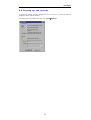
Run the brvexpress_us.exe by
installation will begin.
double-clicking
on this file and the
Go to the next step...
STEP 3
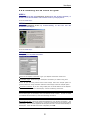
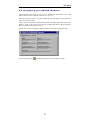
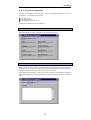
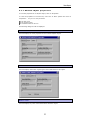
Configure your AS/400 connection.
Name of the AS/400 connection: Type your AS/400 connection name here.
Connection Type: Select the type of AS/400 connection you will be using here.
N o t e : If you are using Client Access with TCP/IP, select the TCP/IP option. In
general, whenever using emulation software with TCP/IP, select the TCP/IP option.
Connection address: If you are using TCP/IP, this is the IP address of the AS/400.
To find out the IP address of the AS/400, enter the following command:
NETSTAT *IFC...............................................................................................
For all other types of connection, this is the Default Local Location. To find out what
your Default local Location is, enter the following command:
DSPNETA.......................................................................................................
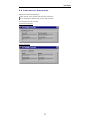
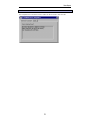
Connection Profile: Check the option that applies to your AS/400 connection. The
1st and 2nd modes require a password or a User ID and password to be entered when
connecting. The 3rd mode bypasses this step and the user connects automatically to
the AS/400. Once all fields have been completed, click OK.
10