1
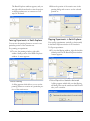
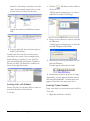
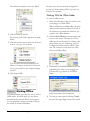
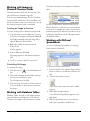
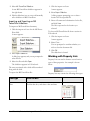
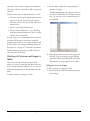
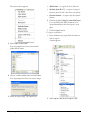
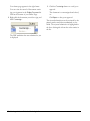
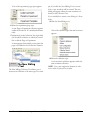
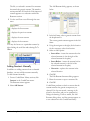
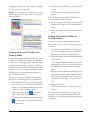
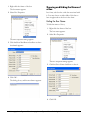
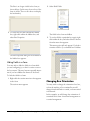
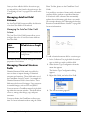
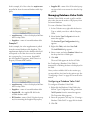
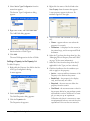
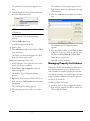
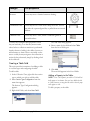
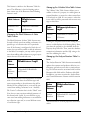
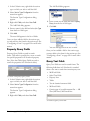
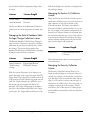
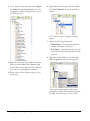
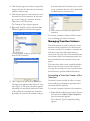
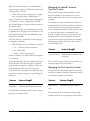
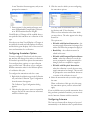
2. Right-click your selection, and select Disable
Selection from the context menu.
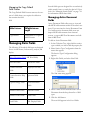
Changing the Grouping Order
Administrator
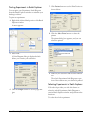
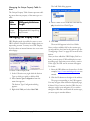
You can change the order in which components
are laid out in the product/reaction plate. By
default, the first generic component is filled into
the plate with a horizontal fill direction, from left
to right; the second generic component is laid out
vertically, within the array of the first component.
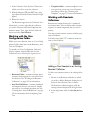
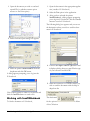
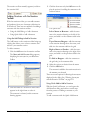
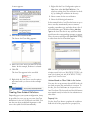
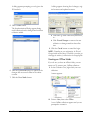
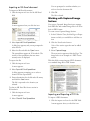
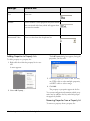
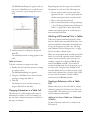
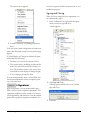
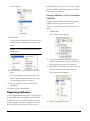
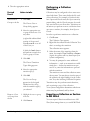
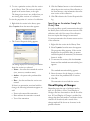
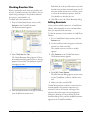
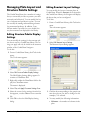
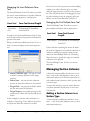
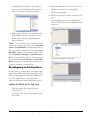
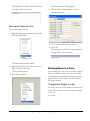
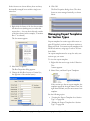
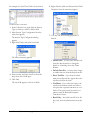
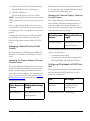
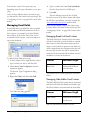
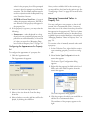
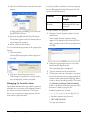
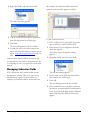
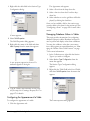
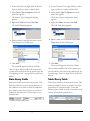
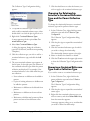
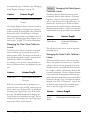
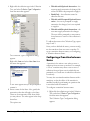
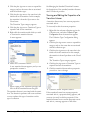
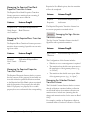
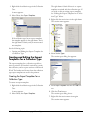
3. In the Product Layout dialog, select the first
component to be laid out in the plate from the
dropdown list.
4. Select the Fill Direction for the component
from the dropdown list.
The next component will automatically assume the
fill direction that is perpendicular to your selection.
Setting Product Grid Options
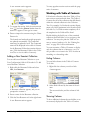
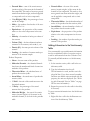
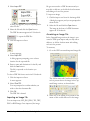
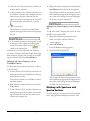
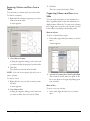
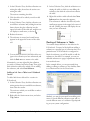
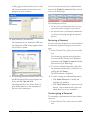
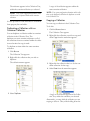
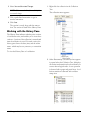
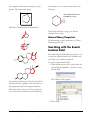
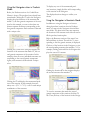
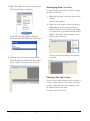
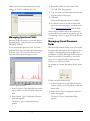
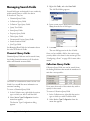
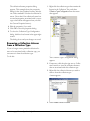
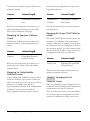
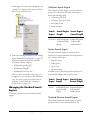
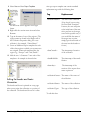
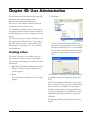
The Xs are removed from the wells, leaving the
wells blank:
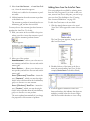
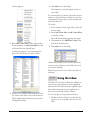
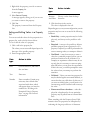
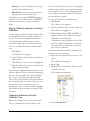
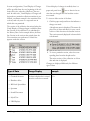
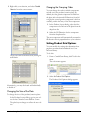
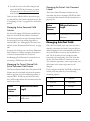
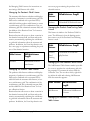
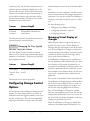
You can modify the settings that determine how
products are named and numbered in a CombiChem Library.
To do this:
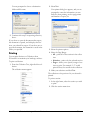
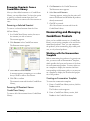
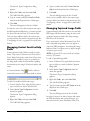
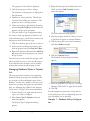
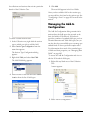
1. From a CombiChem library, click Tools in the
menu.
The tools menu appears.
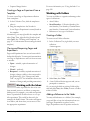
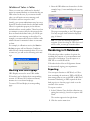
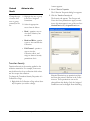
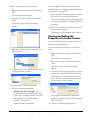
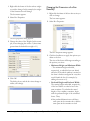
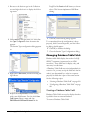
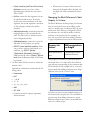
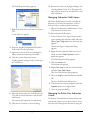
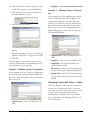
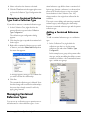
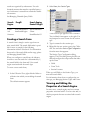
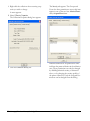
2. Select Set Product Grid Options.
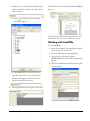
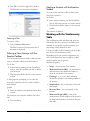
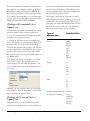
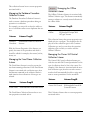
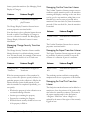
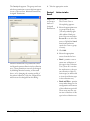
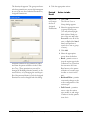
The Product Grid Options dialog appears.
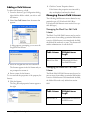
Alternatively, you may click each well individually
to disable it.
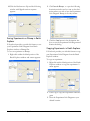
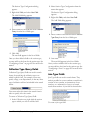
Changing the Size of the Plate
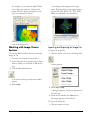
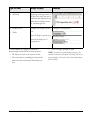
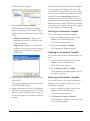
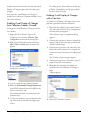
To change the size of the product/reaction plate:
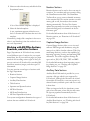
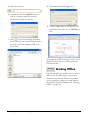
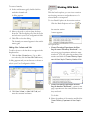
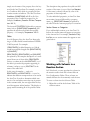
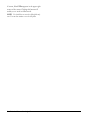
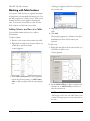
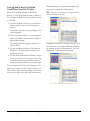
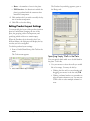
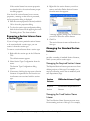
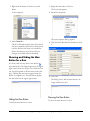
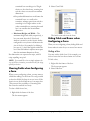
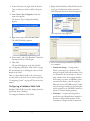
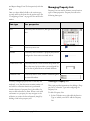
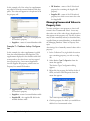
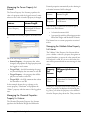
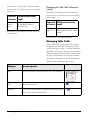
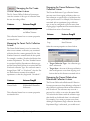
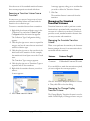
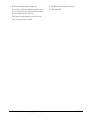
In the Product Layout dialog, type in new values for the Column Count and Row Count.
The plate layout changes to reflect the new values.
638•Introducing CombiChem for E-NotebookCambridgeSoft