1
Data-Logging Startup
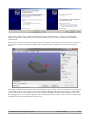
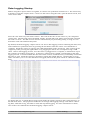
Before using the 3-Space Sensor to log data, it is best to set up the date and time on it. The easiest way
to do this is using the 3-Space Suite. Connect to the sensor using the suite, open the Sensor menu, and
select Sensor Info.
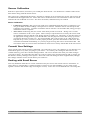
Press the “Set Time to System Time” button. This will set the time on the sensor to your computer's
current time. The SD card comes formatted, but the “Format SD Card” button will reformat it should
the need ever arise. The SD card can also be reformatted by any formatting utility, so long as it can
format the card with a FAT32 filesystem.
By default, the Data-Logging 3-Space Sensor can start a data-logging session containing the date, time,
and orientation in quaternion form by pressing the left button when the sensor is not attached to a
computer. While the session is ongoing, the LED should flash yellow and green. This session can be
stopped by either pressing the right button or by plugging the sensor into a computer using a USB
cable. After a data-logging session, once the sensor is plugged in to a computer, it should show up on
the computer as another storage drive. A directory will have been created corresponding to the datalogging session. It will be named after the time of the session, and the directory's timestamp will match
this time as well. Inside this directory should be a single file named data.txt. Opening this up in an
editor will allow you to view the data that was logged, which at this point will be in a human-readable
form.
To change the way in which data is logged, look inside the capture.cfg file in the Config directory on
the SD card's drive. The properties in this file can change data-logging settings such as how often to
log data, what data to log, and when to start and stop data-logging. For more information on these,
refer to the User's Manual for the Data-Logging 3-Space Sensor.
©2007-2013 Yost Engineering, Inc.
Patent Pending
6/7