1
•
•
•
•
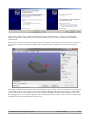
Perform sphere calibration: The Suite provides a wizard that allows users to perform a
calibration similar to the one performed at the factory. Go the Sensor menu and select Run
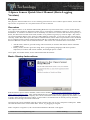
Sphere Calibration Wizard. The following window will appear:
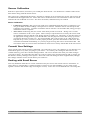
Rotating the sensor will cause the sphere to rotate as well. The cyan and yellow arrows will
paint their colors on the sphere wherever they touch. Any area they both paint will turn green.
The goal of this wizard is to more or less turn the entire sphere green. The reason for this is that
if both of these arrows have touched the entire sphere, this is a good sign that the data set that
has been collected from the sensor provides a decent representation of all possible values.
Another good metric is that the estimated density has dropped to around 30 to 60. Once you are
satisfied that the sphere is decently filled in, hit Finish and new calibration parameters will be
calculated for your sensor. Make sure to commit the new settings if they seem to help.
Perform ortho-calibration: The sphere calibration is excellent for fixing overall sensor error,
but sometimes magnetic effects can twist orientation readings in a way that requires a more
specific solution. In cases where after sphere calibration some orientations still are off, orthocalibration is the recommended solution. Ortho-calibration is layered on top of sphere
calibration, so both can be used in unison. This also means that if you reperform sphere
calibration, you should also reperform ortho-calibration if you would like to continue using it.
To perform ortho-calibration, go to the Sensor menu and select Run Ortho Calibration
Wizard. When prompted to choose a calibration method, choose “Ortho Calibration”.
A small picture of the sensor will appear, indicating a certain orientation you should be placing
your sensor in. Place the sensor in that orientation and hit the Next button. When you press the
Next button, the picture will move on to the next orientation, and so on until it has guided you
through all the orientations. After this has been done, check the orientation to see if the error
still exists.
Turn on continual auto-reference vector mode: In its default state, the sensor will
automatically calculate the compass reference vector when it starts up. However, it can be set
to continually recalculate this, allowing it to adjust the reference vector on the fly. To set up
this mode, click the Single Auto Continual radio button. Note that in this mode, the
accelerometer reference vector is always (0,1,0).
Set up multi-reference vector mode: Though usually not necessary, multi-reference mode can
provide a third layer of calibration on top of the parameters given by sphere calibration and
ortho-calibration. This mode keeps a list of 24 reference vectors, one for every unique position
the sensor can arrive at using only 90 degree rotations, starting with the zero orientation(top up,
©2007-2013 Yost Engineering, Inc.
Patent Pending
4/7