1
Chapter 3: Getting Started
Logging In and Logging Out
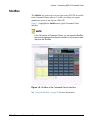
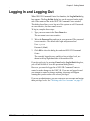
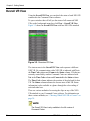
When NEO VR Command Centre first launches, the Log In/Out dialog
box appears. The Log In/Out dialog box can be accessed on the right
side of the main tool bar in the NEO VR Command Centre window.
This dialog box allows you to log out of the system as well. Passwords
are case-sensitive, but user names are not.
To log in, complete these steps:
1. Type your user name in the User Name box.
The user name is not case-sensitive.
2. Tab to the Password box and type in your password. The password
is case-sensitive. The default user login and password are:
User: system
Password: (blank)
3. Click OK to close the dialog box and start NEO VR Command
Centre.
The currently logged-in user, and his or her privilege level, are
shown in the top right-hand side of the main tool bar.
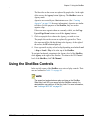
If you do not log in, by pressing Cancel on the Log In/Out dialog box,
you will still be able to view the operational dialog boxes.
However, you must be logged in to NEO VR Command Centre to
control or make changes to the NEO VR. If you are not logged in and
you attempt to control or change anything, a message will appear
warning that you do not have the correct privileges.
If you are an administrator, you can create new user accounts and assign
them privilege levels. See “Working with User Accounts” on page 91.
NEO VR Command Center User Manual
21