1
ONESOURCE UTP App User Manual
Admin Center
21
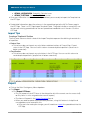
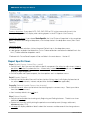
attachment is attached to, as well as how many times the same file appears in the database. The
"# Items Attached To" and "Actual File Count" may not always be the same number because of the
Create Copy option available when mass adding notes & attachments.
Reload
· If you've added a new attachment and it is not displaying in the Documentation Manager, click
Reload to refresh the table.
Export Selected
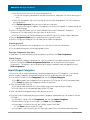
· You can export the attachments you have in the UTP App into a zip file by clicking Export
Selected after selecting which attachments you would like to export.
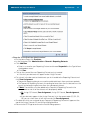
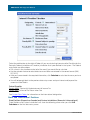
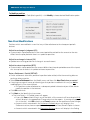
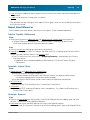
View Document-Position Assignments
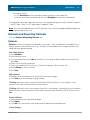
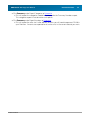
· Select desired attachment > Click View Assigned
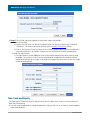
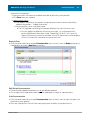
· The Document-Position Assignment box opens to the right of the Documentation Manager box.
The box displays the selected attachment name and all positions which have the selected
attachment in the current Unit you are in. The dataset is the first part of the position description
given.
· Position Description Format: Dataset Name / Position Code / Name / Jurisdiction / Year
Interest and Penalties
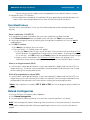
Click the Interest & Penalties tab
Interest
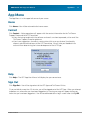
· Select Interest from the Manage dropdown
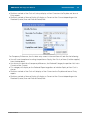
· The interest information for all the positions in the current Unit/Dataset you are looking at will be
in the Interest table
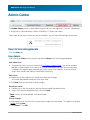
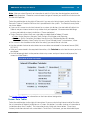
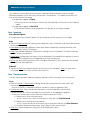
· Positions with Custom Rate Tables
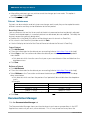
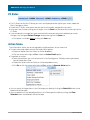
· Positions with custom rate tables have a Calculator icon to the left of the Unit Code. The start
date in the table is the start date from the first row of the custom table and the end date in the
table is the end date from the last row of the custom table.
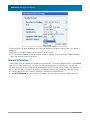
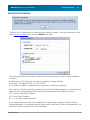
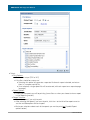
· To view the full custom rate table for a position, click the Calculator icon.
· A popup will appear with the full custom rate table including Compounding Option for the
position.
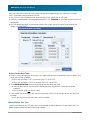
Penalties
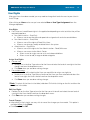
· Select Penalties from the Manage dropdown
· The penalty information for all the positions in the current Unit/Dataset you are looking at will be
in the Penalties table
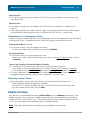
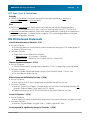
Export Interest & Penalties
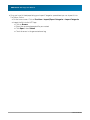
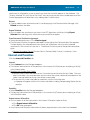
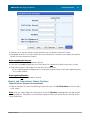
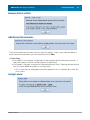
· You can export all of the information in the Interest & Penalties tables to Excel
· Click Export Interest & Penalties
· Click OK when prompted
· Your Interest and Penalties information will be on separate tabs in the same Excel workbook
© 2009 TaxStream