1
ONESOURCE UTP App User Manual
UTP App Overview
9
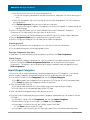
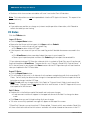
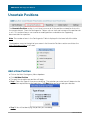
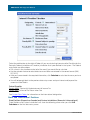
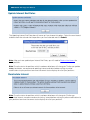
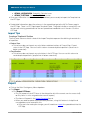
This designation cannot be updated once the unit is populated.
· Click Save
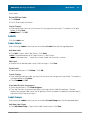
Tax Adjustments
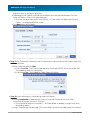
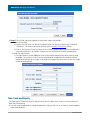
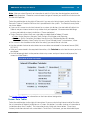
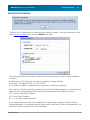
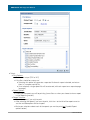
· Tax Adjustments > Add New
· Enter a unique code and the name of the tax adj.
· Click Save
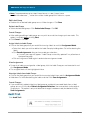
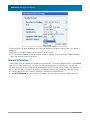
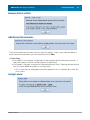
Note: If you are managing your categories from the Provision side, make sure you do not delete the
4 default tax adjustments:
· UTP_I: UTP Interest
· UTP_P: UTP Penalties
· UTP_O1: UTP Other 1
· UTP_O2: UTP Other 2
If you delete any of these tax adjustments and then attempt to add a position in the UTP App
(manually or by import), you will receive an error saying that a duplicate position already exists.
Assignment
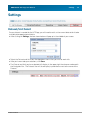
After you have created your components, you will need to assign them to the units you have created.
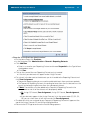
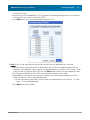
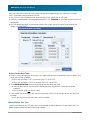
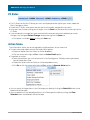
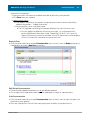
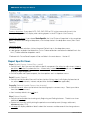
On the home page click Provision > Administration > Assignment > Component - > Unit
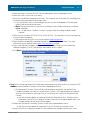
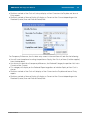
· Select the Units you want to assign the components to by putting a check in the checkbox to the
right of the unit Code
· To assign all components in the system to the Unit, put a check in the checkbox to the left of the
Components header at the top of the list
· To assign select components in the system to the Unit, put a check in the checkbox to the left of
the components
· Click the "+" to the left of a component section to expand and see all the categories
· The components relevant for the UTP App will say "FIN 48" and then the type of component
· After you have made your selections, scroll to the bottom of the page and click Assign
Import Spreadsheet
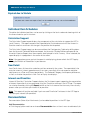
You can also use an import spreadsheet template to populate your UTP categories. If you do not
have an Import Categories spreadsheet template, you can export one from the software.
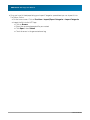
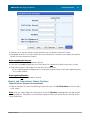
· On the home page click Provision > Import/Export Categories > Export Categories
· Open the generated Excel file
· The spreadsheet template will have multiple sheets each representing a category.
· The sheets that should be populated for the UTP App are:
· #CU# Units
· #CPD# Permanent Differences
· #CTD# Temporary Differences
· #CTA# Tax Adjustments
· #CS# States.
· When you are finished populating the file, be sure to save it.
© 2009 TaxStream