1
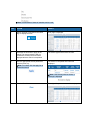
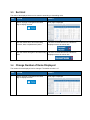
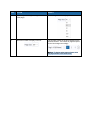
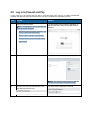
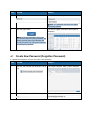
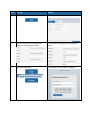
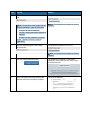
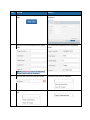
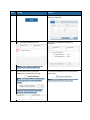
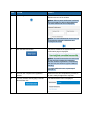
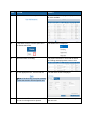
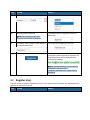
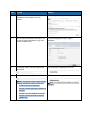
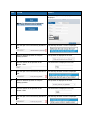
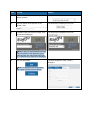
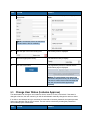
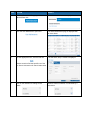
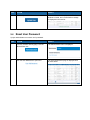
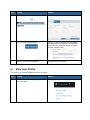
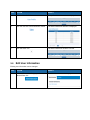
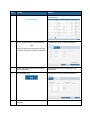
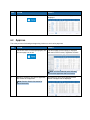
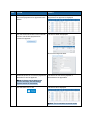
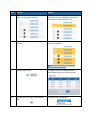
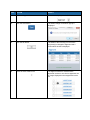
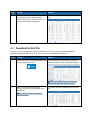
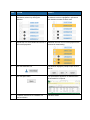
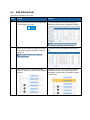
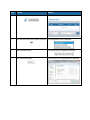
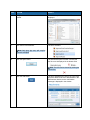
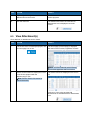
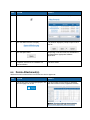
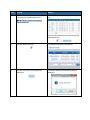
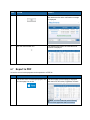
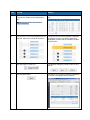
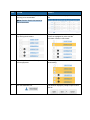
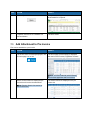
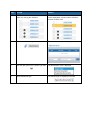
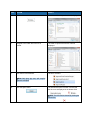
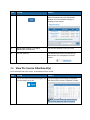
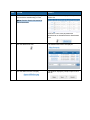
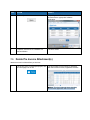
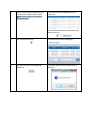
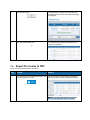
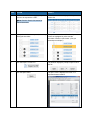
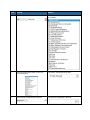
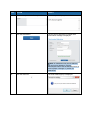
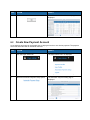
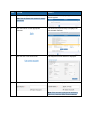
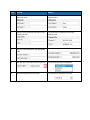
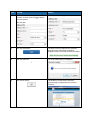
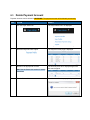
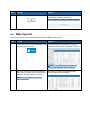
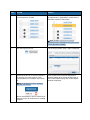
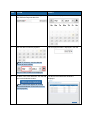
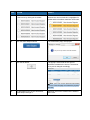
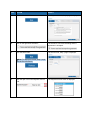
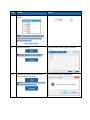
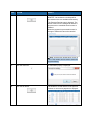
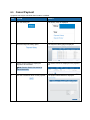
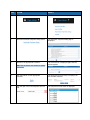
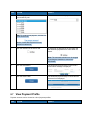
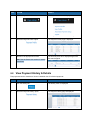
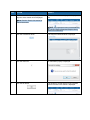
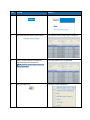
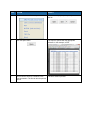
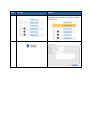
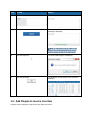
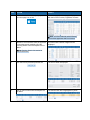
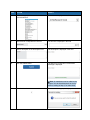
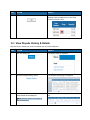
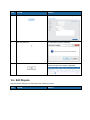
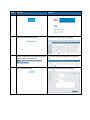
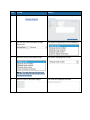
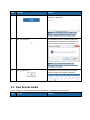
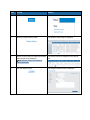
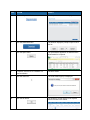
STEP ACTION RESULT 9. Click the Update button. The dispute is changed and a confirmation message is displayed. Note: An attachment can be added to the dispute. See the Add Attachment to Invoice section, starting at Step 4, for instructions. 10. Click the close icon. A confirmation popup is displayed. (Add Note: the payment has already been scheduled, this will not cancel or make you lose your work…) Note: The payment has already been scheduled. This will not cancel the transaction or lead to loss of work. 11. Click the OK button. The window is closed and the list of disputes from the results of the search is displayed. 10.5 View Dispute Audits A list of changes (in chronological order) to the dispute can be displayed and downloaded. STEP ACTION RESULT