1
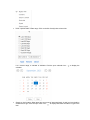
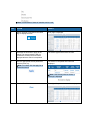
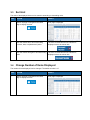
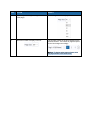
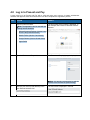
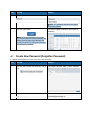
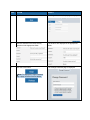
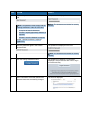
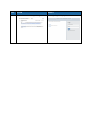
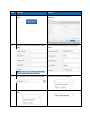
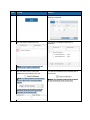
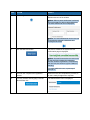
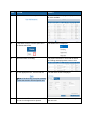
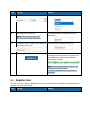
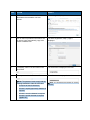
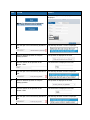
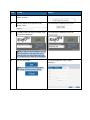
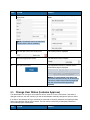
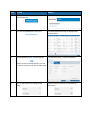
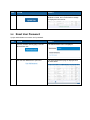
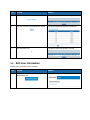
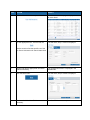
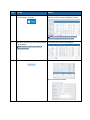
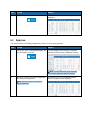
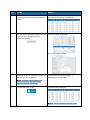
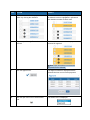
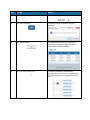
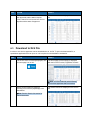
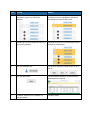
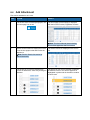
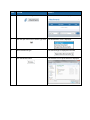
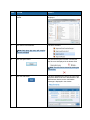
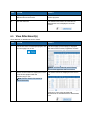
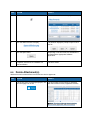
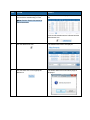
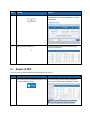
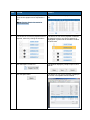
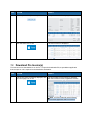
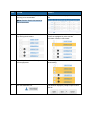
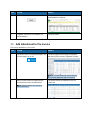
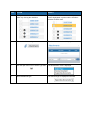
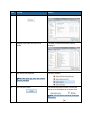
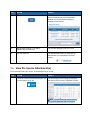
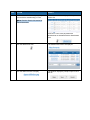
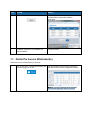
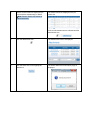
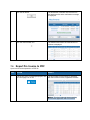
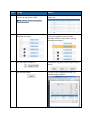
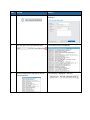
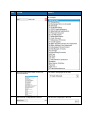
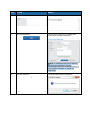
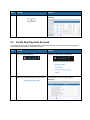
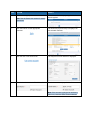
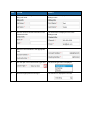
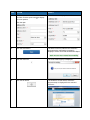
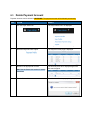
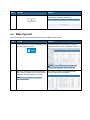
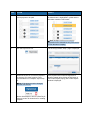
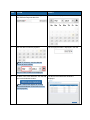
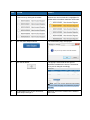
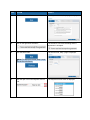
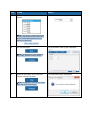
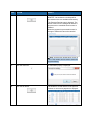
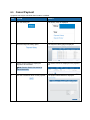
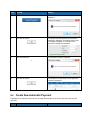
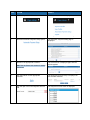
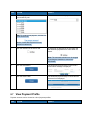
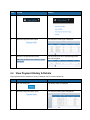
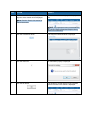
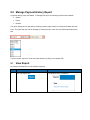
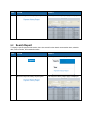
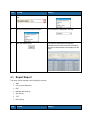
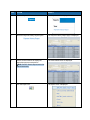
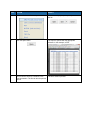
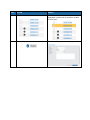
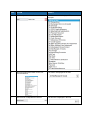
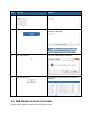
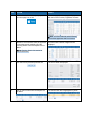
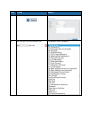
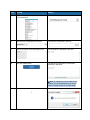
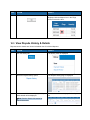
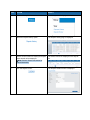
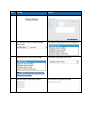
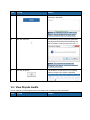
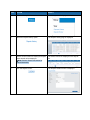
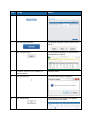
STEP ACTION RESULT 17. Enter the new user contact information in the empty fields. The information is displayed in the appropriate fields. Note: The asterisk next to the field name indicates that the field is mandatory. 18. Click the open icon in the Country field. The country menu is displayed. 19. Select the appropriate country. The selected country is display. 20. Click the Finish button. The registration process is finalized and the confirmation page is displayed. Note: The administrator must approve the user before Present and Pay can be accessed. The user is notified via an email message that the user account has been approved (or rejected). 5.3 Change User Status (Includes Approve) The administrator can change a user’s status to Active, Inactive, Locked, or Unlocked. If the status is changed to Inactive, the user cannot log in until the administrator manually changes the status to Active. If an Active user attempts to log in more than six times with an incorrect password, the system prevents further login attempts and the user is locked. The user can be unlocked by resetting the password or done manually by the administrator. STEP ACTION RESULT