1
Steps
4.
Screenshots
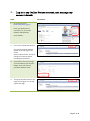
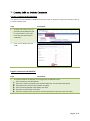
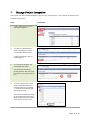
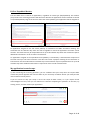
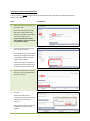
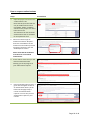
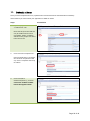
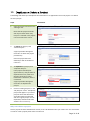
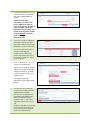
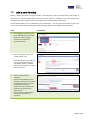
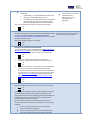
The six form-level tabs relate just
to the main form, not to the
project as a whole and will only
be visible when the form type
(i.e. HDEC, SCOTT or MDF) is
selected in the project tree at
the left of the screen.
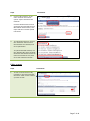
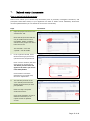
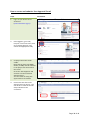
The “Navigate” tab contains
the form (refer to section 6).
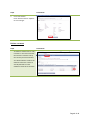
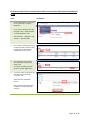
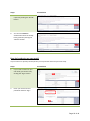
The “Documents” tab allows
you to attach relevant
documents to your form
(refer to section 7).
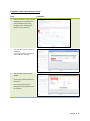
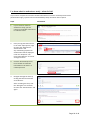
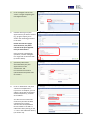
The “Transfer” tab is used to
temporarily transfer the
form to another user (refer
to section 8).
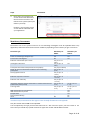
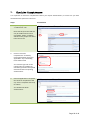
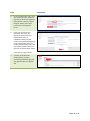
In the “Authorisation” tab
you can request electronic
signatures from the CI,
sponsor etc. (refer to
section 10).
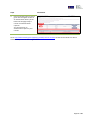
In the “e-submission tab” you can check your
application is complete prior to submission (refer
to section 9), submit for review (refer to section
11) and monitor the progress of your submission
(refer to section 12).
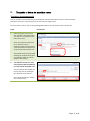
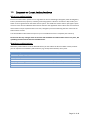
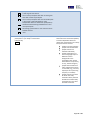
The “Post-approval” tab allows you to create Post
approval forms to submit amendments, progress
reports etc. (refer to section 18).
Page 12 of 46