1
15.
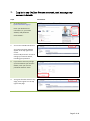
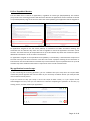
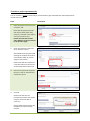
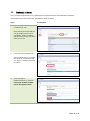
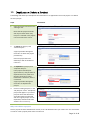
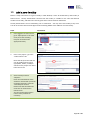
The Manage tab allows you to duplicate the information in an application into a new project or to delete
an entire project.
Steps
1.
Screenshots
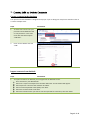
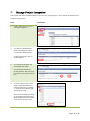
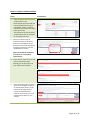
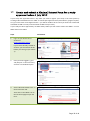
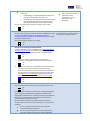
Open the project and click on the
“Manage” tab.
Note that this project-level tab
will only be visible when “My
Project” is selected in the project
tree at the left of the screen.
2.
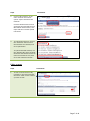
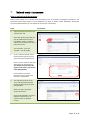
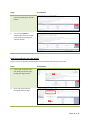
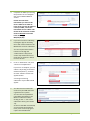
To delete the project, click
“Delete Project”.
A pop-up window will appear.
Click “OK” to delete the project
permanently.
Once the project has been
deleted you will not be able to
retrieve it.
3.
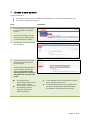
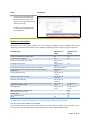
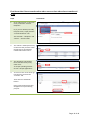
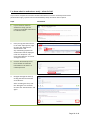
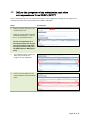
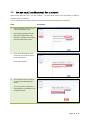
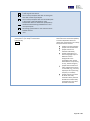
To duplicate the project, click
“Duplicate Project”.
If the project includes postapproval forms, and you’d like to
duplicate these too, make sure
that the check box is ticked
beforehand. Otherwise, leave it
unchecked.
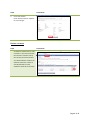
A pop-up window will appear.
Click “OK” to duplicate the
project.
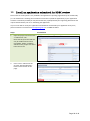
4.
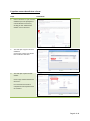
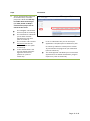
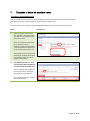
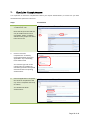
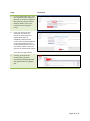
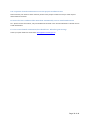
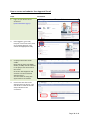
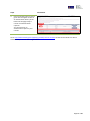
Click on “Existing Projects” in the
“My Projects” menu. A duplicate
project will appear in your list of
projects. Note that documents
and authorisations associated
with the original project are not
duplicated, and will need to be
added in the normal way.
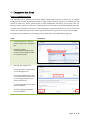
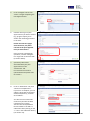
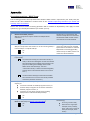
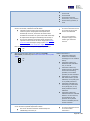
Why can’t I delete a project?
Once a project has been submitted for review, it can’t be deleted unless you recall it first. For instructions
on how to recall a project please refer to section 13.
Page 31 of 46