1
Steps
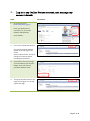
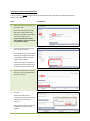
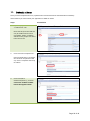
5.
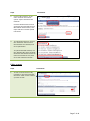
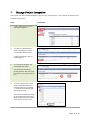
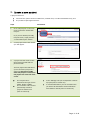
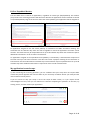
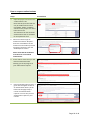
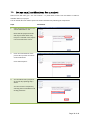
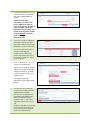
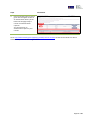
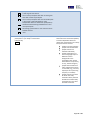
In the “Authorisation” tab - Click
the “Authorise Form” button to
generate an electronic signature.
(Alternatively, click the “Reject
Request” button if for some
reason you cannot sign the
form).
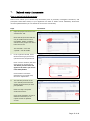
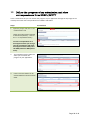
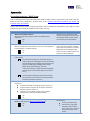
6.
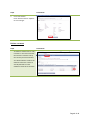
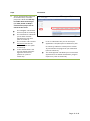
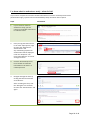
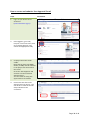
Enter your username and
password. Also enter the
Authoriser (this may be the
Organisation Name or
Individual's Name) and the
names of the Lead Investigator(s)
at the Locality (this field is for
Locality Authorisation only) - this
information appears when you
generate an authorisation report.
Screenshots
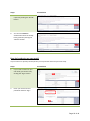
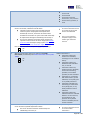
Then click the “Sign” button.
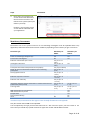
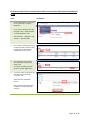
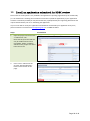
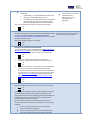
7.
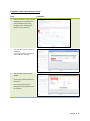
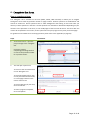
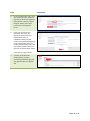
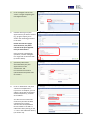
A history of all electronic
authorisations you have
previously granted/not granted
will appear under the “Signed”
tab.
Page 25 of 46