1
The Wizard Test Maker™
2 Managing User Accounts
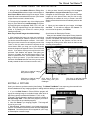
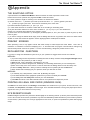
By clicking on the Roll Book in The Library you
can add, delete and modify users. If you are not
the only user on the computer of a subject
database it is recommended that you add your
own personal user name and password. Then
only your saved exams will appear in the Vault
when you sign on.
Administrator: The Administrator status can be
assigned to any user(s). This status will allow
that user to edit and delete any question in the
database. A non-Administrator may only delete
and change questions that he/she has created.
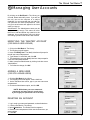
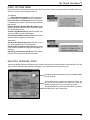
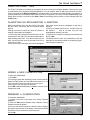
MODIFYING THE “MASTER” ACCOUNT
(FOR SINGLE-USER LICENSE)
1. Click on the Roll Book in The Library.
2. The Registry (top) will appear.
3. Here, click Modify User. The Modify User form will prompt for
the old user name and password.
4. Type “Master” in each field, and click OK.
5. This should bring up a new Modify User form that prompts for
a new user name and password.
6. Make yourself an administrator by clicking in the box next to
“Administrator.”
7. To finalize the change, click OK.
master
******
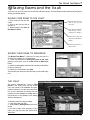
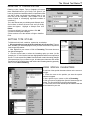
ADDING A NEW USER
(FOR SITE LICENSE USERS)
TestWiz
1. Click the Roll Book in the Library.
2. The Registry screen will appear. Select Add User.
3. On the Add New User screen, type in your new user name
and password.
4. Choose an Administrator option, and click OK.
******
NOTE: Write down your user name and
password, and store them in a safe place.
If you forget your password call us for help.
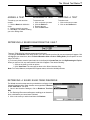
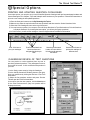
DELETING AN ACCOUNT
TestWiz
1. Log in under your name and password, as described above.
2. Click the Roll Book in The Library.
3. Select Delete User. The Delete User form appears.
4. Enter the name and password of the user whose account you
want to delete.
5. Click OK.
******
3