1
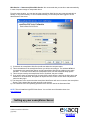
Web Service ► Start exacqVision Web Service. We recommend that you set this to start automatically,
in case of a power outage or unexpected reboot.
From this same location, you can also have the exacqVision Web Service stop, start automatically on
startup, or only start manually. If it is not installed already, run the setup file while logged in as the
administrator of the server.
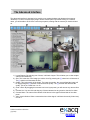
1) If checked, the exacqVision Web Service will start when the computer starts.
2) This is the address of the exacqVision Server you will be connecting to. The address 127.0.0.1
corresponds to the exacqVision Server and the exacqVision Web Server residing on the same
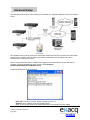
machine. To connect to more than one exacqVision server, see the Advanced setup options.
3) This is the port used by the exacqVision Server. By default, the port is 22609.
4) If you wish to have an automatic login for web clients, check this box, and fill in the User name and
Password. If left unchecked, the system will require the user to enter a user name and password
each time they log in.
5) The Username is the account that the exacqVision Web Server will use to connect to the exacqVision
Server. This is treated like any other account on the system.
6) The Password is the corresponding password of the account used in the Username field.
NOTE: This will install the LightTPD Web Server. You can find more information about it at
www.lighttpd.net.
2
Setting up your exacqVision Server
IP Video Surveillance Solutions
3/6/2009
www.exacq.com