1
2.5. Global Settings
45
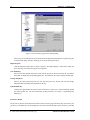
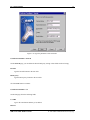
Trusted Certification Authorities
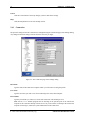
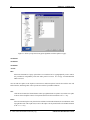
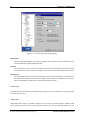
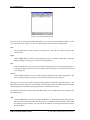
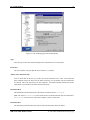
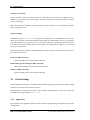
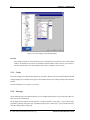
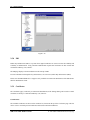
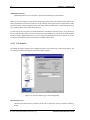
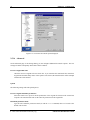
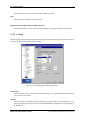
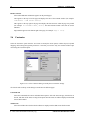
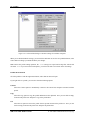
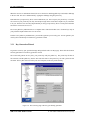
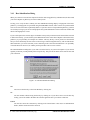
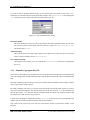
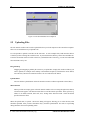
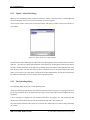
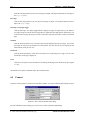
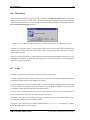
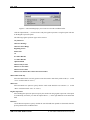
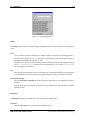
Click the Trusted Certification Authories tab to display the trusted Certification Authorities.
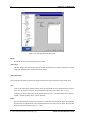
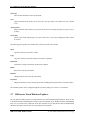
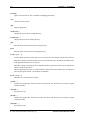
The following fields are displayed on the certificate list:
Issued To
The Issued To field shows the entity to whom the certificate has been issued.
Issued By
The Issued By field shows the entity who has issued the certificate.
Expiration Date
The Expiration Date field shows when the certificate will expire.
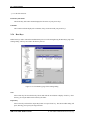
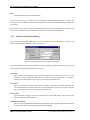
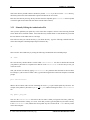
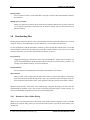
The following buttons can be used to control the certificates:
Import
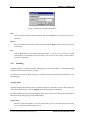
Click the Import button to import a certificate created with certification authority (CA) software. A file
selection dialog will open, allowing you to browse your directories for the saved certificate file.
Enroll
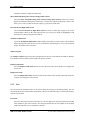
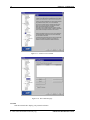
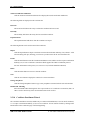
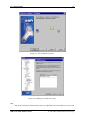
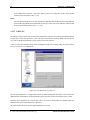
Click the Enroll button to start the Certificate Enrollment wizard, which is used to request a certification
authority (CA) to issue a certificate. SSH Secure Shell supports the CMPv2 enrollment protocol.
For more information on the process, see section 2.5.10 (Certificate Enrollment Wizard).
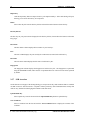
Delete
Click the Delete button to remove a selected certificate.
View
Click the View button to display the contents of a selected certificate.
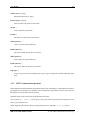
Change Passphrase
Click the Change Passphrase button to type a new passphrase associated with the selected certificate.
Disable CRL Checking
Select the Disable CRL Checking check box to prevent the use of a certificate revocation list (CRL). A
CRL is used to check if any of the used certificates have been revoked.
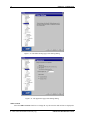
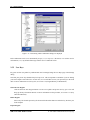
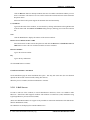
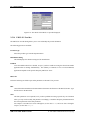
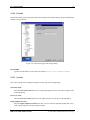
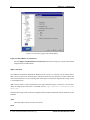
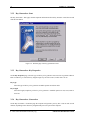
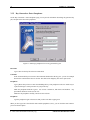
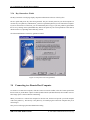
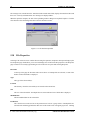
2.5.10 Certificate Enrollment Wizard
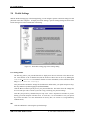
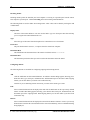
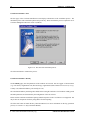
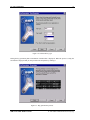
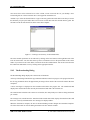
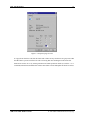
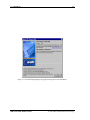
The Certificate Enrollment wizard (available only in commercial distributions) is used to enroll certificates,
i.e. to request a certification authority (CA) to issue a certificate. You can start the wizard by clicking on the
Enroll button of the Certificates page of the Settings dialog.
SSH Secure Shell Windows Client
c 2001 SSH Communications Security Oyj