1
32
Chapter 2. Configuration
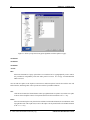
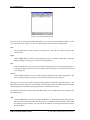
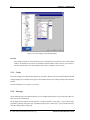
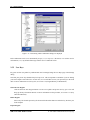
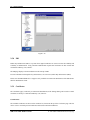
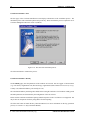
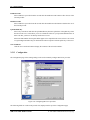
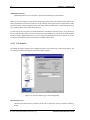
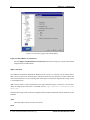
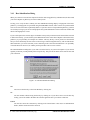
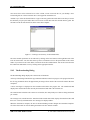
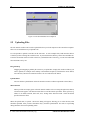
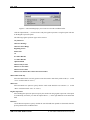
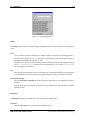
Figure 2.8: Modifying a keymap customization
Edit
Select an already defined keymap customization and click the Edit button to modify the selected customization.
Remove
Select an already defined keymap customization and click the Remove button to delete the selected
customization.
Exit
Click the Exit button to close the Keymap Editor dialog. If you have not saved all your keymap
customizations, a Confirm dialog will open, asking if you want to save the changes you have made or
cancel the exit operation.
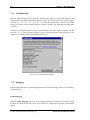
2.4.7 Tunneling
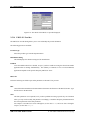
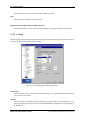
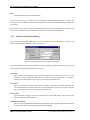
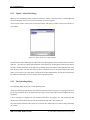
Tunneling settings are configured using the Tunneling page of the Settings dialog. Any changed tunneling
settings will take effect the next time you login.
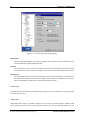
The outgoing and incoming tunnel settings are configured using the Outgoing and Incoming tabs of the
Tunneling page.
Outgoing Tunnel
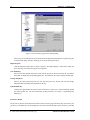
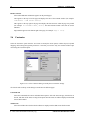
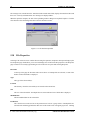
Outgoing tunnels protect data that your local computer sends from a specified local port to the specified port
on the remote host computer. Click the Outgoing tab to edit outgoing tunnel definitions.
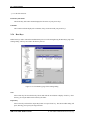
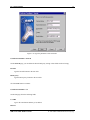
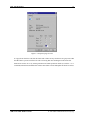
The following fields are used to define an outgoing tunnel. These values can be edited by clicking the Add or
Edit buttons on the Outgoing page of the Settings dialog.
Display Name
The name of the tunnel definition. You can use this field to type in a descriptive name that will help
you to recognize this tunnel definition later on.
c 2001 SSH Communications Security Oyj
SSH Secure Shell Windows Client