1
3.4. Connecting to a Remote Host Computer
77
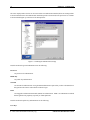
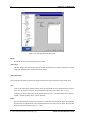
Help
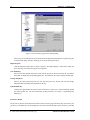
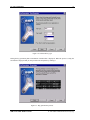
Click the Help button to view the online help.
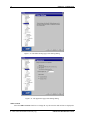
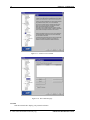
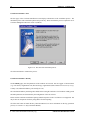
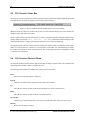
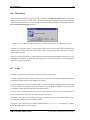
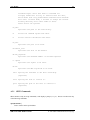
If you save the host key, you do not have to go through this procedure again the next time you login. The
host’s public key will still be checked with each connection, but this will be done automatically, without user
intervention.
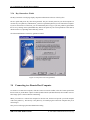
The known host keys will be saved in a local database that is specific to each user of the local computer. This
way each user will build a personal database of the public keys of known and trusted hosts.
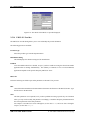
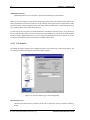
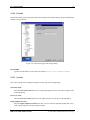
3.4.2 Connect to Remote Host Dialog
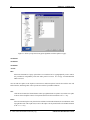
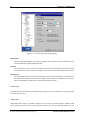
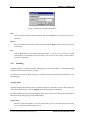
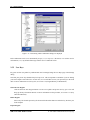
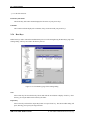
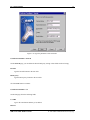
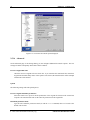
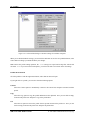
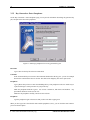
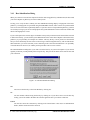
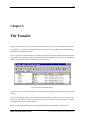
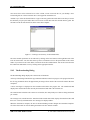
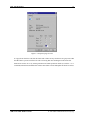
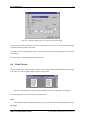
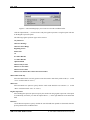
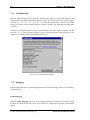
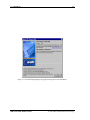
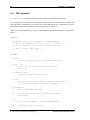
The Connect to Remote Host dialog allows you to specify the host name (or IP address), user name, port
number and authentication method for the new connection.
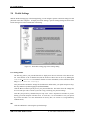
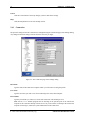
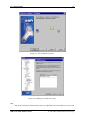
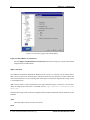
Figure 3.11: Identify yourself to the remote host computer.
The client remembers your previous connection. If you are going to reconnect to the same host, you do not
have to type in all of the same information all over again.
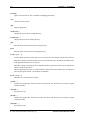
Host Name
Enter the name (or IP address) of the remote host computer in this field. Unless this is your first
connection, the Host Name field shows the name used in the previous connection. If you want to
connect to the same computer as previously, you do not have to edit this field.
User Name
Enter your user name as used in the remote host computer. Unless this is your first connection, the
User Name field shows the name used in the previous connection. If you want to connect using the
same user name as previously, you do not have to edit this field.
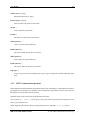
Port Number
Type the number of the port used in the connection in the Port Number field. The port used in the
previous connection is already filled in.
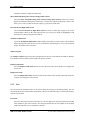
Authentication Method
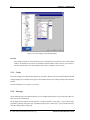
Select the desired authentication method from the pulldown menu. Possible authentication methods
are Password, Public Key, SecurID, PAM and Profile Settings .
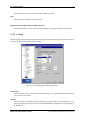
SSH Secure Shell Windows Client
c 2001 SSH Communications Security Oyj