1
2.4. Profile Settings
21
2.4 Profile Settings
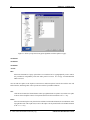
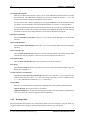
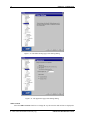
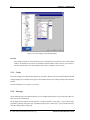
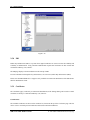
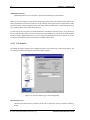
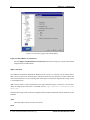
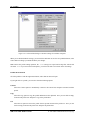
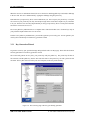
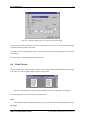
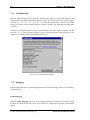
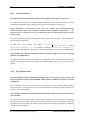
With the Profile Settings page of the Settings dialog you can configure separate connection settings for each
particular remote host computer. To display the Profile Settings, open the Settings dialog and click on the
Profile Settings text on the left hand side of the dialog.
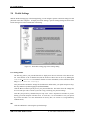
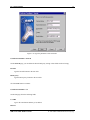
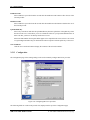
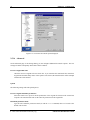
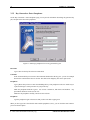
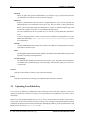
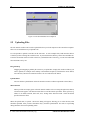
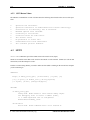
Figure 2.1: The Profile Settings page of the Settings dialog.
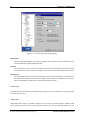
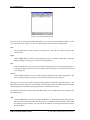
User Settings Folder
The directory path to your personal data files is displayed in the text field next to the Browse button. Note that this is not an editable field, but the location of these files can be set by defining the
SSHCLIENT USERPROFILE environment variable. For more information, see the SSH Secure Shell
FAQ (http://www.ssh.com/faq/).
Your personal files include the settings file (default name default.ssh2), your public and private keys,
host keys and the keyboard mapping file (KEYMAP.MAP).
Click the Browse button to quickly access your personal data files. The folder where the settings files
are saved will open. This is useful if you wish to copy or backup your personal settings.
Note that your private keys should always be kept secret. This is important to remember if you are
sharing your local computer with other users. In such case, it is not advisable to store your private
keys on the local disk. For more information on user key files, see section 3.6 (Using Public-Key
Authentication).
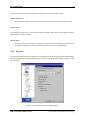
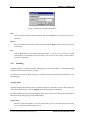
OK
Click the OK button to start using the specified settings.
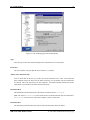
SSH Secure Shell Windows Client
c 2001 SSH Communications Security Oyj