1
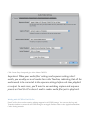
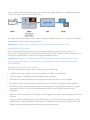
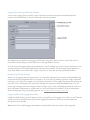
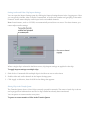
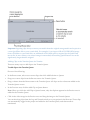
CMP151 External Hard Drive AVCHD Workflow for Final Cut Pro • • • Due to the large file What is AVCHD? AVCHD is an HD video format jointly developed by Sony and Panasonic. AVCHD uses Advanced Video Coding (AVC) compression (also known as MPEG-‐‑4 part 10 or H.264) to achieve high-‐‑quality images and low data rates. AVCHD camcorders record on a variety of file-‐‑based media, including 80 mm DVDs, hard disks, and flash memory (such as Secure Digital cards and memory sticks). The AVCHD specification allows most SD and HD dimensions and frame rates, though each camcorder usually supports only a few formats. The AVCHD color sample ratio is 4:2:0, with 8 bits per sample. Audio can be recorded in 5.1-‐‑channel surround sound with Dolby Digital (AC-‐‑3) compression or up to 7.1-‐‑channel surround sound (uncompressed). sizes that are produced students will be required to their own external hard drive. The hard drive must meet the following requirements: Hardware Requirements No less than 500GB 7200rpms FireWire (400/800) Why should you care? For this class we will use the AG HMC 150P from Panasonic as our camera. It records video in AVCHD to a secure digital high capacity cards or SDHC. If you do not follow this guide carefully it could lead to loss of data, time, and a lot of frustration. “USB 2.0 is not acceptable for video editing.” Software Requirements Camera Recording Format All projects should be shot in this specific recording format: Formatted HFS+J 720/24P. We chose this format to save space it is not full HD but it “The FAT32 format has will still be good enough for viewing in class, the Cosford Cinema, a single file size limit of YouTube, or your demo reel. Remember these settings they will be 4GB.” important when you begin editing in Final Cut Pro. The resolution is 1280x720 at a frame rate of 24fps If your drive does not requirements, or you do not have one you must Formatting your SDHC memory card purchase it . meet the hardware Once you have inserted the memory card in the camera, 1 Set the camera’s power switch to ON.