1
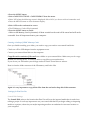
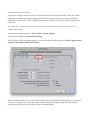
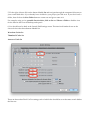
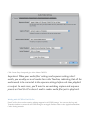
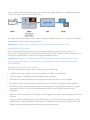
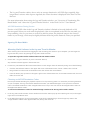
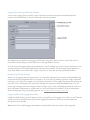
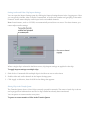
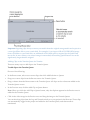
2 Press the MENU button. 3 Select CARD FUNCTIONS→CARD FORMAT from the menu. • Select YES when the following screen is displayed. Select NO if you do not wish to format the card. • Press the MENU button to close the menu display. SD Memory Card recording times 4 Select YES on the conformation screen. • The SD Memory Card will be formatted. 5 Press the MENU button to finish. • When an SD Memory Card is formatted, all data recorded on the card will be erased and will not be restorable. Save all important data to your computer. Creating a backup of SDHC Memory Cards Once you finish recording your video, you need to copy your cards to an external hard drive. Check out a SD to USB adapter from the equipment room. Connect your external hard drive to the computer. Copy the entire contents of the card onto a folder on your external drive. Make sure you do a copy instead of a moving he fies . It is always safer to copy files to prevent data loss. If you do not you will render your footage useless to Final Cut and have to reshoot. Here is what the folder structure of the SD memory card looks like: Again it is very important to copy all the files from the card and to keep this folder structure. Settings for Final Cut Pro Scratch Disk Settings The Scratch Disk refers to the location that Final Cut will save the ingested media that is used when editing a project. It is always important to set your scratch disk before you begin editing or importing media on a project, otherwise you maybe importing media to an undesired or incorrect location on your computer.