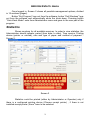
1
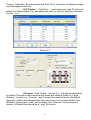
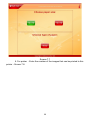
software device's drivers have be installed. Pressing button „SCAN“ will appear a
scanning form for relevant scanner.
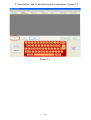
# Тwain Scanner – image scanner
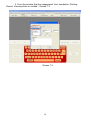
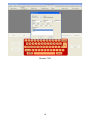
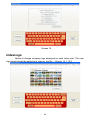
From „Browse“ is selected the scanner application. Choose scanner from the form
- Screen 3.1 and follow instractions.
Screen 3.1
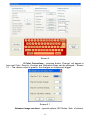
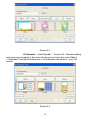
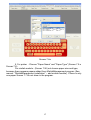
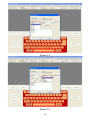
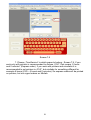
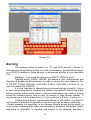
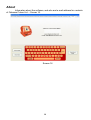
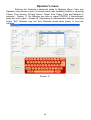
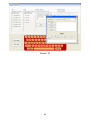
# Film Scanner (Pakon) – Screen 3.2. After opening the form
default setting will appeared, they can be changed. From „Browse“ is selected
folder where to save scanned images.
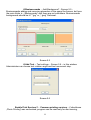
Roll ID – name of the folder where will be saved images
scanned from a film. It is advisable to be written the number which is on the film
roll, so orders will be separated easier.
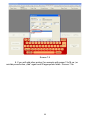
Scan – After pressing button „Scan“ scanner's red light will
begin to blink. When blinking stops scanner begin to give out a sound, that's the
moment to put the film in scanner. When scanning finished pull out the film.
Cancel – Cancel scanning process.
Move Film – Moving film without scanning. In case film
sticks or scanning process is terminated, using this button film can be removed
from the scanner.
Close Window – closing scanning form.
5