1
178
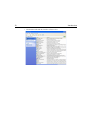
Installing a Printer
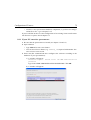
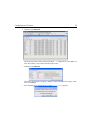
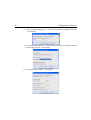
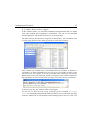
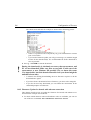
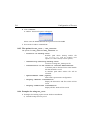
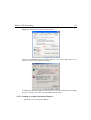
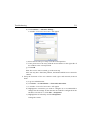
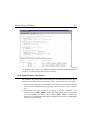
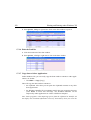
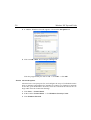
a list of printers for which a driver was available at the time your Windows XP
version was released. If your printer type does not appear, you can select a
related printer. However, Bruker BioSpin doesINDEX
not guarantee that this will work
(see chapter 14.1.1 for installation instructions). Note:
DONE
INDEX
Bruker BioSpin does not supply printer drivers for Windows XP!
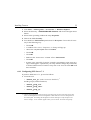
14.1.1 Installing a printer from the Windows XP CDROM
A large number of printer drivers are available on the Windows XP CDROM. Note
that these are the drivers which were available at the time Windows XP was
released. For older printers these are usually valid. For newer printers the drivers
might not be on the CD or better drivers might be available. Please use drivers
delivered with the printer or from the Web whenever possible.
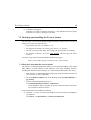
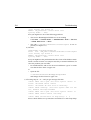
You can install a printer from the Windows XP CD as follows:
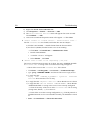
1. Log in as Administrator
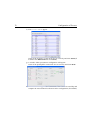
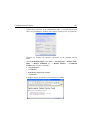
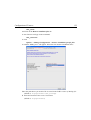
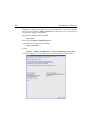
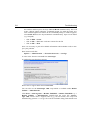
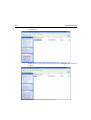
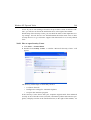
2. Click Start → Printers and Faxes
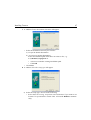
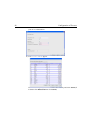
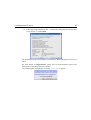
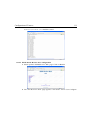
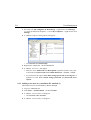
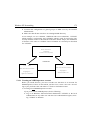
3. A window ’Printers’ will appear:
• Double-click the icon Add Printer
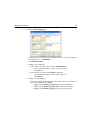
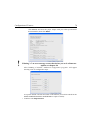
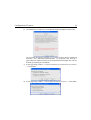
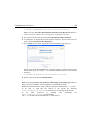
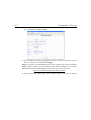
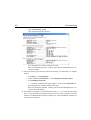
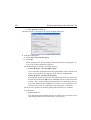
4. A window ’Add Printer Wizard’ will appear: → Click NEXT
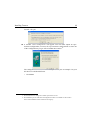
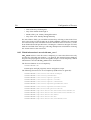
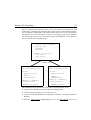
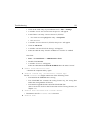
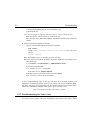
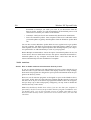
a) Click Local Printer, enable Plug and Play search mode if you want that the
system looks for a new printer → Click Next
b) A window ’New Printer Detection’ will appear
• if the system finds a right printer → Click Next
• if the system does not find a printer define it manually during the next
steps → Click Next
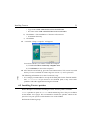
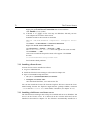
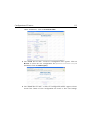
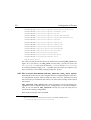
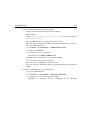
c) Select the port to which the printer is connected → Click Next
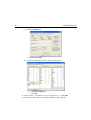
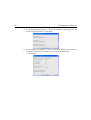
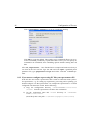
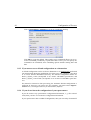
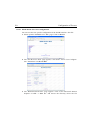
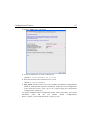
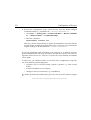
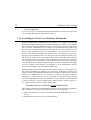
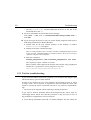
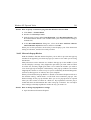
d) In the field Manufacturers: select the manufacturer of the printer, e.g. HP
e) In the field Printers: select the type of the printer
If your printer does not appear in the list, select a related printer type or click
Cancel and get the driver from the Web.
f) Click Next
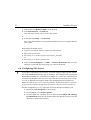
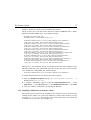
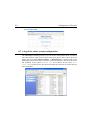
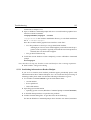
g) In the field Printer Name: enter the name under which you want to use the
printer (or accept the default name)