1
ReportWare
(For demo purposes, these instructions assume that you are using a Verifone terminal or
the like. The software may also work with your existing POS system or with
ReportWare’s credit card authorization functions.)
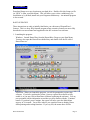
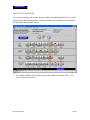
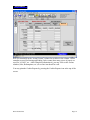
The customer’s credit card information is swiped via mag stripe reader into the box
called Card Swipe. For Demo purposes, you may type in a pretend credit card number
here. You must fill in a pretend authorization code. Next, click on the number pad (this
is designed for touch screen operation) and fill in the quantity of items you want. Next,
click on the desired item type (Champagne, Dance Dollar, or F&B Certificate). You may
delete any mistakes by clicking on the red X button beside the unwanted item. Each item
selection shows its face value. Note that when dance dollars are rung up, a 20% service
charge is added. In actual use, this service charge is in any amount you set. Two $20
dance dollar items appear as $48 on the screen.
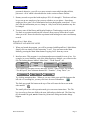
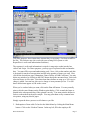
When you’ve ordered what you want, click on the Print All button. You may actually
print, or hit the cancel button on the Windows print dialog. Click to mark the Items as
printed in the subsequent dialog if they printed correctly. You must print the dollars in
order to redeem them in the next example. You may print them on any common letter
size printer, using any kind of paper.
Simply repeat the above process to sell whatever you like.
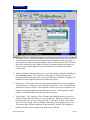
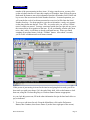
2. Redemption of items sold: Go back to the Main Menu by clicking the Main Menu
button. Click on the “Redeem” button. In the top left, fill in the employee ID
Demo Instructions
Page 7