1
Operating Procedures
Printing in Design Architect
Printing All Sheets in a Hierarchy
To print all sheets in a hierarchy, perform the following steps:
1. Choose the File > Print All > Sheets item from the main menu bar.
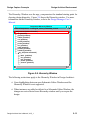
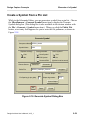
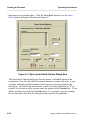
The Print All Sheets dialog box appears.
2. Enter the pathname to the top-level sheet in the design in the
Component Name field.
3. If desired, restrict the sheets that are printed. The following list describes
the methods for restricting printing:
• Enter a level at which to stop printing sheets the hierarchy in the
Stop Level field. The default value of zero prints the entire hierarchy.
• Enter a series of strings in the Filter fields. If the reference pathname to
a sheet in the hierarchy contains one of the strings, the sheet it is not
printed.
• Choose the Yes button beneath Preview. This causes a second dialog
box to appear after you execute the current dialog box. A list of all
sheets that met the criteria specified in the Stop Level and Filter fields
is displayed. You then select sheets from the list to be printed.
4. Click the OK button to print the sheets.
Design Architect User’s Manual, V8.5_1
6-133