1
Editing in the Context of a Design
Viewing Layout Changes in the Simulator
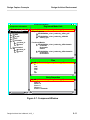
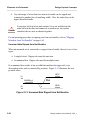
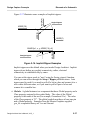
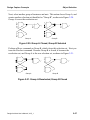
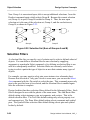
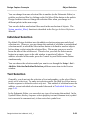
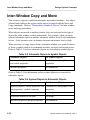
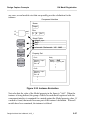
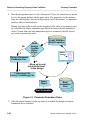
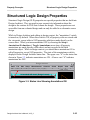
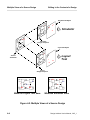
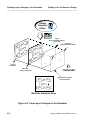
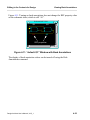
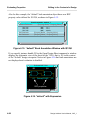
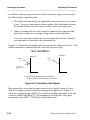
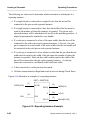
In Figure 4-3, the Layout Tool Back Annotation object is now connected to the
Simulation design viewpoint. It can at the same time also be connected to the
Layout Tool viewpoint and can continue to receive changes made by the person
doing the physical layout. Notice that the Layout Tool Back Annotation object is
connected in read only mode. The person using the simulator now sees the
changes being proposed by the Layout Tool and can test the affects on circuit
performance, but cannot make changes to the Layout Tool Back Annotation
object. The illustration at the bottom of Figure 4-3 shows what the simulator see.
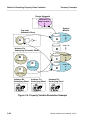
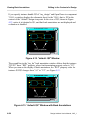
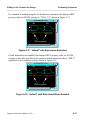
Dealing with conflicting change. It is possible that in a situation like the one on
the left that a change is made to the same property on two different back
annotation objects. In these situations, the object connected last has the highest
priority. In the illustration, the simulation BA object has the highest priority and
takes precedence over any conflicting changes that may occur between the
connected BA objects.
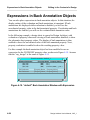
Dealing with a Diverging Design. With many people making changes to a design
in parallel, the design tends to diverge rather than converge. It is up to the team
members to meet at regular intervals and “synchronize” the viewpoints. This is a
process where the team members decide which changes are valid. The valid
Layout changes like the reference designators on the Simulation BA object are
selectively “exported”, then “imported” to the Layout Tool BA object. Likewise,
the timing change on the Layout Tool BA Object can be exported, then imported
to the Simulator BA Object. A Mentor Graphics shell-level utility called
Reconcile has been provided to help design team members manage back
annotations from different sources. The Reconcile utility is documented in the
Design Viewpoint Editor User's and Reference Manual.
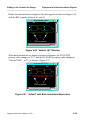
Merging Final Changes onto the Source Schematic. When the design is
finished, the changes in the Back Annotation objects can be merged onto the
source schematic before archiving. This is done by invoking Design Architect on
each viewpoint and merging the annotations (selectively or all together) onto the
source schematic. If you are working with reusable sheets, this practice of
merging annotations may not be desirable.
Design Architect User’s Manual, V8.5_1
4-7