1
1-2
-2 Creating Screen Data
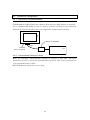
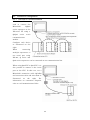
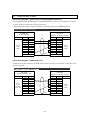
This section provides general procedures of how to create screen data, providing an
example of connecting to Mitsubishi FX Series sequencer to PORTA on a PT. Even
when connecting other PLC to PT, you can create screen data in the same way.
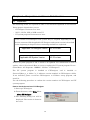
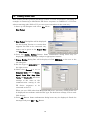
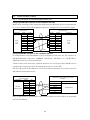
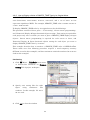
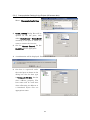
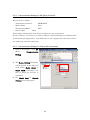
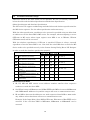
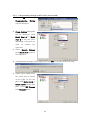
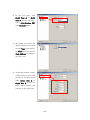
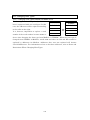
1) Start up CX-Designer and select File Menu New Project.
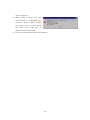
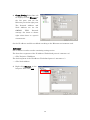
2) New Project Dialog Box will be displayed.
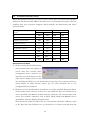
Set the System Version to a version that
supports the PLC to be connected. Any
names can be given to the Project Title
and File Name.
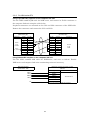
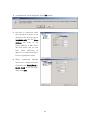
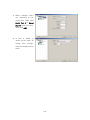
3) Press the Comm. Setting Button. Some confirmation dialog boxes may be
displayed. Check the messages and press appropriate buttons.
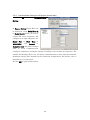
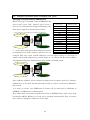
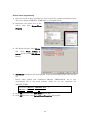
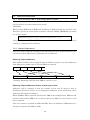
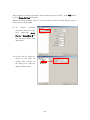
4) Comm. Setting Dialog Box will be displayed. Click SERIALA on the tree in the
left-side pane.
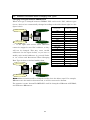
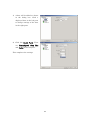
5) Set the Type to MELSEC-F on
the right screen.
6) Check that Protocol is set to
Computer Link, and set Comm.
Speed, Data Bits, Stop Bits,
Parity and Station No. Set those
settings to the same as the
communication setting of the
FX
Series
sequencer
to
be
connected to the PT.
When you use a PLC other than Mitsubishi FX Series, necessary setting items will
be displayed in accordance with the PLC type. For details on settings, refer to each
PLC chapter.
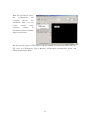
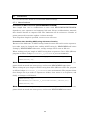
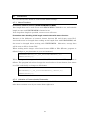
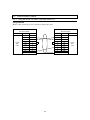
7) Press OK Button. Some confirmation dialog boxes may be displayed. Check the
messages and press OK or Yes Button.
16