1
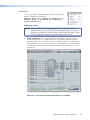
Workspace Menus
NOTE: For detailed DSP Configurator instructions when the program is open, press
<F1> or click on Help > Contents.
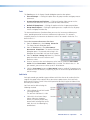
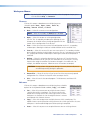
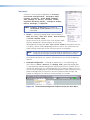
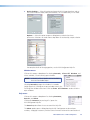
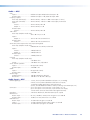
File menu
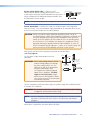
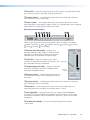
Click on this to open a drop-down menu displaying seven
selectable options: New, Open, Save, Save As,
Backup, Recent Files, and Exit.
zz
New — Select this to create a new configuration.
NOTE: When in Live mode, the New option is disabled.
zz
Open — Select this to open an existing configuration
(an .EDC file). A secondary window opens allowing the user
to browse to the folder where existing configuration files are
stored. Select a configuration file as desired.
zz
Save — Select this to save the current DSP configuration to the PC. A secondary
window opens allowing the choice of a folder location for the saved EDC files.
zz
Save As — Select this to save a file to a new name to the PC. A secondary window
opens allowing a choice of which folder to save the files to. If saving over an existing
file, a popup confirmation window opens allowing the action to be completed or
cancelled.
zz
Backup — Select this to backup data from the device to a PC. Do this when the
device data becomes out of sync with the stored data in an existing file. This may
happen when original emulation files becomes changed in Live mode with, for
example, the addition of presets. Follow on-screen instructions to complete.
CAUTION: Do not perform this operation during a live event, because all presets
are called sequentially during this procedure.
zz
Recent Files — Select this to view a list of up to five of the most recently opened
configuration files. Click on the listed file name to re-open the file.
zz
Exit — Select this to exit the control program. This disconnects and closes DSP
Configurator.
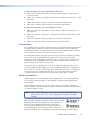
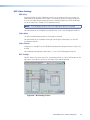
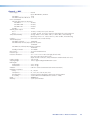
Edit menu
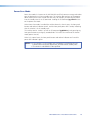
Click on this to open a drop-down menu displaying three selectable
options for the keyboard methods to Cut, Copy, and Paste.
zz
Cut — Select this to remove one or multiple elements from a
specific place within a workspace. The element can then be
pasted to an existing element of a similar type within the same
workspace. At that point in time the original element is remove
and replaced with a default element.
zz
Copy — Select this to copy one or multiple elements within a workspace. The
copied elements can be pasted to existing elements of a similar type within the same
workspace. A confirmation dialog opens before pasting is completed.
zz
Paste — Select this to paste a cut or copied elements over an existing element.
MLS 608 D Series • DSP Configurator
48