1
Keyboard, Video, Mouse Configuration
The correct operation of the client mouse depends on the following two settings
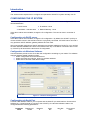
SCOUT IP Mouse configuration
To make the remote keyboard and mouse work properly the SCOUT IP settings for the host's mouse
and keyboard types must be correct. Check the settings in the SCOUT IP front-end
Host system mouse settings
The host operating system has various settings for the mouse driver. SCOUT IP works with
accelerated mice and is able to synchronize the host with the client mouse pointer. Special vendorspecific Mouse drivers disrupt the synchronization process. Ensure these are not on the host system
Windows XP has a setting ' enhanced pointer precision’. Deactivate it.
Check the correct setting by moving the mouse of your administration system to the upper left corner
of the Remote Console and moving it there slightly forth and back. This will force mouse
synchronization in that corner of the screen. Once that is done you may observe the behaviour of your
client mouse in accordance to the host one. If both mice desynchronize quickly one of the above may
be the reason.
SCOUT IP Video Modes
SCOUT IP recognizes a limited number of common video modes. When running X-Window on the
host system, don't use any custom mode lines with special video modes. If you do, SCOUT IP may not
be able to detect these. Use any standard VESA video mode.
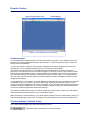
You can adjust up to 4 Custom Video Modes if your video mode differs from the standard VESA video
mode. Set the Custom Video Modes in the Video settings section.
Operating the SCOUT IP system
Operate the SCOUT IP system through one of the following interfaces:
1. HTTP/HTTPS - Any standard Web browser. Depending on the Web browser, you can access
the SCOUT IP card using the unsecured HTTP protocol or, in case the browser supports it,
the encrypted HTTPS protocol. We recommend using HTTPS when possible.
2. SNMP (Simple Network Management Protocol) - Any standard SNMP client can use this
protocol.
3. Telnet - Use a standard Telnet client to access an arbitrary device connected to one of the
SCOUT IP's serial ports via a terminal mode.
All the above interfaces are accessed using the TCP/IP protocol. They can thus be used via the builtin Ethernet adapter or modem. This chapter deals with the HTTP interface.
The Web browser must come with a Java Runtime Environment version 1.1 or higher. Without Java
support, you can still maintain the remote host system using the administration forms displayed by the
browser.
We recommend the following browsers for an unsecured connection:
¾
¾
Microsoft Internet Explorer version 5.0 or higher with Windows 98, ME, 2000 and XP
Netscape Navigator 7.0 or Mozilla 1.0 with Windows 98, ME, 2000, and XP, Linux and other
UNIX like operating systems
To access the remote host system using a securely encrypted connection you need a browser that
supports the HTTPS protocol. Strong security is only assured by using key length of 128 Bit. We
recommend the following browsers.
¾
¾
Microsoft Internet Explorer version 5.5 or higher with Windows 98, ME, 2000 and XP
Netscape Navigator 7.0 or Mozilla 1.0 with Windows 98, ME, 2000, and XP, Linux and other
UNIX like operating systems
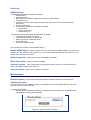
Timeout
After half an hour of non-activity the system automatically logs out. Clicking anywhere on the screen
will lead back to the Login screen.