1
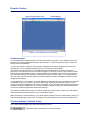
Chat Window - Opens the Chat window. Use the Chat window to chat with others logged into the
system. All messages are broadcast to ALL connected users. There is no option to direct a message
to a particular user only. There is no message history, so messages can only be received after
opening the Remote Console.
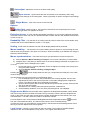
Video Settings – adjust the video settings.
From the Options menu choose Video Settings. The Video Settings box appears.
The parameters have the following functions:
Brightness - Brightness control.
Contrast Red/Green/Blue Contrast Red/Green/Blue- RGB contrast control.
Clock - Sets the horizontal frequency for a video line, this depends on the video mode. Different
video cards may require different values. The default settings and auto adjustment procedure should
be adequate for all common configurations. If not change this setting together with the sampling
phase.
Phase - Sets the phase for video sampling.
Horizontal Offset – Horizontale Bildschirmanpassung
Vertical Offset - Moves the picture in a vertical direction.
Brightness, Black level and contrast affect all modes and KVM ports globally; the other settings are
changed specifically for each mode on each KVM port.
- Resets mode to factory defaults.
- Resets all modes to factory defaults.
- Saves changes.
- Undoes changes that have not yet been saved.
Refresh video - Refreshes the video
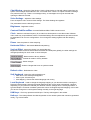
Soft Keyboard - Opens the soft-keyboard menu:
¾
¾
¾
Click Show. The soft-keyboard appears.
Click Layout. Choose layout
Click Mapping. Choose the desired language and country
Local Keyboard - Used to change the language mapping of your browser machine running the
Remote Console Applet. Normally the Applet determines the correct value automatically. However,
depending on your particular JVM and your browser machine settings this is not always possible. A
typical example is a German localized system that uses a US-English keyboard mapping. In this case
you have to change the Local Keyboard setting manually to the right language.
KVM keys – Each key represents a KVM port. The keys also appear in the toolbar.
Hotkeys – The Hotkeys Button simulate keystrokes on the remote system that cannot be generated
locally, e.g. Ctrl Alt Delete.