1
Remote Control
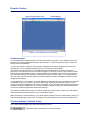
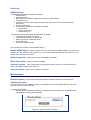
From the menu click Show Remote Console. The remote console appears
Figure 4 - The Remote Console Screen
Keyboard layout
Your host keyboard changes its layout to match the remote host system. So for example if the host
system uses a US English keyboard layout, special keys on a German keyboard won't work but will
function as US English keys.
To solve this problem, adjust the remote system keyboard to the same mapping as your host one.
Alternatively, use the Soft-Keyboard that is part of the Remote Console applet.
The Remote Console window is a Java Applet that tries to establish its own TCP connection to
SCOUT IP. The protocol that is run over this connection is not HTTP or HTTPS but a protocol called
RFB (Remote Frame Buffer Protocol). Currently RFB tries to establish a connection to port number
443. Your local network environment must allow this connection to be made, i.e. your firewall and, in
case you have a private internal network, your NAT (Network Address Translation) settings must be
configured accordingly.
In case SCOUT IP is connected to your local network environment and your connection to the Internet
is available using a proxy server only without NAT being configured, the Remote Console is very
unlikely to be able to establish the according connection. This is because today's Web proxies are not
capable of relaying the RFB protocol. In case of problems, please consult your network administrator
in order to provide an appropriate network environment.
The Remote Console window shows the remote screen at its optimal size. However, you can always
resize the Remote Console window in your host window system.
Hint: The Remote Console window on your local window system is just one window among others. To
make the keyboard and mouse work, your Remote Console window must have the local input focus.
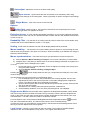
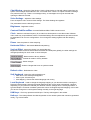
Control buttons / toolbar icons
The control buttons/toolbar icons have the following functions:
- Sends the hotkey combination to the remote system