1
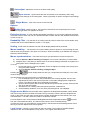
Auto adjust - Adjusts the screen to the best visual quality
Sync mouse – Synchronizes the host and remote mice. Necessary when using
accelerated mouse settings on the host system. There is generally no need to change mouse settings
on the host.
- Single Mouse - Loss of the mouse on the local site
Options
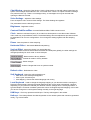
Monitor Only –When turned on, the Remote Console does not accept keyboard / mouse
input. The top right hand icon appears as shown.
Exclusive Access - If a user has the appropriate permission, he can force the Remote Consoles
of all other users to close. No one can open the Remote Console until this user disables the Exclusive
access or logs off.
Readability Filter - Turn the filter on in scaling mode to preserve most of the screen details. Only
available with a Java Virtual Machine version 1.3 or higher.
Scaling - Scale down the Remote Console. Not all display details will be preserved.
Mouse handling – - The submenu for mouse handling offers 3 options for synchronizing the host
and the client mouse pointer. The option for 'Fast Sync' shows the hotkey if you defined one using the
Remote Console Settings.
Mouse synchronisation – There are two ways to synchronize the host and remote mice:
a) Choose Options / Mouse Handling / Fast Sync. This corrects a temporary, but fixed skew.
b) Intelligent Sync If the fast sync doesn't work or the mouse settings have been changed on the
host system use the Intelligent Sync option.
To do so:
1. Ensure the picture is correctly adjusted, Click Auto Adjust or manually correct the picture
using the Video Settings.
2. Choose Options / Mouse Handling / Intelligent Sync.
button usually leads to a fast sync, except when the KVM port or the video
Pressing the
mode recently changed.
Synchronization may not work properly in the following cases:
1. For the intelligent sync to work, the picture MUST be correctly adjusted. Use the auto
adjustment function or the manual correction in the Video Settings panel to adjust the
picture. The video must also be of sufficiently good quality.
2. Special vendor-specific Mouse drivers disrupt the synchronization process. Ensure these
are not on the host system
3. Windows XP has a setting 'enhanced pointer precision'. Deactivate it.
4. Active Desktop. Disable it. Or do not use a plain background, use wallpaper.
Single mouse Mode The information above applies to the Double Mouse Mode, where remote
and host mouse pointers are visible and need to be synchronized. There is also the Single Mouse
mode. In this mode only the client mouse pointer is visible. Single Mouse mode needs a Sun Java
Virtual Machine 1.3 or later. Select the mode in the Remote console.
Or press
From the Options menu choose Mouse Handling/Mouse Mode/ Single Mouse Mode.
from the Control Buttons toolbar. The client mouse pointer can be controlled directly.
To leave this mode, you must define a mouse hotkey in the Remote Console Settings Panel. Press
this key to free the captured host mouse pointer.
Local cursor - Choose a cursor shape for the host mouse. The number of available shapes
depends on the Java Virtual Machine, only version 1.2 or higher offers the full list.